






Check for Offline Maps Updates in Windows
Let’s discuss the Offline Maps Updates in Windows. The offline Map is built into the Map app in Windows 11. The offline Map in Windows is a digital app that can used Offline. Everyone knows about offline maps; if you are a Traveller or love travelling in different places, you heard about them.
Offline maps are very useful for those who are travelling with limited data plans or going to places where there is no cell service. With the Windows offline Map, you can explore the world. The offline maps were first built in Windows 10 and now in Windows 11.
With this Map, you can search for locations and places like usual maps. These offline maps are very easy to use in those places where data packages are expensive, have no cell services, or have low or no network connectivity.
Check Updation is a must in Offline Maps. With those updates, you can refresh the map data for the latest information. With that, updating offline maps will help to get more accuracy in information. In this article, you will get the complete guide to check for Offline Map Updates in Windows.

Do you know about offline maps and how to download and use them? If you don’t know, we have an article about How to Download and Use an Offline Map. This article will help you to learn more about offline maps and how to use them after downloading.
- WordPad App Removal from Windows is Announced by Microsoft
- New Windows Update for Start Menu on Windows 11
- New Update on File Explorer in Windows 11
What are the Advantages of Offline Map?
1. You can plan the route of the journey before it starts
2. Offline maps are very easy for those places where there are no cell services
3. When you have limited data, you can save data
4. You can give access to the maps when you don’t have internet connections
5. You can enjoy faster and smoother Navigation
Check for Offline Maps Updates in Windows
Checking Updates for Offline maps is very important; with these updates, you will get the latest updates on maps. Offline maps expire after some period, so you can manually check for those updates to ensure accuracy and reliability. For checking the Updation Setting, the option will help you.
- Open The Settings option
- Select Apps from Settings
- Click on the Offline Map option
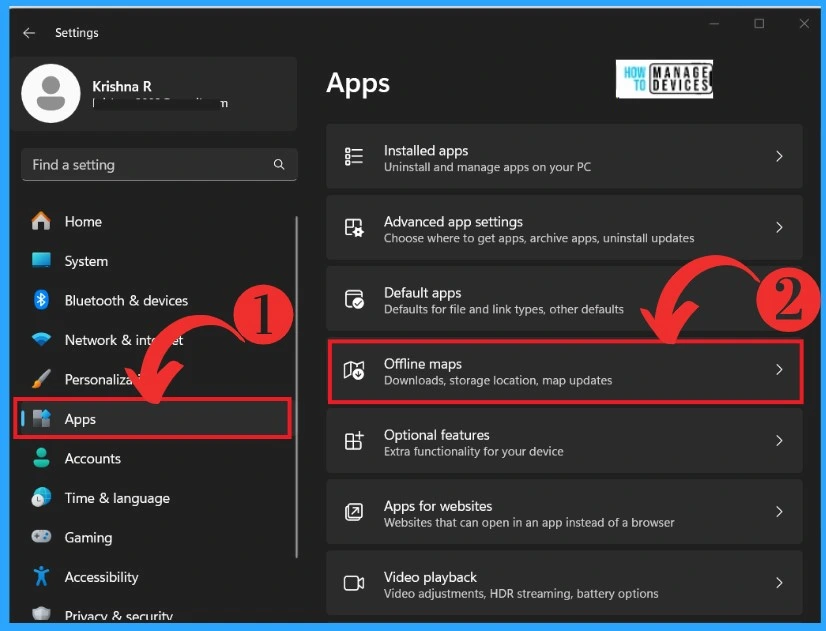
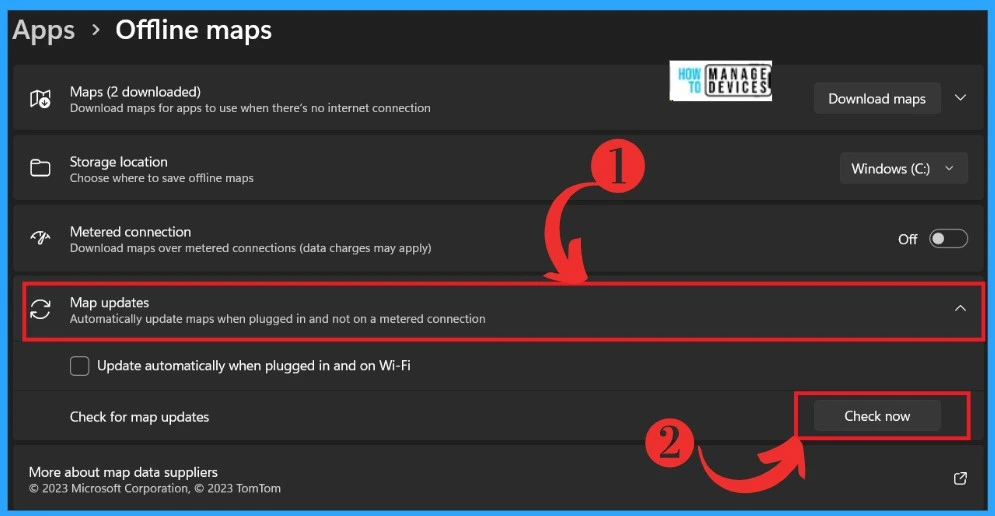
In the Offline map window, you will get many options, where you have to select the Map update option. You can expand the option to get other options for Map Updates. The screenshot below guides you.
- Expand the Map updates
- Click on the Check Now option
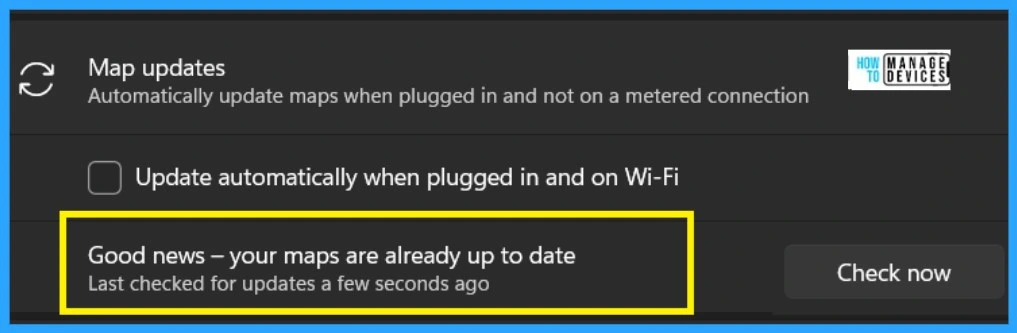
After clicking on check-updates, it may take some time for the update, and you will get the information about updating. Here I get. ”Good news- your maps are already up to date. You were last checked for updates a few seconds ago”. If some updates are found, you will get the option to install the updates.
| Options for Updation | Result of Updation |
|---|---|
| Check Now | Good news- your maps are already up to date. Last checked for updates a few seconds ago. |
We are on WhatsApp. To get the latest step-by-step guides and news updates, Join our Channel. Click here – HTMD WhatsApp.
Author
Krishna. R is a computer enthusiast. She loves writing on Windows 11 and related technologies. She likes to share her knowledge, quick tips, and tricks with Windows 11 or Windows 10 with the community.




Discussion