






Manually Check and Install Optional Updates in Windows 11
Let’s learn how to Check and Install Optional Updates in Windows 11 manually. Sometimes, optional updates may or may not be important for your device. These updates contain important drivers for many different types of devices.
Checking the optional updates is a suggestive step when troubleshooting a device that is not working, such as a Printer, Bluetooth, Camera, Network Adapters, Speakers, etc., due to the pending download and installation of new drivers as required for your device.
Windows 11 includes an option to download and install Optional Updates, which are not required (but necessary) to operate the device properly. These packages include updates for Microsoft and third-party products, feature updates, optional monthly updates, and other driver updates.
The Optional Updates are not new to Windows 11 but provide the choice of whether to install specific updates that have been available since Windows 10. In previous versions, you could install or update drivers from Device Manager (removed from Windows 11), but now available in the Settings App as Optional Updates.

- New Widget Updates in Windows 11 Moment 5 Review
- Manage Automatic Drivers Installation with Windows Updates in Windows 11
How to Check and Install Optional Updates in Windows 11
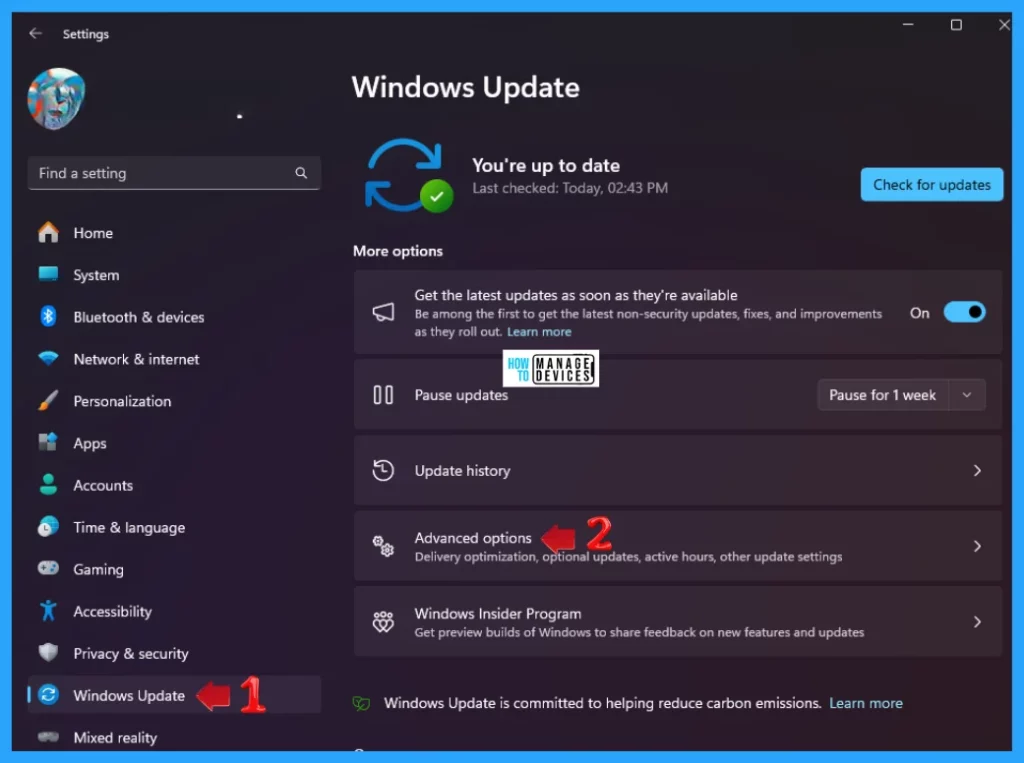
You can use Windows Settings to Check and Install Optional Updates. Click on the Windows button, select Settings, or press Win Key + I to open settings directly. Then, under settings, click on the Windows Update option on the left panel and scroll down to find & tap on Advanced Options in the right panel.
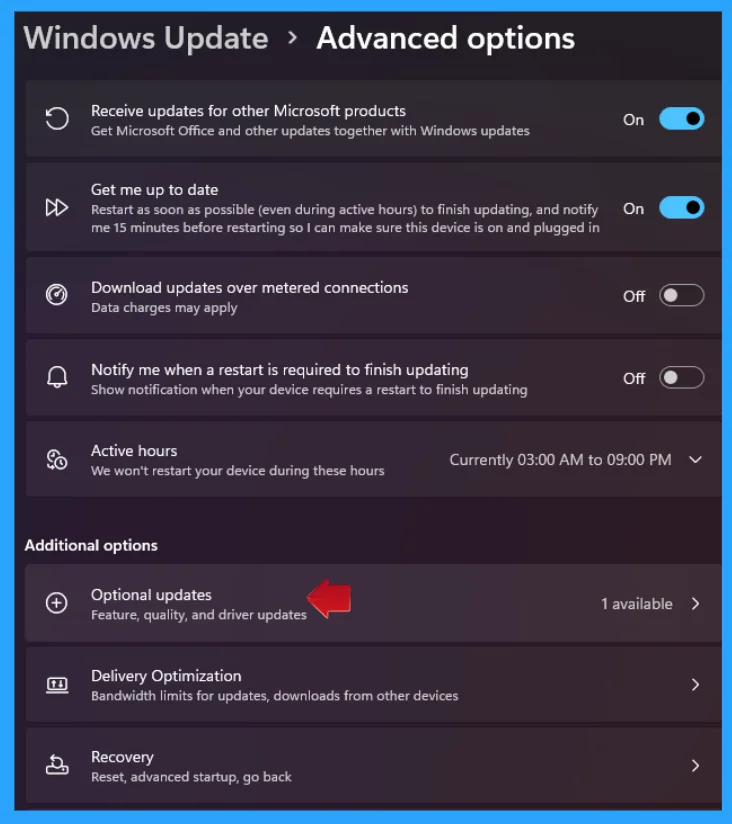
When you tap Advanced Options, it opens; various types of settings are available under these options. Now scroll down and find the Additional Options. Here, you see the Optional Updates option, which helps to provide feature, quality, and driver updates. The other options (except Optional Updates) of Advanced Options are listed below.
- Receive Updates for other Microsoft products – Get Microsoft Office and other updates together with Windows updates.
- Get me up to date – Restarts as soon as possible (even during active hours) to finish updating, and notify me 15 minutes before restarting so I can make sure this device is on and plugged in.
- Download updates over metered connections – Data charges may apply.
- Notify me when a restart is required to finish updating – Show notification when your device requires a restart to finish updating.
- Active Hours – Windows will not restart your device during these hours.
- Delivery Optimization – Bandwidth limits for updates and downloads from other devices.
- Recovery – Reset, advanced startup, go back.
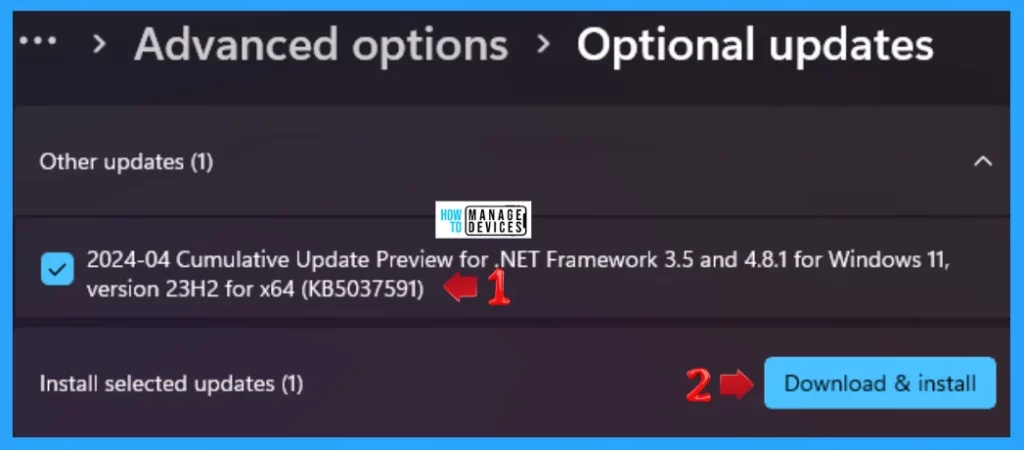
When you enter the Optional Updates window, if any updates are available, they are all listed there. Check or uncheck the listed updates you want to install, then tap the Download & Install button.
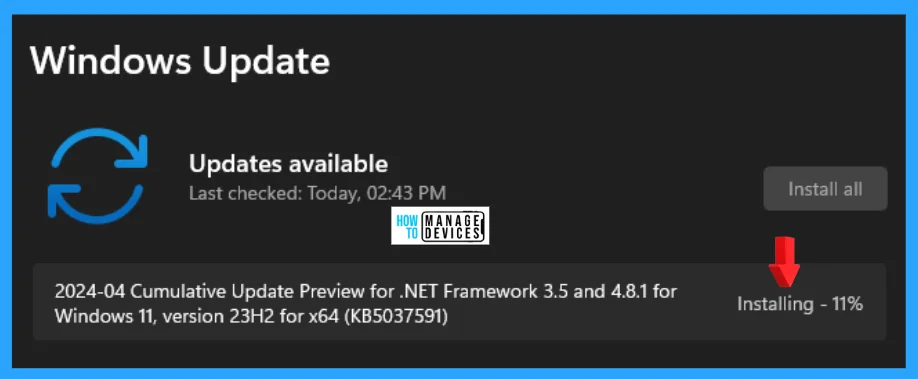
After clicking on the Download & Install button, the updates start downloading, and when the download completes, the installation starts automatically, as shown in the image below.
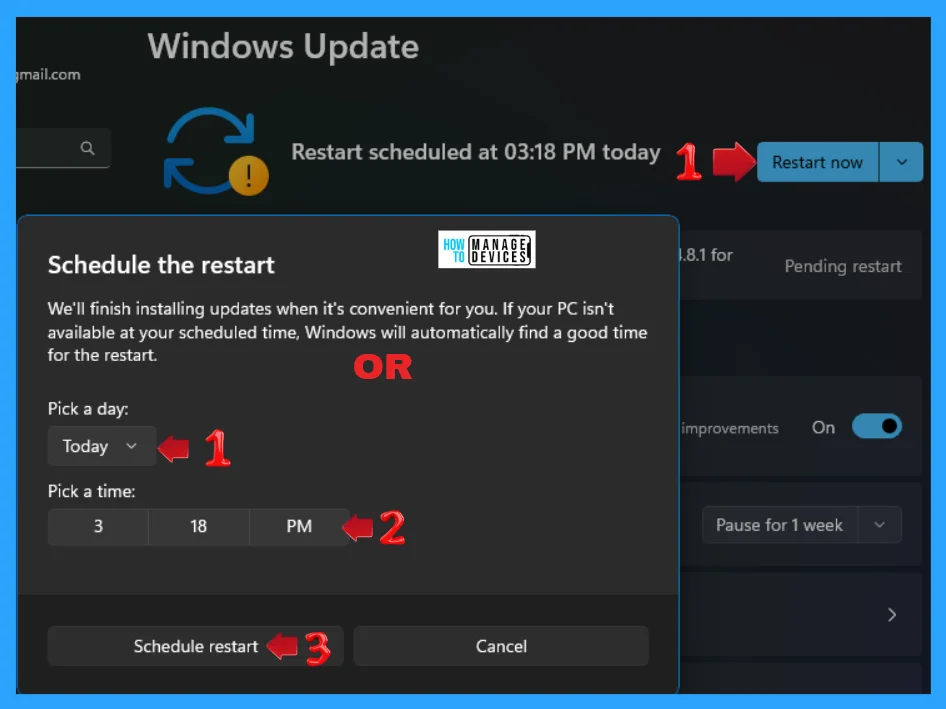
When the installation completes, it asks you to Restart the device now. You can also schedule a restart to finish installing updates when it is convenient for you. If your PC is unavailable at your scheduled time, Windows will automatically find a good time for the restart.
I hope the information on Manually Check and Install Optional Updates in Windows 11 is helpful. Please follow us on the HTMD Community and visit our website, HTMD Forum, if you like our content. Suggest improvements, if any, and we would love to know which topic you want us to explore next.
We are on WhatsApp. To get the latest step-by-step guides and news updates, Join our Channel. Click here –HTMD WhatsApp.
Author
Alok is a Master of Computer Applications (MCA) graduate. He loves writing on Windows 11 and related technologies. He likes to share his knowledge, quick tips, and tricks with Windows 11 or Windows 10 with the community.




Discussion