






Quickly Check Registry Values using SCCM CMPivot Query
Let’s understand how to check the registry values using SCCM CMPivot query quickly. The CMPivot is a real-time (almost) reporting tool provided by Microsoft as part of the Microsoft Endpoint Manager (UEM) solution.
Configuration Manager CMPivot tool allows us to assess the state of online devices quickly. There is an option to use the CMPivot standalone app to get real-time reporting of SCCM clients. You can also use CMPivot in-console tool as well to get these real-time reports.
CMPivot is the tool that can provide you the almost real-time results from online clients. You can use the CMPivot query to get a quick view of the vulnerabilities and deploy fixes using the run script option in SCCM.
You can also use the MEM Intune portal to check the registry checks using the CMPivot query if you have already enabled the tenant attach feature. You don’t need to create applications and packages to have to check the registry entries anymore.

This post will learn how to confirm whether a registry entry is available on Windows 10 and Windows 11 PCs. You can use the CMPivot query method to find out changes in registry key values. And then, you can use SCCM CI and Baseline to fix the non-compliance issue with registry configurations.
You can get examples of CMPivot queries from the following list of posts. I have been using the CMPivot queries for SCCM troubleshooting scenarios. I have also explained how ConfigMgr CMPivot works in the background.
- CMPivot Query to Find Windows 10 Devices
- How to Collect Intune Error Details using CMPivot
- How to Collect Windows Update Logs using CMPivot
- ConfigMgr CMPivot Favorite Query
- CMPivot Query to Fetch WSUS Server Details
- CMPivot Query to Find Clients not Part of Any Boundary Groups
- Run CMPivot Queries from Intune Portal
- Analyze SCCM Client Logs Using CMPivot
Check Registry Values using SCCM CMPivot Query
You can check the registry values using the SCCM CMpivot query. In this post, we will see the registry entry to check and confirm whether the SCCM remote tool is enabled or not. You can use the same registry evaluation method for Windows 11 PCs as well.
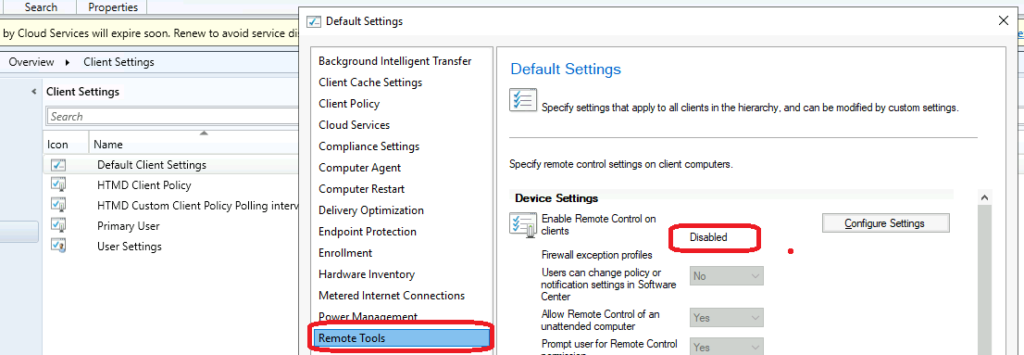
First of all, you can confirm whether you have enabled the remote tools from Configuration Manager client settings. You will need to find out the correct registry path and registry key along with the value. Once you have all the registry details, start converting the registry values into a CMPivot query, as explained below.
- For this example – I can confirm the Remote Tools option is not enabled from the client settings.
Build CMPivot Query to Check the Registry Values
It’s time to build a CMPivot query to check the registry values for SCCM remote tools settings. First of all, you will need to convert the registry path to KQL query syntax. The CMPivot uses a subset of the Kusto Query Language (KQL), which is also used in Azure Log analytics services and all.
NOTE! – You can’t run the CMPivot query against -> HKCU (HKEY_CURRENT_USER). The CMPivot query against HKCU is not supported as per my latest testing.
I’m taking the remote tool registry path and converting it into KQL:
- Registry Path -> Computer\HKEY_LOCAL_MACHINE\SOFTWARE\Microsoft\SMS\Client\Client Components\Remote Control
- Registry Entry -> Enabled
- Registry Value -> 0
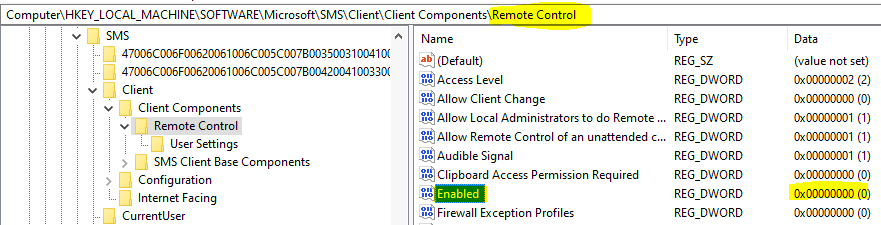
The KQL format of the registry path comes with two // in between each registry folder. The HKEY_LOCAL_MACHINE entry is represented as HKLM, and HKEY_LOCAL_USER is described as HKLU. The particular registry entry that you are looking for should come under Property.
- The CMPivot registry related queries must start with CMpivot Entity called Registry.
- Regitry Path in KQL (CMPivot) Query Format – HKLM:\SOFTWARE\Microsoft\SMS\Client\Client Components\Remote Control
- Registry Entry in CMPivot (KQL) query format is Property -> Enabled
- Registry Value in CMpivot query format is represented as Value itself -> 0
The following is the SCCM CMPivot query to check registry values and confirm whether the ConfigMgr Remote Tools option is enabled on SCCM client PCs or not.
Registry('HKLM:\\SOFTWARE\\Microsoft\\SMS\\Client\\Client Components\\Remote Control') | where Property == 'Enabled' and Value == '0'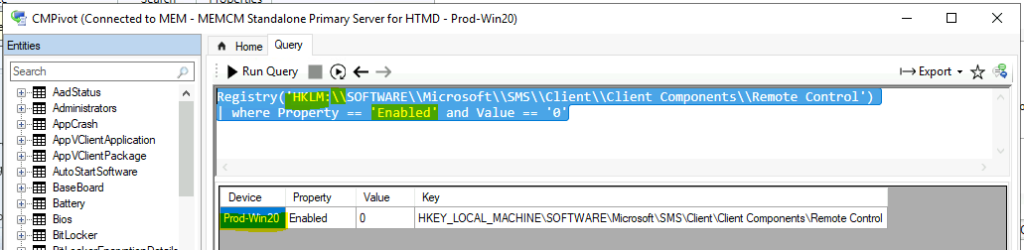




Are you sure that HKEY_LOCAL_USER is described as HKLU is a thing? I cannot get any results for a user.
Thanks!
Any idea how to change the CMPivot if you want all devices where a specific registry property is not present?
Thanks a lot
Hello,
I tried
Registry(‘HKLM:\\SOFTWARE\\Microsoft\\SMS\\Client\\Client Components\\Remote Control’) | where Property == ‘Enabled’ and Value == ‘0’
but nothing is showing “Query completed on 270 of 279 clients (0 clients offline an 9 failures)
Device | Property | Value columns remain empty.
I tried to click the 270 in the summary page but the columns are empty.
Then I tried as well Registry(‘hklm:/software/polices/Microsoft/Windows/WindowsUpdate/’) | where Property == (‘WUServer’) same results as successful an failures but the columns remain empty.
Thanks,
Dom
StaffI think you might have some formating issues – You are using the symbol ’ and I used the symbol ‘ Both are different?
Try the following query to get WSUS server details – as explained https://www.anoopcnair.com/configmgr-cmpivot-query-to-fetch-wsus-server-details-of-the-clients-sccm/
CcmLog(‘LocationServices’) | where LogText contains ‘http://CMMEMCM.MEMCM.COM:8530’
| project Device, LogText, DateTime
Anoop, you are my go-to guy! This article is exactly what I needed to get past my struggle for querying the registry. Thank you!
There is no “HKEY_LOCAL_USER” in the registry.