






How to Deploy Citrix Receiver using Intune Enterprise App Catalog App
Let’s discuss how to Deploy Citrix Receiver using Intune Enterprise App Catalog App. Citrix Receiver, developed by Citrix, was a software client designed to provide users with access to virtual desktops, applications, and data hosted on Citrix servers.
In August 2018, Citrix introduced the Citrix Workspace app as the next-generation client to replace Citrix Receiver. The Workspace app is its successor, offering enhanced functionality and a more integrated user experience.
Deploying the Citrix Receiver Workspace App with SCCM is straightforward. This guide highlights the use of the EXE application format and provides a step-by-step explanation of the deployment using the Application Model.
Deploying the Citrix Workspace App with Intune using the Windows or Win32 app options is simple. The Citrix Workspace App allows users to access virtual desktops, apps, or VDI infrastructure. With Citrix Virtual Apps and Desktops, virtual machines (VMs) are published by a hypervisor to remote users, giving each user their unique operating system.

Table of Contents
How to Deploy Citrix Receiver using Intune Enterprise App Catalog App
The Intune admin center makes app deployment easy. Log in to the Microsoft Intune Admin Center, then navigate to Apps > Windows apps > +Add. Choose the app type as Enterprise app catalog app to get started.
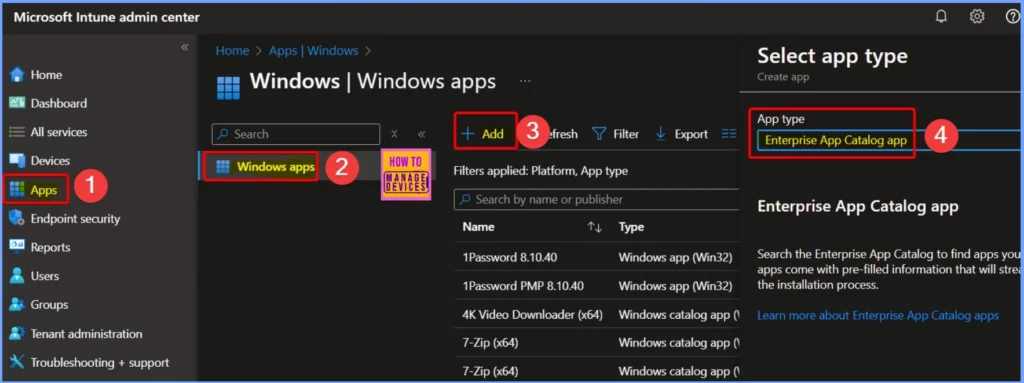
- Deploy Windows Catalog App type using Intune Enterprise Application Catalog
- 6 Exciting Features Coming to Intune Enterprise App Management
- Guidelines for Installing Microsoft PC Manager from New Microsoft Store in Intune
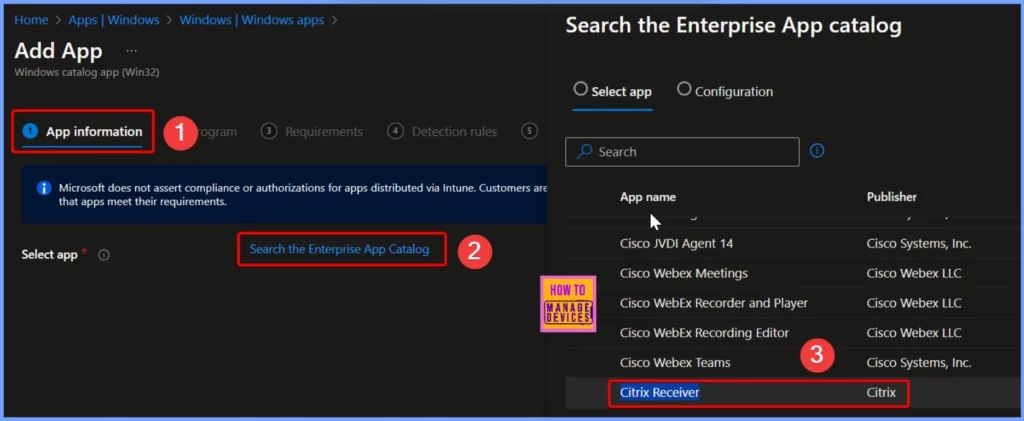
Click the “Search the Enterprise App Catalog” link in the App information settings. Then, find and select the Citrix Receiver app from the list. The screenshot below helps you show more details.
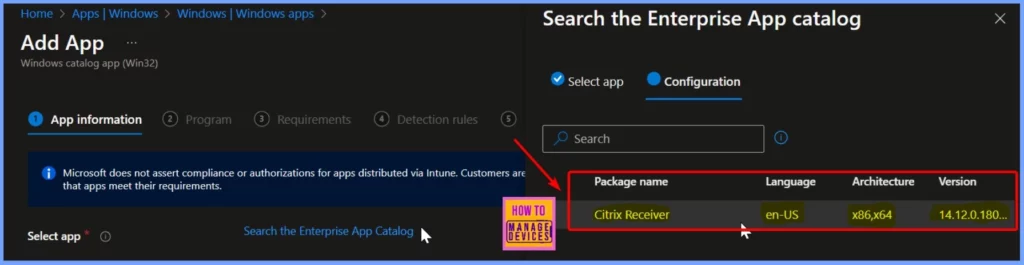
In the Configuration Settings, you will find details like the package name, language, architecture, and version. The table below provides additional information to help you understand these settings better.
| Package Name | Language | Architecture | Version |
|---|---|---|---|
| Citrix Receiver | en-US | ×86, ×64 | 14.12.0.18020 |
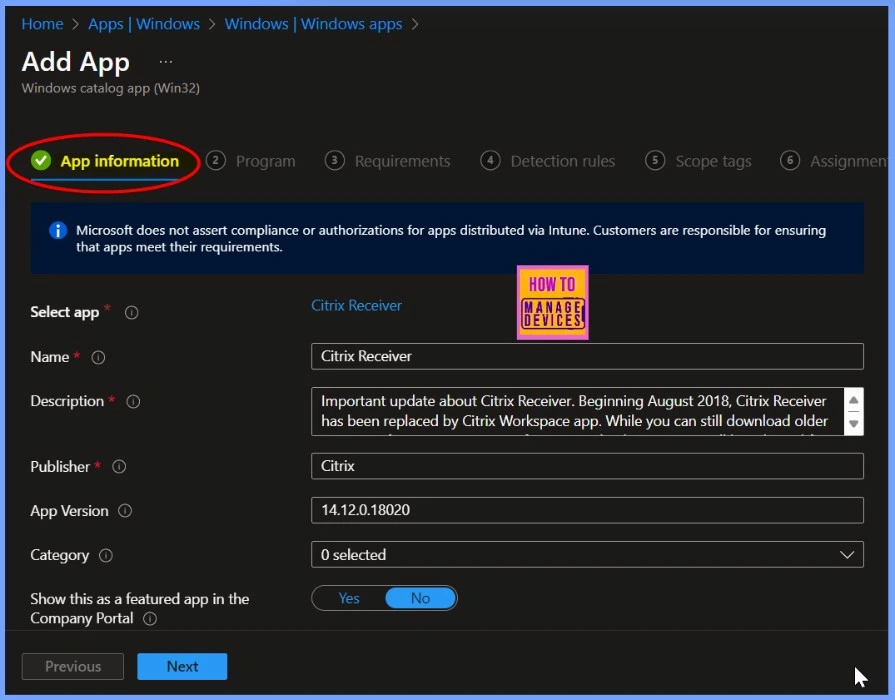
The App information tab is the first settings tab. It shows details like the app name (Citrix Receiver), publisher (Citrix), and version (14.12.0.18020).
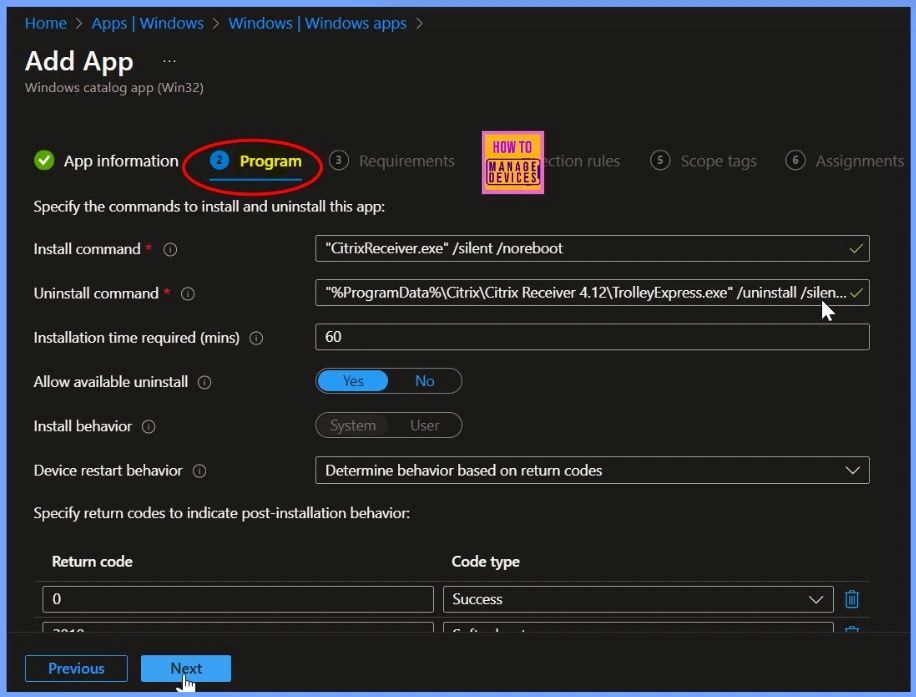
In the Program settings, you’ll find details like the install command (CitrixReceiver.exe /silent /noreboot), uninstall command, and the installation time, which is 60 minutes.
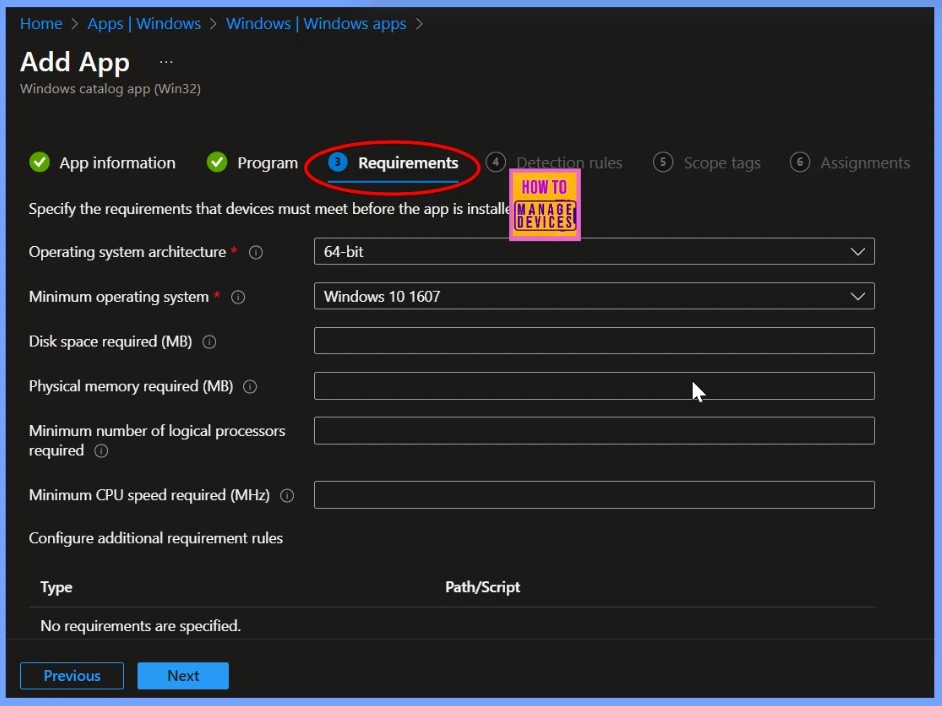
In the requirement settings, details like the operating system architecture (64-bit) and the minimum operating system version required (Windows 10 1607). The below screenshot shows more information.
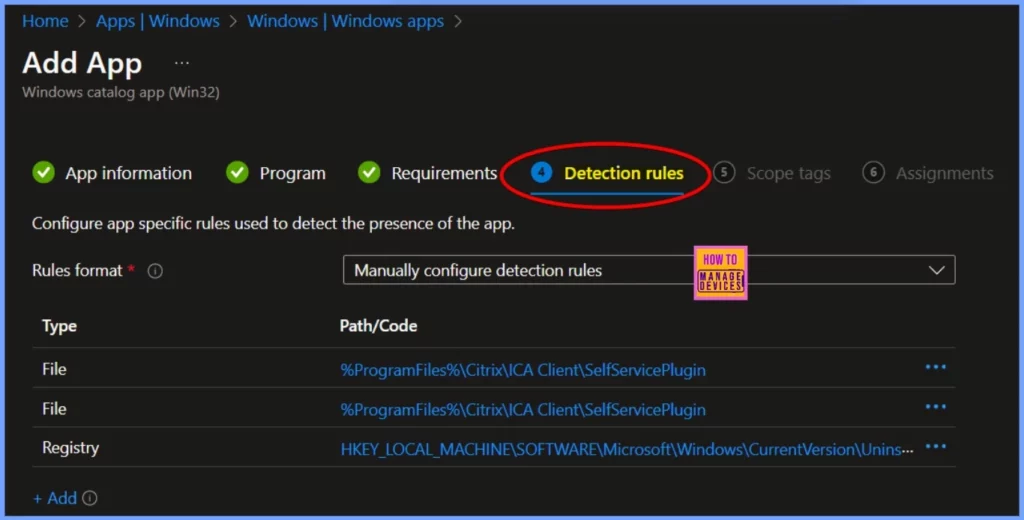
The Detection Rules tab in Intune specifies criteria for determining whether an app is installed on a device. This tab helps Intune identify whether the application is present or needs to be installed or updated.
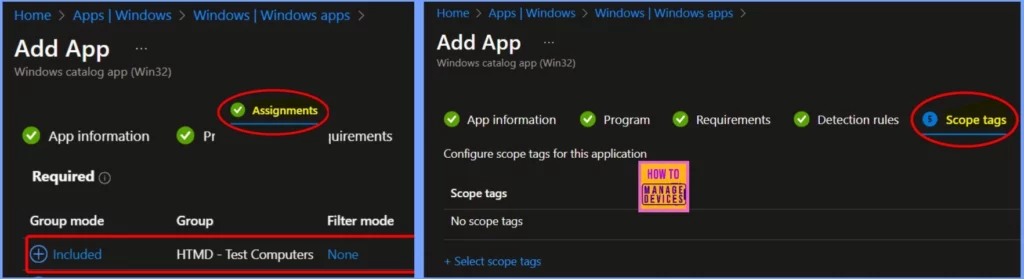
A Scope Tag in Intune assigns and filters the visibility of specific resources, such as apps, policies, and configurations, to particular groups or users. Assignments in Intune refer to assigning apps, policies, or configurations to specific groups of users or devices.
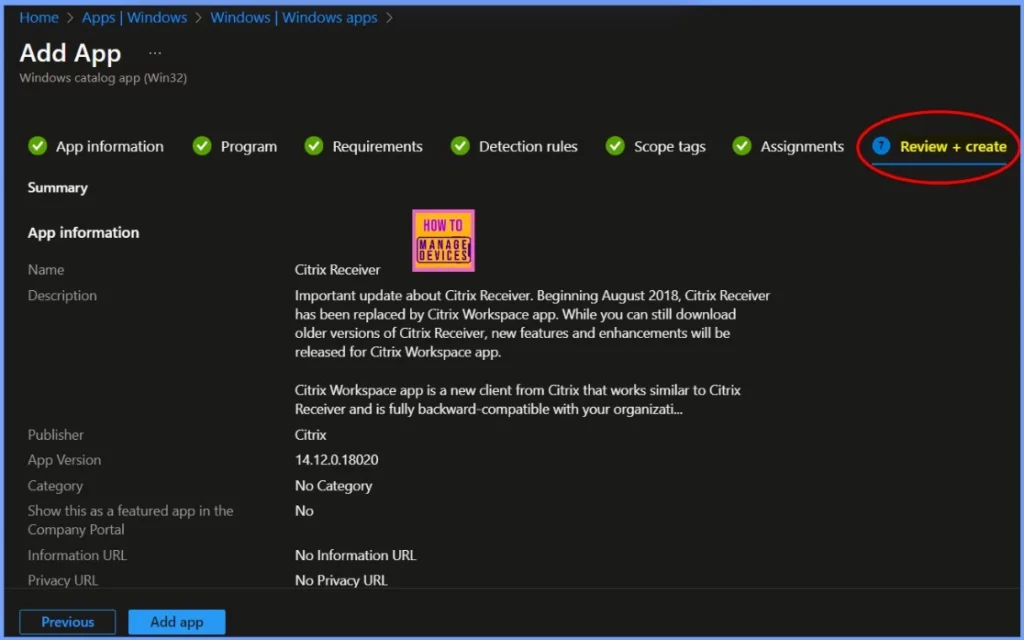
In the Review + Create tab, you will see a summary of all the settings you have set up, like app details, how the app will be deployed, who it will be assigned to, and any other configurations you have chosen.
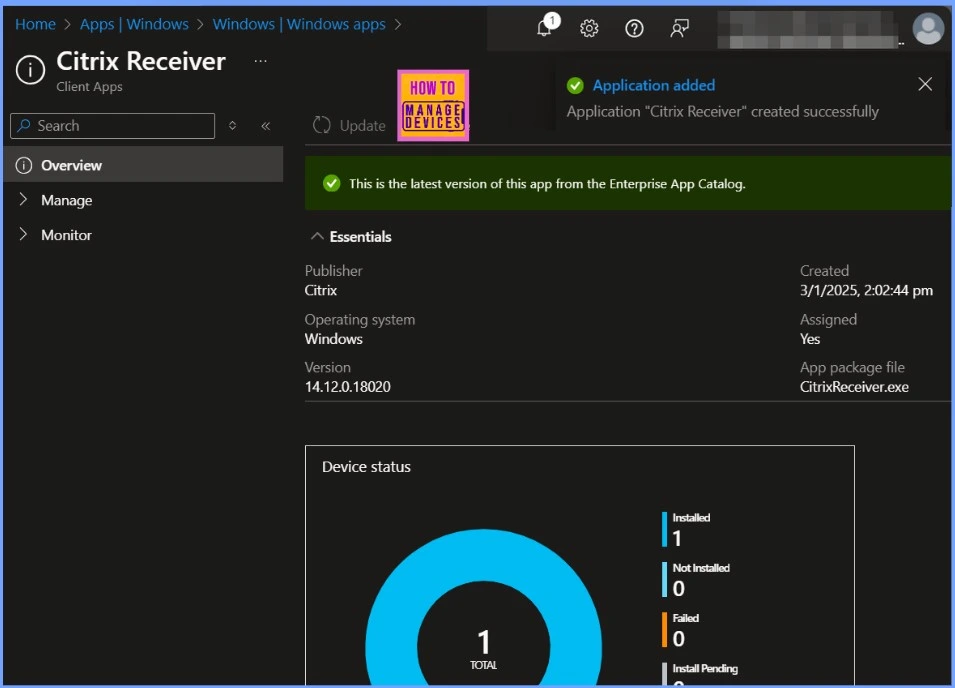
Application Deployment Status
In the Overview setting page, you will see a notification confirming that the Citrix Receiver application was created successfully. It also shows essential details such as the publisher name, operating system details, version details, Created date, assigned status, app package file, etc.
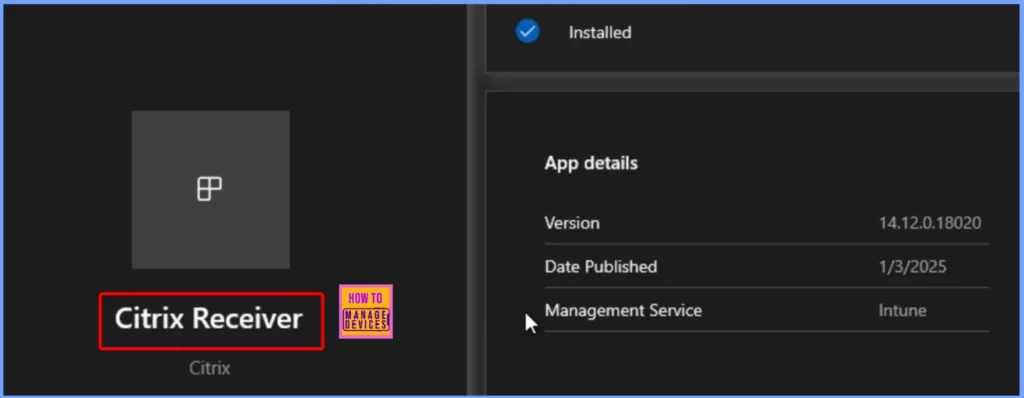
End User Experience
To confirm the installation, open the Company Portal on the workstation, navigate to Downloads & Updates, and verify if the Citrix Receiver application is listed as installed.
Need Further Assistance or Have Technical Questions?
Join the LinkedIn Page and Telegram group to get the latest step-by-step guides and news updates. Join our Meetup Page to participate in User group meetings. Also, Join the WhatsApp Community to get the latest news on Microsoft Technologies. We are there on Reddit as well.
Author
Anoop C Nair has been Microsoft MVP from 2015 onwards for 10 consecutive years! He is a Workplace Solution Architect with more than 22+ years of experience in Workplace technologies. He is also a Blogger, Speaker, and leader of the Local User Group Community. His primary focus is on Device Management technologies like SCCM and Intune. He writes about technologies like Intune, SCCM, Windows, Cloud PC, Windows, Entra, Microsoft Security, Career, etc.


Discussion