






Cloud PC Provisioned with Warning Status
Let’s discuss Cloud PC provisioned with warning topic today. Well, I will cover one of the scenarios here in this post. I assume this scenario will not be widespread (let’s call it a silly issue) in the enterprise world. This can happen with some of your LAB environments.
It’s common to get a status message similar to Cloud PC provisioned with warning. There could be several reasons for the warning and error status messages as part of Cloud PC provisioning. Microsoft has documented many scenarios and fixes for these errors and warnings.
In previous blog posts, I have explained the end-to-end Cloud PC provisioning process and end-user experience. If you are not familiar with them, I recommend reading them.
Table of Contents
What are the Different Cloud PC Provisioning Status Messages
Let’s quickly look at the different status messages available during the provisioning stage of Cloud PCs. There are six(6) different status messages available. I have not seen all of these status messages myself.

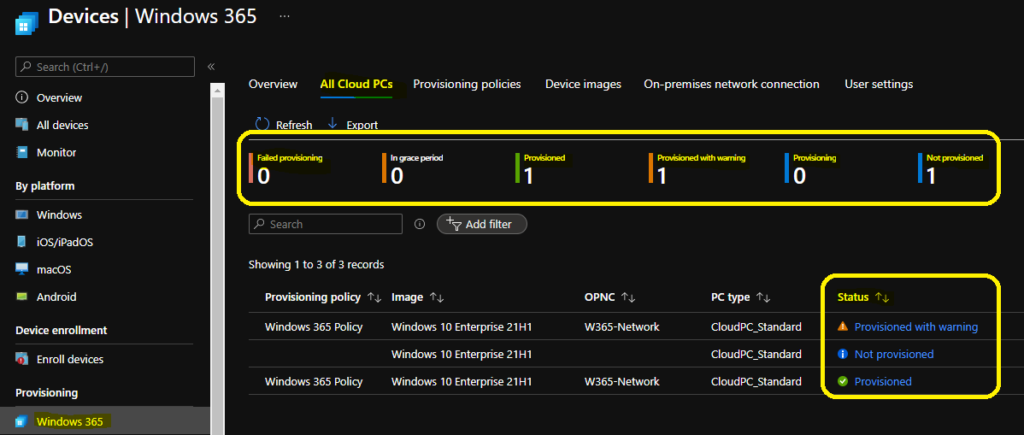
Let’s see the meaning of each Status Message in terms of Cloud PC provisioning.
- Failed Provisioning – This status indicates that Cloud PC provisioning has failed for some reason. Ideally, the color assigned to this status message should be RED.
- In Grace Period: This status indicates that the Cloud PC license has been removed or the provisioning policy has been unassigned.
- Provisioned – This status means the Cloud PC is successfully provisioned.
- Provisioned with Warning – This status message means the Cloud PC is provisioning, but there are some warnings. One of the warning examples is explained in the section below.
- Provisioning – This status means the cloud PC is being provisioned.
- Not Provisioned – This status means the provisioning process has not started yet.
Cloud PC Provisioned with Warning Status
I have recently seen a status message similar to provisioned with warning status. Status – Provisioned with warning. Details – The following configurations did not apply successfully.
- Local administrator permissions: As defined by a User Settings policy, the user couldn’t be granted administrator permissions on the Cloud PC.
NOTE! – I get this warning because I’ve deployed Cloud PC Using the User Settings Policy.
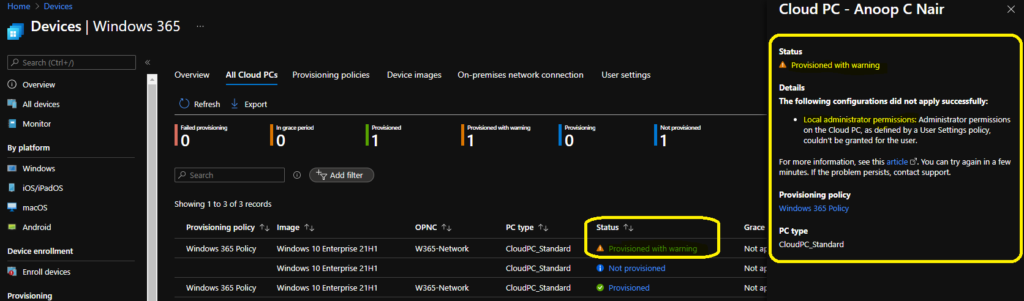
Issue?
It’s a silly issue because I should not have tried this scenario. I was using a cloud-only user account to provision a Cloud PC, which is not supported (for the Windows 365 enterprise use case). You won’t be able to add a cloud-only user to the local administrators of a domain-joined Cloud PC.
We are on WhatsApp. To get the latest step-by-step guides and news updates, Join our Channel. Click here –HTMD WhatsApp.
Author
Anoop C Nair has been Microsoft MVP for 10 consecutive years from 2015 onwards. He is a Workplace Solution Architect with more than 22+ years of experience in Workplace technologies. He is a Blogger, Speaker, and Local User Group Community leader. His primary focus is on Device Management technologies like SCCM and Intune. He writes about technologies like Intune, SCCM, Windows, Cloud PC, Windows, Entra, Microsoft Security, Career, etc.




Discussion