






ConfigMgr Admin Console Silent Install Application Using SCCM
Let’s create the ConfigMgr Admin Console Silent Install Application Using SCCM. This Application can deploy the SCCM admin console to Windows 10 devices.
You can use the admin console source files from Configuration Manager primary server folder “<SCCM site server installation path>\Tools\ConsoleSetup“.
In this post, I’m trying to install the SCCM 2002 admin console on a Windows 10 2004 device. Let’s perform a ConfigMgr Admin Console Silent Install Application Using SCCM.
Ensure you have all the prerequisites before deploying the SCCM admin console to Windows 10 devices—minimum .NET Framework version for Configuration Manager console.

Microsoft .NET Framework 4.0 is installed on the Configuration Manager console computer.
Create ConfigMgr Admin Console Application
Launch ConfigMgr console and Navigate to \Software Library\Overview\Application Management\Applications
- Right-click on the Application node and click on Create Application
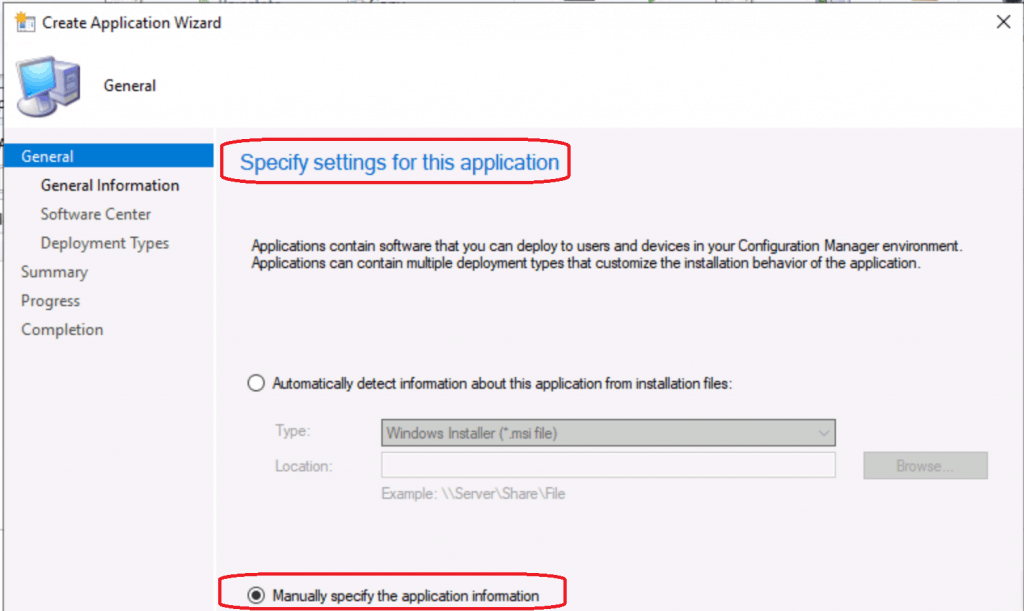
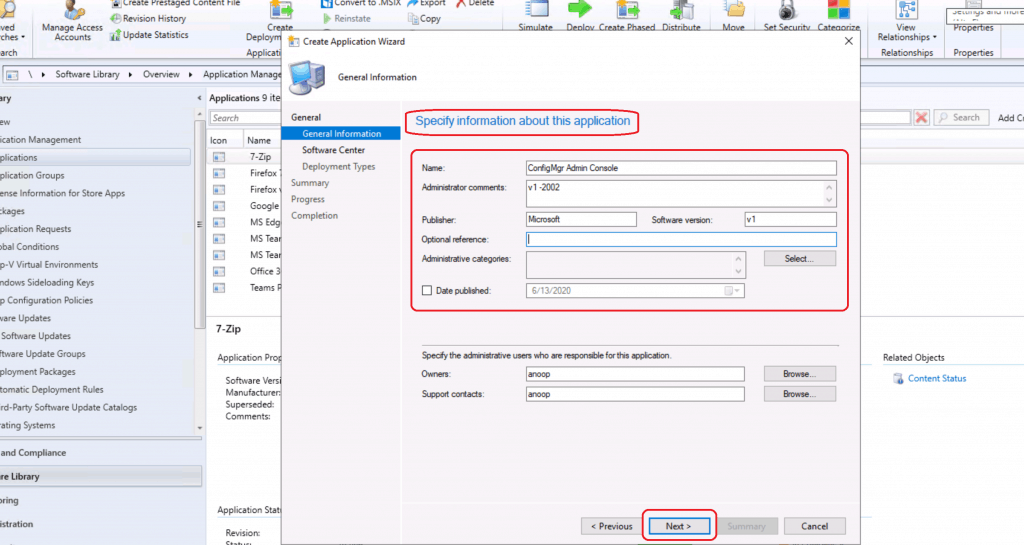
Specify Information about this Application
- Name – ConfigMgr Admin Console
- Administrator Comments – v1-2002
- Publisher – Microsoft
- Software Version – v1
Use the Admin console icon as the Software Center icon.
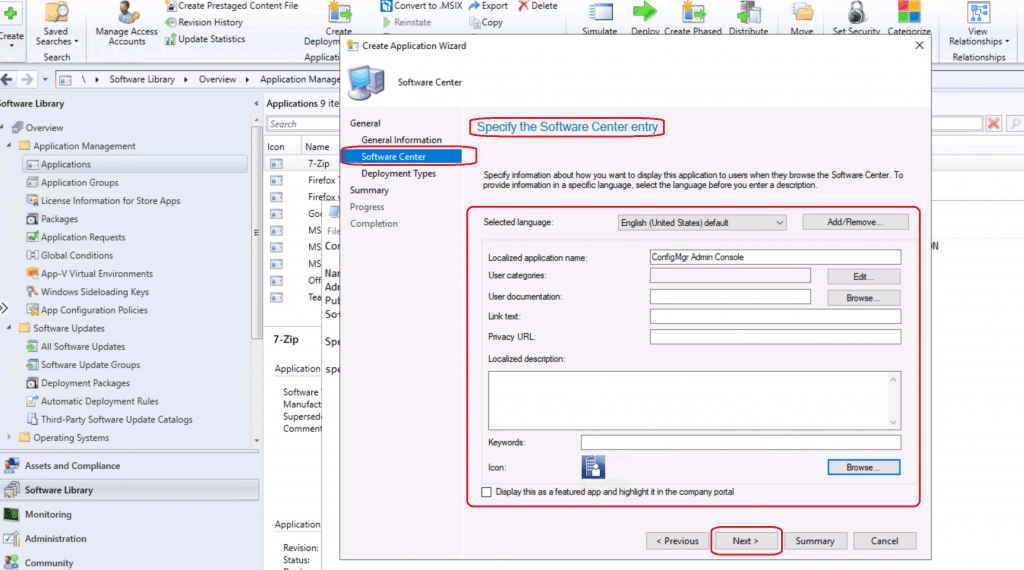
Specify the software Center Icon
- Click on the Next button
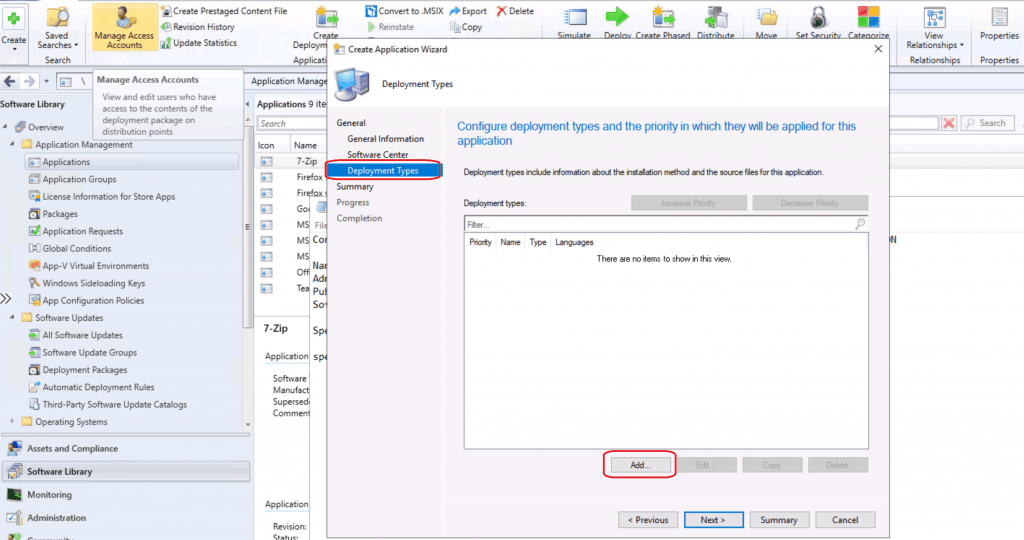
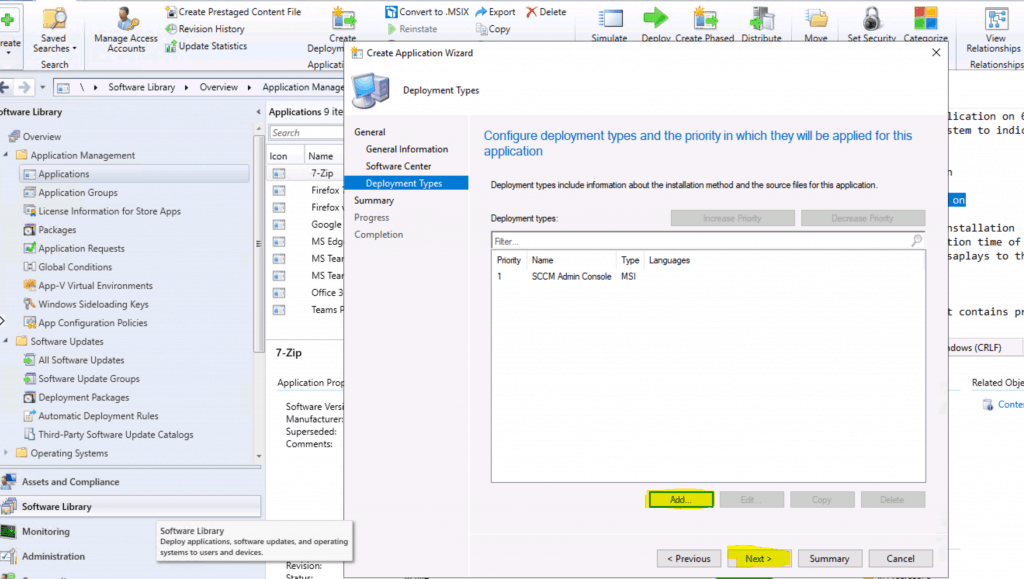
Configure deployment types and the priority for which they will be applied for this Application.
- Click the Add button to add a deployment type for the SCCM Admin console application.
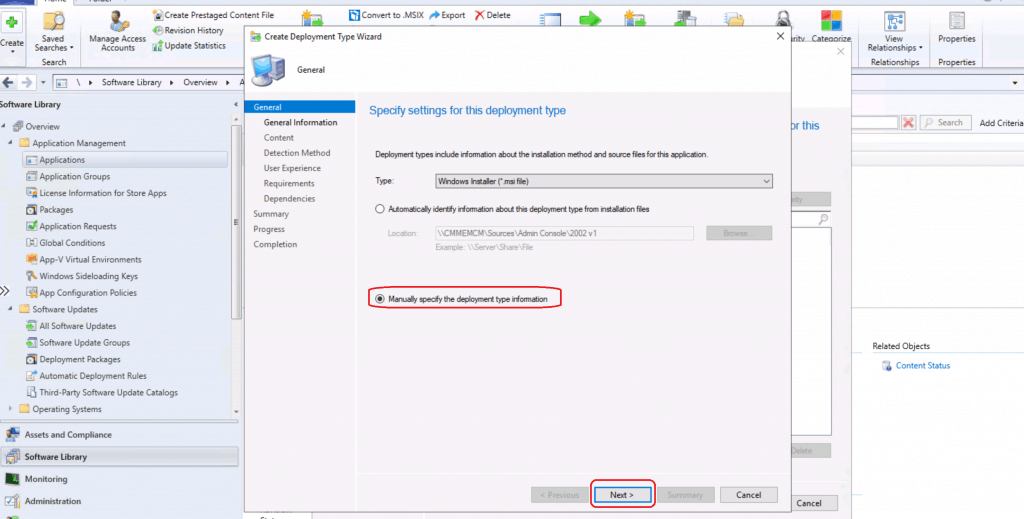
Specify settings for this deployment type
- Manually Specify the deployment type information
Configure Deployment Type
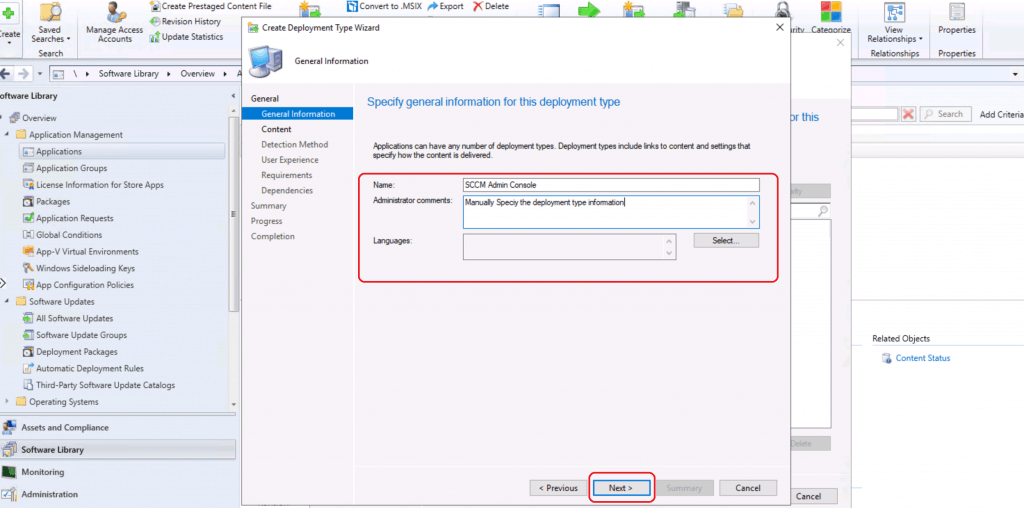
Specify general information for this deployment type
- Name – SCCM Admin Console
- Administrator Comments – Admin Console for SCCM 2002
- Language – Blank
- Click on NEXT
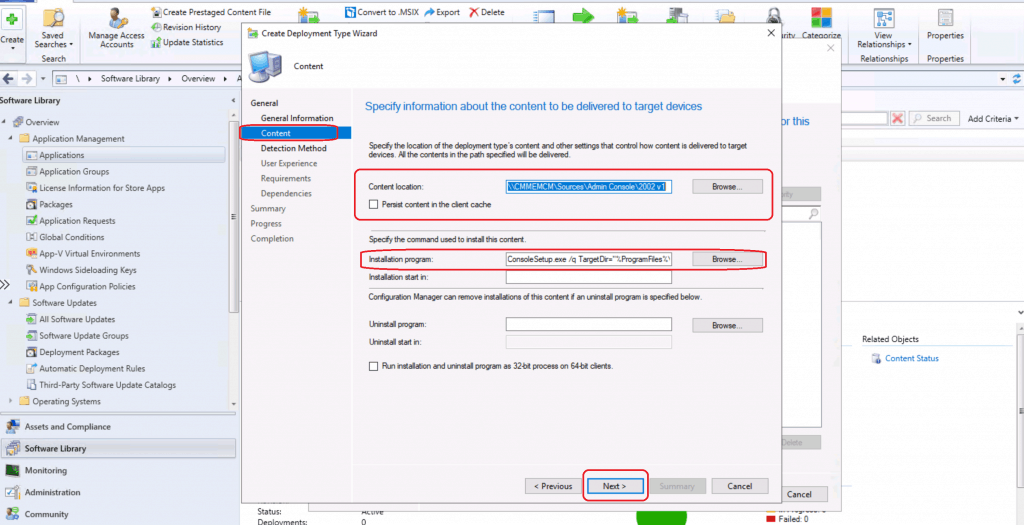
Specify information about the content
Specify the location of the deployment type’s content and other settings that control how content is delivered to target devices.
- All the contents in the path specified will be delivered.
- Content-Location- \CMMEMCM\Sources\Admin Console\2002 v1
- Specify the command used to install SCCM Admin console content
- ConsoleSetup.exe /q TargetDir=”%ProgramFiles%\ConfigMgr Console” DefaultSiteServerName=CMMEMCM.memcm.com
- Click on Next
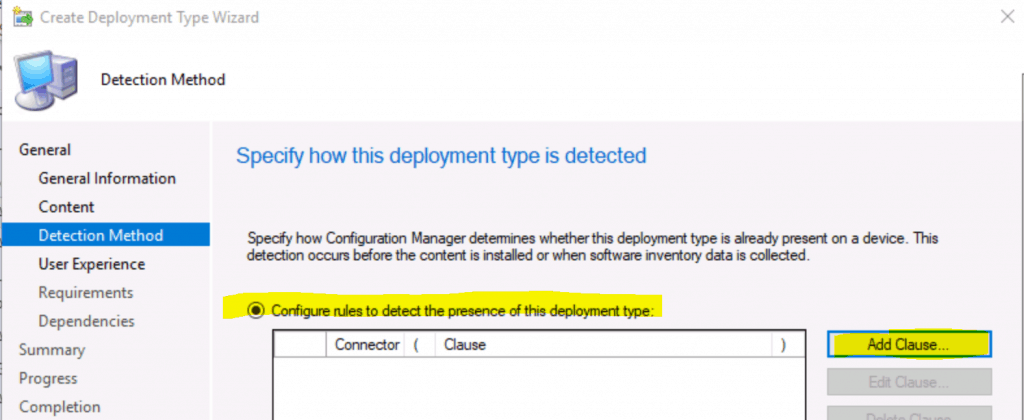
Specify How this Deployment Type is Detected
Specify how the Configuration Manager determines whether this deployment type is already on a device. This detection occurs before the content is installed or when software inventory data is collected.
- Configure rules to detect the presence of this deployment type:
- Add Clause
Create a Detection Rule
Create a rule that indicates the presence of this Application
- Setting Type – Windows Installer
- Specify an MSI Product code as the basis for this rule
- Click on the Browse button
- Path – F:\Sources\Admin Console\2002 v1\AdminConsole.msi
- This MSI product code must exist on the target system to indicate the presence of this Application
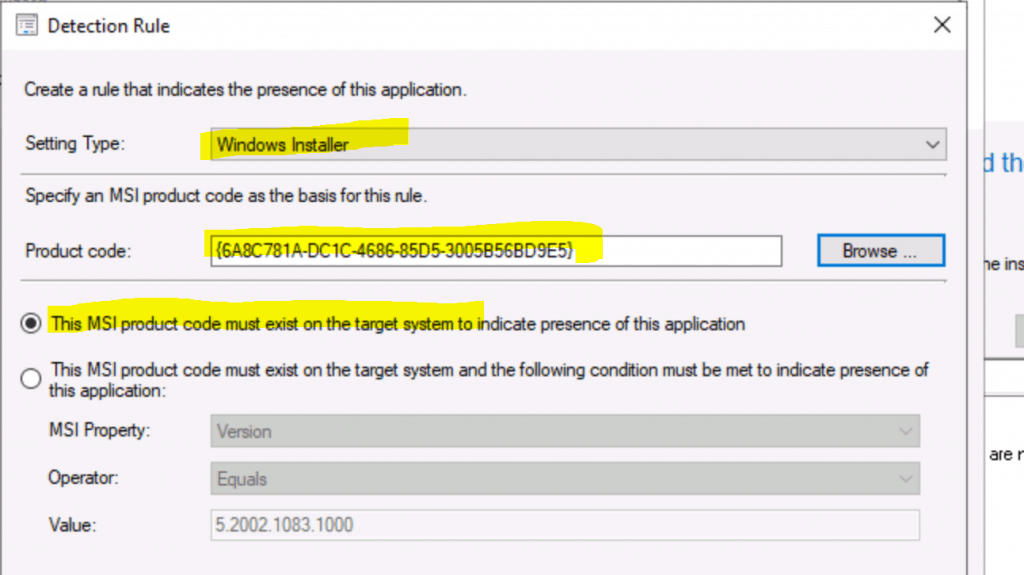
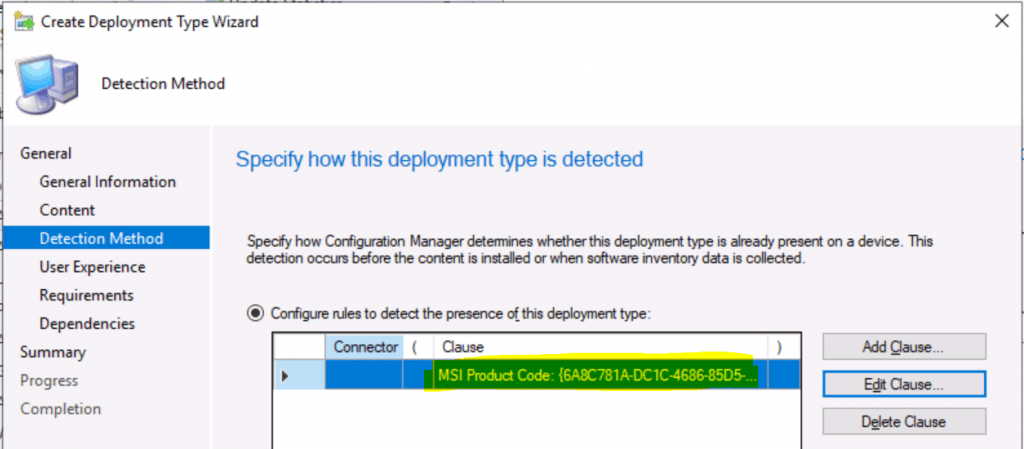
Click the OK button, then Click on the NEXT button.
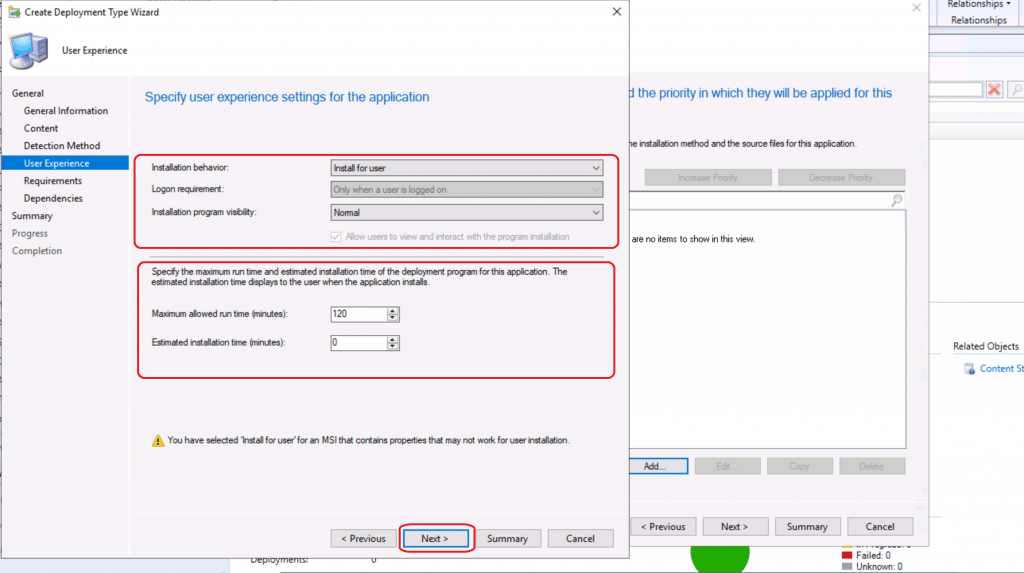
Specify User Experience settings for the Application
- Installation behavior – Install for System
- Logon Requirement – Whether or not a user is logged on
- Installation Program visibility – Normal
- Allow users to view and interact with the program installation
- Specify the maximum run time and estimated installation time for the application deployment program. The estimated installation time displayed to the user when the application installs
- Maximum allowed run time (minutes) – 120
- Estimated installation time (minutes) – 0
- Click on NEXT
NOTE! – If you select Install for the user, You have selected “Install for user” for an MSI that contains properties that may not work for user installation.
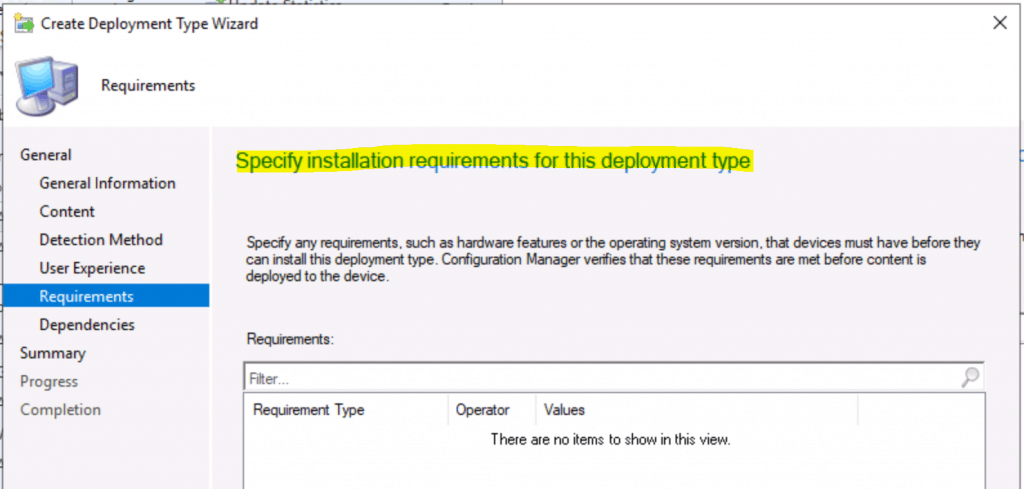
Click on the Next button. I don’t have anything to add to the configuration of the requirements for the Configuration Manager Admin console application.
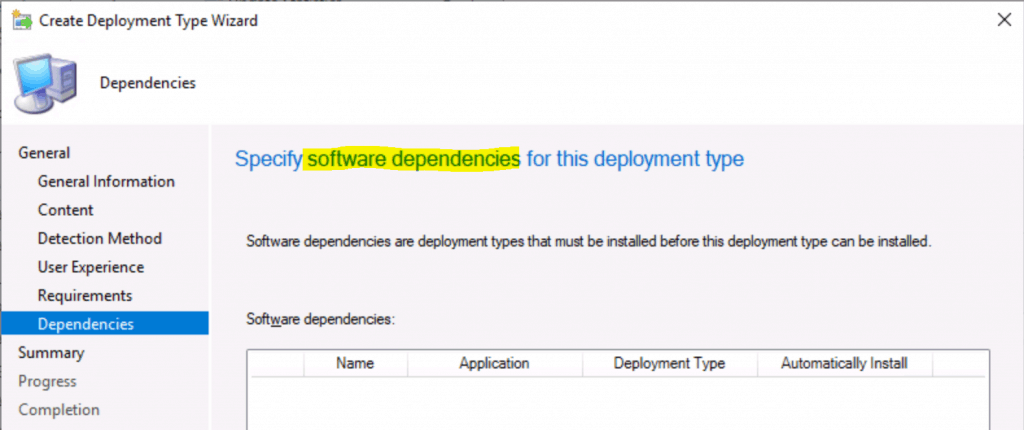
Click on NEXT. Specify software dependencies for this deployment type.
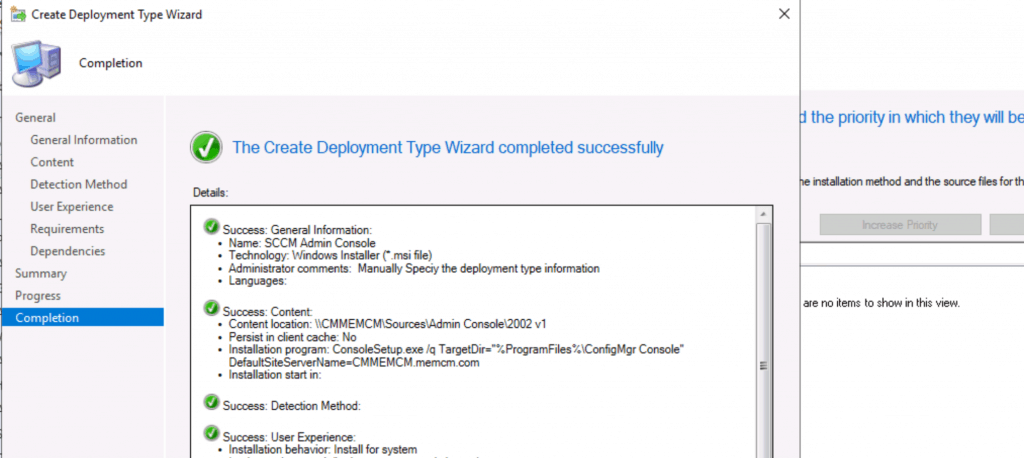
General Information:
• Name: SCCM Admin Console
• Technology: Windows Installer (*.msi file)
• Administrator comments: Manually Specify the deployment type information
• Languages:
Content:
• Content location: \CMMEMCM\Sources\Admin Console\2002 v1
• Persist in client cache: No
• Installation program: ConsoleSetup.exe /q TargetDir="%ProgramFiles%\ConfigMgr Console" DefaultSiteServerName=CMMEMCM.memcm.com
• Installation start in:
Detection Method:
User Experience:
• Installation behavior: Install for system
• Login requirement: Whether or not a user is logged on
• Installation priority: Normal
• Allow users to interact with this program: No
• Maximum allowed run time (minutes): 120
• Estimated install time (minutes): 0
Requirements:
Dependencies:
Click on the Next button twice.
- Click on Close
Click Next to continue
Click on NEXT twice
- Click on the Close button to continue
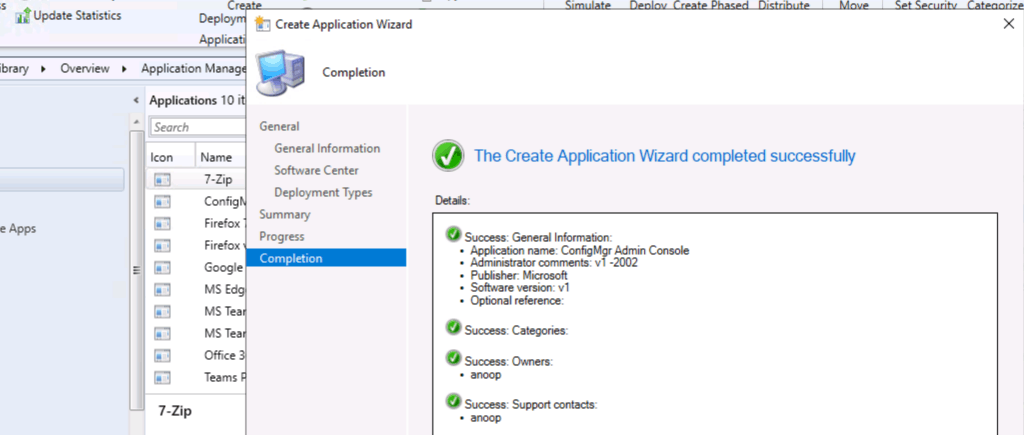
Deployment of Configuration Manager Admin Console
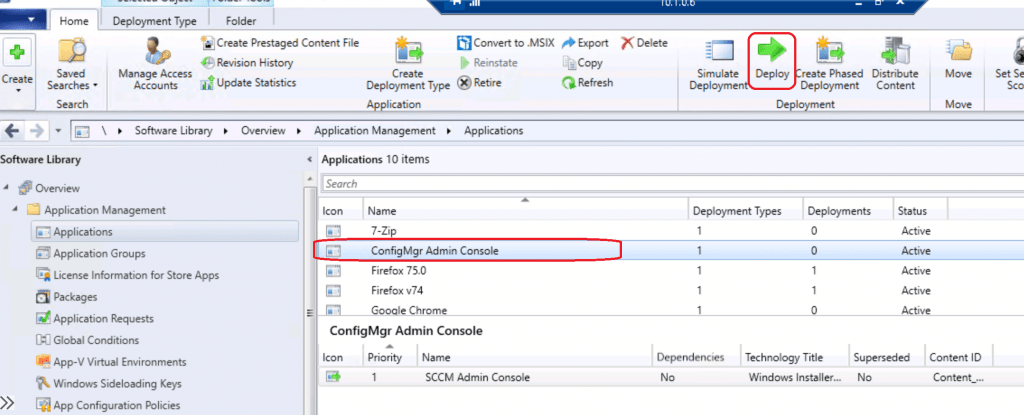
Navigate to \Software Library\Overview\Application Management\Applications and then click on the ConfigMgr Admin console application which I created above:
- Click on the Deploy button from the ribbon menu.
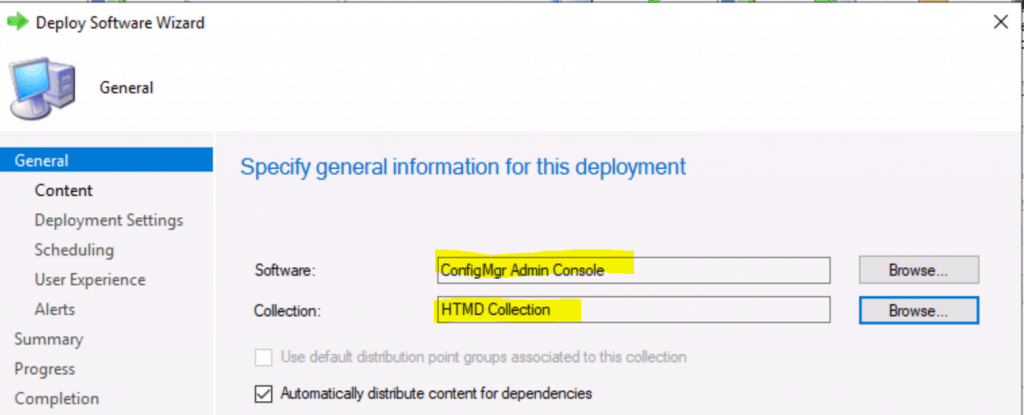
Specify general information for this deployment
- Software – ConfigMgr Admin Console
- Select the Collection by clicking on the Browse button – HTMD Collection
- Click on the NEXT button
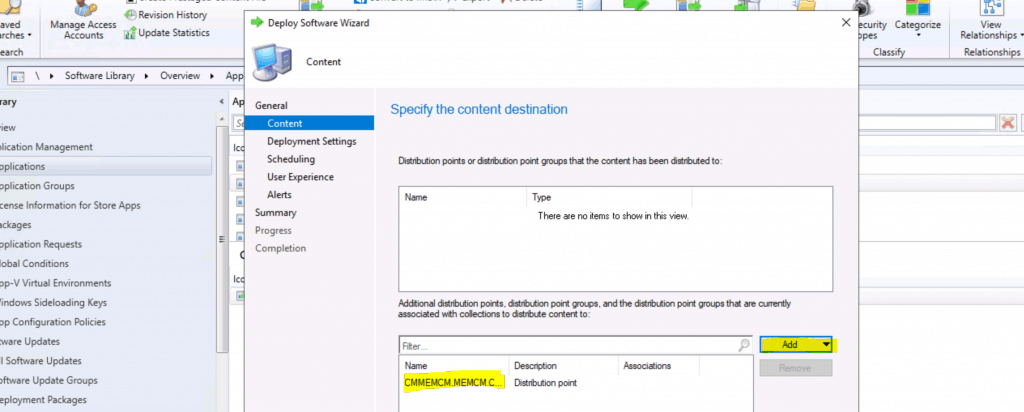
Click on the Add button to select Distribution Point
- Click on the NEXT button
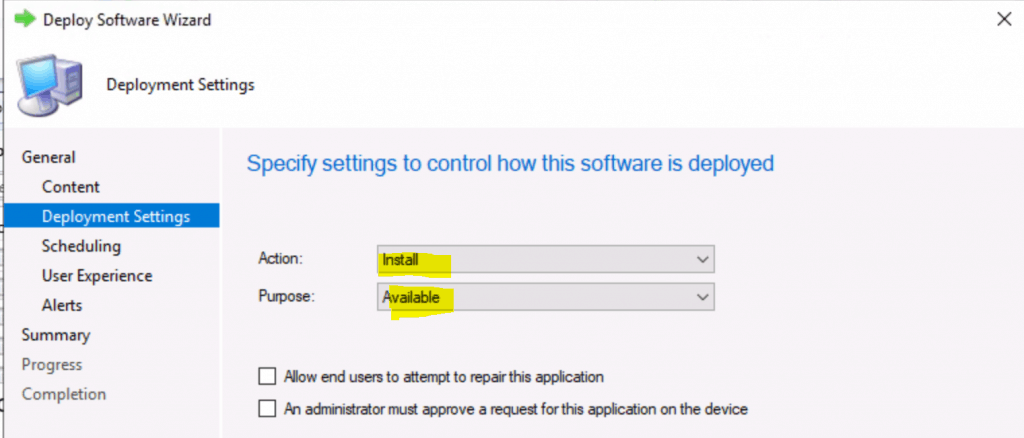
Select Install from Action
- Select Purpose from Available
- Click on NEXT
Click on the Next button from the Scheduling page
- Click on the Next button from User Experience (Default settings)
- Click on the Next button from the Alerts Window (All Default settings)
- Click on the Next button twice.
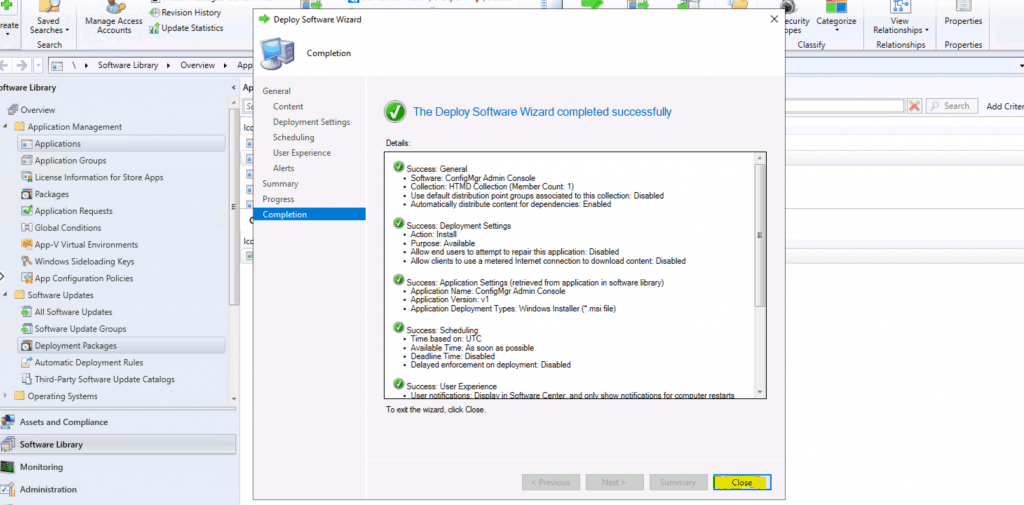
Results
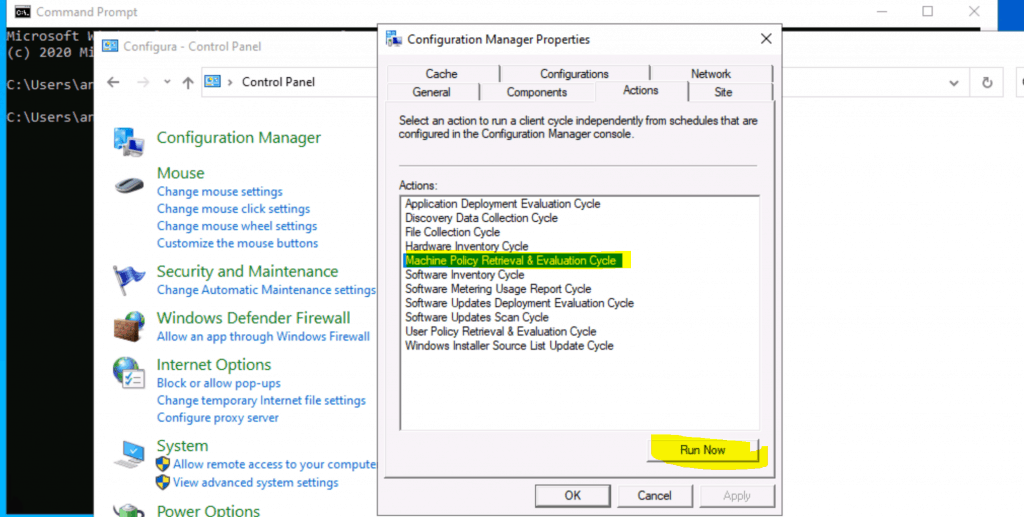
Manually initiate the policy sync from the Control panel – Configuration Manager Applet.
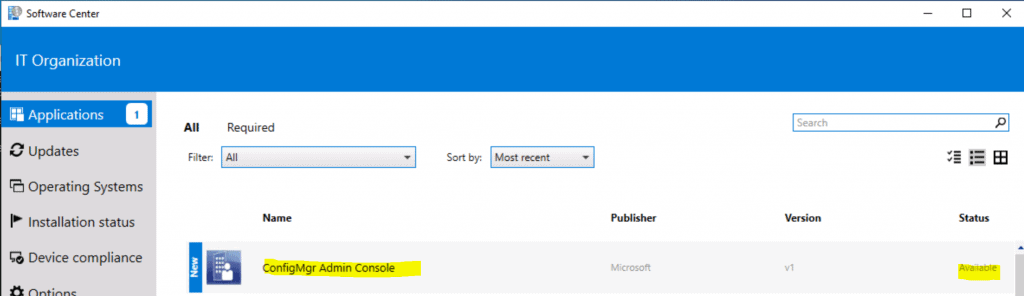
Log on to a Windows 10 device and launch Software Center.
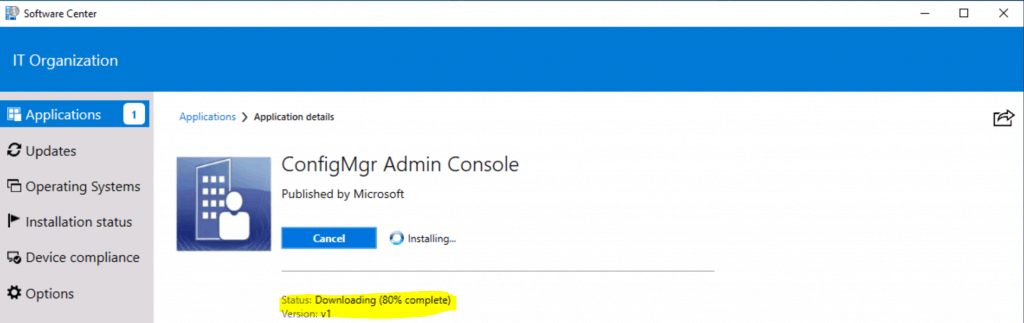
- Select the application ConfigMgr admin console and click on Install
Downloading 80% completed
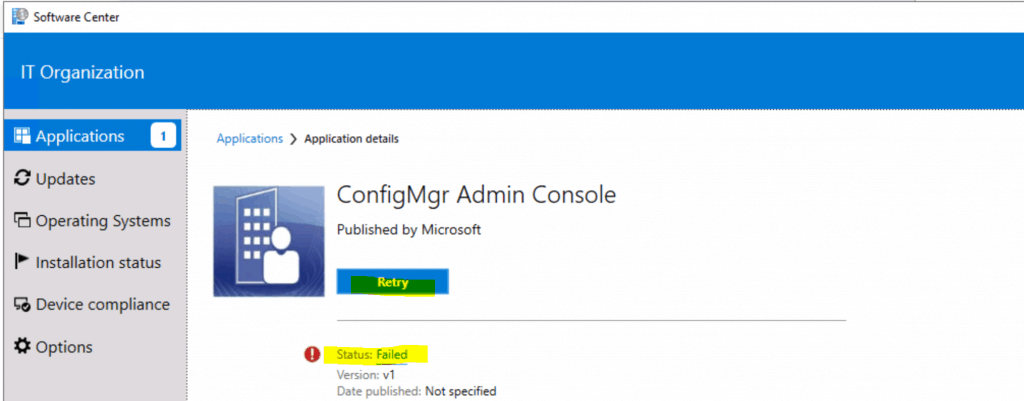
Failed ConfigMgr Admin Console Silent Install
Event Log Entries for the silent command line failures. I have been working to fix this issue with the SCCM Admin Console silent install. Let’s see some tips here: Admin console command line issues Troubleshooting.
Windows Installer installed the product. Product Name: Microsoft Endpoint Configuration Manager Console. Product Version: 5.2002.1083.1000. Product Language: 1033. Manufacturer: Microsoft Corporation. Installation success or error status: 1602.
Product: Microsoft Endpoint Configuration Manager Console -- Installation operation failed.
Log Files of Silent Install of ConfigMgr Console
- ConfigMgrAdminUISetupVerbose.log
- ConfigMgrAdminUISetup.log
Continued…
In the next post, I will blog a lot more about troubleshooting and provide more details for fixing and troubleshooting the Admin console command line issues.
Resources
- Admin console command line issues Troubleshooting
- Install SCCM Remote Console on a Windows 10 Machine
We are on WhatsApp. To get the latest step-by-step guides and news updates, Join our Channel. Click here –HTMD WhatsApp.
Author
Anoop C Nair is Microsoft MVP! He is a Device Management Admin with more than 20 years of experience (calculation done in 2021) in IT. He is a Blogger, Speaker, and Local User Group HTMD Community leader. His primary focus is Device Management technologies like SCCM 2012, Current Branch, and Intune. He writes about ConfigMgr, Windows 11, Windows 10, Azure AD, Microsoft Intune, Windows 365, AVD, etc.




Discussion