






Configure Office App Policy in Intune
Let’s learn how to Configure Office App Policy in Intune. Policies for Office apps are an essential aspect of managing devices in a modern workplace. These policies allow administrators to set specific rules and guidelines for the use of Microsoft Office apps on devices.
Intune provides policies specifically designed for Microsoft Office apps. This includes the ability to manage access to Microsoft 365 services, control data sharing, and enforce security standards.
By implementing Intune Policies for Office apps, organizations can ensure that their employees have a secure and efficient experience while using these apps on their mobile devices. The policies can be customized to fit the specific needs of an organization and can be easily updated as their needs change.
This makes Intune Policies for Office apps a valuable tool for companies looking to optimize their device management strategy. With Intune, you can add and apply a range of policies for Office apps to designated groups of end-users.

- Explore New Intune Troubleshooting Dashboard For Intune Issues
- Enable Self Service Password Reset SSPR On Windows Login Screen Using Intune Policy
How to Create Office App Policy in Intune
To create an Office app policy configuration, you must be assigned one of the roles Global Administrator, Security Administrator, or Office Apps Admin in Azure AD. Here’s how you can create policies for Office applications that access Microsoft 365 services in Intune.
- Sign in to the Microsoft Intune admin center https://endpoint.microsoft.com.
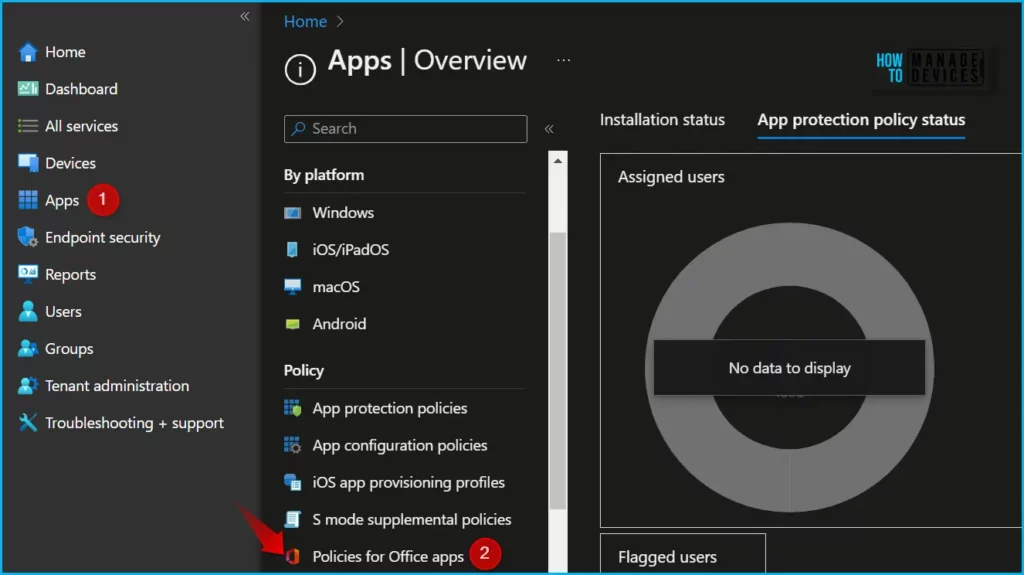
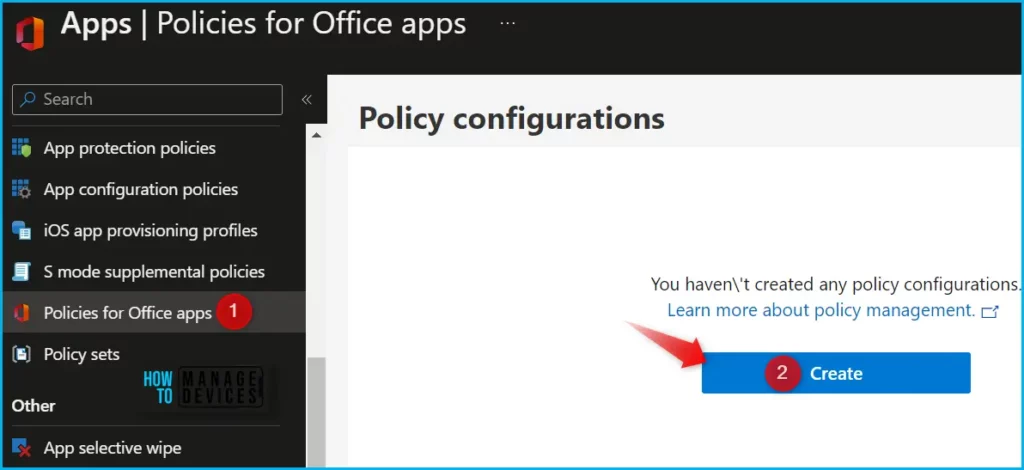
- Select Apps > Policies for Office apps > Create.
You will see Create button here in case you haven’t created any policy configurations else you can get a similar option at the top.
Note! If you don’t have the required access as mentioned before. You may experience the message “At this time, Azure Active Directory (Azure AD) roles assigned to groups are not supported by the Office cloud policy service. We are working on a solution, but for now, the Office cloud policy service is not available to you.
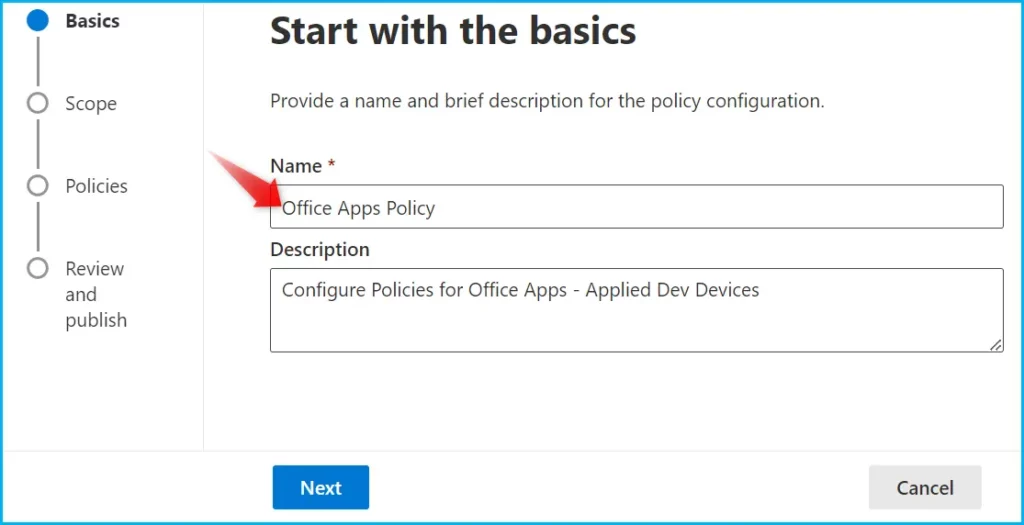
On the Start with the basics page, provide a name and brief description for the policy configuration, then select Next.
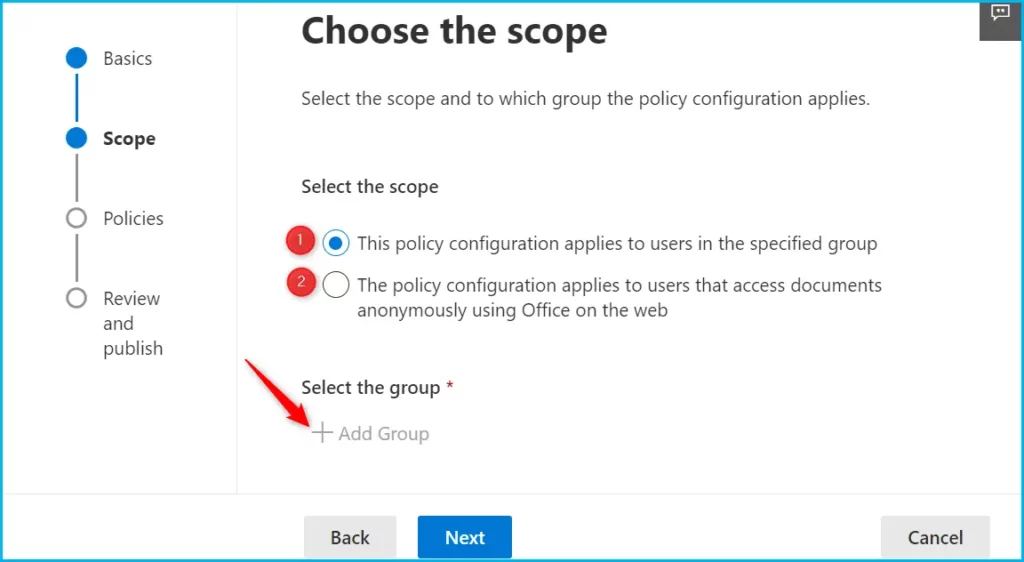
On the Choose the scope page, choose whether the policy configuration applies to a specific group or users who anonymously access documents using Office for the web. Select the group for this policy configuration.
On the Configure Settings page, select the policies that you want to include in the policy configuration. Here you can select the Office policy that you want to apply.
You can sort the provided list based on policy, platform, application, recommendation, and status, and whether the policy is a recommended security baseline.
For Example, we have configured a few of the Office app policies including. Clicking on the policy to configure and click on Next.
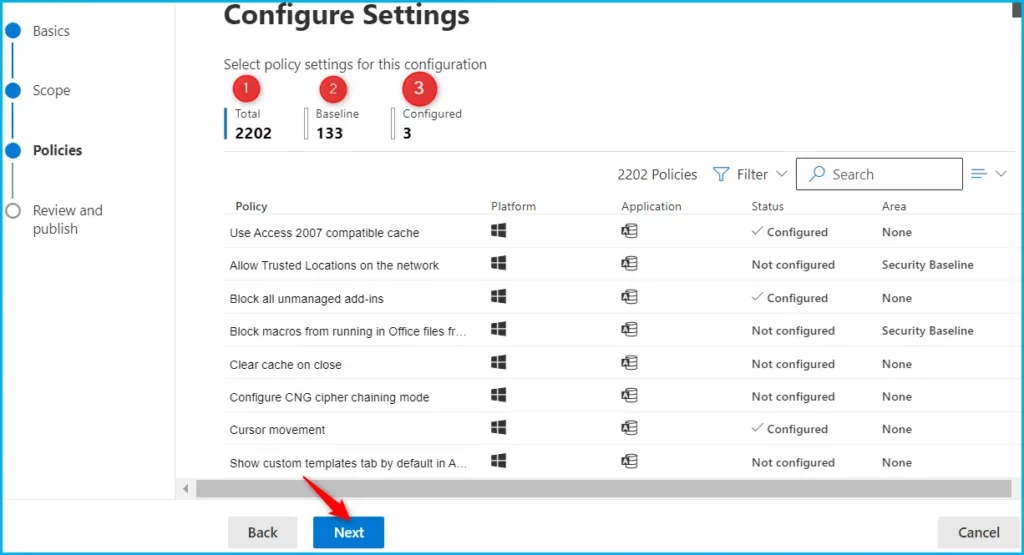
After you configured the policy, select Next to review your selections. Then select Create to create the policy configuration.
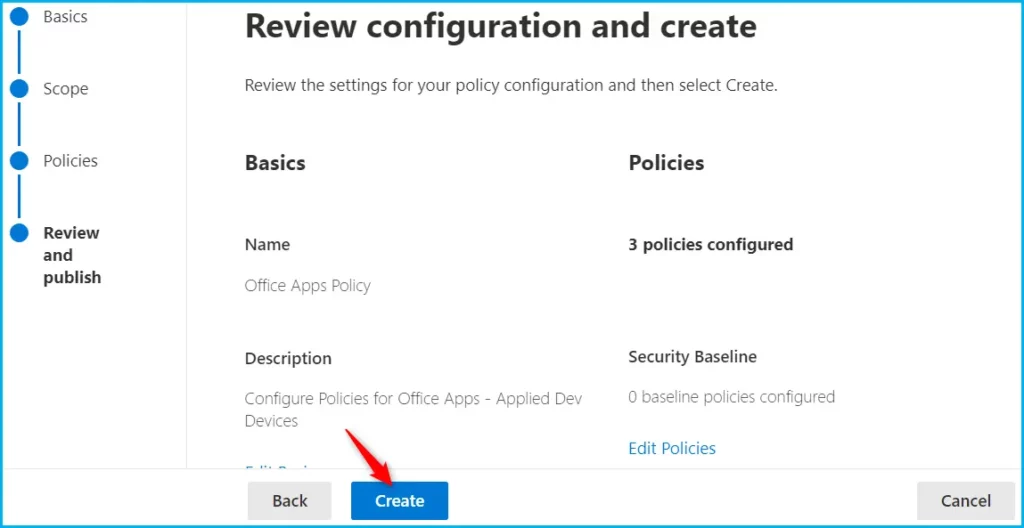
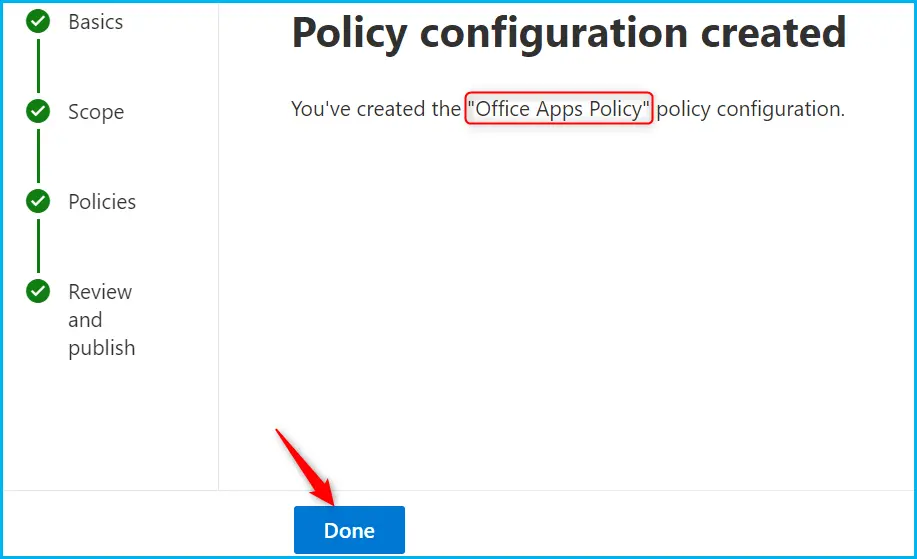
Once the policy configuration is created, you will see the successful message indicating, “You’ve created the “Office Policy Configuration”.
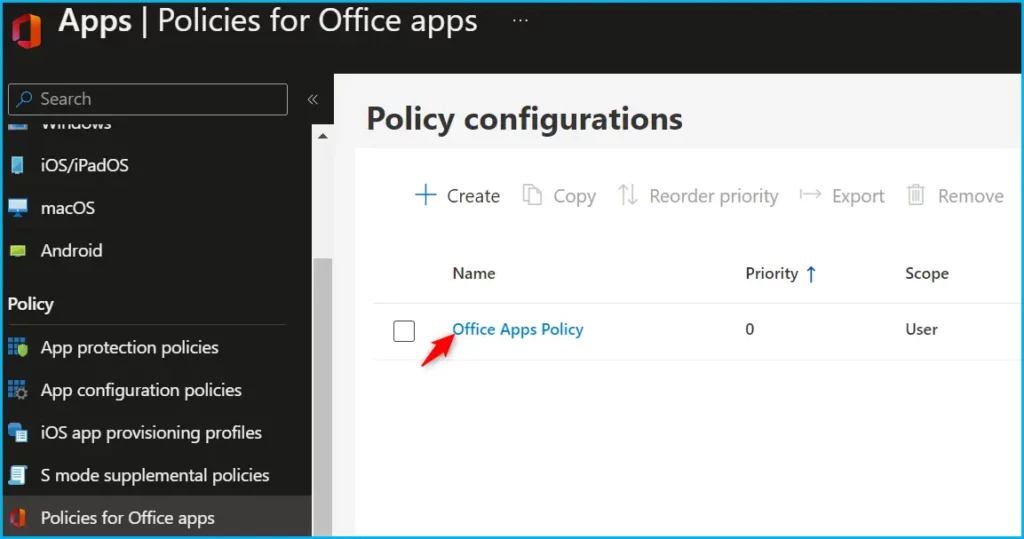
Here you can see inside Policies for Office apps, The policy is created and appears on the Policy configurations pane.
The Click-to-Run service used by Microsoft 365 Apps for enterprise checks with Cloud Policy regularly to see if there are any policy configurations that pertain to the user.
When a user signs into Office on a device for the first time, a check is immediately made to see if there’s a policy configuration that pertains to the user.
For Windows devices, policies are enforced based on the primary user that is signed into Microsoft 365 Apps for the enterprise. If there are multiple accounts signed in, only policies for the primary account are applied.
Author
About Author – Jitesh, Microsoft MVP, has over six years of working experience in the IT Industry. He writes and shares his experiences related to Microsoft device management technologies and IT Infrastructure management. His primary focus is Windows 10/11 Deployment solution with Configuration Manager, Microsoft Deployment Toolkit (MDT), and Microsoft Intune.


Hello, thank you for the great write up. I’ve been searching around to see if there is a method import settings. Is there some way to accomplish this? If I want to create a cloud policy that reflects a previous group policy it looks like I would have to manually configure each setting.
Can we add devices to the deployment of these policies or it has to be users all the time?
And also I wanted to check if we can exclude devices/users from the policy. Looks like there is no option to exclude a group or a device/user
Great explanation! When I try to configure this from my iPad Pro (Safari, Edge of Chrome) it shows a blank page. When I try the same page from my Windows 11 laptop I’m able to configure the policy. Have you ever seen this behavior?