






Configure Taskbar Calendar Deployment via Setting Catalog in Intune
Hi lets learn how to Configure Taskbar Calendar Deployment in the Settings via Setting Catalog in Intune. The Settings Catalog in Microsoft Intune enables IT administrators to efficiently manage and configure various settings on Windows devices.
One of its best features is that it allows administrators to handle everything from a single location, making it an effective way to deploy policies in the organizations. In our previous posts, we discussed various methods for creating policies using the settings catalog.
Now, let’s focus on the Taskbar Calendar Configuration, which is one of the policies in the Settings category. This policy, known as Configuring the Taskbar Calendar. It will help the IT administrators to enhance user productivity and simplify calendar management in Windows through Microsoft Intune.
This policy allows users to access the calendar from the taskbar. Additionally, with the settings catalog option, you can disable the additional calendar in the taskbar. In this post, let’s discuss configuring the Taskbar Calendar policy through the Settings catalog in Microsoft Intune.

Table of Contents
What Happens if you Enable or Disable the Policy Setting for the Additional Calendar?
Configure Taskbar Calendar Deployment in the Settings – CSP Details
In the previous discussion, we covered various aspects of configuring the taskbar calendar for deployment. With this information, you can manage the taskbar calendar on Windows devices. When policy creation starts you have to be known about the CSP details (Configuration Service Provider).
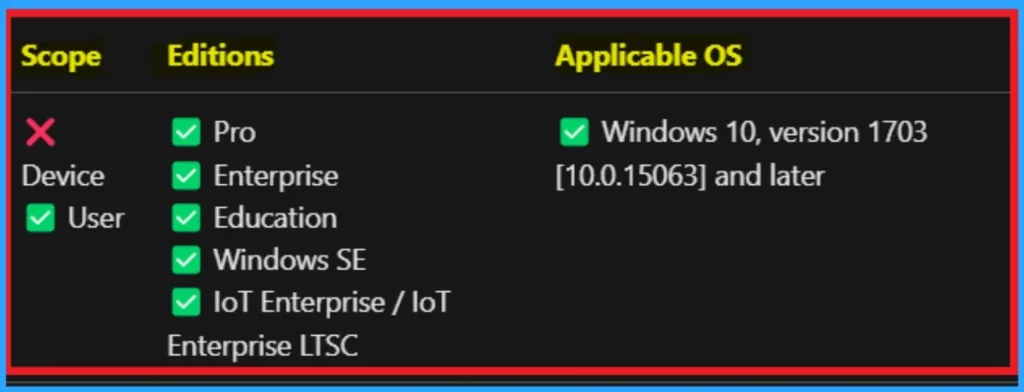
CSP details will help the IT admin to manage and configure settings on the windows devices. In the below you can check the CSP details of Configure Taskbar Calendar policy. You can check this in the below screenshot.
Note (User): ./User/Vendor/MSFT/Policy/Config/Settings/ConfigureTaskbarCalendar
| Scope | Editions | Applicable OS |
|---|---|---|
| Not applicable for Device | Pro | Windows 10, version 1703 [10.0.15063] and later |
| Enterprise | ||
| Education | ||
| Windows SE | ||
| loT Enterprise / loT | ||
| Enterprise LTSC |
- How to Allow Adding Non Microsoft Accounts Manually Using Intune Setting Catalog
- How to Allow Importing of Autofill Form Data in Microsoft Edge Via Setting Catalog in Intune
- Total Number of Setting Catalog Policies for Windows Apple and Linux
How it Works in Intune
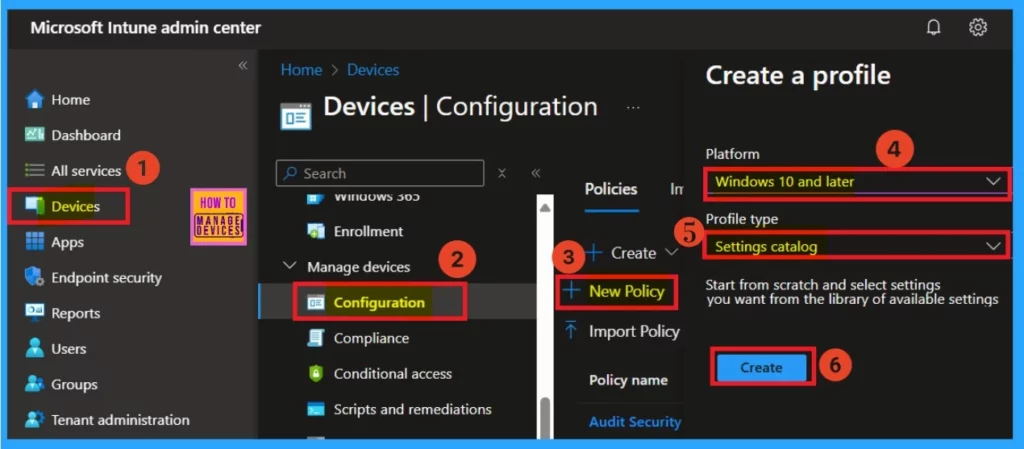
Now, let’s look at how to implement this in Intune. First, sign into the Microsoft Intune Then, navigate to Device >Configuration and you can a create new policy option, and select the platform as Windows 10 and later.
- After that, choose the Settings Catalog as the profile type.
- Finally, click on the Create option to set up the profile.
Basic Details
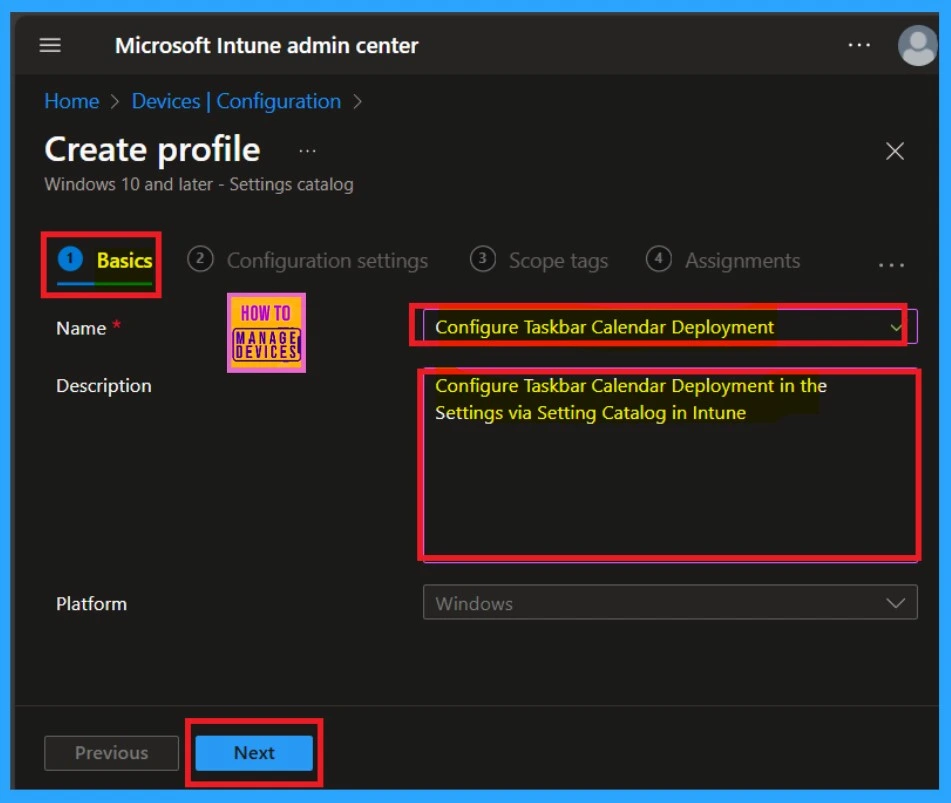
After creating a profile, the first step is to fill in the basics of the policy. This includes entering essential information such as the name, description, and platform. For example, I added “Configure Taskbar calendrer” as the name. You should also include a description, as this will help you understand the policy later on.
In the platform section, Windows is already selected, so there is no need to make any changes here. Once you have entered the necessary details, click on Next.
Configuration Settings- Settings Picker
Once you’ve covered the basics, you will move on to the configuration settings. Now, you can add settings to the policy, which is a crucial step in policy creation. You will see the Add settings as a hyperlink. Click on it, and a settings picker window will appear.
You can select a category from the options provided, which will display various types of categories. After selecting a settings category, you will have the option to choose different policy names or settings names. For example, I chose Configured Taskbar calendar. Select the settings name you want to apply.
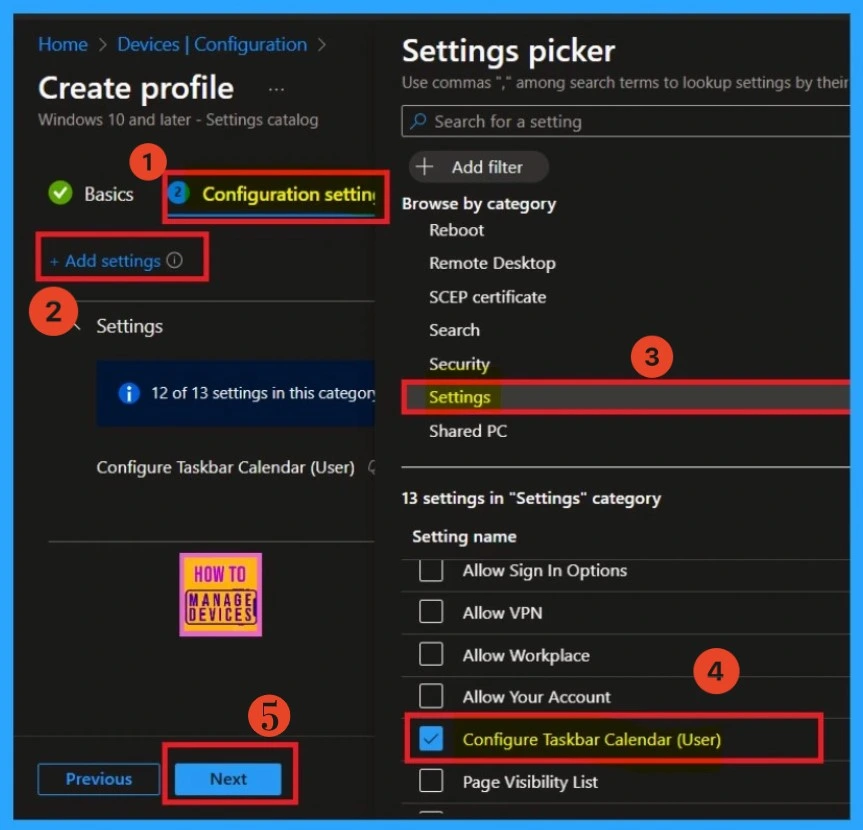
After selecting the setting name, you can close the settings picker window by clicking on the “X” button. Once you exit the settings picker, you will be in the configuration settings page. Here, you can configure the taskbar calendar.
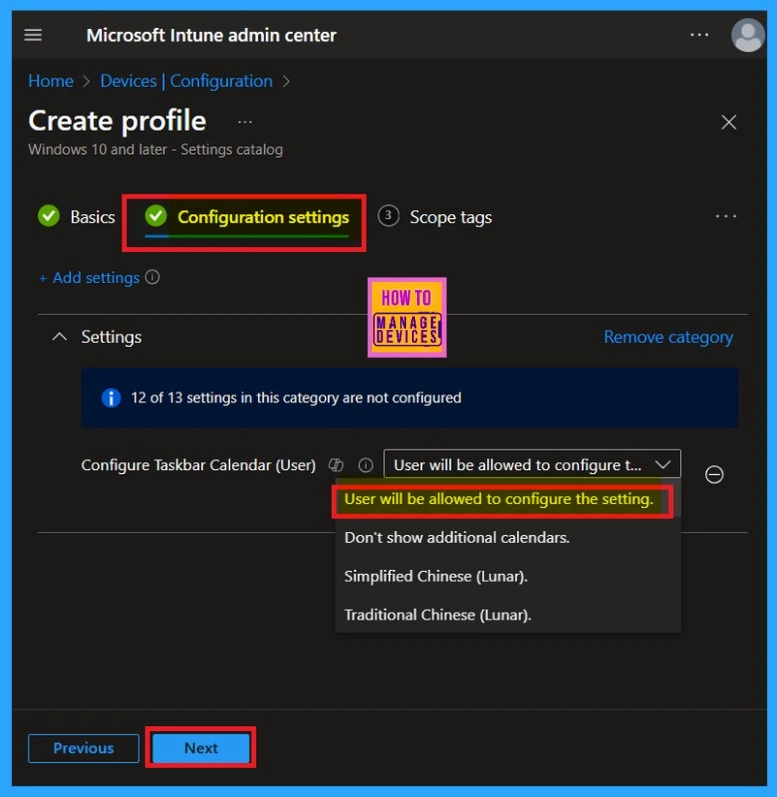
The user options allow you to adjust various settings. If you choose to allow users to configure the settings, you can enable that option. If you prefer not to show additional calendars in the taskbar, you can select that option. Additionally, you can easily choose between Simplified Chinese or Traditional Chinese as needed.
- By default, the calendar is set according to the locale of the operating system, and users can show an additional calendar.
- For zh-CN and zh-SG locales, an additional calendar shows the lunar month and date and holiday names in Simplified Chinese (Lunar) by default.
- For zh-TW, zh-HK, and zh-MO locales, an additional calendar shows the lunar month and date and holiday names in Traditional Chinese (Lunar) by default
Scope Tags
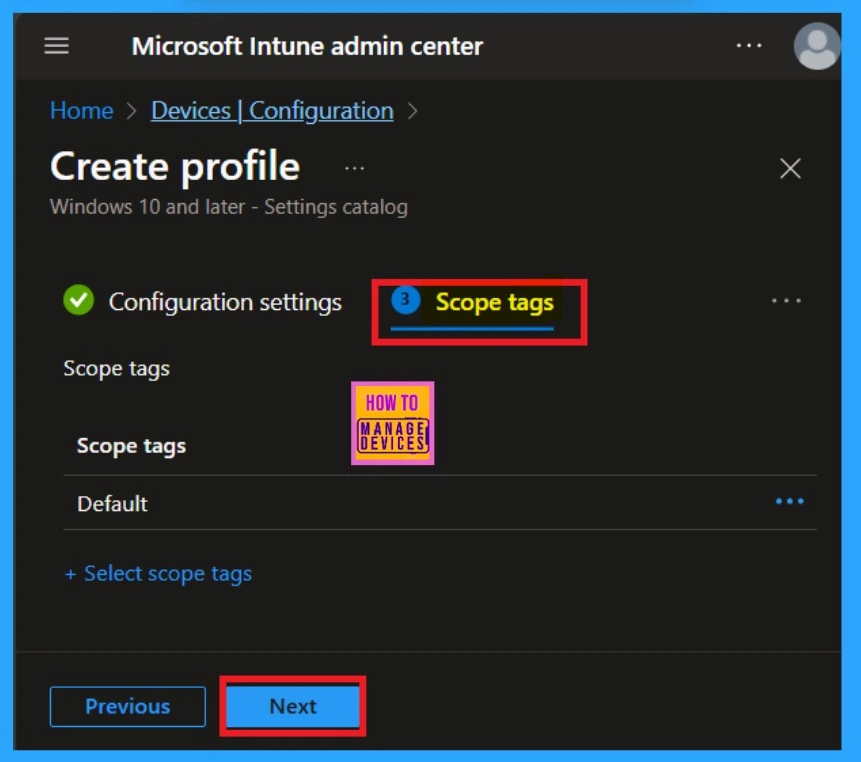
You are now in the scope tags section. Scope Tags are a feature of policy creation and are mandatory if you want to add a scoped tag to your policy. To add a scoped tag, simply click on the “Select Scope Tags” option. Here I skipped this section and Click on the Next.
Assignments
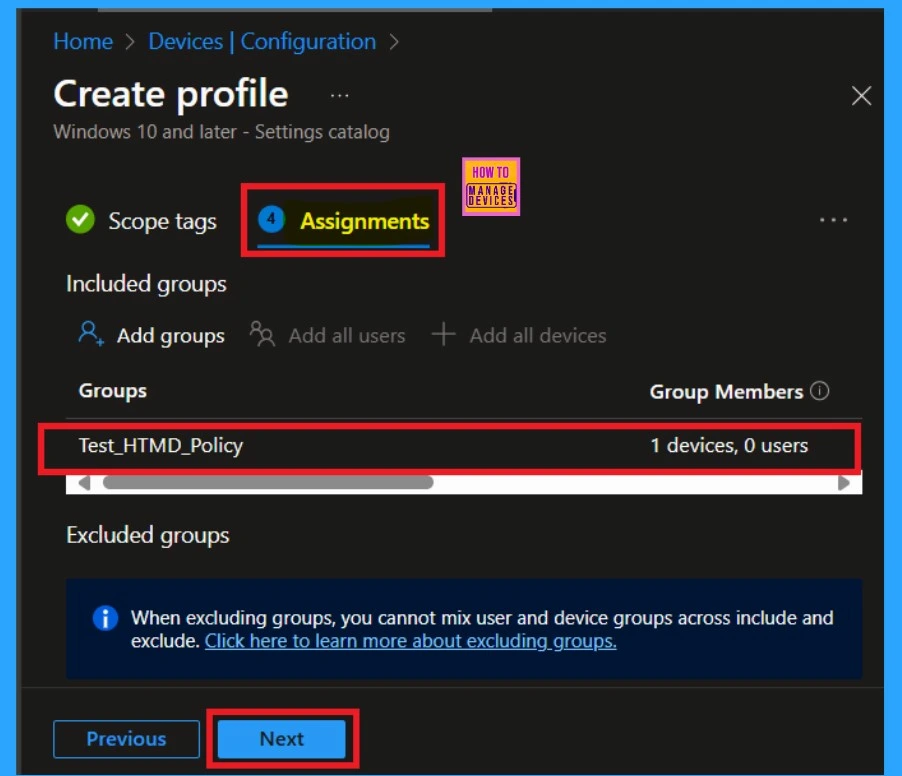
You are now on the important Assignments page. This page is crucial just like the configuration settings. Here, you can assign policies to the specific groups you want. You will find options for Include Groups and “Add Groups. Click on Add Groups under Include Groups. This will allow you to select the different types of groups to which you want to deploy the policy.
- After selecting a group for policy deployment, click on it and then click on the Next.
Review+ Create
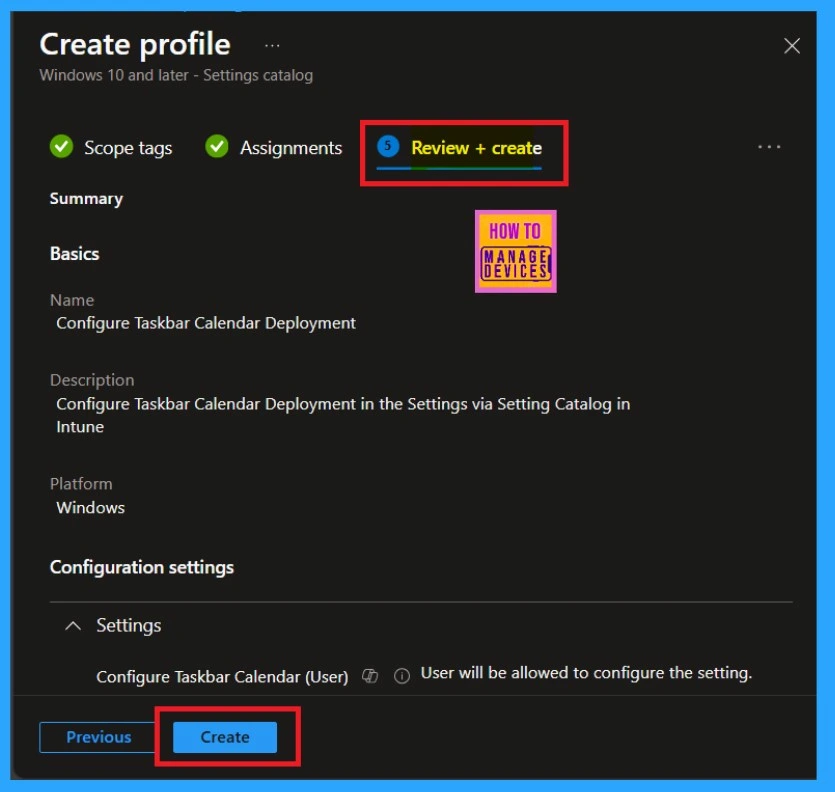
The Review + Create option is the final stage of policy creation. Here, you can review all the details for creating the policy, including basic information, platform details, and configuration settings. Essentially, this is like a summary page. This is also the last step you need to complete.
- At the end of the screen, you will find the Create button.
- Click on that button, and the policy will be successfully created.
Monitor Status
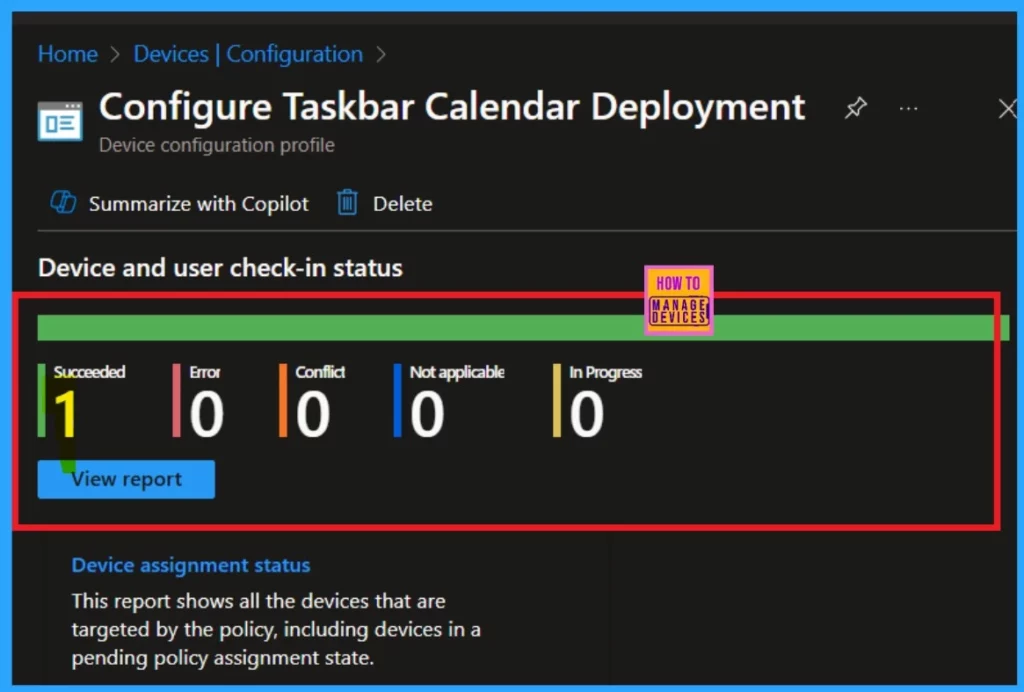
After finishing the review + create option, you need to wait for an 8-hour waiting period for the policy to be created. Once the waiting period is over, you can check the monitoring status. To check the monitoring status, first, log in to the Microsoft Intune admin portal. Then click on “Devices.” Under Manage Devices, select “Configurations.”
Here, you will see a list of different types of policies that have been created. You can search for the policy you created, such as the configuration for taskbar calendar settings. Now you can see the policy development in the overview window.
- I reduce the waiting period by using the company portals and the sync option.
- By utilizing this method, I am able to get the fastest results.
- You can see in the screenshot that my policy has been successfully created for the organization.
Client Side Verification
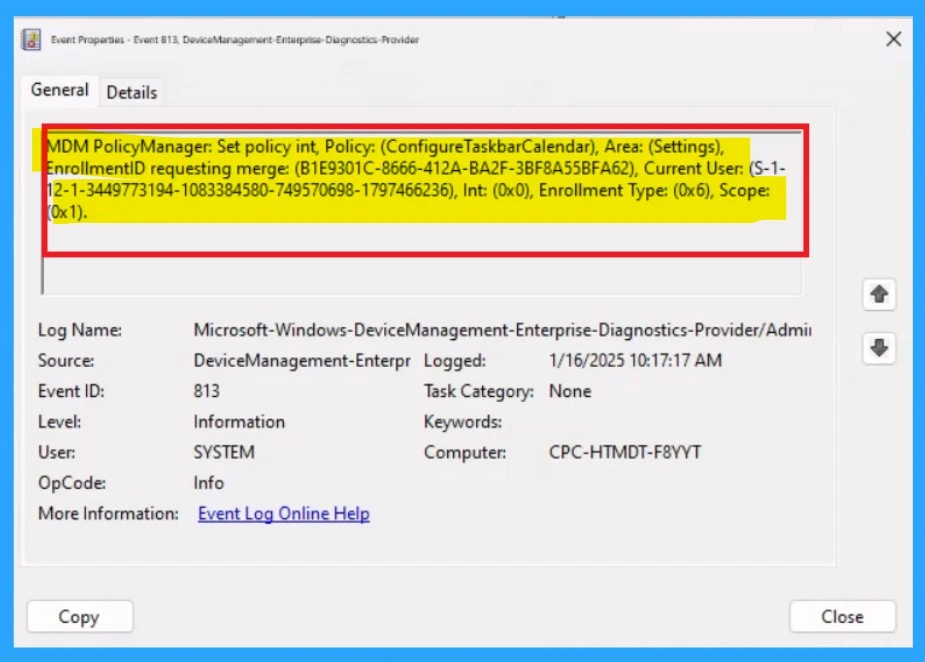
Now, you can check the client-side verification for that. First, you have to enter the cloud and search for the event viewer. Once the Event Viewer window opens, click on the “Application and Services Logs” option. then navigate to: Microsoft > Windows > Device Management Enterprise > Diagnostics Provider > Admin.
When you click on the admin, you will see a list of events. You can find and allocate Event ID 813, which will assist you in checking the client-side verification details of the policy you created. There are various filtering options available to help you locate Event ID 813 easily. You can use the filter log option for a more efficient search.
| Policy Detailes |
|---|
| MDM PolicyManager: Set policy int, Policy: (ConfigureTaskbarCalendar), Area: (Settings), EnrollmentID requesting merge: (B1E9301C-8666-412A-BA2F-3BF8A55BFA62), Current User: (S-1- 12-1-3449773194-1083384580-749570698-1797466236), Int: (0x0), Enrollment Type: (0x6), Scope: Ox1). |
Need Further Assistance or Have Technical Questions?
Join the LinkedIn Page and Telegram group to get the latest step-by-step guides and news updates. Join our Meetup Page to participate in User group meetings. Also, Join the WhatsApp Community to get the latest news on Microsoft Technologies. We are there on Reddit as well.
Author
Anoop C Nair has been Microsoft MVP from 2015 onwards for 10 consecutive years! He is a Workplace Solution Architect with more than 22+ years of experience in Workplace technologies. He is also a Blogger, Speaker, and Local User Group Community leader. His primary focus is on Device Management technologies like SCCM and Intune. He writes about technologies like Intune, SCCM, Windows, Cloud PC, Windows, Entra, Microsoft Security, Career, etc.


Discussion