






How to Configure Windows Backup and Restore in Microsoft Intune
In this article, we’ll explore how to configure Windows Backup and Restore using Microsoft Intune. I’ve previously written a detailed guide on enabling Windows Backup through an Intune Configuration Profile. Now, let’s take a closer look at how to set up Windows Backup and Restore in Intune.
Microsoft has introduced Windows Backup and Restore (preview) in Intune to simplify the process of protecting and restoring user data, apps, and device settings in Windows 11. This feature is designed to provide a seamless experience for both end users and IT admins by automatically backing up key items such as files, app data, Wi-Fi passwords, and personalization settings to the cloud. When users get a new device or reset their existing one, the restore process allows them to quickly get back to a familiar and productive environment.
In Intune, admins can configure Windows Backup and Restore policies to manage how backup and recovery work across their organization. These policies determine whether users can restore apps, settings, and data when setting up a new or reprovisioned PC. By integrating with Azure AD and Microsoft Account services, Intune ensures that backed-up content is securely tied to a user’s identity. This centralized approach reduces complexity while ensuring compliance with corporate data protection requirements.
For end users, the preview feature brings a modern and intuitive restore experience. When they sign in to a new Windows 11 device during setup, they are presented with the option to restore their apps and settings from a previous device backup. This minimizes downtime, reduces support calls, and improves overall productivity. For IT admins, the ability to enforce and monitor backup compliance in Intune provides assurance that business-critical data is safeguarded while organizations prepare for the general availability of this feature.

Table of Contents
Enable Windows Backup using Intune Configuration
To enable Windows Backup using a Microsoft Intune configuration profile, read my detailed article below. Currently, this feature is generally available.
| Article Name | URL |
|---|---|
| Easy way to Enable Windows Backup using Microsoft Intune Configuration | https://www.anoopcnair.com/enable-windows-backup-using-microsoft-intune/ |
- How to Set Up Multi Admin Approval for Three New Device Actions in Intune
- Best Method to Create Windows 11 System Image Backup
- How to Backup and Restore Windows 365 Cloud PC | Point-in-time Restore Option
- Best Method to Enable and Disable Windows 365 Cloud PCs Redirections using Intune
Configure Windows Backup and Restore in Intune
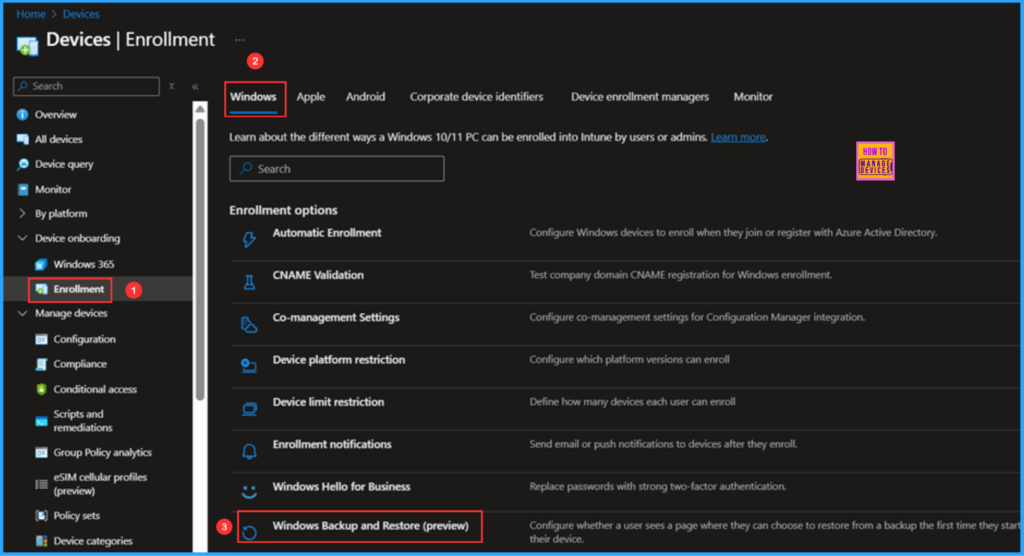
To enable Windows Backup and Restore (preview) using Microsoft Intune, follow these steps. First, sign in to the Microsoft Intune Admin Center with your administrator credentials.
- Navigate to Devices > Device onboarding > Enrollement > Windows > Click on Windows Backup and Restore (preview)
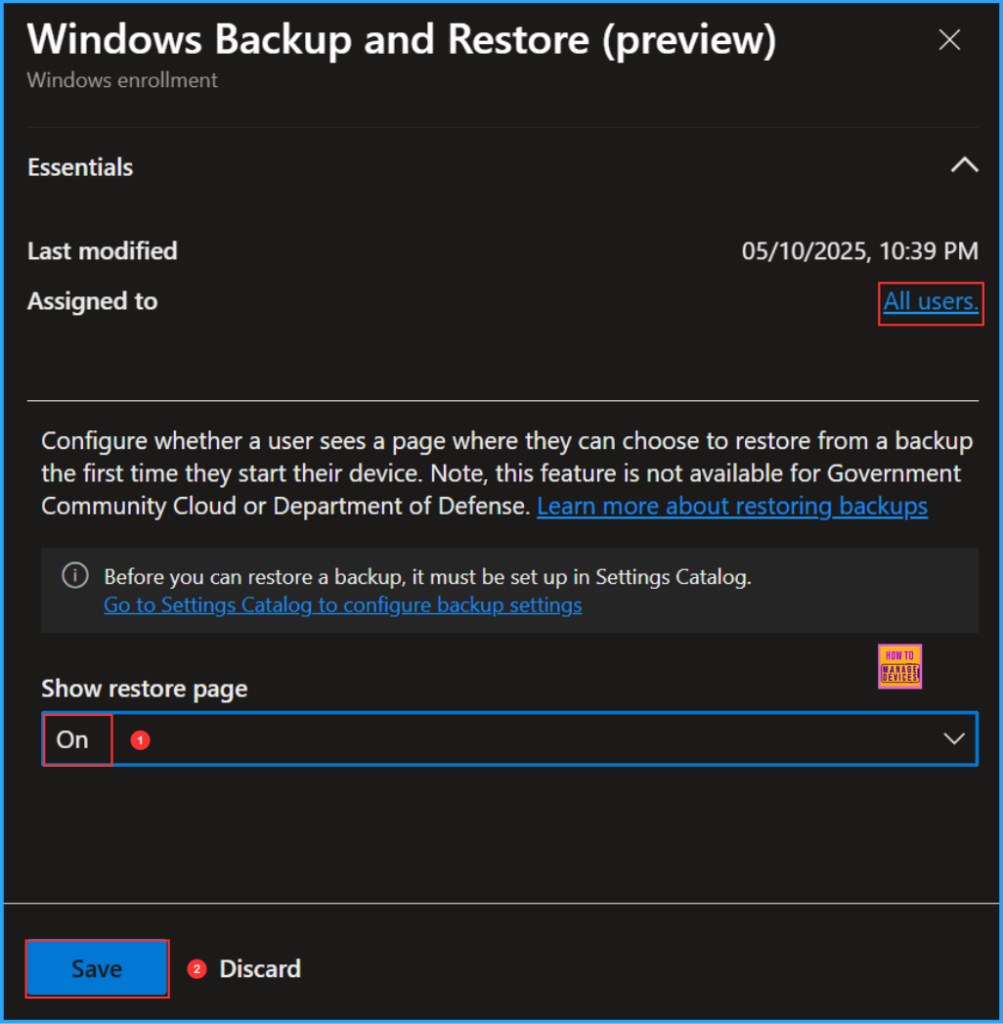
We will now access the Windows Backup and Restore (preview) page. This feature is assigned to All users. Click on the Show restore page drop-down menu and set it to On, then save the configuration. This option determines whether users see a page where they can choose to restore from a backup the first time they start their device.
Note: This feature is not avilable for Goverment Community Cloud or Department of Defense (DoD). Learn more about restoring backups
Monitor the Functionality of Windows Backup and Restore
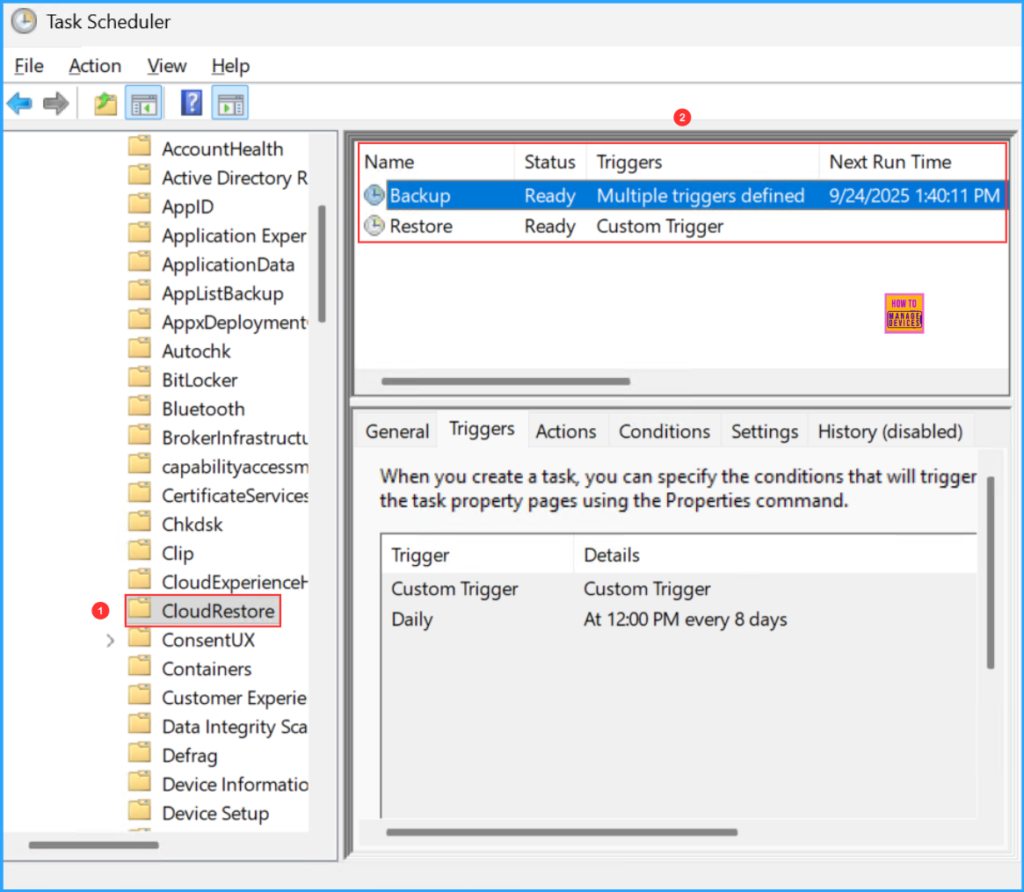
Now we can verify whether the configured Windows Backup and Restore option is functioning correctly on the device. After setting up these options, a new scheduled task will be created that runs the backup once every eight days, as shown in the image below. Additionally, there is a Restore task available, and the status of both tasks is displayed as Ready. To locate the scheduled task follow the below steps.
- Navigate to Task Scheduler > Task Scheduler Library > Microsoft > Windows > CloudRestore
End User OOBE Experience
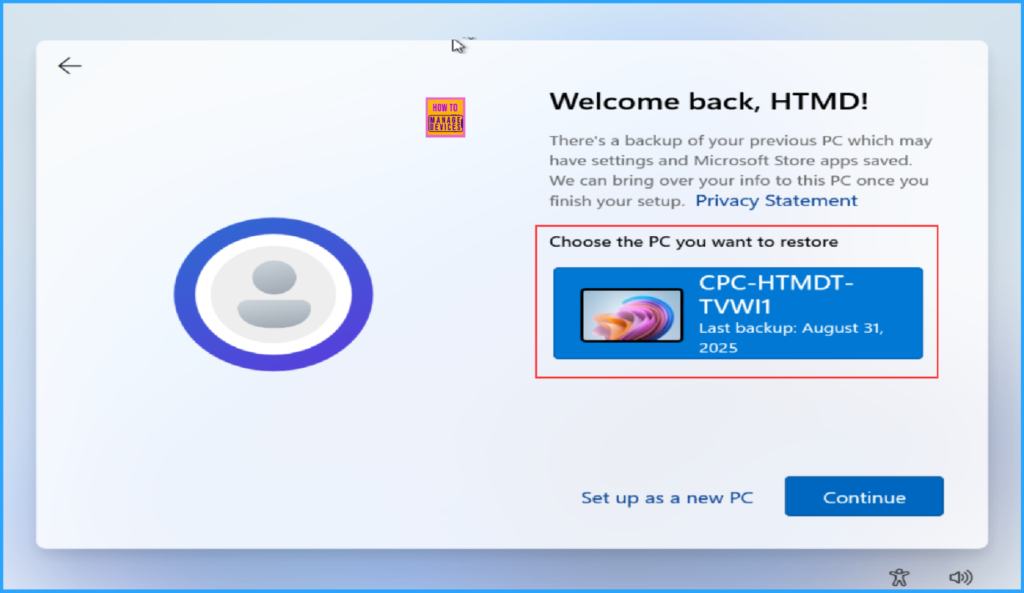
Once the backup is completed successfully and the Windows Restore configuration is enabled, the next time you go through the Out-Of-Box Experience (OOBE) after successfully authenticating with the user account that created the backup, you will see an option to choose the PC you want to restore. You can either Continue with the available backup or choose the option to Set up as a new PC. This confirms that our configuration is working as expected!
Need Further Assistance or Have Technical Questions?
Join the LinkedIn Page and Telegram group to get the latest step-by-step guides and news updates. Join our Meetup Page to participate in User group meetings. Also, Join the WhatsApp Community to get the latest news on Microsoft Technologies. We are there on Reddit as well.
Author
Vaishnav K has 12 years of experience in SCCM, Intune, Modern Device Management, and Automation Solutions. He writes and shares knowledge about Microsoft Intune,Windows 365, Azure, Entra, PowerShell Scripting, and Automation. Check out his profile on LinkedIn.


Discussion