






How to Control Machine Account Password Changes for Domain Members using Intune Policy
Let’s discuss how to Control Machine Account Password Changes for Domain Members. This setting helps you to controls whether a computer that is part of a domain automatically changes its computer account password at regular intervals. These passwords are different from user passwords.
By default, Windows domain members change their machine account password every 30 days to maintain security. If you enable this policy setting, the domain member will not change its machine account password automatically.
The same password will continue to be used indefinitely, which can weaken the security of the communication channel between the computer and the domain controller. On the other hand, if you leave it disabled (the default), the system will automatically change the password periodically, which is the recommended and more secure option.
Microsoft advises not enabling this policy. Machine account passwords play a vital role in maintaining secure communication channels used for authentication and authorization across the domain. Disabling the password change feature can expose the network to security risks.

Table of Contents
How to Control Machine Account Password Changes for Domain Members
If you want to run multiple operating systems on the same physical machine within the same domain, assign different computer names to each OS installation. This ensures that each has its own secure channel and independent password management process. You can easily control the Machine Account Password Changes for Domain Members by following the below steps.
- First Log in to the Microsoft Intune Admin Center with administrator credentials.
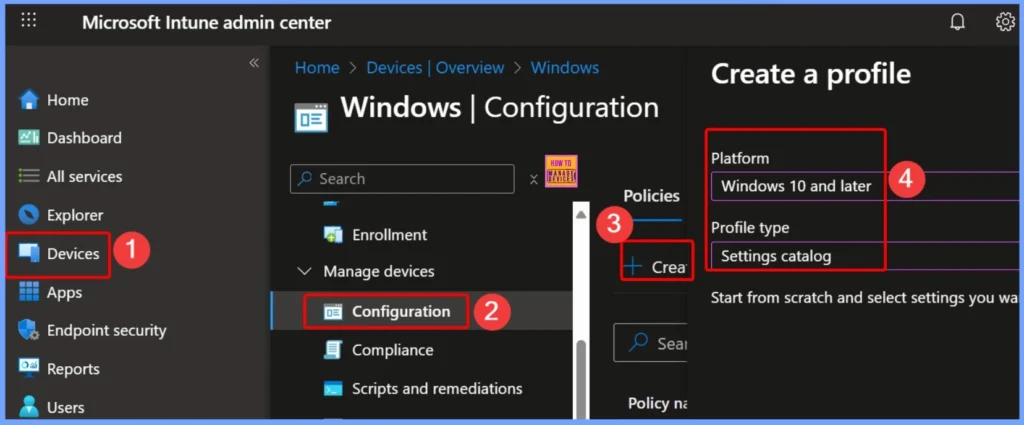
- Go to Devices > Windows > Manage Devices> Configuration.
- Click +Create and then select +New Policy to begin configuring the required settings.
| Steps | Details |
|---|---|
| Platform | Windows 10 and later |
| Profile Type | Settings Catalog |
- How to Delete Undecryptable Passwords in MS Edge using Intune Policy
- How to Easily Enable or Disable Device Password History Policy using Microsoft Intune
- How to Configure Minimum Password Age Security Policy using Intune
Provide a Name and Description for the Policy to Identify Its Purpose Clearly
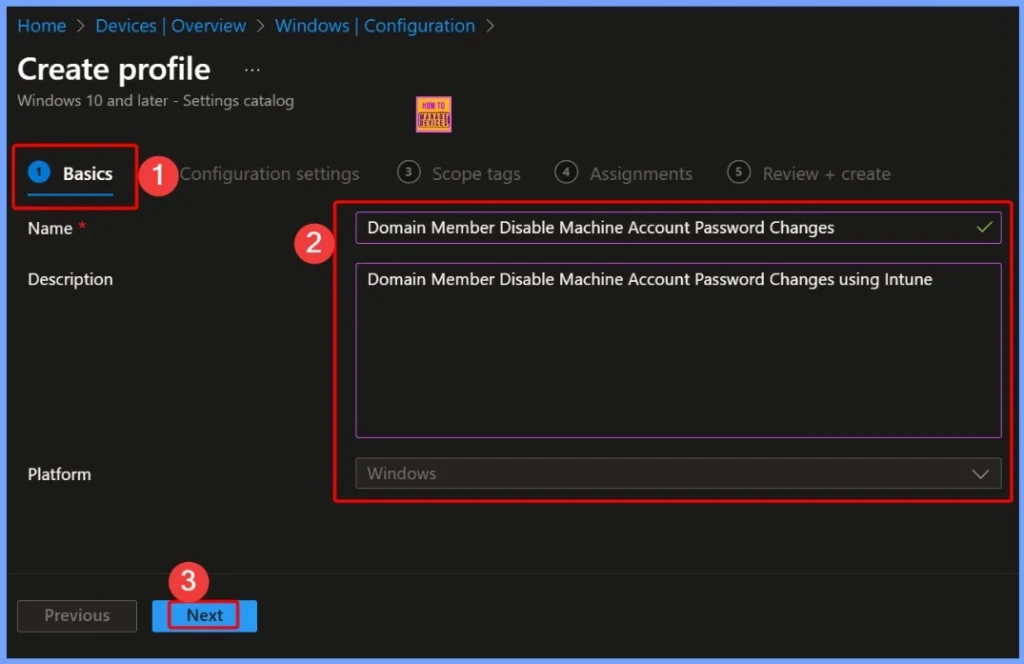
In the Basics tab, you can provide a Name and Description for the policy to identify its purpose clearly. These dtails help administrators easily recognize the policy when managing multiple settings in Microsoft Intune.
- Name: Domain Member – Disable Machine Account Password Changes
- Description: Domain Member – Disable Machine Account Password Changes using Intune
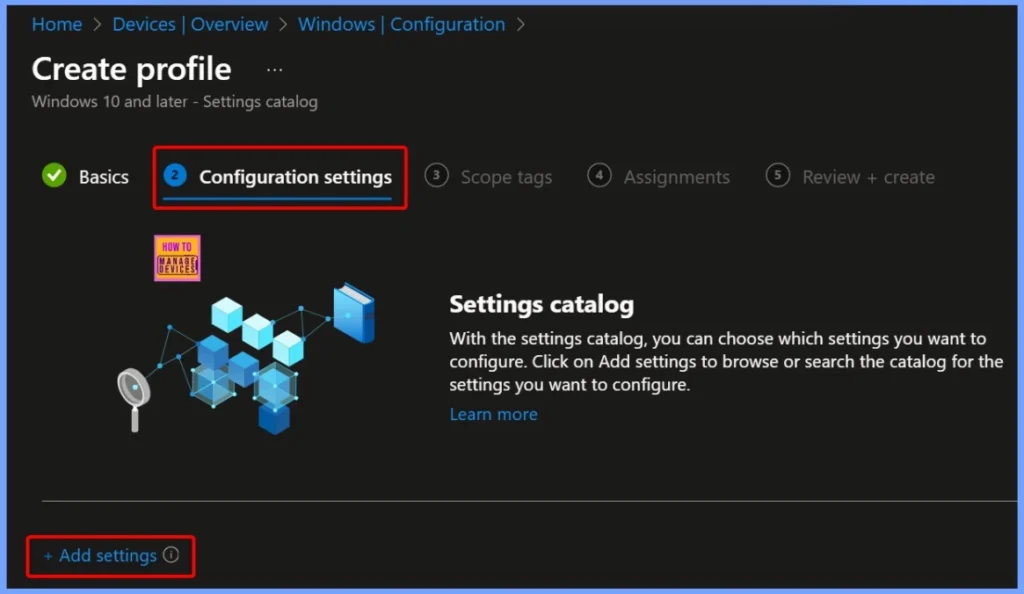
Add Settings in the Configuration Window
In the configuration window, click the + Add settings link to include the required policy settings. This option allows you to search for and select the specific configuration. The below screenshots helps you to show more details.
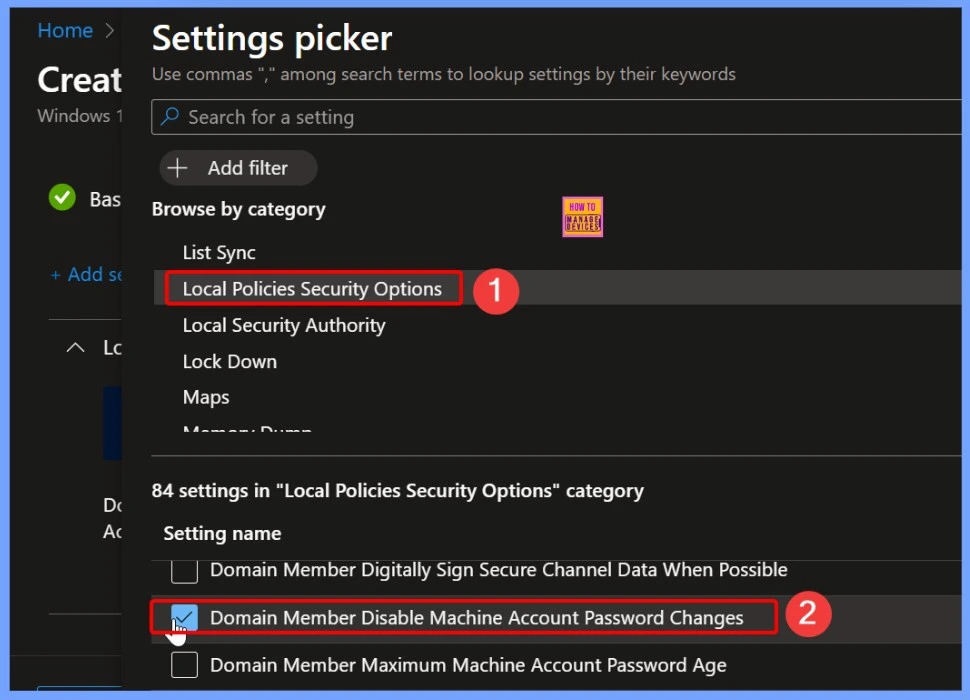
Settings Picker to Search the Keyword
In the Settings picker, type the keyword Local Policies Security Options in the search box. This section contains a list of 84 available settings related to Windows security configurations. From the list, locate and select Domain Member – Disable Machine Account Password Changes to configure this specific policy through Intune.
Default Value for Domain Member – Disable Machine Account Password Changes
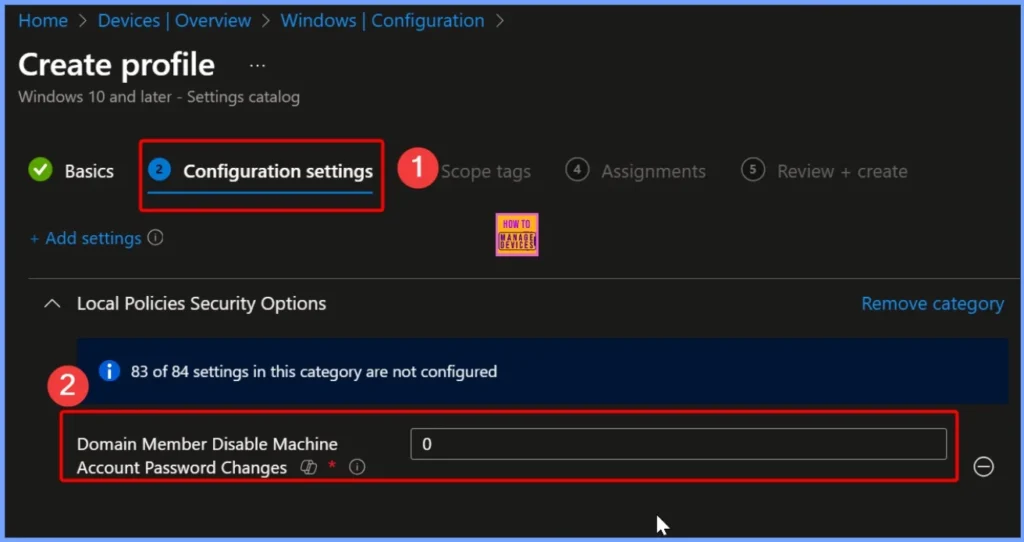
The default value for the Domain Member – Disable Machine Account Password Changes setting is 0. The policy is disabled by default, allowing domain member computers to automatically change their machine account passwords at regular intervals, typically every 30 days.
Enable Domain Member – Disable Machine Account Password Changes
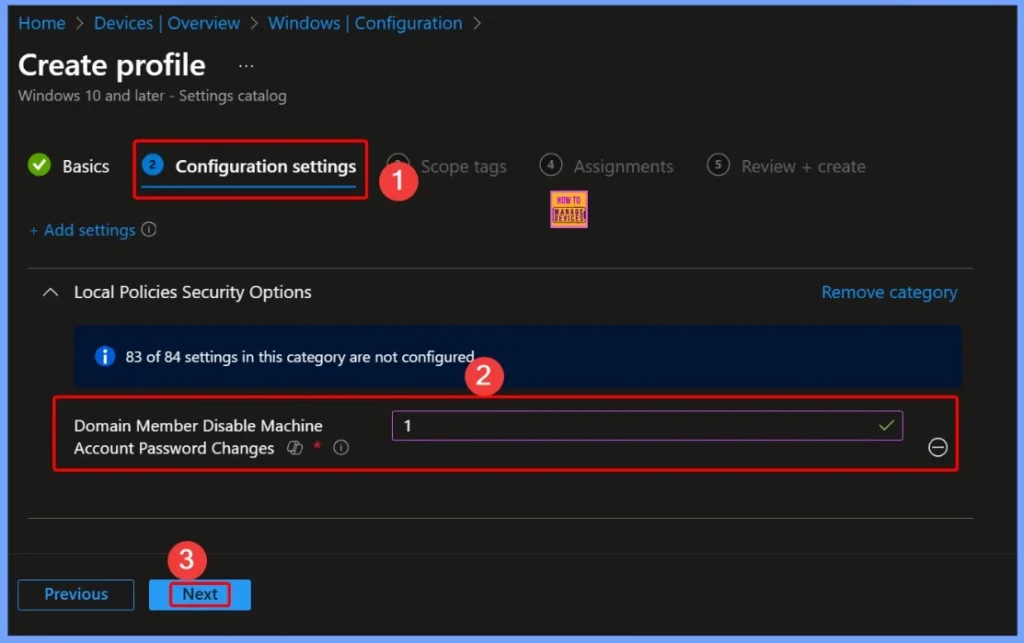
Setting it to 1 enables this policy, which stops the computer from updating its password automatically. However, enabling this setting is not recommended because it can reduce the security of the secure channel between the computer and the domain controller.
Assign Scope Tag for the Policy
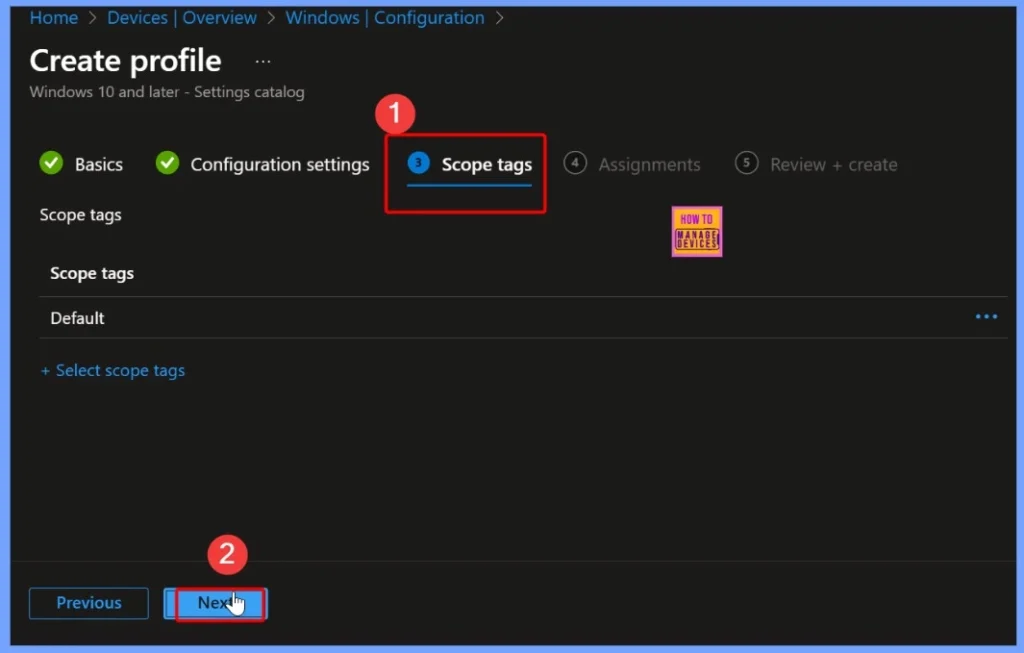
In Intune, you can assign a scope tag to the policy Domain Member – Disable Machine Account Password Changes. Scope tags help organize and control which administrators or groups can view and manage this policy.
Assign Policy for Domain Member – Disable Machine Account Password Changes
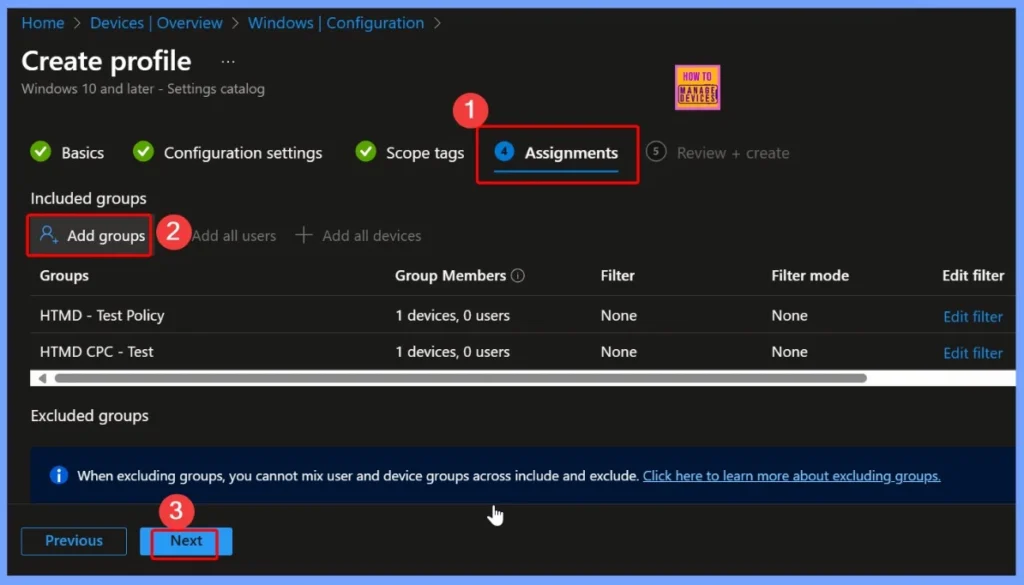
In the Assignments section, you specify which users, devices, or groups will receive the Domain Member – Disable Machine Account Password Changes policy. You can easily add the group by clicking the Add groups option under included groups.
Check All the Settings Assignments and Scope Tags you Configured
This step allows you to verify that everything is correct before applying the policy. Once you confirm the details, click Create to deploy the policy to the selected devices or groups in Intune. The below window helps you to show more details.
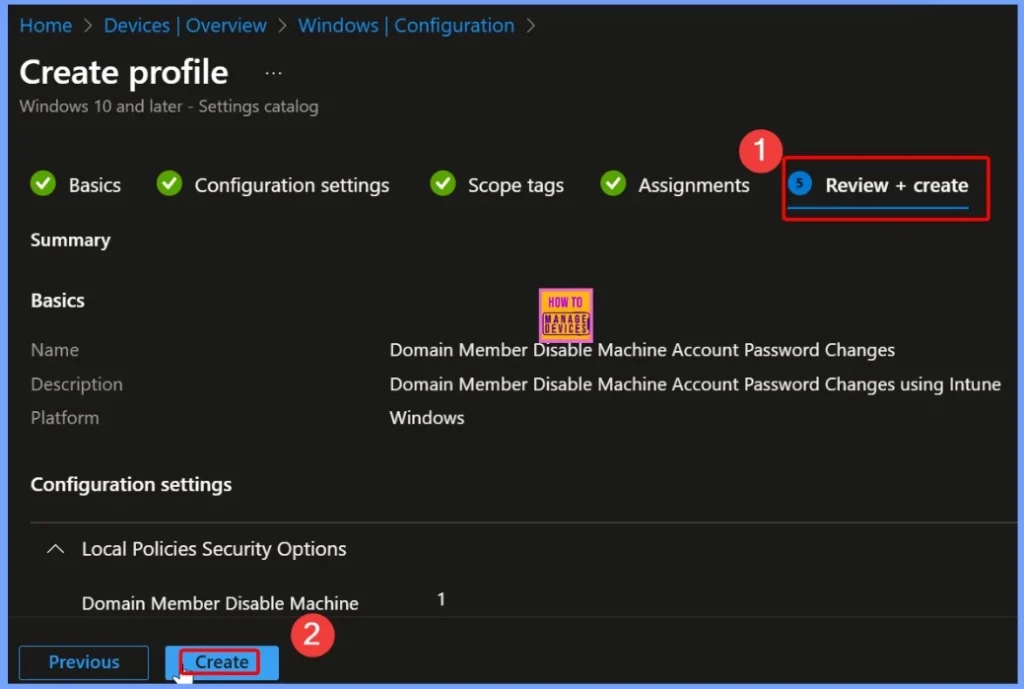
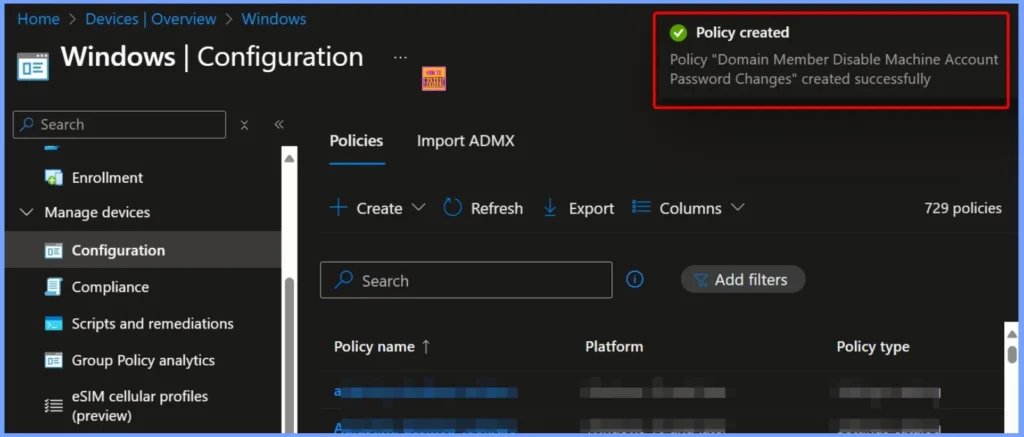
Policy Creation Confirmation
After clicking the Create button, a notification appears confirming that the Domain Member – Disable Machine Account Password Changes policy has been created successfully. This message indicates that the policy is now active in Intune and will be applied to the assigned devices.
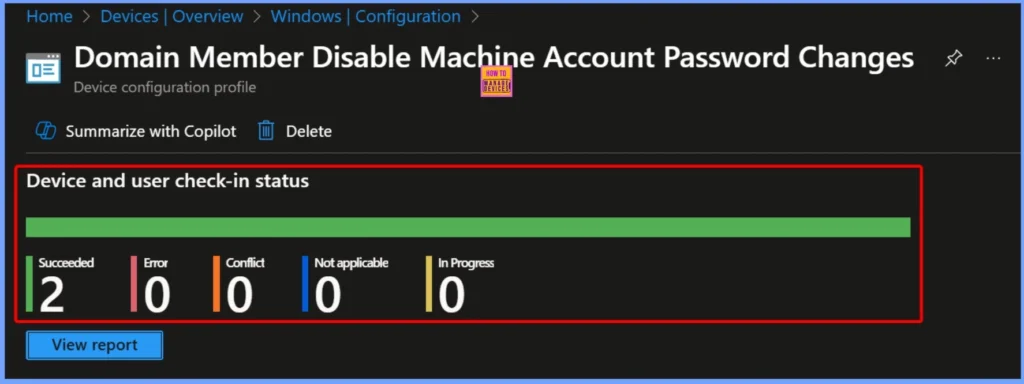
Device and User Check-In Status
The Device and User Check-In Status shows the current deployment results of the Domain Member – Disable Machine Account Password Changes policy. This status helps administrators monitor policy deployment and ensure that it is applied correctly across all targeted devices.
- Succeeded: 2 devices have successfully received and applied the policy.
- Error: 0 devices encountered issues during deployment.
- Conflict: 0 devices have conflicting settings.
- Not applicable: 0 devices are excluded or not eligible for this policy.
- In Progress: 0 devices are still in the process of receiving the policy.
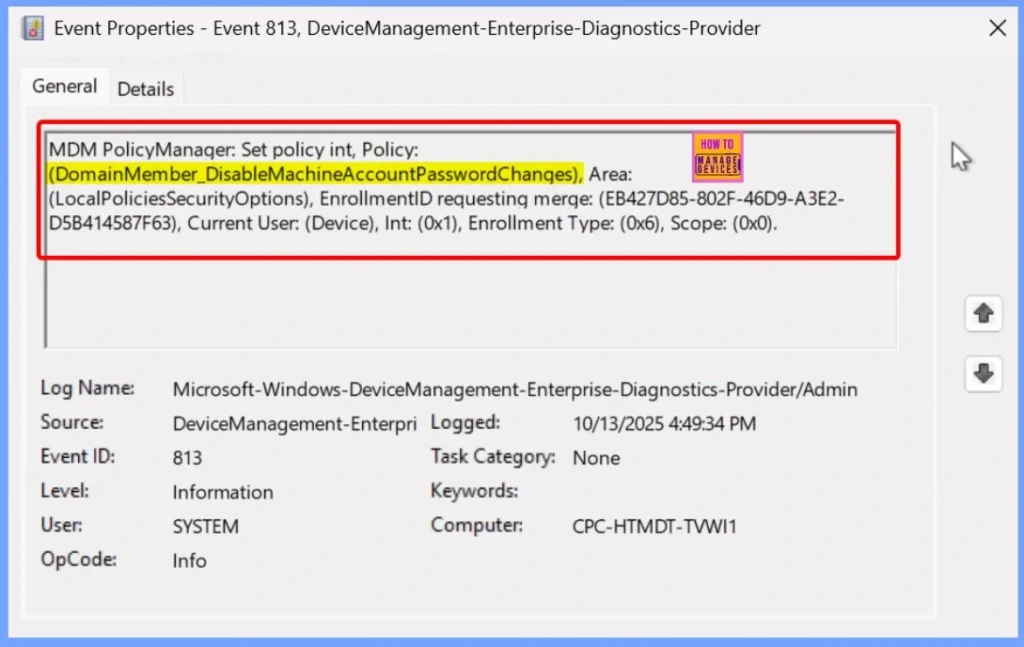
MDM Policy Manager Logs Show that the Domain Member Disable Machine Account Password Changes Policy
The MDM Policy Manager logs show that the Domain Member – Disable Machine Account Password Changes policy has been set successfully. This log confirms that the policy has been applied at the device level, enabling the setting to prevent automatic machine account password changes for domain members.
- Event Viewer > Applications and Services Logs > Microsoft > Windows > DeviceManagement-Enterprise-Diagnostics-Provider > Admin
MDM PolicyManager: Set policy int, Policy:
(DomainMember_DisableMachineAccountPasswordChanqes), Area:
(LocalPoliciesSecurityOptions), EnrollmentID requesting merge: (EB427D85-802F-46D9-A3E2-
D5B414587F63), Current User: (Device), Int: (0x1), Enrollment Type: (0x6), Scope: (0x0).
Windows CSP Details
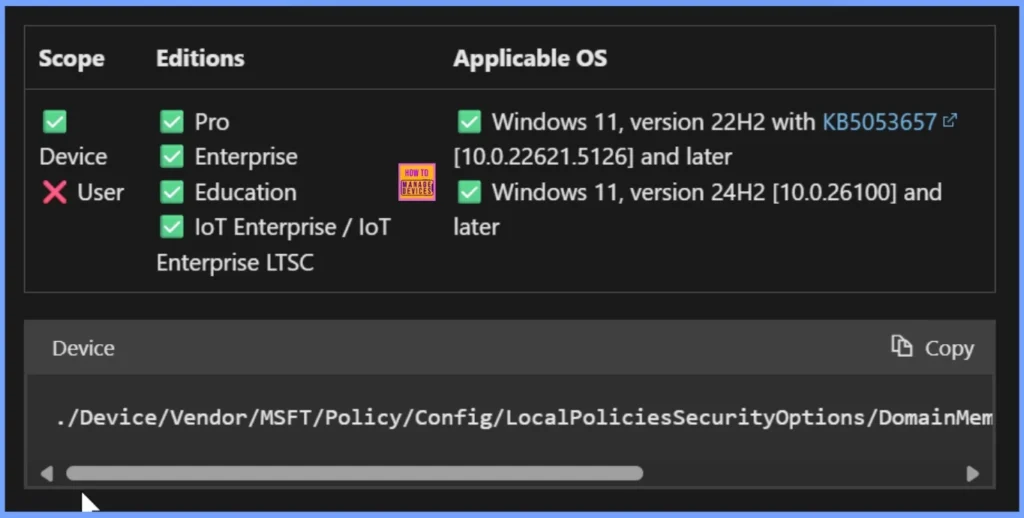
The DomainMember_DisableMachineAccountPasswordChanges policy applies to device accounts only and does not affect individual users. It is supported on the Pro, Enterprise, Education, and IoT Enterprise / IoT Enterprise LTSC editions of Windows.
./Device/Vendor/MSFT/Policy/Config/LocalPoliciesSecurityOptions/DomainMember_DisableMachineAccountPasswordChanges
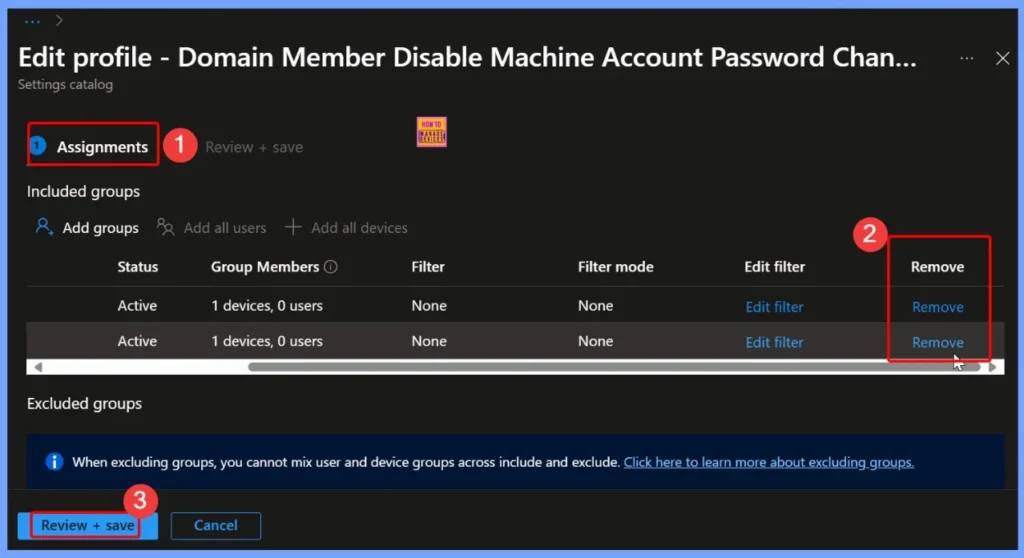
How to Remove the Assigned Group from the Policy
If a group no longer needs the policy, removing it ensures that its devices are not affected unnecessarily, avoiding configuration conflicts or unwanted restrictions. Read more – How to Remove Assigned Group from Energy Saver Battery Threshold Policy in Intune Settings Catalog.
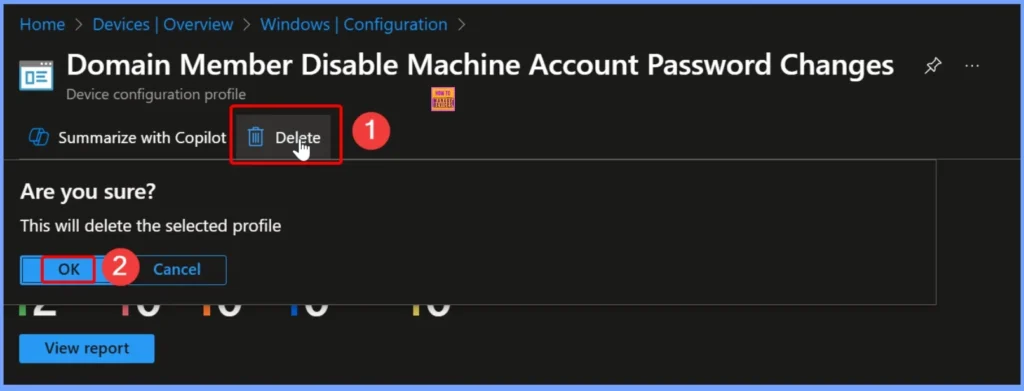
How to Delete the Policy from Intune
Removing outdated or redundant policies avoids conflicts with other active policies, ensuring smoother device management. Read more – How to Delete Allow Clipboard History Policy in Intune Step by Step Guide.
Need Further Assistance or Have Technical Questions?
Join the LinkedIn Page and Telegram group to get the latest step-by-step guides and news updates. Join our Meetup Page to participate in User group meetings. Also, join the WhatsApp Community to get the latest news on Microsoft Technologies. We are there on Reddit as well.
Author
Anoop C Nair has been Microsoft MVP for 10 consecutive years from 2015 onwards. He is a Workplace Solution Architect with more than 22+ years of experience in Workplace technologies. He is a Blogger, Speaker, and Local User Group Community leader. His primary focus is on Device Management technologies like SCCM and Intune. He writes about technologies like Intune, SCCM, Windows, Cloud PC, Windows, Entra, Microsoft Security, Career, etc.


Discussion