






How to Control Public Update Service and Microsoft Store Access with WSUS via Intune Settings Catalog Policy
Let’s discuss how to Control Public Update Service and Microsoft Store Access with WSUS via the Intune Settings Catalog Policy. The “Allow Update Service” setting is in the Windows Update for Business category.
It lets you control whether devices can use Microsoft’s update services to download and install updates. This setting helps ensure devices stay updated while allowing administrators to manage how updates are delivered.
This setting controls whether a device can use services like Microsoft Update, WSUS (Windows Server Update Services), or the Microsoft Store. Even if the device is set to get updates from an intranet update service, it occasionally connects to the public Windows Update service to ensure future updates and services work.
This post explains how to manage access to public update services and the Microsoft Store using WSUS, which is configured through the Intune Settings Catalog Policy. It provides all the details you need to control these services effectively.

Table of Contents
Manage Updates Offered by Windows Server Update Service
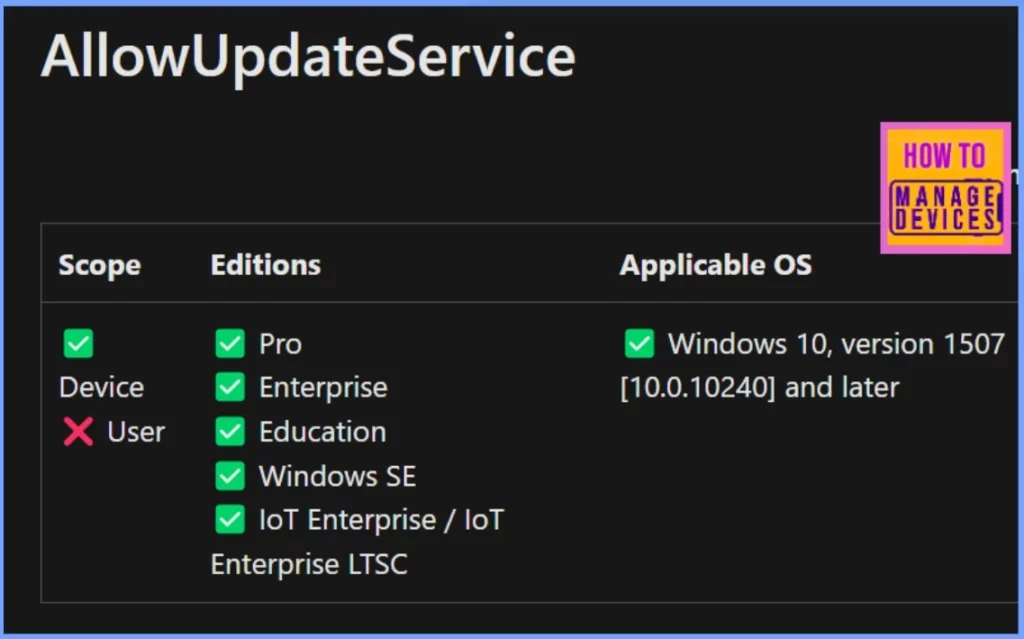
The AllowUpdateService Windows CSP controls whether a device can use Microsoft Update, WSUS, or the Microsoft Store. Even when updates are managed through an intranet service, the device may connect to the public Windows Update service to support future updates and services.
- Windows CSP policies help you manage settings on Windows 10 and newer devices through MDM tools like Intune. These settings are applied using OMA-URI.
./Device/Vendor/MSFT/Policy/Config/Update/AllowUpdateService
| Property Name | Property Value |
|---|---|
| Format | int |
| Access Type | Add, Delete, Get, Replace |
| Default Value | 1 |
- WSUS Enhancements Preview Expected Soon as per Microsoft | Exciting News
- Differences between WSUS Vs. WUfB Patching method
- Windows WMI Command Line WMIC Reaching End of Life
Control Public Update Service and Microsoft Store Access
If you enable this policy, the device will not connect to public services like the Microsoft Store, which might cause those services to stop working. Note: This policy only applies if the device is set to use an intranet update service through the “Specify intranet Microsoft update service location” policy.
- Log in to Microsoft Intune and set up a Configuration Profile.
- Navigate to Devices > Windows > Configuration Profiles, then select Create Profile.
- Choose Windows 10 and later as the platform and Settings Catalog as the profile type.
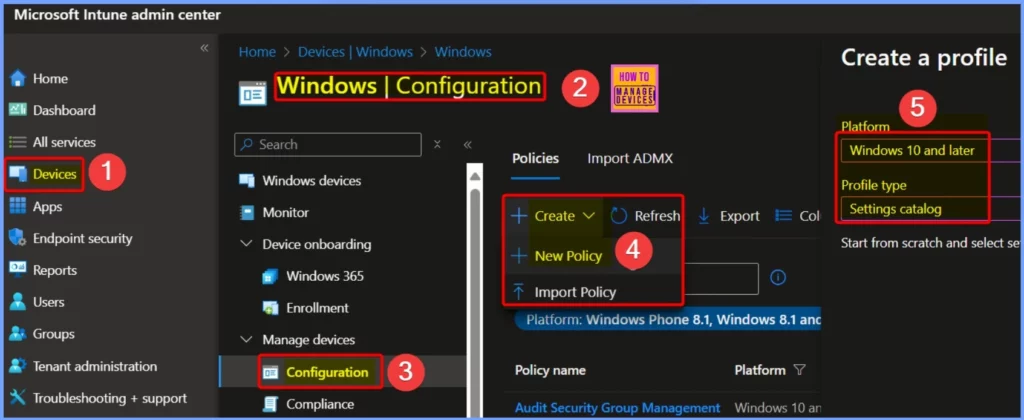
Allow Update Service
Here, you need to provide the policy name and description. The policy is Allow Update Service, and the description is How to Control Public Update Service and Microsoft Store Access with WSUS via Intune Settings Catalog Policy.
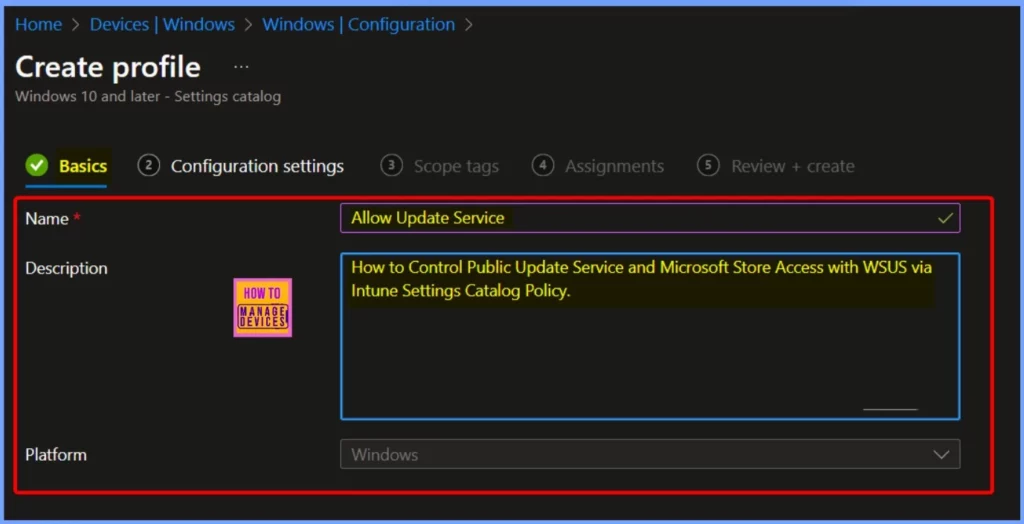
Windows Update for Business
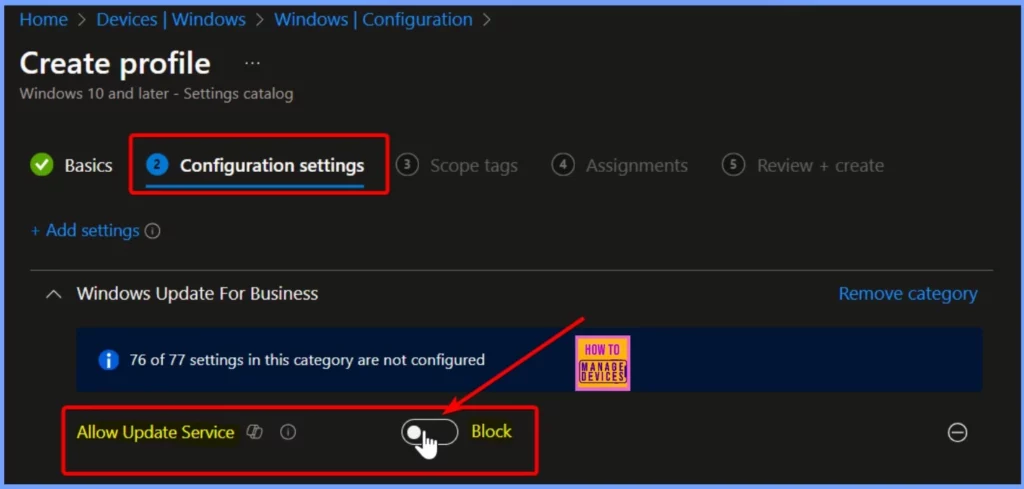
Navigate to the Configuration settings and click +Add settings. Use the search bar to find Windows Update for Business and select it from the list. This category contains 77 settings related to Windows updates. To block the Allow Update Service policy, check the box next to its name, as shown in the screenshot below.
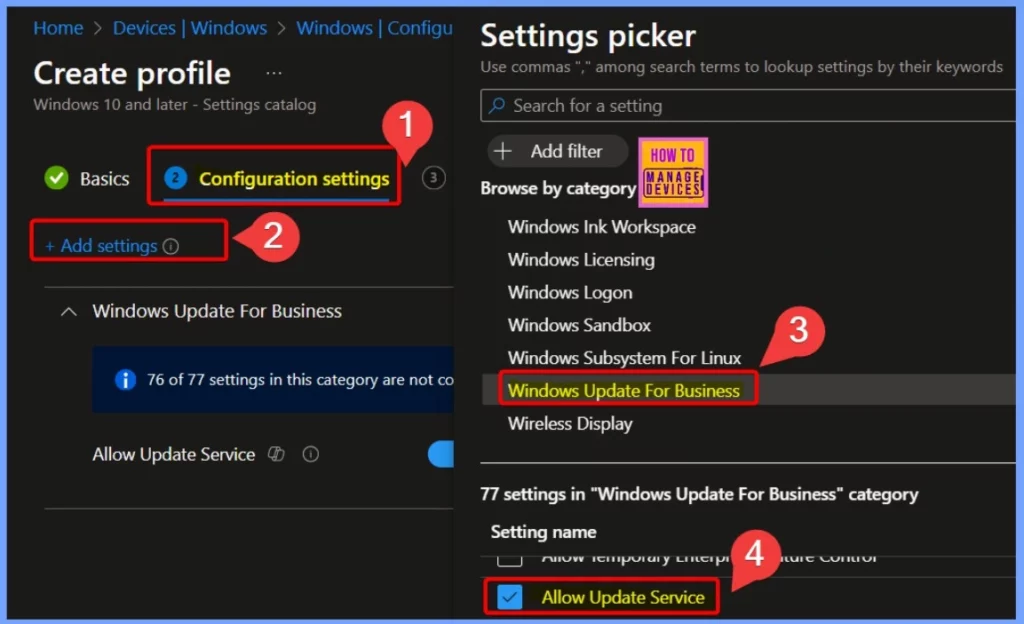
Block Allow Update Service
Specifies whether the device could use Microsoft Update, Windows Server Update Services (WSUS), or Microsoft Store. Even when Windows Update is configured to receive updates from an intranet update service, it will periodically retrieve information from the public Windows Update service to enable future connections to Windows Update and other services like Microsoft Update or the Microsoft Store.
Enabling this policy will disable that functionality and may cause connections to public services, such as the Microsoft Store, to stop working. This policy applies only when the desktop or device is configured to connect to an intranet update service using the Specify intranet Microsoft update service location policy.
| Policy Name | Allow | Block |
|---|---|---|
| Allow Update Service | Toggle the pane to the Right side | Toggle the pane to the Left side |
- SCCM WSUS Maintenance Task – SUSDB Cleanup
- Intune Vs SCCM and WSUS Vs WUfB Patching Method Differences
Scope Tag and Assignments Tab
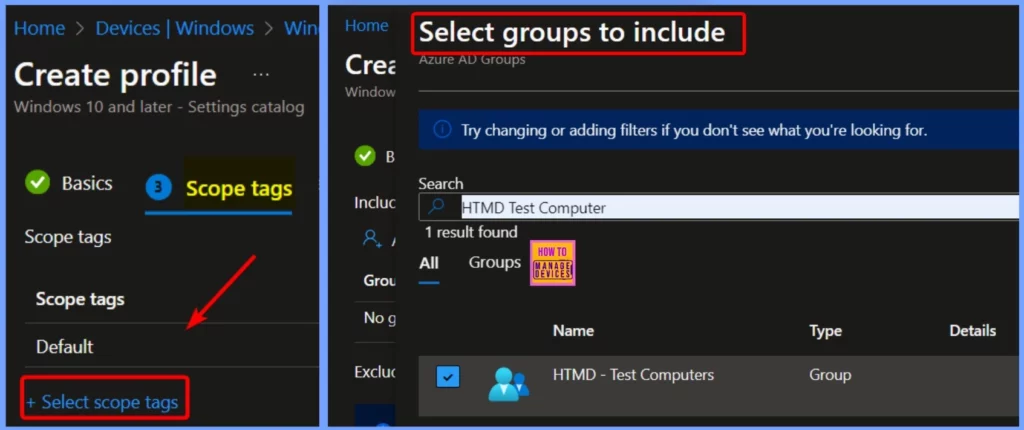
In Intune, a Scope Tag helps organize and manage devices, apps, or policies by grouping them based on your organisation’s teams, regions, or departments. The Assignment Tab allows you to assign a policy, app, or configuration to specific users or devices.
Review + Create Tab
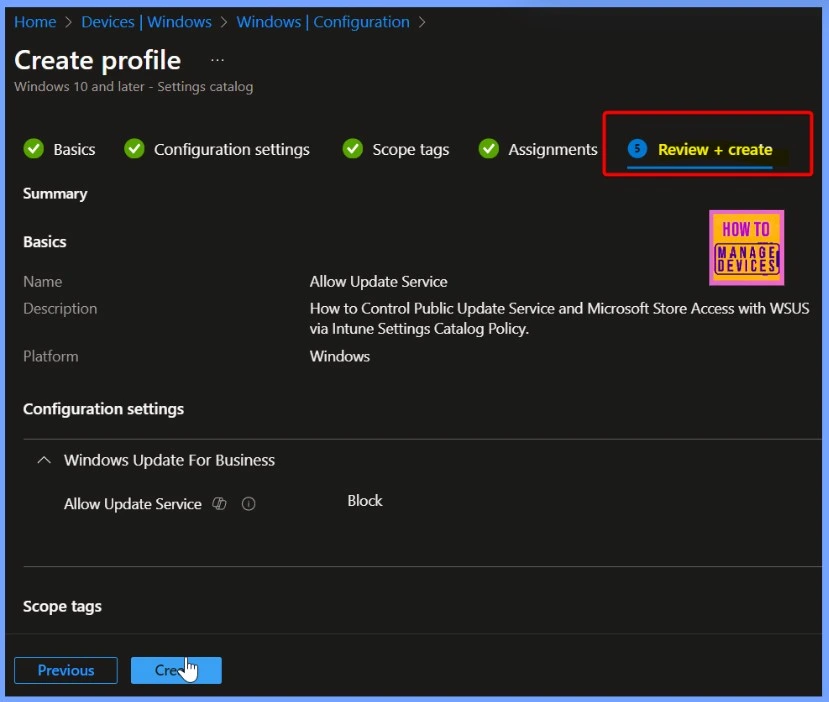
The Review + Create tab in Intune is the last step in setting up a policy, app, or configuration. It provides a summary of all the settings you have configured. If everything looks correct, click Create to finalise.
Policy Created
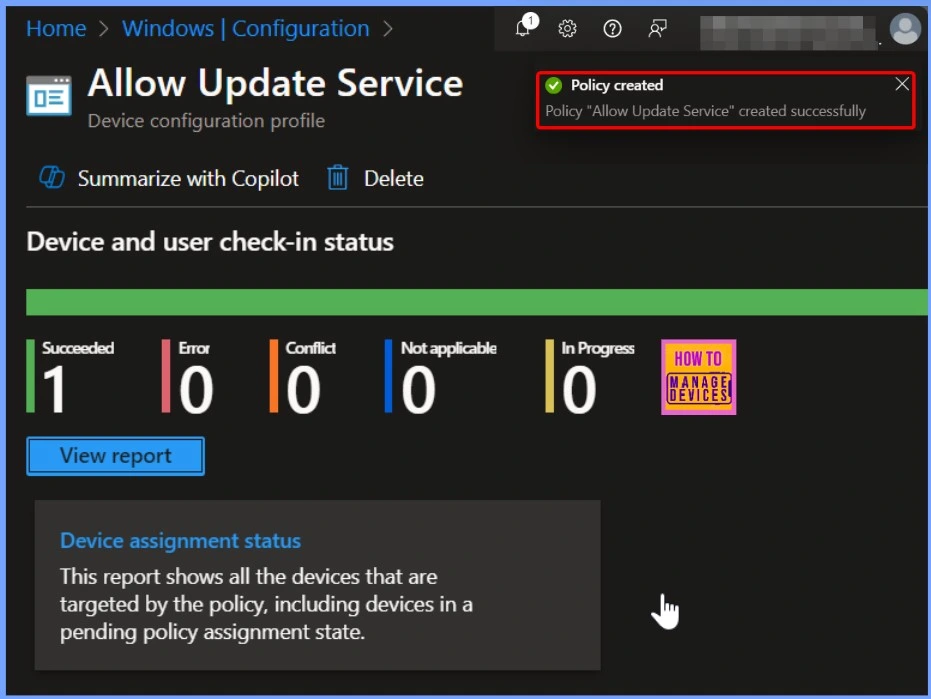
The Allow Update Service policy was successfully created, as confirmed by the notification in the screenshot below. The Device and User Check-in Status shows that one device has successfully applied the policy.
Client Side Verification
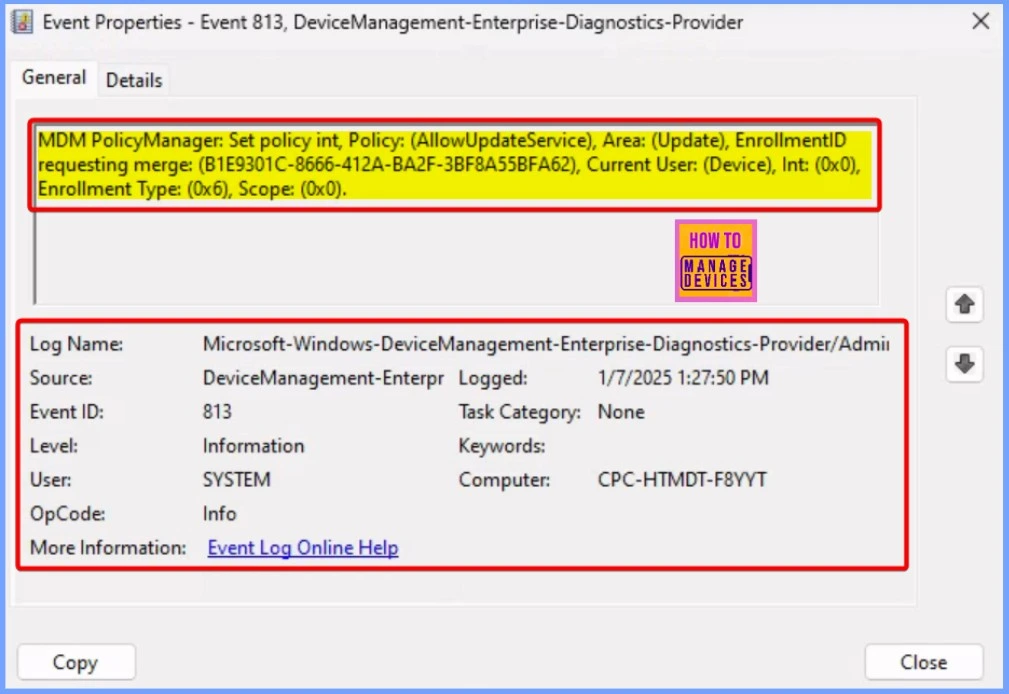
Event IDs 813 and 814 indicate the successful application of string or integer policies, like Block Allow Update Service, in Windows Update for Business. To verify this, navigate to the Event log path: Applications and Services Logs > Microsoft > Windows > Devicemanagement-Enterprise-Diagnostics-Provider > Admin.
MDM PolicyManager: Set policy int, Policy: (AllowUpdateService), Area: (Update), EnrollmentID requesting merge: (B1E9301C-8666-412A-BA2F-3BF8A55BFA62), Current User: (Device), Int: (0x0), Enrollment Type: (0x6), Scope: (0x0).
Need Further Assistance or Have Technical Questions?
Join the LinkedIn Page and Telegram group to get the latest step-by-step guides and news updates. Join our Meetup Page to participate in User group meetings. Also, Join the WhatsApp Community to get the latest news on Microsoft Technologies. We are there on Reddit as well.
Author
Anoop C Nair has been Microsoft MVP from 2015 onwards for 10 consecutive years! He is a Workplace Solution Architect with more than 22+ years of experience in Workplace technologies. He is also a Blogger, Speaker, and Local User Group Community leader. His primary focus is on Device Management technologies like SCCM and Intune. He writes about technologies like Intune, SCCM, Windows, Cloud PC, Windows, Entra, Microsoft Security, Career, etc.


Discussion