






Enable or Disable Copilot Page Context Policy in MS Edge Browser using M365 Admin Center
Let’s discuss how to enable or disable the Copilot Page Context policy in MS Edge Browser using M365 Admin Center. Copilot in Microsoft Edge helps you decide, research, and quickly understand web pages, videos, and PDFs.
Copilot Page Context describes the scope of page content access for Microsoft Edge sidebar Copilot users who are signed into their MSA accounts. This policy only affects Microsoft Edge profiles that are associated with Microsoft Entra ID.
This policy lets administrators manage how Copilot can access content from the Edge browser. Page context includes the website address, what’s displayed on the page, and any open files in that tab. Copilot can use this info to assist you—for example, by summarizing a long article when you ask.
For Copilot to summarize pages and work with selected text, it requires access to the page’s content. This specific setting does not affect personal Microsoft Edge profiles. In addition, this policy does not control access for Copilot when enterprise data protection (EDP), that access is managed by the separate EdgeEntraCopilotPageContext policy.

Table of Contents
Copilot Page Context Policy
This policy controls whether Copilot can see the content of web pages. If you turn it on (enable), Copilot can access page content for users logged in with their Entra ID. If you turn it off (disable, Copilot can’t access any page content. If you don’t set (Not Configured) this policy, the initial setting depends on the user’s location (on outside the EU, off inside the EU), but users can always change this in their Microsoft Edge settings.
| Enable | Disable | Not Configured |
|---|---|---|
| Enabling this policy allows Copilot to access page content for users signed in with their Entra ID. | Disabling this policy prevents Copilot from accessing the content of pages. | If you have Not Configured this policy, users can control Copilot’s access to page content in Microsoft Edge settings. |
- M365 Copilot Now Available for All Introducing the Free Copilot Chat License and Consumption Offering
- Enable or Disable PDF Secure Mode Policy in MS Edge Browser using M365 Admin Center
- How to Configure Friendly URL Format Policy in MS Edge Browser using M365 Admin Center
Enable or Disable Copilot Page Context Policy
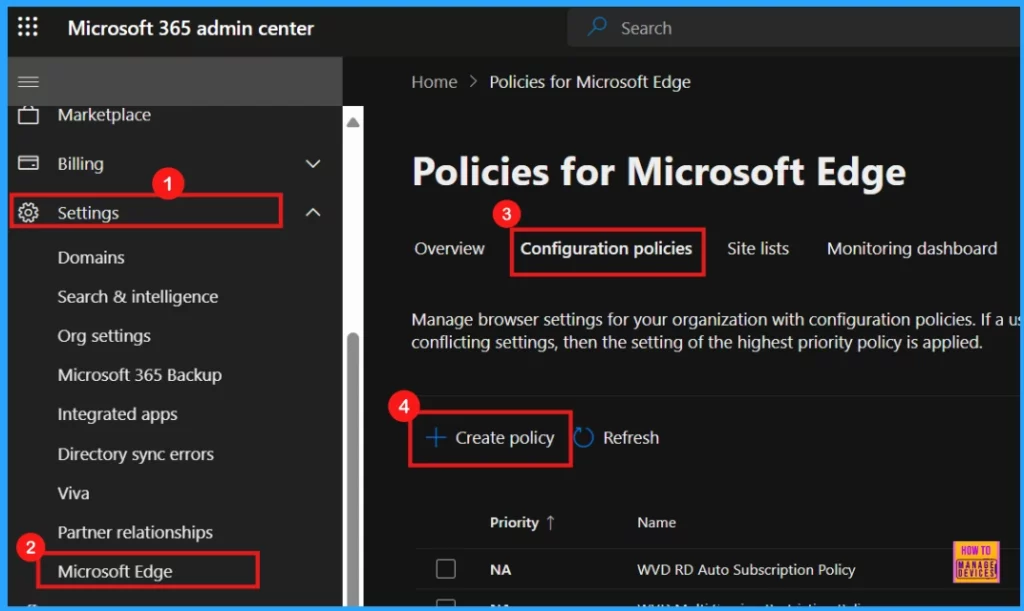
To configure Copilot Page Context policy in MS Edge Browser using M365 Admin Center, open the Microsoft 365 admin center.
- Navigate to Settings
- Choose Microsoft Edge
- Go to the Configuration Policies tab
- Click + Create policy
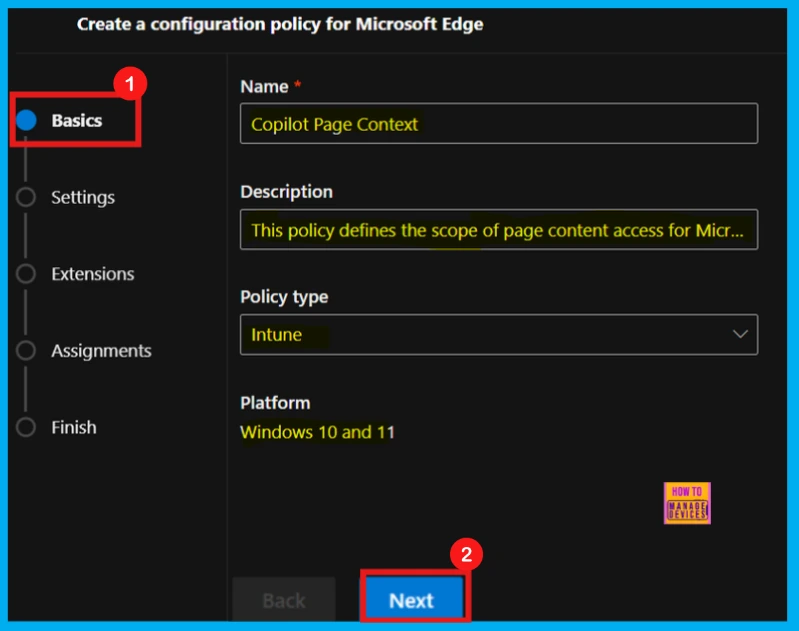
Basics
To begin creating your configuration policy, you will start with the Basics section. In this area, you need to enter key information like the Policy Name, an optional Description, and any other necessary details. After completing the required fields, select Next to move on to the subsequent stage of the setup.
| Policy Name | Decription | Policy Type | Patform |
|---|---|---|---|
| Copilot Page Context | This policy describes the scope of page content access for Microsoft Edge sidebar Copilot users who are signed into their MSA accounts. | Intune | Windows 10 and 11 |
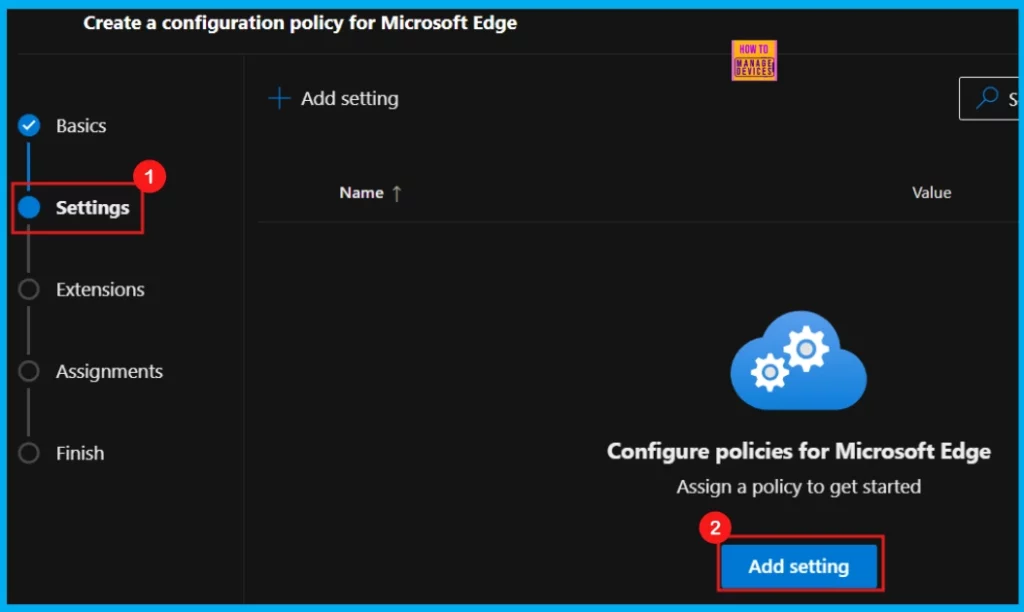
Settings
The Settings section is the next crucial step. In this area, you can turn specific configuration options enable or disable. To start, click + Add setting to select the particular settings you wish to include in this policy.
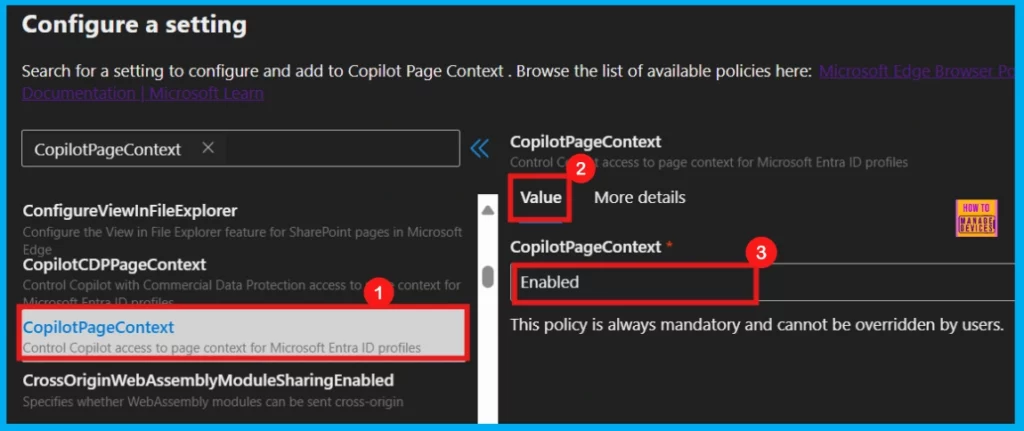
Configure a Setting
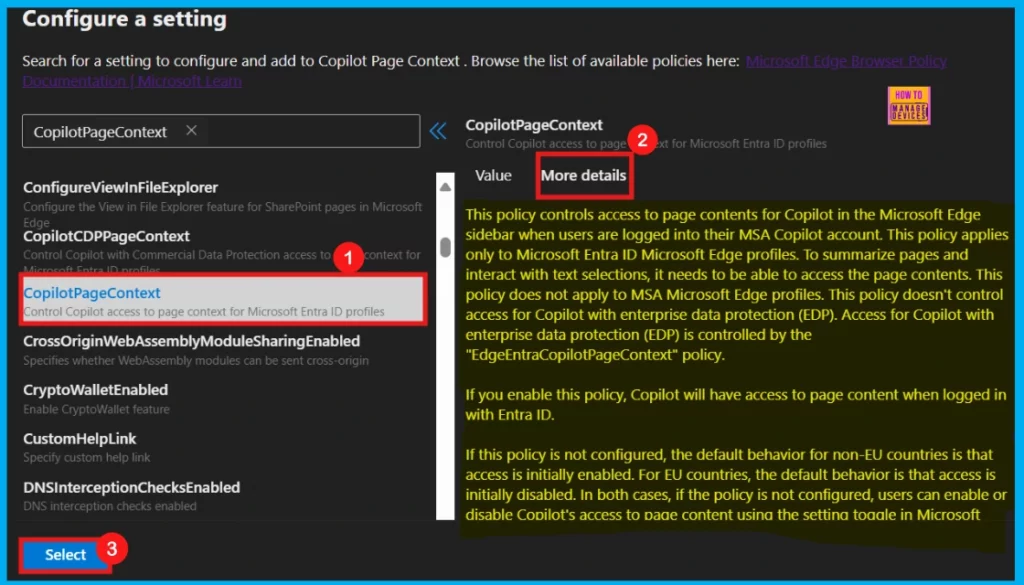
Upon clicking Add settings, you will reach on the Configuration settings page. You can either search for a specific policy name or browse to find the one you want to configure. Once found, click on the policy to select it. The chosen policy will then be displayed under two tabs: Value and More details.
Value
Within the Value tab, you have the control to either activate or deactivate this policy. To turn it on, simply select Enabled and then click Select. If you want to deactivate the Copilot Page Context policy, you would choose the Disabled option within the Value tab.
- Here, I choose the Copilot Page Context policy from the Additional Settings option.
- To activate this policy, I will select Enabled from the dropdown menu in the Value Tab.
More Details
The More details tab, situated beside the Value tab, offers additional information about the policy. It is wise to review this information before you finalize the policy settings. After verifying the information, click Select to proceed with the configuration.
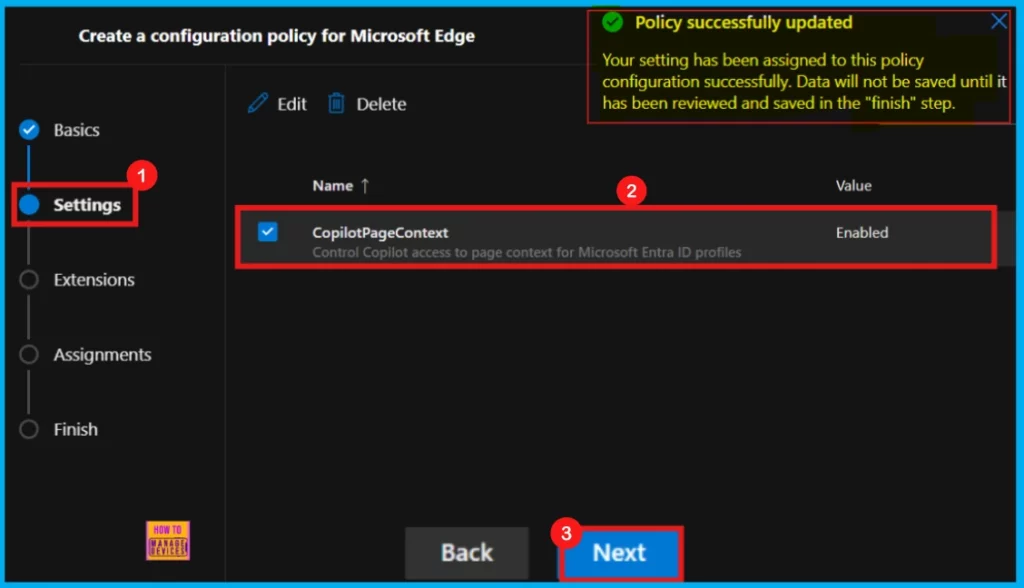
After you click Select, a notification will appear confirming that the policy has been successfully updated. You will then see the new policy listed on the Settings page. Tick the checkbox next to its name and click Next to proceed.
Extensions
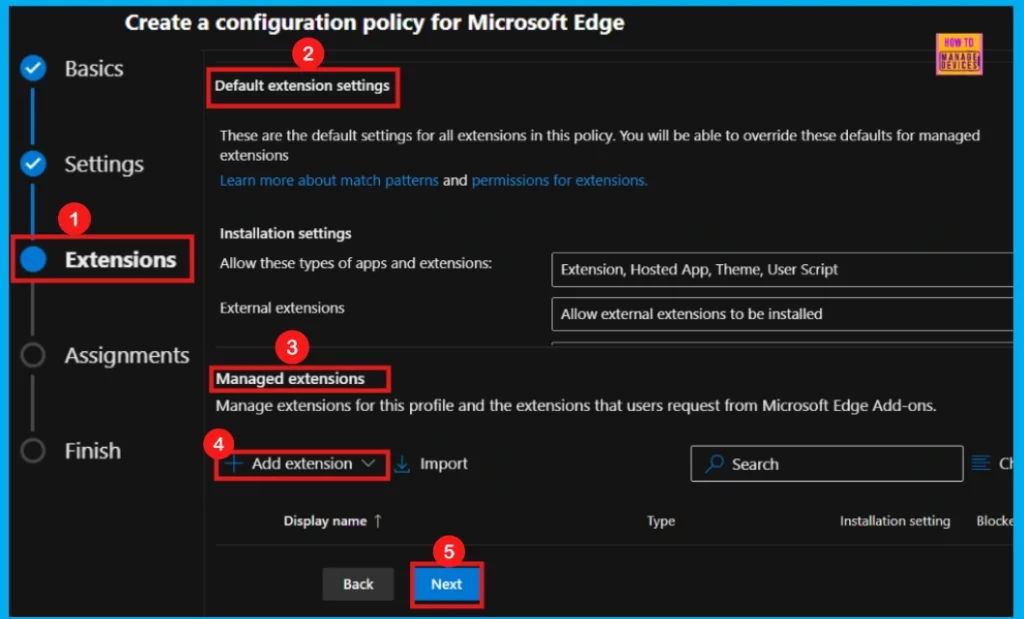
The Extensions tab allows you to include different extensions in your policy, like Edge Add-ons, Sidebar apps, and external extensions. However, this step is optional. For now, I would like to skip adding any extensions and click Next for proceeding the policy settings.
Assignments
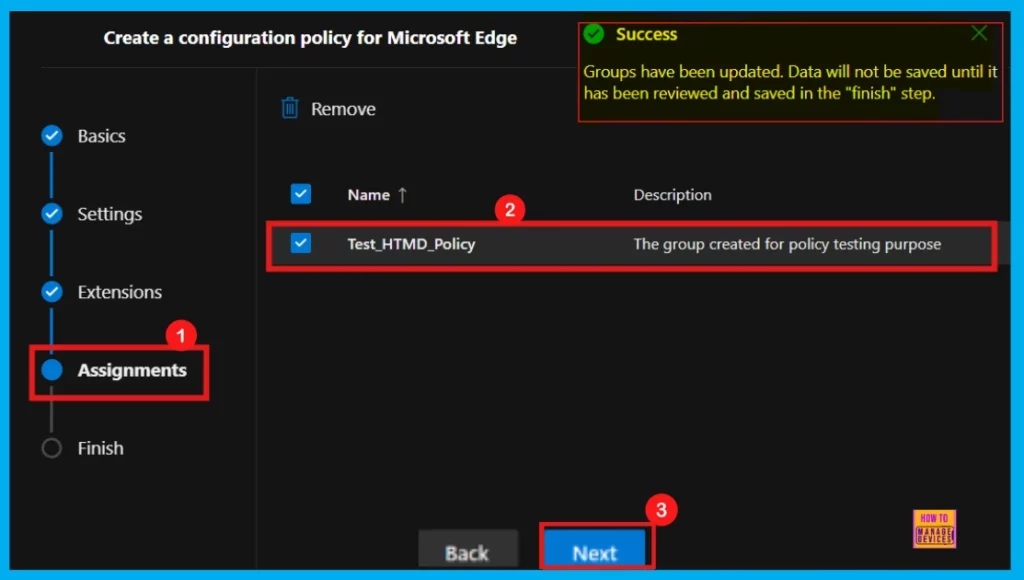
The Assignments tab is the next stage in setting up this policy. Here, you will define which users, groups, or devices will receive the policy. To assign it, click + Select group and then pick the relevant group from the available Microsoft Entra groups.
- For instance, I select Test_HTMD_Policy.
- Click Select to proceed.
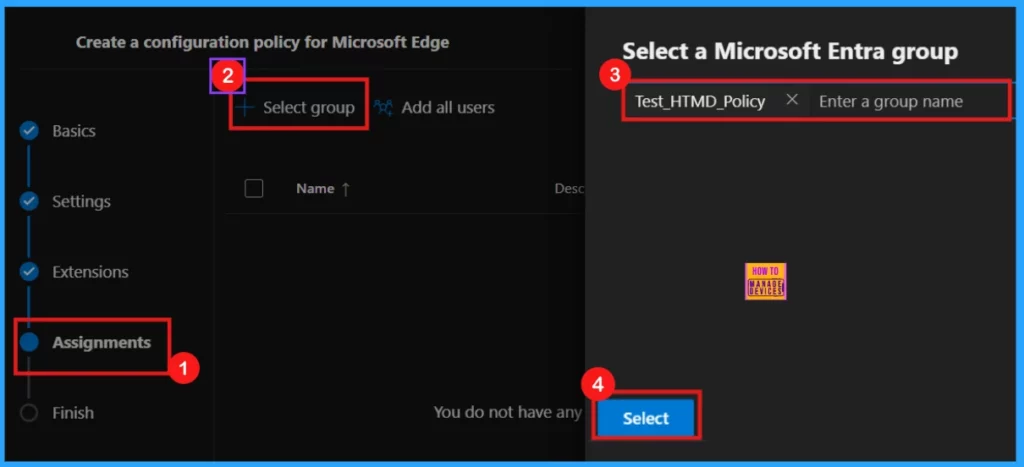
After selecting a group, you will receive a confirmation of success. Click Next to continue. However, your data would not be saved until you review and save everything in the Finish step.
Finish
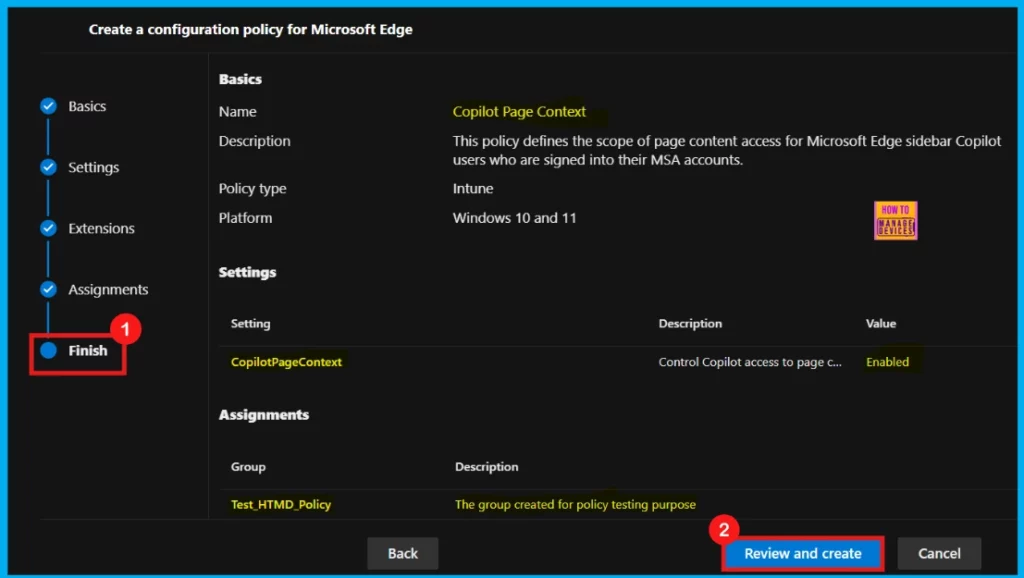
The Finish stage represents the final step in your policy creation procedure. Here, you will find a summary of all the information you provided in the preceding steps. If you want to change anything, use the Back button. Once have confirmed that all settings are accurate and as intended, click Review + Create to finalize the creation of your policy..
Monitoring Status
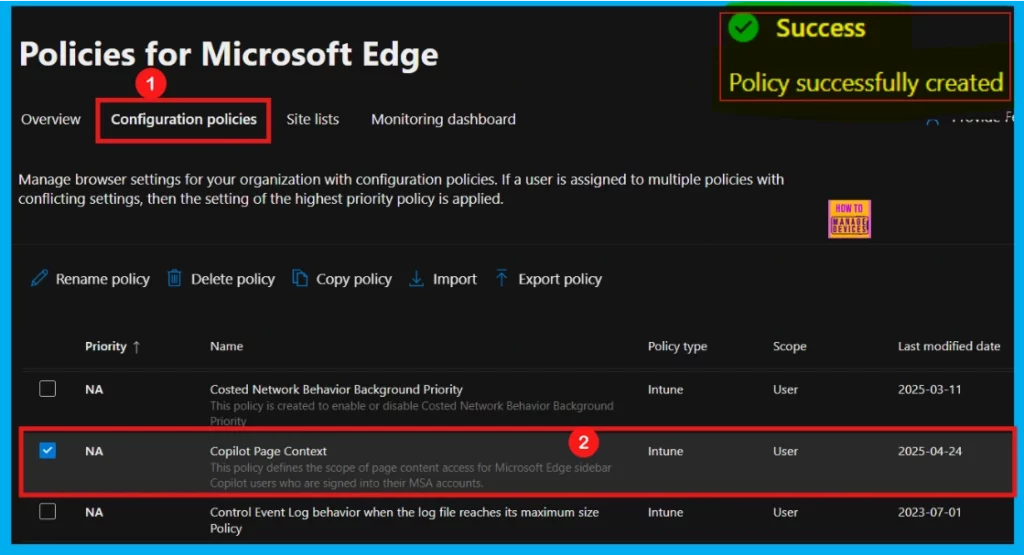
Once you click Review and Create, a success message will appear on the portal, confirming that the policy has been created successfully. You will now find the newly created policy listed in the Configuration Policies section.
Device and User Check-in Status
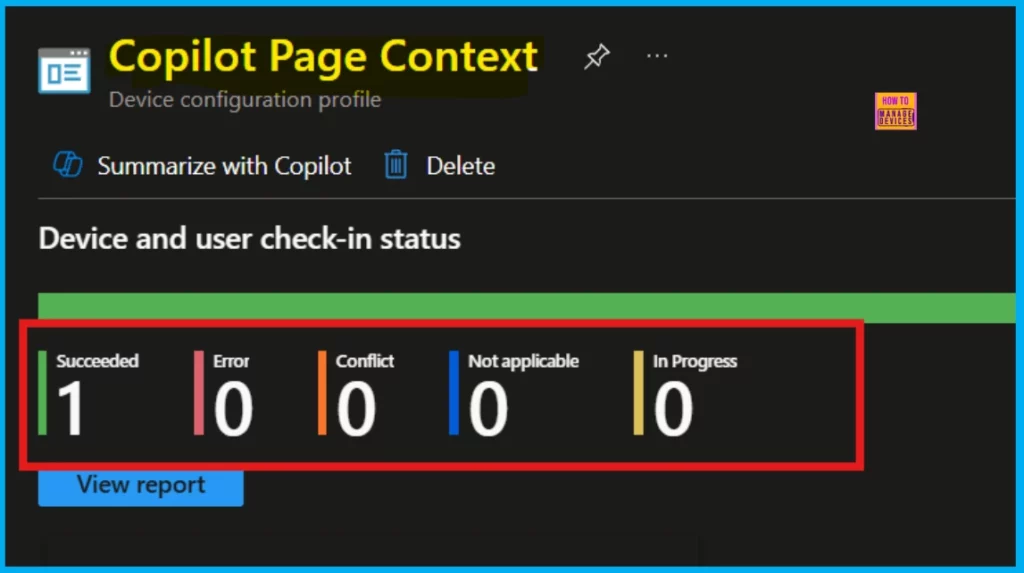
To speed up the policy deployment after creation, initiate a sync of your device with the Company Portal. After that, you can monitor the Device and user check-in status within the Intune Portal by adhering to the following steps.
- Home > Devices > Configuration > Search your policy under the Policies tab
- Click on Copilot Page Context Policy
- Here, you can see the Succeeded(1) status.
Client Side Verification – Event Viewer
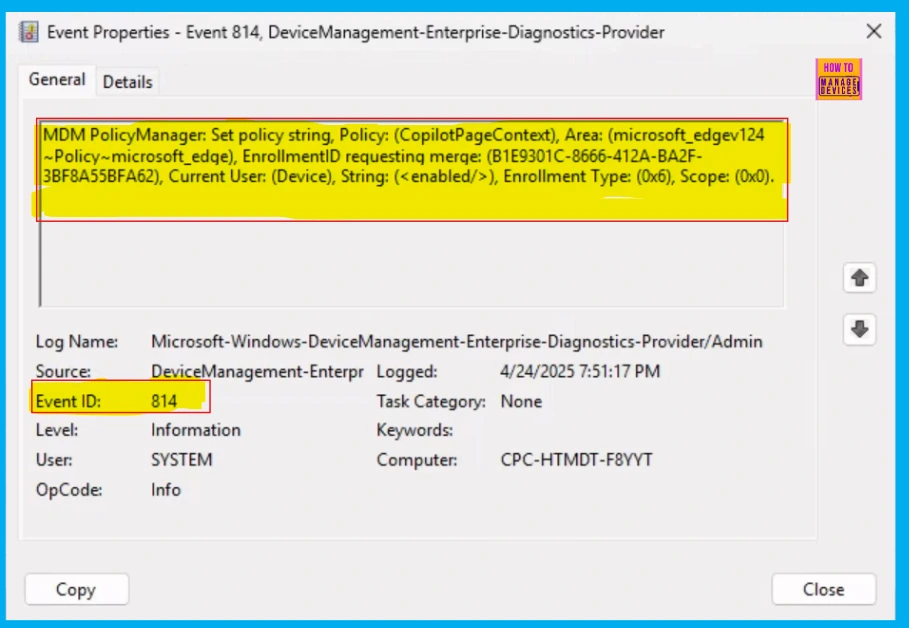
To check if policies are successfully applied to individual devices, administrators can use the Windows Event Viewer. To do so, navigate to Applications and Services Logs > Microsoft > Windows > DeviceManagement-Enterprise-Diagnostics-Provider > Admin to review events related to client-side compliance.
- Look for Event ID 814 to confirm the successful application of the policy.
MDM PolicyManager: Set policy string, Policy: (CopilotPageContext), Area (microsoft_edgev124~Policy~microsoft_edge), EnrollmentiD ID requesting merge:
B1E9301C-8666-412A-BA2F-3BF8A55BFA62), Current User: (Device), String:(<enabled/>), Enrollment Type: (0x6), Sccpe: (0x0).
Need Further Assistance or Have Technical Questions?
Join the LinkedIn Page and Telegram group to get the latest step-by-step guides and news updates. Join our Meetup Page to participate in User group meetings. Also, Join the WhatsApp Community to get the latest news on Microsoft Technologies. We are there on Reddit as well.
Author
Anoop C Nair has been a Microsoft MVP for 10 consecutive years from 2015 onwards. He is a Workplace Solution Architect with more than 22+ years of experience in Workplace technologies. He is a Blogger, Speaker, and Local User Group Community leader. His primary focus is on Device Management technologies like SCCM and Intune. He writes about technologies like Intune, SCCM, Windows, Cloud PC, Windows, Entra, Microsoft Security, Career, etc.




Where is the Powershell content?