






How to Retrieve CPU Information from Windows Devices using Intune
Let’s discuss how to how to Retrieve CPU Information from Windows Devices using Intune. The CPU (Central Processing Unit) is the main part of a computer that does most of the work. It’s also called the “brain” of the computer because it runs programs, processes data, and carries out instructions from the operating system and software.
The CPU inventory data includes several useful properties that help IT admins understand the hardware details of a device. These include the Processor ID, Model, and Manufacturer, which show the unique ID, name, and company that made the CPU.
In Microsoft Intune, you can collect CPU information from managed Windows devices using built-in device inventory and reporting features. This data is automatically gathered as part of Intune’s device hardware inventory and includes details like processor model, manufacturer, architecture, core count, and clock speed.
CPU information helps IT admins get a clear view of device hardware across the organization, ensuring systems meet software and OS requirements. It supports performance monitoring, security checks, resource planning, and troubleshooting.

Table of Contents
How to Retrieve CPU Information from Devices using Intune
In this post, you will get all the details on how to retrieve CPU information from devices using Intune. It explains where to find CPU data in the Intune portal, and what kind of information is available etc. Start by signing in to the Microsoft Intune admin center.
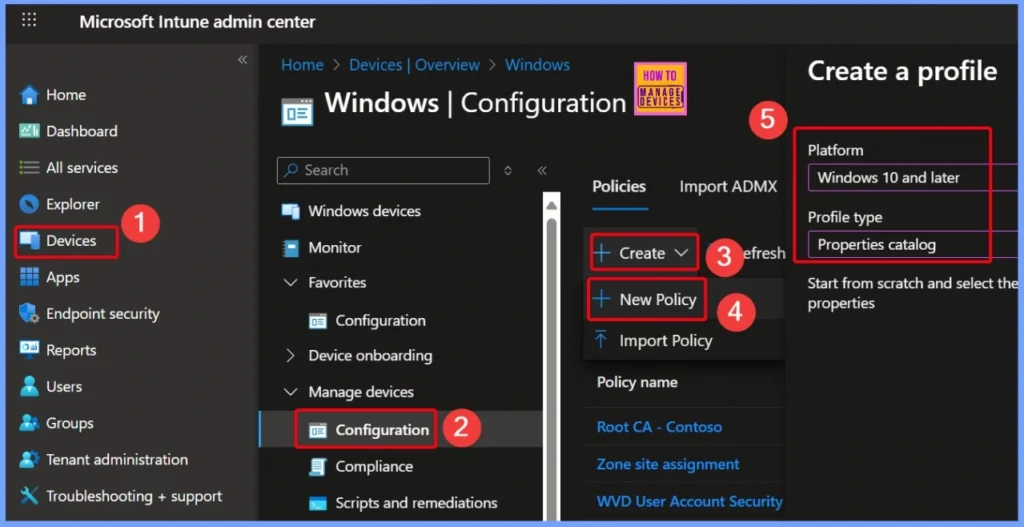
- From the main menu on the left, navigate to Devices > Windows devices.
- Then, head to the Configuration section and click Create.
- Choose New Policy to begin setting up your configuration profile.
- From the Create a profile window select the Platform as Windows 10 and later and Profile type as Properties catalog
- How to Track Device Battery Information using Intune Property Catalog
- How to Collect Physical and Virtual Memory Information using Intune Properties Catalog
- Intune Managing OneDrive File Downloads for Low Disk Space
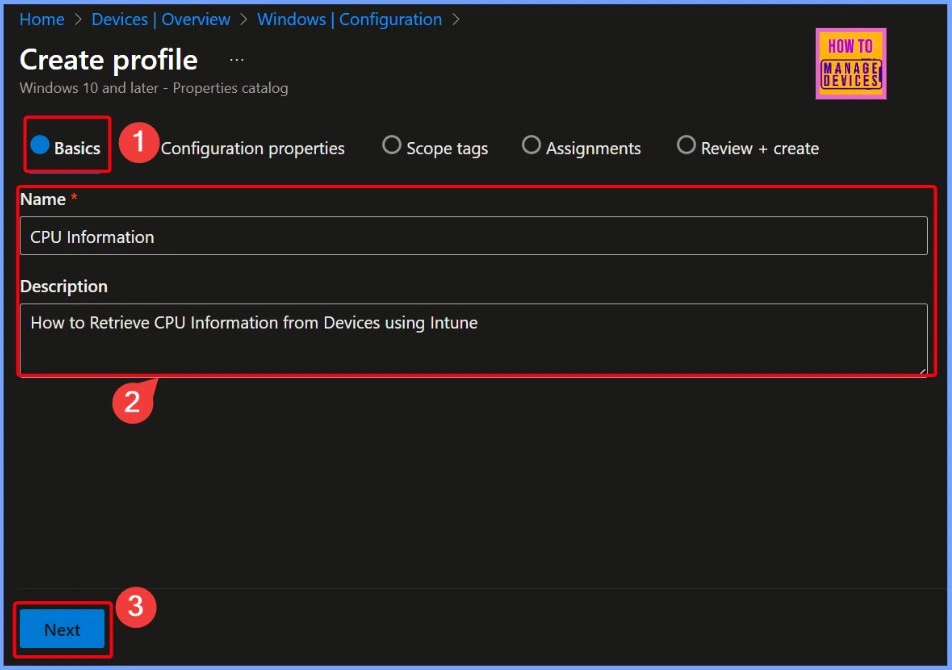
Basics Settings Tab
In the Basics settings tab of Intune, you need to provide a name and description for your policy. Here i set the Name as CPU Information and the Description as How to Retrieve CPU Information from Devices using Intune. This helps clearly identify the purpose of the policy and makes it easier to manage or update later.
Configuration Properties
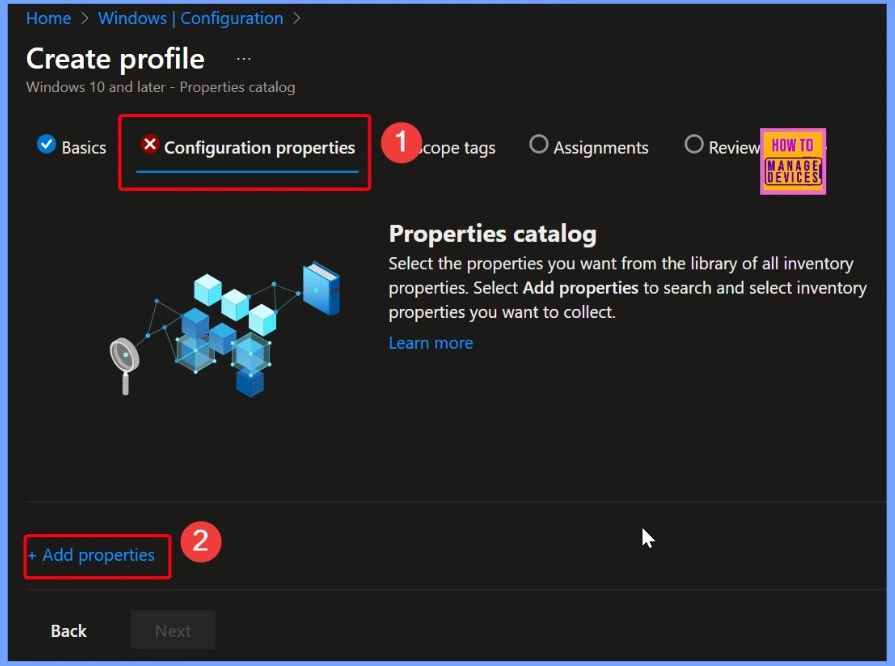
Retrieving CPU information from devices using Intune helps improve security by allowing IT admins to identify devices that may lack essential hardware-based security features. For example, older CPUs might not support virtualization-based security (VBS), Secure Boot, or hardware-enforced data execution prevention (DEP). By knowing the CPU architecture and capabilities, admins can ensure that devices meet the security baseline requirements set by the organization.
- Select the +Add Properties hyperlink from the below window
CPU Selected Properties
The CPU property in Intune shows 11 key details about a device’s processor. These include the Logical Processor Count, Core Count, Max Clock Speed, and Address Width, which help understand the performance and capacity of the CPU. It also shows the Model, Manufacturer, and Processor ID, which give information about the type and make of the processor.
| CPU Selected Properties |
|---|
| Logical Processor Count |
| Manufacturer |
| Max Clock Speed |
| Address Width |
| Model |
| Architecture |
| Processor Id |
| Processor Type |
| Core Count |
| Socket Designation |
| CPU Status |
| Logical Processor Count |
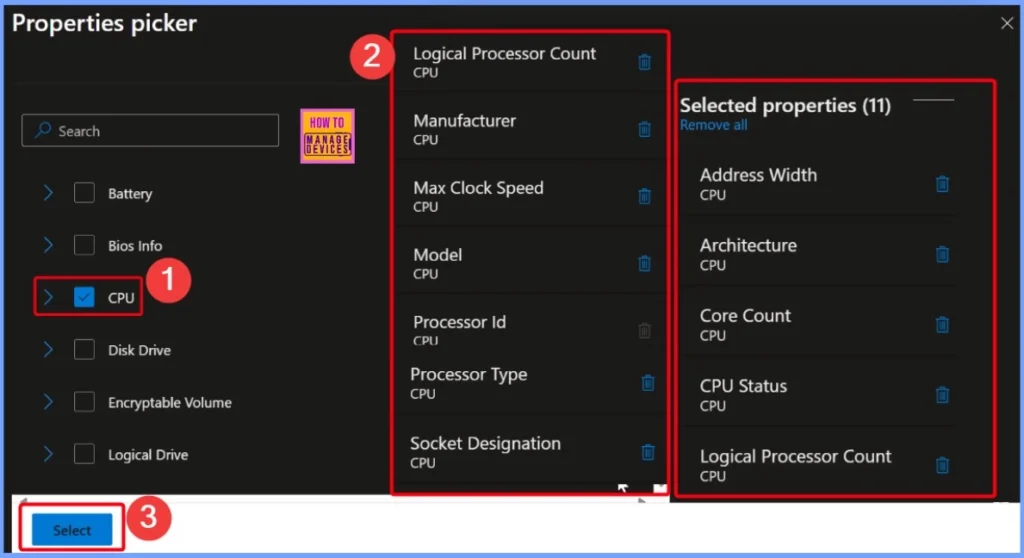
CPU Properties
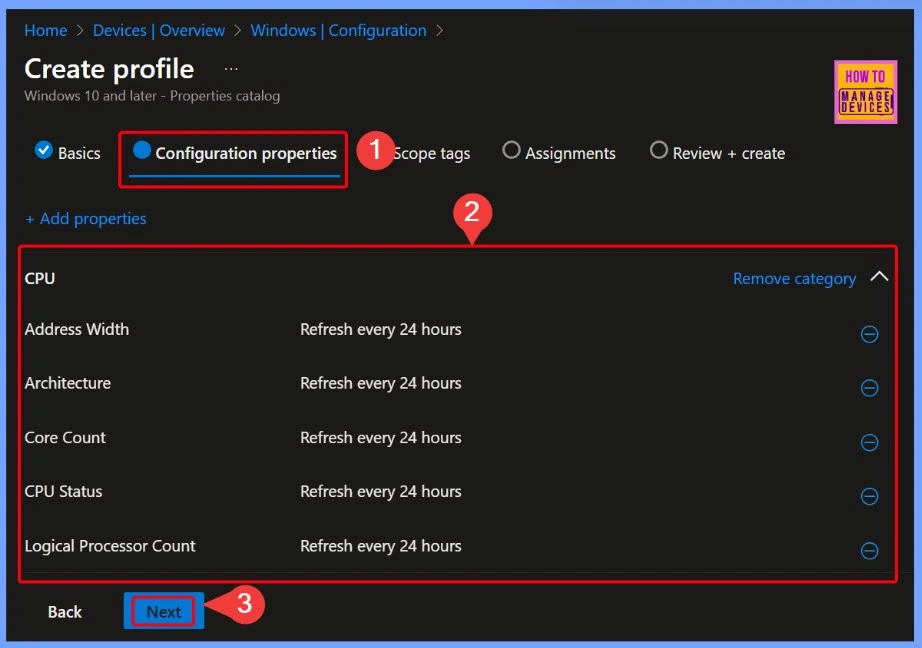
In the Configuration properties section, you will see all the CPU properties that you have selected or enabled. Here, you can review each setting to make sure everything is correct. Once you have checked all the properties and confirmed the details, simply click the Next button to continue with the setup.
Scope Tag
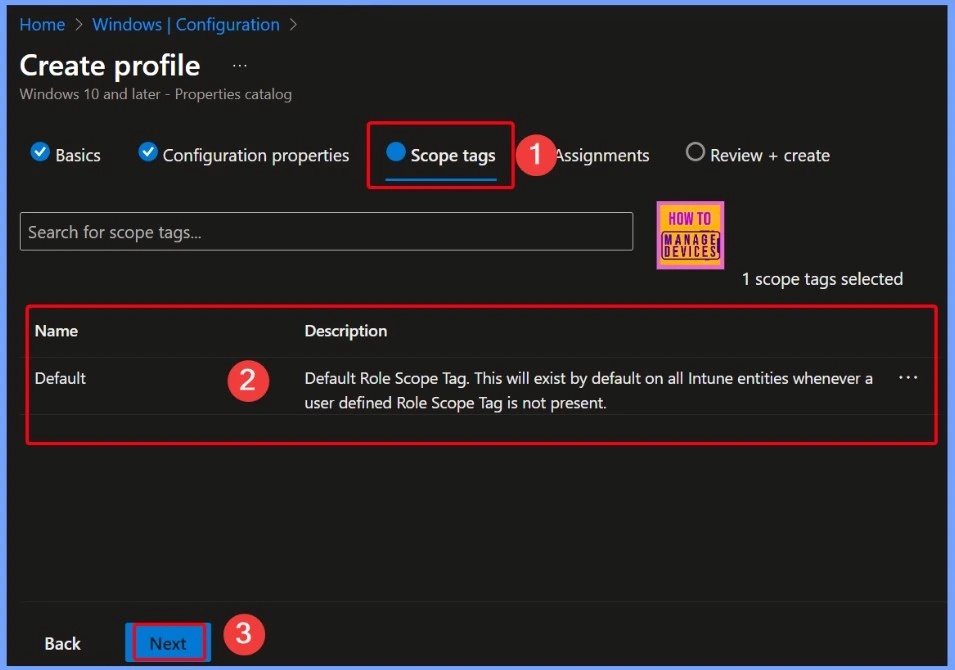
The Scope tag named Default is automatically applied to Intune items when no custom scope tag is assigned. It has a Description saying “Default Role Scope Tag,” meaning it’s used by default on all Intune resources unless you create and use your own tags. This helps manage access and visibility for different roles in Intune.
Assignments
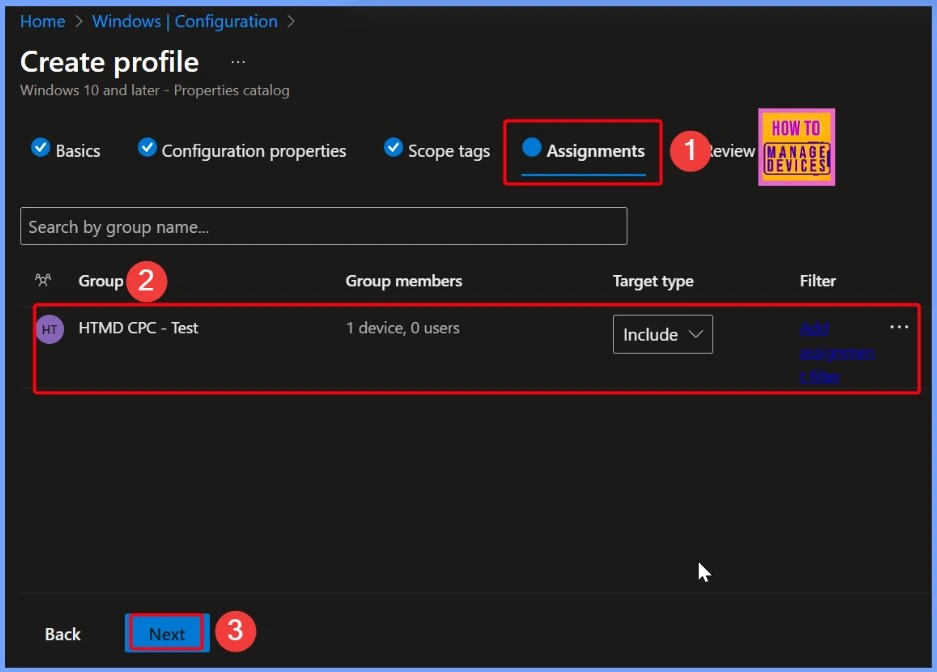
In the Assignments section, choose the groups that should receive this profile. Depending on your requirement, you can select either user groups or device groups. This ensures the profile settings are applied to the correct set of devices. After selecting the appropriate groups, click Next to move forward.
Review + Create
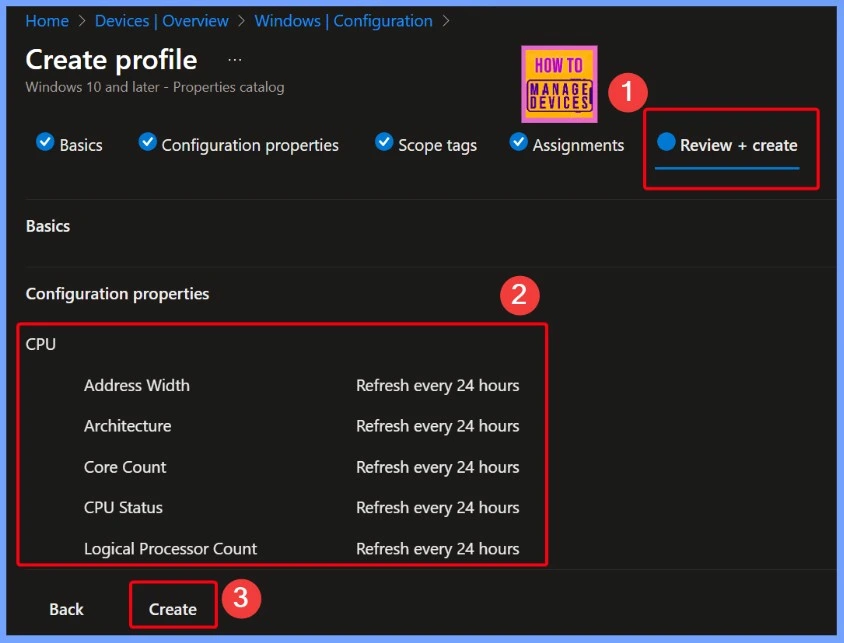
On the Review + create page, once you have confirmed all the settings, click Create. This will add the profile to the list of existing ones. The policy will be applied automatically the next time each device checks in with Intune.
CPU Information Policy
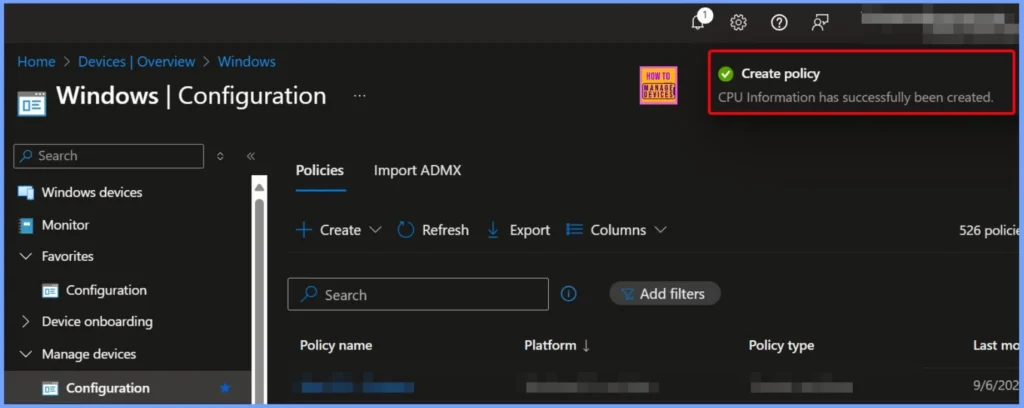
After the CPU Information policy is created, you’ll see a confirmation message indicating it was saved successfully. This message confirms that all your selected settings have been stored, and the policy is now set up and ready to be deployed to the assigned devices.
End Result
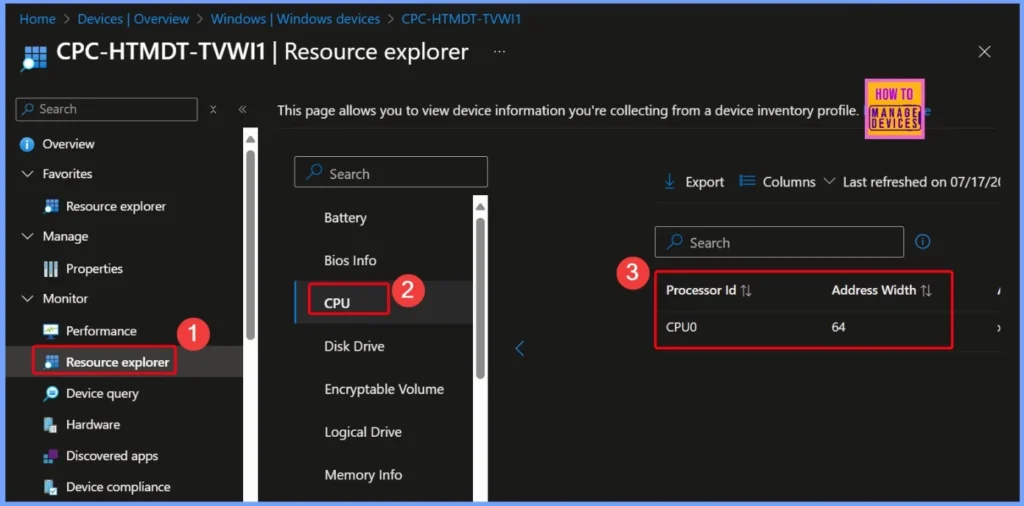
To check the collected inventory details, go to Devices > Windows Devices and click on the device you want to view. Then, under the Monitor section, select Resource Explorer and pick a category to see the hardware info. Here I selected the CPU, the other details related to cpu are given below.
The Processor ID is a unique identifier for the CPU, shown here as CPUO. The Address Width is listed as 64, which means the processor supports a 64-bit architecture. This indicates that the device can handle modern operating systems and applications that require 64-bit processing.
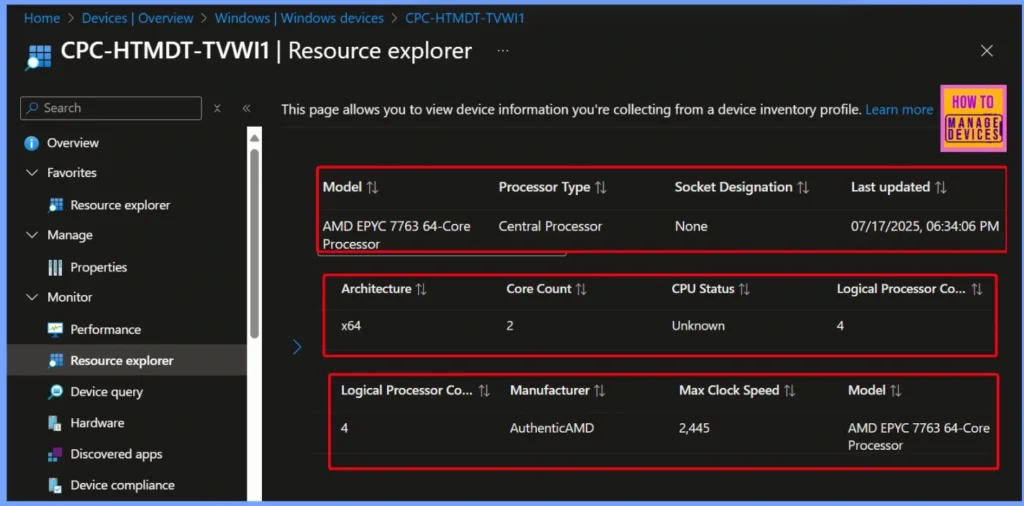
| Processor ID | Address Width | Architecture | Core Count | CPU Status | Logical Processor Co | Manufacturer | Max Clock Speed | Model | Processor Type | Socket Designation |
|---|---|---|---|---|---|---|---|---|---|---|
| CPU0 | 64 | x64 | 2 | Unknown | 4 | AuthenticAMD | 2,445 | AMD EPYC 7763 64-Core Processor | Central Processor | None |
The device is powered by an AMD EPYC 7763 64-Core Processor, with a Central Processor type and x64 architecture. It has 2 cores and 4 logical processors, indicating support for multitasking. The Max Clock Speed is listed as 2,445 MHz, showing its processing capability.
Need Further Assistance or Have Technical Questions?
Join the LinkedIn Page and Telegram group to get the latest step-by-step guides and news updates. Join our Meetup Page to participate in User group meetings. Also, Join the WhatsApp Community to get the latest news on Microsoft Technologies. We are there on Reddit as well.
Author
Anoop C Nair has been Microsoft MVP from 2015 onwards for 10 consecutive years! He is a Workplace Solution Architect with more than 22+ years of experience in Workplace technologies. He is also a Blogger, Speaker, and Local User Group Community leader. His primary focus is on Device Management technologies like SCCM and Intune. He writes about technologies like Intune, SCCM, Windows, Cloud PC, Windows, Entra, Microsoft Security, Career, etc.


is it possible to export the cpu model and device name for all device