





How to Create Remote Connection Experience Settings for Windows 365 Cloud PCs
Key Takeaways
- Remote Connection Experience Settings is currently in Public Preview
- Enhanced Security: Cloud I/O Protection in Windows 365 blocks local keyboard input, ensuring better isolation
- Centralized Control: Easily configure and manage settings through Microsoft Intune
- Improved Remote Experience: Reduces risk of interference, making Cloud PC access more secure and reliable
In this article, let’s quickly check how to create Remote Connection Experience Settings for Windows 365 Cloud PCs. You can create this using Microsoft Intune to enhance security and control user interactions. This includes enabling features like Cloud I/O Protection, which blocks keyboard input from local devices and allows only in-session input. By configuring and assigning this settings to the appropriate device/user groups, organizations can ensure a more secure and isolated remote access experience for their Cloud PCs.
Table of Contents
What is Remote Connection Experience?
The input protection setting is configured to enhance the security of the remote session. It ensures that only trusted input within the session is accepted, preventing external interference.
| Setting | Configuration | Benefit |
|---|---|---|
| Input Protection | Configured to block input from local devices (keyboard, pen) from entering the remote session | Ensures only in-session input is accepted, improving isolation and reducing risk of interference |
- Cloud PCs Get 20% Cheaper Starting May 1st With Improved Entry And Scalable Performance Options
- How to Configure AI-Enabled Features for Windows 365 Cloud PCs
- How to Configure New Windows App Settings for Windows 365 using Intune
- Easy Method to Deploy Windows App Mob for iOS and iPadOS using Intune
Configure Remote Connection Experience for Windows 365 in Intune
To configure Remote Connection Experience for Windows 365, login to the Microsoft Intune Admin Center using your administrator credentials.
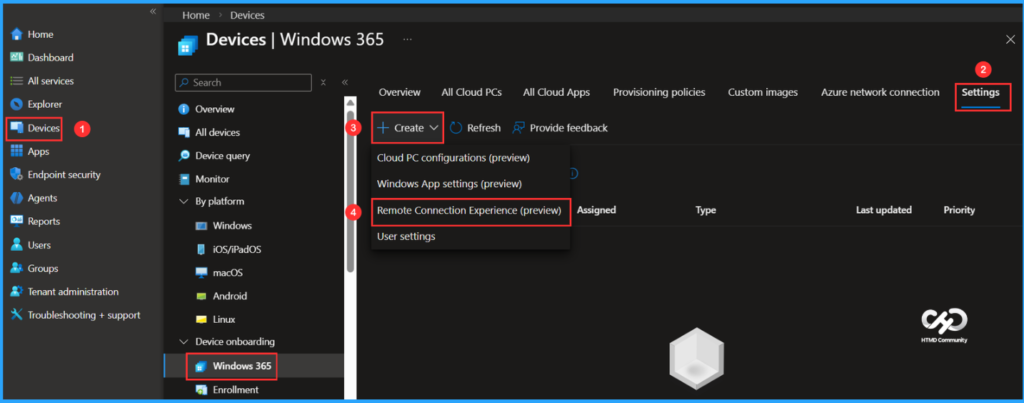
- Navigate to > Devices > Device onboarding > Windows 365
- Click on Settings > +Create > Remote Connection Experience (preview)
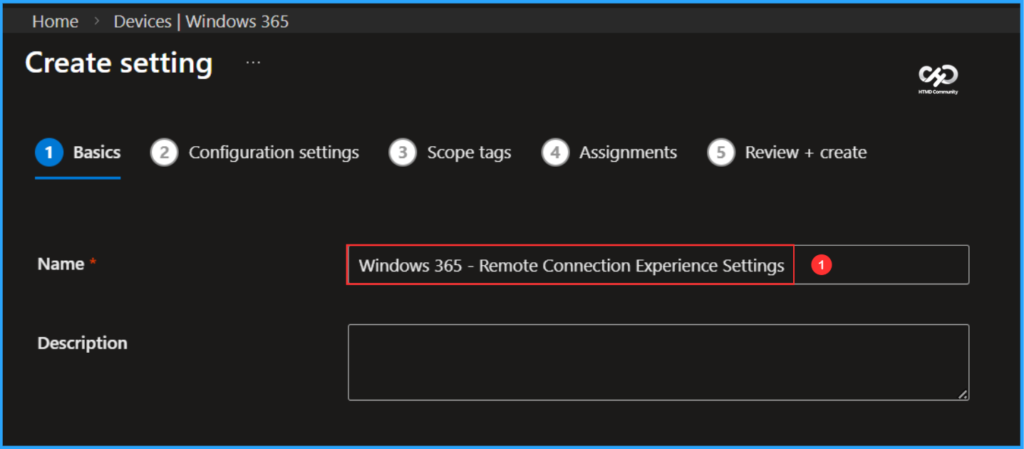
In the Basics details pane, name the new settings Windows 365 – Remote Connection Experience Settings, and if required, provide a brief description. After that, click Next.

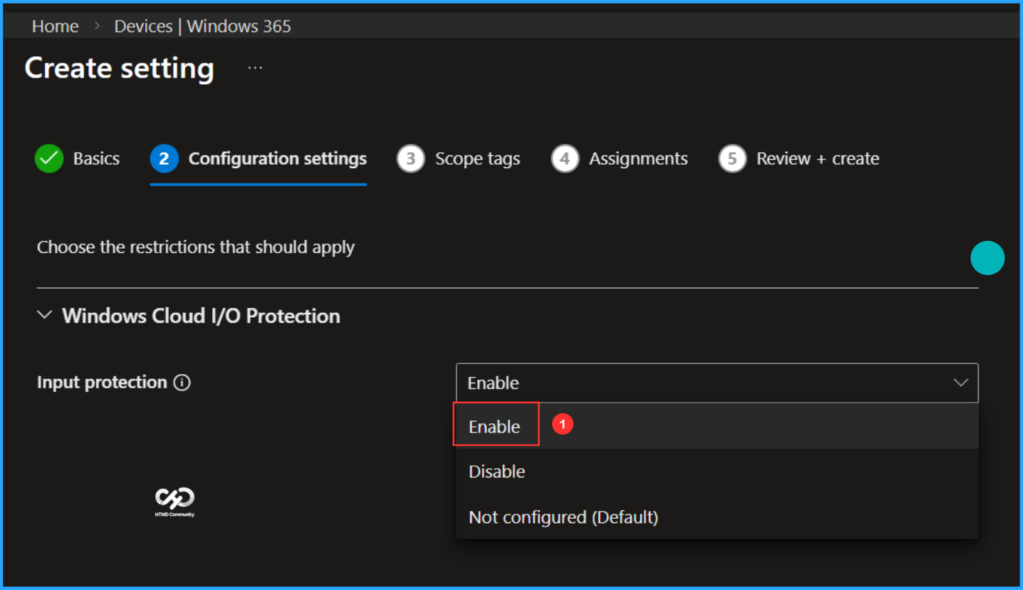
In the Configuration settings, the Windows Cloud I/O Protection option is set to Not configured by default. Click on the Input protection, and from the drop-down, change the setting to Enable.
Note: Windows Cloud I/O Protection Blocks keyboard input from local devices from entering the remote session. Only input generated within the remote session is accepted, improving isolation and reducing the risk of interference.
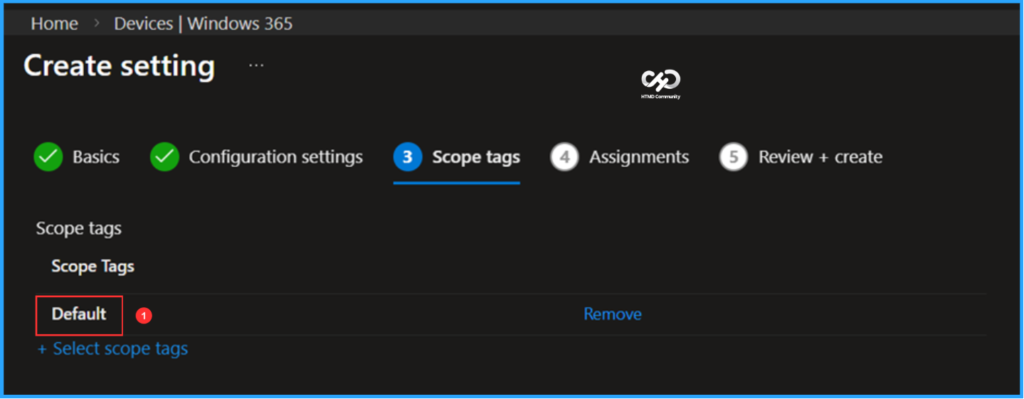
On the next pane, keep the Scope tags set to Default. If your tenant has custom scope tags, you can choose them according to your settings needs, then click Next.
- How to Set Alert for Windows 365 Cloud PCs in Grace Period using Intune
- How to Create Windows 365 Frontline Shared Cloud PC using Intune
- How to Setup Windows 365 Cloud PCs with Autopilot Device Preparation
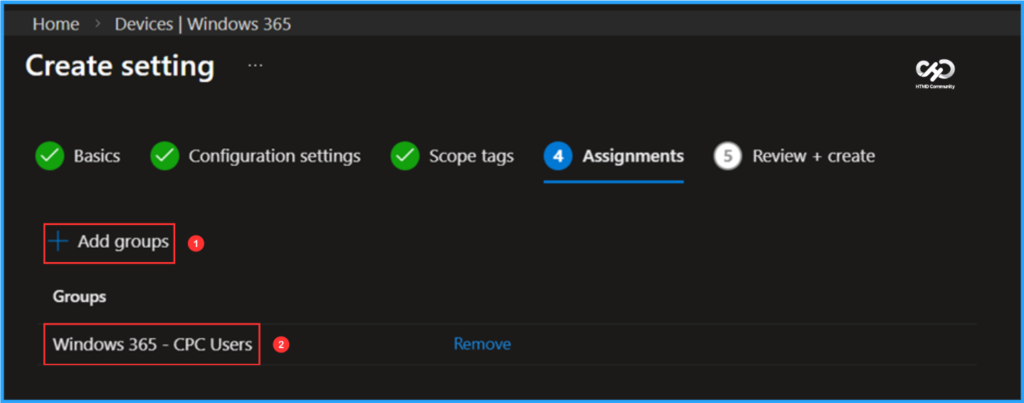
I am assigning settings to the Windows 365 – CPCs Users group. This Entra ID group includes users who need these settings. To do this, click on Add groups and then select the appropriate user group in the Select groups section.
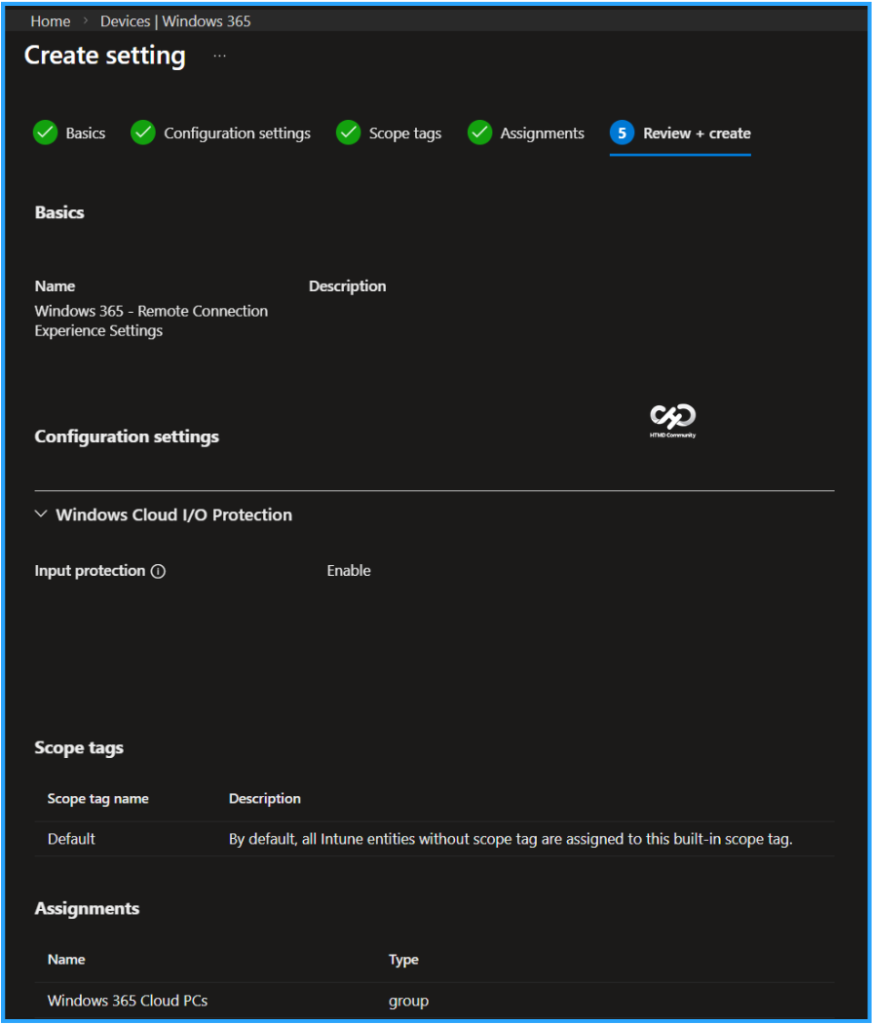
On the Review + create page, carefully review all the settings you’ve defined for the Windows 365 – Remote Connection Experience Settings. Once you’ve confirmed everything is correct, select Create to deploy it.
Monitor the Remote Connection Experience
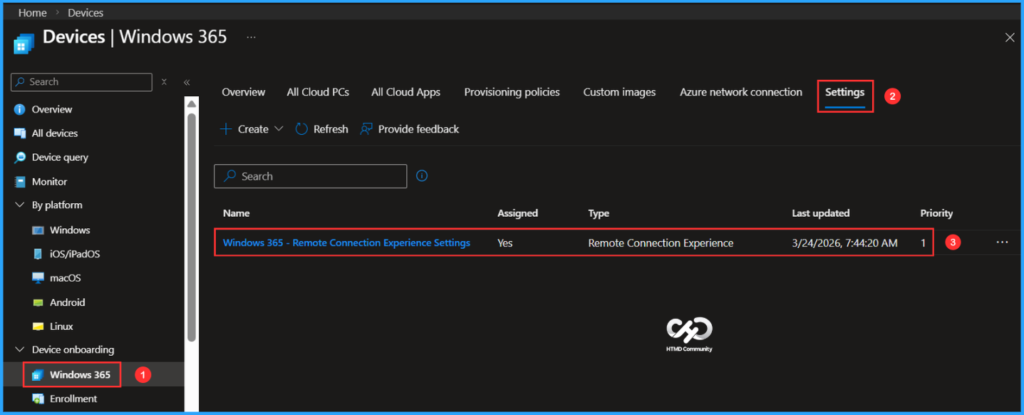
Now, we will verify whether the new settings have been created. The input protection is configured to block input from local devices, such as keyboards and pens, from entering the remote session. This means that only input generated within the remote session is accepted, enhancing isolation and reducing the risk of interference. Please follow the path listed below in the Intune Portal.
- Navigate to > Devices > Device onboarding > Windows 365
- Click on Settings > The “New Settings for Windows 365 – Remote Connection Experience” has been created successfully, and its priority is set to 1.
Need Further Assistance or Have Technical Questions?
Join the LinkedIn Page and Telegram group to get the latest step-by-step guides and news updates. Join our Meetup Page to participate in User group meetings. Also, join the WhatsApp Community to get the latest news on Microsoft Technologies. We are there on Reddit as well.
Author
Vaishnav K has over 12 years of experience in SCCM, Intune, Modern Device Management, and Automation Solutions. He writes and shares knowledge about Microsoft Intune, Windows 365, Azure, Entra, PowerShell Scripting, and Automation. Check out his profile on LinkedIn.


Discussion