






Create System Management Container for SCCM and Assign Permissions
Let’s learn how to Create System Management Container & provide full control permissions. System Management is the container in the Active Directory to manage devices using ConfigMgr | SCCM.
It is important to Extend Active Directory Schema before creating the system management container in Active Directory Domain Services. This container should be established once in each domain with a Configuration site that publishes data to Active Directory. Be sure to grant permissions to the computer account of each site server that will be publishing data to that domain.
ConfigMgr uses a System Management Container to publish Management Point and boundary details. ConfigMgr clients connect and query the system management container to select the best MP available.
NOTE! – More details about Publishing site data for SCCM.

| Index of the post |
|---|
| Prerequisite |
| Create a System Management Container |
| Assign Permission for System Management Container |
| Results – Create a System Management Container for SCCM | ConfigMgr |
Prerequisite
Let’s see what the prerequisites are for a System Management Container.
- Login with user permission to Create All Child Objects permission on the System container for each domain.
- Create this container once in each domain forest with a primary or secondary site server to publish data to Active Directory.
- Grant FULL Control permissions to the computer account of each primary and secondary site server
Create a System Management Container
Let’s see how to create a system management container.
- Run ADSI Edit (adsiedit.msc)
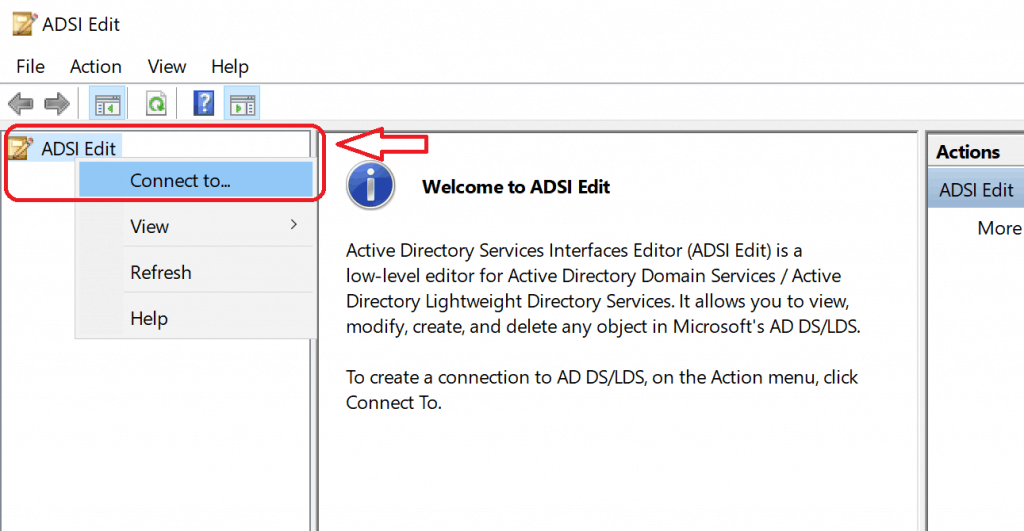
- Right-click on the ADSI Edit node from the MMC console and click on Connect to…
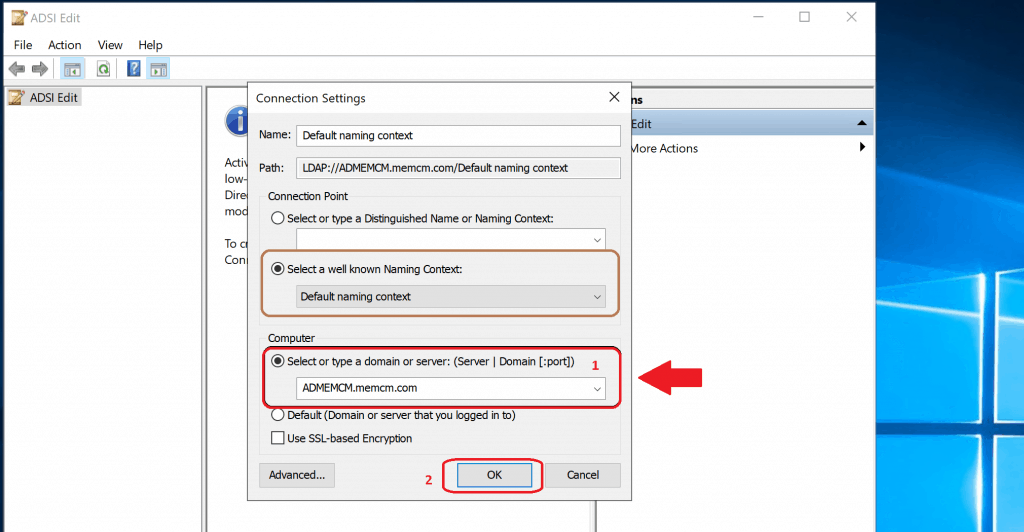
Enter the site server’s Domain or Domain server details – Select or type a domain or server: (Server | Domain [: port]). Click OK
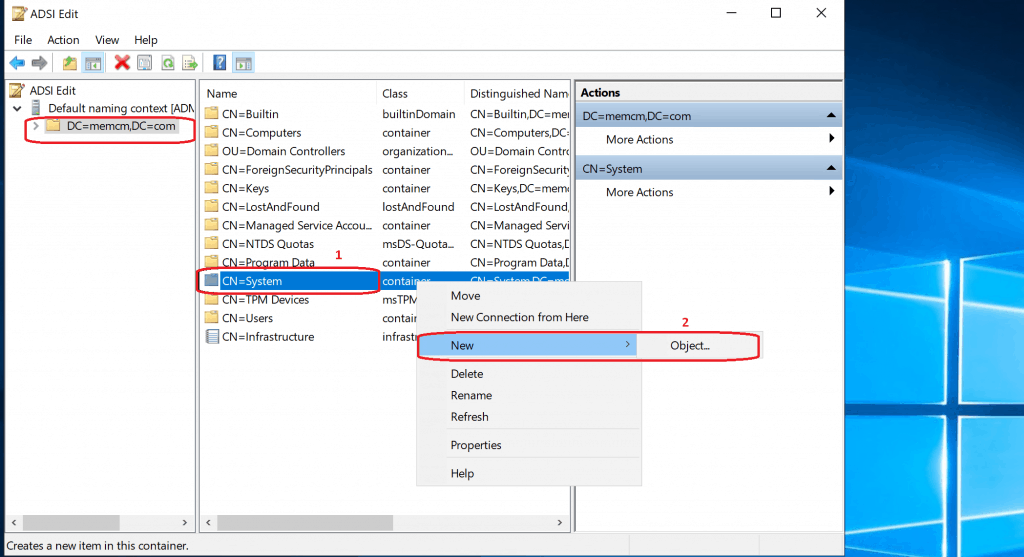
Expand the Domain to see the CN system and right-click on it.
- Select New, and then choose Object.
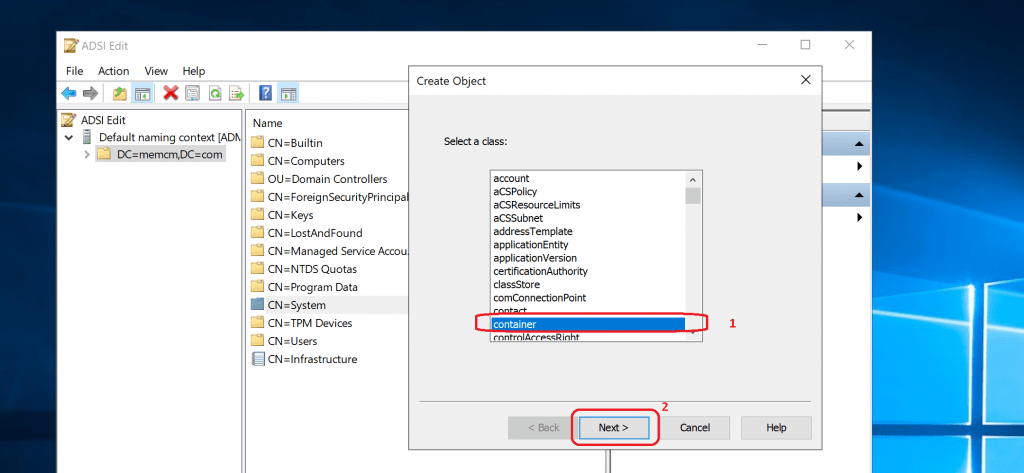
In the Create Object dialog box, choose Container, and then select Next
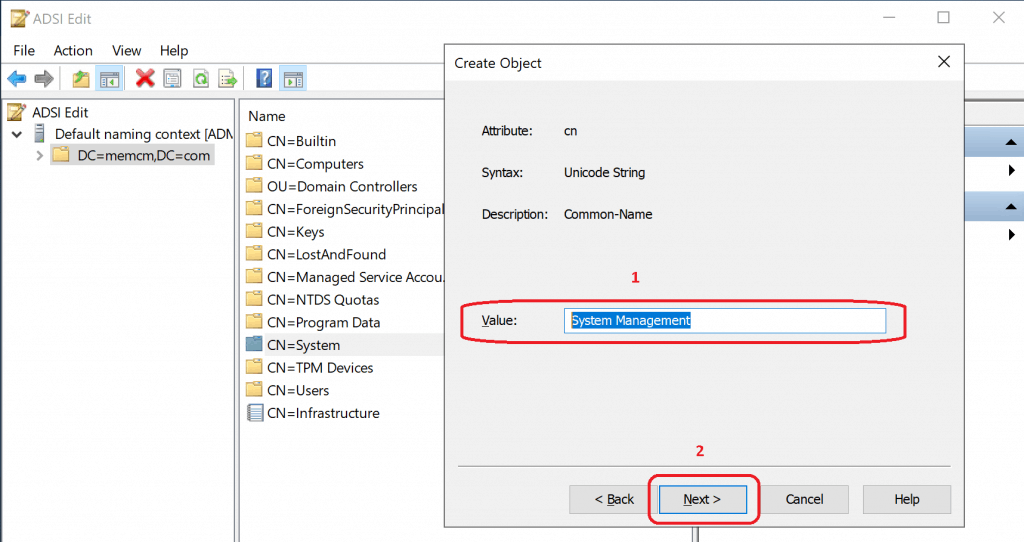
In the Value box, enter System Management, and then select Next to continue
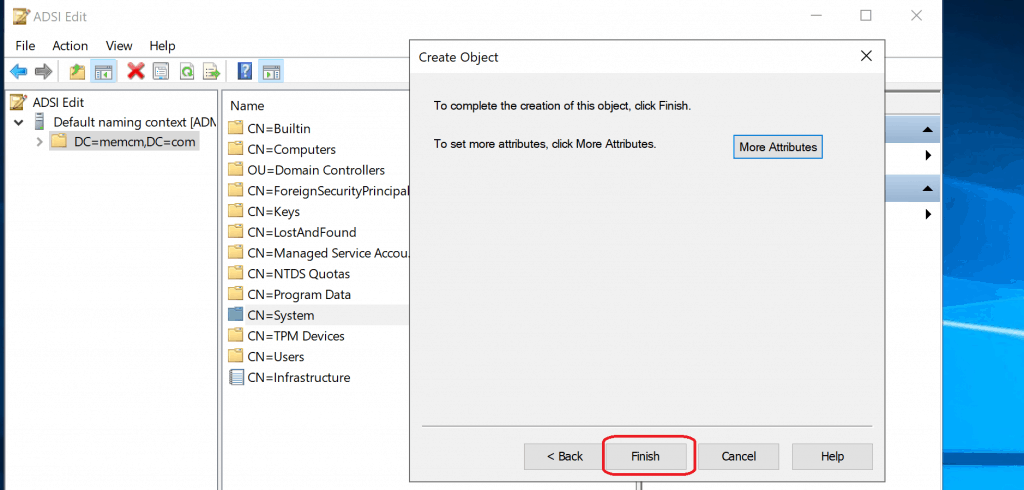
Click on the Finish button
Assign Permission for System Management Container
You have created the System Management container. Now let’s assign permissions to primary and secondary server computer accounts. Create System Management Container for SCCM and Assign Permissions.
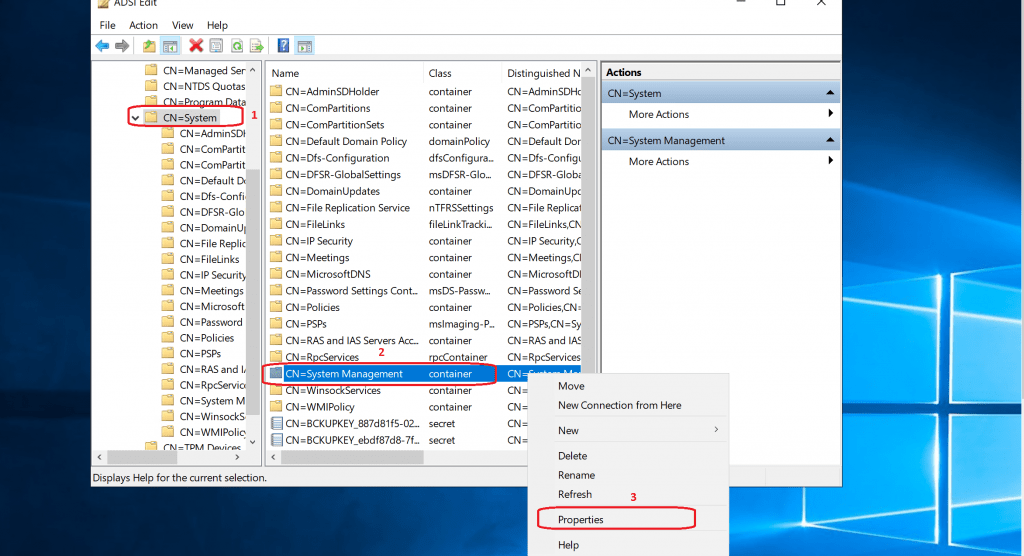
Right-click CN=System Management, and then choose Properties.
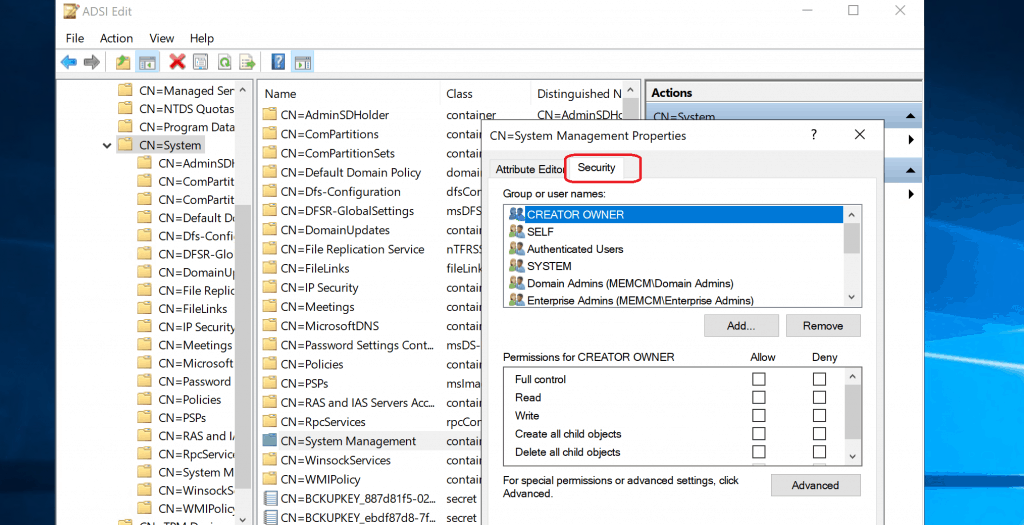
Select the Security tab from System Management Properties.
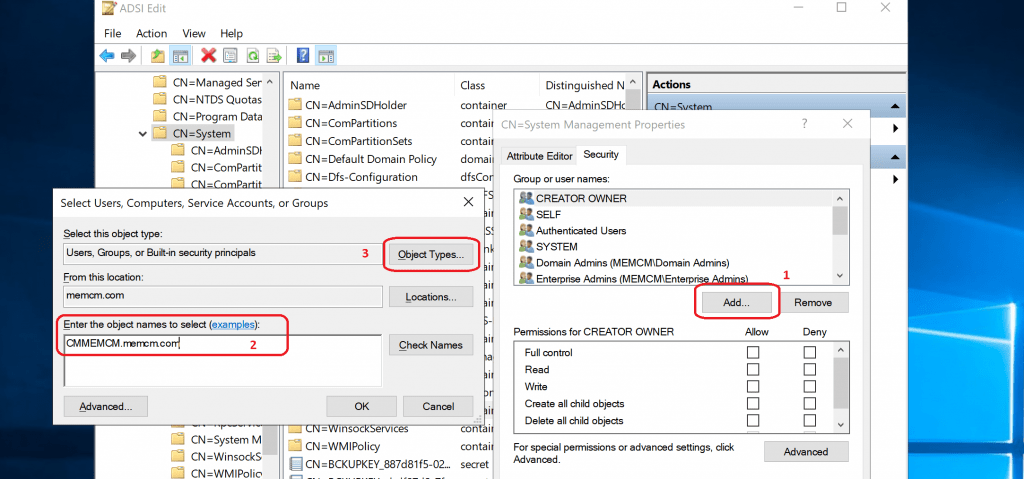
Click on the “Add” button and enter the site server computer account in the designated box. Then click on “Object Types” and select “Users, Groups, or Built-in security principals.” Choose the location “memom.com” and enter the object names to select (example: CMMEMCM.memomcom). Finally, click “OK.”
- Click on Add button.
- Enter the site server computer account in the box below: “Enter the object names to select.”
- Click on Object Types.
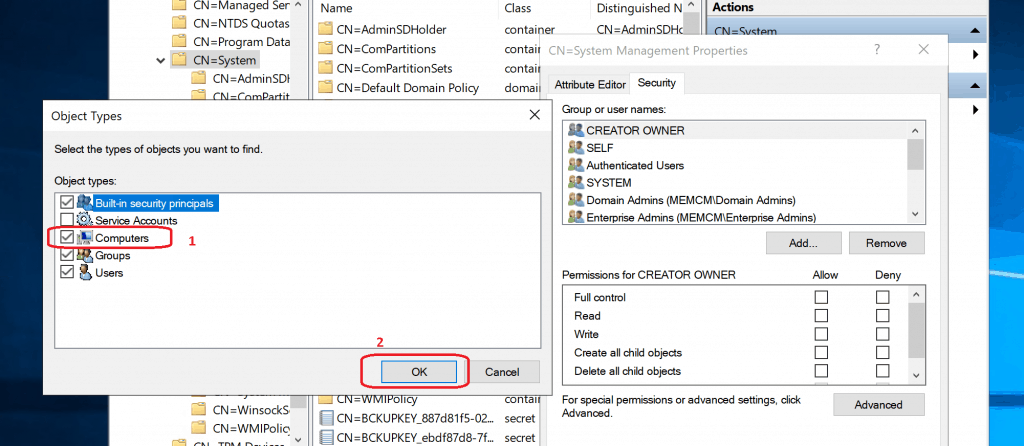
Select Computers and Click OK
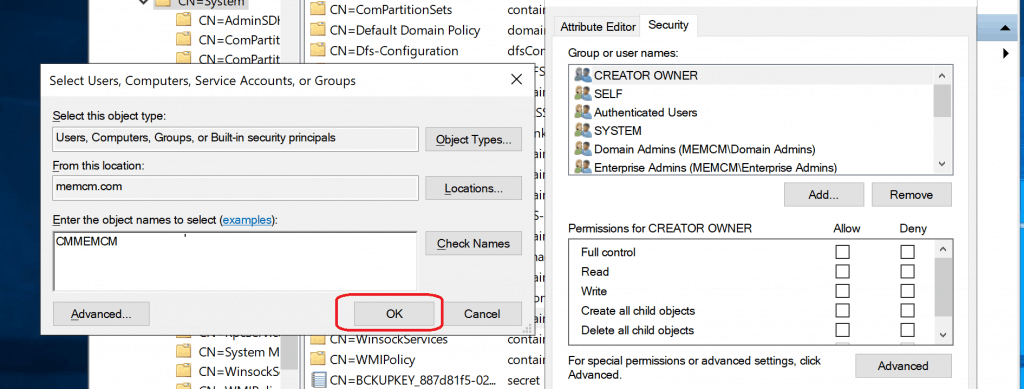
Click on OK to continue with the selection.
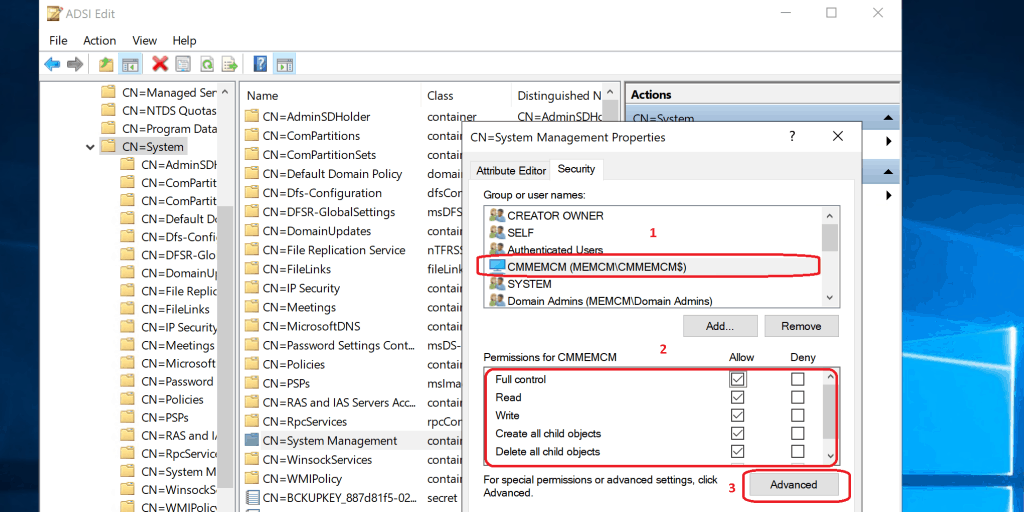
Select the computer account for the site system. Choose the Full Control permission. Repeat for all site servers in the domain.
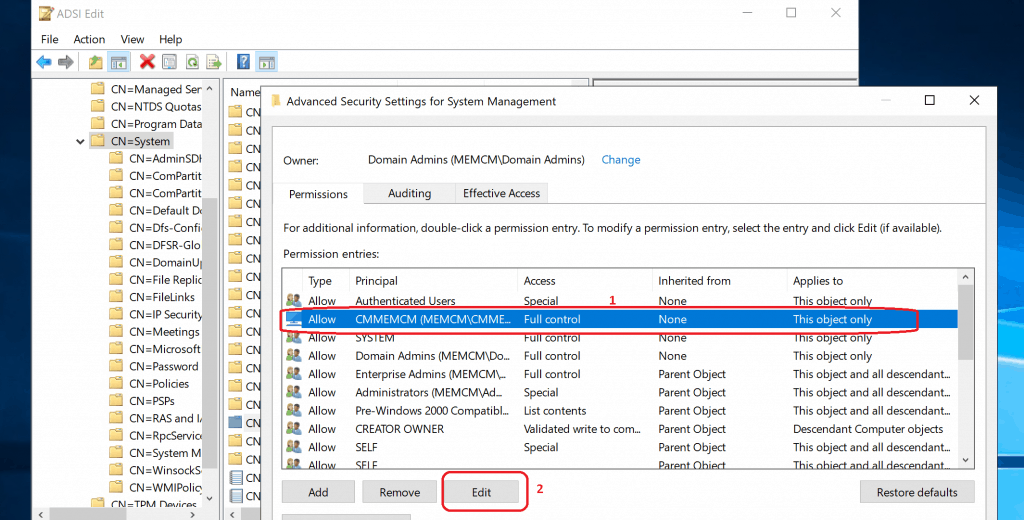
- Click on the Advanced button
Select the site server’s computer account and select the Edit button.
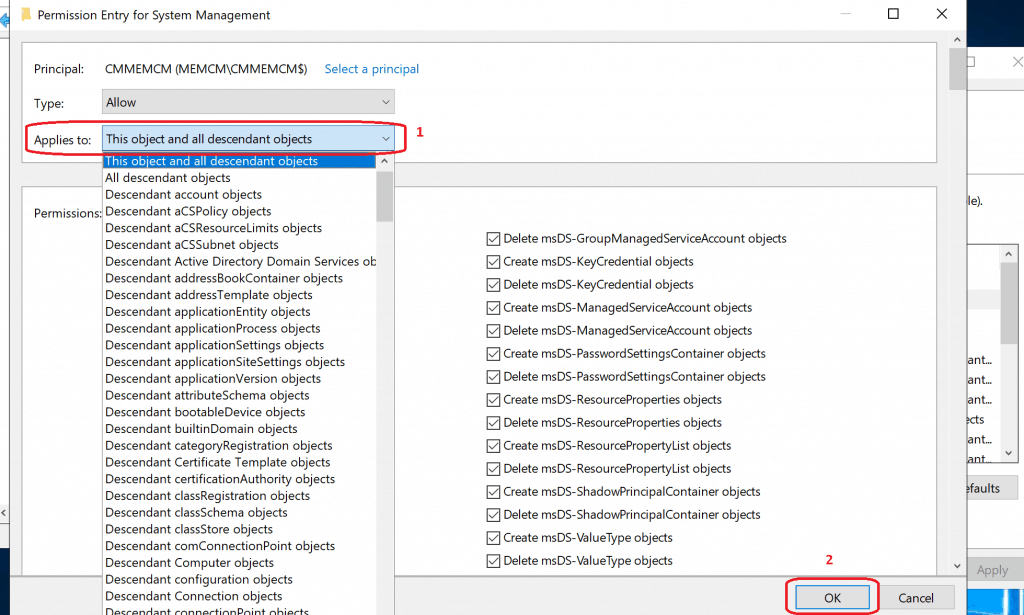
Select the drop-down option called “This object and all descendant objects” from Applies to option. Click OK to continue.
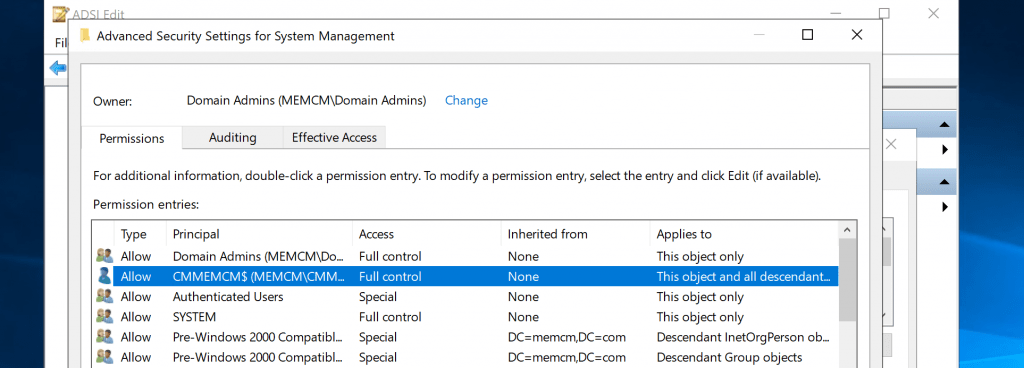
Click OK & OK to finish.
Results – Create System Management Container for SCCM | ConfigMgr
You have created a System Management container and provided full control permission to site system servers.
We are on WhatsApp. To get the latest step-by-step guides and news updates, Join our Channel. Click here –HTMD WhatsApp.
Author
Anoop C Nair is Microsoft MVP! He is a Device Management Admin with more than 20 years of experience (calculation done in 2021) in IT. He is a Blogger, Speaker, and Local User Group HTMD Community leader. His main focus is on Device Management technologies like SCCM 2012, Current Branch, and Intune. He writes about ConfigMgr, Windows 11, Windows 10, Azure AD, Microsoft Intune, Windows 365, AVD, etc.




Hi, Anoop,
One question: we have in our company a primary SCCM site, and we are going to create another one in parallel, to migrate from the old to the new, different name of site, we have problems with the S.O etc, would there be any problem in adding the new server in the container, along with the other one? with the same permissions.
Thank you very much for your help!
StaffNo I don’t think so.. it should be fine. You just need to make sure there is no conflict with the boundaries
We have Already Standalone SCCM Servers on VM , Now we planning place new SCCM in our environment with different hostname in this case how should i need to go for the schema Extension , Kindly guide
Guru
StaffIf you are not changing the AD Forest, then you don’t need to extend the schema again.
Just wanted to say thank you!