






Customize Alt + Tab Keys Behavior to Show the Number of App Tabs such as Notepad Edge Chrome Browsers
Hi, everyone. Customize Alt + Tab Keys Behavior to Show the Number of App Tabs such as Notepad, Edge and Chrome Browsers. Windows 11 has introduced many features that enhance the user’s productivity with multitasking capabilities.
It appears only when you snap windows or use the Alt+Tab shortcut. You all know that tabs are essential in our working lives. Whether working in a browser or an app, we always use tabs to reduce our workload. So here, we can Customize the Number of App Tabs in our system using the Alt+Tab.
This option, which changes how many tabs from apps show when you snap windows or use Alt+Tab in Windows 11, is very useful. This feature will enhance the system’s performance and help you work smarter and efficiently. This feature is essential because it allows the user to customize the number of tabs that show when snapping windows or using Alt+Tab.
This makes multitasking more manageable, and people who often switch between different tasks can find it helpful to have more tabs available. In this post, we can check other methods to customize Alt+Tab Behavior to Adjust the Number of App Tabs.

Is there any Intune Policy for this Option?
What are the Benefits of the Number of Tabs in the system?
1. These Tabs always enhance the focus. Users can limit the tab count to give more concentration towards essential tasks.
2. The Tab customization always enhances the system performance
3. Customization will help the user to avoid the confusion between tabs( when the tabs counts are too much)
4. This option will help you to stay organized with only recently used tabs.
Customize Alt + Tab Keys Behavior to Show the Number of App Tabs
Above, we discussed overall details about the Alt+Tab Behavior to Adjust the Number of App Tabs. This option is straightforward to manage in our system. When clicking on Alt+Tab, the user can decide how many tabs will be displayed in a system.
Customize Alt + Tab Keys Behavior to Show the Number of App Tabs such as Notepad Edge Chrome Browsers
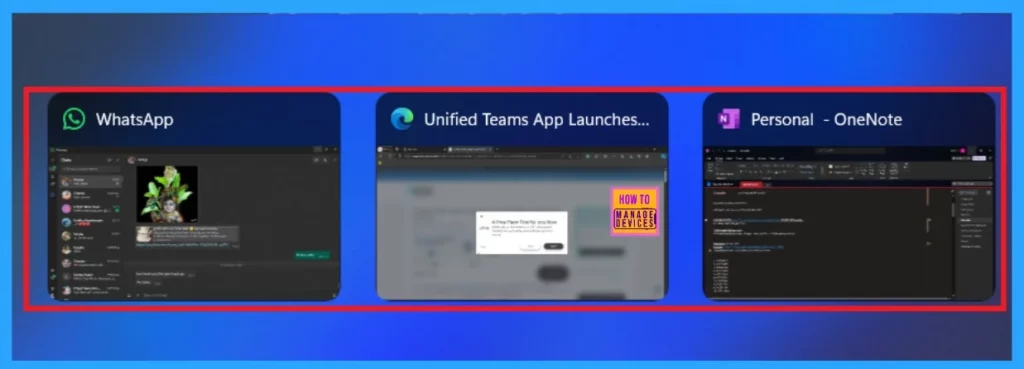
- You can see all the recently used apps and browsers in different tabs when we press Alt+Tab.
- If the tab view wants to stay on the screen for a while, press the Alt+Ctrl+Tab key together.
- System Settings Options in Windows 11
- Enable Show Desktop Button on Windows 11 Taskbar
- Easy Methods to Find the Install Date of Apps in Windows 11
Customize Alt+Tab Behavior to Adjust the Number of App Tabs Through Settings
The system Settings option is always the first option we do, right? So, let’s check how to Customize the Number of Tabs from Apps to Show when Snapping or using Alt+Tab. You must first open the system settings using the Win+I keys to do this.
- Select the System from the Settings.
- Select the Multitasking option.
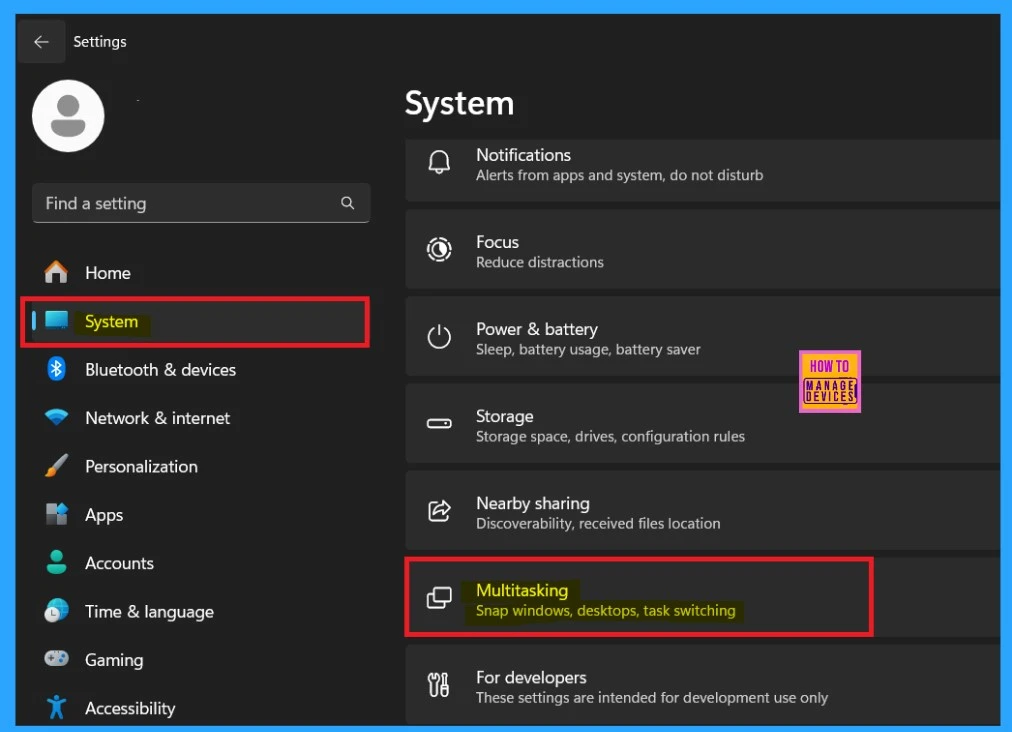
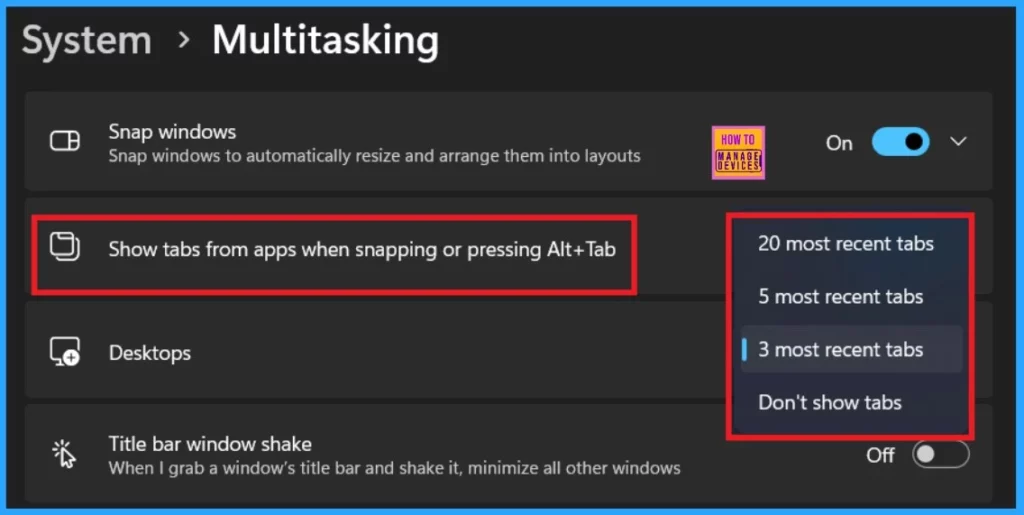
After clicking the Multitasking option, you can see the option to ”show tabs from apps when snapping or Alt+Tab.’‘ This option allows you to Customize Different workflows. The table below is an example of the Different workflows in the multitasking option.
| Show Tabs from Apps when Snapping Options | Info |
|---|---|
| 20 most recent tabs | It will show the 20 recent tabs that we used, and it is very easy for users to access many tabs quickly. |
| 5 most recent tabs | It only shows 5 recent tabs |
| 3 most recent tabs | 3 most recent tabs these is the defaulted settings for the system it offer easy accessing method |
| Don’t show tabs | Don’t show tabs is the best option for those who keep their privacy and do not switch between tasks. |
Group Policy Method
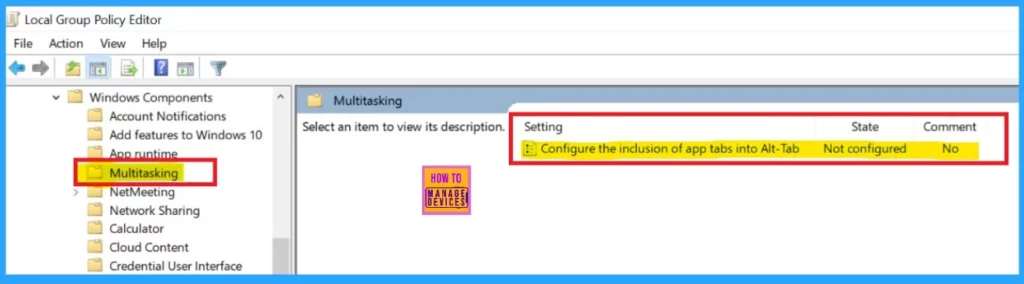
The following method we can use is group policy. It is a powerful tool for Windows administrators to control and set up user system settings. Above, we discussed how to customize the number of app tabs when snapping Windows or using the Alt+Tab shortcut.
- First, you must open the Local Group Policy Editor by pressing Win + R to open the Run dialog box.
- Type gpedit. msc and press Enter
- Then Navigate to User Configuration > Administrative Templates > Windows Components > Multitasking.
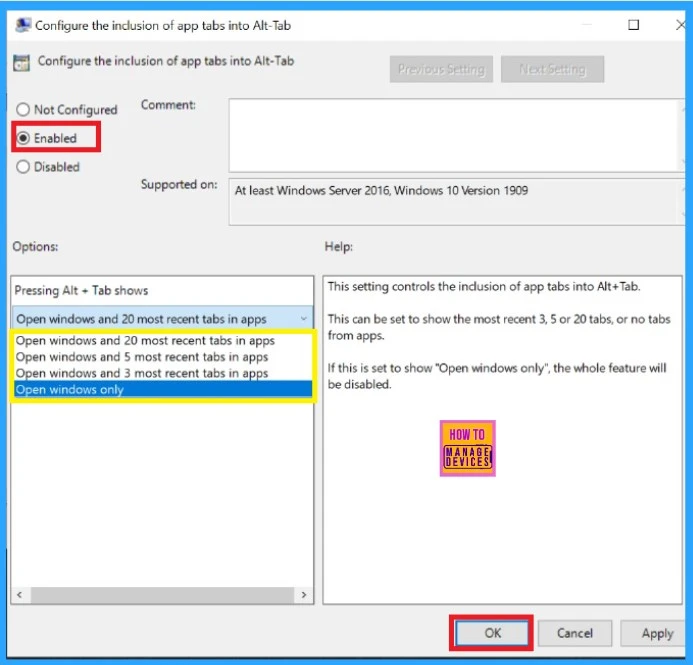
- In the Multitasking section, double-click on the policy named ”Configure the inclusion of app tabs into Alt-Tab”.
- 3 Best Ways to Disable Taskbar Thumbnail Preview on Windows 11
- New End Task Options from Taskbar in Windows
- How to Customize Taskbar Behaviors in Windows
After clicking on Configure, the inclusion of app tabs into Alt-Tab settings allows you to decide how many app tabs appear when you use the Alt-Tab shortcut to switch between open windows. In settings, enable the policy (by default, it is set to not-configured) by selecting the Enabled option.
- There, you have the customization options as above we mentioned such as:
- Open windows and 20 most recent tabs in apps
- Open windows 5 most recent tabs in apps
- Open windows 3 most recent tabs in apps
- Open windows only
- please select any one of them and click on the Ok.
- Turn On or Off Typing Insights in Windows 11
- New Text Prediction and other Features in MS Edge Browser
- Enable Edge Mini Menu Feature on Text Selection
Registry
Another step is to use the registry method to customize Alt+Tab Behavior to Adjust the Number of App Tabs through Settings. First, open the Registry by using the Win+R keys. Then, type regedit and click OK. When the registry opens, you have to enter the appropriate path.
Copy the path: Computer\HKEY_LOCAL_MACHINE\SOFTWARE\Microsoft\Windows\CurrentVersion\Explorer
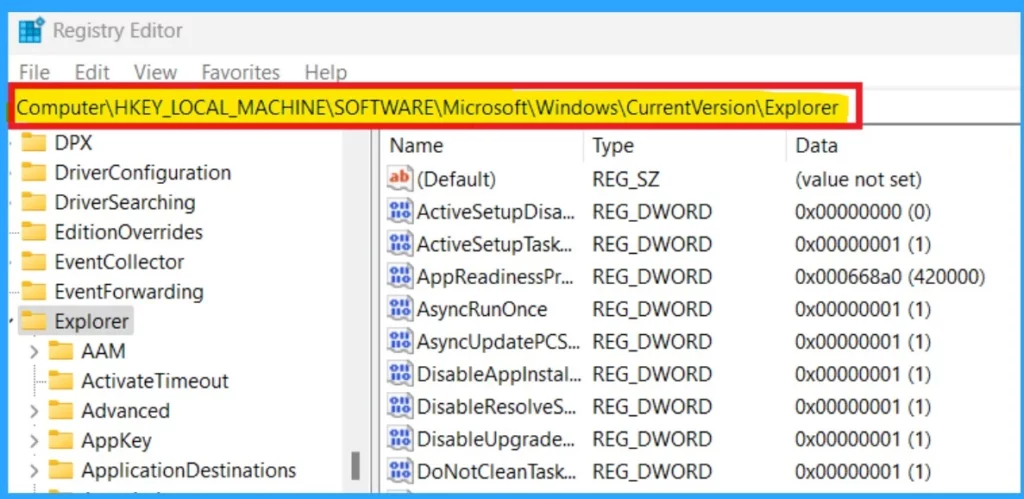
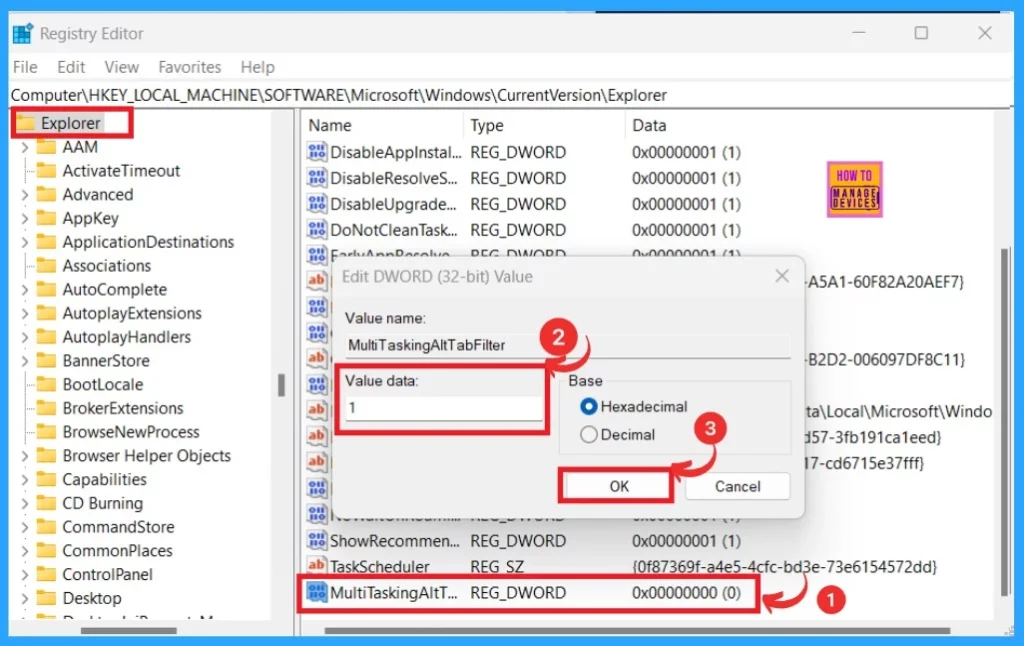
The Explorer option appears on the left panel when you enter the path. Right-click on the Explorer and create a New>DWORD (32-bit) Value. Then, rename the value to ‘‘MultiTaskingAltTabFilter.” After renaming the value, open the value by double-clicking and giving the appropriate value for Change Number of Tabs from Apps to Show when Snapping.
| Value | Info |
|---|---|
| Value as 0 | It shows 20 most recent tabs in apps |
| Value as 1 | It shows 5 most recent tabs in apps |
| Value as 2 | 3 most recent tabs in apps |
| Value as 3 | Don’t show tabs |
Result
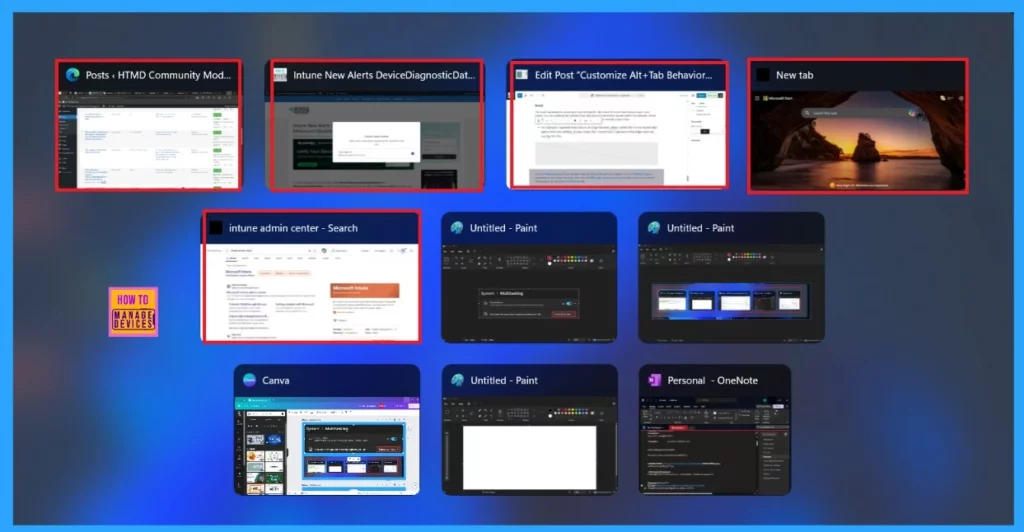
The result may always be according to your settings. Alt+ Tab shows the recent tabs that you used in your system apps. You can customize the number of app tabs shown in the recently opened system. For example, I chose the 5 most recent tabs option from the settings, showing five recently opened Apps.
- For Example, I opened many tabs in an Edge browser. When I select the 5 most recent tabs option from the settings, it only shows the 5 recent tabs I opened on the Edge (App) when we use Alt+Tab.
- (If you opened the 5 paint tabs above, it only shows the 5 recent tabs you used recently)
Join the Telegram group to get the latest step-by-step guides and news updates. Join our Meetup Page to participate in User group meetings. Also, Join the WhatsApp Community to get the latest news on Microsoft Technologies. We are there on Reddit as well.
Author
Anoop C Nair has been Microsoft MVP from 2015 onwards for 10 consecutive years! He is a Workplace Solution Architect with more than 22+ years of experience in Workplace technologies. He is also a Blogger, Speaker, and Local User Group Community leader. His primary focus is on Device Management technologies like SCCM and Intune. He writes about technologies like Intune, SCCM, Windows, Cloud PC, Windows, Entra, Microsoft Security, Career, etc.




I found that it’s actually this registry key
Key path: Computer\HKEY_CURRENT_USER\SOFTWARE\Microsoft\Windows\CurrentVersion\Explorer\Advanced
Value:
MultiTaskingAltTabFilter
Dword
Possible value: 0 or 1 or 2 or 3
At least one of the following needs to be performed aftter the change for it to start taking effect:
1. a machine reboot
2. sign out and resign in to Windows
3. restart explorer.exe