






Power of Dark Mode on Windows 365 Cloud PC Web Portal
This post guides you through the steps to enable Dark Mode on Windows 365 Cloud PC Web Portal. Windows 365 Web Portal dark mode provides users with a sleek and visually appealing interface that enhances their overall browsing experience.
The dark theme for Windows 365 Web portal provides a great look compared to the light theme. It’s also good If you are a person who spends a lot of time working, Dark mode can reduce eye strain in low-light conditions.
As Cloud PC users navigate through the web portal various features and functions, they are greeted with a seamless and immersive environment. The dark color scheme, with its deep blacks and contrasting accents, not only reduces eye strain but adds a touch of sophistication and modernity to the overall user experience, making it a preferred choice.
The Windows 365 app also supports dark mode. End users have the option to set the Windows 365 app to light or dark mode, or to match system settings.

Turning on Dark Mode for the Intune Admin Center is just a few steps away, You can customize the Microsoft Intune admin center by changing the background theme and design. Here’s how you can enable dark mode for Intune.
- Windows 365 App Experience | Cloud PC Application For Windows
- Windows 365 Cloud PC Hybrid Azure AD Join Vs Azure AD Join
Turn Dark Mode on Windows 365 Cloud PC Web Portal
You can use Cloud PC URL https://windows365.microsoft.com/ to launch Windows 365 service and start working on Windows 10 or Windows 11 personalized desktop in the cloud. When you launch the following URL, it will ask you to log in with your Azure AD credentials (corp ID).
Once you are logged in, You can see the different sets of Cloud PCs assigned to you in the Windows 365 web client portal. Here look for a settings menu to get an option to customize the Windows 365 portal appearance.
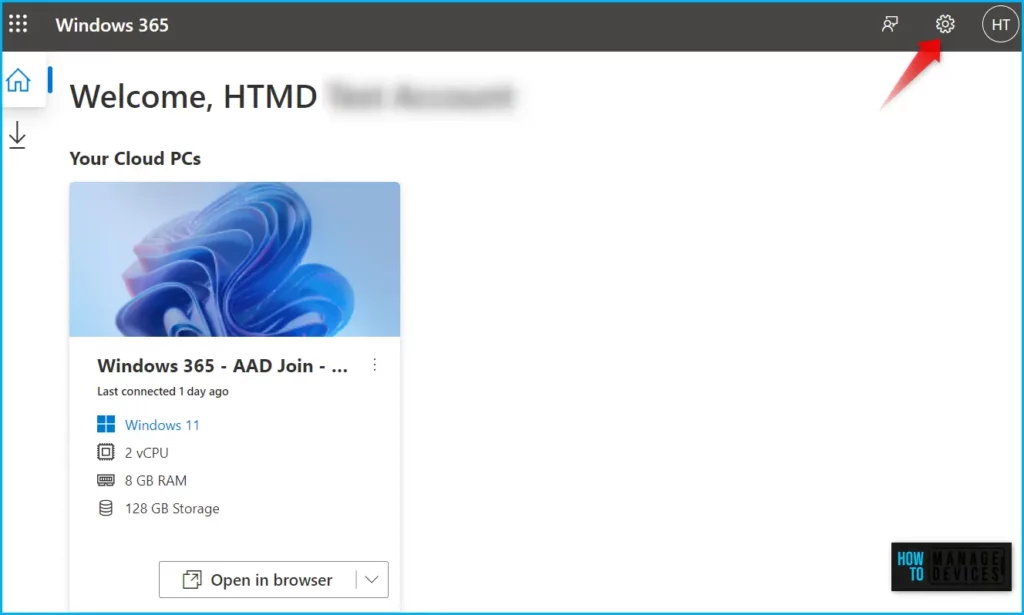
Here within the settings, you can see the “Dark Mode” option is available, which is by default set to Off.
- Click on the Settings gear as shown in the below screenshot.
- Scroll down until you see the Dark Mode toggle switch.
- Move the switch to the right side to enable the Dark mode for Windows 365 Client portal.
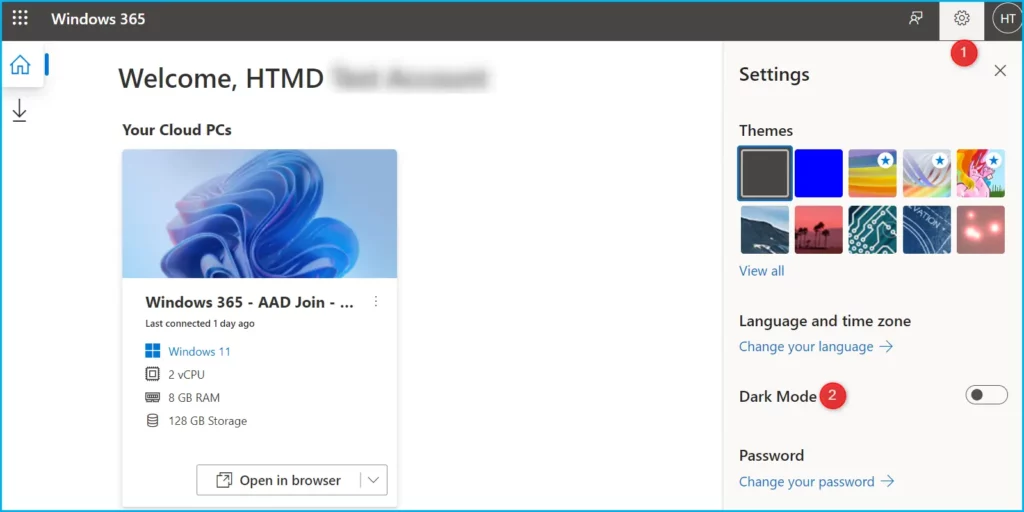
In Dark Mode, Toggle it on or select it to enable dark mode for the Windows 365 Web Portal. The interface should now switch to a dark color scheme, providing you with a more visually comfortable experience if you want to turn off Dark mode, simply toggle the switch to set it off.
| Settings | State |
| Dark Mode | On/Off |
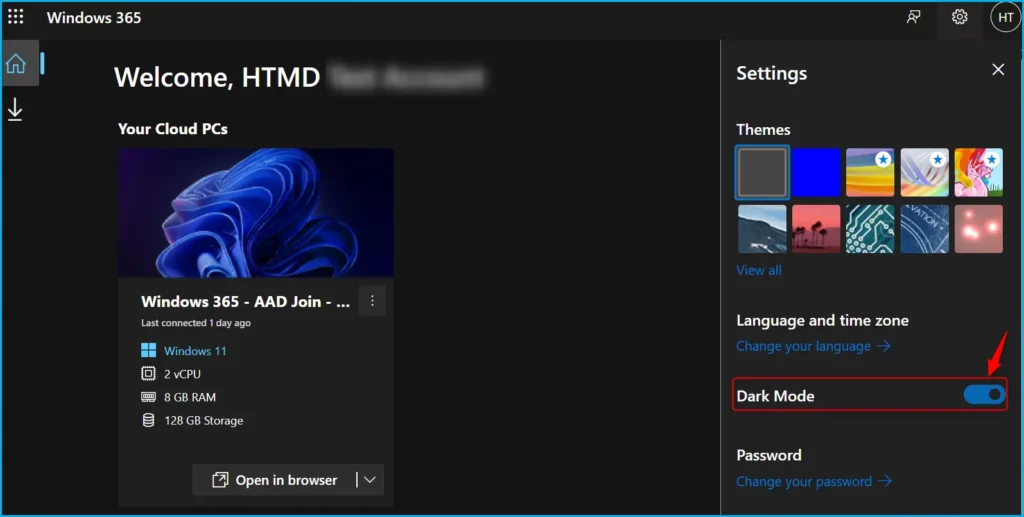
The end-user gets an option to launch their personalized Windows desktop from the Cloud PC service. The end-user needs to click on the Open in Browser option to launch the cloud PC. Let’s check more details about Windows 365 Cloud PC web client end-user experience walkthrough, Windows 365 Cloud PC Web Client End User Experience.
Here let’s have a quick look at the self-service options for end-users. There is a settings button in the portal itself to take some of the quick actions on the Windows PC assigned to you.
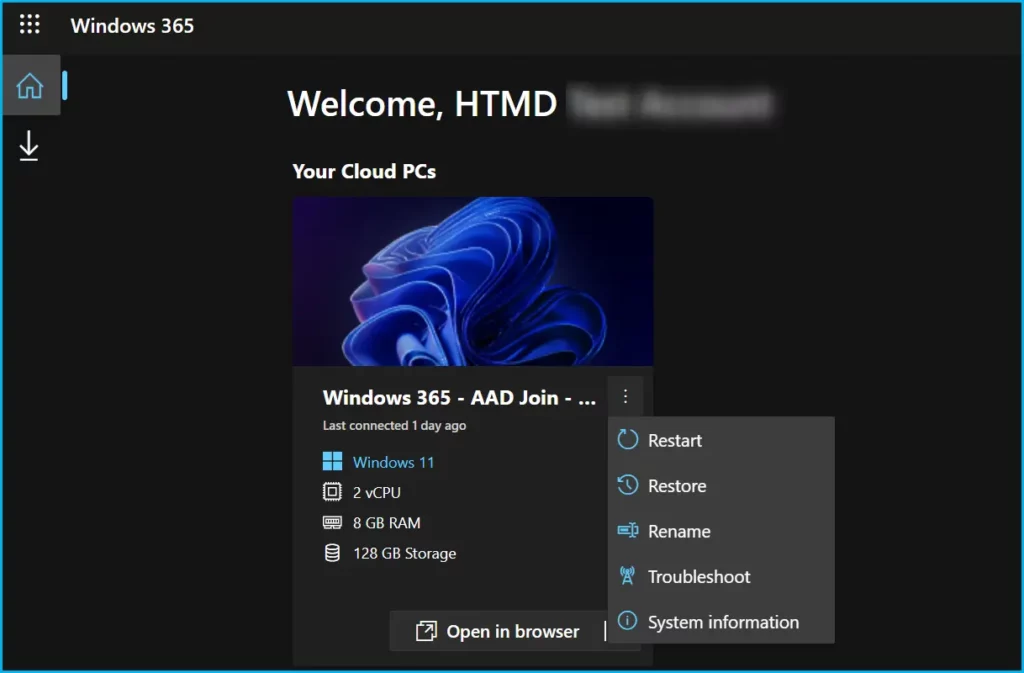
Once you be inside the Cloud PC, you have the flexibility to customize your experience by adjusting the Windows 11 color theme. The easiest option is to turn on dark mode system-wide allowing your apps to be in dark mode.
Enable Dark Mode using Web Browser Options
You can get the Windows 365 Cloud PC client portal dark mode using the Browser dark mode options. You can enable the dark mode option from MS Edge, Opera, Brave, etc. You can enable the dark mode using the settings menu from any of these browsers.
In the following screenshot, I have not enabled the dark mode from Windows 365 client-side web portal but enabled Dark Mode only from a web browser. You can see the small difference that the picture in the windows365.microsoft.com portal is not showing the dark mode picture rather, it’s still rendering the light mode picture.
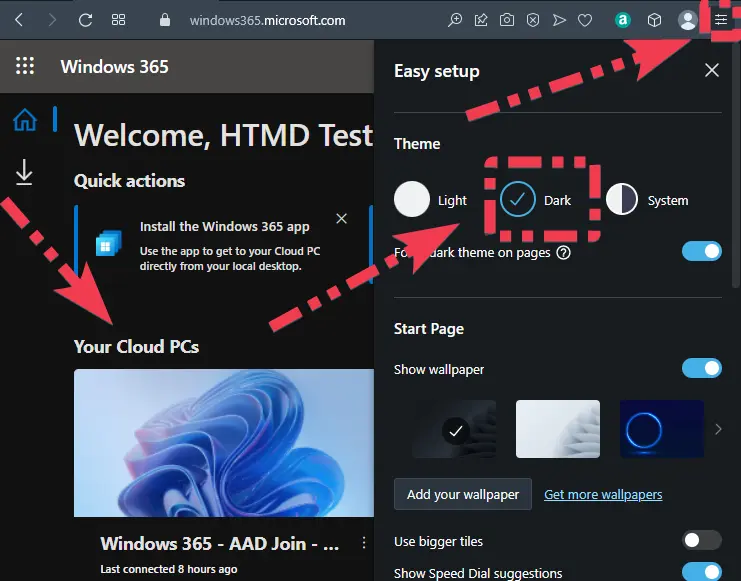
Windows 365 Cloud PC Web Portal Dark Mode Experience
Here’s how you check out Windows 365 Dark mode experience in the video guide, You may find more tutorials, step by step walkthrough guides on HTMD Community – YouTube channel.
Author
About Author – Jitesh, Microsoft MVP, has over six years of working experience in the IT Industry. He writes and shares his experiences related to Microsoft device management technologies and IT Infrastructure management. His primary focus is Windows 10/11 Deployment solution with Configuration Manager, Microsoft Deployment Toolkit (MDT), and Microsoft Intune.




Discussion