






Managing Data Limits for Network Connections in Windows 11
Hi, Today, we are discussing a new topic: managing data Limits for Network Connections in Windows 11. The Internet is an essential part of our world today. Without internet data, living a smooth life is impossible because, as you know, our technology is growing very fast. All this technology depends on Internet data.
Today, we use an extreme amount of data daily. Whether we’re watching videos, searching the web, or working from home, our data use is higher than ever. Do you think we must limit our data usage for better network performance? I have shared my thoughts.
As you know, many internet-providing companies are limiting data usage, which will be very helpful for network performance. Data limits are usually set for a specific period. By setting data limits, internet companies can control network traffic and ensure everyone gets a better internet facility.
As you know, Internet speed is essential. Setting up data limits will help overall network performance. This can lead to less unnecessary data consumption, resulting in a faster network speed overall. In this post, we can check the data limit options on Windows 11.

- Windows 11 Reset Network Settings | Track Internet Data Usage
- How to Backup Restore Wi-Fi Network Profiles in Windows 11
- 6 Methods to Check Wi-Fi Network Signal Strength in Windows 11
- 11 Best Fixes for Windows 11 WiFi Connection Issues in 2024
- How to Find Network Adapter Connection Speed in Windows 11
| Info |
|---|
| Managing Data Limits for Network Connections in Windows 11 |
| Set Data Limit for Wi-Fi Network Connection in Settings |
| Types of Data Limit |
| Monthly Data Limit |
| Weekly Data Limit |
| Unlimited Option |

What is the Importance of Data Limits?
1. Data limits help manage expenses.
2. It will help to increase the performance of the network
3. With a data limit, Users will use data more effectively
Managing Data Limits for Network Connections in Windows 11
Above, we discussed an overall view of data limits and their importance. I think you will now get a clear view of data limits. So, what do we have to do to Manage data limits for the network? It is straightforward for Windows 11 users. This data limit management provides data limit features and shows which apps are consuming more of the Internet.
Set Data Limit for Wi-Fi Network Connection in Settings
You may have to use the Settings option to Set the Data Limit for the Wi-Fi Network Connection in Settings. Setting options always plays a vital role in our Windows 11 features. To use settings, you must first open the settings by pressing Win + I.
- Select the Network and Internet option from the settings
- Click the Data Usage option from the Network and Internet
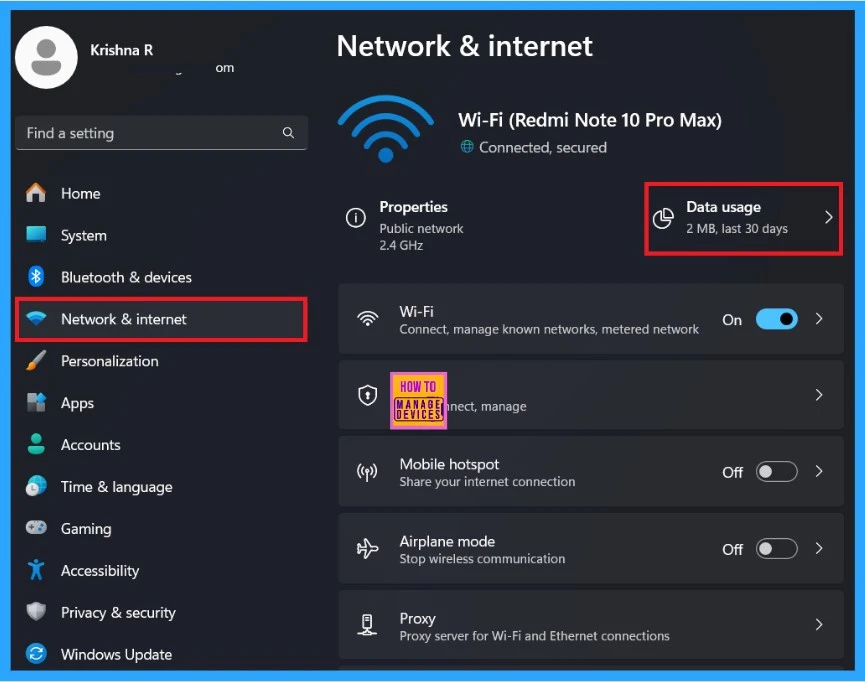
See More: Network and Internet Settings options in Windows 11
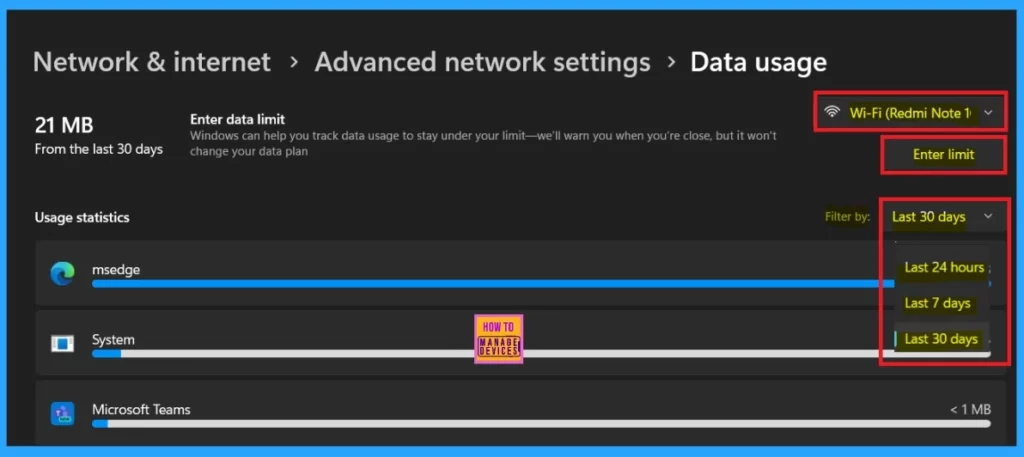
After clicking on data usage, you will get a data usage window. There are a few options for you, and you can see the above screenshot that shows more data using the application. Here, Edge is consuming more data than the system. A few options exist, such as Wifi, enter limit and filter options.
- Wi-fi – It will help you to choose your Internet connection
- Enter Limit – Let you access the limit settings
- Filter – It will help you to show the most used data in the last 30 days, last 24 hrs, and last 7 days
- Click on the Enter Limit.
Types of Data Limit
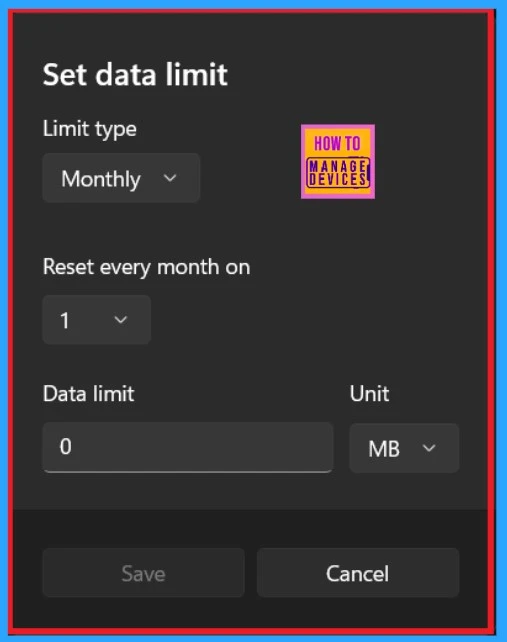
There are many options for setting a data limit, including limit-type options such as the reset every month option and the Unit option. You can see my Screen when I click on the data limit option. Here, it defaulted, selected the monthly limit type, and reset every month using the option of 1 MB.
| Types of Data Limits |
|---|
| Daily Limit |
| Weekly Limit |
| Monthly Limit |
| One Time Limit |
| Unlimited |
Monthly Data Limit
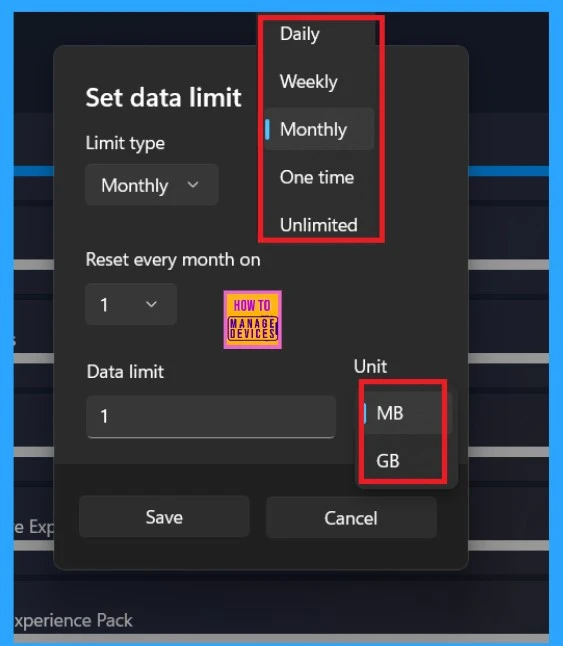
So, for an example, I will show the options for Limit Type. You can set the data limit to Monthly. This means the data usage will be monitored and limited every month. There are limited types, such as Daily, Weekly, Monthly, one-time, and unlimited. The unit types are MB and GB.
- After setting the Data Limit, Click on the Save option
- Manage to Enable Disable Devices to Wake Computers in Windows 11
- Enable Disable Microphone Array in Windows 11
- 2 Methods to View Reserved Storage Size in Windows 11
Weekly Data Limit
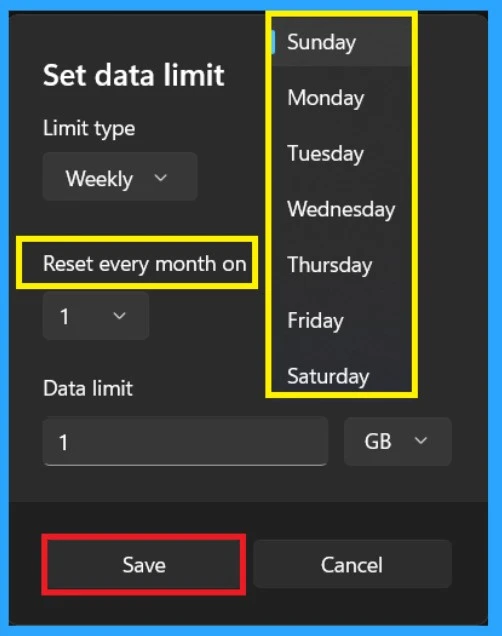
When you select the Weekly option, you have other options, including the Reset Every Month On option. Now, we can check the Reset Every Month On option. With that option, you can set up all weekdays (Sunday to Saturday) for the week and specify the day of the month when the data limit should be reset.
- After setting the Data Limit, Click on the Save option
- Reset Network Adapters in Windows 11 FIX Connection Issues
- Network and Internet Settings options in Windows 11
- Setup Wi-Fi Profile for macOS devices using Intune
Unlimited Option
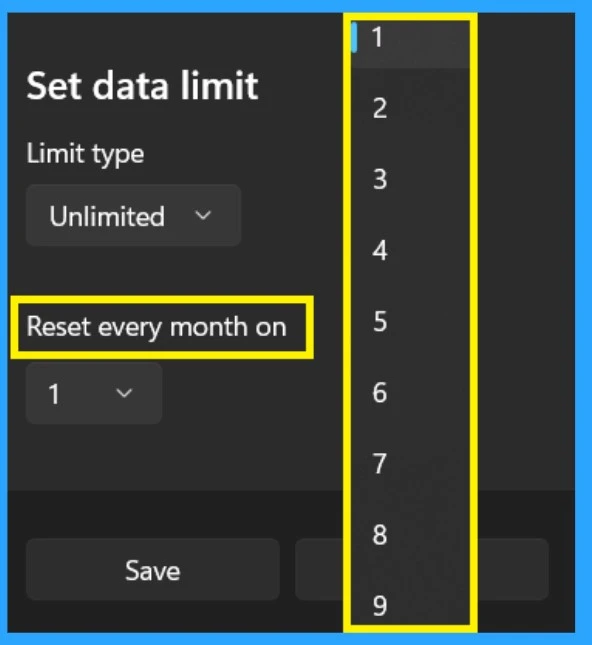
When we select the Unlimited option, our data usage is not restricted. We can use as much data as we want without data limits. Reset the Every Month On option. I will change the option according to the limit type. The below screenshot is helpful for you.
- After setting the Data Limit, Click on the Save option
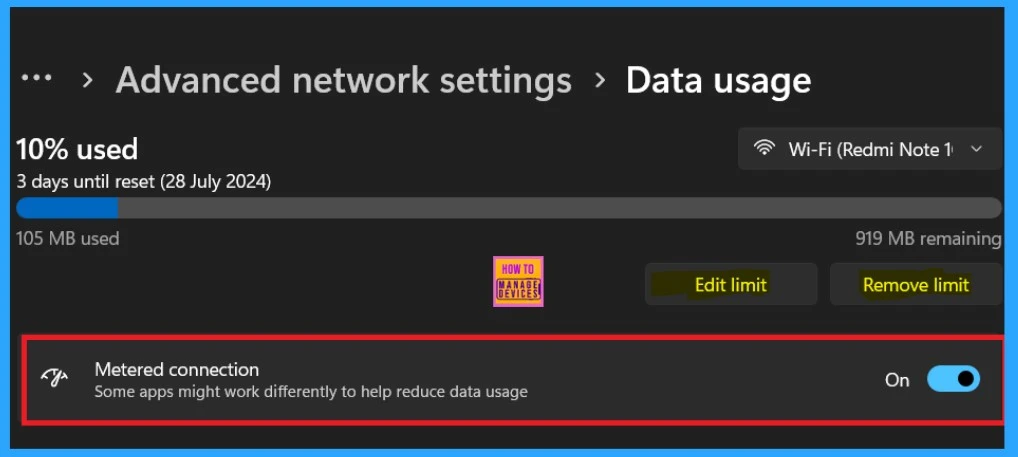
After saving the Data Limit, you will go to the Data usage page; here, you can see the data usage as a percentage. Here, the data used (10%) and the remaining data (919 MB) are shown with 3 days left until the reset on the 28th of July. (These details will be changed according to your set data limit.)
- Edit Limit – This allows you to change the current data limit settings.
- Remove Limit – This lets you remove any set data limit, making your data usage unrestricted.
- Metered Connection- This option means that when it is toggled on, some apps might work differently to help reduce data usage. So you have to turn off the Metered Connection by Toggle the pane to the left.
We are on WhatsApp now. To get the latest step-by-step guides, news, and updates, Join our Channel. Click here. HTMD WhatsApp.
Author
Anoop C Nair has been Microsoft MVP from 2015 onwards for 10 consecutive years! He is a Workplace Solution Architect with more than 22+ years of experience in Workplace technologies. He is also a Blogger, Speaker, and leader of the Local User Group Community. His main focus is on Device Management technologies like SCCM and Intune. He writes about technologies like Intune, SCCM, Windows, Cloud PC, Windows, Entra, Microsoft Security, Career, etc..




This is very educational, using a GUI.
Now, HOW can I “Set Data Limit” to “Unlimited” – using Command line or Powershell ??
I have hundreds of computers I need to change Cellular from “Monthly”, to “Unlimited”.
I need a command to make the change.
Recommendations ?