






New Dedicated Mode Experience in Windows 365 Frontline
Let’s discuss the New Dedicated Mode Experience in Windows 365 Frontline. Windows 365 Frontline provides two modes for different work scenarios: Dedicated and Shared Mode. In Dedicated Mode, each user has a personalized Cloud PC, ensuring a consistent and customized experience.
The desktop, data, and applications remain intact and accessible across devices, allowing users to continue their work quickly. This mode is ideal for employees who require prolonged and reliable access to their workspace.
Microsoft is introducing shared mode to Windows 365 Frontline. Multiple users can take turns using the same Cloud PC in shared mode. It is non-personalized, meaning no data is saved after a user signs out. This option gives more flexibility for workplaces where employees share resources.
In this post, you will find all the details about the new Dedicated Mode in Windows 365 Frontline. Below, we explain how to configure it so you can easily set it up for your team.

Table of Contents
New Dedicated Mode in Windows 365 Frontline
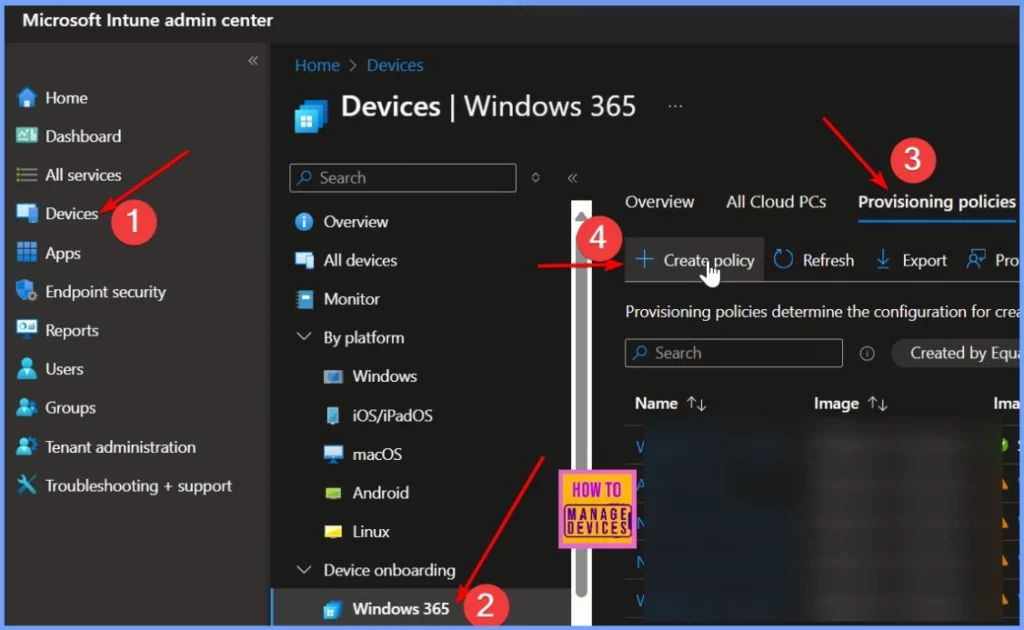
Sign in to the Intune Admin Center at https://intune.microsoft.com. After logging in, go to the Devices section on the left menu. Under Devices, select Windows 365. Then, go to Provisioning Policies and click Create Policy.
- Windows 365 Cloud PC Frontline Provisioning Policy Creation Process | 3 Cloud PC with One License
- Configure Idle Session Time Limits for Windows 365 Cloud PC Frontline
- Most Asked 54 Windows 365 Cloud PC Interview Questions and Answers
Recommended for Users who Access their Cloud PC Intermittently or on a Set Schedule
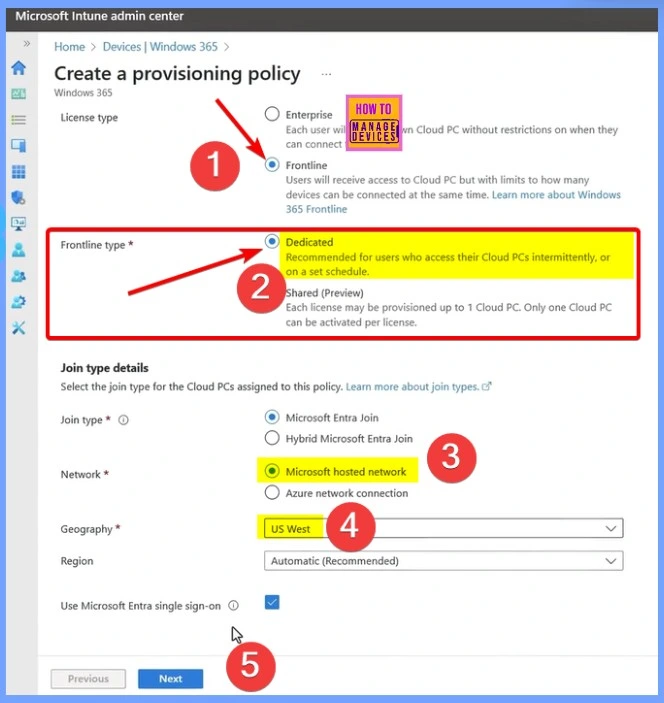
I will choose the Frontline license type. Below that is a new option for frontline type, where I can select either dedicated or shared. In this case, I will choose the dedicated mode. Then, I select the Microsoft-hosted network and choose the region where I want the Cloud PCs to be set up.
- I also pick Microsoft Entra single sign-on to make it easier for users to access their Cloud PCs.
| Dedicated Mode |
|---|
| Recommended for Users who Access their Cloud PC Intermittently or on a Set Schedule |
Image
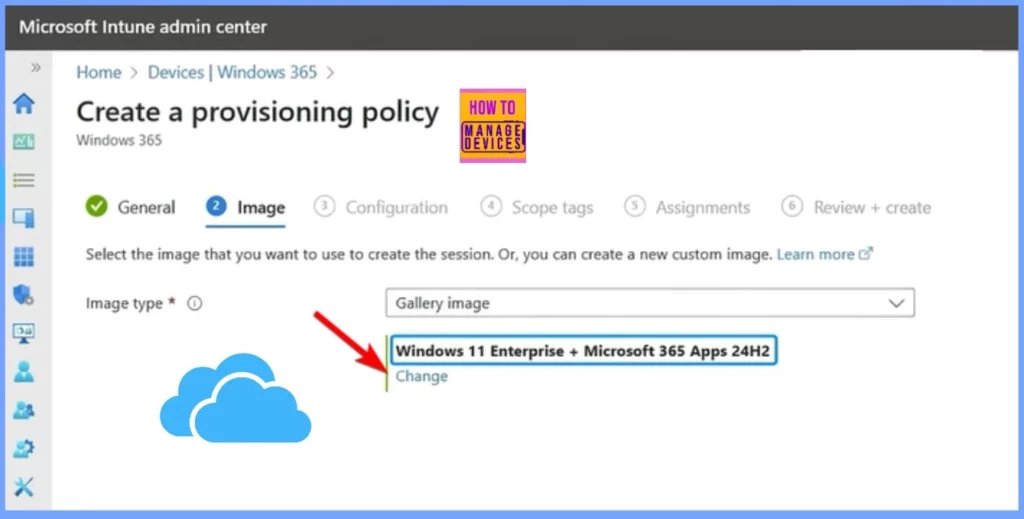
In the next step, you should keep the gallery image, including the Microsoft 365 apps. This ensures that all necessary applications are available for the users when they access their Cloud PCs.
Assignments
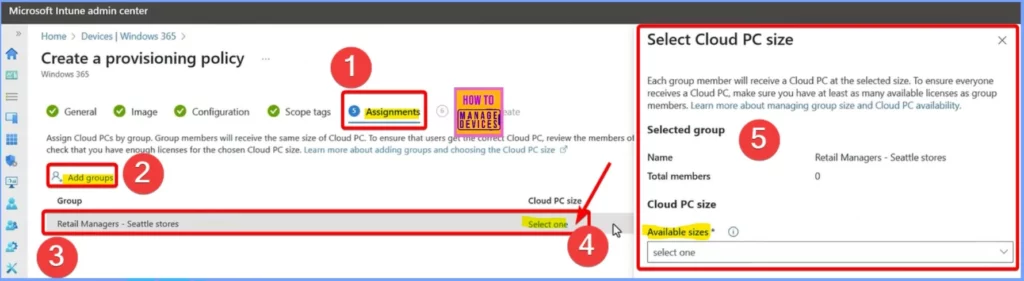
Under the Assignment tab, you should assign it to your manager group. Next, you will configure the Cloud PC size available for provisioning. Remember that with Windows 365 Enterprise, you choose the Cloud PC size when assigning licenses in the Microsoft 365 admin center. However, with Windows 365 Frontline, licenses are bought in advance and assigned through the provisioning policy.
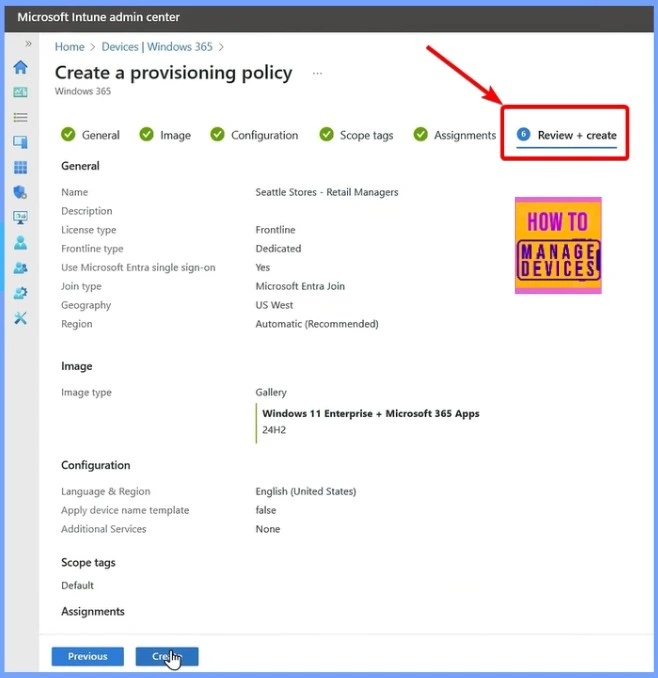
Review + Create
Finally, to finish setting up the policy, review your settings and confirm. Once done, every group member will receive their dedicated and personalized Cloud PC. This is the new Dedicated Mode experience in Windows 365 Frontline.
Need Further Assistance or Have Technical Questions?
Join the LinkedIn Page and Telegram group to get the latest step-by-step guides and news updates. Join our Meetup Page to participate in User group meetings. Also, Join the WhatsApp Community to get the latest news on Microsoft Technologies. We are there on Reddit as well.
Author
Anoop C Nair has been Microsoft MVP from 2015 onwards for 10 consecutive years! He is a Workplace Solution Architect with more than 22+ years of experience in Workplace technologies. He is also a Blogger, Speaker, and leader of the Local User Group Community. His primary focus is on Device Management technologies like SCCM and Intune. He writes about technologies like Intune, SCCM, Windows, Cloud PC, Windows, Entra, Microsoft Security, Career, etc.




Discussion