






Delete Organizational Messages from Microsoft Intune
In this post, you will learn how to delete organizational messages from Microsoft Intune. You can cancel or delete an organizational message that you no longer need in Intune.
You can send messages with your organization’s logo directly to your users through their Windows 11 devices. Select from a variety of common messages for display just above their taskbar, in their Notifications, or when they run the Get Started app.
Starting with Intune Service Release 2304, You can delete organizational messages from Microsoft Intune. After you delete a message, it’s removed from Intune and no longer appears in the admin center. You can delete a message anytime, regardless of its status. Intune automatically cancels active messages after you delete them.
Deleted messages are removed from inventory and are no longer visible in the admin center. You can delete a message anytime, regardless of its status. This action is permanent and can’t be undone.

Intune automatically cancels active messages after you delete them, and stops the delivery of future messages. Messages delivered and cached before deletion could still appear to device users.
- Configure Organizational Messages From Intune Portal
- Free Intune Trial Tenant Forever | Renewable Intune Tenant With 25 Microsoft E5 Licenses For Free
Delete Organizational Messages from Microsoft Intune
The following steps help you to delete organizational messages from Microsoft Intune. This action requires RBAC Organizational Messages/Delete permission. Be sure to assign the delete permission to the custom admin roles in your tenant that need it.
- Sign in to the Microsoft Intune admin center https://intune.microsoft.com/.
- Navigate to Tenant administration > Organizational messages (preview).
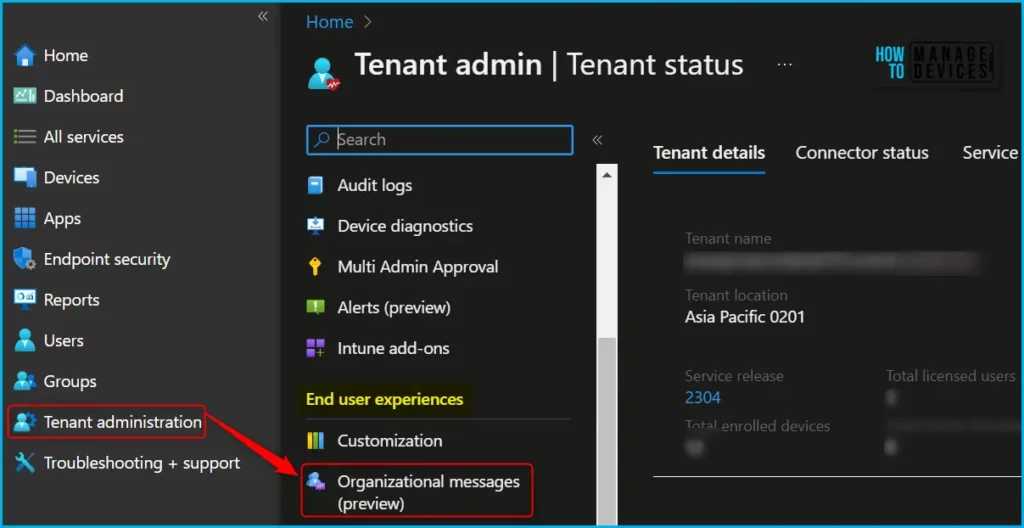
Here you will find two tabs, Overview and Message. You can check the Overview tab to learn about messaging options and prerequisites. The message tab allows you to create or manage organizational messages, Select the Message tab to review the configured message.
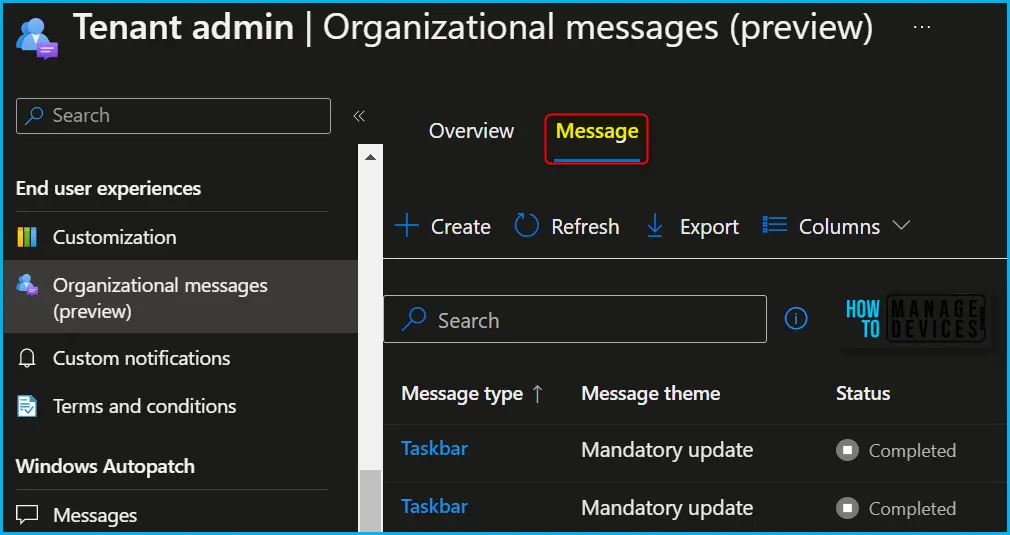
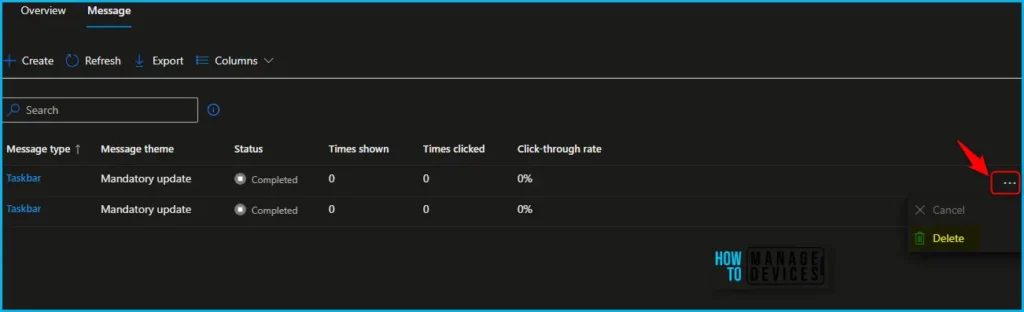
In the Message, Select the Message type or theme you want to delete. Select the (…) context menu > Delete. You need to select the delete button to remove the message. You don’t get any confirmation notification once the message is deleted.
Access Audit logs for Organizational Messages
Let’s check who has created updated or deleted organizational messages. You can find audit logs in the Intune Admin Center portal to track and monitor organizational message events. The following organizational message actions create audit events:
- Assign
- Create
- Delete
- Update (edit)
To access audit logs, Navigate to the Tenant administration > Audit logs. Available logs are shown in the table. Select Filter to filter logs by category. The category for organizational messages is Other. The following are some of the categories available for Intune portal audit logs. You can select an item in the list to see the activity details.
- Date – Date of the activities.
- Initiated by (actor) – Who Initiated the Action?
- Application name – The API name of the application.
- Activity – UpdateDeviceConfiguration OrganizationalMessageDetail
- Target – Profile Name
- Category – Other
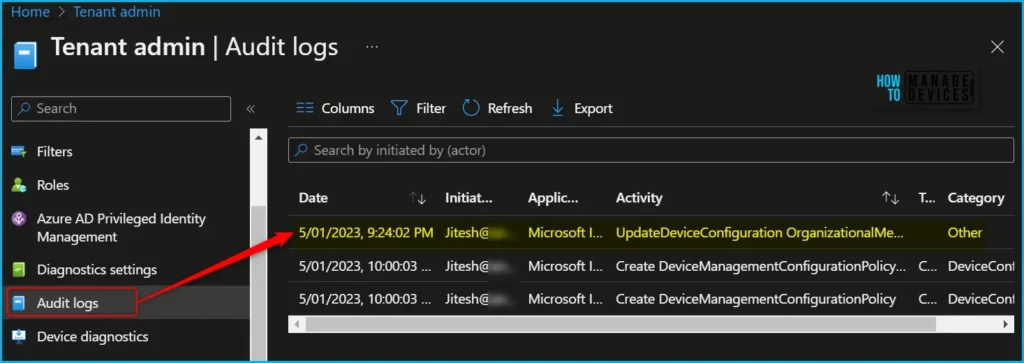
Here you can see the activity details for the activity Organizational messages deletion.
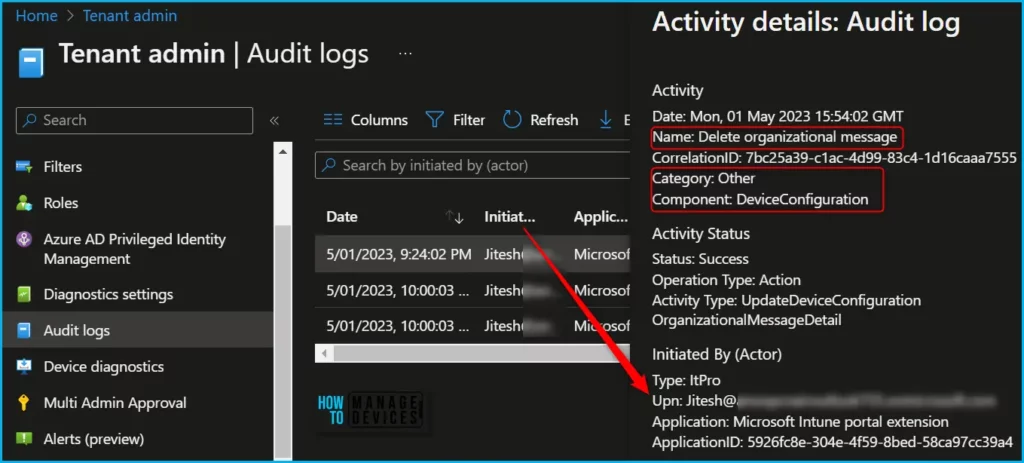
Activity details: Audit log
Activity
Date: Mon, 01 May 2023 15:54:02 GMT
Name: Delete organizational message
CorrelationID: 7bc25a39-c1ac-4d99-83c4-1d16caaa7555
Category: Other
Component: DeviceConfiguration
Activity Status
Status: Success
Operation Type: Action
Activity Type: UpdateDeviceConfiguration OrganizationalMessageDetail
Initiated By (Actor)
Type: ItPro
Upn: Jitesh@HTMD.onmicrosoft.com
Application: Microsoft Intune portal extension
ApplicationID: 5926fc8e-304e-4f59-8bed-58ca97cc39a4
Scope Tag(s)
Tag(s):
Target(s)
Target
Type: OrganizationalMessageDetail
Name:
ObjectID: 446a78a5-be0f-459a-a82c-ad4b6746fc62
Modified Properties
Property: Result
New Value: Success
Old Value:
Property: DeviceManagementAPIVersion
New Value: 5023-03-29
Old Value:
Author
About Author – Jitesh, Microsoft MVP, has over six years of working experience in the IT Industry. He writes and shares his experiences related to Microsoft device management technologies and IT Infrastructure management. His primary focus is Windows 10/11 Deployment solution with Configuration Manager, Microsoft Deployment Toolkit (MDT), and Microsoft Intune.


Discussion