






How to Retire Application in SCCM | Delete App
Let’s learn how to retire application in SCCM. When you retire an application, it’s no longer available for deployment. Configuration Manager doesn’t delete the application and any deployments.
If the app was installed on clients, Configuration Manager doesn’t remove the app. Configuration Manager deletes any revisions to the app after 60 days of retirement.
You can’t delete an application if any of the conditions exist. References such as other applications are dependent on it, active deployments and dependent task sequences can affect the ability to delete an application. To delete an application, you must remove all references to it.
Before you delete an application, firstly, you need to retire it, and It’s important to consider the points –

- Select the apps from SCCM Console, Rename Application to start with “Retired”
- Delete all active deployments.
- Remove references to the application by other deployments
- Delete all of the application’s revisions.
- Remove Applications from Distribution Points.
- Retire the application.
- Move the application source files from the source directory to a “Retired” directory
- Moving the application to a “Retired” folder in the SCCM console
- Delete the application.
You can export the ConfigMgr application (with or without associated content) from SCCM Console or use PowerShell, which helps you to get a list of all associated commands and content based on your selection.
- Easily Find SCCM Task Sequences Reference Application
- Disable SCCM Application Deployment | ConfigMgr
- SCCM Collection Based on Installed Application Version
How to Retire Application in SCCM | Delete App
Let’s go through the following steps to delete an application that has dependencies and references –
- In the Configuration Manager console, go to the Software Library workspace, expand Application Management, and select the Applications node.
- Select an existing application (For Example Adobe Reader) in the Applications node which you want to delete.
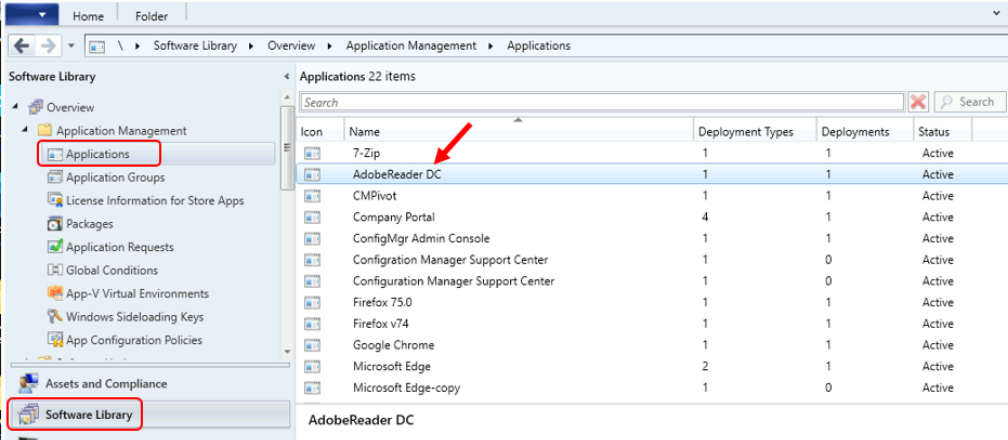
To delete an application, you must remove all references to it. References such as dependent applications, active deployments, and dependent task sequences can affect deleting an application.
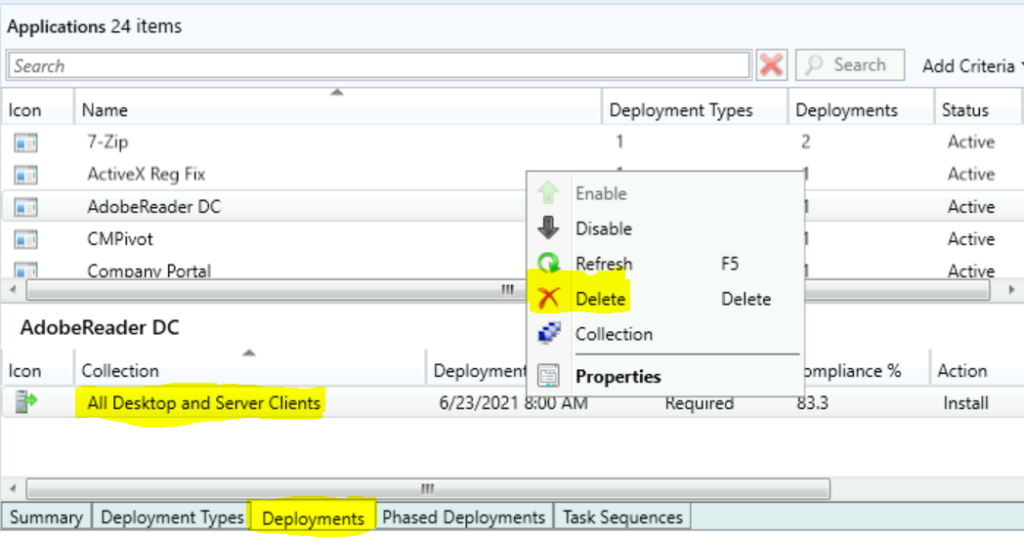
In the details pane, Switch to the Deployment tab. Select the collection, Right-click on deployment, select Delete.
Note – If you have targeted the application deployment to multiple collections, you have to remove each deployment manually, as shown here.
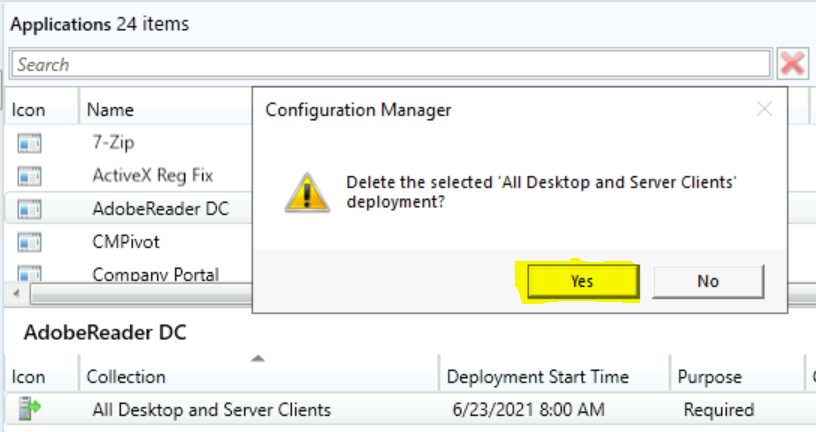
A prompt will appear with the message “Delete the selected “Collection” deployment? Click Yes on the window to remove the deployment.
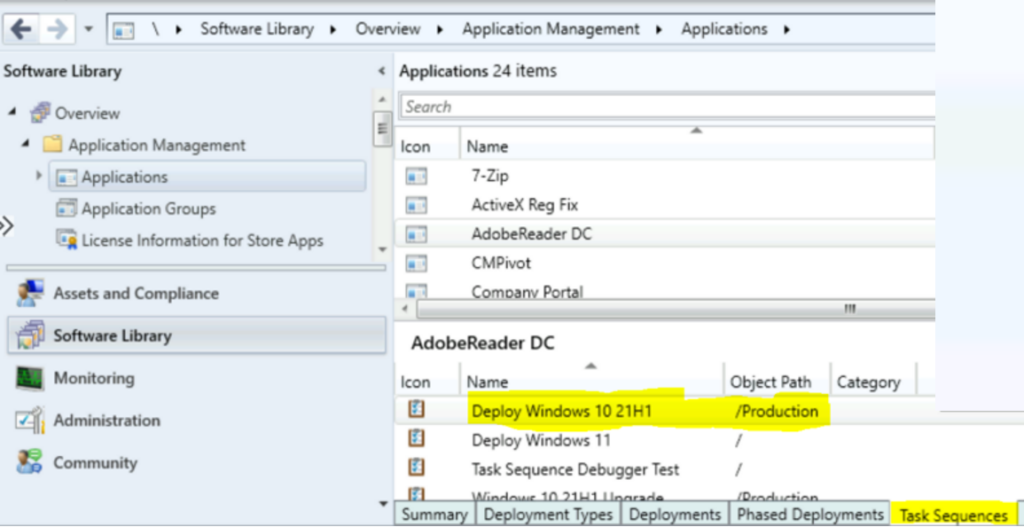
Now, it’s time to checklists of SCCM Task Sequences reference applications. An application can be part of many task sequences.
Click on the Task Sequences tab to find out the task sequence details that have the application. Here you can see under the Task Sequences tab, The selected application (For Example, Adobe Reader) is part of all appeared lists of the task sequences.
Important – Disable or remove the application from referenced Task Sequence. Otherwise, you may encounter an error indicating the application package is missing.
This task sequences tab lists the task sequences that reference specific applications. I have seen this useful for SCCM admin when you know which Task Sequence references specific applications.
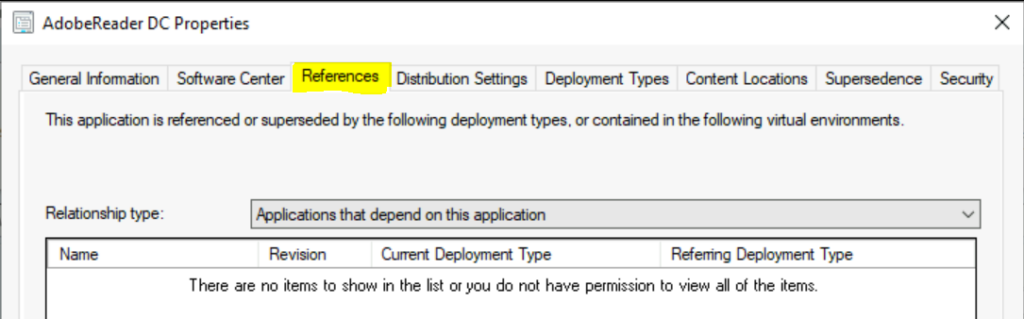
To view the referenced application. Right-click on the application and select Properties. Switch to the References tab to see the dependent applications.
Remove the dependent application. After deleting all revisions with the dependency, the Number of dependent applications will show 0. You will be ready to retire an app.
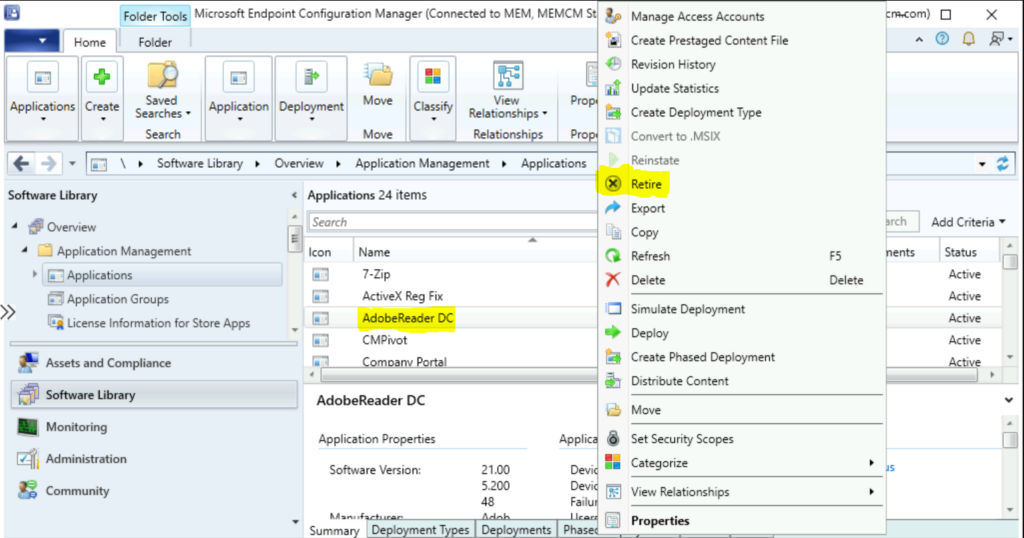
Right-click on the application and select Retire.
Important⚠️– You may get a warning message “Configuration Manager cannot delete this application because other applications or task sequences reference it, or it is configured as deployment” If you haven’t removed the application from associated groups, In that case, review the status and take action.
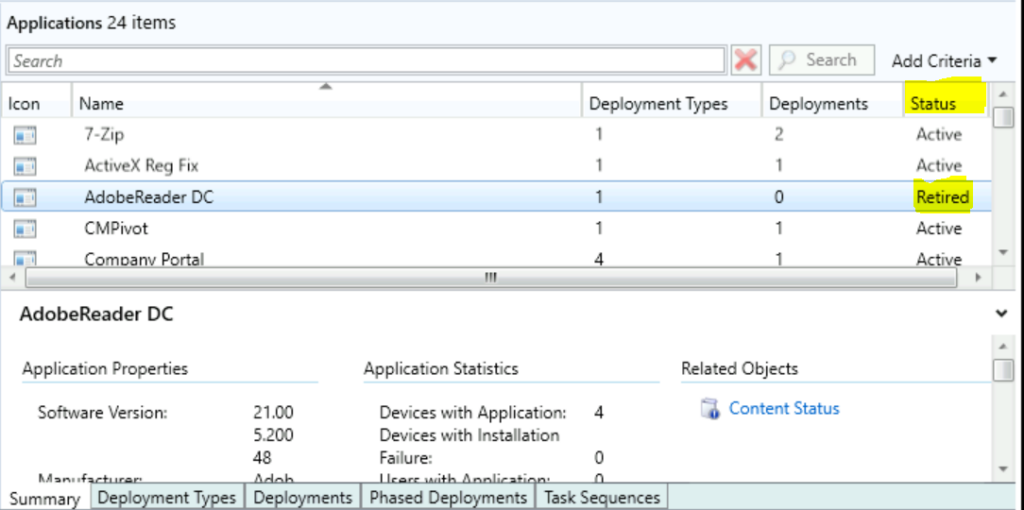
Once you have retired an application, you can see the Status column showing the status Retired for the selected application.
Note – If you cannot see the Status column on the Application details page. To add the Status column, Right-click on a column detail name and Select the Status column.
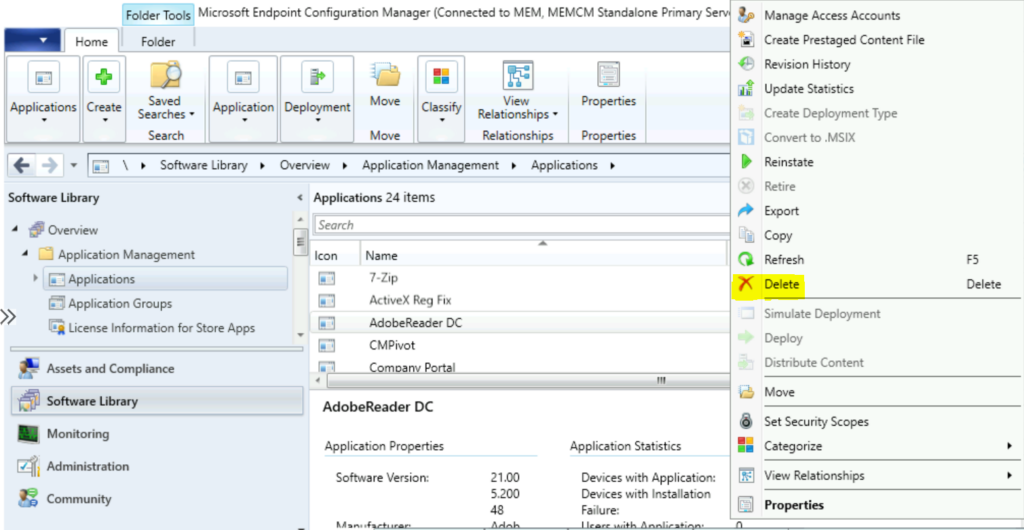
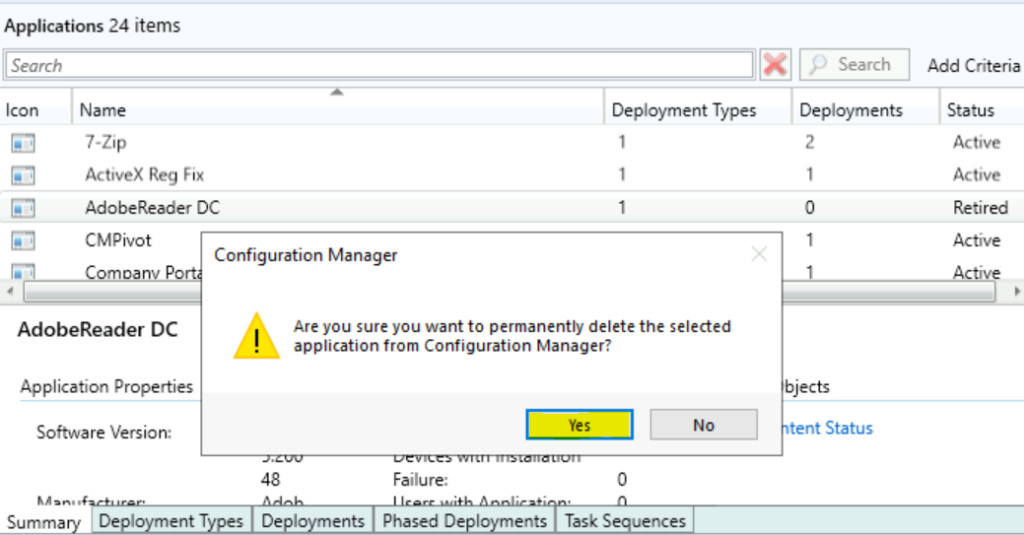
Once you have removed the deployment task sequence reference, right-click on the application and select Delete.
A prompt will appear with the message “Are you sure you want to permanently delete the selected application from Configuration Manager?” Select Yes to confirm
Reinstate Application
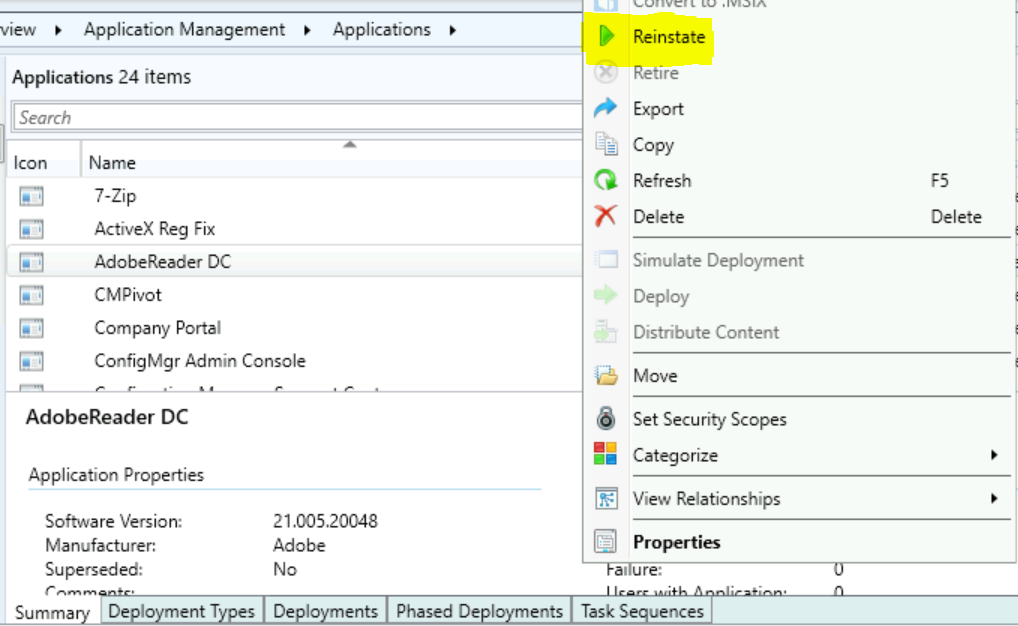
If you previously retired an application, you can use this action to reinstate it. When you reinstate a retired app, you can then deploy it again.
In the Configuration Manager console, go to the Software Library workspace, expand Application Management, and select the Applications node.
Select the application you had retired and wanted to make available for deployment. If already retired, then you can right-click the application and choose Reinstate.
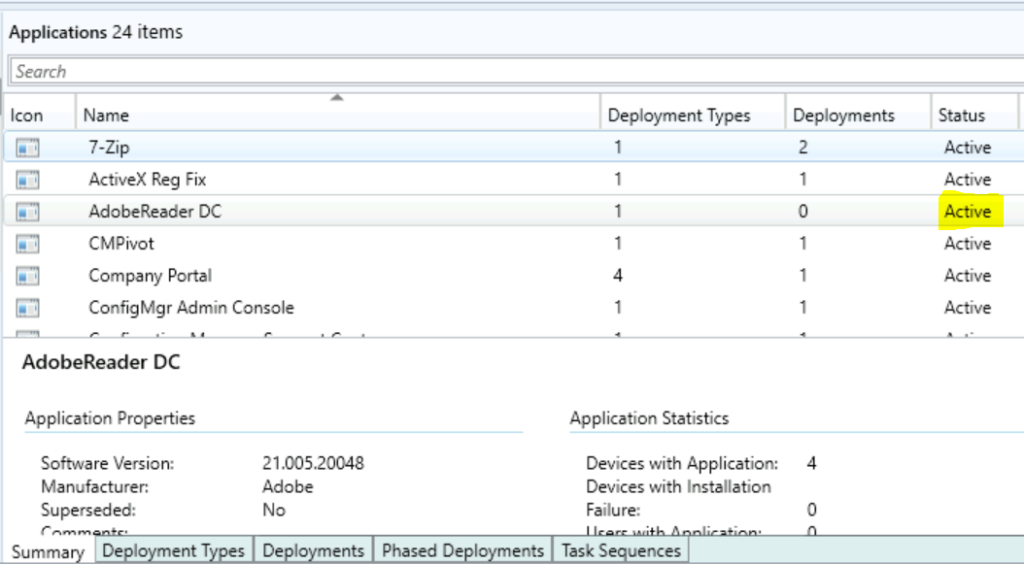
Here you can see the Status property showing Active.




Discussion