






How to Prompt User to Confirm When they Delete Shared Content on OneDrive via Intune
Today we are discussing How to Prompt User to Confirm When they Delete Shared Content on OneDrive. This policy plays a crucial role in managing how files are handled when they are deleted, especially in shared environments where multiple users have access to the same content. By enforcing this policy, organizations can protect shared resources from being accidentally removed by users.
We all know that the Settings Catalog in Microsoft Intune is one of the most powerful features for administrators. It allows IT admins to configure and deploy a wide range of policies that directly impact user behavior and organizational data security.
OneDrive is the delete confirmation setting for shared content. This policy determines whether users see a confirmation dialog before they delete files that others can access. The confirmation step ensures that users are fully aware of the impact of their actions and prevents accidental deletions that could affect team productivity.
When this policy is enabled, users cannot hide the confirmation message. Every time they attempt to delete shared content, they must confirm their intent before the deletion is applied in the cloud. This strengthens accountability and reduces the chance of data loss.

Table of Contents
How to Prompt User to Confirm When they Delete Shared Content on OneDrive via Intune
We have already discussed the key details of Prompt User to Confirm When they Delete Shared Content on OneDrive via Intune. Now, let’s look at how it can be deployed through the Microsoft Intune Admin Center. First, go to the Devices section in the Intune Admin Center. Next, click on Configuration and then select + Create profile. When creating the profile, you will need to provide the required details such as the Platform and Profile type.
- For the Platform, select Windows 10 and later.
- For the Profile type, choose Settings catalog.
- Finally, click on Create to complete the process. This will deploy the policy through Intune

- How to Continue Syncing on Metered Networks on OneDrive using Intune Policy
- How to Restrict OneDrive Sync Speed in a Fixed Rate via Intune Policy
- Prevent users from Moving their Windows Known Folders to OneDrive
Start with Basic Step
You know, Naming the policy is the first step that help admins to identify the policy later. This is important and necessary step that allows you to know the purpose of the policy. Here is Name is important category, and description is optional in basics.
- The Name as Prompt user to confirm when they delete shared content
- The Description as Enable Disable Prompt user to confirm when they delete shared
- content
- After adding this click on the Next button.

Configuration Settings
After the basics, now you are on the Configuration settings. Here you have to select the Add setting option. In the add settings you can open the settings picker, in that you have to select OneDrive category. In the the OneDrive category you will get diffrent type of setting policies and select Prompt user to confirm when they delete shared content.

Disabled the Policy Mode
After selecting the configuration settings, you can now close the Settings picker window. Once it is closed, you will see the selected policy listed on the Configuration settings page. By default, the policy is set to Disabled. If you want to proceed with the current settings or make changes later, simply click Next to continue with the policy creation process.

Enable the Policy
To enable the policy, move the toggle from Left to Right. Once enabled, the button will turn blue, indicating that the policy is active. Enable this setting to prevent users from hiding the confirmation dialog. Each time the user deletes shared content, their confirmation is required before the item is deleted for everyone online.

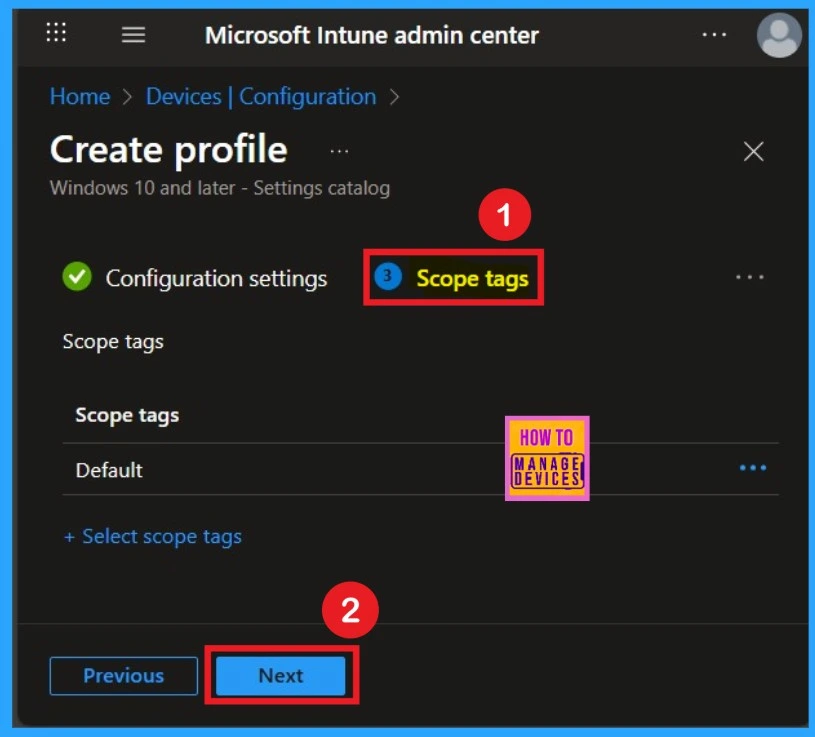
What is Scope Tags
The aim of scope tags is to categorize and associate your policy with a specific scope, making it easier to manage assignments for particular environments. Here, you can add a scope tag for the policy, although it is not mandatory.
Importance of Assignments
You know assign the policy to specific groups, you can use the Assignment Tab. Here I click, +Add groups option under Included groups. I choose a group from the list of groups and click on the Select button. Again, I click on the Select button to continue.

Last Step – Review + Create
Before completing the policy creation, you can review each tab to avoid misconfiguration or policy failure. After verifying all the details, click on the Create Button. After creating the policy, you will get a success message.
- If you’re satisfied with the summaries and settings, click the Create button to finalize the process.

Monitoring Status
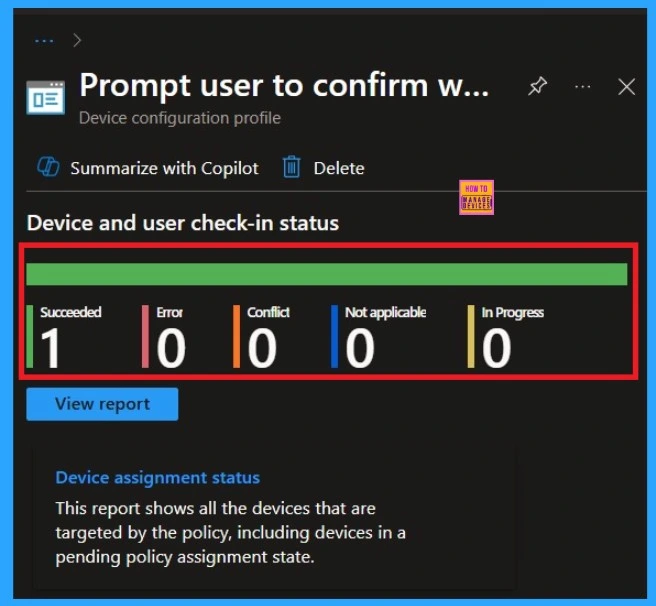
After creating the policy, administrators may want to confirm whether it has been successfully deployed, and it is important too. To check this, go to Devices > Configurations and search for the policy name you created. Once you find the policy, click on it to open the Monitoring Status page. On this page, you can view the deployment details for both devices and users.
- The status will show if the policy has been applied successfully.
- If it is as Succeeded, it means the deployment worked as expected.
- You may see 1 or 2 under “Succeeded.” If there are no entries under Error, Conflict, Not Applicable, or In Progress, it indicates that the policy has been deployed without issues.
Client Side Verification
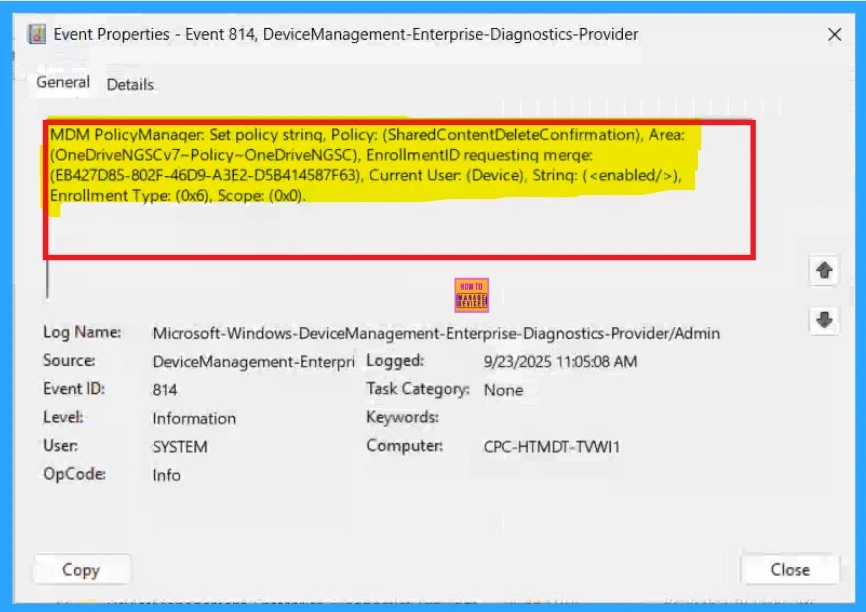
You can verify the confirmation in the Event Viewer by looking for Event ID 813 or 814. To access this, open Event Viewer and navigate to Applications and Services Logs > Microsoft > Windows >Device Management Enterprise Diagnostic Provider > Admin.
- I found the policy details in the Event ID 814.
| Policy Details |
|---|
| MDM PolicyManager. Set policy strinq, Policy: (SharedContentDeleteConfirmation), Area: (OneDriveNGSCv7~Policy~OneDriveNGSC), EnrollmentID requestinq merqe: (EB427D85-802F-46D9-A3E2-D5B414587F63), Current User: (Device), Strinq: (), Enrollment Type: (0x6), Scope: (0x0). |
Removing the Assigned Group from this Settings
If you want to remove the Assigned group from the policy, it is very easy for you. You know it is possible from the Intune Portal. To do this, open the Policy on Intune Portal Device check in status page and edit the Assignments tab and the Remove Policy
To get more detailed information, you can refer to our previous post – Learn How to Delete or Remove App Assignment from Intune using by Step-by-Step Guide.

How to Delete Policy Permenently
If you want to permanently delete a policy, search for the policy name in the Configuration search bar. Once the policy appears, click on the 3-dot menu next to it. You will see 3 options: Duplicate, Export, and Delete. Select Delete, and the policy will be permanently removed.

Need Further Assistance or Have Technical Questions?
Join the LinkedIn Page and Telegram group to get the step-by-step guides and news updates. Join our Meetup Page to participate in User group meetings. Also, Join the WhatsApp Community to get the latest news on Microsoft Technologies. We are there on Reddit as well.
Author
Anoop C Nair has been Microsoft MVP for 10 consecutive years from 2015 onwards. He is a Workplace Solution Architect with more than 22+ years of experience in Workplace technologies. He is a Blogger, Speaker, and Local User Group Community leader. His primary focus is on Device Management technologies like SCCM and Intune. He writes about technologies like Intune, SCCM, Windows, Cloud PC, Windows, Entra, Microsoft Security, Career, etc


Discussion