






Best Guide to Configure Delivery Optimization Cache Host Policy using Intune
In this article, am going to discuss about how we can configure Delivery Optimization Cache Host Policy using Microsoft Intune. The Delivery Optimization Cache Host policy in Intune, when configured using the Settings Catalog, allows IT administrators to enable devices to act as local cache servers on the network.
These cache hosts store and share downloaded content such as Windows Updates or Microsoft Store apps with other devices, reducing the need for multiple internet downloads and significantly improving bandwidth efficiency, especially in branch office or school lab scenarios.
By using the Settings Catalog in Intune, administrators get a more granular and up-to-date list of available policies, including the ability to easily search and configure the “Enable devices to act as a peer cache server” setting under the Delivery Optimization category. Enabling this setting ensures that eligible devices (typically with sufficient disk space and hardware) can cache content locally and serve it to peers using Windows’ peer-to-peer delivery mechanism.
This approach is ideal for enterprises looking to optimize their network usage without deploying additional infrastructure. It’s especially useful in scenarios where many devices download the same content within a short time frame. With Intune’s cloud-based management, configuring this policy through the Settings Catalog makes deployment and compliance tracking seamless and scalable.


Table of Contents
What is Delivery Optimization Cache Host?
Delivery Optimization Cache Host is a feature in Windows that allows a device on your network to act as a local cache server, storing downloaded content like Windows updates, Microsoft Store apps, and other Microsoft content. Once cached, this content can be shared with other devices on the same network, reducing the need for each device to download the same data from the internet individually.
- Configure Endpoint Privilege Management (EPM) Reusable Settings, Elevation Rule Policy using Microsoft Intune
- Enable Disable Windows Update Delivery Optimization in Windows 11
- How to Set Business Hours to Limit Background Download Bandwidth Policy using Intune
Create a Delivery Optimization Cache Host Policy in Intune
Follow the below-mentioned steps to create a configuration policy to Configure Delivery Optimization Cache Host Policy using Microsoft Intune. First, Sign In to the Microsoft Intune Admin Center with your Intune administrator credentials.
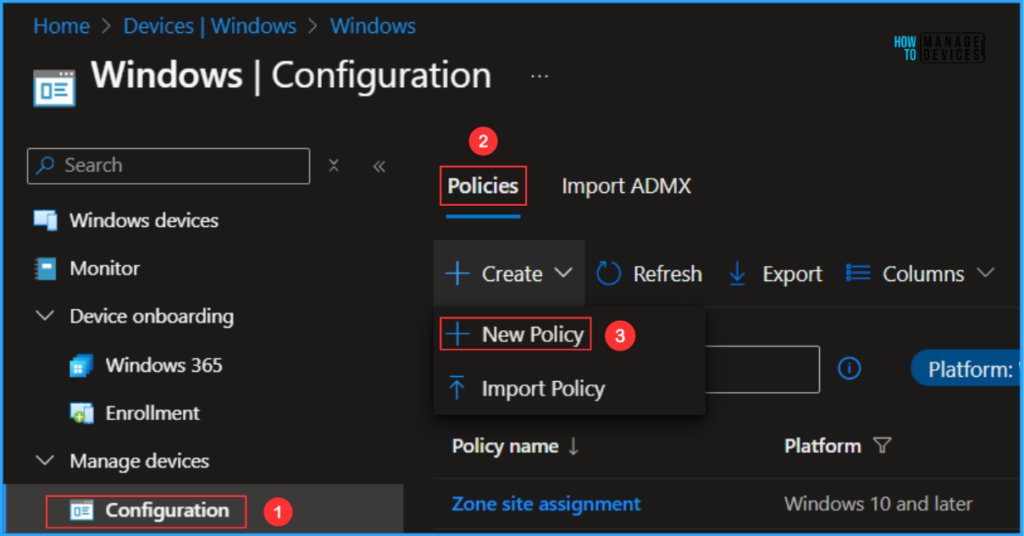
- Navigate to Devices > Windows > Manage devices > Configuration
- Click on +Create > +New Policy
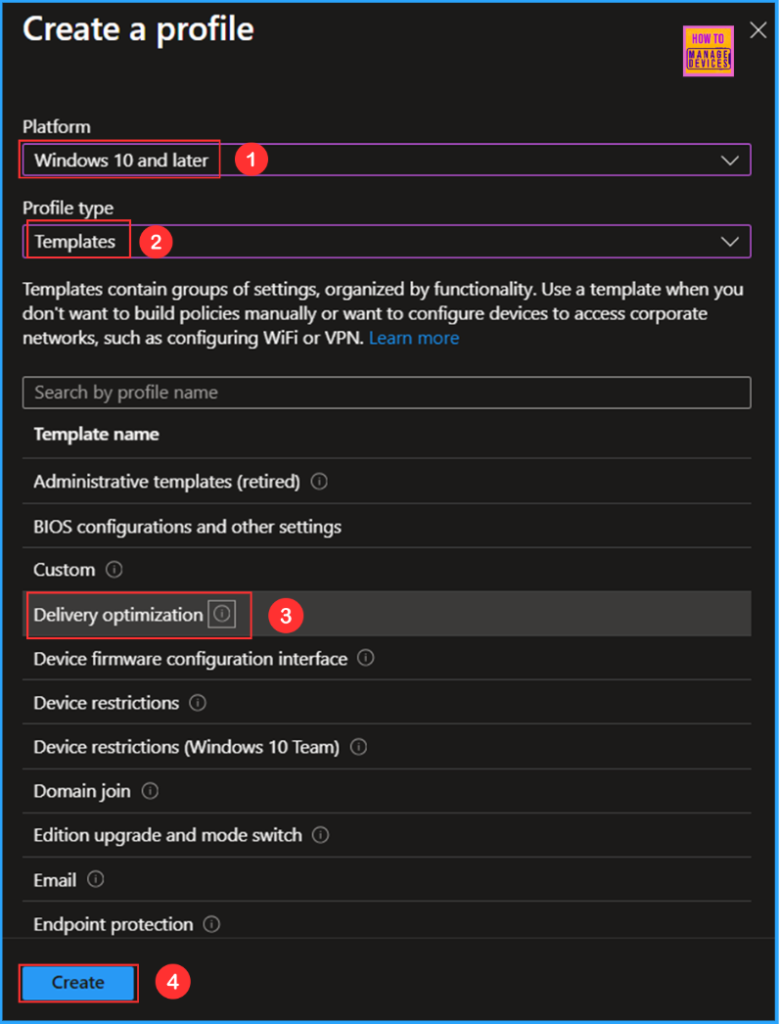
In the next step, we can create a new Configuration profile from scratch. First, we need to provide the options mentioned below.
- Platform: Windows 10 and later
- Profile type: Templates and Choose Delivery Optimaization in the list
Note! Delivery Optimization settings for your devices running Windows 10 or later can help reduce bandwidth consumption when those devices download applications and updates.
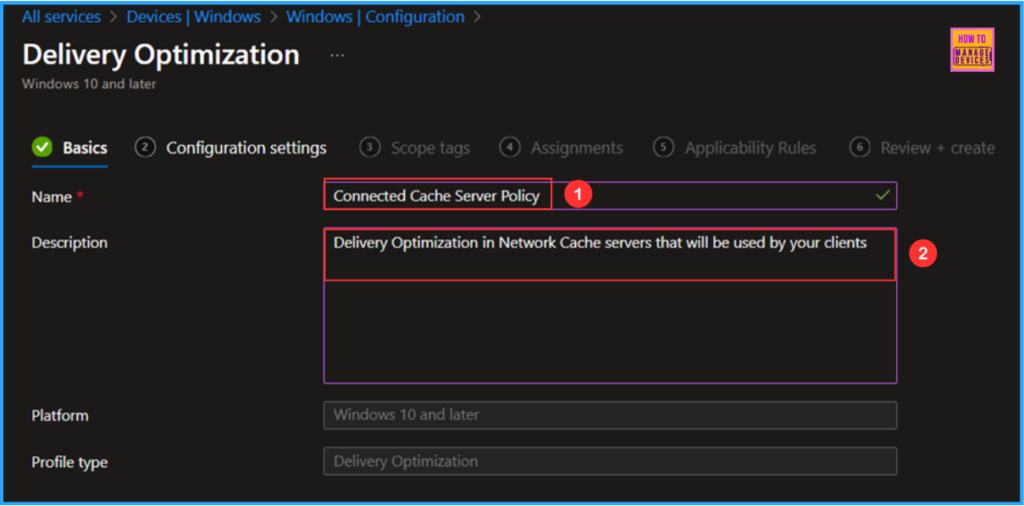
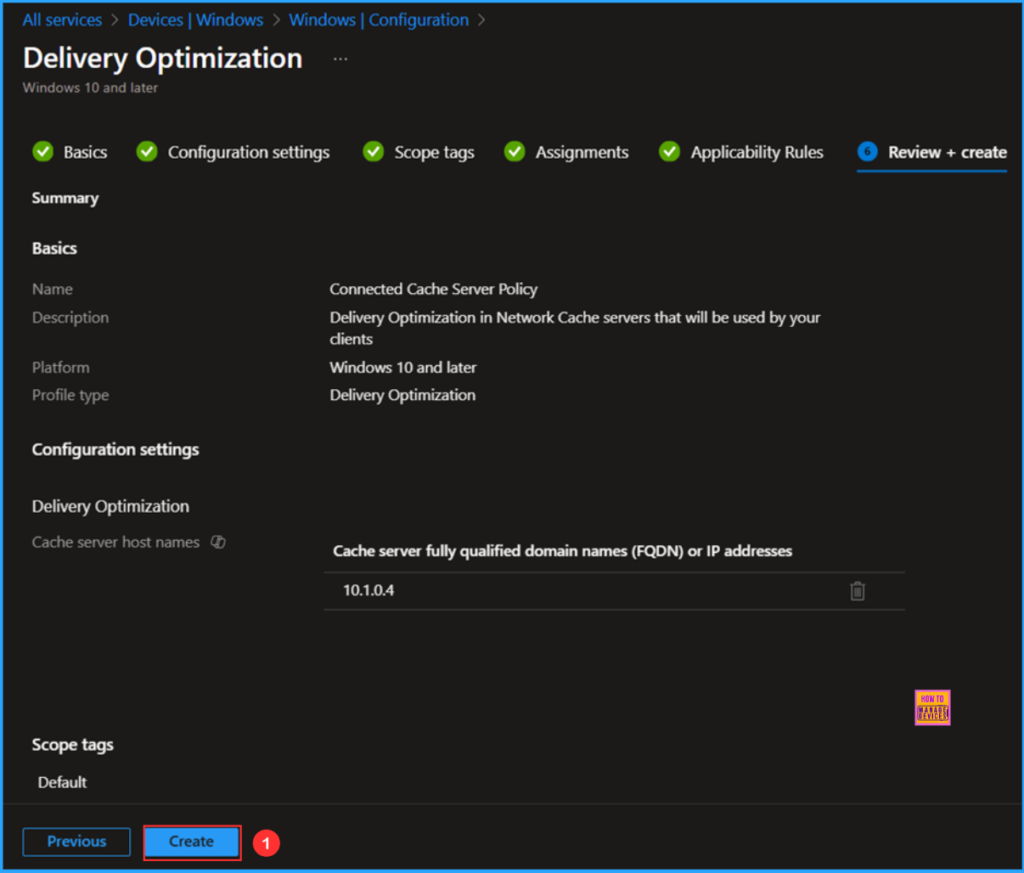
On the Basics details page, we can name the configuration policy as “Connected Cache Server Policy” if needed, briefly describe the policy use in detail here am giving as “Delivery Optimization in Network Cache servers that will be used by your clients” and then click Next.
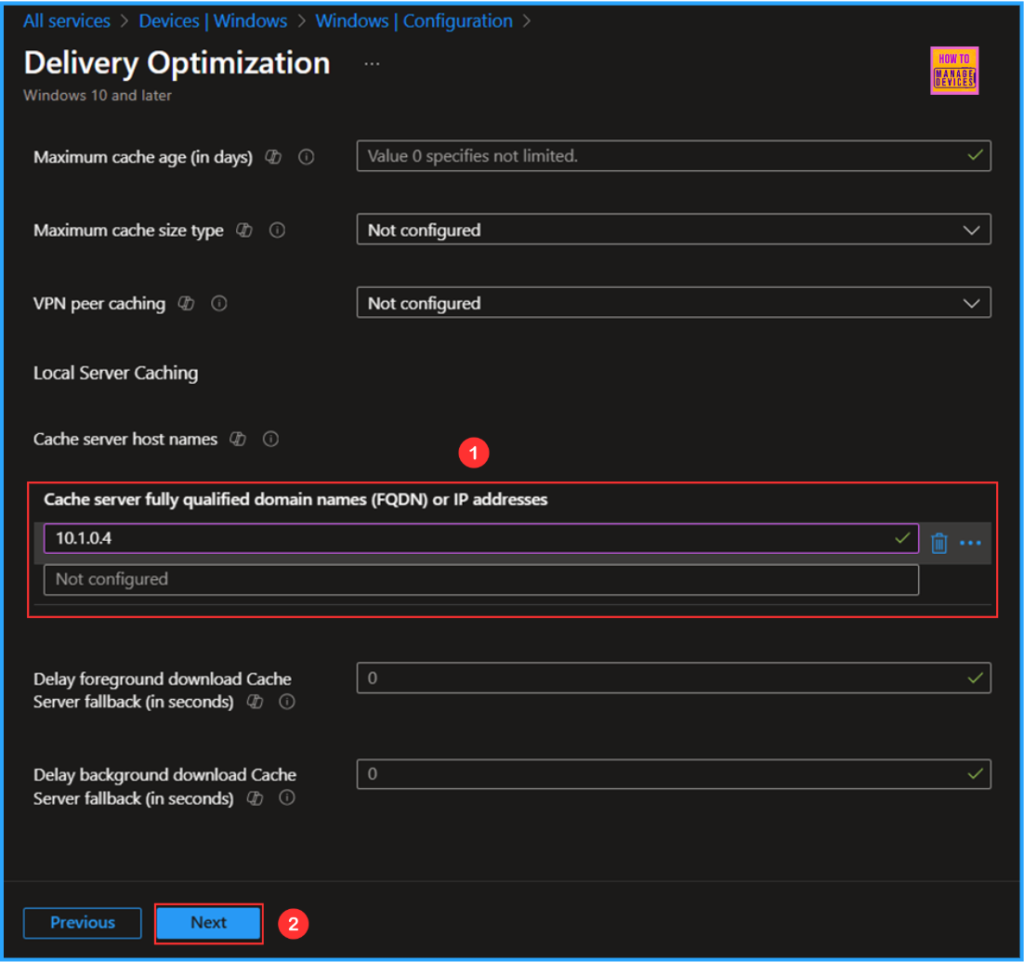
On the current Configuration settings page, drag down and click on Cache server fully qualified domain names (FQDN) or IP address here am giving the Microsft Connected Cache Device/Server IP adress and click Next.
| Cache Server IP | Cache Server FQDN |
|---|---|
| 10.1.0.4 | CPC-HTMDT-F8YYT |
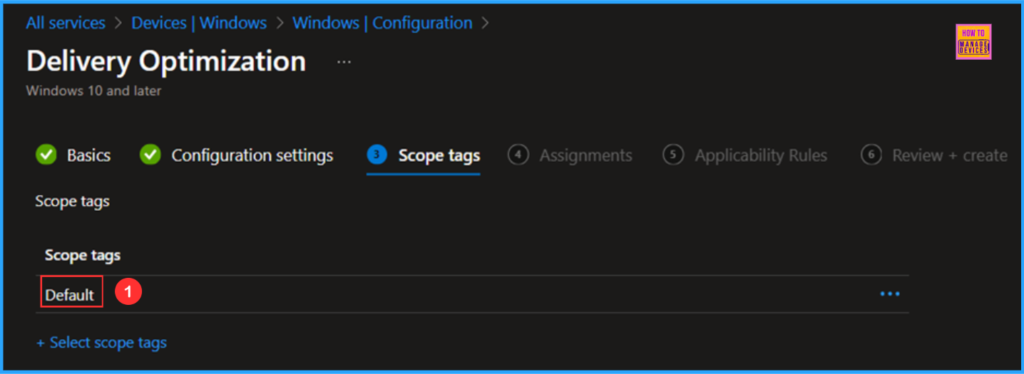
On the next page, Leave the Scope tags as Default. If your tenant has custom scope tags, you can select them based on your policy needs then Click on Next.
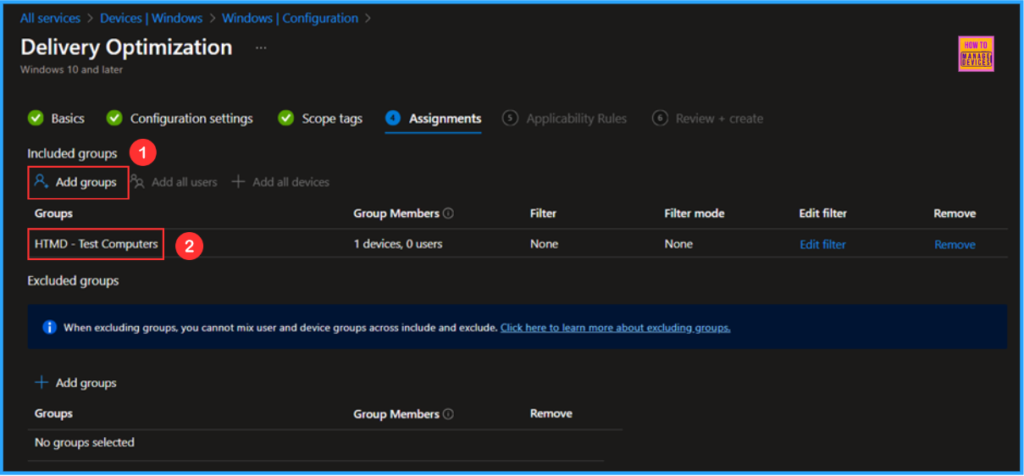
Here, I am assigning the configuration policy to HTMD – Test Computers a Device Group. To do that, click Add Groups and select a required device group under the Included Groups option. Not using any Filter in this example, and the Excluded Groups option was also left blank.
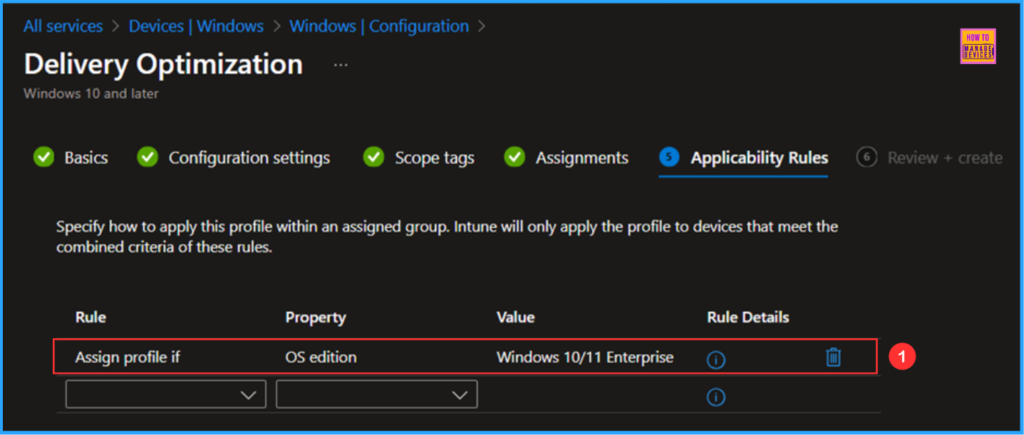
On the Applicability Rules pane, Specify how to apply this profile within an assigned group. Intune will only apply the profile to devices that meet the combined criteria of these rules. Assign profile if the OS edition, that is Windows 10/11 Enterprise.
On the Review + create page, carefully review all the settings you’ve defined for the Delivery Optimization Cache Host Policy. Once you’ve confirmed everything is correct, select “Create” to deploy the policy.
- Best Copilot Assistance for Querying Device Inventory Data using KQL in Intune
- Easy way to Create Autopatch Multi-Phase Release with Intune Feature Update Policy
- Enhance Windows Autopilot Bandwidth Efficiency with Connected Cache
Monitor the Delivery Optimization Cache Host Policy Deployment
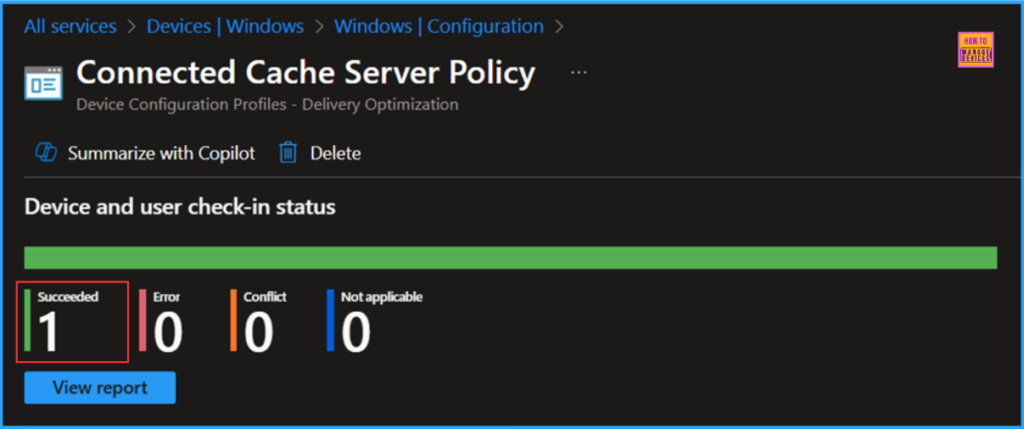
The configuration policy has been deployed to the HTMD – Test Computers, Microsoft Entra ID Device group. Once the devices are synced, the policy will take effect immediately. To monitor the policy deployment status from the Intune Portal, follow the steps below.
- Navigate to Devices > Windows > Configuration > Search for the “Connected Cache Server Policy”
- Under the Device and user check-in status, you can see the policy’s deployment status.
End User Experience of Configure Delivery Optimization Cache Host Policy
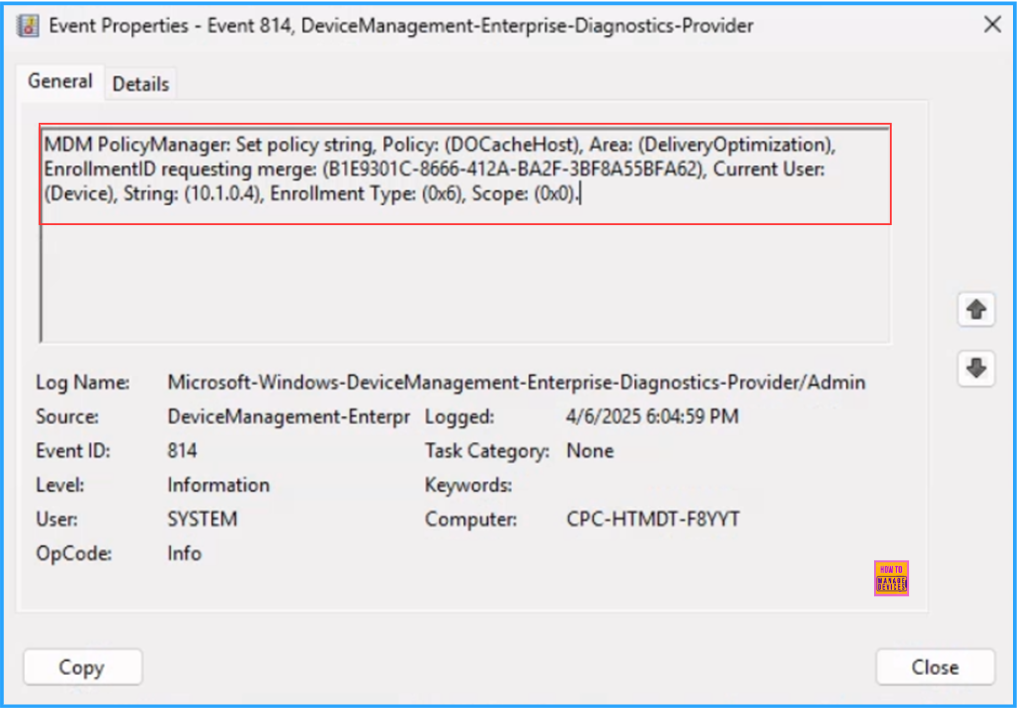
It’s the time to check whether the Delivery Optimization Cache Host Policy is working fine or not. Log on to one of the policy-targeted devices. We can check the policy status via Intune Event Logs. Open Event Viewer from the device.
- Navigate to Applications and Services Logs > Microsoft > Windows > Devicemanagement-Enterprise-Diagnostics-Provider – Admin
Filter the latest logs with 814 Event ID so it make easy to find the success log. We can also analyze the step-by-step logs in detail for more information about the targeted policy. The screenshot below shows that the policy is successfully applied to the system and our policy has been worked as expected!
Need Further Assistance or Have Technical Questions?
Join the LinkedIn Page and Telegram group to get the latest step-by-step guides and news updates. Join our Meetup Page to participate in User group meetings. Also, Join the WhatsApp Community to get the latest news on Microsoft Technologies. We are there on Reddit as well.
Author
Vaishnav K has over 11 years of experience in SCCM, Device Management, and Automation Solutions. Writes and imparts knowledge about Microsoft Intune, Azure, PowerShell scripting, and automation. Check out my profile on LinkedIn.


Discussion