






Force to Deny Apps Sync with Devices Policy for Windows using Intune
Today we are discussing Force to Deny Apps Sync with Devices Policy for Windows using Intune. In this discussion, we will focus on how this policy can be applied throughout the organization. Policies play a very important role in ensuring better efficiency, security, and user experience.
By configuring such policies correctly, organizations can maintain greater control over device communication and reduce unnecessary risks. Specifically, we will be looking at the Force Allow and Force Deny options for syncing with devices, and how they impact Windows apps when deployed through Intune.
These settings help admins right balance between security and flexibility while managing enterprise environments. Administrators can configure either a default setting for all apps or a per-app setting. The per-app setting requires specifying the Package Family Name of an app, which can be retrieved by running the Get-App Package command in Windows PowerShell.
If the policy setting is disabled or not configured, the system defaults to user control. In this state, employees have the option to manually adjust their settings via the Privacy menu, giving them control over whether apps can access unpaired devices. This may be suitable for less restrictive environments but could pose security challenges in larger organizations.

Table of Contents
Force to Deny Apps Sync with Devices Policy for Windows using Intune
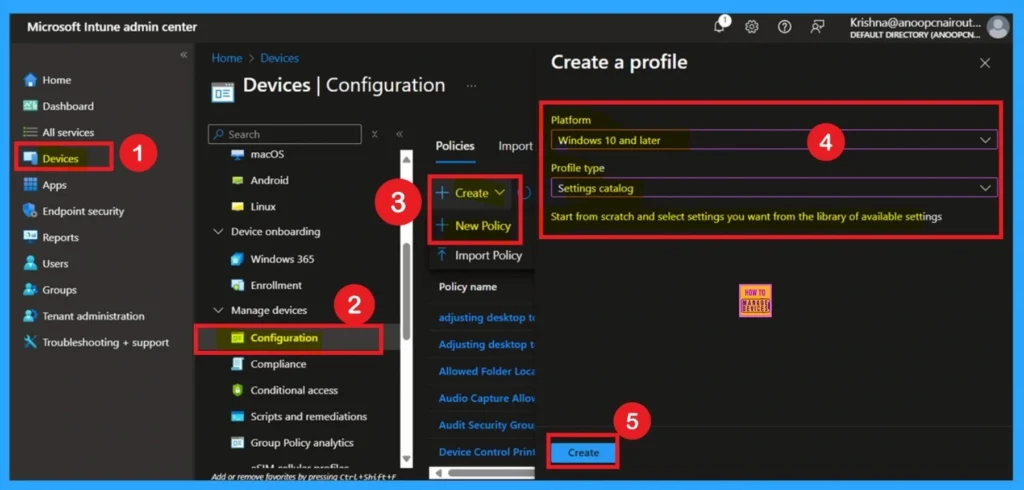
Above we discussed a lot of things about the policy Apps Sync with Devices. Now let’s look how this policy applied into the Intune admin center. First Log in to the Microsoft Intune Admin Center with administrator credentials. Go to Devices > Windows > Manage Devices> Configuration. Click +Create and then select +New Policy to begin configuring the required settings.
- How to Specify the OneDrive Location in a Hybrid Environment using Intune
- Enable or Disable Storage Locations in File Explorer using Intune Policy
- How to Configure Do not Add Shares of Recently Opened Documents to Network Locations Policy using Intune
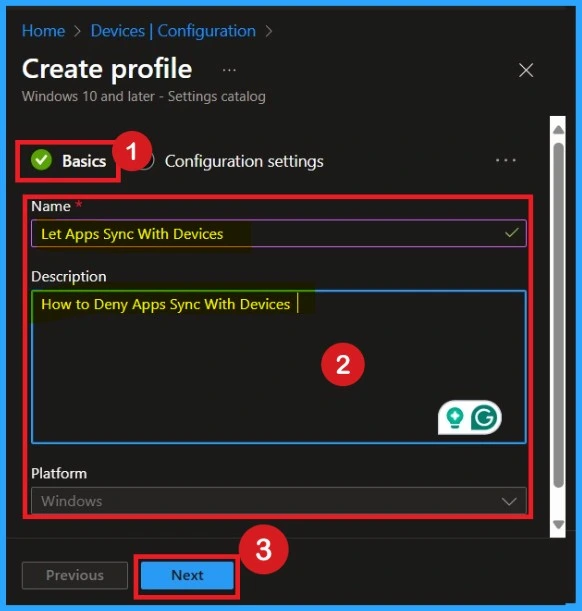
Adding Basic Details
Basic tab helps you to give an identify for the settings you have to select for policy creation. You should add appropriate name and description for policy. Here is Name is mandatory and description is optional. After adding this click on the Next button
Configuration Settings
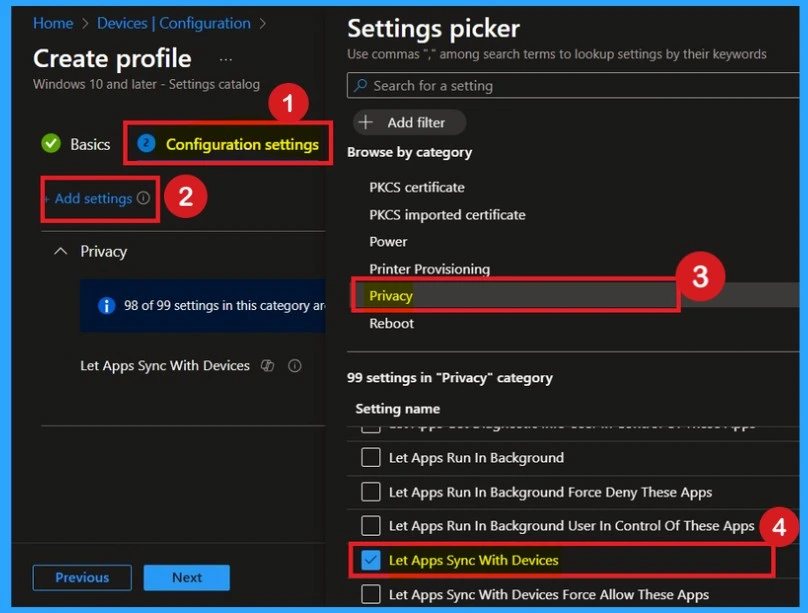
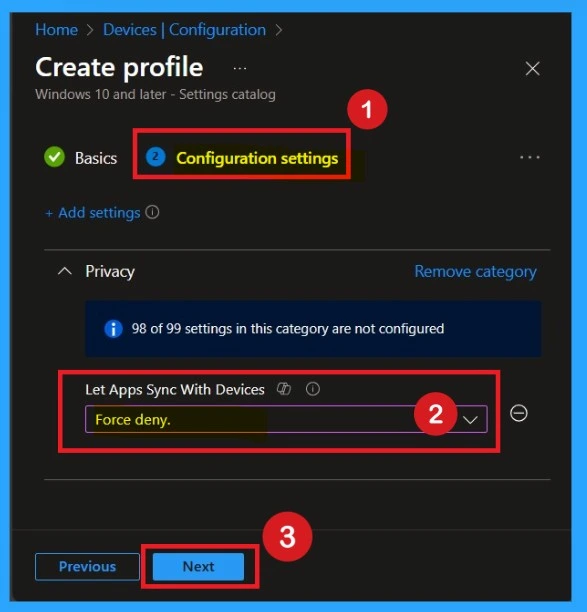
The next step is the Configuration Settings. In this section, you will see the Add Settings option. Click on it, and a list of categories will appear. From there, select the Privacy category in the settings picker.
Once inside the Privacy category, choose the Let Apps Sync with Devices policy. After selecting it, close the settings picker window to continue with the configuration.
Options you have to Choose
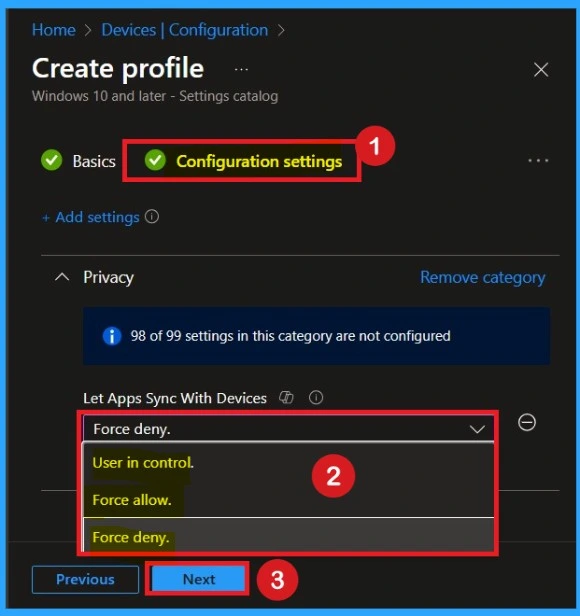
You can see different types of options for the Let Apps Sync with Devices policy. Here, you will find Force Deny, User in Control, and Force Allow options. You can choose any of these based on how you want to configure the policy.
Choose Force to Deny Apps Sync with Devices
Choose the Force Deny option. This option is very easy process to apply. By using this policy, you can gain several advantages, such as enhanced security and preventing unauthorized device communication. If you choose the “Force Deny” option, Windows apps aren’t allowed to communicate with unpaired wireless devices and employees in your organization can’t change it.
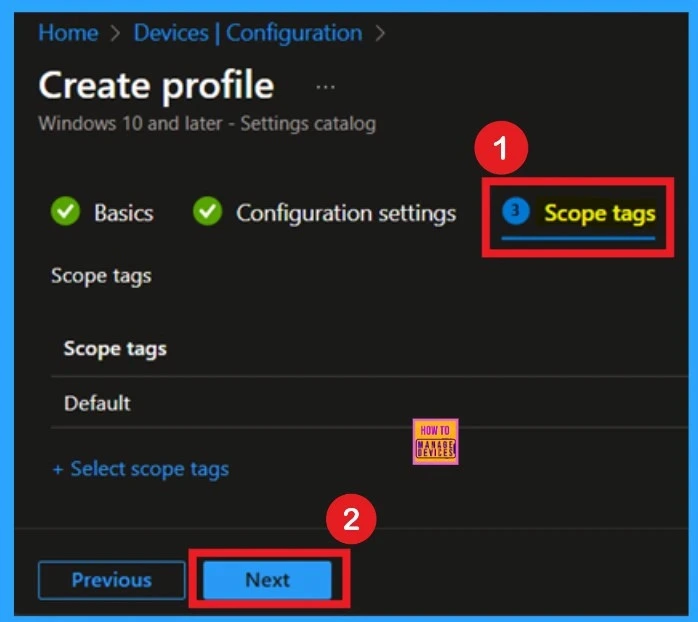
What is Scope Tags
The Scope Tag for the Deny Apps Sync with Devices policy allows IT administrators to define which groups within the organization can view or manage this policy in Intune. By assigning appropriate scope tags, organizations can ensure that only designated teams have access to configure or monitor the Deny Apps Sync with Devices settings.
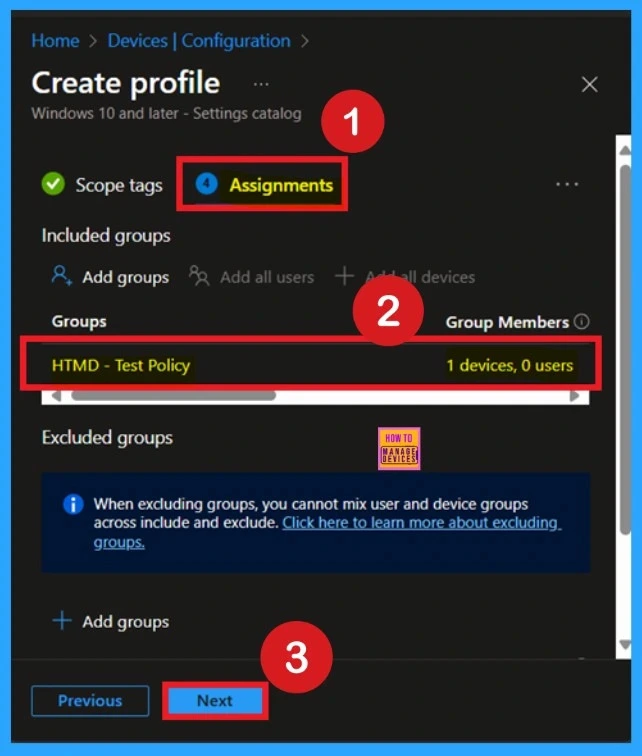
Know the Asignments
The Assignments section of the Deny Apps Sync with Devices policy determines which devices or user groups the policy applies to. Proper assignment ensures consistent policy enforcement and helps maintain security and usability across all designated Devices.
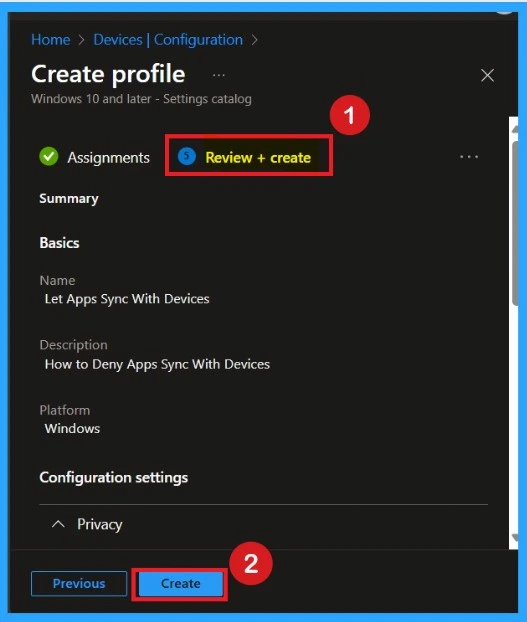
Review + Create Tab
Before completing the policy creation, you can review each tab to avoid misconfiguration or policy failure. After verifying all the details, click on the Create Button. After creating the policy, you will get a success message.
Monitoring Status for Deny Apps Sync with Devices
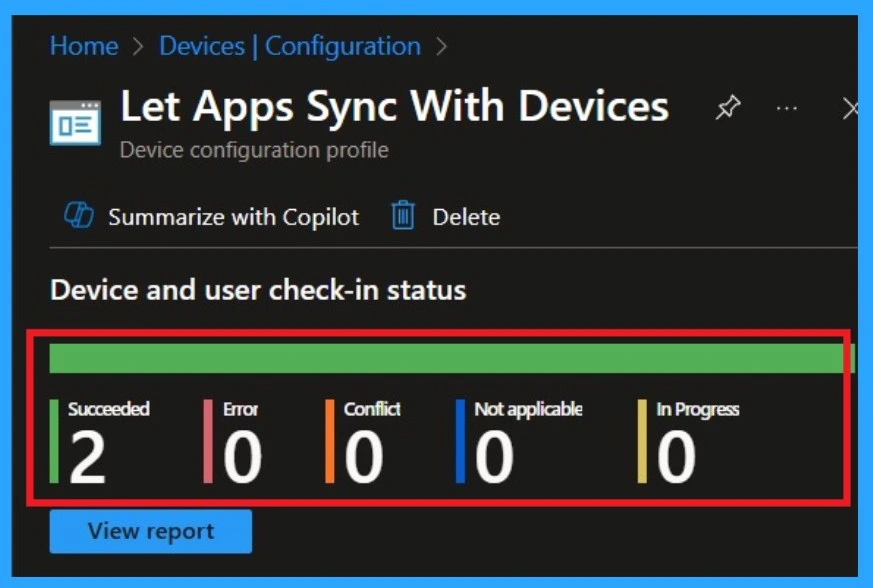
You know, monitoring status is very important for policy deployment. It helps you check whether the policy has been successfully deployed or not. So, let’s look into that process.First, go to the Devices section and open Configuration. In the configuration list, search for the policy you created.
I searched using the policy name that I entered in the Basics tab. Once you find the policy name, click on it.When you double-click the policy, it will display the Policy Deployment Monitoring Status page, where you can review the details of its deployment.
Client Side Verification
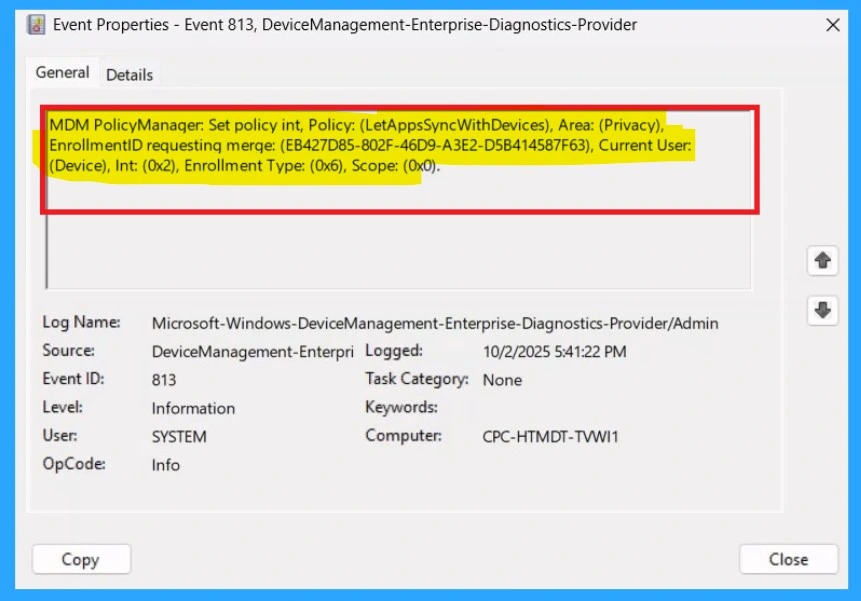
It helps you check the client side and verify the policy status. Open the Client device and open the Event Viewer. Go to Start > Event Viewer. Navigate to Logs: In the left pane, go to Application and Services Logs > Microsoft > Windows > DeviceManagement-Enterprise-Diagnostics-Provider > Admin.
- You will get the success result on Event ID 813
| Policy Details |
|---|
| MDM PolicyManager: Set policy int, Policy: (LetAppsSyncWithDevices), Area: (Privacy), EnrollmentID requestinq merqe: (EB427D85-802F-46D9-A3E2-D5B414587F63), Current User: (Device), Int: (0x2), Enrollment Type: (0x6), Scope: (0x0). |
How to Remove Assigned Group from Deny Apps Sync with Devices
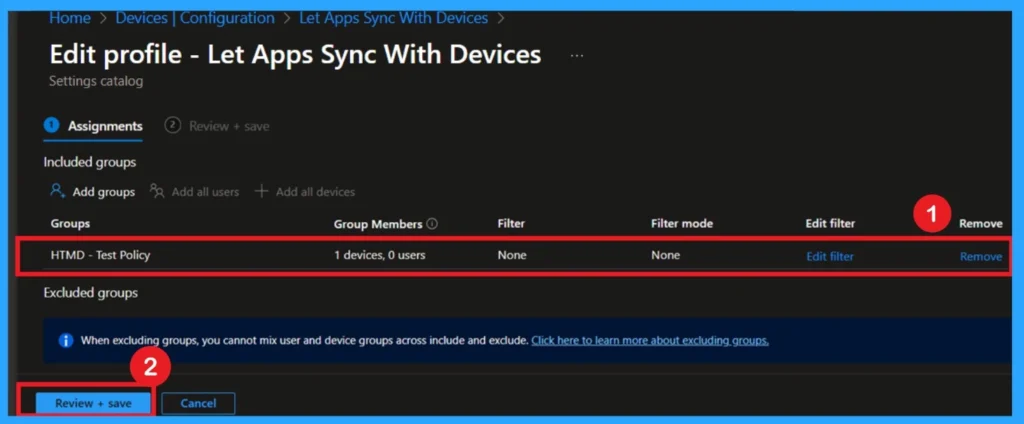
If you want to remove the Assigned group from the policy, it is possible from the Intune Portal. To do this, open the Policy on Intune Portal and edit the Assignments tab and the Remove Policy.
To get more detailed information, you can refer to our previous post – Learn How to Delete or Remove App Assignment from Intune using by Step-by-Step Guide.
Delete the Notifications on Specific Sites Policy
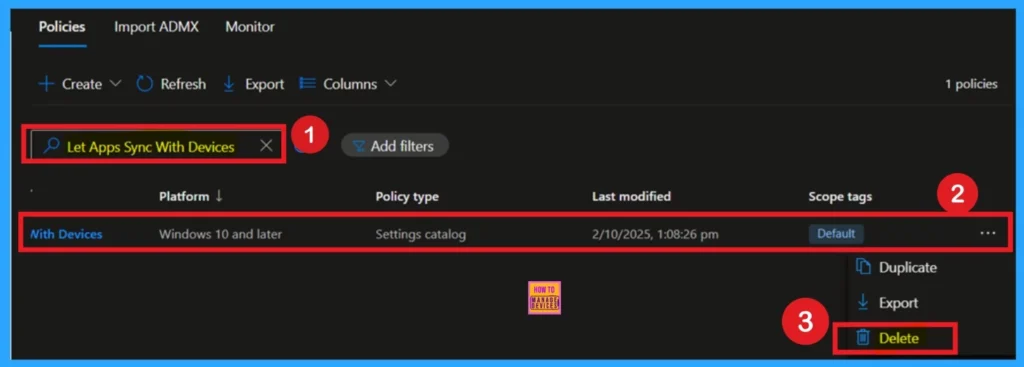
You can easily delete the Policy from the Intune Portal. From the Configuration section, you can delete the policy. It will completely remove it from the client devices.
For More Information review the post: How to Delete Allow Clipboard History Policy in Intune Step by Step Guide
Windows CSP Details
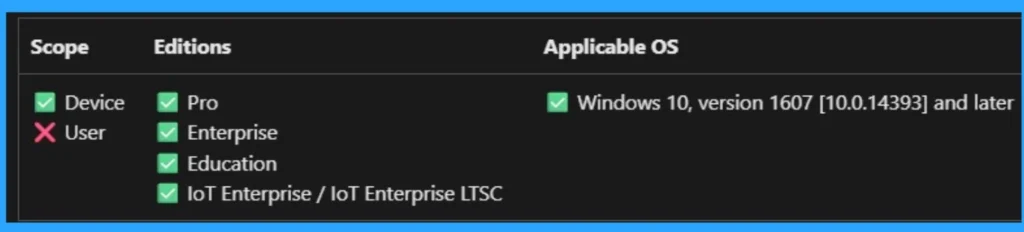
The policy Configuration Service Provider (CSP) is a tool for businesses to manage settings on Windows 10 and 11 devices. It details each policy’s function (Description Framework Properties), available choices (Allowed Values), and how it relates to older Group Policy settings (Group Policy Mapping details).
./Device/Vendor/MSFT/Policy/Config/Privacy/LetAppsSyncWithDevices
Need Further Assistance or Have Technical Questions?
Join the LinkedIn Page and Telegram group to get the latest step-by-step guides and news updates. Join our Meetup Page to participate in User group meetings. Also, Join the WhatsApp Community to get the latest news on Microsoft Technologies. We are there on Reddit as well.
Author
Anoop C Nair has been Microsoft MVP from 2015 onwards for 10 consecutive years! He is a Workplace Solution Architect with more than 22+ years of experience in Workplace technologies. He is also a Blogger, Speaker, and Local User Group Community leader. His primary focus is on Device Management technologies like SCCM and Intune. He writes about technologies like Intune, SCCM, Windows, Cloud PC, Windows, Entra, Microsoft Security, Career, etc.


Discussion