






Best Guide to Deploy Android System Apps to Android Enterprise Devices using Intune
Good day everyone, today, we will go through the post Guide to Deploy Android System Apps to Android Enterprise Devices using Intune. Let’s see how we can Add Android System apps to Android Enterprise devices in Intune and how we can deploy them to the users. We discussed deploying Public Google Play Store and Private/LOB apps to Android Enterprise devices in our previous blogs. Let’s examine another type of app deployment that Intune supports for Android devices enrolled in Android Enterprise.
When Android devices are enrolled in one of the following methods, Android Enterprise with Work Profile, Corporate Owned Fully managed devices, Dedicated devices, or Corporate Owned devices with a Work profile, the default applications, like dialer, calendar, etc., are disabled. Few organizations might require these default applications to be published for Android Enterprise devices.
By publishing System apps to Android Enterprise devices, we can improve the user experience. With these apps readily available, users can enjoy a smoother, more seamless experience when using their devices. The system apps deployment scenario is useful when your organization restricts data transfer between Work Profile and Personal profile.
In this article, we will be using a Samsung device and will be deploying Samsung default apps like Dailer and Contacts app for better understanding. You can publish different system apps for your end users based on your requirement.

Deploying Android System Apps to Android Enterprise Devices
To publish the System apps, we need the app id/bundle Id for the apps. This can be achieved in 3 ways. The best way is to navigate to Google Play Store and search for the app, and on the URL, you will find the app id, as shown in the below screenshot
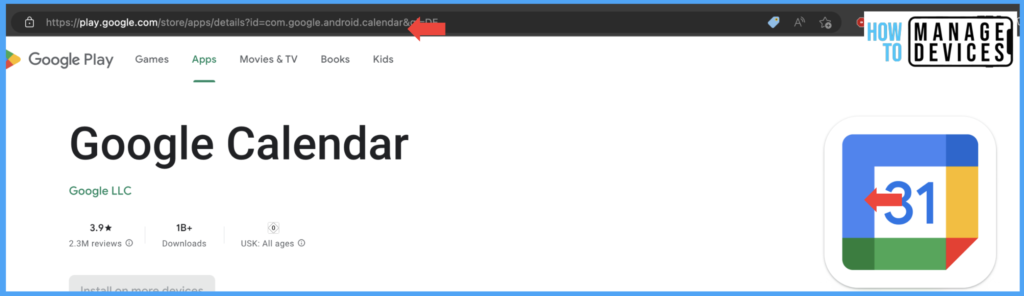
The second way of getting an app id is to have a third-party application installed on the required device and fetch the app id. The third way of getting this is to contact the OEM of the device manufacturer to get the app ids of the System apps.
For your reference, we are adding a few Samsung System apps and their App ID so that you can utilize them as per your requirement.
| App Name | App ID |
|---|---|
| Clock | com.sec.android.app.clockpackage |
| Calendar | com.samsung.android.calendar |
| Gallery | com.sec.android.gallery3d |
| Messages | com.samsung.android.messaging |
| Contacts | com.samsung.android.app.contacts |
| Phone | com.samsung.android.dialer |
| Camera | com.sec.android.app.camera |
| My files | com.sec.android.app.myfiles |
Add Android System apps to Intune
Before deploying the System apps to Android devices, we must add them to Intune. Let’s see how we can add them to Intune in the below steps.
- Sign in to Microsoft Intune Admin Center http://intune.microsoft.com/
- Click on Apps > Android > Android apps > Add App
- Select Android Enterprise
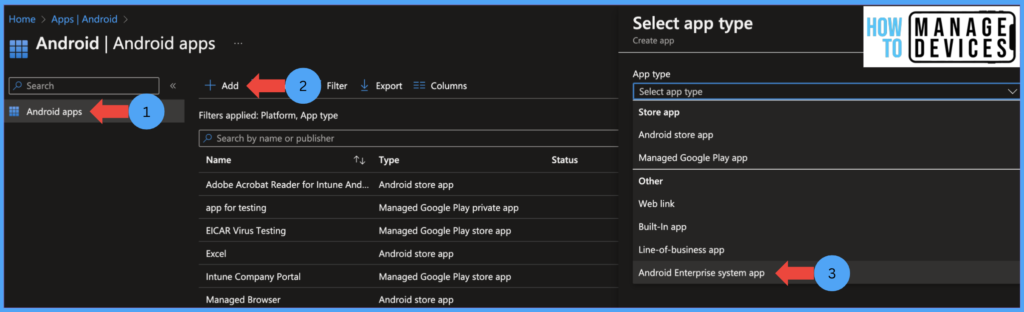
Now provide the Name, Publisher name, and Package name(com.samsung.android.dialer) of the app. Intune will validate and add the app to Intune list. Click Next on the assignment page, add the user group, and click Next to review and create the app. Intune allows admins to deploy apps only in the Required mode.
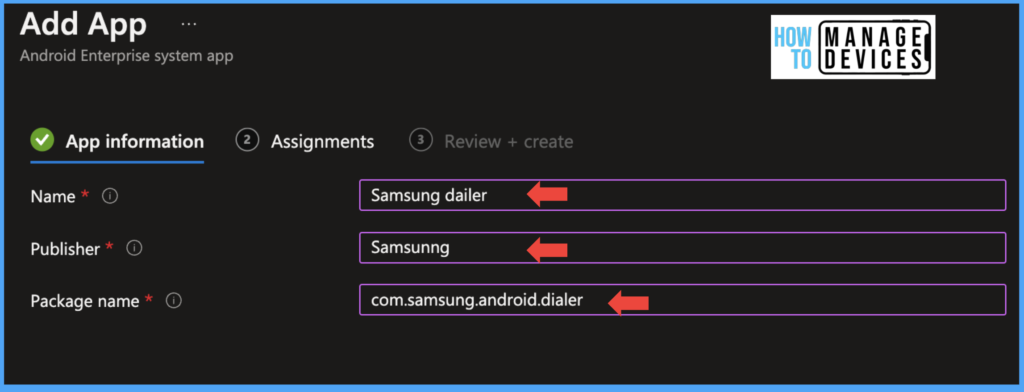
Let’s add the Samsung Gallery app to Intune and assign the users. This app can be useful for opening images in work profiles.
- Sign in to Microsoft Intune Admin Center http://intune.microsoft.com/
- Click on Apps > Android > Android apps > Add App
- Select Android Enterprise
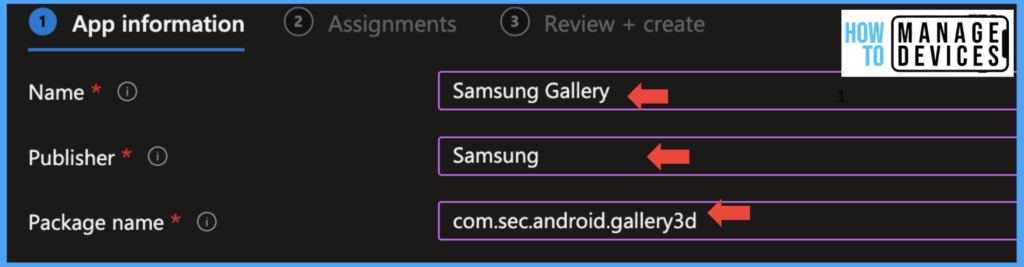
Now provide the app’s Name, Publisher name, and Package name(com.sec.android.gallery3d). Intune will validate and add the app to Intune list. Click Next on the assignment page, add the user group, and click Next to review and create the app. In our example, the Publisher’s name would be Samsung.
We can monitor application status in two ways, by navigating to apps > search for the app and select the app. An overview of the app gives the number of installations and failures. If you want to drill down further, click on Device or User install status.
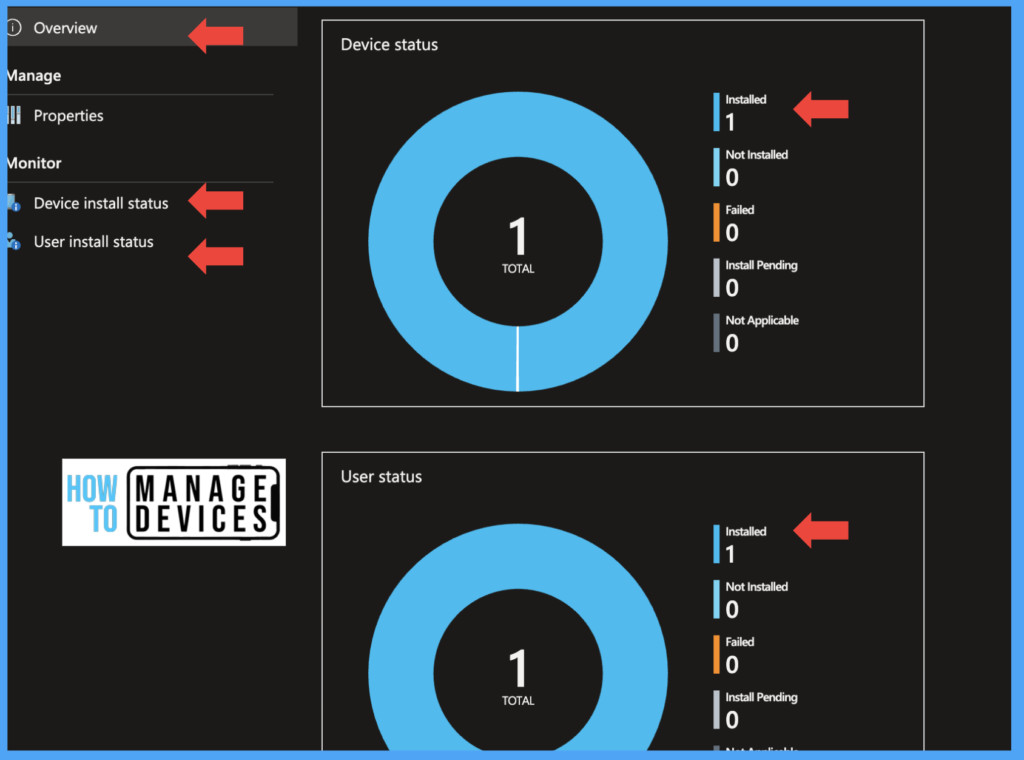
The second way of checking the installation status is by clicking devices > search for the user device > select the device > Click on Managed Apps. Intune will show all the apps assigned and installed on the user’s device.

End-user Experience on Enrolled Devices
I have enrolled a Personal Samsung device in Android for Work. Initially, I don’t have Samsung default apps in my Work profile. After successful sync, the Phone app and Samsung Gallery apps are installed as these apps are deployed as Required.
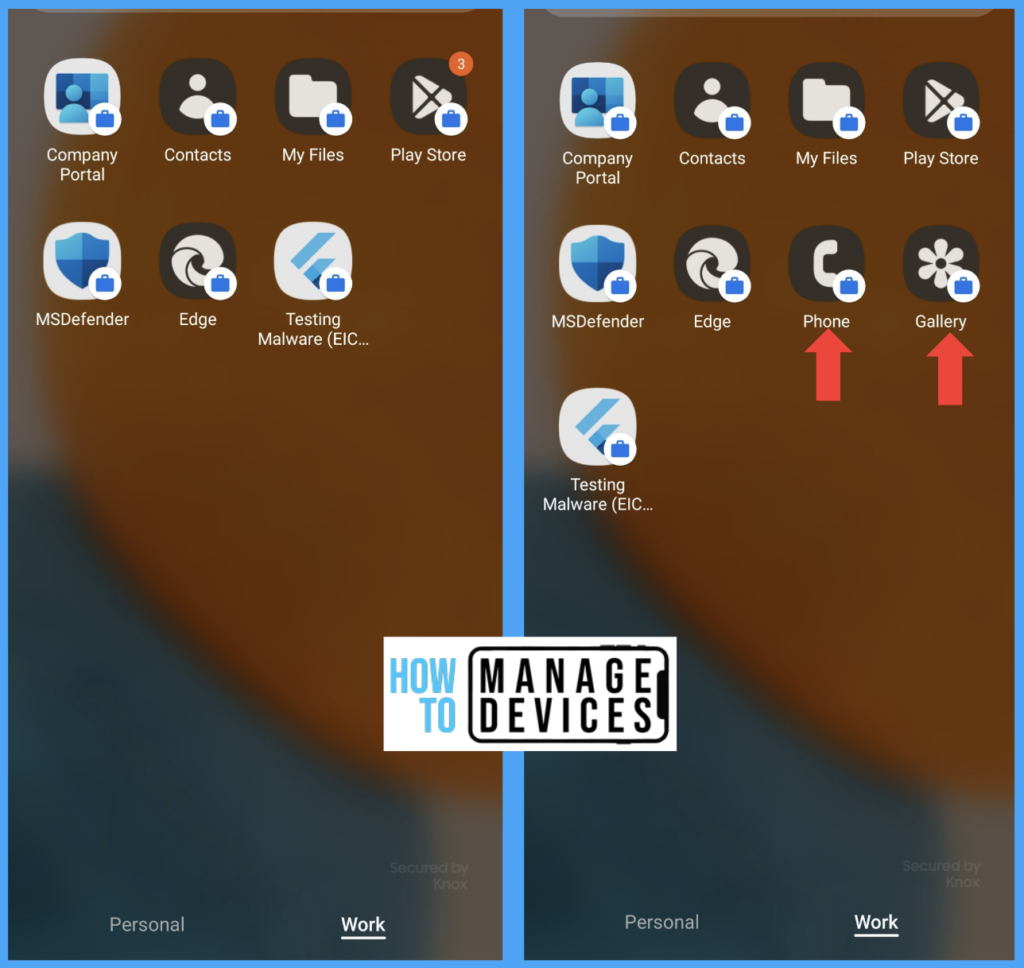
So this is how we can deploy Android default apps to Android Enterprise devices. If you have multiple company devices, you can create a Dynamic device group based on the device manufacturer. Now, assign separate OEM default apps to the respective manufacturer dynamic group created.
Thank you for taking the time to read this post. I trust that you found it helpful and insightful. If you have any questions or comments, feel free to leave them below. Have a great day!
Author
About Author – Narendra Kumar Malepati (Naren) has 11+ years of experience in IT, working on different MDM tools. Over the last seven years, Naren has been working on various features of Intune, including migration from different MDMs to Intune. Naren mainly focuses on Android, iOS, and MacOS.


What about updating such applications? For example, the Samsung gallery, which is only available in the Samsung Store. Do they update with security patches released by device manufacturers?
Awesome guide. Thank you for listing teh app ID’s for teh samsung apps. Helped me out a lot and saved a lot of time. Cheerw