






Monitor Device Enrollment Profile Deployment Report in Intune
Let’s learn how to get the Device Enrollment Profile deployment report in Intune. You can use the Device enrollment page reports in the Intune portal to monitor and troubleshoot issues with enrollment restrictions and enrollment status page assignments.
The device enrollment page shows the enrollment policies (both enrollment restriction and enrollment status page policies) applied to a device when it was first enrolled in Microsoft Intune. Use this report to help pinpoint the source of the failure, such as an unexpected policy, target, or filter.
The enrollment page is a status update screen for end-users during Windows setup. The Intune enrollment status page displays installation status information. This status screen updates the subset of applications, profiles, and certificates that might not be fully installed when a user is enrolled.
Intune Device restriction profiles (Enrollment Device Platform Restrictions) are policies similar to GPO from the traditional device management world. Most enterprise organizations use GPO to restrict corporate-owned devices. These are security policies that need to apply to devices.

You can also use the enrollment failures report to view enrollment failures for a select user. This report shows every failed enrollment attempt the user encountered along with the date it occurred, reason for failure, OS, OS version, username, and enrollment method.
- Intune Enrollment Status Page Troubleshooting
- Differences Between Intune Enrollment Restriction Device Restriction Profile
Monitor Device Enrollment Profile Deployment Report in Intune
The following steps help you to monitor and troubleshoot issues with enrollment restrictions and enrollment status page assignments. Here’s how to get the device Enrollment profile deployment report in Intune.
- Sign in to the Microsoft Endpoint Manager admin center https://endpoint.microsoft.com/
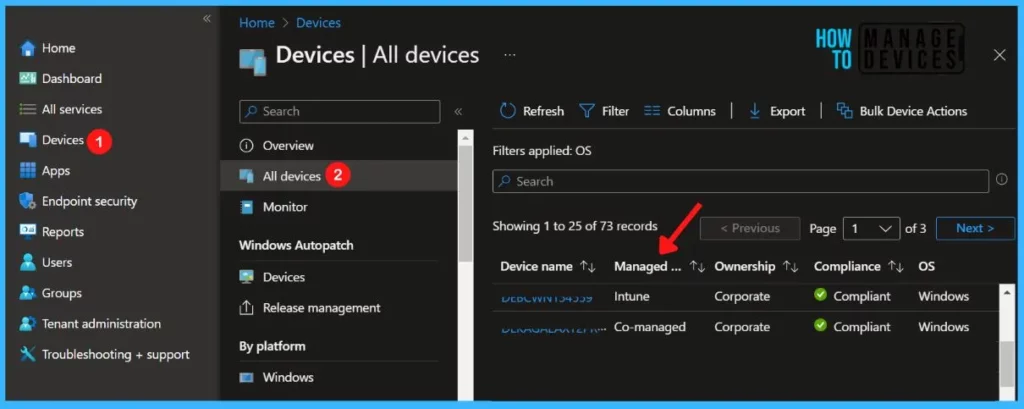
- Choose Devices > All devices and select the device from the list.
Note: You can also select the Devices by choosing the By platform.
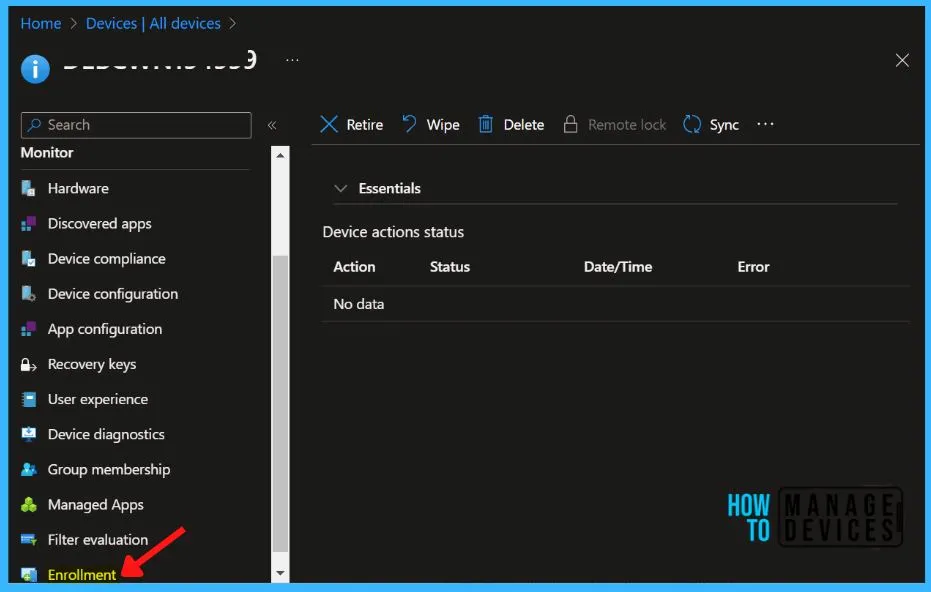
To view the enrollment status for the device, select Enrollment in the Monitor section. Use this report to help pinpoint the source of the failure, such as an unexpected policy, target, or filter. You may see the option varies based on the platform whether it’s Windows, iOS/iPadOS, Android, or macOS.
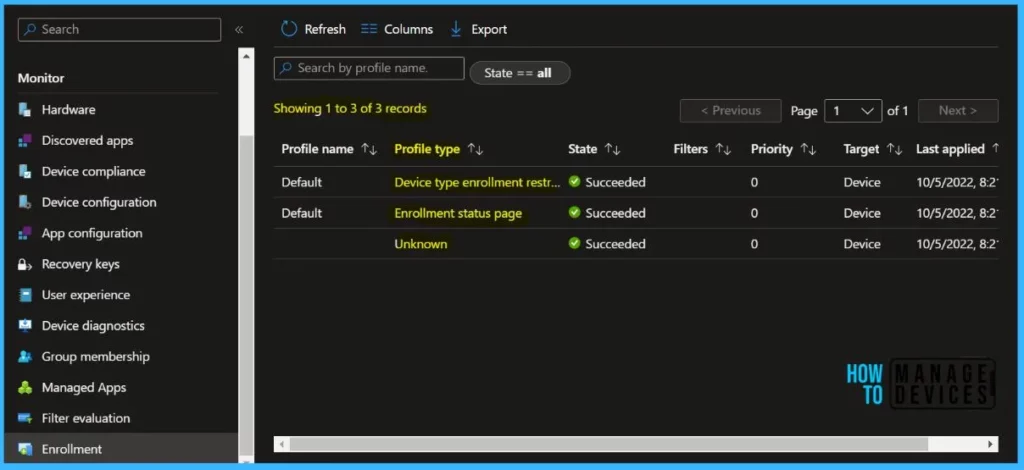
The Profile type Enrollment status page, Device type enrollment restriction showing the results successes on the selected device enrolled in Intune.
Note – Report data is only available for devices enrolled after the Intune service release 2112. No results are available for devices enrolled prior to that release.
The following details will be included in the displayed reports, You can customize the column based on your requirements.
- Profile name
- User principal name
- Profile type (either enrollment status page or device type enrollment restriction)
- Priority
- Target (either user or device)
- Filters, with a link to the filter evaluation results (only available if the enrollment policy was assigned using an assignment filter)


Discussion