


Skip to content
Publish Win32 Apps as Available to Intune using device groups

Publish Win32 Apps as Available to Intune using device groups

Written By Jitesh Kumar
Last Updated March 9, 2023
Posted In Intune
SHARE

Microsoft Intune offers the ability to deploy Win32 Apps to Device Groups. You can now publish Win32 Apps as Available to Intune Company Portal using device groups as assignment groups.

Available assignments are only valid for almost all app types and platforms when assigned to user groups, not device groups. Win32 apps can be assigned to either user or device groups.

Before adding a Win32 app to Microsoft Intune, you must prepare the app using the Microsoft Win32 Content Prep Tool. You use the Microsoft Win32 Content Prep Tool to pre-process Win32 apps, Intune Win32 App Deployment Step By Step Guide. 

After you have added an app to Microsoft Intune, you can assign the app to users and devices. It is important to note that you can deploy an app to a device whether or not Intune manages the device.

Patch My PC

There may be situations where you want to wait to restart your device. In this case, you can use the Enable Restart Grace Period option to allow the device to be restarted in the grace period.

Deploy Win32 Apps to Device Groups

Let’s check the steps on how to add assignments for Win32 App, and this article helps you can configure the assignments for a Win32 app.

  • Sign in to the Microsoft Intune admin center https://Intune.microsoft.com/.
  • Select Apps > Windows. Create a new app or Select the existing Win32 application from the list to modify the assignments.
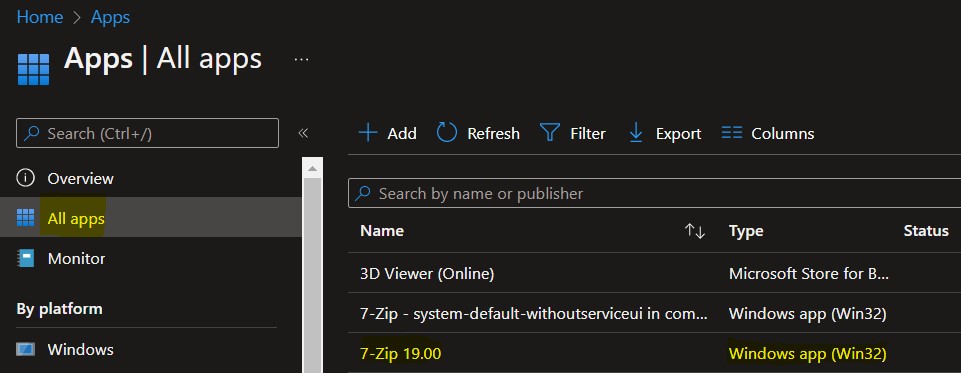
Deploy Win32 Apps to Device Groups Publish Win32 Apps as Available to Intune using device groups Fig.1

Select the application and select Properties. Scroll down and click on Edit in the Assignments.
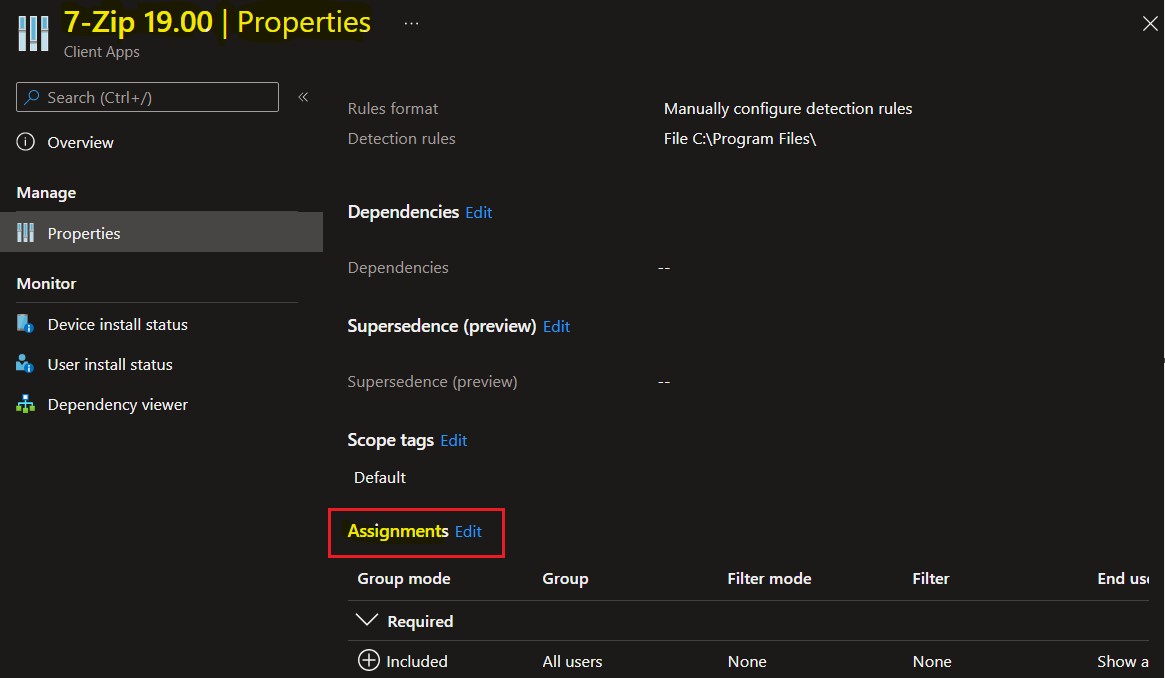
Publish Win32 Apps as Available to Intune using device groups Fig. 2
Deploy Win32 Apps to Device Groups Publish Win32 Apps as Available to Intune using device groups Fig.2

The following steps help you add a Windows app assignment from Intune. In the Assignment type options include the following.

  • Required: You can choose to make this app required for all users and/or make this app required on all devices.
  • Available for enrolled devices: You can choose to make this app available to all users or all devices with enrolled devices.
  • Uninstall: You can choose to uninstall this app for all users and/or uninstall this app for all devices.
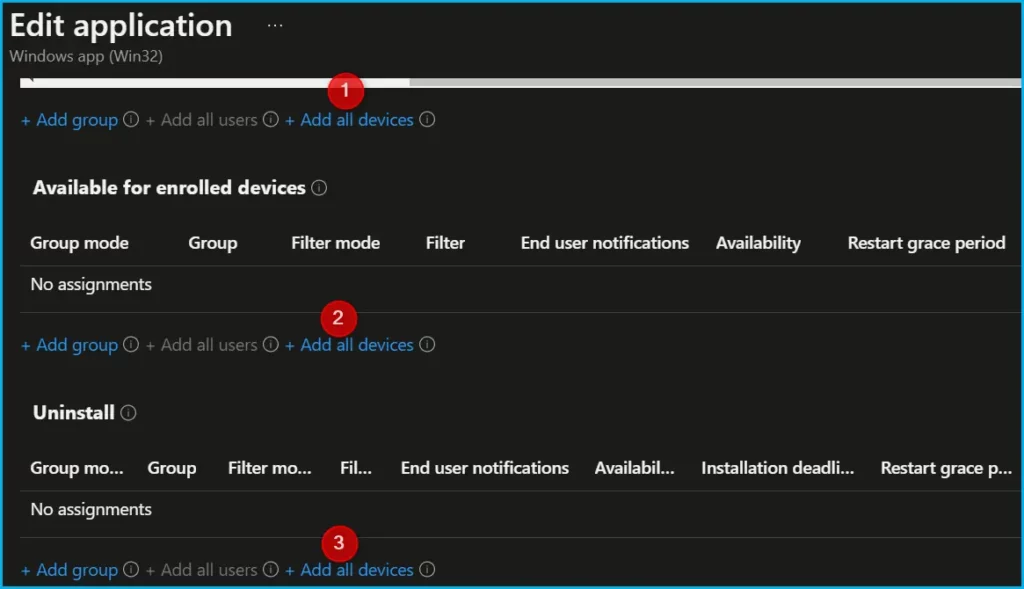
Publish Win32 Apps as Available to Intune using device groups Fig 3
Deploy Win32 Apps to Device Groups Publish Win32 Apps as Available to Intune using device groups Fig.3

The next screen will appear with the Summary, Review the selection, and click Save. A notification will appear automatically in the top right-hand corner with the message “Application saved successfully.”

Author

About Author – JiteshMicrosoft MVP, has over six years of working experience in the IT Industry. He writes and shares his experiences related to Microsoft device management technologies and IT Infrastructure management. His primary focus is Windows 10/11 Deployment solution with Configuration Manager, Microsoft Deployment Toolkit (MDT), and Microsoft Intune.

Written by

Jitesh has over 5 years of working experience in the IT Industry. He writes and shares his experiences related to Microsoft device management technologies and IT Infrastructure management. His primary focus area is Windows 10 Deployment solution with Configuration Manager, Microsoft Deployment Toolkit (MDT), and Microsoft Intune.

Discussion

Join the discussion

Your email address will not be published. Required fields are marked *

Related guides

Intune

Simplify Windows Devices to Run Only the Required Applications using Intune

Key Takeaways Hey, let’s learn about Simplify Windows Devices to Run Only the Required Applications using Intune. This policy lets administrators replace the default windows shell with a custom or lightweight shell. it improves performance by using system resources and is useful for devices that run a dedicated application. If the policy is disabled or […]

AC Anoop C Nair 8 min read
Intune

Enhance macOS Compliance with Custom Security and Compliance Checks to Improve Device Security using Microsoft Intune

Key Takeaways In this post we are discussing about Enhance macOS Compliance with Custom Security and Compliance Checks to Improve Device Security using Microsoft Intune. Microsoft has announced the general availability of Custom Compliance Settings for macOS in Microsoft Intune. The feature helps organizations strengthen security controls while supporting many types of macOS management scenarios. […]

AC Anoop C Nair 4 min read
Intune

Manage Samsung Galaxy Firmware Versions to Improve Security and Compliance using Microsoft Intune

Key Takeaways In this post we are discussing Manage Samsung Galaxy Firmware Versions to Improve Security and Compliance using Microsoft Intune. Microsoft Intune has received a new update that expands firmware management capabilities for Samsung Galaxy devices through Firmware Versionsintegration. This enhancement gives IT administrators more control over firmware and operating system updates, helping them […]

AC Anoop C Nair 4 min read
Intune

MS Intune Adds Windows Registry Data Collection to Device Inventory for Single Values All Key Values and Subkeys

Key Takeaways Microsoft Intune 2607 introduces Windows Registry Data collection in Device Inventory, allowing IT admins to verify actual device configurations without relying on custom discovery or remediation scripts. Using the Properties Catalog, admins can collect registry information through Single Value, All Values Under a Key (Non-Recursive), or Same Value Across Subkeys. MS Intune Adds […]

AC Anoop C Nair 5 min read