






Understanding the Device Limit Reached Error During Android Enrollment in Microsoft Intune
Let’s discuss Understanding the Device Limit Reached Error During Android Enrollment in Microsoft Intune. As we know that Enrolling Android devices into Microsoft Intune is an important step for ensuring secure access to organizational resources. However, during this process, users may sometimes encounter errors that prevent successful enrollment.
In those errors the Device limit reached message, which indicates that the maximum number of devices allowed for a user has been exceeded. You have to understand that these errors commonly happen for every user. This problem happens when a user tries to enroll more devices than Intune allows.
The error usually shows up during setup in the Company Portal app and stops the device added. Because of this, the user cannot finish the setup or get access to work resources. The error also shows up in the Company Portal logs, which help confirm what went wrong.
As we know that, basically Device Limit Reached error happens because each user in Intune can only enroll a limited number of devices. By default, Intune allows up to 15 devices per user. When this limit is reached, any new device enrollment attempt will fail.

Table of Contents
Understanding the Device Limit Reached Error During Android Enrollment in Microsoft Intune
Above we look the overall issues and root case of this issue now we have to look why this happens and how this issue to be solved. When the admin gets a message that indicate the device limit reached that may because the enrollment (15) crosses the limit.
- By default, Intune allows a maximum of 15 devices per user; exceeding this limit logs an error in the Company Portal.
- Also, Even if some devices are no longer used, they still remain linked to the user’s account in Intune until an administrator removes them.
- That because, these old or inactive devices continue to count toward the device cap, eventually blocking new enrollments.
| Table Info |
|---|
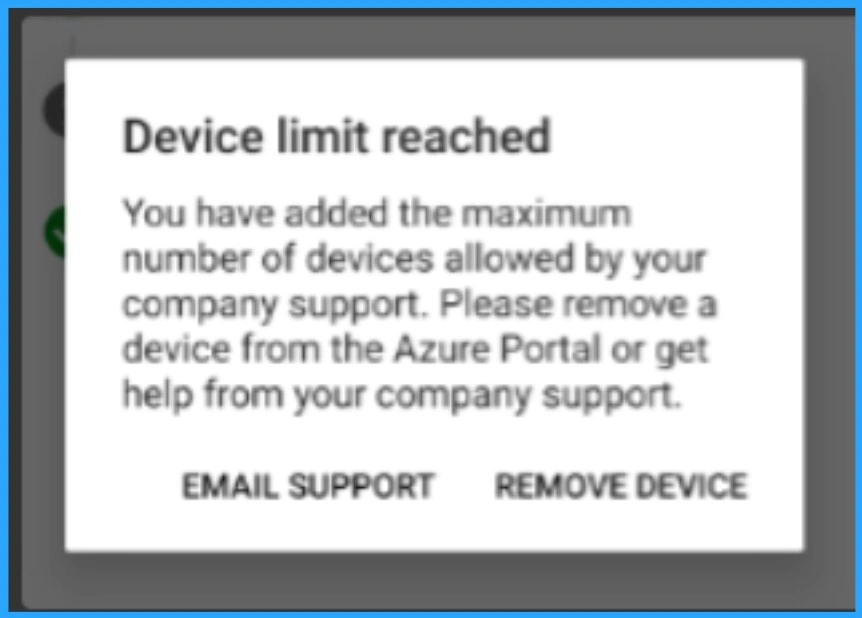
| You have added the maximum number of devices allowed by your company support. Please remove a device from the Azure Portal or get help from your company support. |
- FIX Autopilot V2 Enrollment Error 80180014 Issue with Corporate Device Identifier Format
- Intune MDM Enrollment Error Code 80180005
- Fix MDM Authentication Error Code 80180002
Workarounds
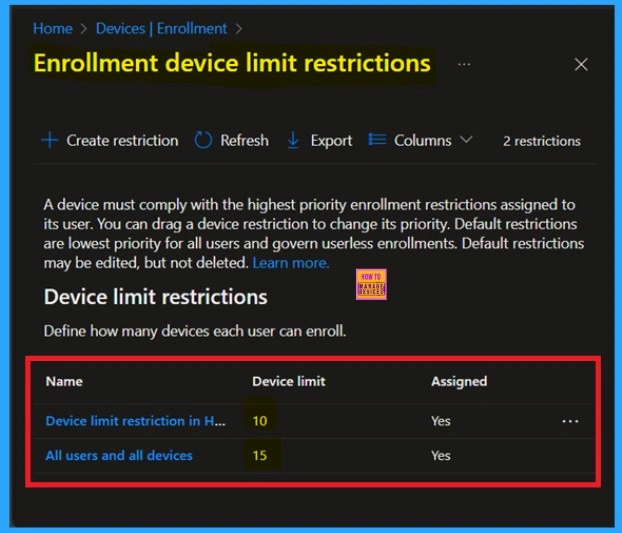
When the admins get these type of messages, first of all we have to know about some workarounds. First we have to monitor the enrollment details by Review device enrollment policies. for that Verify the user’s assigned device limit restriction in Devices > Enrollment > Device limit restrictions. If needed, adjust the policy (up to the maximum of 15 devices).
- Select the policy, go to Properties, then edit Device Limit, and adjust the limit (maximum 15).
Monitor Enrollment Failures
The another workaround you have to do that is Monitor Enrollment Failures. Keep track of ongoing issues in Devices > Monitor > Enrollment failures to ensure the problem does not recur and to proactively manage device limits across the organization. Regular monitoring helps identify if the user reach the limits.
- It also allows administrators to take quick action before the issue affects more employees.
- The below screenshot of the Enrollment failures report in the Microsoft Intune admin center.

Remove Inactive or Unused Devices
Sometimes the device limit is reached because old devices are still linked to a user’s account, even if they are no longer used. These devices continue to count toward the total limit until they are removed from Intune. So let’s look how to solve this.
To fix this, go to the Intune admin center and open Devices > All Devices. Search for the affected user by entering their User Principal Name (UPN). This will show a list of all devices currently enrolled under that user’s account. Here you can remove the Inactive accounts.
Need Further Assistance or Have Technical Questions?
Join the LinkedIn Page and Telegram group to get the step-by-step guides and news updates. Join our Meetup Page to participate in User group meetings. Also, Join the WhatsApp Community to get the latest news on Microsoft Technologies. We are there on Reddit as well.
Author
Anoop C Nair has been Microsoft MVP for 10 consecutive years from 2015 onwards. He is a Workplace Solution Architect with more than 22+ years of experience in Workplace technologies. He is a Blogger, Speaker, and Local User Group Community leader. His primary focus is on Device Management technologies like SCCM and Intune. He writes about technologies like Intune, SCCM, Windows, Cloud PC, Windows, Entra, Microsoft Security, Career, etc.


Discussion