






Enable or Disable the Built-in Administrator Account in Windows using Intune Policy
Let’s discuss how to Enable or Disable a Built-in Administrator Account in Windows using Intune policy. On Windows 11 devices managed by Intune, you can enable or disable the built-in local Administrator account using one of 3 methods: device configuration profiles, OMA-URI settings, or device remediations.
You can manually enable the built-in Administrator account on individual Windows devices, but using Intune allows you to enable it efficiently across multiple devices. If your organization needs to disable the built-in Administrator account, you can do so through Intune or Group Policy, providing flexibility and control over your system’s administrative settings.
You can easily configure settings through the Intune portal to enable the Administrator account on Windows devices using Intune. This involves creating and deploying a policy that activates the built-in Administrator account on managed devices, allowing for centralized management and enforcement.
One of our posts guides you through the best methods to enable or disable the built-in Administrator account in Windows 11. Microsoft suggests using LAPS (Local Administrator Password Solution) to manage local admin passwords on Windows 11 devices.

Table of Contents
Why Does Microsoft Disable the Built-in Administrator Account by Default?
The built-in Administrator account has a specific and well-known security identifier (SID). Some attacks specifically target this SID, making the account a common target for security threats. To enhance security, Microsoft disables the Administrator account by default on new Windows installations to reduce the risk of exploitation.
Windows CSP Details – Accounts_EnableAdministratorAccountStatus
The CSP policy in Windows allows you to configure various policy settings on Windows 10 and later devices through mobile device management (MDM) solutions like Intune. These settings are applied through OMA-URI settings.
The Windows CSP setting Accounts_EnableAdministratorAccountStatus controls whether the local Administrator account on a Windows device is enabled or disabled. The screenshot below helps you show more details.
./Device/Vendor/MSFT/Policy/Config/LocalPoliciesSecurityOptions/Accounts_EnableAdministratorAccountStatus
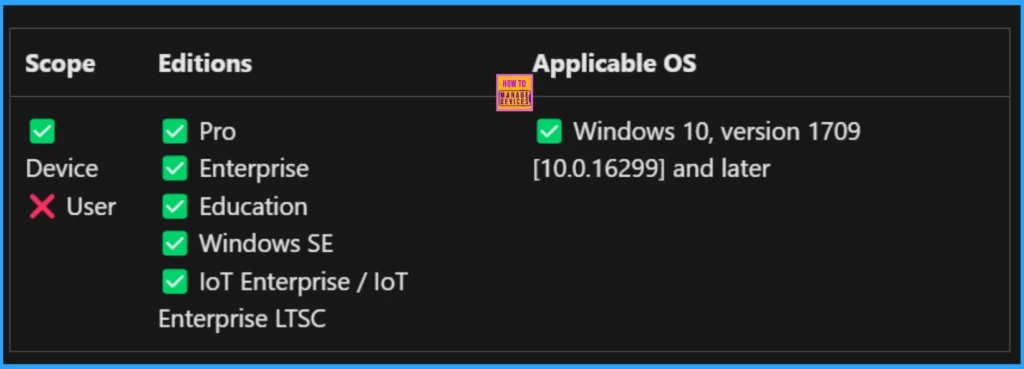
You can easily enable or disable the built-in administrator account on Windows devices using Microsoft Intune or configure a custom OMA-URI setting. Below is a step-by-step guide to help you set this up.
- Sign in to Microsoft Intune
- Go to Devices > Configuration
- Click Create and then New policy
- Choose the platform as Windows 10 and later
- For Profile type, select Templates and then choose Custom
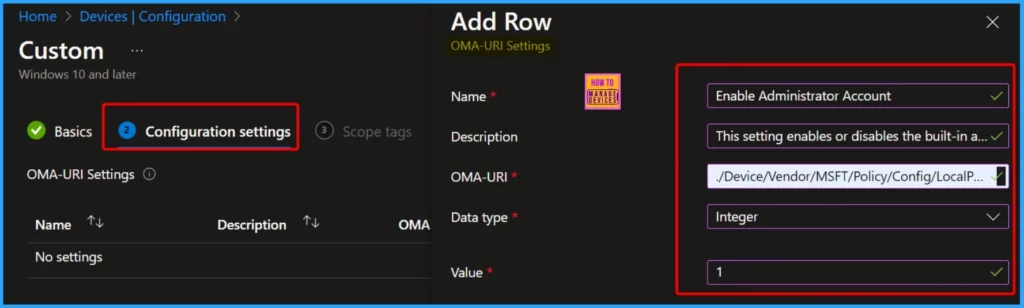
- Provide a Name – e.g. “Enable Administrator Account.”
- Add a Description if needed
- Click on + Add under OMA-URI Settings to configure the specific setting.
- To Configure the OMA-URI Setting, do the following
- Enter a name for this setting, such as Enable Administrator Account.
- Briefly describe the setting, e.g., “This setting enables or disables the built-in administrator account.”
- Enter the following OMA-URI path
- ./Device/Vendor/MSFT/Policy/Config/LocalPoliciesSecurityOptions/Accounts_EnableAdministratorAccountStatus
- Set the Data type to Integer.
- Enter the value
- 1 to enable the administrator account.
- 0 to disable the administrator account.
- After entering the above details, click Save.
- Rename Administrator Account Policy Using Intune
- Best Ways to Enable or Disable Built-in Administrator in Windows 11
- Deploy Intune Run All Administrators in Admin Approval Mode Policy
Enable or Disable the Built-in Administrator Account in Windows using Intune Policy
Some organizations choose to rename the local Administrator account on Windows devices through Intune rather than disabling it. This approach helps avoid creating an extra administrator account for IT staff to use during troubleshooting.
- Disabling the account helps enhance security by preventing potential misuse.
| Steps |
|---|
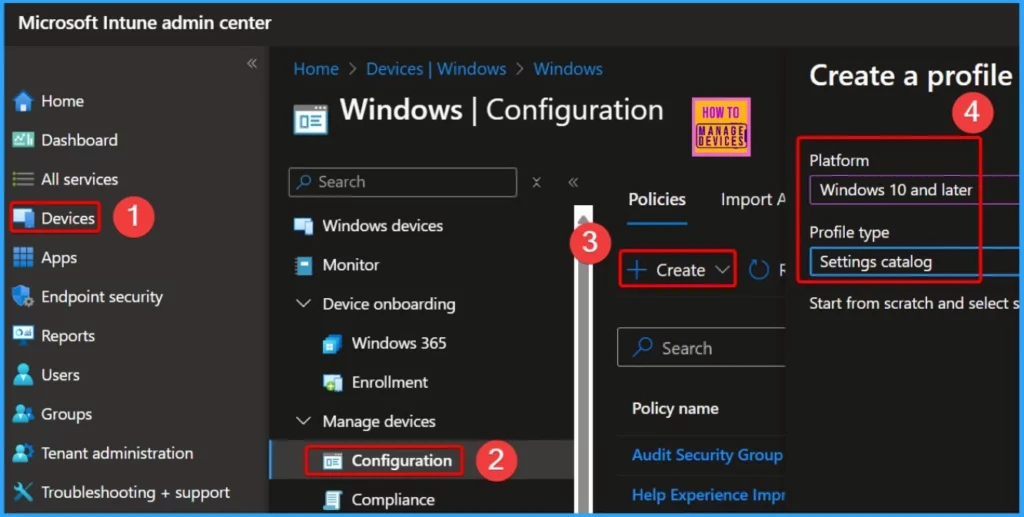
| Log In to the Microsoft Intune Admin Center using your administrator credentials. |
| Devices > Windows > Configuration > Create > New Policy |
| Select the Platform as Windows 10 and later |
| Select the Profile type as Settings Catalog |
The built-in Administrator account is typically disabled by default on Windows devices because it controls the computer completely. This account can bypass all User Access Control (UAC) safeguards to protect the system from unauthorized changes.
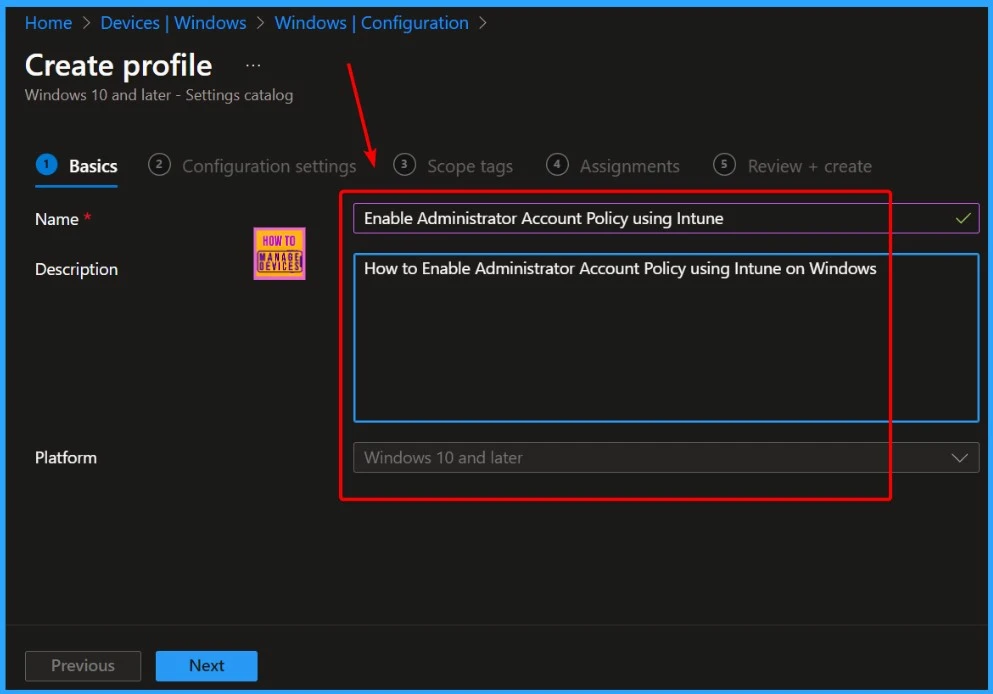
- Name: Choose a clear and descriptive name for the profile. Example: Enable Administrator Account Policy using Intune
- Description: Provide a brief description of the profile. Example: How to Enable Administrator Account Policy in Windows using Intune
- Then, click Next.
In the Configuration Settings section, find the Settings Catalog and click on Add Settings. In the Settings picker window, enter “Enable Administrator Account” into the search box and click Search. From the results, choose “Local Policies Security Options.” Then, in the bottom pane, select “Accounts Enable Administrator Account Status.” Finally, close the Settings Picker.
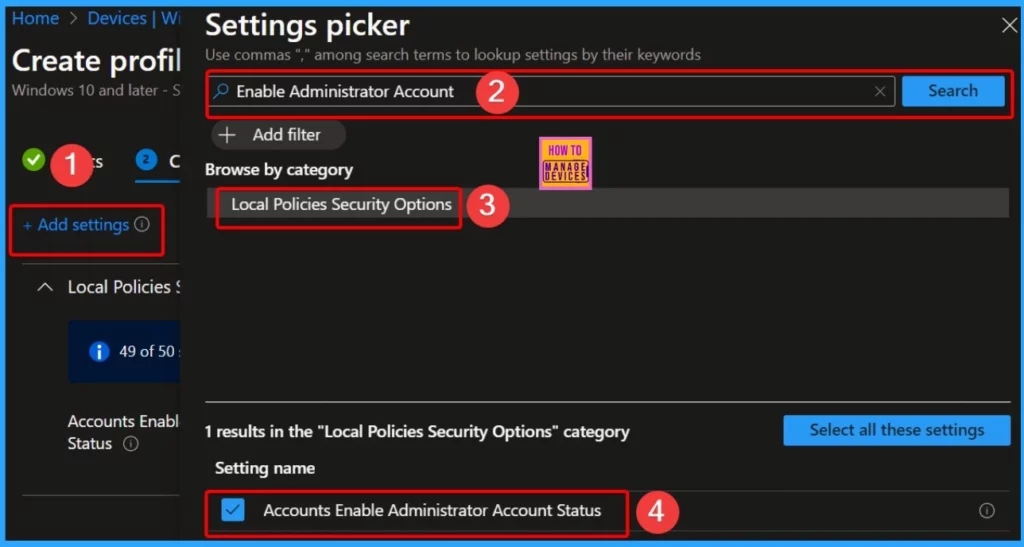
This security setting determines whether the local Administrator account is enabled or disabled. Notes: You cannot reenable the Administrator account after it has been disabled if the current Administrator password does not meet the password requirements.
In this case, an alternative administrator group member must reset the Administrator account’s password. For information about how to reset a password, see How to reset a password. Under certain circumstances, disabling the Administrator account can become a maintenance issue.
Under Safe Mode boot, the disabled Administrator account will only be enabled if the machine is non-domain joined and there are no other local active administrator accounts. If the computer is domain-joined, the disabled administrator will not be enabled. Default: Disabled.
| Configuration Settings | Enable/Disable |
|---|---|
| Accounts Enable Administrator Account Status | Toggle the pane to the Right side |
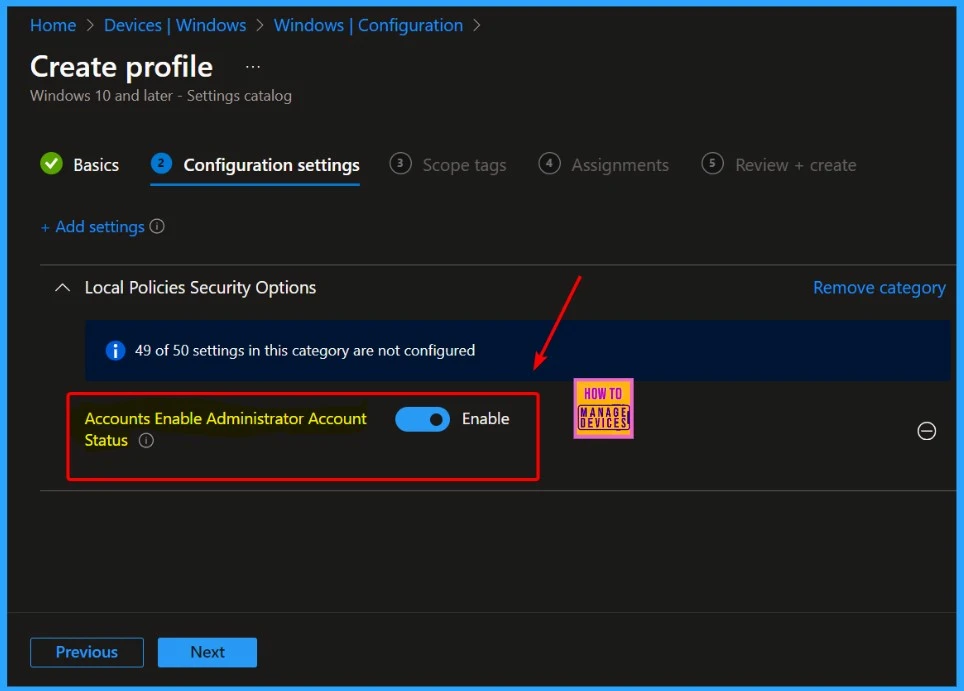
- Rename the Guest Account Name using Intune
- Setup New Windows LAPs using Intune Policies Local Admin Password Management Policy
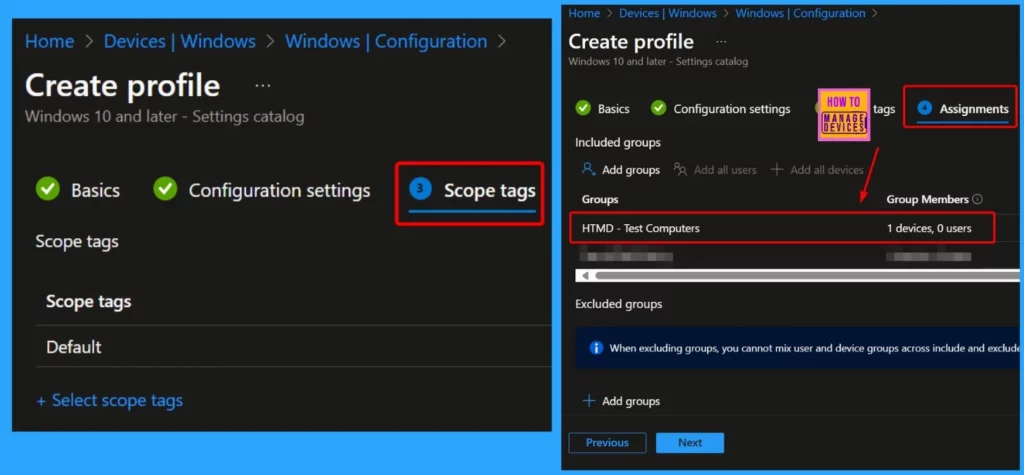
You can leave the default scope tags as they are. If you have any custom scope tags, you may also choose one for this deployment. The Assignments section is essential in the Intune Configuration. To add a group under Assignments, click Add Groups under Included Groups.
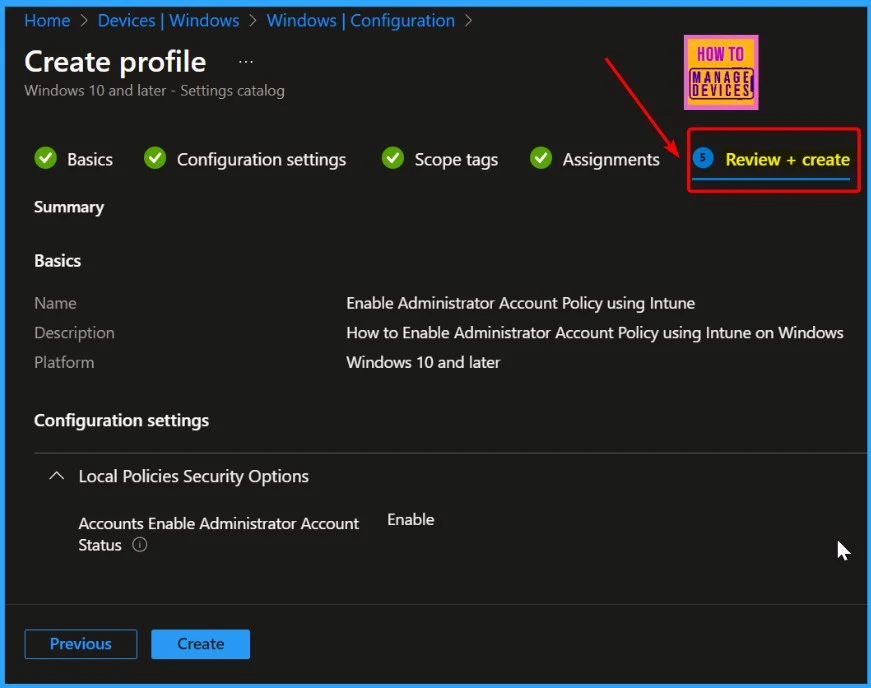
On the Review + Create page, double-check all the Enable administrator account policy settings using Intune. Select the Create button.
End Result Server Side
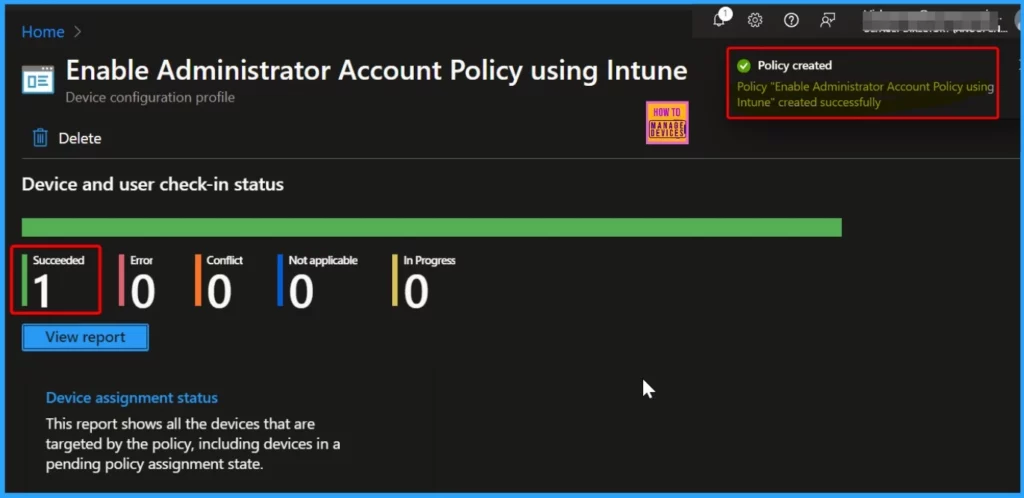
After clicking the Create button, a notification will appear that the “Enable Administrator Account Policy using Intune” policy was created successfully. Under Device and user check-in status, the succeeded number is 1.
Client Side Verification
Let’s discuss how to verify if the built-in Administrator account has been successfully enabled on your Windows devices through Intune. You can use one of 3 methods to check.
- Local Users and Groups
- Windows Event Viewer
- Windows Registry
1. Local Users and Groups
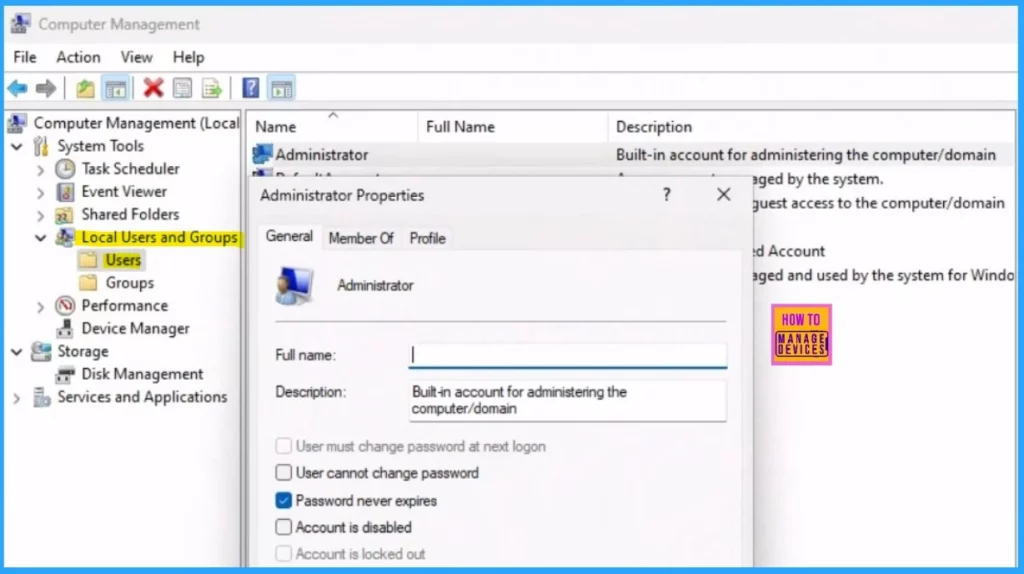
Press Windows Key + X (or right-click the Start menu) and select Computer Management from the menu. Navigate to Local Users and Groups and then Click on the Users folder. The Intune policy has enabled the Administrator account.
2. Windows Event Viewer
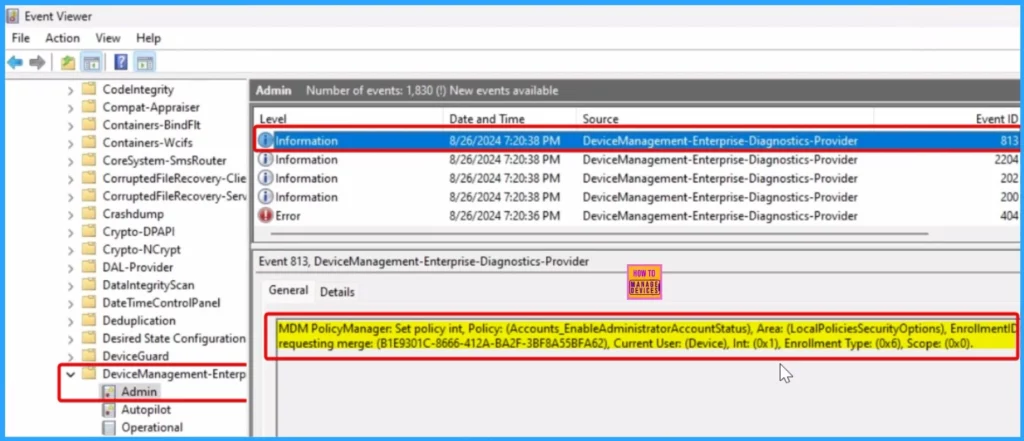
You can easily check if Intune has successfully applied the built-in administrator account policy on a Windows device by using Event Viewer to look for Event IDs 813 and 814. The below steps help you do so.
- Launch Event Viewer – Start > Event Viewer
- Navigate to Logs – Go to Application and Services Logs > Microsoft > Windows > DeviceManagement-Enterprise-Diagnostics-Provider > Admin.
- Filter for Event ID 813 – This will help you quickly find the relevant logs. Event ID 813 indicates that the device received the Accounts_EnableAdministratorAccountStatus policy settings from Intune.
- This process helps verify that the built-in administrator account policy was applied successfully.
MDM PolicyManager: Set policy int, Policy: (Accounts_EnableAdministratorAccountStatus), Area: (LocalPoliciesSecurityOptions), EnrollmentID requesting merge: (B1E9301C-8666-412A-BA2F-3BF8A55BFA62), Current User: (Device), Int: (0x1), Enrollment Type: (0x6), Scope: (0x0).
3. Windows Registry
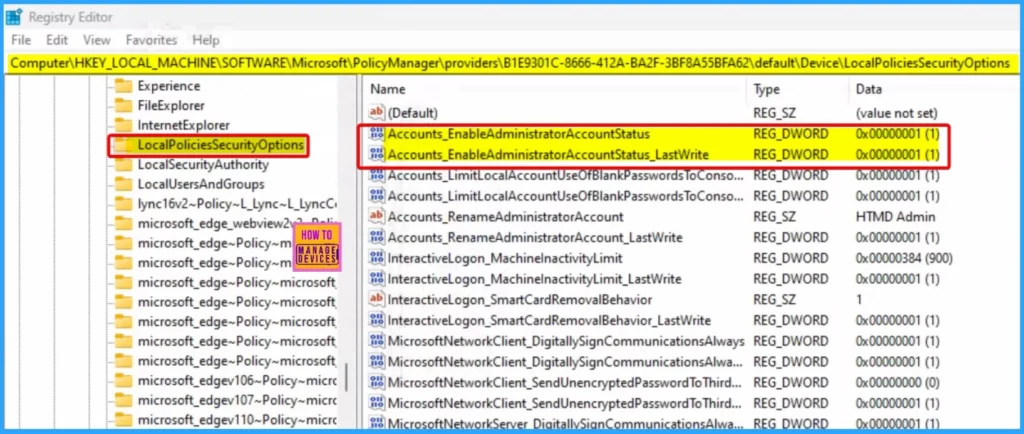
You can quickly check the Windows Registry on the client device to verify if the Intune policy has enabled the built-in Administrator account. To do this, run regedit.exe to open the Registry Editor. Then, go to the specified path (shown below) in the Registry Editor.
Computer\HKEY_LOCAL_MACHINE\SOFTWARE\Microsoft\PolicyManager\providers\AdministratorGUID\default\Device\LocalPoliciesSecurityOptions
We are on WhatsApp now. To get the latest step-by-step guides, news, and updates, Join our Channel. Click here. HTMD WhatsApp.
Author
Anoop C Nair has been Microsoft MVP from 2015 onwards for 10 consecutive years! He is a Workplace Solution Architect with more than 22+ years of experience in Workplace technologies. He is also a Blogger, Speaker, and Local User Group Community leader. His primary focus is on Device Management technologies like SCCM and Intune. He writes about technologies like Intune, SCCM, Windows, Cloud PC, Windows, Entra, Microsoft Security, Career, etc.


Discussion