






Disable Face Unlock for Android Devices using Intune
This post guides you on how to disable Face Unlock for Android Devices using Intune. You can configure the setting to block users from using the facial lock to unlock the device and access the work profile on Android Enterprise personally owned devices.
The Android device restriction profiles allow you to enforce security policies on both the device and the work profile, ensuring that corporate data is protected. By implementing Android Work Profile security features, you can maintain a secure and productive environment for work-related activities on Android devices.
You have the option to control facial recognition or biometric authentication on Android devices. The work profile setting may have options such as “Allow or block facial recognition” or password security.
On Android Enterprise, on personally owned devices with a work profile, users can use the same password to unlock the device and access the work profile. If the work profile password doesn’t meet the policy requirements, device users are notified. The device isn’t marked as non-compliant.

You can follow the CIS benchmark recommendation of Screen Lock, using Device configuration profiles and Compliance policies. Intune allows users to have either Numeric passcode or Alphanumeric passcode types, here’s how you can enforce screen lock for Android Devices in Intune.
- Configure Android System Update Setting Using Intune
- Migrate Devices Enrolled In Device Admin Mode To Android For Work In Intune Easy Steps
Disable Face Unlock for Android Devices using Intune
Here’s how to configure the settings to prevent Face unlock for Android devices and work profile access. The setting inside Device Restrictions can enforce different security policies to unlock the device and access the work profile (Android Enterprise > Personally Owned Work Profile (platform) > Device Restrictions).
- Sign in to Microsoft Intune Admin Center https://intune.microsoft.com/
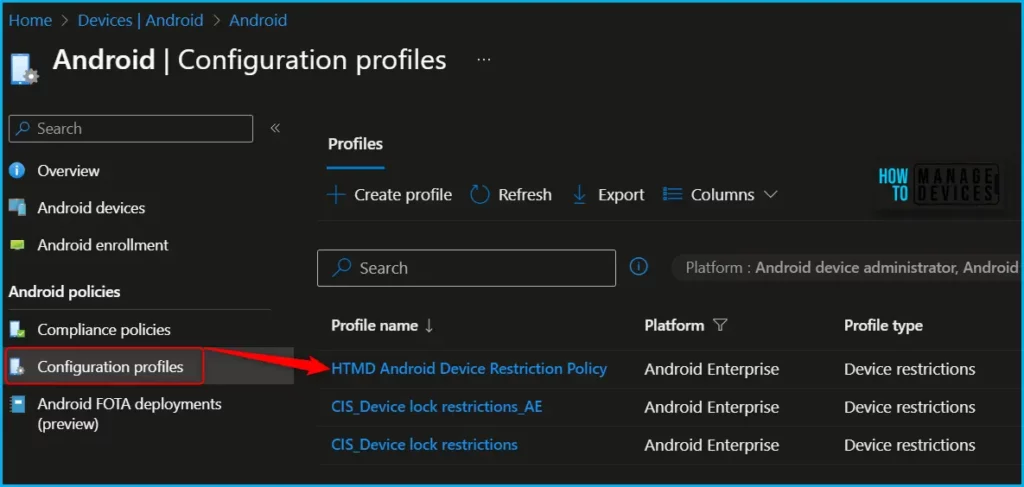
- Click on Devices > Android > Configuration Policies. I selected the existing configuration profile (Device Restriction) for modification. Depending on your setup, you may need to create a new profile or edit an existing one.
You can check more details, you wanted to create device restriction policies from scratch, Enforcing Screen Lock For Android Devices In Intune
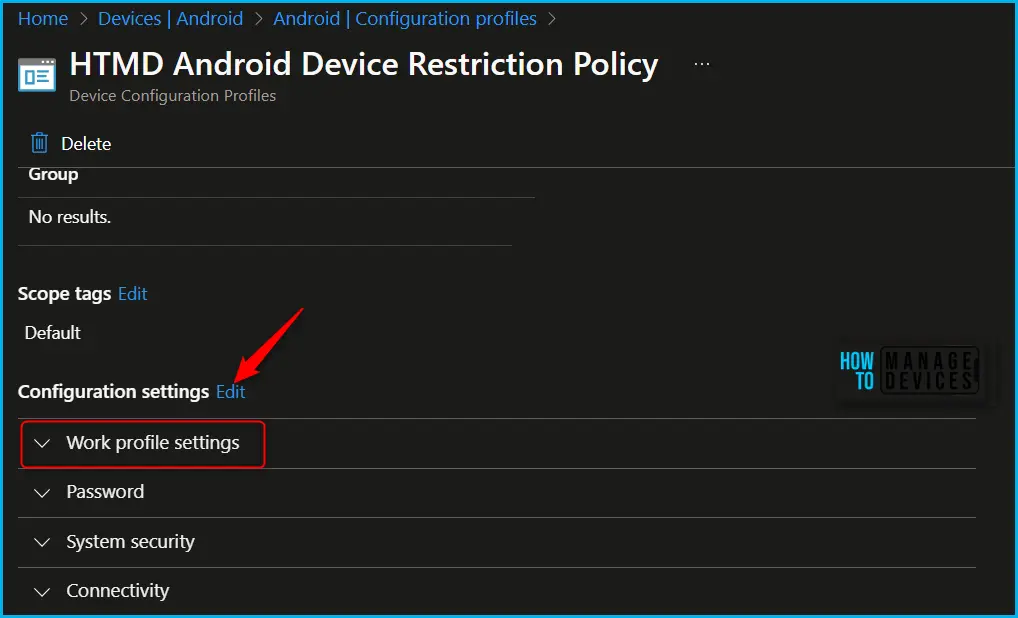
You can see the different categories of applied configuration in the configuration settings for Android Enterprise personally owned devices with a work profile (BYOD). The Work profile settings allow you to configure the policy to control the facial recognition usage for the device or work profile.
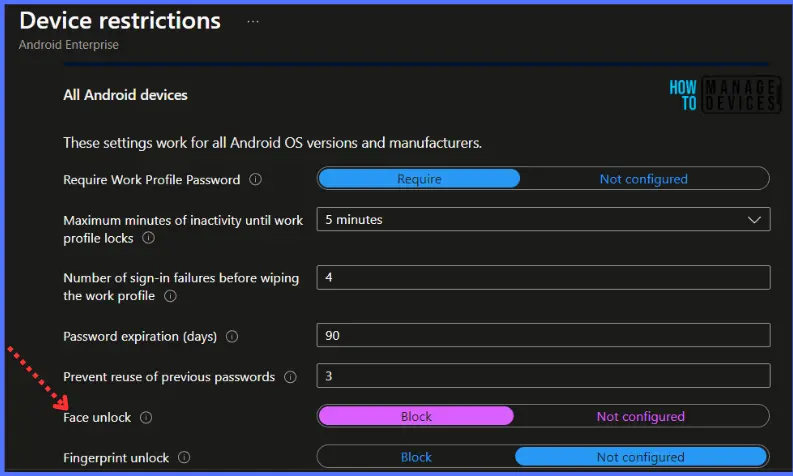
You will find the face unlock settings inside the Work Profile Password category, By default, the OS might allow users to unlock the device using facial recognition.
- Face unlock: Block prevents users from using the device’s facial recognition to unlock the device. When set to Not configured (default), Intune doesn’t change or update this setting. By default, the OS might allow users to unlock the device using facial recognition.
Here you can review the available restriction settings under Work profile settings. You can select and customize them as per your requirements and click Review + Save.
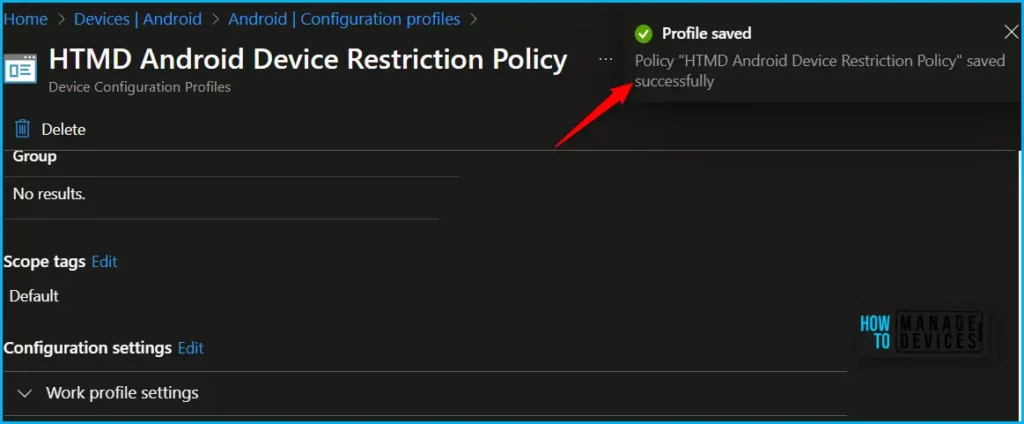
The next step is to review the setup policy and Save. A notification prompt will appear when you save the profile, Profile “HTMD Android Device Restriction Policy” saved successfully.
Monitor the Android devices to ensure that the users won’t be able to use facial lock. Let’s test the devices to confirm the users behaviour, the device will block users from using the same password to unlock the device and access the work profile.
In Security and Privacy >Work Profile Security. You can validate the settings to configure for supported device models, which you should not allowed to configure as we have block face unlock usage.
We are on WhatsApp. To get the latest step-by-step guides and news updates, Join our Channel. Click here –HTMD WhatsApp.
Author
About Author – Jitesh, Microsoft MVP, has over six years of working experience in the IT Industry. He writes and shares his experiences related to Microsoft device management technologies and IT Infrastructure management. His primary focus is Windows 10/11 Deployment solution with Configuration Manager, Microsoft Deployment Toolkit (MDT), and Microsoft Intune.
Discussion