






How to Disable GDI DPI Scaling for Apps Policy in Intune Using Settings Catalog
Hey there, Let’s discuss about how to disable GDI DPI scaling for apps Policy in Intune using settings catalog. This policy setting lets us specify legacy applications that have GDI DPI Scaling turned off. GDI DPI Scaling enables applications that aren’t DPI aware to become per-monitor DPI aware.
Starting with the Creators Update for Windows, a significant enhancement known as GDI Scaling has been introduced. This feature empowers the Graphics Device Interface (GDI) to natively adjust the scaling of visual content for applications that do not support DPI (dots per inch) awareness.
As a result, visual components, particularly text, can achieve a much sharper and clearer appearance when GDI Scaling is activated. This enhancement is especially beneficial for users who rely on older applications that were not designed with high-DPI displays in mind, ensuring a more visually appealing and legible experience even in those cases.
By intelligently scaling these elements, GDI Scaling enhances the overall quality and usability of visual content across the Windows platform. If you disable or don’t configure this policy setting, GDI DPI Scaling might still be turned on for legacy applications.

Table of Contents
What is GDI Scaling for Desktop?
It functions similarly to DPI Virtualization, but it upscales fonts before rendering them, resulting in predominantly sharp text.
Disable GDI DPI Scaling for Apps – CSP Details
If you enable this policy setting, GDI DPI Scaling is turned off for all applications in the list, even if they’re enabled by using the ApplicationCompatibility database, ApplicationCompatibility UI System (Enhanced) setting, or an application manifest.
- Below table show the property name and property value of the policy
| Property Name | Property Value |
|---|---|
| Format | chr (string) |
| Access Type | Add, Delete, Get, Replace |
| Allowed Value | List (Delimiter) |
Group Policy Mapping
In the table shown below is the Group Policy Mapping. It refers to the process of applying and tracking Group Policy Objects in an Active Directory setup. It makes it easier for admins to see and grasp how these policies affect users and computers in their network.
| Name | Value |
|---|---|
| Name | DisplayTurnOffGdiDPIScaling |
| Friendly Name | Turn off GdiDPIScaling for applications |
| Element Name | Disable GDI DPI Scaling for the following applications. Use either the full application path or the application filename and extension. Separate applications with a semicolon. |
| Location | Computer Configuration |
| Path | System > Display |
| Registry Key Name | Software\Policies\Microsoft\Windows\Display |
| ADMX File Name | Display.admx |
./Device/Vendor/MSFT/Policy/Config/Display/TurnOffGdiDPIScalingForApps
Create Profile
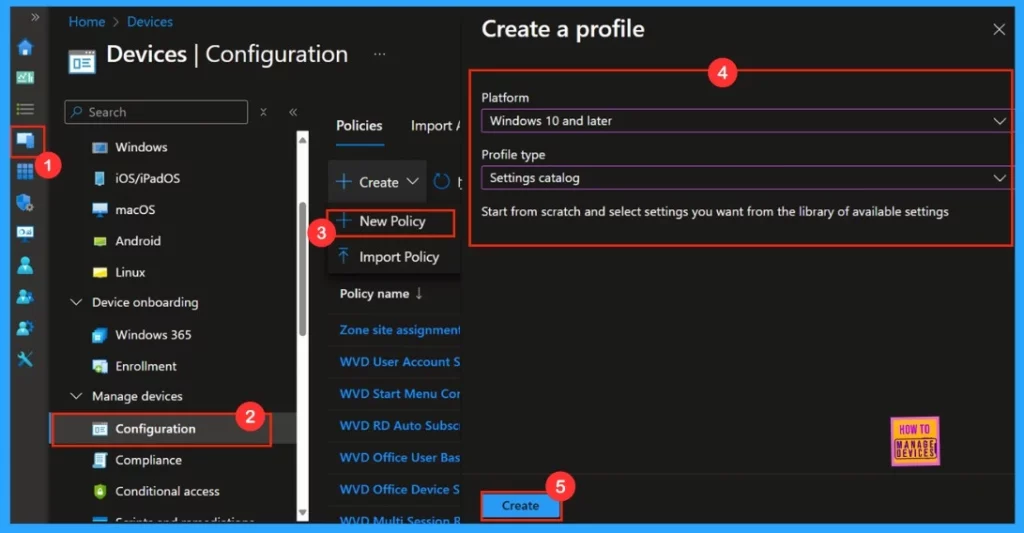
For creating a profile, need to sign in the Microsoft Intune admin center. Then navigate to Devices > Configurations. On the right side, click the + Create option and select New policy. After that we need to choose Windows 10 and later as the platform, and set the profile type to Setting catalog. Then, click Create to proceed.
- Intune Guide to Turn Off Tracking App Launches
- Turn Off Turn On Notifications in Microsoft Teams Channel Posts
- Setting Up Turn Off File History with Settings Catalog in Intune
Basics
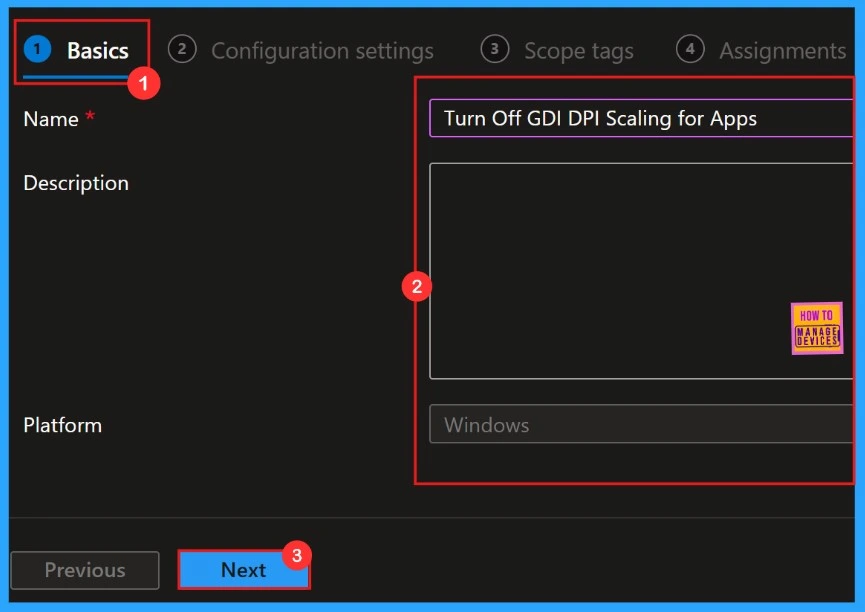
In this basics tab, we can fill in the policy name and its description. The policy name is required, but we can skip the description part. It’s a good idea to provide a description of the policy so we can easily understand why we created the policy.
Configuration Settings
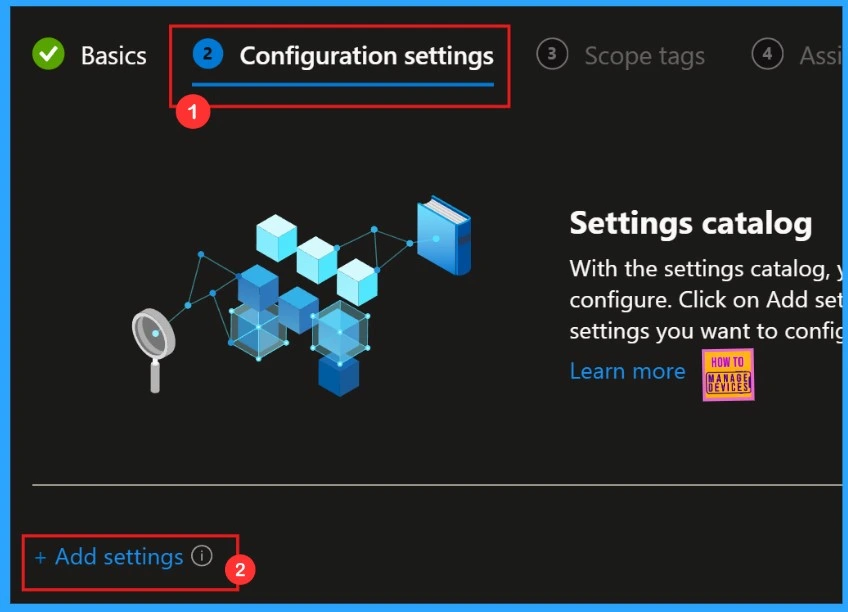
Configuration settings set the rules, parameters, and controls that decide how systems, apps, or networks work in policy management. In the config settings, we can add settings for the policies.
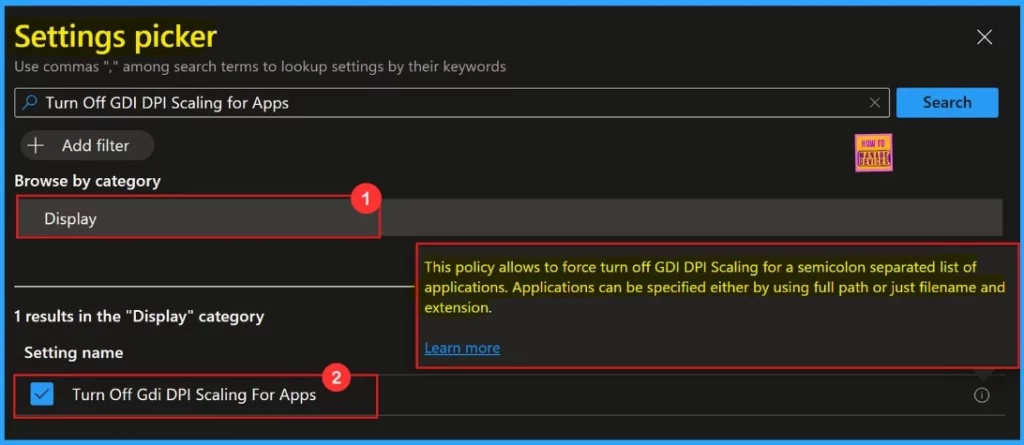
Settings Picker
We will understand what is this, just by hearing it’s name “Settings Picker“. We need to pick a settings for our policy, lol. Here we pick the category “Display” and Settings name “Turn Off GDI DPI Scaling for Apps“.
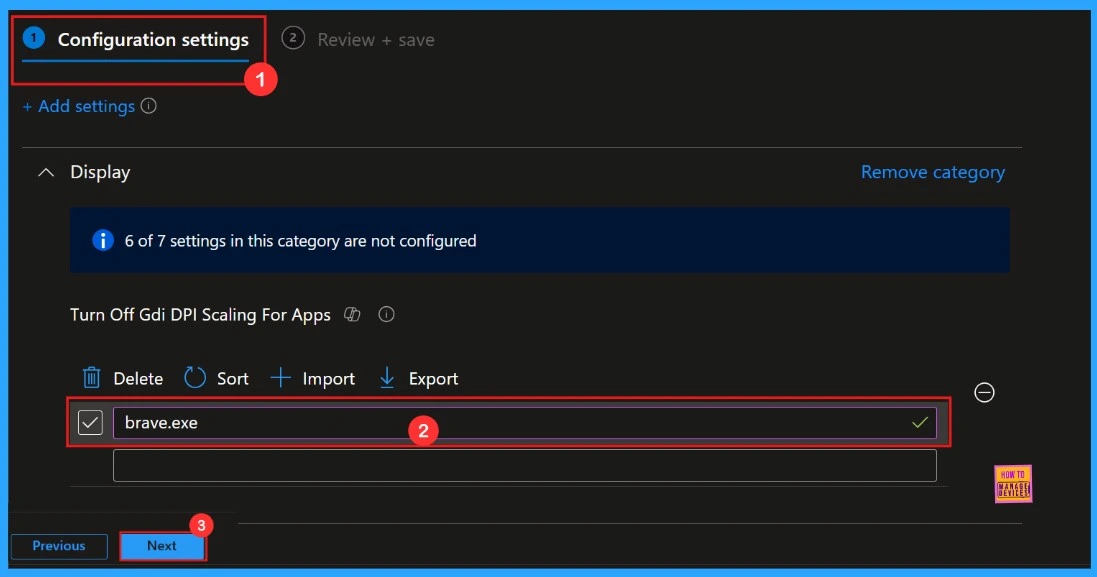
After adding the configuration setting, we will enter to a new window. We need to provide some details to create the policy. After entering the necessary information, click next to proceed.
We will get the application list from Power Shell Command Center
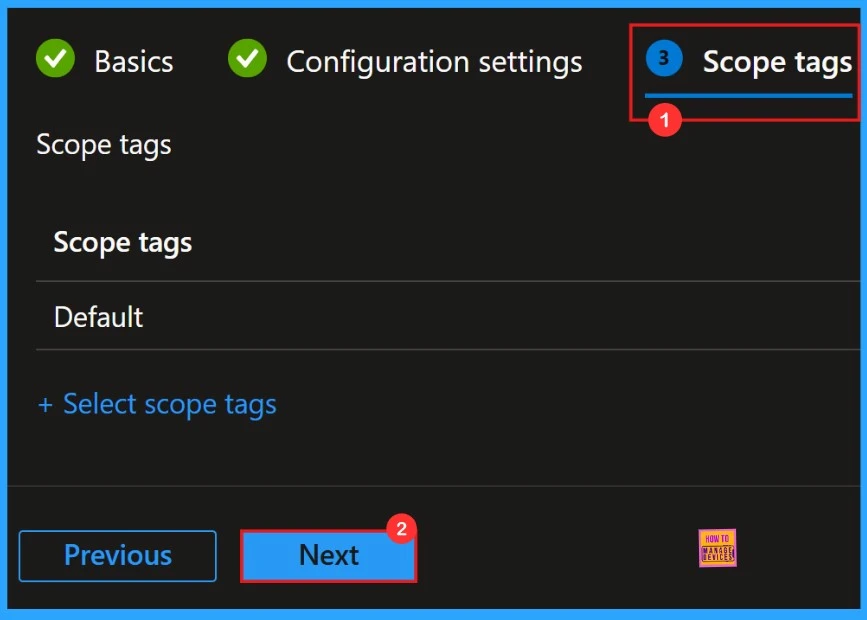
Scope Tags
Scope tags are negotiable for this policy. No need to add any scope tags here, so we are going to skip this step. Click next to proceed futher.
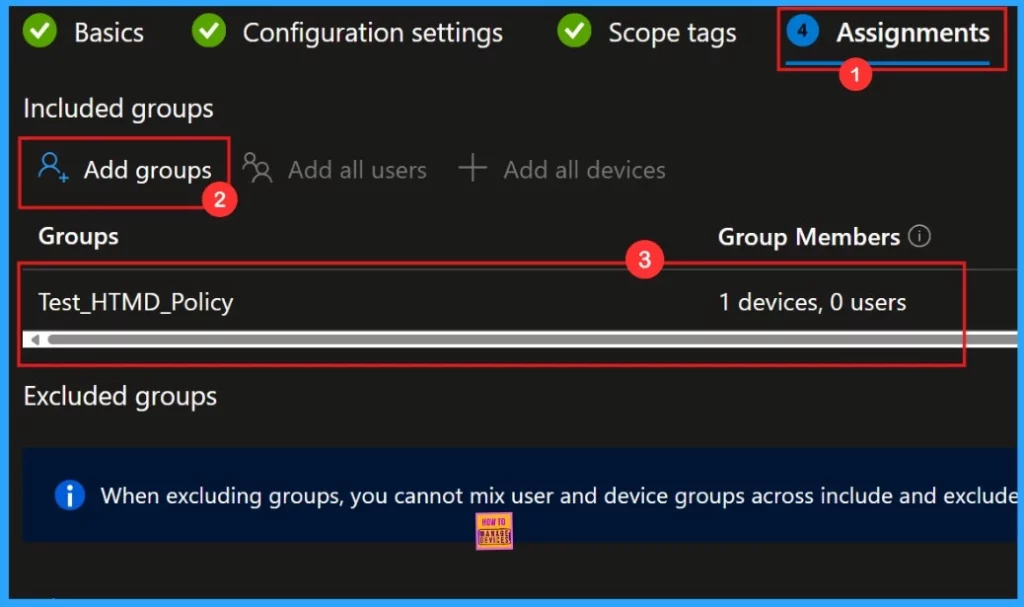
Assignments
Then we enter in to the “Assignments“, here we can add groups. We need to select the group, and it will show on the assignment page. Then, click Next to continue.
Review + Create
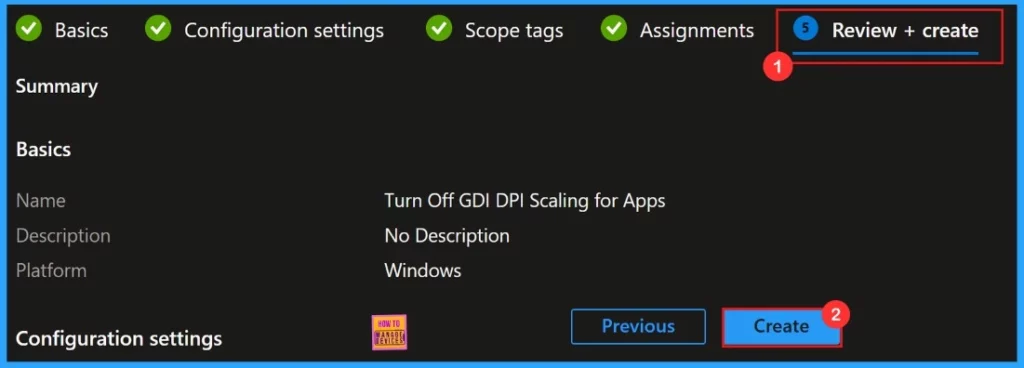
Review + Create is the final step of a policy deployment, here we can see all the provided details. We can go throgh it and confirm all the information given was correct. After confirming we need to click “Create“.
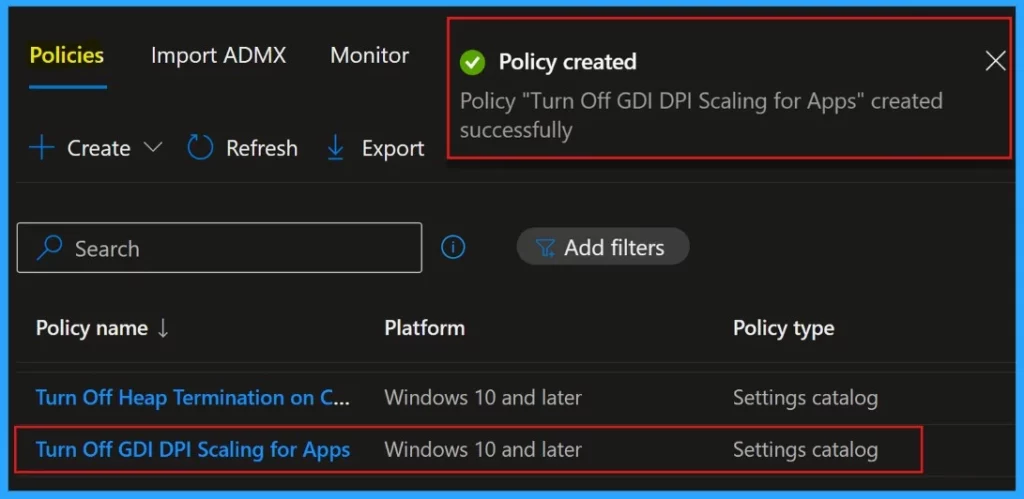
When we hit the Create button, a pop-up will let us know that the policy “Turn Off GDI DPI Scaling for Apps Policy” was created successfully.
Monitoring Status
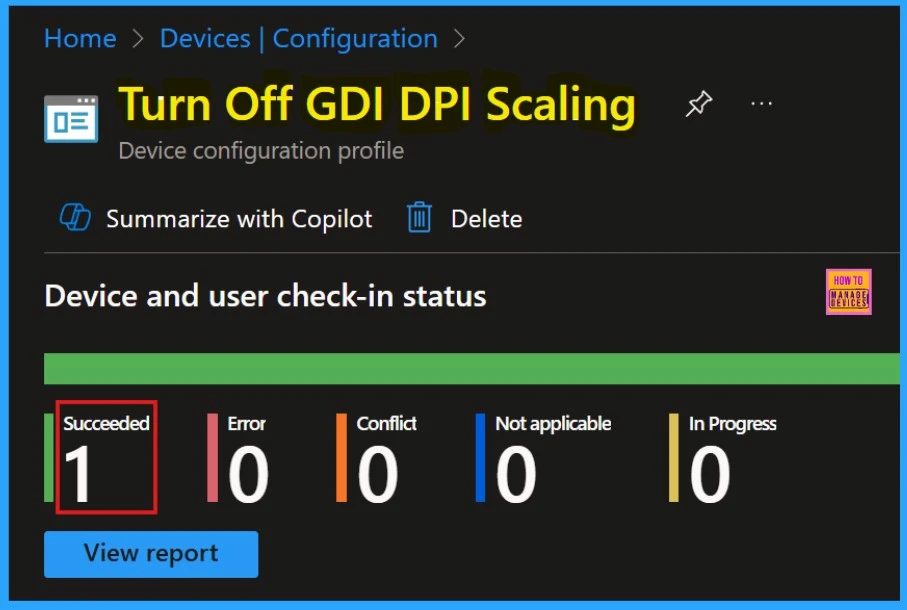
After creating the policy we can see the succeeded result in monitoring status. We need to process by manually syncing the policy through cloud PC, for faster deployment.
Client-Side Verification
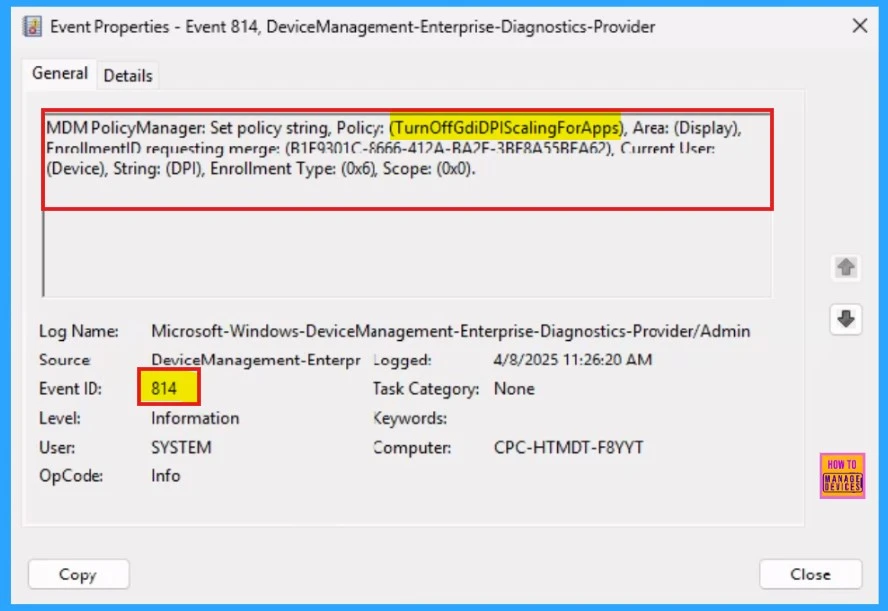
We need to login to Cloud PC for Client-side verification. Then go to the settings Applications and Services Logs > Microsoft > Windows > Devicemanagement-Enterprise-Diagnostics-Provider > Admin.
How to Remove Assigned Group
Removing an assignment will stop the app from being deployed to the selected groups. if it is necessary, we can remove the group from the assignments section. we can go through the post for more details.
Learn How to Delete or Remove App Assignment from Intune using Step by Step Guide
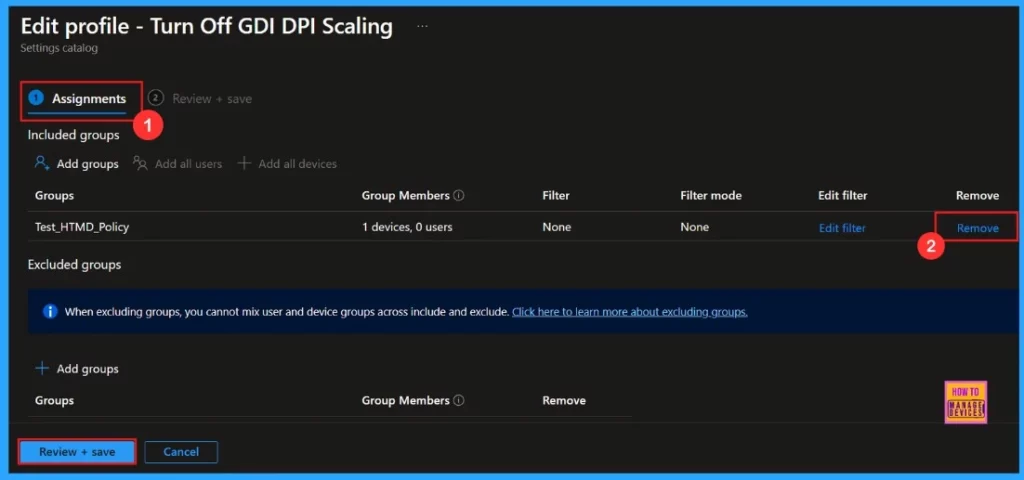
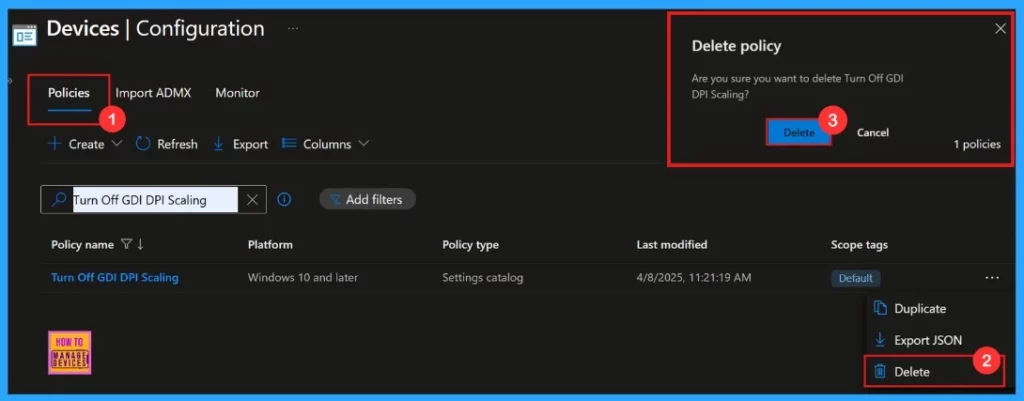
Learn How Delete a Policy in Intune
Deleting a policy in Microsoft Intune takes its setup off the devices it’s assigned to. We’re about to remove a Compliance Policy by deleting it.
Refer the blog post for more details : How to Delete Allow Clipboard History Policy in Intune Step by Step Guide
Need Further Assistance or Have Technical Questions?
Join the LinkedIn Page and Telegram group to get the latest step-by-step guides and news updates. Join our Meetup Page to participate in User group meetings. Also, Join the WhatsApp Community to get the latest news on Microsoft Technologies. We are there on Reddit as well.
Author
Anoop C Nair has been Microsoft MVP for 10 consecutive years from 2015 onwards. He is a Workplace Solution Architect with more than 22+ years of experience in Workplace technologies. He is a Blogger, Speaker, and Local User Group Community leader. His primary focus is on Device Management technologies like SCCM and Intune. He writes about technologies like Intune, SCCM, Windows, Cloud PC, Windows, Entra, Microsoft Security, Career, etc.


Discussion