






Disable Intune ESP FirstSync Registry Entries Event Logs for AVD Windows 365
Let’s understand how to Disable Intune ESP for AVD and Windows 365 Cloud PC and analyze Intune ESP FirstSync Registry Entries and ESP Event Logs. I’m probably the odd one out here, and I need to disable the Enrollment Status Page (ESP) for Azure Virtual Desktop(AVD) deployments.
There are some special reasons why I don’t want to deploy ESP policy to AVD VMs. I will try to cover these reasons in future posts (maybe?). This post also helps you understand troubleshooting options for the Enrollment Status Page.
I have a post about Intune Enrollment Status Page Troubleshooting. In my experience, ESP works well with Windows Autopilot enrollment. However, ESP doesn’t solve the same purpose for Intune group policy enrollment used in the AVD world.
Microsoft also added support for Intune Filter Rules for the Enrollment Status Page (ESP). In some scenarios, this will help Azure Virtual Desktop and Windows 365 Cloud PC deployments.

Table of Contents
Issue Intune ESP
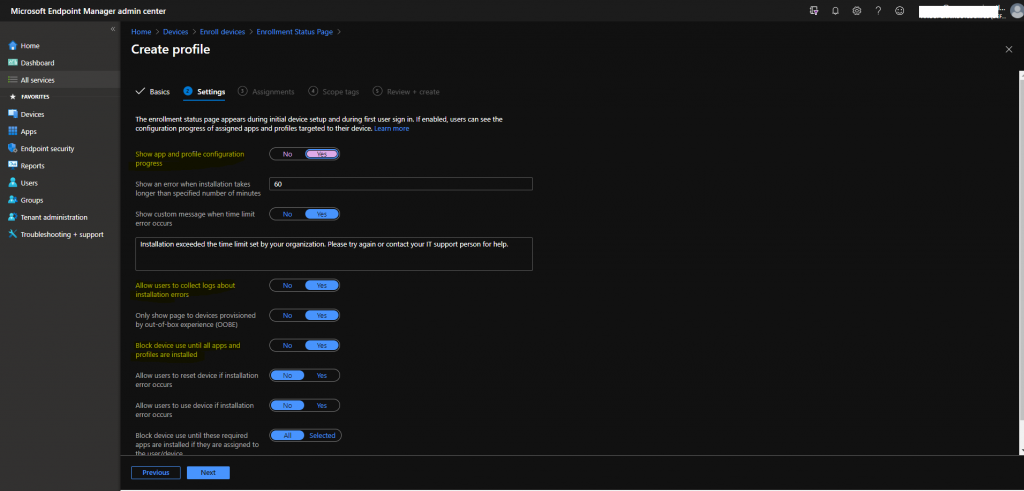
I tried The following steps to fix the Intune ESP policy issue with the portal workload. I didn’t want to use any custom CSP policy to disable ESP before testing all other possibilities.
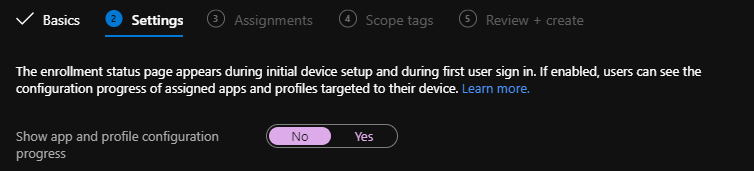
I tried to deploy the “disable ESP policy” using the Show app option, but the profile configuration progressed to NO without any luck.
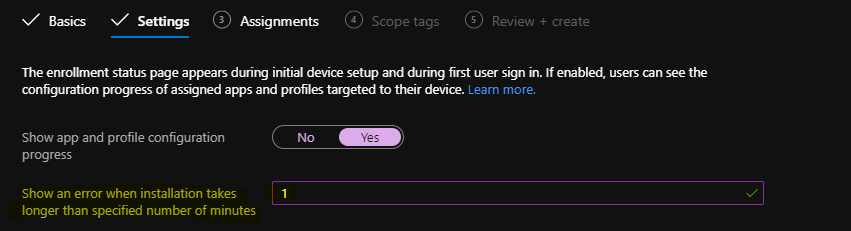
I also tried configuring stupid things like “Show an error when installation takes longer than the specified number of minutes” to 1 minute again without any luck.
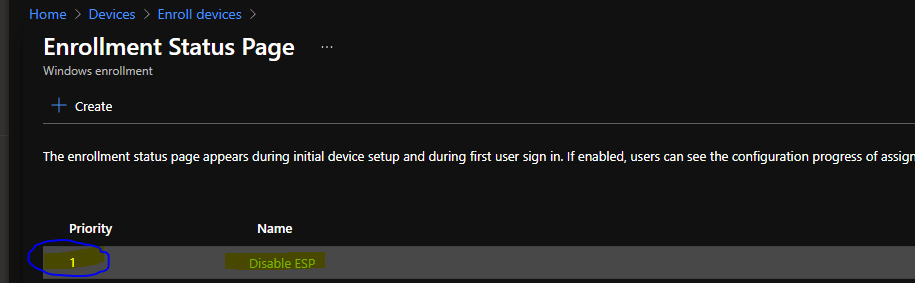
Well, all these ESP policies are set to priority 1. But again, no luck. AVD users were still getting ESP screens after the Windows 10 2004 upgrade, which was irritating.
- Create Intune Policy using Graph Explorer API POST HTTP Method
- AVD Reassign Unassign a Personal Virtual Desktop Options and Intune Primary User Gotcha
- Set Computer Name During Windows Autopilot Hybrid Azure AD Join using Intune
- Cloud PC In-Place Upgrade to Windows 11
- Fix Azure AD PRT Primary Refresh Token Issue with Windows 10 21H2 or KB5006738
Intune ESP Known Issues
I don’t know how many of you noticed the ESP known issues documentation on Microsoft Docs. I don’t want to pretend that I understand the first point from the known issue list.
Disabling the ESP profile doesn’t remove the ESP policy from devices, and users still get ESP when they log in to the device for the first time.
Is this why I am getting all these inconsistent test results related to the Enrollment Status Page (ESP)? I don’t know! Let me know what you think in the comments.
Intune ESP FirstSync Registry Entries
I tried to check the registry entries for corresponding ESP policy entries. The ESP policy configuration from the MEM admin center portal never changes registry entries.
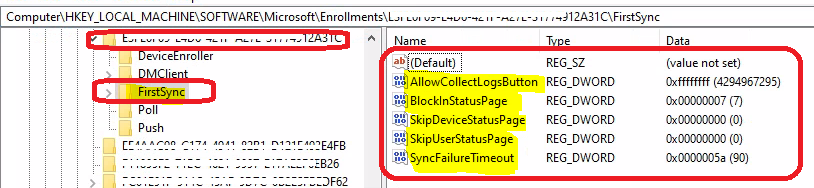
The registry details of Intune ESP -> Computer\HKEY_LOCAL_MACHINE\SOFTWARE\Microsoft\Enrollments\E3FFGF09-E4T7-421F-A54E-31774312A31C\FirstSync
Initial Registry Entries for Intune ESP policies
- AllowCollectLogsButton –> 4294967295
- BlockInStatusPage -> 7
- BlockInStatusPage –> 0
- SkipUserStatusPage –> 0
- SyncFailureTimeout –> 90 (Even though I set the policy as 60 Minutes)
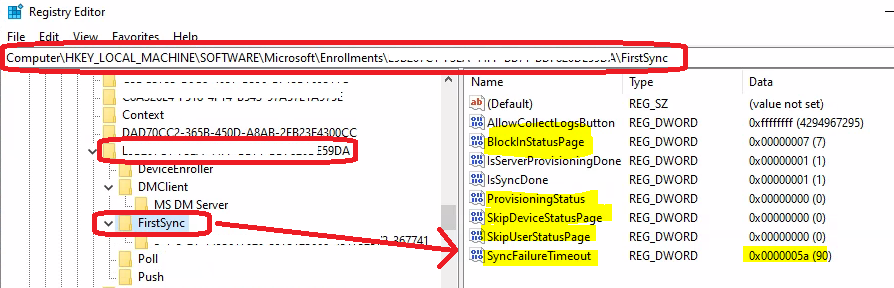
Registry Entries after Enrollment and Restart
- AllowCollectLogsButton -> 4294967295
- BlockInStatusPage -> 7
- IsServerProvisioningDone -> 1
- BlockInStatusPage -> 0
- SkipUserStatusPage -> 0
- SyncFailureTimeout -> 90 (Even though I set the policy as 60 Minutes)
Intune ESP Related Even Log 352 355 361 Entries
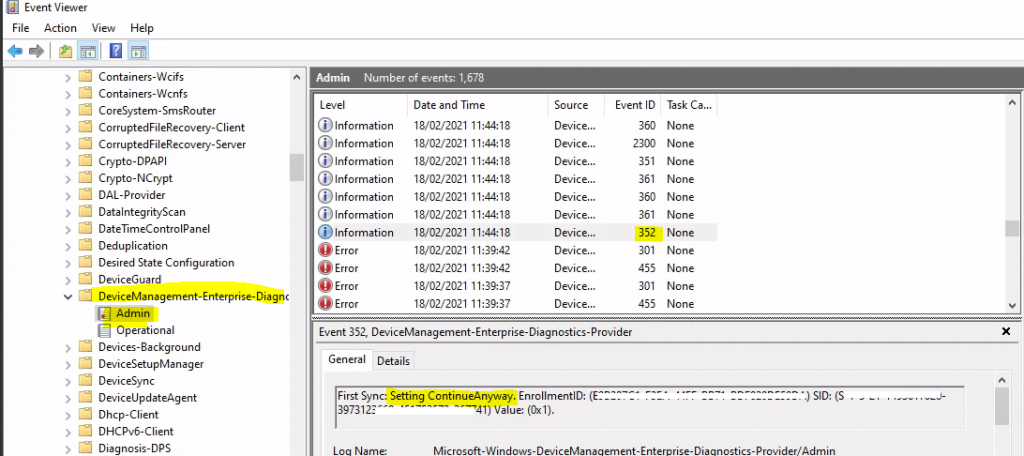
Now, let’s check the Intune ESP policy-related event log entries. This might help you to troubleshoot Intune ESP (Enrollment Status Page) issues.
Event Logs -> Microsoft-Windows-DeviceManagement-Enterprise-Diagnostics-Provider/Admin
- Event ID 352 – First Sync: Setting ContinueAnyway. EnrollmentID: (E9B207C1-F3EA-44FF-BB71-BDF820DE59DA) SID: (S-1-5-21-1493617020-3973123668-451752572-367741) Value: (0x1).
- Event ID 351 -First Sync: Setting IsSyncDone. EnrollmentID: (E9B207C1-F3EA-44FF-BB71-BDF820DE59DA) SID: (NULL) Value: (0x1) FromServer: (0x0).
- Event ID 361 – First Sync: Getting DeviceProvisioningStatus. EnrollmentID: (E9B207C1-F3EA-44FF-BB71-BDF820DE59DA) Status: (0x2).
- Event ID 360 -First Sync: Setting DeviceProvisioningStatus. EnrollmentID: (E9B207C1-F3EA-44FF-BB71-BDF820DE59DA) SID: (NULL) Status: (0x0) FromServer: (0x0).
- Event ID 2300 – Bootstrap Enrollment Status Page: publish notification value: (0x1).
Disable Intune ESP
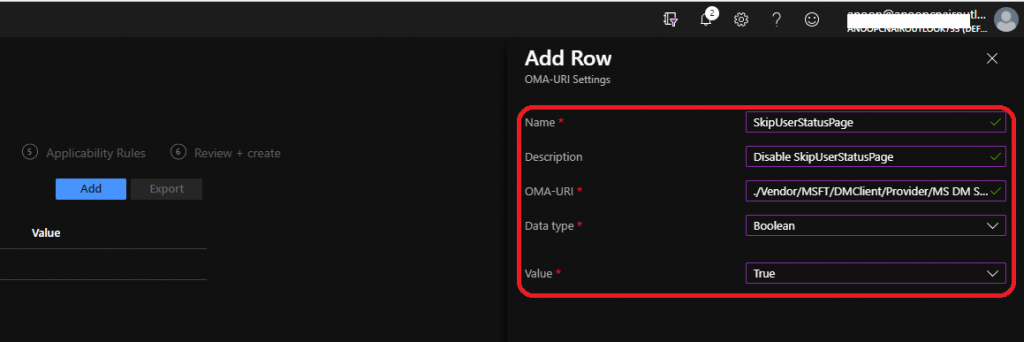
Finally, I was able to fix the issue of disabling the Intune ESP policy (out-of-box policy, as mentioned above) with the custom Windows 10 CSP mentioned below. More details are here.
Provider/ProviderID/FirstSyncStatus/SkipDeviceStatusPage was Added in Windows 10, version 1803. This node decides whether or not the MDM device progress page skips after Azure AD or Hybrid Azure AD is joined in OOBE.
Provider/ProviderID/FirstSyncStatus/SkipUserStatusPage—This node was Added in Windows 10, version 1803. It decides whether the MDM user progress page skips after Azure AD is joined or Hybrid Azure AD joins after the user logs in.
- Name: Disable User ESP
- OMA-URI: ./Vendor/MSFT/DMClient/Provider/MS DM Server/FirstSyncStatus/SkipUserStatusPage
- Data type: Boolean Value: True
- Name: Disable Device ESP
- OMA-URI: ./Vendor/MSFT/DMClient/Provider/MS DM Server/FirstSyncStatus/SkipDeviceStatusPage
- Data type: Boolean Value: True
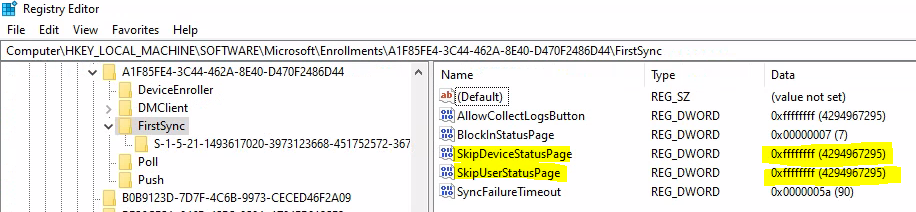
Registry Details After deploying, disable Intune ESP policies for Windows 10 devices.
You can get the registry details of Intune ESP -> Computer\HKEY_LOCAL_MACHINE\SOFTWARE\Microsoft\Enrollments\{EnrollmentGUID}\FirstSync
- SkipDeviceStatusPage – ffffffff
- SkipUserStatusPage – ffffffff
Windows Registry Editor Version 5.00

[HKEY_LOCAL_MACHINE\SOFTWARE\Microsoft\Enrollments\A1FGHFE4-3C44-462A-8E60-D470F2486D44\FirstSync]
"SyncFailureTimeout"=dword:0000005a
"BlockInStatusPage"=dword:00000007
"SkipDeviceStatusPage"=dword:ffffffff
"SkipUserStatusPage"=dword:ffffffff
"AllowCollectLogsButton"=dword:ffffffff
Enrollment Status Page ESP with Intune Filters
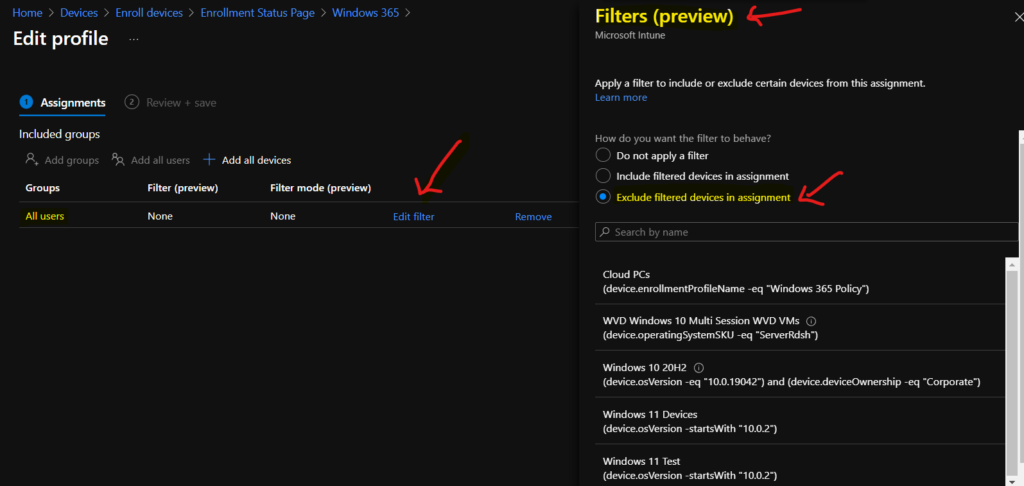
Microsoft enabled the filter support for Intune ESP (Enrollment Status Page). The Intune filter rules might help with some AVD and Windows 365 Cloud PC scenarios.
- Navigate – Devices – Enroll Devices – Enrollment Status Page
- Click on Edit Filter from the assignment.
- Select How you want the filter to behave.
Resources
- Intune group policy enrollment
- Learn How To Collect Windows 10 Diagnostics Information From Intune Portal | Endpoint Manager – HTMD – How To Manage Devices
We are on WhatsApp now. To get the latest step-by-step guides, news, and updates, Join our Channel. Click here – HTMD WhatsApp.
Author
Anoop C Nair has been Microsoft MVP from 2015 onwards for 10 consecutive years! He is a Workplace Solution Architect with more than 22+ years of experience in Workplace technologies. He is also a Blogger, Speaker, and Local User Group Community leader. His primary focus is on Device Management technologies like SCCM and Intune. He writes about technologies like Intune, SCCM, Windows, Cloud PC, Windows, Entra, Microsoft Security, Career, etc.


We were advised to add this same OMA-URI by MS support when troubleshooting an ESP issue for one of our users. After enabling him for WHfB via Intune, he hit the ESP screen when signing in with an immediate error message and no option to “Continue Anyway”. Error was that ‘timeout had been exceeded’ but this was an immediate fail on sign in.
All he could do was sign out and at next sign-in he gets to a desktop. After each reboot or sign-out he hit the same ESP error again. So effectively had to sign-in twice to be able to work.
Adding that OMA-URI resolved the issue.
I have since read elsewhere that the Registry can be edited directly and the DWORD set to 1, but as you found out yourself the correct value looks to be all the ‘f’s 🙂
Thanks for taking the time to write-up your findings.
Thanks for writing this up!
Simple powershell 3 liner.
Get-ChildItem “HKLM:\SOFTWARE\Microsoft\Enrollments” | ?{ (Get-ItemProperty “registry::$($_.Name)\FirstSync” -Name SkipUserStatusPage -ea SilentlyContinue) -ne $null } | %{ Set-ItemProperty “registry::$($_.Name)\FirstSync” -Name SkipUserStatusPage -Value 0xffffffff -Type DWord -Force | Out-Null Set-ItemProperty “registry::$($_.Name)\FirstSync” -Name SkipDeviceStatusPage -Value 0xffffffff -Type DWord -Force | Out-Null
}