






Easy Steps to Disable SCCM Task Sequence Deployment
Let’s check how you can disable SCCM task sequence deployment. In Configuration Manager, This feature is useful to manage task sequence deployment in the most efficient way, especially for Admin if you want users to not deploy a task sequence from the list of deployments available to run.
When you disable SCCM task sequence deployment, it immediately tells the client to update its policy from the site and temporarily disables all deployments that contain this task sequence.
It also removes the task sequence from the list of deployments available to run. The SCCM task sequence doesn’t run until you enable it.
Starting in SCCM version 2103, Microsoft introduced a new feature that allows you to disable application deployment in SCCM. This is the most efficient way to manage application deployment.

The option to disable the Task Sequence and Application is helpful for accidental deployment scenarios.
If you want to stop the deployment of an application, you can disable it temporarily. Let’s check how to disable SCCM application deployment.
- Custom Software Center User Notification for SCCM Task Sequence Deployment | ConfigMgr
- Easy Steps to Run SCCM Task Sequence with High Performance Power Plan | ConfigMgr
- Top SCCM Log File Viewer Options for Admins
How to Disable SCCM Task Sequence Deployment
You will need to understand the impact of disabling the task sequence before getting into the implementation step. When you disable an SCCM Task Sequence, you are going to stop all the deployments related to that Task Sequence.
However, disabling TS is not going to impact the packages that are associated with the Task Sequence. None of the Windows 10 or Windows 11 devices are going to get the Task Sequence.
Let’s see the following steps to disable SCCM task sequence deployment.
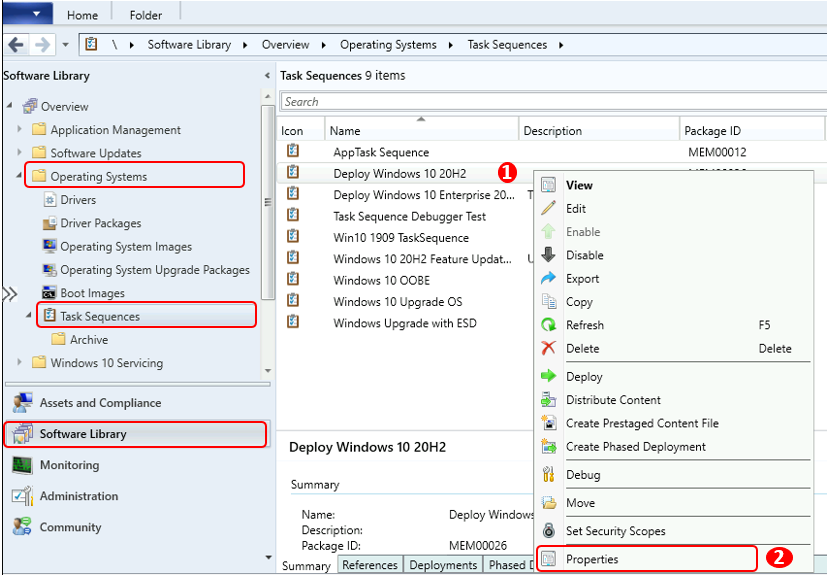
- In the Configuration Manager console, go to the Software Library workspace, expand Operating Systems, and select Task Sequences.
- Select an existing task sequence from the task sequence list that you have deployed and select Properties.
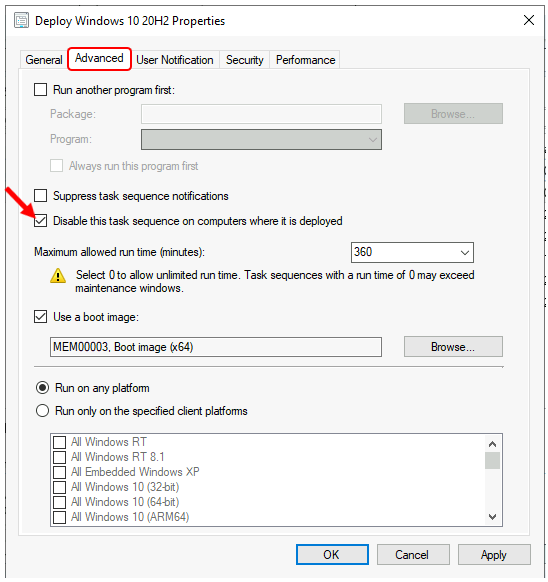
- In Task Sequence properties, Move to the Advanced tab to configure the behavior of the task sequence.
- Check the option Disable this task sequence on computers where it is deployed, By default, this option is disabled.
- Click Apply and Ok to save the changes done to the task sequence.
Disable this task sequence on computers where it is deployed – If you select this option, Configuration Manager temporarily disables all deployments that contain this task sequence.
It also removes the task sequence from the list of deployments available to run. The task sequence doesn’t run until you enable it.
When you move to the client computers for selecting the task sequence for deployment, the task sequence will not be displayed on computers where it was advertised.
However, the client may or may not detect the change immediately, depending on the rate of ConfigMgr communications and the frequency with which the clients check for new task sequences.
Note: If you want the task sequence to appear in the list of available deployment in client computers, you need to follow the steps described above, uncheck the option, refresh the deployment. As the task sequence doesn’t run until you enable it.
Refer to the post that covers all the steps needed to deploy Windows 11 using SCCM, Best Guide Deploy Windows 11 Using SCCM Task Sequence
You will also see the following actions are available with similar behaviors for SCCM deployments. Let’s try to explore –
- Software update deployments: Disable the deployment
- Phased deployments: Suspend the phase
- Package: Disable the program
- Configuration baseline: Disable the baseline
- Application: Disable the application
Disable the SCCM Task Sequence Using PowerShell Command
Now, let’s quickly look at the option to disable the SCCM Task Sequence with the PowerShell Commands or SCCM PowerShell commandlets. You can Launch the SCCM PowerShell CommandLets from the console itself.
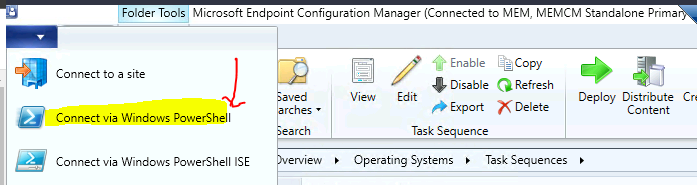
Click on the Drop-Down option on the top left side corner of the console and click on Connect via Windows PowerShell option. Click on A on the following warning about the untrusted publisher.
Do you want to run software from this untrusted publisher?
File F:\Program Files\Microsoft Configuration Manager\AdminConsole\bin\Microsoft.ConfigurationManagement.PowerShell.Types.ps1xml is published by CN=Microsoft Corporation, O=Microsoft Corporation, L=Redmond, S=Washington, C=US and is not trusted on your system. Only run scripts from trusted publishers.
[V] Never run [D] Do not run [R] Run once [A] Always run [?] Help (default is “D”): A
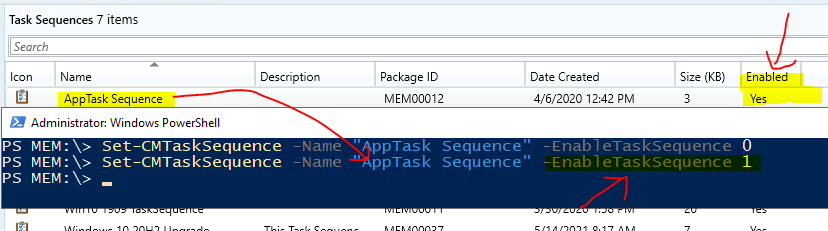
Run the following PowerShell command to disable the SCCM Task Sequence. You will need to change the Task Sequence name mentioned in the following command.
- EnableTaskSequence 0 to disable the Task Sequence.
- EnableTaskSequence 1 to enable the Task Sequence.
Set-CMTaskSequence -Name “AppTask Sequence” -EnableTaskSequence 0
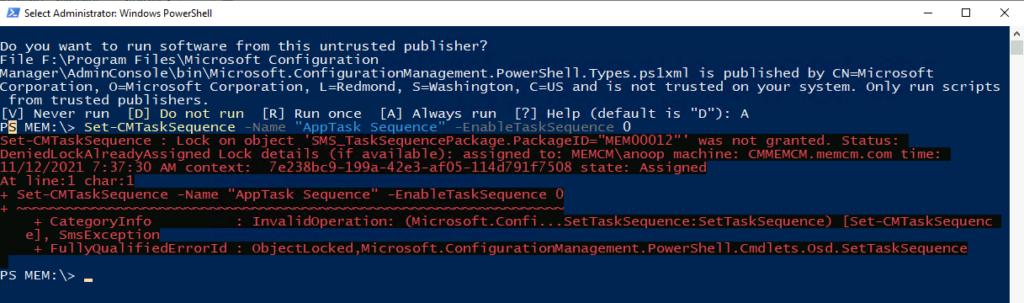
PS MEM: Set-CMTaskSequence -Name “AppTask Sequence” -EnableTaskSequence 0
Set-CMTaskSequence : Lock on object ‘SMS_TaskSequencePackage.PackageID=”MEM00012″‘ was not granted. Status:
DeniedLockAlreadyAssigned Lock details (if available): assigned to: MEMCM\anoop machine: CMMEMCM.memcm.com time:
11/12/2021 7:37:30 AM context: 7e238bc9-199a-42e3-af05-114d791f7508 state: Assigned
At line:1 char:1
- Set-CMTaskSequence -Name “AppTask Sequence” -EnableTaskSequence 0
- CategoryInfo : InvalidOperation: (Microsoft.Confi…SetTaskSequence:SetTaskSequence) [Set-CMTaskSequenc
e], SmsException- FullyQualifiedErrorId : ObjectLocked,Microsoft.ConfigurationManagement.PowerShell.Cmdlets.Osd.SetTaskSequence
I received an error because the Task Sequence is LOCKED by an SCCM admin. This error occurs when someone else opened the task sequence that you are trying to disable. Close the Task Sequence and run the same command again.
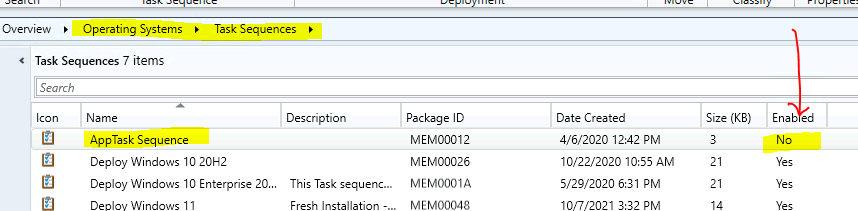
Enable SCCM Task Sequence Using PowerShell Command
Let’s now enable the Task Sequence ( Enable SCCM Task Sequence Using PowerShell Command ) that is just disabled using the PowerShell command
Set-CMTaskSequence -Name “AppTask Sequence” -EnableTaskSequence 1
Author
About Author -> Jitesh has over 5 years of working experience in the IT Industry. He writes and shares his experiences related to Microsoft device management technologies and IT Infrastructure management. His primary focus area is Windows 10, Windows 11 Deployment solution with Configuration Manager, Microsoft Deployment Toolkit (MDT), and Microsoft Intune.




Discussion