






How to Disable Screenshots Policy to Limit Content Capture from Within MS Edge Browser Using Intune
Hey, let’s discuss How to Disable Screenshots Policy to Limit Content Capture from Within MS Edge Browser Using Intune. This policy controls whether users can take screenshots of a browser page. When enabled, it blocks screenshots through keyboard shortcuts or extension APIs. If the policy is disabled or not configured, users are free to take screenshots.
The importance of this policy lies in protecting sensitive or confidential data displayed in the browser. Screenshots can easily be shared without authorization, leading to data leaks. By restricting this action, organizations reduce the risk of exposing sensitive company information, client data, or secure web applications.
This policy also helps users by creating a safer browsing environment. For example, in educational or corporate training platforms, it prevents unauthorized capture of test questions, learning material, or licensed content. It ensures that information stays within the intended system and is not misused outside of the controlled environment.
The policy provides organizations with an added layer of control. It limits data theft attempts and supports compliance with privacy regulations. While it does not stop every method of taking screenshots, it makes it harder for users to casually capture and spread data.

What are Advantages of Disabling Taking Screenshot Policy using Intune?
1. Helps users easily capture information for learning, training, or troubleshooting.
2. Provides convenience for employees who need to share steps, errors, or reports with IT support.
3. Useful for collaboration when teams need to quickly share browser content with others.
4. Saves time by allowing screenshots instead of manually copying or writing down details.
How to Disable Screenshots Policy to Limit Content Capture from Within MS Edge Browser Using Intune
Before disabling the screenshot policy: Users are blocked from taking screenshots inside the browser. This protects sensitive data but may cause difficulty in sharing errors, learning material, or work content.
After disabling the screenshot policy: Users can freely take screenshots in the browser. This makes it easier to share information, report issues, and work together, but it also increases the risk of sensitive data being copied or leaked.
Create a Profile
- Intune MAM App Protection Policies for Screenshot Protection Settings
- Easy Methods to Take Screenshots on Windows 11 using Free Tools such as Snipping Tools Print Screen
- Block Screenshots for Android Devices using Intune
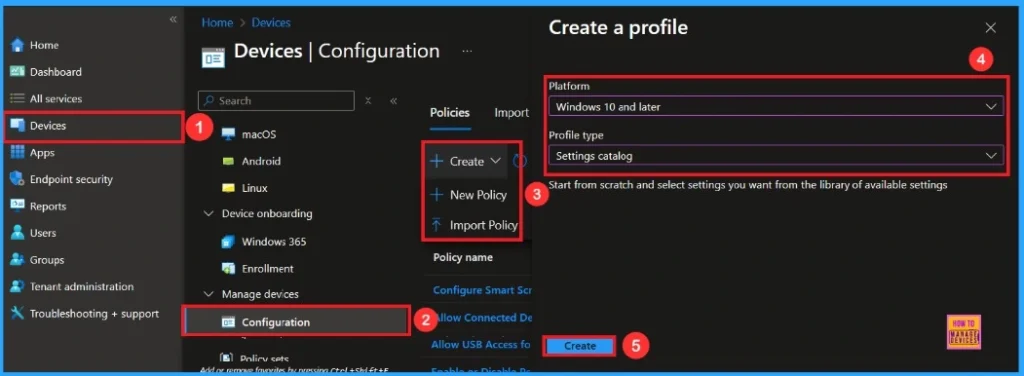
Begin by logging into the Microsoft Intune admin center. Subsequently, proceed to Devices . Within the Devices section, select Configuration. In the Configuration area, you will find an option to generate a New Policy. Click on it.
A fresh window will emerge, labeled Create Profile. Within this particular section, you are required to specify the platform as Windows 10 and later, and then select the Profile Type as Settings Catalog. Following this, click Create to continue
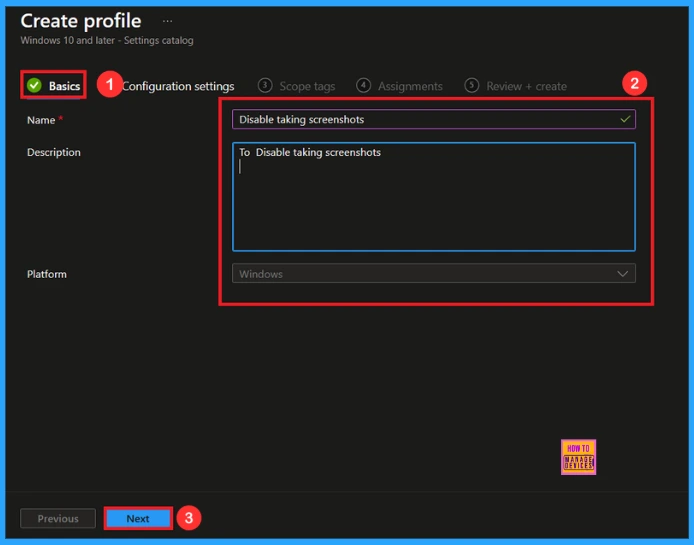
Basic Step
After creating profile, the subsequent action is to input the basic details. This typically involves providing the name, description, and platform information. We can specify the name (Disable Taking Screenshot) of the policy and offer a concise description. To proceed, click Next
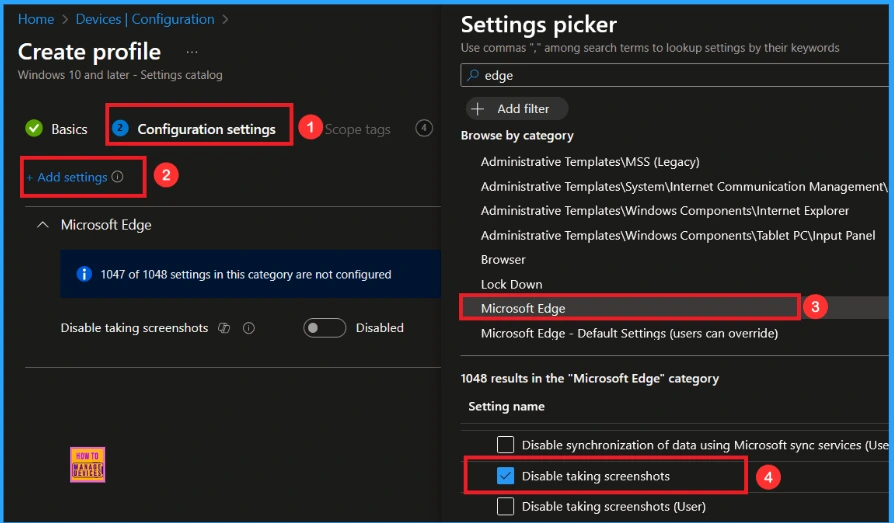
Configuration Settings
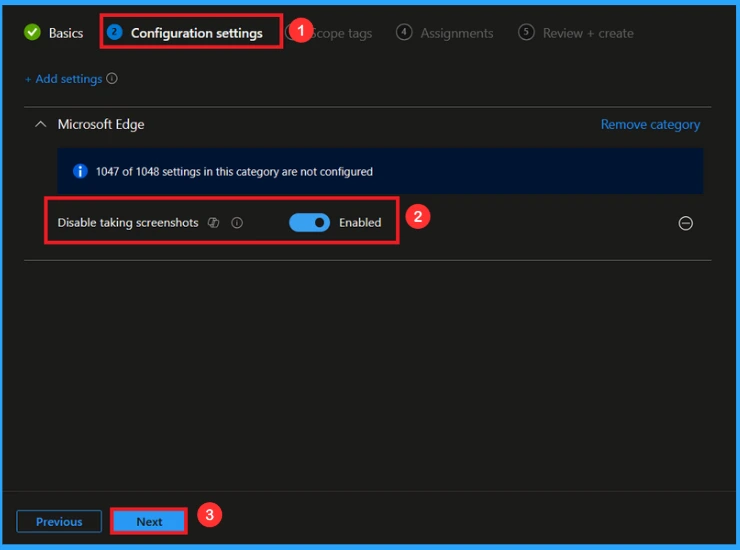
Within this tab, you will find an option to Add Settings. Proceed to click on it. Upon clicking, a new window, referred to as Settings Picker, will emerge. Within the Settings Picker window, you are required to choose the Microsoft Edge category. Then select the Disable Taking Screenshots setting.
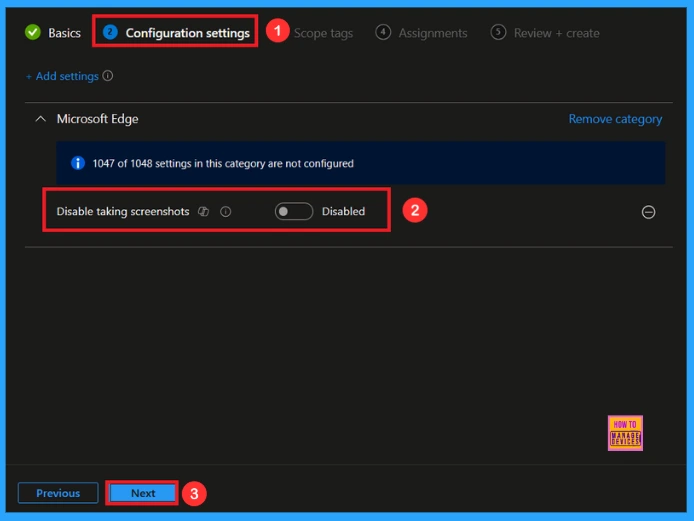
You are now able to close the Settings Picker window. After closing it, you will be directed back to the Configuration Settings page. On this page, you will observe that the policy is configured to Allow or Block. By default Taking Screenshot Policy is Disabled. Then click Next to continue
Enable Taking Screenshot Policy
If we Enable or configure this policy, you can Enable taking screenshot policy by toggling the switch. After reviewing or adding more settings, you can click the Next button to proceed.
Scope Tags
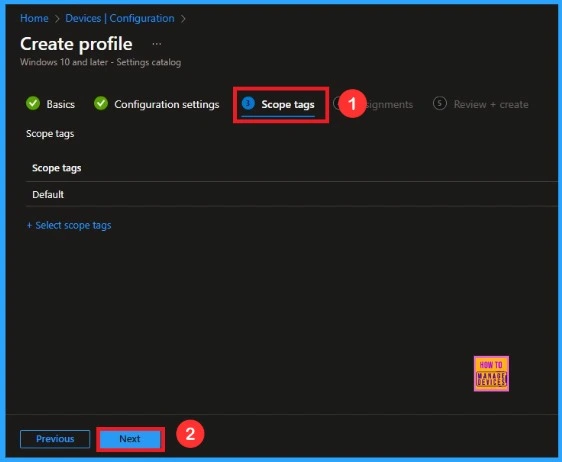
The scope tag is not mandatory, so you can skip this section. It functions as a tool for organisation and access management, but assigning it is optional. Click Next if they’re not required for your setup.
Assignments
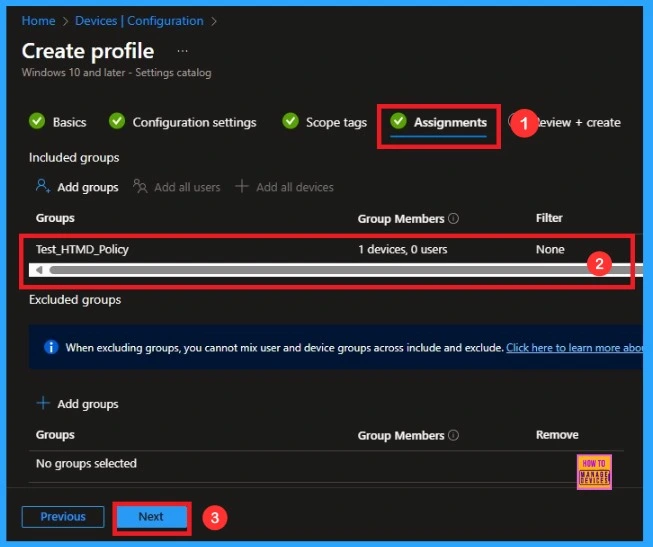
In the Assignments tab, you choose the users or devices that will receive the policy by clicking Add Group under Include Group, select the group that you want to target(e.g Test_HTMD_Policy) and then click Next to continue.
Final Step
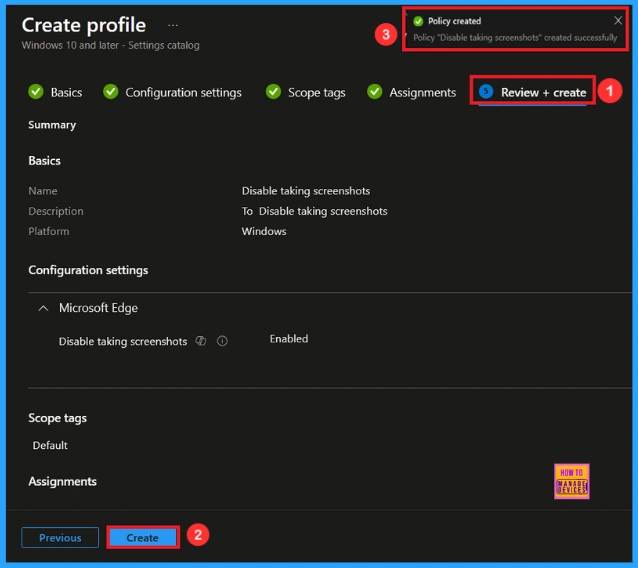
In this section, you will find a summary encompassing all the information you provided in the preceding steps, including basic details, configuration settings, assignment details. We click Create to finish, and a notification confirms that the Disable Taking Screenshots creates successfully.
Device and User Check-in Status
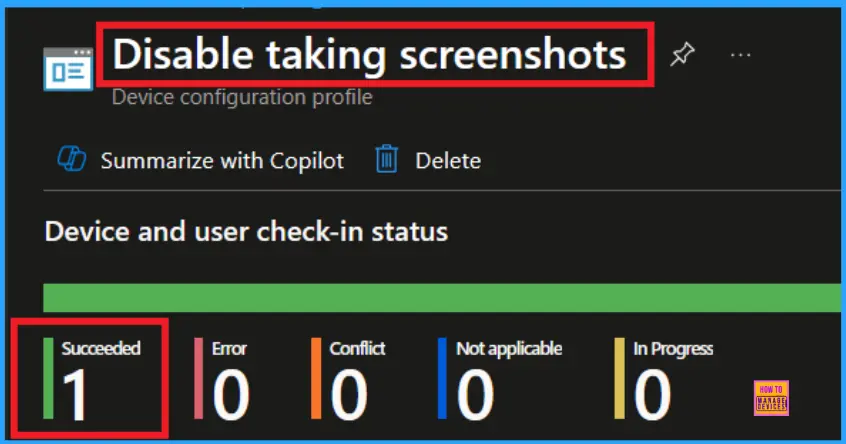
To ascertain the status of a policy, navigate to Devices > Configuration within the Intune portal. Then, choose the relevant policy (such as Disable Taking Screenshots ), and confirm that its status indicates Succeeded (1). For a quicker process, utilize manual sync in the Company Portal
Client Side Verification
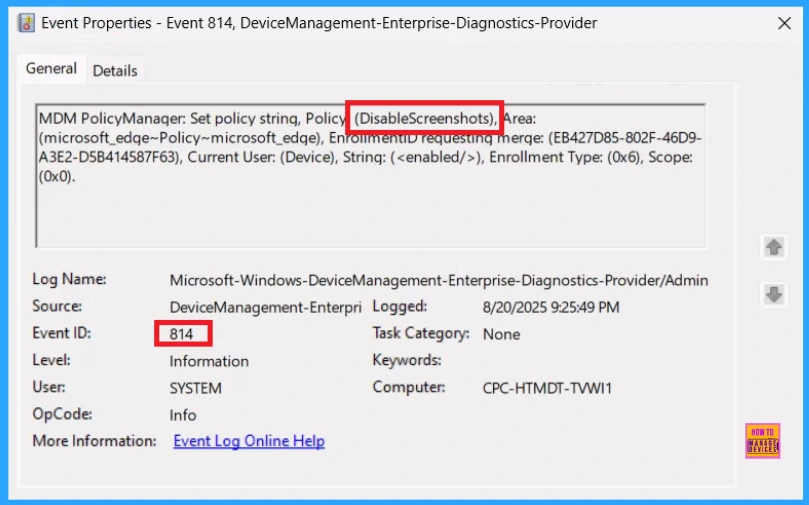
To confirm if a policy has been applied, use the Event Viewer on the client device. Go to Applications and Services Logs > Microsoft > Windows > Device Management > Enterprise Diagnostic Provider > Admin. From the list of policies, use the Filter Current Log option and search for Intune event 814.
MDM PolicyManager: Set policy string, Policy (DisableScreenshots), Area:
(microsoft_edqe~Policy~microsoft_edqe), EnronmenuD requesting merqe: (EB427D85-802F-46D9-
A3E2-D5B414587F63), Current User: (Device), Strinq: (), Enrollment Type: (0x6), Scope:
(0x0).
How to remove assigned Group from Taking Screenshot Policy
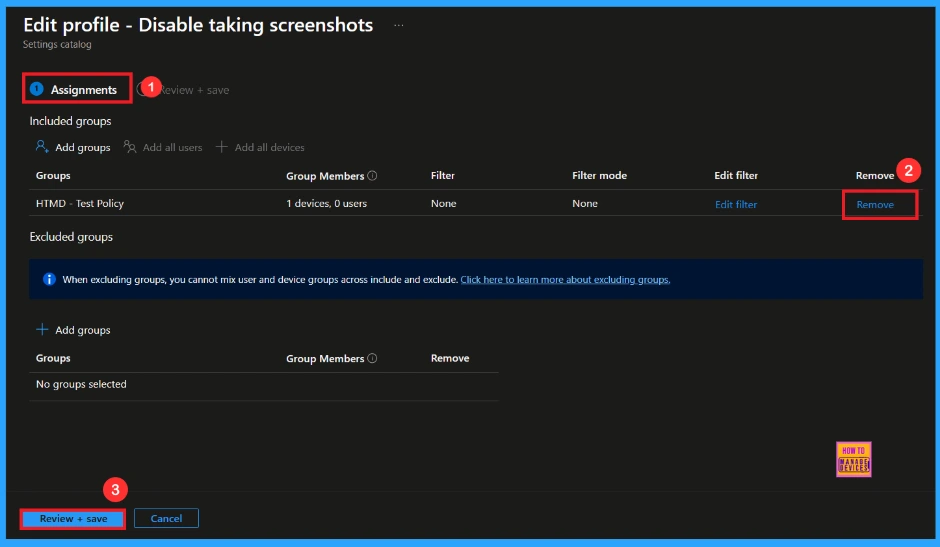
If you want to remove the specific group that you previously selected, you can easily do that. First, go to Devices > Configuration policies. In the Configuration policy section, search and select the policy, for example, Taking Screenshot . In the Assignment section, you will find an Edit option and click Remove option. Then, click the Review+ Save option.
For detailed information, you can refer to our previous post – Learn How to Delete or Remove App Assignment from Intune using by Step-by-Step Guide.
How to delete Taking Screenshot Policy from Intune
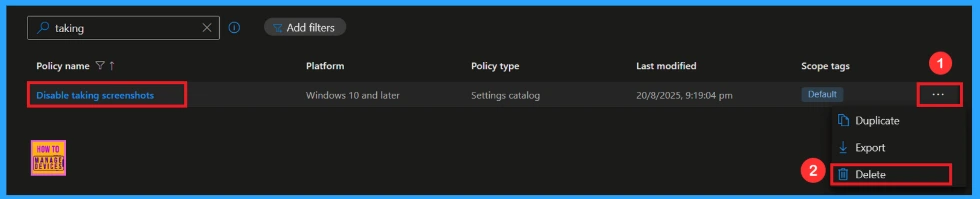
First, search for the policy name(Disable Taking Screenshots) in the configuration section. When you find the policy name, you will see a 3-dot menu next to it. Click on the 3 dots, then click the Delete button.
For detailed information, you can refer to our previous post – How to Delete Allow Clipboard History Policy in Intune Step by Step Guide.
Need Further Assistance or Have Technical Questions?
Join the LinkedIn Page and Telegram group to get the latest step-by-step guides and news updates. Join our Meetup Page to participate in User group meetings. Also, Join the WhatsApp Community to get the latest news on Microsoft Technologies. We are there on Reddit as well.
Author
Anoop C Nair has been Microsoft MVP from 2015 onwards for 10 consecutive years! He is a Workplace Solution Architect with more than 22+ years of experience in Workplace technologies. He is also a Blogger, Speaker, and Local User Group Community leader. His primary focus is on Device Management technologies like SCCM and Intune. He writes about technologies like Intune, SCCM, Windows, Cloud PC, Windows, Entra, Microsoft Security, Career, etc.


Discussion