






Disable URL Copy Paste Feature in Microsoft Edge
Let’s discuss how to disable URL copy paste feature in Microsoft Edge. Microsoft Edge is a popular web browser developed by Microsoft, which always introduces new features to enhance users’ capabilities.
As you know, the Microsoft Edge browser is unique in its features. It was even the first browser to bring Copilot capabilities. Do you know the URL Copy and Paste feature in Microsoft Edge? It is one of the best features of the Edge browser.
The URL Copy and Paste feature in Microsoft Edge helps users when you copy and paste a link or URL; it is pasted as a hyperlinked title. That means the title of that URL/webpage, including the web address, is pasted.
Before this new feature, the URL or web address was pasted when a user copied a URL using Microsoft Edge and pasted it into apps like MS Word, Gmail, etc. Microsoft changed this behaviour recently. If you don’t want this URL Copy and Paste Feature in Microsoft Edge, I will help you disable it.


| Index |
|---|
| Disable URL Copy and Paste Feature in Microsoft Edge |
| Methods to Copy and Paste it into Your Browser |
What are the Advanatges of Copy and Paste Feature in Microsoft Edge?
Microsoft Edge is an excellent alternative web browser for Google Chrome and other browsers. Its copy-and-paste feature is one of its most outstanding features. The following are the Advantages of this feature in Microsoft Edge.
1. This feature is used for professional use cases.
2. Very user-friendly feature.
3. It allows Smart Copy.
- Importance to Add Name for MS Edge Browser Windows
- MS Edge Browser Automatic Options to Organize Tabs Stay Organized with Tab Groups
Disable URL Copy and Paste Feature in Microsoft Edge
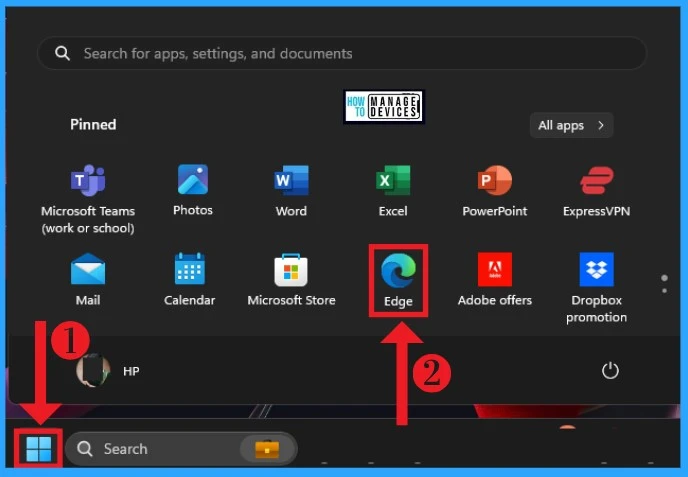
You can easily Disable this feature on Microsoft Edge. You can quickly disable this feature through Microsoft Edge browser Settings. To do this, Open the Microsoft Edge browser on your PC.
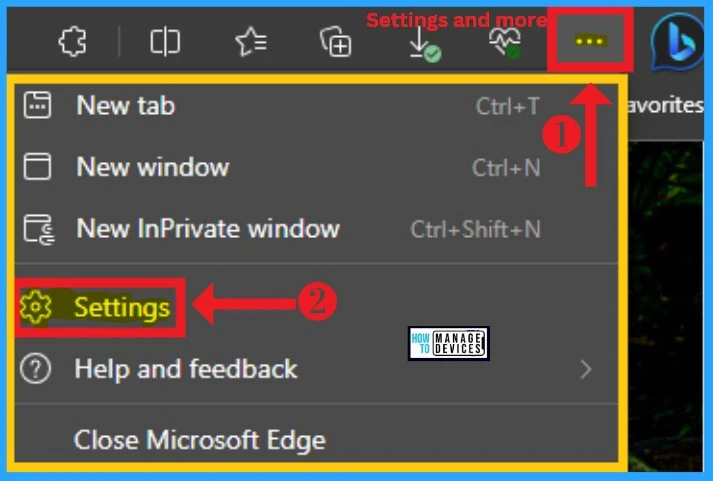
The Microsoft Edge browser settings can be easily accessed using the Settings and More option, located at the top right corner of the Edge browser. Click on Settings and More and select the Settings menu.
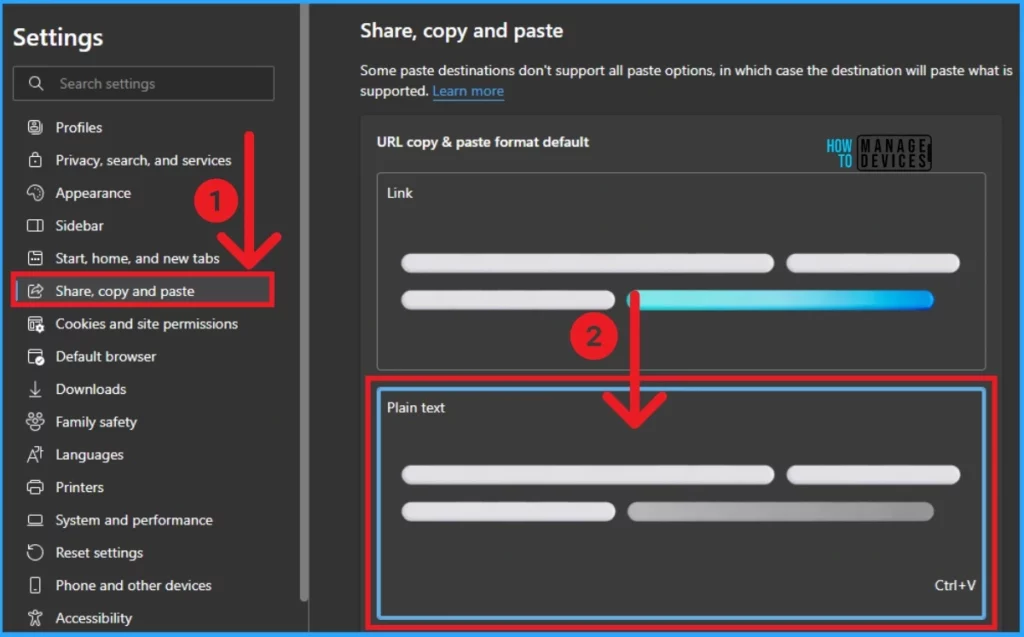
The Edge browser’s Settings menu offers many options. On the left side of the Settings window, select Share, copy, and paste. The Share, copy, and paste option shows the URL copy-and-paste format default option.
Here, you can see 2 options: Link and Plain Text. Link is the default option, and you can select the plain text option to disable the copy-and-paste feature.
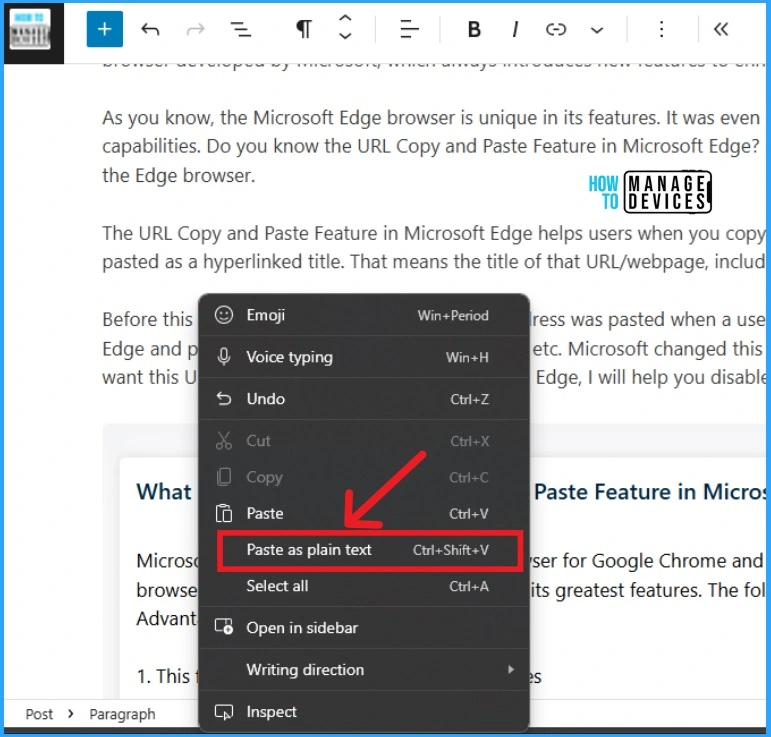
After enabling the plain text option, you can check whether this feature is disabled by selecting text in Microsoft Edge and pasting it using a right-click. You can see the option Paste as a plain text option. This option
Methods to Copy and Paste Text into Your Browser
You can easily Copy and Paste text into Your Browser. There are 2 methods available for that. Keyboard shortcuts are available for that. The below table shows the methods.
| Keyboard Shortcut for Copy Paste |
|---|
| On PC, use Ctrl + C to Copy, Ctrl + X to Cut, and Ctrl + V to Paste |
- New Error Detecting Feature in Edge Browser using Copilot
- New Text Prediction and other Features in MS Edge Browser
We are on WhatsApp now. To get the latest step-by-step guides, news, and updates, Join our Channel. Click here. HTMD WhatsApp.
Author
Anoop C Nair is Microsoft MVP! He is a Device Management Admin with more than 20 years of experience (calculation done in 2021) in IT. He is a Blogger, Speaker, and Local User Group HTMD Community leader. His main focus is on Device Management technologies like SCCM 2012, Current Branch, and Intune. He writes about ConfigMgr, Windows 11, Windows 10, Azure AD, Microsoft Intune, Windows 365, AVD, etc.




Discussion