






Disable Windows Spotlight using Intune
Let’s learn how you can disable Windows Spotlight using Intune, aka Endpoint Manager. If you do not want Windows Spotlight to appear on your modern managed Windows 10 lock screen? This blog post can help you to disable the Windows Spotlight features.
Windows Spotlight is an option for the lock screen background that displays different background images and occasionally offers suggestions on the lock screen. Windows Spotlight is available in all desktop editions of Windows 10.
Windows Spotlight updates daily with images that highlight beautiful scenery from around the globe. Images are also selected to depict a spirit of action, whether discovery and exploration, creating, curiosity or fearlessness.
Windows Spotlight is also used to help you get the most out of Windows, including sharing tips and tricks. It will only show on the Win+L lock screen while signed in and will not show on the lock screen at startup.

- Prevent Users From Installing Printer Drivers using Intune
- Disable Toast Notifications from Lock Screen using Intune
- Enable Interactive Logon CTRL ALT DEL Using Intune
What does Windows Spotlight include?
Background image – The Windows Spotlight displays a new image on the lock screen each day. The initial background image is included during installation. Additional images are downloaded on an ongoing basis.
Feature suggestions, fun facts, tips – The lock screen background occasionally makes recommendations to enhance your productivity and enjoyment of Microsoft products, including suggesting other relevant Microsoft products and services.

Disable Windows Spotlight using Intune
Let’s follow the below steps to Disable Windows Spotlight using Intune –
- Sign in to the https://endpoint.microsoft.com/
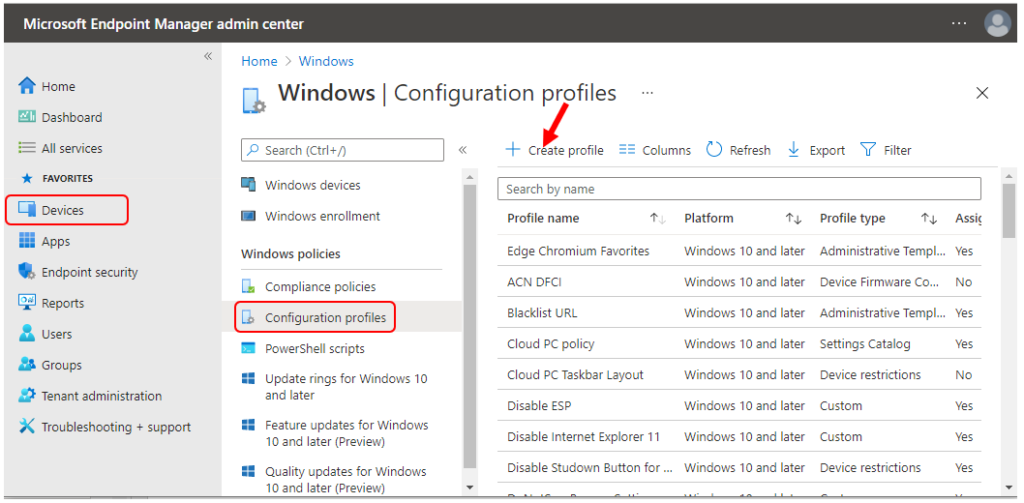
- Select Devices > Windows > Configuration profiles > Create profile
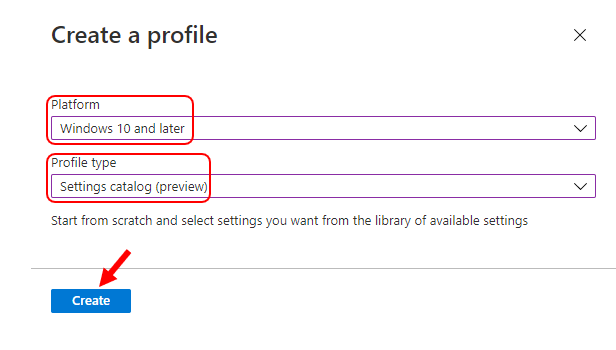
In Create Profile, Select Platform, Windows 10, and later and Profile, Select Profile Type as Settings catalog. Click on Create button.
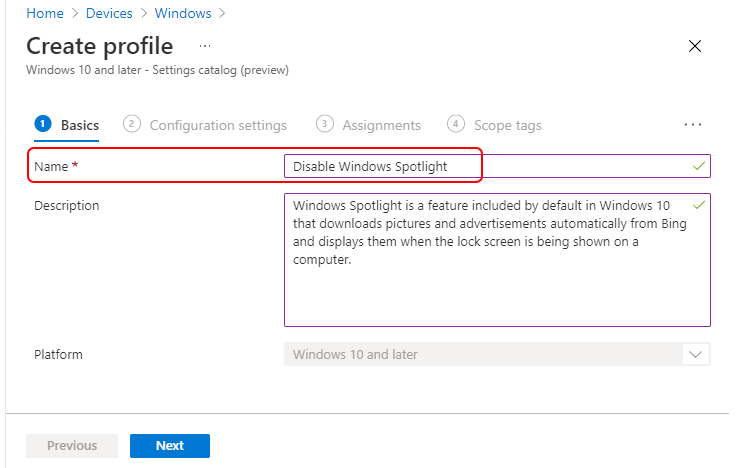
On the Basics tab, enter a descriptive name, such as Disable Windows Spotlight. Optionally, enter a Description for the policy, then select Next.
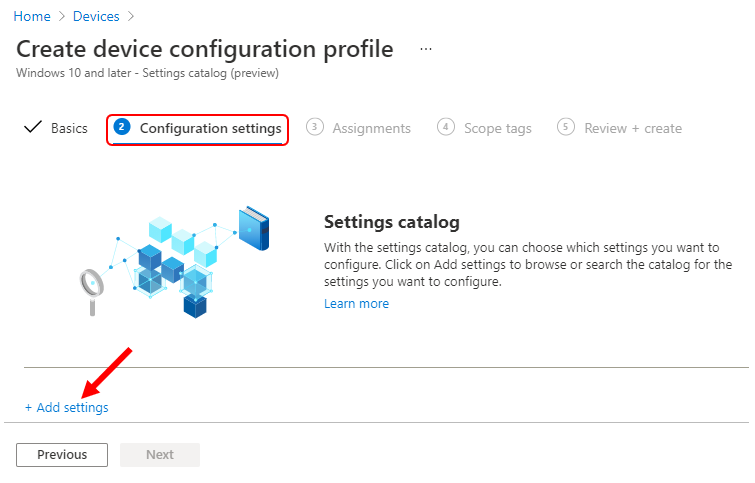
In Configuration settings, click Add settings.
On the Settings Picker windows, Select Experience to see all the settings in this category. Select all specified Windows Spotlight settings below. After adding your settings, click the cross mark at the right-hand corner to close the settings picker –
Note – In policy, use the search box to find specific settings. You can search by category or a keyword, such as Spotlight. It will display all the related settings available.
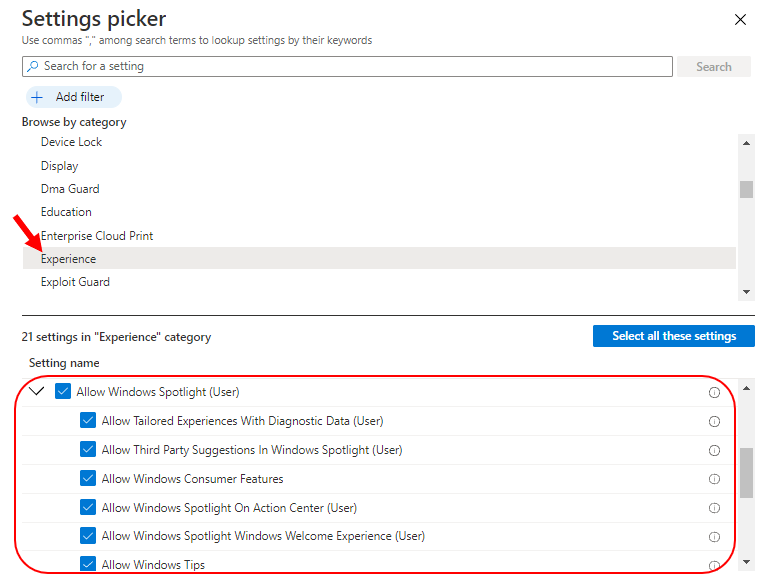
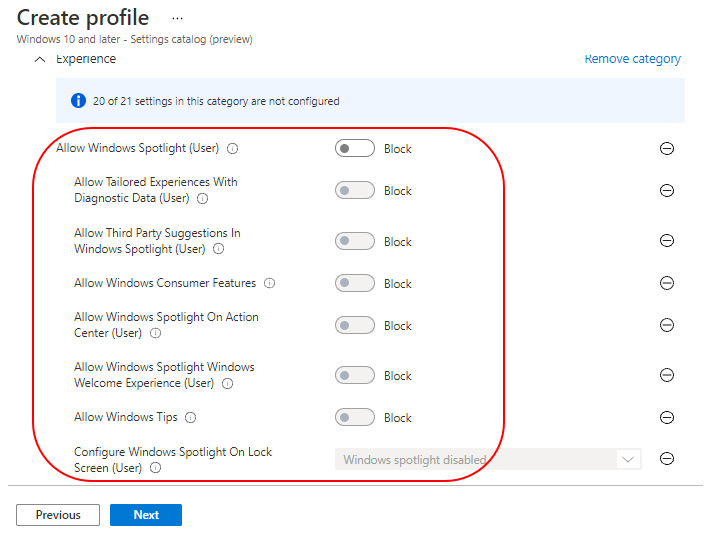
The setting is shown and configured with a default value. Let’s configure the following settings and click Next.
Allow Tailored Experiences With Diagnostic Data (User) – This policy allows you to prevent Windows from using diagnostic data to provide customized experiences to the user.
Allow Third-Party Suggestions In Windows Spotlight (User) – Specifies whether to allow app and content suggestions from third-party software publishers in Windows spotlight features like lock screen spotlight, suggested apps in the Start menu, and Windows tips. Users may still see suggestions for Microsoft features, apps, and services.
Allow Windows Consumer Features – This policy allows IT admins to turn on experiences that are typically for consumers only, such as Start suggestions, Membership notifications, Post-OOBE app install and redirect tiles.
Allow Windows Spotlight On Action Center (User) – This policy allows administrators to prevent Windows spotlight notifications from being displayed in the Action Center.
Allow Windows Spotlight Windows Welcome Experience (User) – This policy setting lets you turn off the Windows spotlight Windows welcome experience feature. The Windows welcome experience feature introduces onboard users to Windows; for example, launching Microsoft Edge with a webpage that highlights new features.
Allow Windows Tips – Enables or disables Windows Tips / soft landing.
Configure Windows Spotlight On Lock Screen (User) – Allows IT admins to specify whether the spotlight should be used on the user’s lock screen.
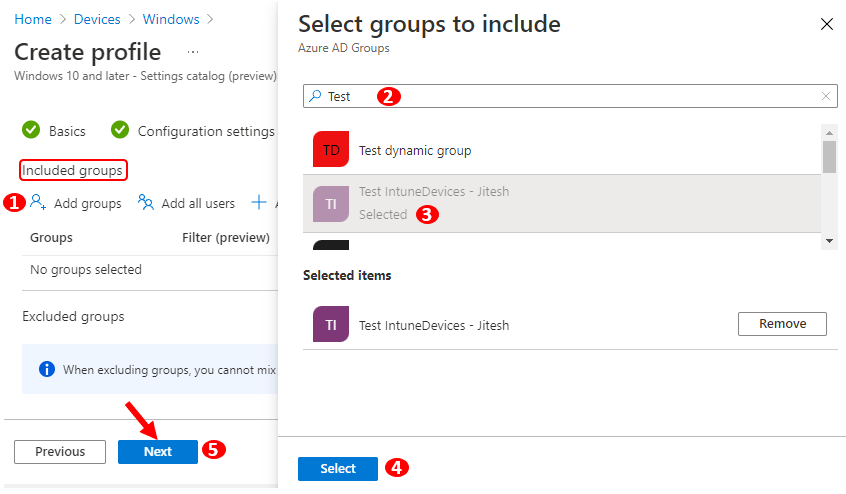
Under Assignments, In Included groups, click Add groups and then choose Select groups to include one or more groups. Click Next to continue.
In-Scope tags, you can assign a tag to filter the profile to specific IT groups. Add scope tags (if required) and click Next.
In Review + create, review your settings. When you select Create, your changes are saved, and the profile is assigned.
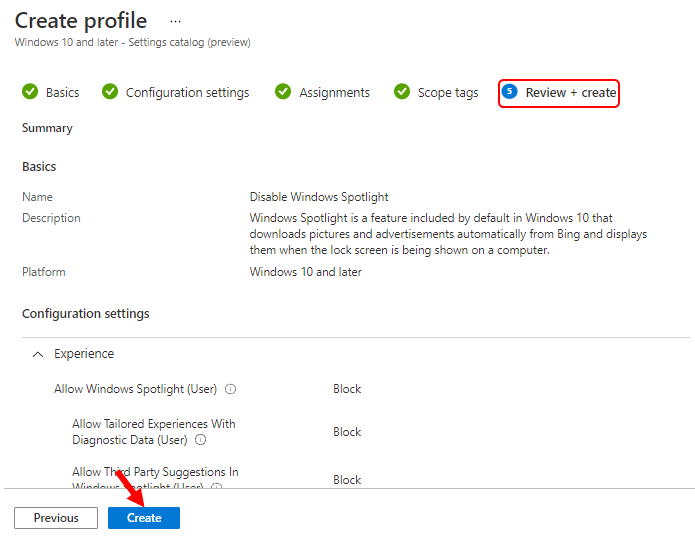
A notification will appear automatically in the top right-hand corner with a message. Here you can see, Policy “Disable Windows Spotlight” created successfully. The policy is also shown in the Configuration profiles list.
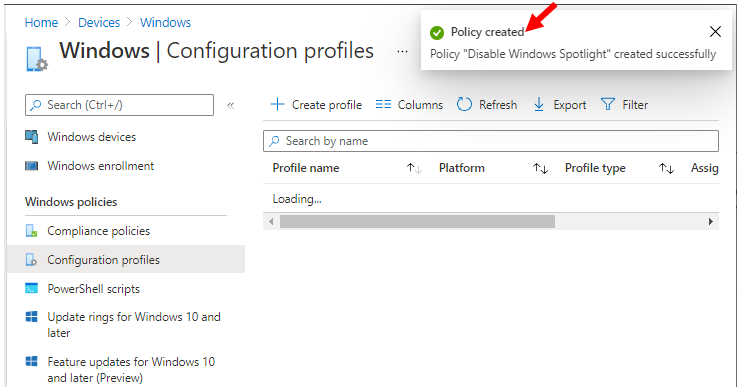
Your groups will receive your profile settings when the devices check-in with the Intune service. Once the policy applies to the devices, Windows Spotlight will be turned off, and users will no longer be able to select it as their lock screen.
Author
About Author -> Jitesh has over 5 years of working experience in the IT Industry. He writes and shares his experiences related to Microsoft device management technologies and IT Infrastructure management. His primary focus area is Windows 10 Deployment solution with Configuration Manager, Microsoft Deployment Toolkit (MDT), and Microsoft Intune.


Unfortunately this does not work for Win 10 Pro, finding how to disable this for Pro version is near impossible.
StaffYes Jakub, This policy is only applicable for Enterprise and Education as of now 🙂
Is this policy only applicable for Enterprise and Education? Can i get a referral document like an official Microsoft document