






Display Featured Apps in Software Center using SCCM
Let’s learn how to display Featured Apps in Software Center. SCCM Software Center provides many application branding options for a better user experience.
Starting with the SCCM 2211 version production release, Microsoft added the Featured tab in Software Center to display the featured apps. Using this option, the IT admin can mark apps as “featured” and encourage end users to use the app.
Application deployments are deployed to devices managed through SCCM and available for users in the software center based on installation behavior or requirement rules. Ensure, You have enabled the new Software Center In SCCM to enable featured apps in Software Center.
Applications are represented with an icon that provides information with icons users can quickly adapt to, making it more comfortable to use from the company portal. Here’s how you can configure software center Icon for SCCM Application Deployment.

This helps to avoid a lot of overheads with required applications. Users can see all the available applications in the company portal. You also have a share button to give a user a direct link to an application in the Software Center.
- Customize ConfigMgr Software Center Appearance | Best Branding Options | SCCM
- Setup Notification Logo For Software Center In SCCM
Display Featured Apps in Software Center using SCCM
You can use the following steps to add or change the featured app for the selected application directly from the Properties pane of the Application node in the Configuration Manager Console.
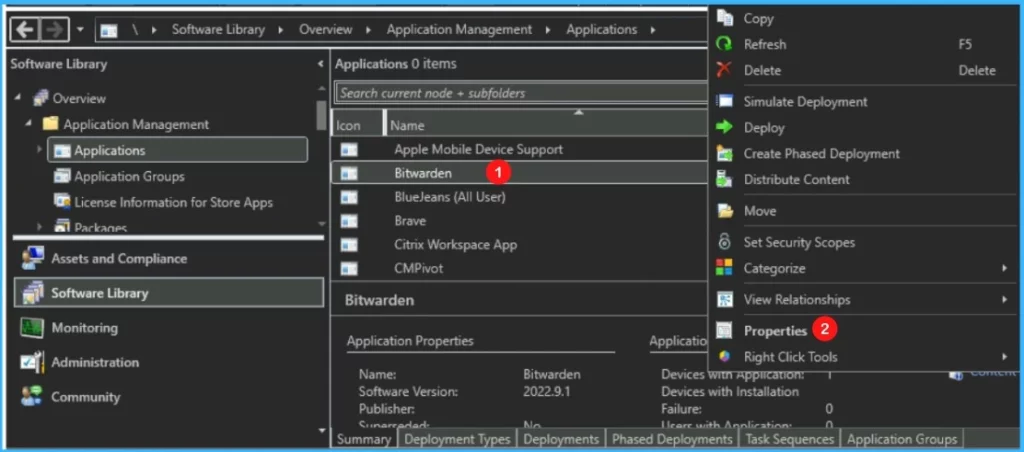
- Launch SCCM Console, navigate to the Software Library workspace, expand Application Management, and select the Applications node.
- Select the existing application from the list if you want to specify it as a featured app. Right-click on the application and select Properties.
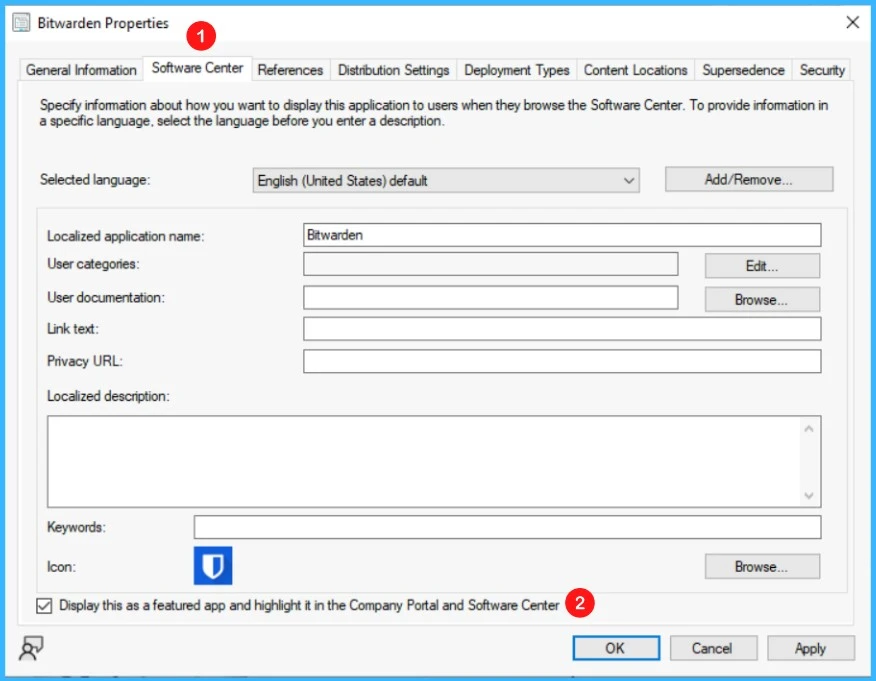
Move to the Software Center tab. At the bottom, check Display this as a featured app and highlight it in the Company Portal and Software Center and apply.
Add Featured Apps from Create Application Wizard
To Create an Application, you use the following process then you have the option to add the featured app.
- In the Configuration Manager console, go to the Software Library workspace, expand Application Management, and select the Applications node.
- Select Create Application, and you select Manually specify the application information in the Create Application Wizard, after Specify General Information about the application.
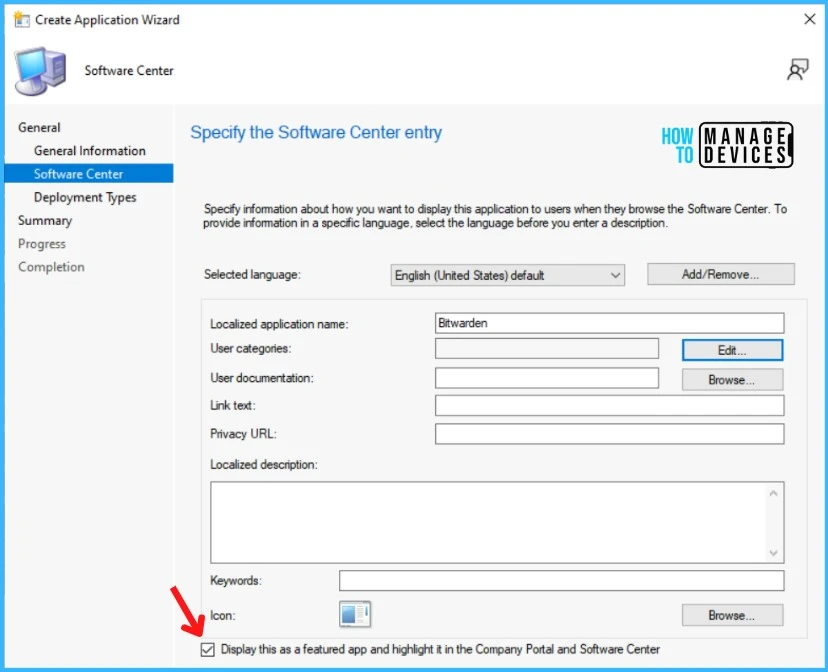
- On the Software Center page of the Create Application wizard, check to Display this as a featured app and highlight it in the Company Portal and Software Center as shown below, and then finish all steps of the Create Application wizard.
Next, you need to target the application deployment to the group of users as an Available app. You can follow the post to get more details about the deployment process in users collections, How To Deploy Zoom Application Using SCCM.
End-User Experience – Featured Application in SCCM Software Center
Let’s check the end-user experience of the SCCM Software Center Applications tabs.
- Launch Software Center on Windows Device that you manage.
- Select the Applications tab to find and install applications that you deploy to your computer.
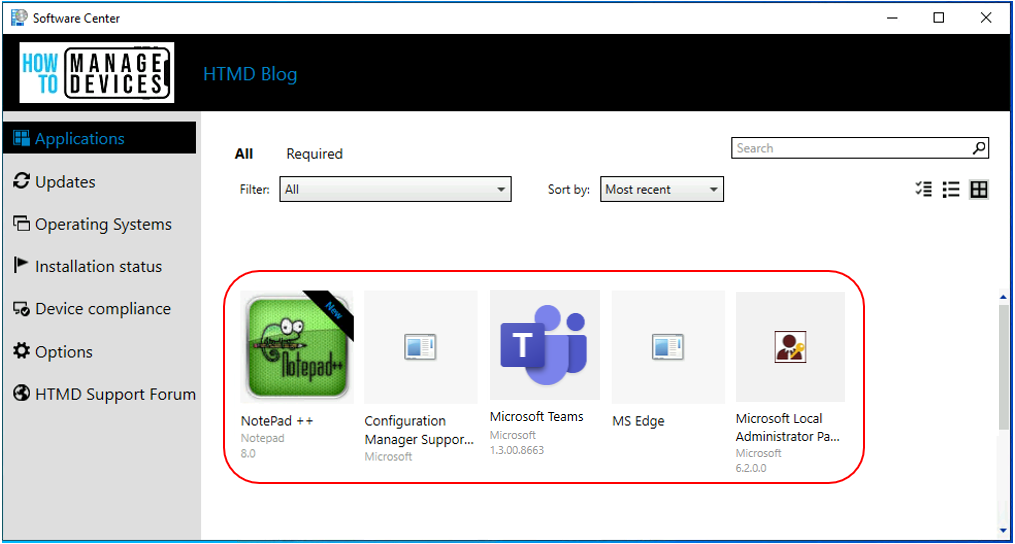
You can visit to post that talks about the difference between SCCM Software Center and Client Applet. Five (5) default tabs are available in the software center, and those are listed down. However, you can also create custom tabs in ConfigMgr Software Center to provide end-user one-stop application access.
- Applications
- Updates
- Operating Systems
- Installation Status
- Device Compliance
- Options
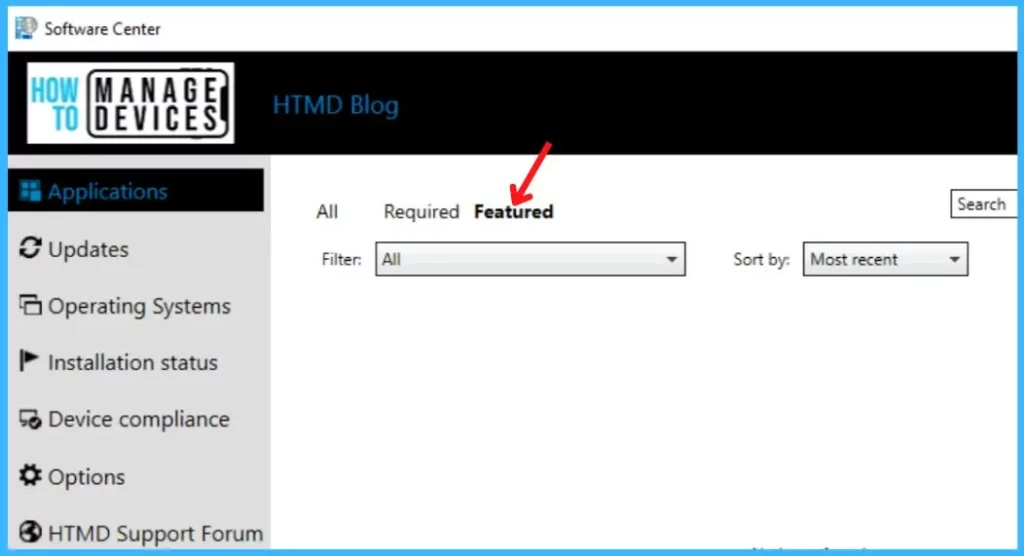
In Applications, you will find the Featured tab in Software Center where you will get all the featured apps. Using this, the IT admin can mark apps as “featured” and encourage end users to use the app.
Currently, this feature is available only for “User Available” apps. Also, admins can make the Featured tab of Software Center as default tab from Client Settings.
The users/admins can initiate the app deployment evaluation cycle to speed up the application evaluation as part of troubleshooting scenarios from Windows 10 or 11 clients and from the admin console, Check more details ConfigMgr SCCM Client Action Application Deployment Evaluation Cycle.
Author
About Author – Jitesh, Microsoft MVP, has over five years of working experience in the IT Industry. He writes and shares his experiences related to Microsoft device management technologies and IT Infrastructure management. His primary focus is Windows 10 Deployment solution with Configuration Manager, Microsoft Deployment Toolkit (MDT), and Microsoft Intune.




Discussion