






Display Organizational Messages on macOS Login Screen using Intune
Let’s learn how you can display Organizational Messages on macOS Login Screen using Intune. You can set a lock screen message on macOS that displays at the login window. The message can be anything appropriate approved by organizations for macOS users attempting to log in.
Lock Screen messages may also help to notify employees of the appropriate policy during the login process. You can configure this setting in a manner consistent with your organisation’s security and operational requirements.
The message that appears on the login screen of your Mac can be useful in situations where you need users to agree to or acknowledge terms or conditions. You can add a short message to the login window that is displayed when your Mac is locked.
You can also leverage the feature of setting login and background items with Intune Service release 2301. Using this feature, we can create a policy that automatically opens items when users log in to their macOS devices. Same way, we can prevent apps from running in the background while the user is logged on.

- Manage MacOS Login Background App Experience Using Intune
- An Easy Method To Enable Tamper Protection For MacOS Using Intune
Display Organizational Messages on macOS Login Screen using Intune
The following steps will help you to display messages on macOS login screen, managed by Microsoft Intune. Device features control various aspects of the macOS device as a whole, such as what items launch at login, the view of the login window, and AirPrint settings.
- Sign in to the Microsoft Intune Admin portal https://intune.microsoft.com/.
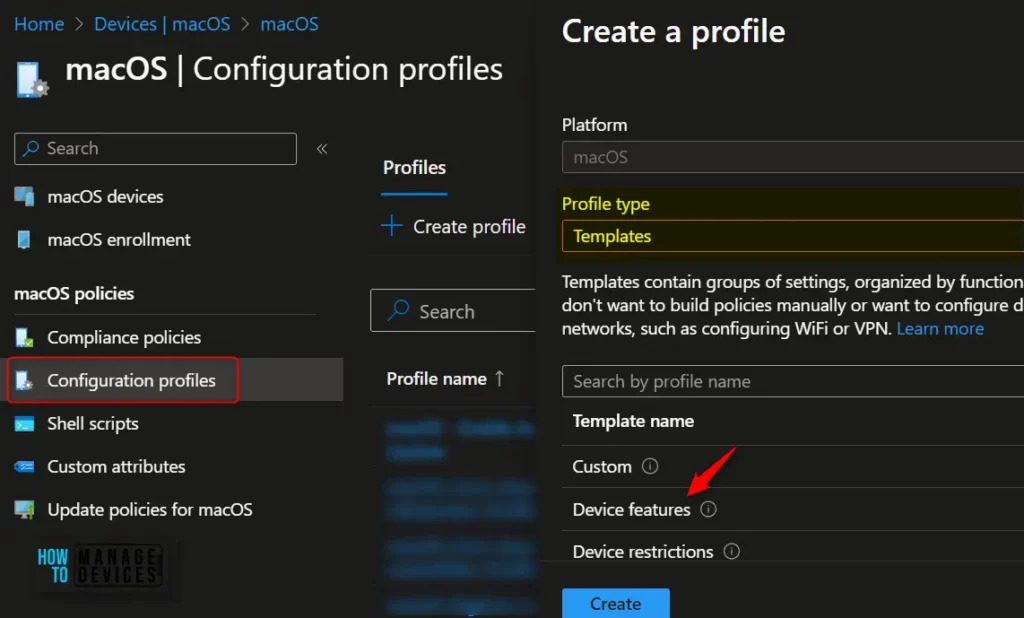
- Select Devices > macOS > Configuration profiles > Create profile. Select Profile Type as Templates.
- Click on the Device features option from the Template name and click on Create for managing macOS login window messages.
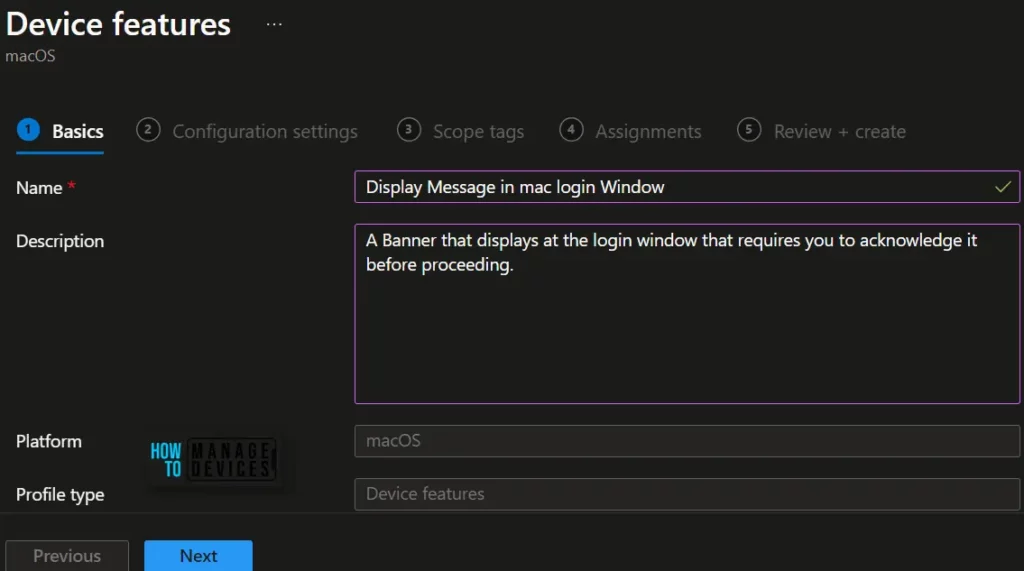
In the macOS Device features Basics tab, enter the descriptive name for the new profile. For example, Display messages on macOS login Screen, and add a description for the profile to understand the policy usage and Select Next.
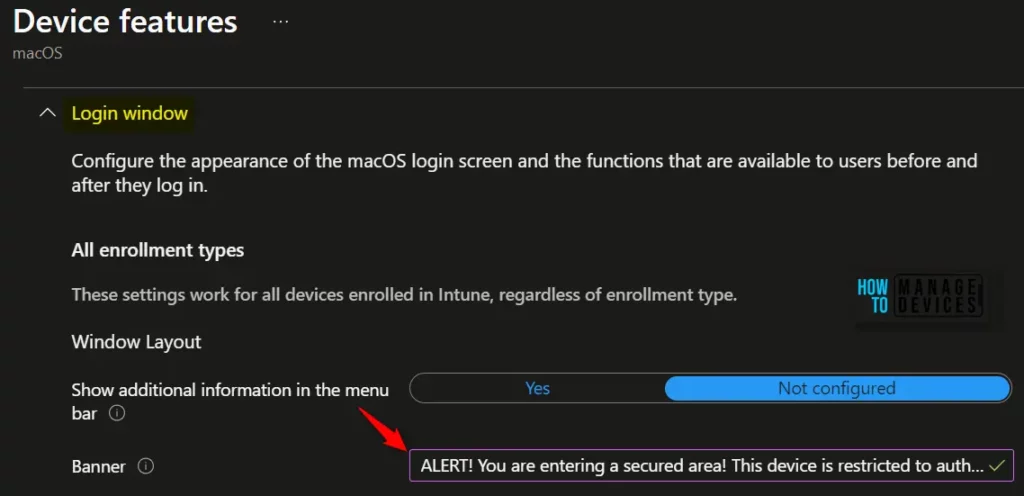
On the Configuration Settings tab, expand the Login Window. These settings allow you to configure the macOS login screen’s appearance and the functions available to users before and after they log in.
Locate to Banner, Enter the banner message to set a lock screen message on macOS devices. The message could be, for example, a welcome, a warning, or your organization’s lost and found contact information.
This banner message appears to users on the login screen. For example, ALERT! You are entering a secured area! This device is restricted to authorized users only.
Important – Any warning that you display should first be approved by your organization’s legal and human
resources representatives.
Using Scope tags, you can assign a tag to filter the profile to specific IT groups. One can add scope tags (if required) and click Next to continue.
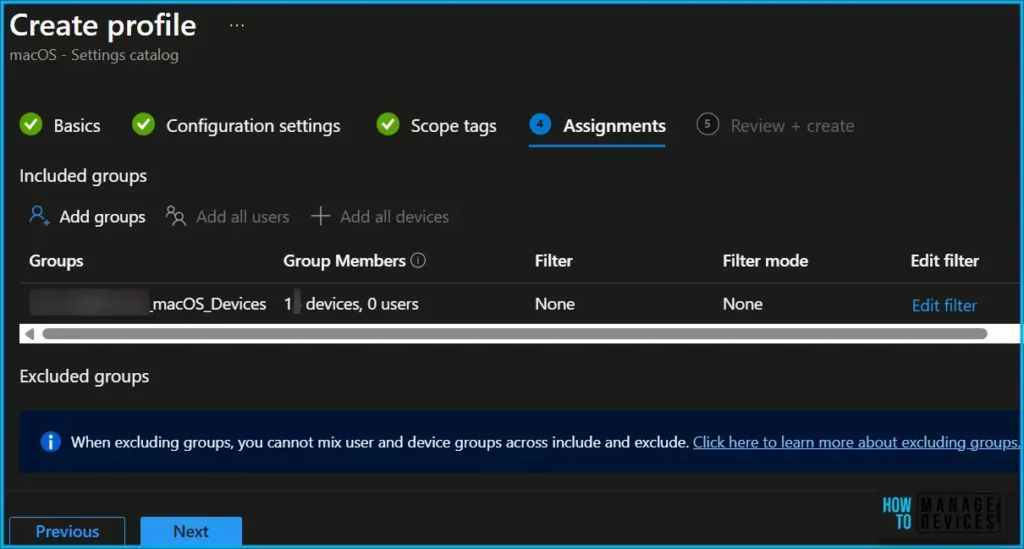
Now in Assignments, in Included Groups, you need to click on Add Groups, choose Select Groups to include one or more groups, and click Next to continue.
In the Review + Create tab, you need to review your settings. After clicking Create, your changes are saved, and the profile will be assigned to the added devices group.
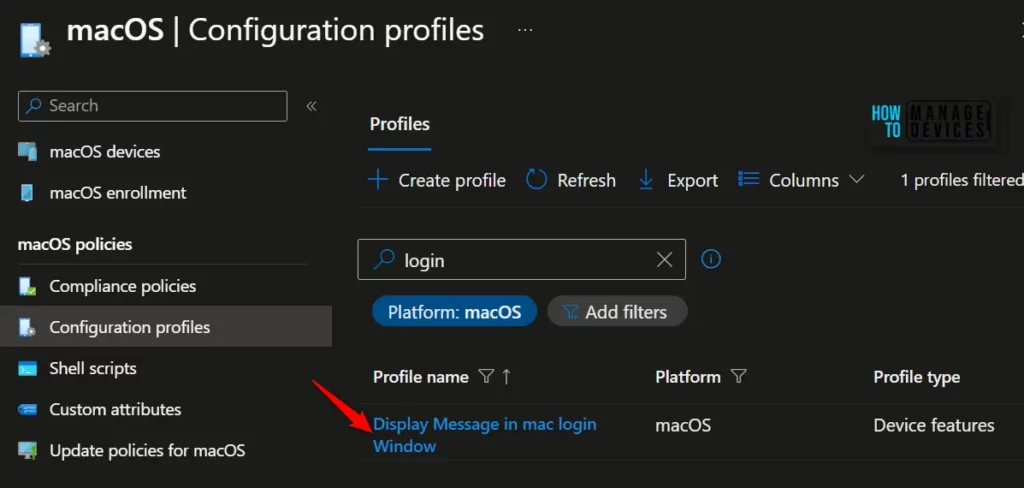
A successful notification will appear automatically, which you see in the top right-hand corner. Once the configuration profiles are created, You can find them inside the Configuration Profiles tab.
Monitor macOS Lock Screen Message Policy Deployment
The device groups will receive your profile settings when the devices check in with the Intune service. The Policy applies to the device. You can also enforce sync of a macOS device with Intune allows you to proactively update and synchronize device policies, configurations, and settings.
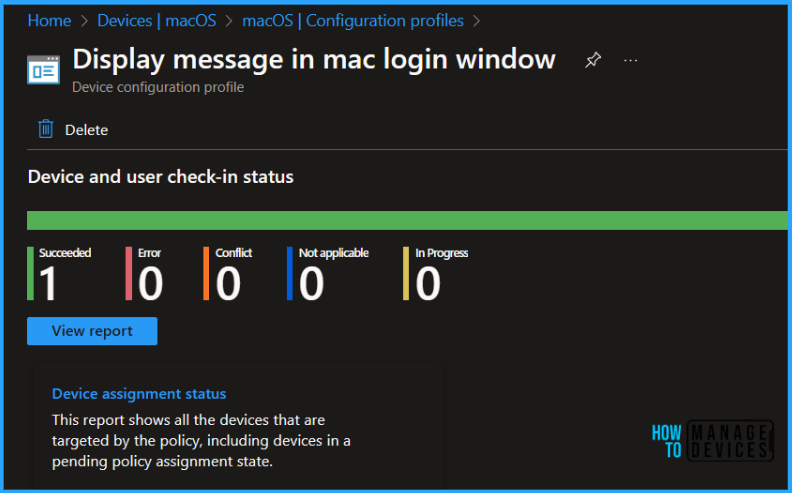
Intune provides several features to monitor and manage macOS device configuration profiles. Once the configuration profile is applied, To monitor macOS policy assignment, from the list of Configuration Profiles, select the policy you targeted, and here you can check the device and user check-in status.
Author
About Author – Jitesh, Microsoft MVP, has over six years of working experience in the IT Industry. He writes and shares his experiences related to Microsoft device management technologies and IT Infrastructure management. His primary focus is Windows 10/11 Deployment solution with Configuration Manager, Microsoft Deployment Toolkit (MDT), and Microsoft Intune.


Discussion