





Require Domain users to Elevate when Setting Network’s Location using Intune
Key Takeaways:
- This policy helps prevent unauthorized or accidental changes to network profiles that could weaken security.
- The approach leverages Policy CSP (Configuration Service Provider) settings to control network location behavior.
- This reduces risks like users downgrading a secure domain network to a less restrictive profile.
- Especially useful in enterprise environments where network visibility and access control are critical.
Let’s discuss Require Domain users to Elevate when Setting Network’s Location using Intune. This setting controls the permissions required to change a network’s location profile (Public, Private, or Domain). Understanding this setting is crucial for managing the Windows Firewall behavior on managed devices.
In Windows, every network you connect to is assigned a category. This category dictates which Windows Defender Firewall rules. This policy acts as a “security guardrail” that ensures your organization’s firewall strategy isn’t bypassed at the endpoint level.
By requiring administrative credentials to change a network’s profile (Public to Private), you shift the control from the end-user back to the system’s security architecture. While it might seem like a restriction, this policy is primarily a safety mechanism for the employee.

This policy is beneficial for users, admins and organization. If an attacker compromises one device on a public network, they will look for other “visible” devices. This policy keeps all company laptops in “Public” mode (stealth mode), preventing an attacker from moving from one employee’s laptop to another.
Table of Contents
Require Domain users to Elevate when Setting Network’s Location using Intune
Let me explain with an example. Imagine an employee at a busy airport. They connect to “Free_Airport_WiFi.” Windows correctly identifies this as a Public network. However, the employee wants to cast a presentation to a nearby smart screen, which requires “Network Discovery” (a Private setting).
- Enable or Disable Microsoft Account Connection Policy using Intune
- Intune Allow Microsoft Accounts to be Optional Policy
- Managing Network Visibility by Disabling User Access to Connection Status using Intune Policy
Configure Policy with Intune Admin Center
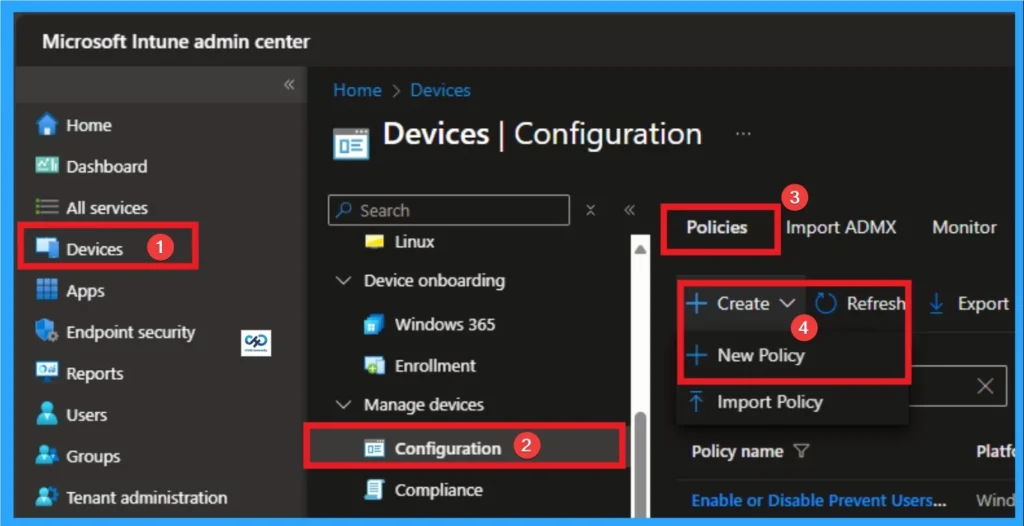
To start Domain users to Elevate when Setting Network’s Location policy creation, sign in with Microsoft Intune Admin center. Go to Devices > Configuration > +Create >+ New Policy. Look at the below screenshot.
Create Profile
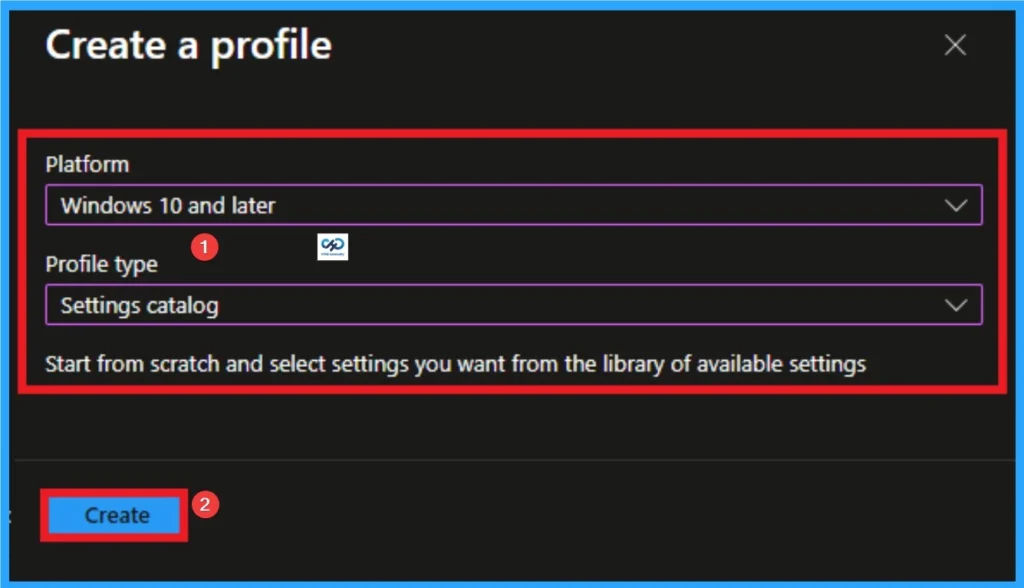
Creating Profile is the next step after clicking on Create button. On this step you can choose platform and profile type. Here I would like to configure the policy to Windows 10 and later platform and settings catalog profile. Then click on the Create button.
Beginning Step
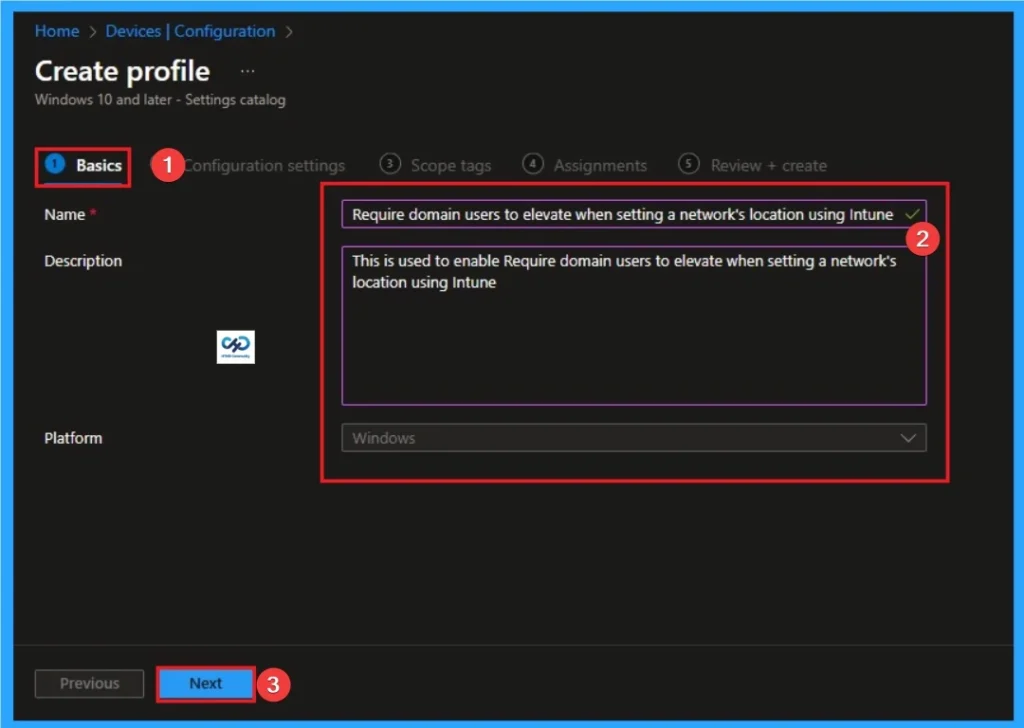
Basic Tab is the first tab that used to add Name and Description for the policy. This is very important step that gives an identity for your policy. Here Name is Mandatory and Description is optional. After adding this, click on the Next button.
Configuration Tab for Selecting Setting
Configuration tab is the crucial step that helps you to choose a settings from different categories available on Microsoft Intune portal. Click on the +Add settings on the Configuration Settings tab. Then choose the Administrative Templates\Network\Network Connections\Require domain users to elevate when setting a network’s location.
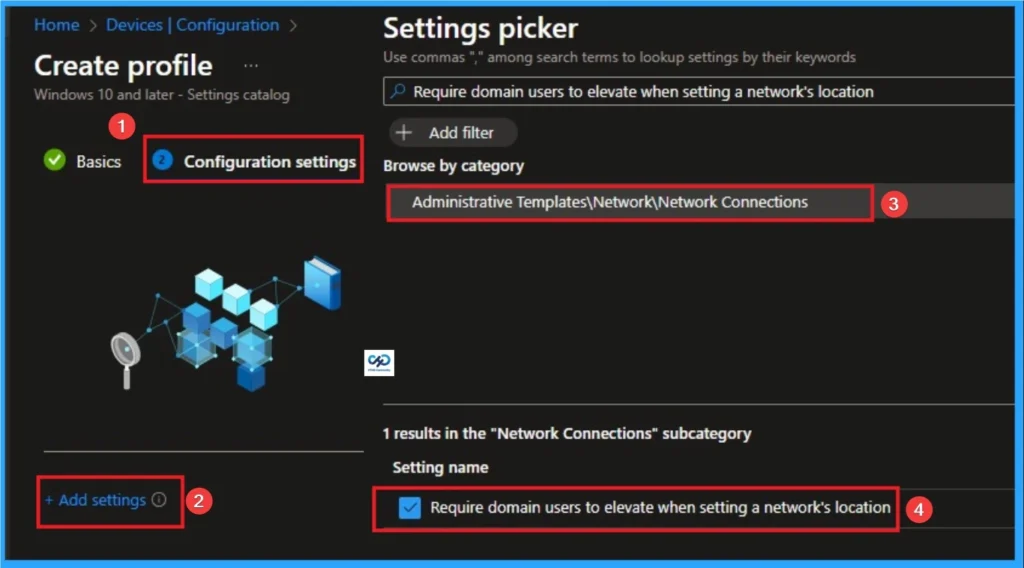
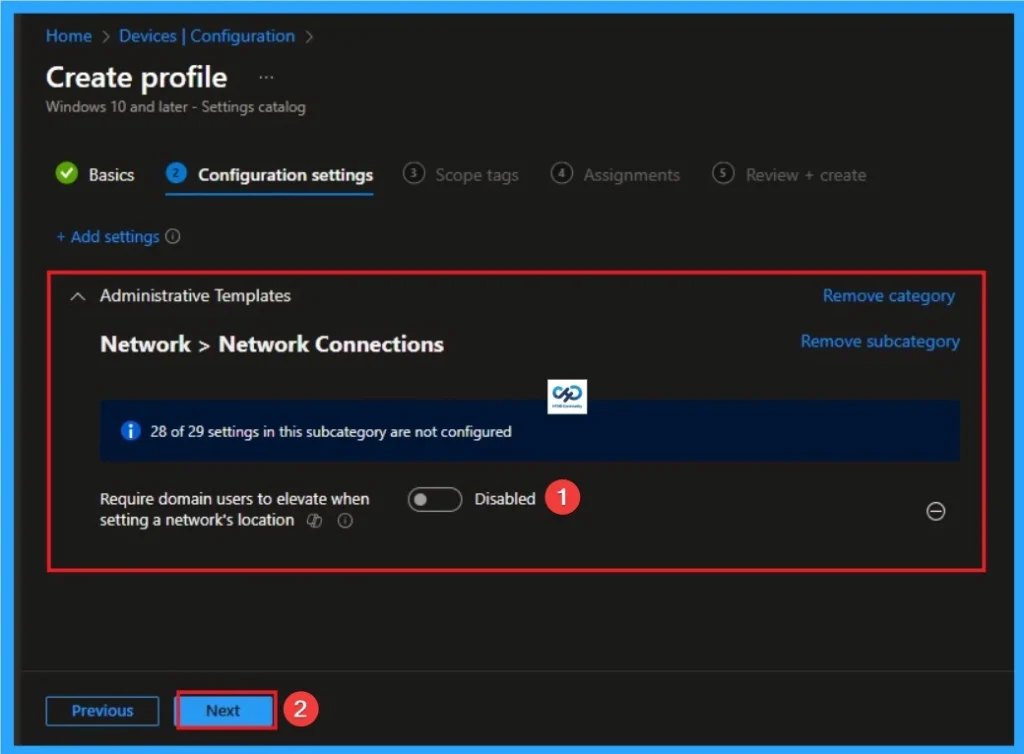
Disable Require Domain users to Elevate when Setting Network’s Location
If you disable or don’t configure this policy setting, domain users can set a network’s location without elevating. Disable is the default value of this policy. Click on the Next button to continue. Look at the below screenshot.
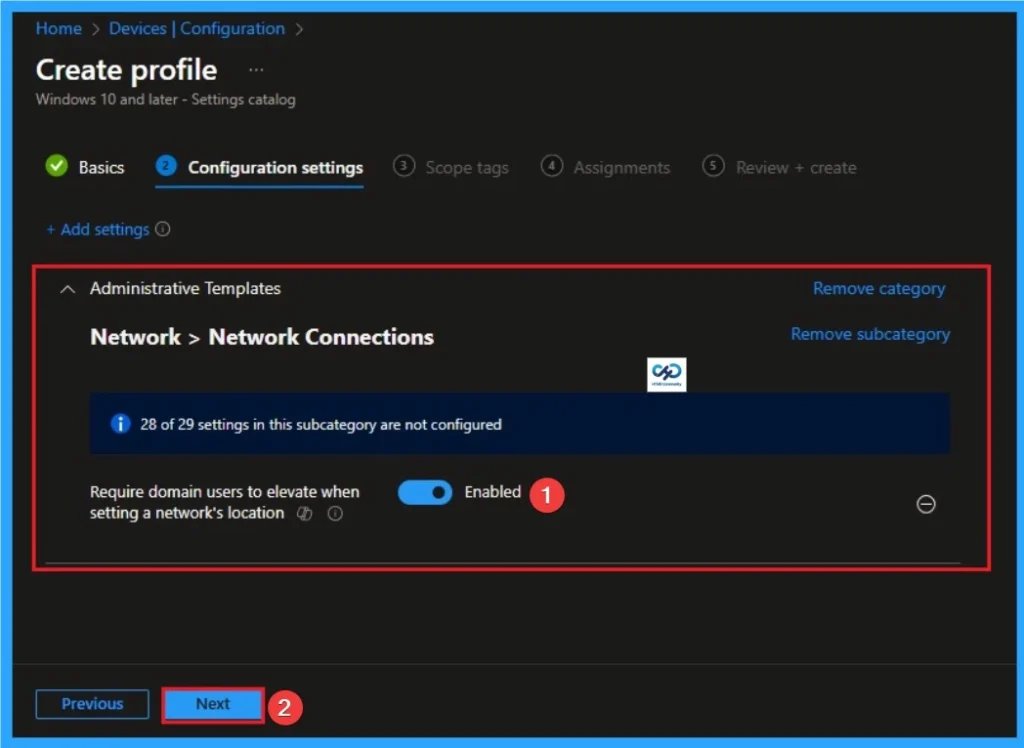
Enable Require Domain users to Elevate when Setting Network’s Location
If you enable this policy setting, domain users must elevate when setting a network’s location. Click on the Next button to continue. Look at the below screenshot.
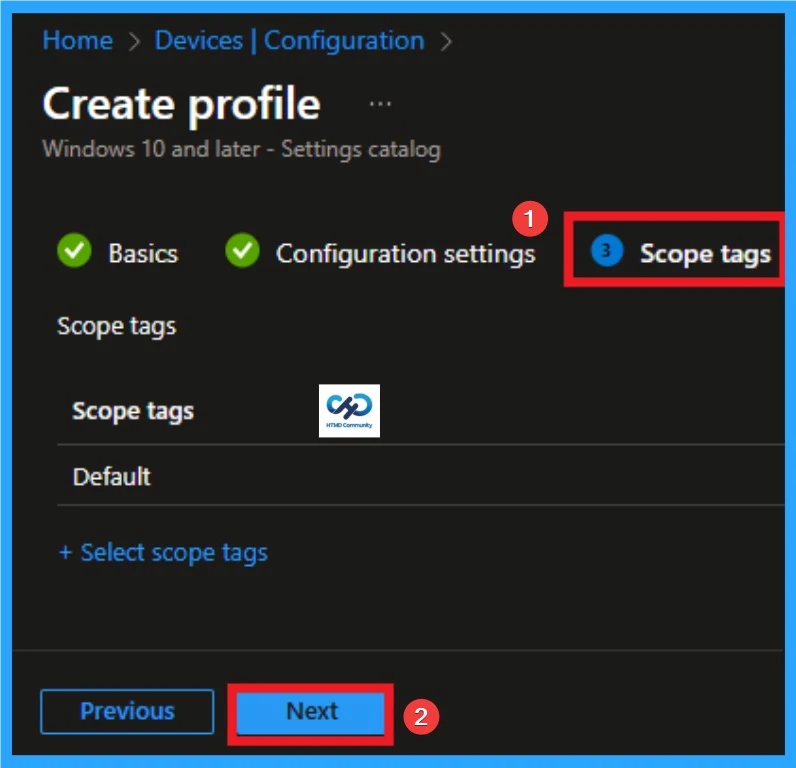
Adding Scope Tags
Scope Tags sections help you add restrictions to the visibility of the Policy. But it is not a mandatory step, so you can skip this step. Here, I don’t add scope tags for Domain users to Elevate when Setting Network’s Location Policy. Click on the Next button.
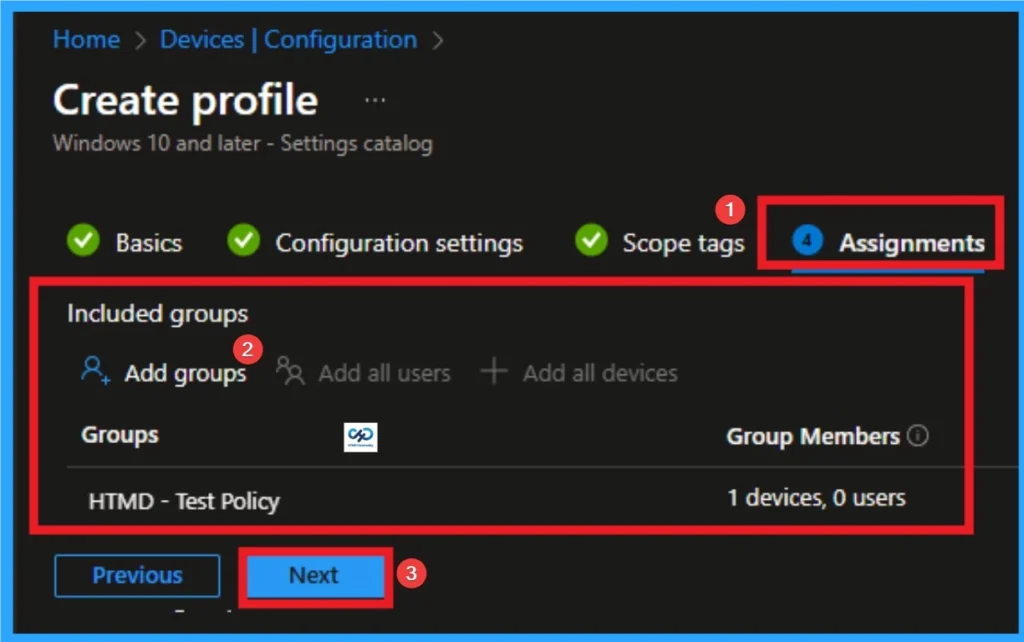
Selecting Group from the Assignment Tab
To assign the policy to specific groups, you can use the Assignment Tab. Here I click, +Add groups option under Included groups. I choose a group from the list of groups and click on the Select button. Again, I click on the Select button to continue.
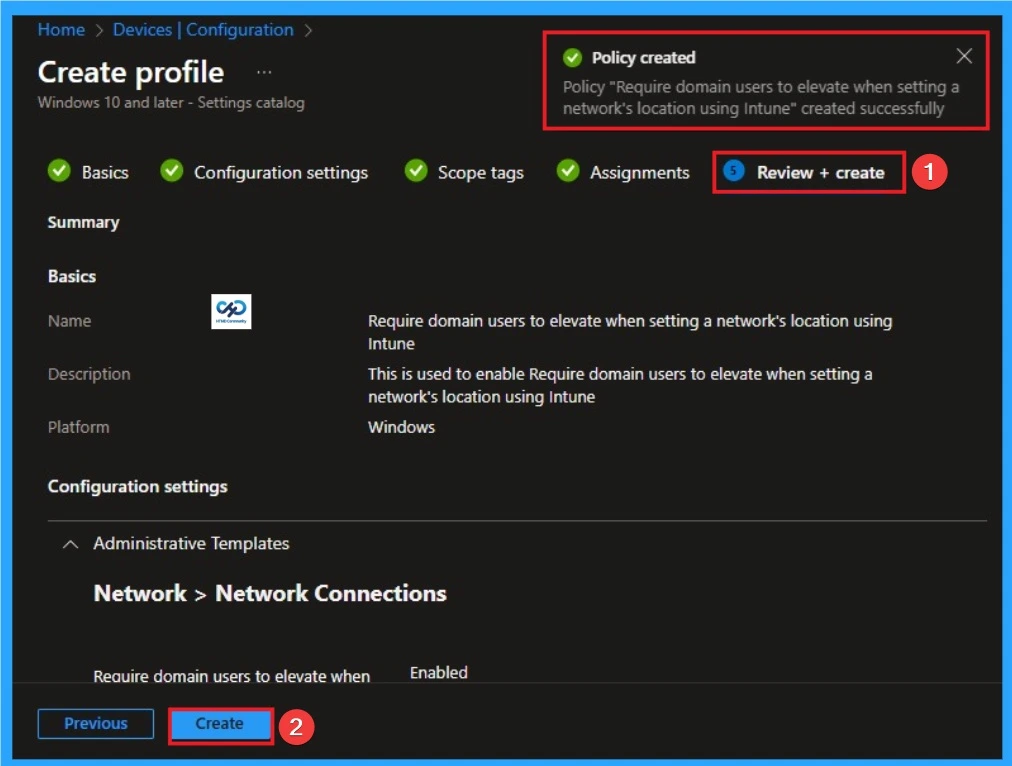
Review + Create Tab
Before completing the policy creation, you can review each tab to avoid misconfiguration or policy failure. After verifying all the details, click on the Create Button. After creating the policy, you will get a success message.
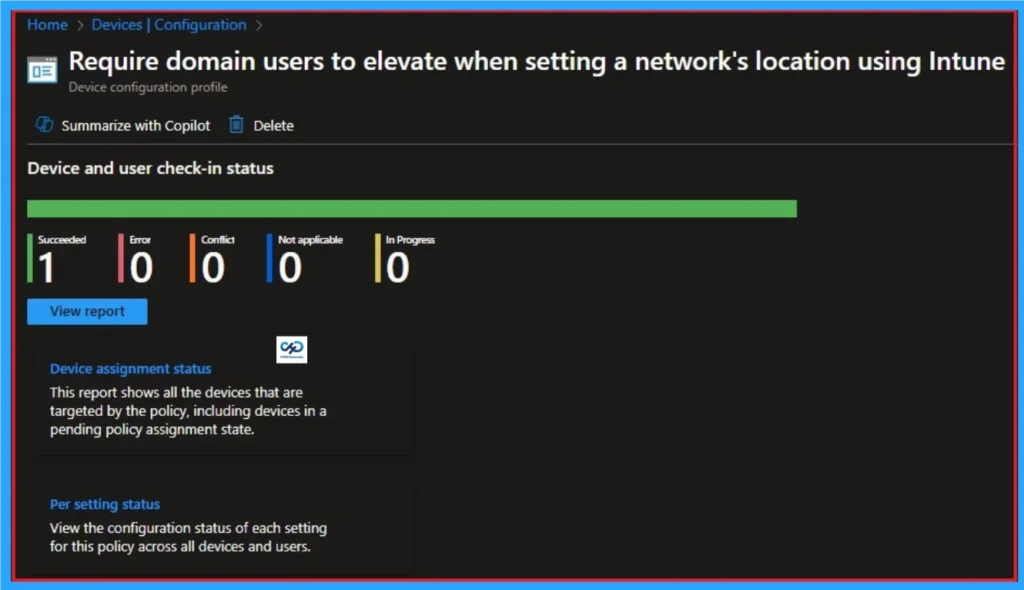
Monitoring Status
The Monitoring Status page shows whether the policy has succeeded or not. To quickly configure the policy and take advantage of the policy sync, the device on the Company Portal, Open the Intune Portal. Go to Devices > Configuration > Search for the Policy. Here, the policy shows as successful.
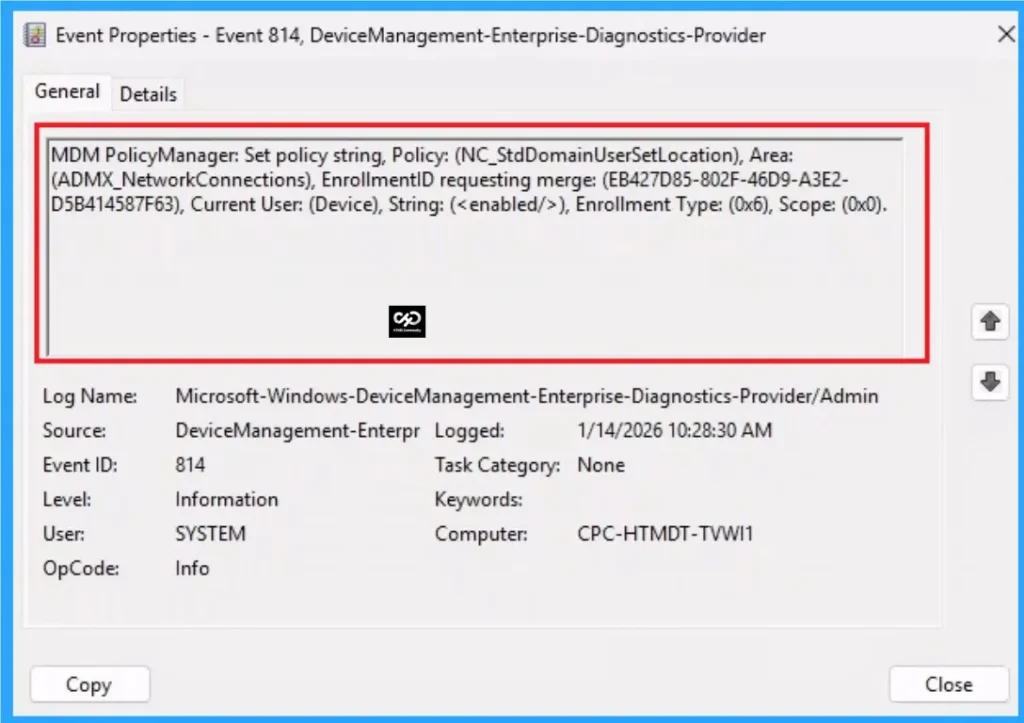
Event Viewer
It helps you check the client side and verify the policy status. Open the Client device and open the Event Viewer. Go to Start > Event Viewer. Navigate to Logs: In the left pane, go to Application and Services Logs > Microsoft > Windows > DeviceManagement-Enterprise-Diagnostics-Provider > Admin.
- You will get the success result on Event ID 814
| Event ID Details |
|---|
| MDM PolicyManager: Set policy string, Policy: (NC_StdDomainUserSetLocation), Area: (ADMX_NetworkConnections), EnrollmentID requesting merge: (EB427D85-802F-46D9-A3E2- D5B414587F63), Current User: (Device), String: (), Enrollment Type: (0x6), Scope: (0x0). |
Removing the Assigned Group from Domain users to Elevate when Setting Network’s Location Settings
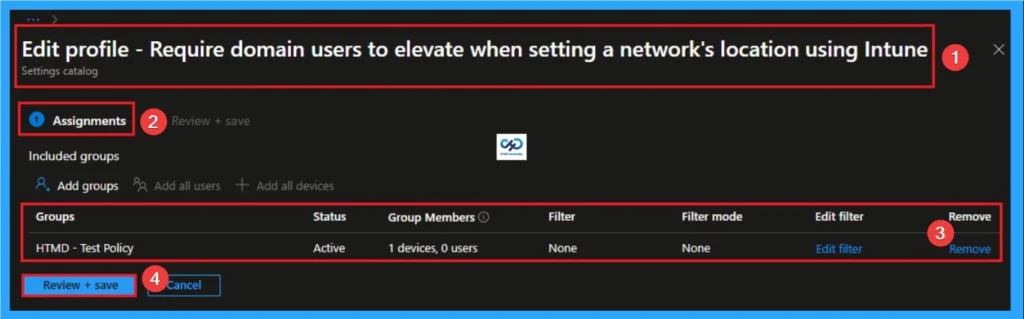
If you want to remove the Assigned group from the policy, it is possible from the Intune Portal. To do this, open the Policy on Intune Portal and edit the Assignments tab and the Remove Policy.
To get more detailed information, you can refer to our previous post – Learn How to Delete or Remove App Assignment from Intune using by Step-by-Step Guide.
How to DeleteDomain users to Elevate when Setting Network’s Location
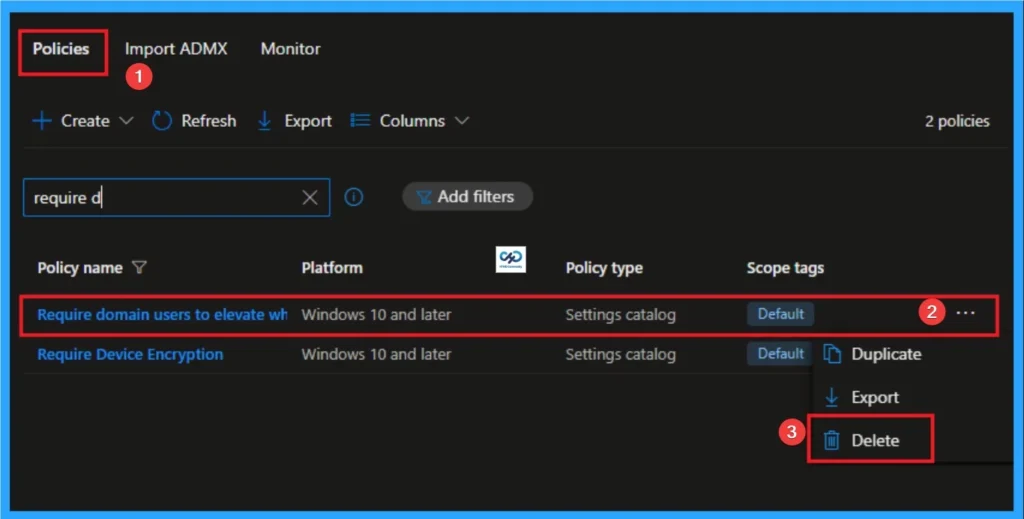
You can easily delete the Policy from the Intune Portal. From the Configuration section, you can delete the policy. It will completely remove it from the client devices.
For detailed information, you can refer to our previous post – How to Delete Allow Clipboard History Policy in Intune Step by Step Guide.
Windows CSP Details
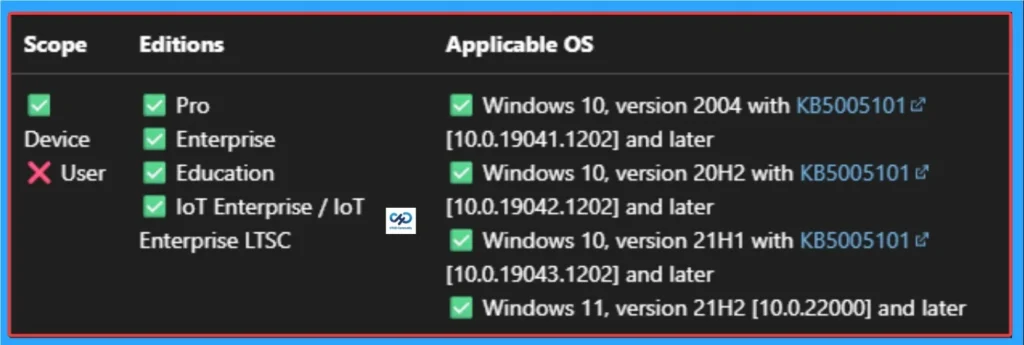
This policy setting determines whether to require domain users to elevate when setting a network’s location. This policy is applicable for Windows 10, version 2004 with KB5005101 [10.0.19041.1202] and later, Windows 10, version 20H2 with KB5005101 [10.0.19042.1202] and later, Windows 10, version 21H1 with KB5005101 [10.0.19043.1202] and later, Windows 11, version 21H2 [10.0.22000] and later versions.
Need Further Assistance or Have Technical Questions?
Join the LinkedIn Page and Telegram group to get the step-by-step guides and news updates. Join our Meetup Page to participate in User group meetings. Also, Join the WhatsApp Community to get the latest news on Microsoft Technologies. We are there on Reddit as well.
Author
Anoop C Nair has been Microsoft MVP for 10 consecutive years from 2015 onwards. He is a Workplace Solution Architect with more than 22+ years of experience in Workplace technologies. He is a Blogger, Speaker, and Local User Group Community leader. His primary focus is on Device Management technologies like SCCM and Intune. He writes about technologies like Intune, SCCM, Windows, Cloud PC, Windows, Entra, Microsoft Security, Career, etc.


Discussion