






How to Troubleshoot Microsoft Edge Browser Location Access Issues Managed using Intune
Let’s discuss how to troubleshoot Microsoft Edge Browser Location Access Issues Managed using Intune. Some IT admins using Intune to manage Windows 11 24H2 devices have run into problems with location services.
When we try to allow only Microsoft Edge to access the device’s location, it doesn’t work properly. This might be a bug or unexpected change in the 24H2 update, possibly related to how Edge works with Windows location services.
Microsoft Edge includes a built-in location feature that is enabled by default, allowing websites to request your location for services like maps and directions. When a site asks for your location, Edge will prompt you for permission, giving you control over which sites can access it.
In this post, you will find everything you need to know about how to troubleshoot Microsoft Edge location access issues when devices are managed through Intune. It covers common problems, possible causes, and practical solutions to help restore proper location functionality.


Table of Contents
Troubleshoot Microsoft Edge Browser Location Access Issues
The main issue seems to be how Windows handles location permissions for specific apps. When location is turned on for all apps, everything works fine. But when the admin uses Intune to allow only Microsoft Edge to use location, Edge can’t get the device’s location even though it has permission.
- 5 Methods Open Microsoft Edge InPrivate Browsing Window
- Importance of Potentially Unwanted App Protection in Microsoft Edge
- Importance to Add Name for MS Edge Browser Windows
- Best Way to Organise your Workspaces in Microsoft Edge
Location Permission Issue in Windows 11 24H2
While testing a setup on different devices, we noticed something odd—location-based access wasn’t working properly when only Microsoft Edge had location permission. After some trial and error, we found that giving location access to all apps fixed the issue right away. Windows 11 24H2 might not handle location settings well when only one app has permission.
Since there’s no official fix from Microsoft yet, here are two workarounds that worked for us:
| Workaround | Description |
|---|---|
| Enable location access for all apps | A quick and easy fix that allows Edge to detect location correctly. |
| Use Conditional Access with trusted IPs | Adds a security layer while avoiding location-based access issues. |
Fixing Location Access in Windows 11 24H2 – Use the Correct App PFNs
We recently ran into an issue where location-based access in Microsoft Edge wasn’t working—even though permissions were correctly configured. we found that the root cause was invalid entries in the “Let apps access the location” policy.
Correct Way to Configure It
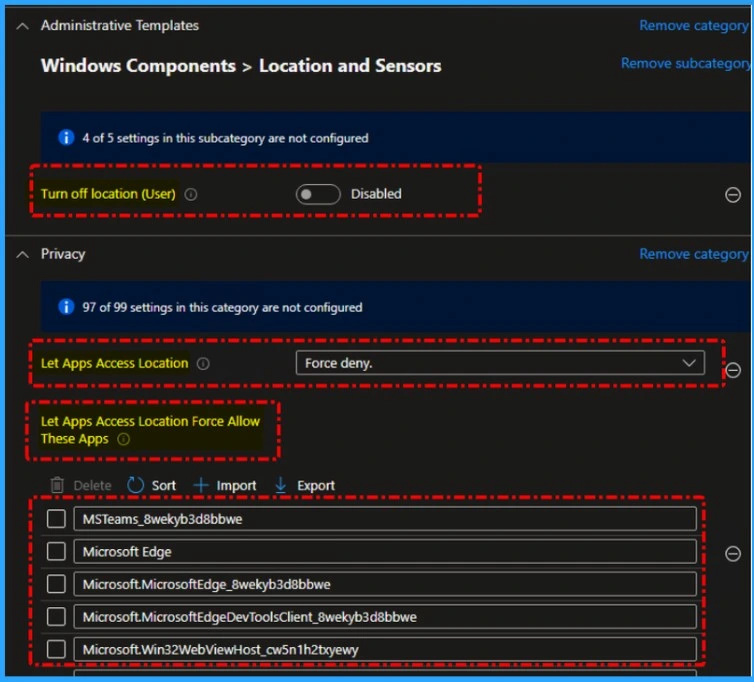
The policy that controls which apps can access location only works if you use the correct Package Family Name (PFN). If you type something like “Microsoft Edge” or use an old PFN (like Microsoft.MicrosoftEdge_8wekyb3d8bbwe), Windows will ignore it. So even if you’ve listed the app, it still won’t get access to the location. You must use the exact and current PFN for it to work properly.
Find the Correct PFN
To find the correct PFN for Microsoft Edge, open PowerShell and run the following command. This will display the full Package Family Name of installed Edge versions. For the current Chromium-based Edge browser, you should see something like: Microsoft.MicrosoftEdge.Stable_8wekyb3d8bbwe. This is the exact PFN you need to use in the location access policy to make sure Edge gets location permissions properly.
Get-AppxPackage -Name Edge | Select Name, PackageFamilyName
Update the Location Policy Settings
In your MDM or Group Policy settings, make the following changes to control location access properly. The below list helps you to show more details.
- Set “Disable location (user)” to Disabled – this keeps the location service turned on.
- Set “Let apps access location” to Force: Deny – this blocks location access for all apps by default.
- Under “Always allow these apps”, make sure to enter only valid PFNs:
- Microsoft.MicrosoftEdge.Stable_8wekyb3d8bbwe (for the current Edge browser)
- MSTeams_8wekyb3d8bbwe (if Microsoft Teams needs access)
- Remove entries like “Microsoft Edge” – plain names don’t work.
- Delete outdated PFNs like Microsoft.MicrosoftEdge_8wekyb3d8bbwe.
- Using only correct PFNs ensures that specific apps get location access while everything
Apply and Test
After you have updated the policy, simply sync it or restart the device. When you next open Edge, it will prompt you to allow location access again. Once you grant it, your site (for example, a banking portal) will be able to detect your location correctly, while all other apps will stay blocked as intended.
Need Further Assistance or Have Technical Questions?
Join the LinkedIn Page and Telegram group to get the latest step-by-step guides and news updates. Join our Meetup Page to participate in User group meetings. Also, Join the WhatsApp Community to get the latest news on Microsoft Technologies. We are there on Reddit as well.
Resources
Location services 24H2 | Microsoft Community Hub
Author
Anoop C Nair has been Microsoft MVP for 10 consecutive years from 2015 onwards. He is a Workplace Solution Architect with more than 22+ years of experience in Workplace technologies. He is a Blogger, Speaker, and Local User Group Community leader. His primary focus is on Device Management technologies like SCCM and Intune. He writes about technologies like Intune, SCCM, Windows, Cloud PC, Windows, Entra, Microsoft Security, Career, etc.


Discussion