






Deploy New Microsoft Edge Chromium Browser Using Intune
Let’s learn to Deploy the New Microsoft Edge Chromium Browser Using Intune. Microsoft Edge browser deployment guide using Endpoint Manager Intune.
Microsoft continues disinvesting from Internet Explorer 11 and Microsoft Edge Legacy towards the new MS Edge.
The Intune team created an out-of-the-box experience for creating an Intune application for the new edge browser (Chrome-based) deployment.
Microsoft announced that the Internet Explorer 11 desktop application would be retired and go out of support on June 15, 2022, for certain versions of Windows 10.

| Index |
|---|
| Deploy Microsoft Edge |
| Create Microsoft Edge Intune App |
| Microsoft Edge Browser Assignments |
| Results – Deploy New Microsoft Edge Chromium Browser Using Intune |
Related Post
- Deploy Microsoft Edge Browser with SCCM Endpoint Manager
- Disable Internet Explorer Using Intune Group Policy Browser App
- Configure Enterprise Mode Site List To Use IE Mode Using Intune
- Enable Internet Explorer Mode in Microsoft Edge
Deploy Microsoft Edge
Microsoft says the new Chromium-based Edge browser is only required on Windows 10 devices. We will see how enterprise customers adopt this strategy.
NOTE! Unlike previous Edge and Internet Explorer browsers, the new Microsoft Edge browser is not part of the Windows 10 operating system.
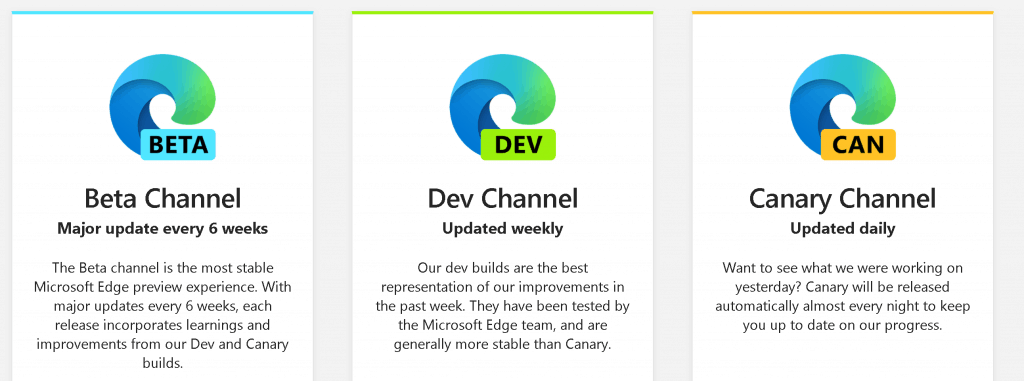
| Channel | Update Frequency | Stability |
|---|---|---|
| Beta | Every 6 weeks | Most stable |
| Dev | Weekly | More stable than Canary |
| Canary | Daily | Less stable |
The new Edge browser is an independent application installed on Windows 7 and Windows 10 devices, similar to the Google Chrome or Safari browsers.
NOTE! – Microsoft announced they would release the NEW Microsoft Edge browser on 15th January 2020.
Create Microsoft Edge Intune App
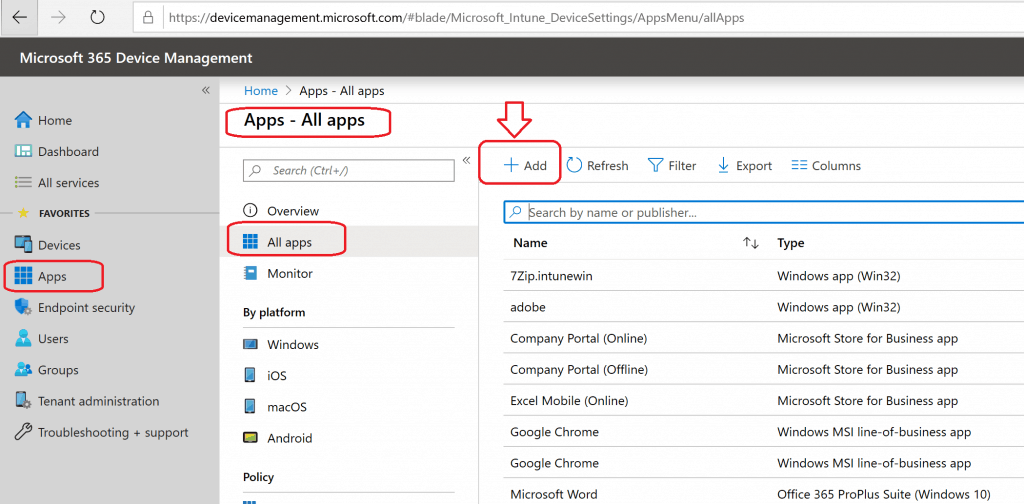
- Login to https://devicemanagement.microsoft.com with appropriate access
- Navigate to Apps -> All Apps
- Click on the +Add button
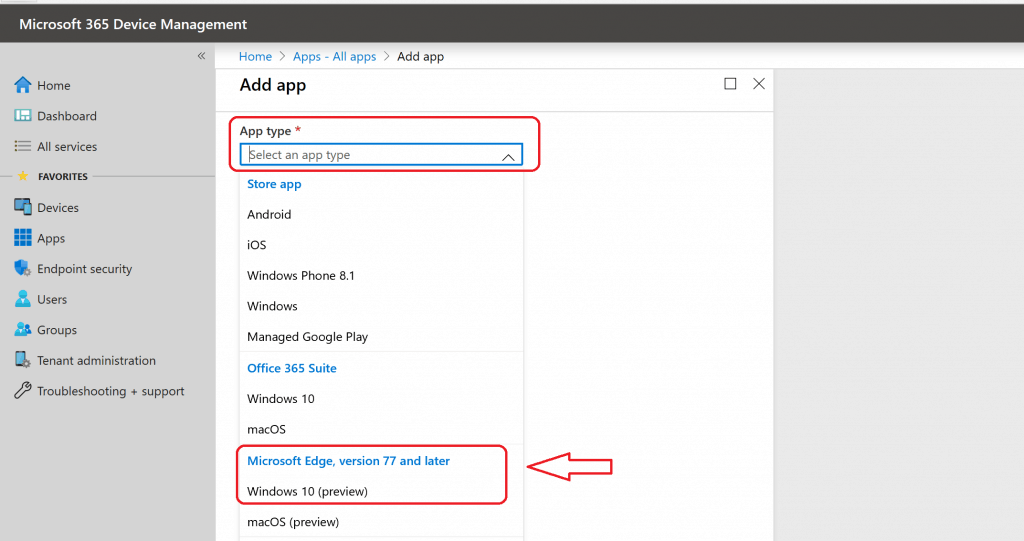
From the drop-down list, select the application type called Microsoft Edge, version 77, and later -> Windows 10 (preview).
- The preview tag shall be removed soon after 15th January 2020?
- You also have an option to create a macOS Edge version from Intune
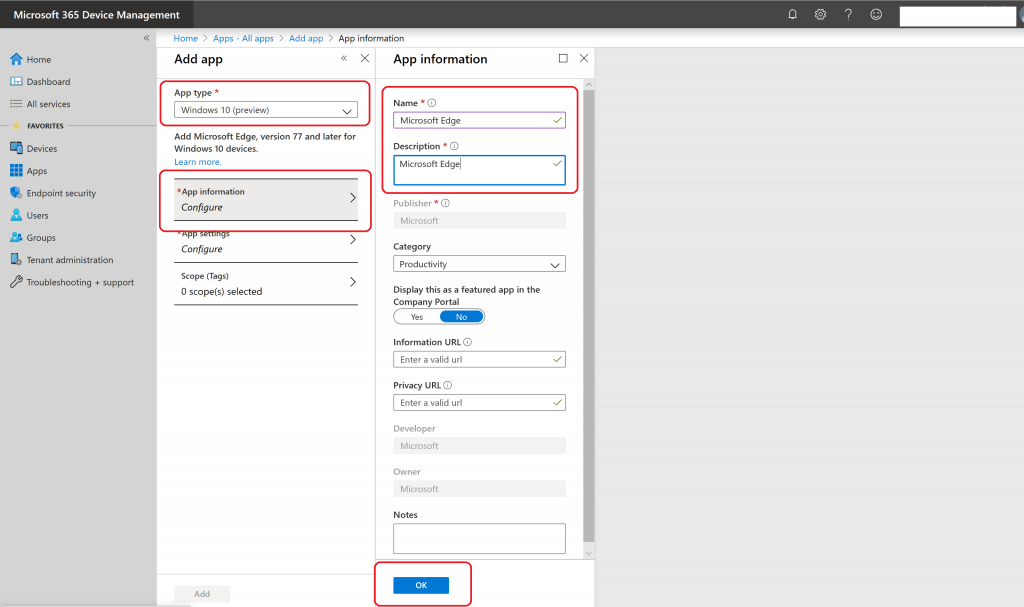
Enter the details of the Microsoft Edge application.
- Click on App Information
- Enter the App Information details
- Name -> Microsoft Edge
- Description -> Microsoft Edge
Click OK to continue.
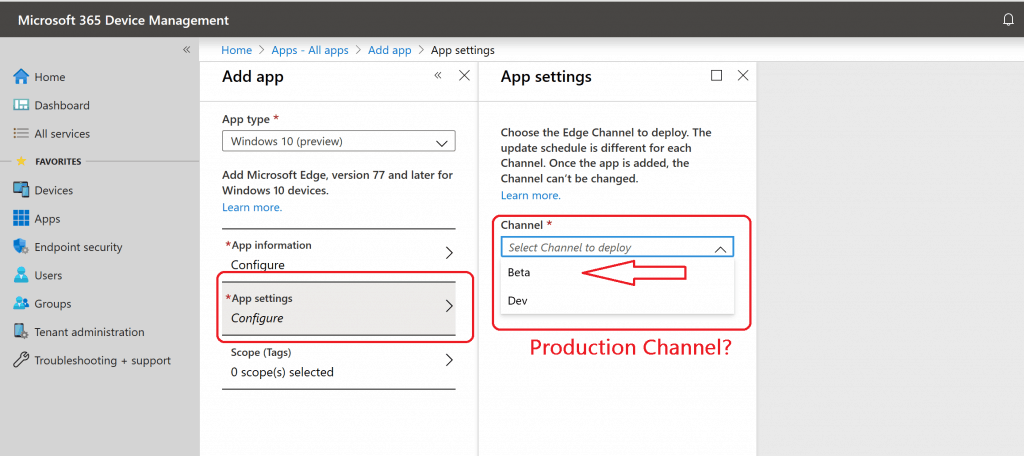
NOTE! – App Settings is where you can select the Microsoft Edge channels. Choose the Edge Channel to deploy. The update schedule is different for each Channel. Once the app is added, the Channel can’t be changed.
- Click on App Settings
- Select the Microsoft Edge Update channel which you want to deploy
- Beta (updated every six weeks)
- Dev (updated every week)
- New Channel after 15th January 2019
- Semi-Annual Channel?
- Monthly Channel?
NOTE! There are no language-specific options at the moment, but they will be coming soon. So, there will be options to select different languages of Microsoft Edge from Intune.
- Click OK to continue.
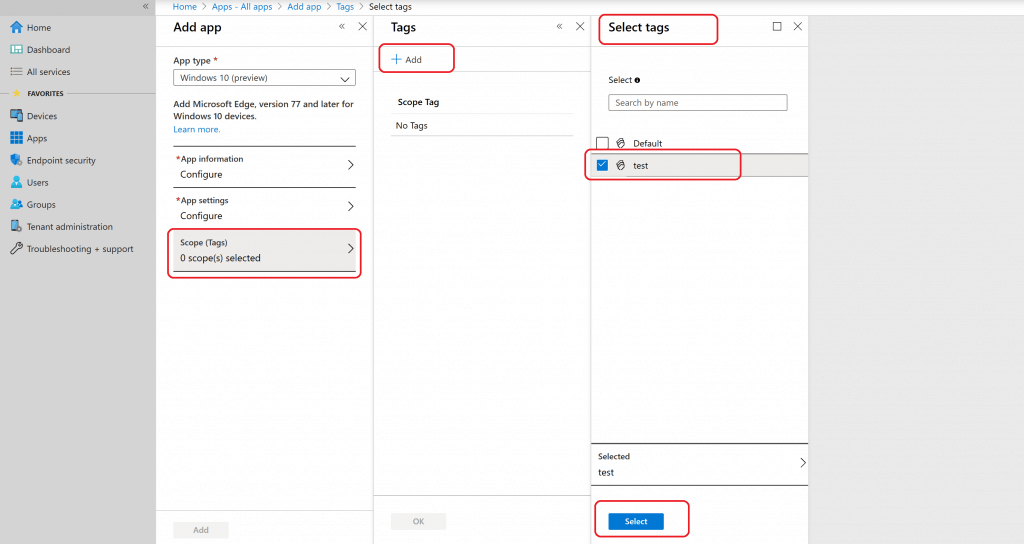
- Click on SCOPE (Tags) and select the scope of the application which you want to set
- +Add and choose Test (Scope Tag Name)
- Click on the Select button to continue
NOTE! – Microsoft Edge 64-bit version will be deployed to 64-bit Windows 10. And 32-bit version will be deployed to Windows 10 32-bit (if there is any :))
Intune Scope Tag More details Intune Scope Tags Implementation Guide
- Click OK
- Click Add
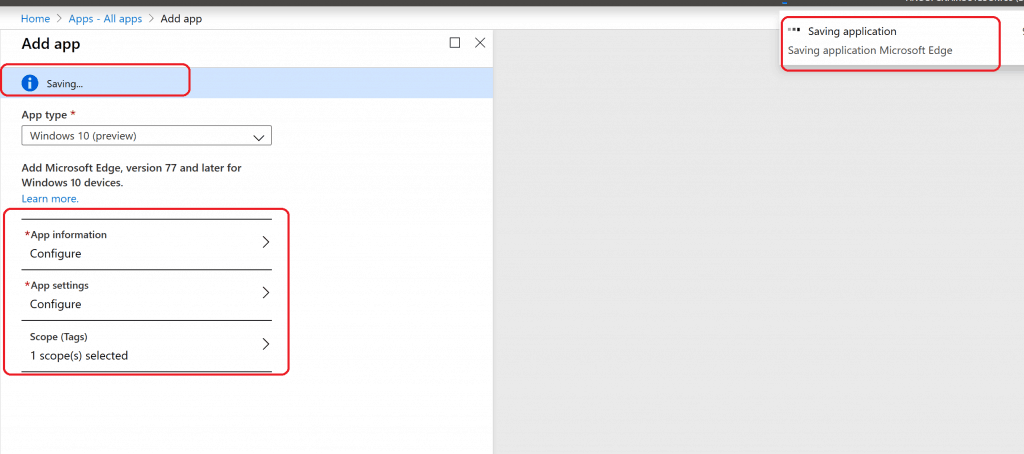
The above action will initiate the SAVING of the Microsoft Edge browser application in Intune.
Microsoft Edge Browser Assignments
At this point, I think the Microsoft Edge browser application can be deployed only to Azure AD Joined and Hybrid Azure AD joined devices.
NOTE! – This limitation is because of Intune Management Extension agent supports deployed to AAD Join and Hybrid AAD join scenarios.
- Click on Assignments
- Select the Assignment Types from the drop-down list depending on your requirement
- Available for Enrolled Devices
- Required
- Click on Included Groups to select AAD Device Group
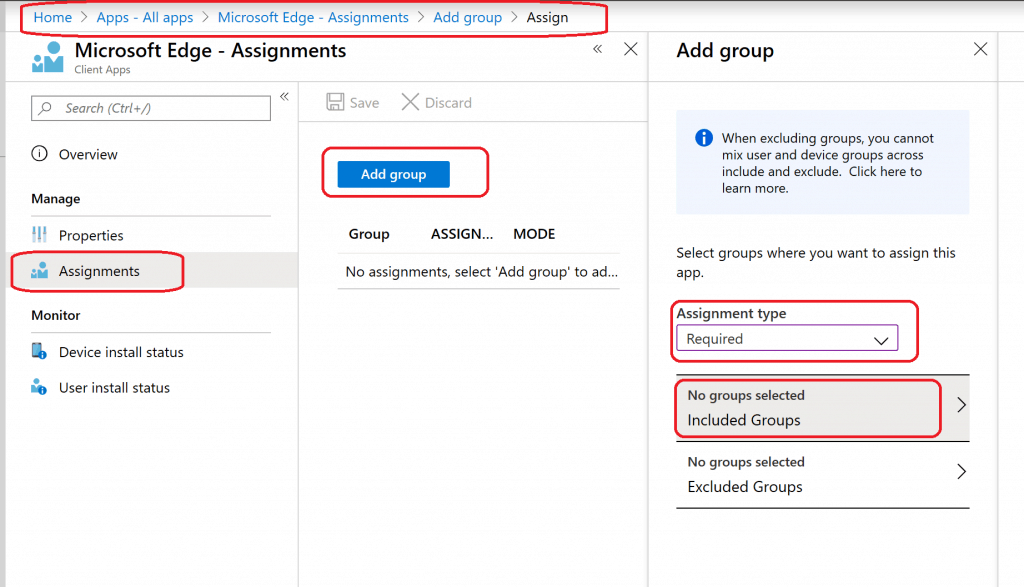
Select any of the Azure AD groups (Select the groups where you want to make this app required)
- Make this app required for all users – NO
- Make this app required on all devices – NO
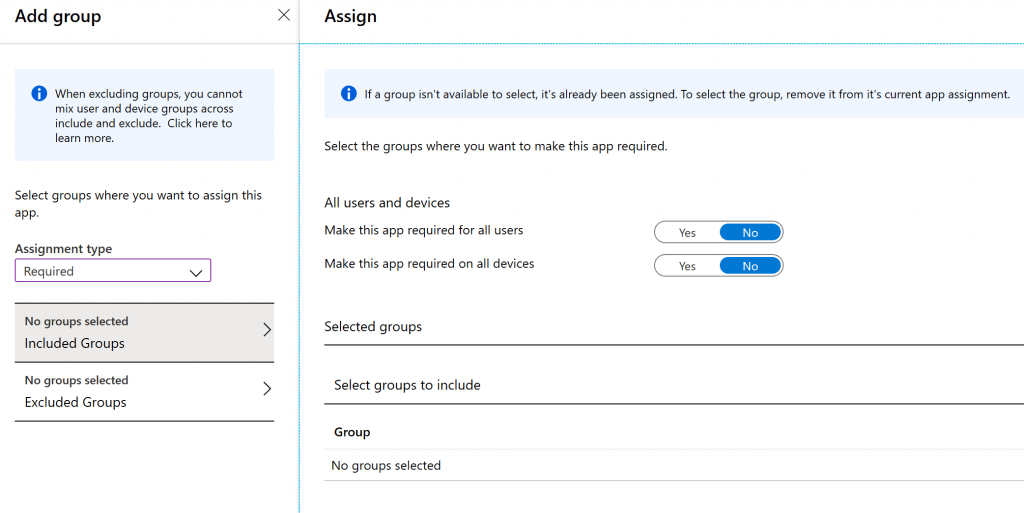
I normally recommend deploying the MS Edge app to the Azure AD dynamic device group.
- Click on Select Group to include the option
- Search for the AAD group
- Click on Select
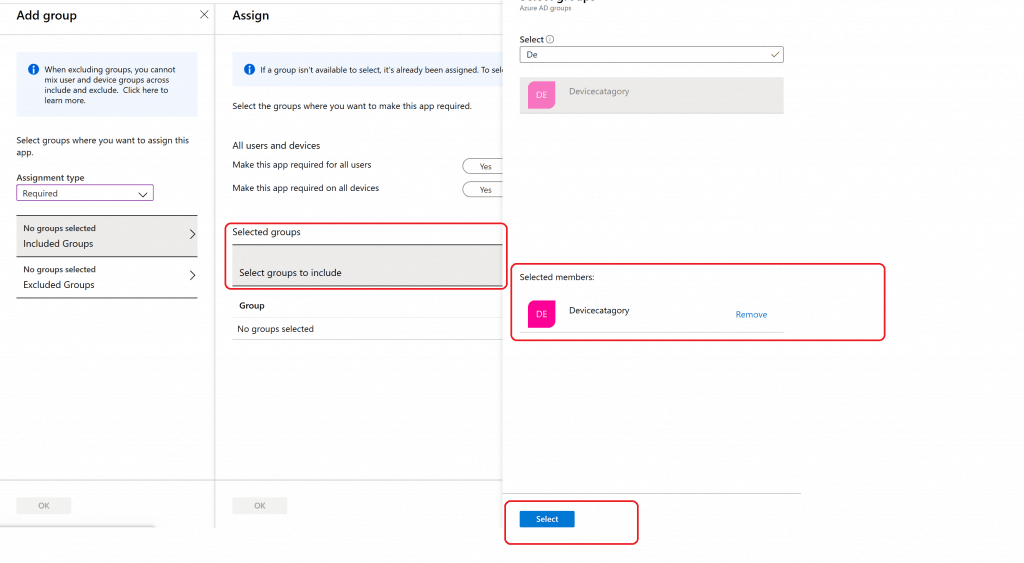
- Click OK and OK
- Click the Save button to save the deployment
Results – Deploy New Microsoft Edge Chromium Browser Using Intune
Microsoft Intune Software Distribution – Your IT Department requires changes to the software “Microsoft Edge.”
- Microsoft Intune Software Distribution – Downloading and Installing software “Microsoft Edge.”
- Installation completed “Microsoft Edge.”
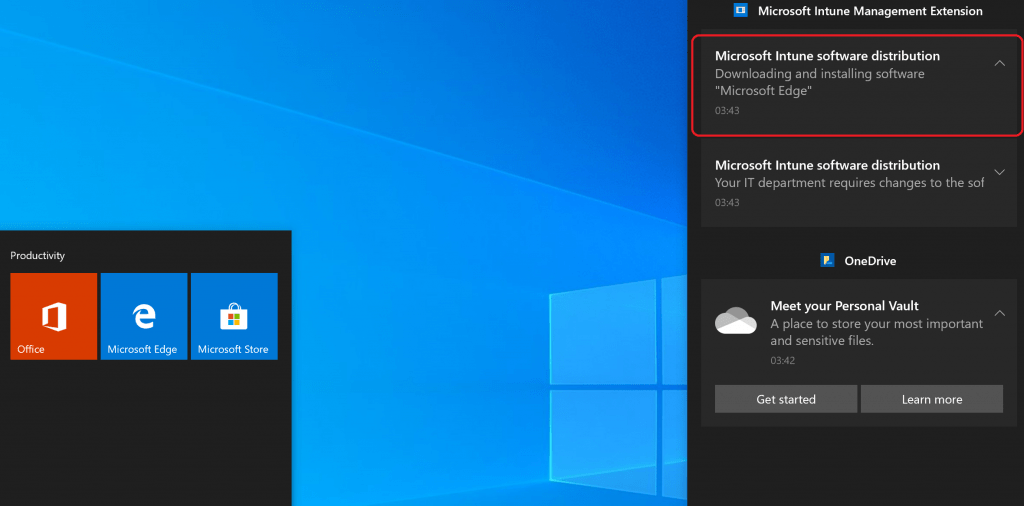
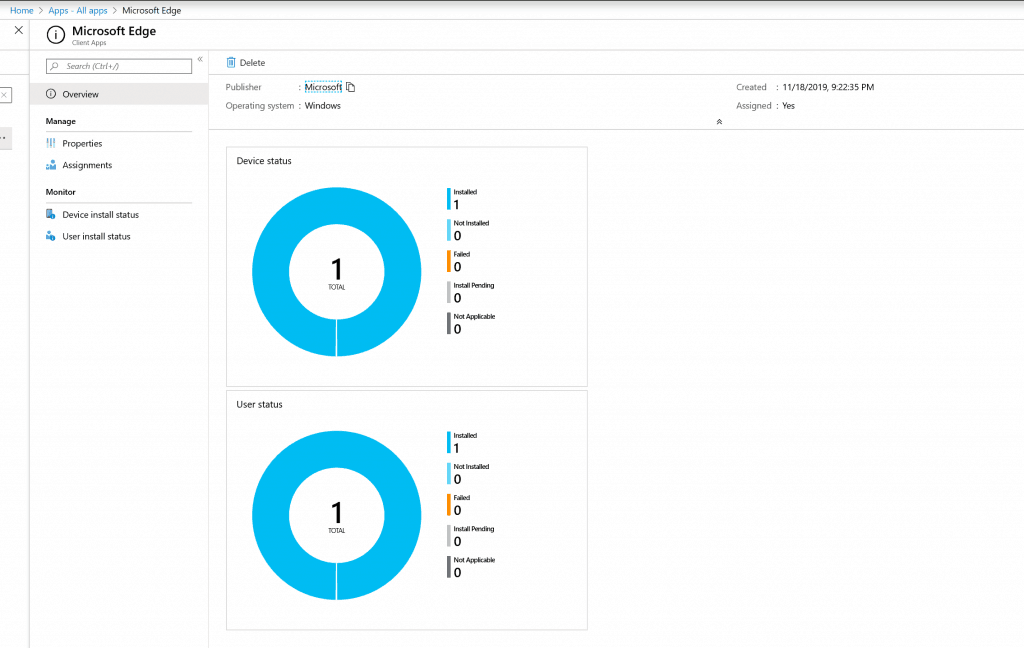
Here you go! The Microsoft edge application is already installed.
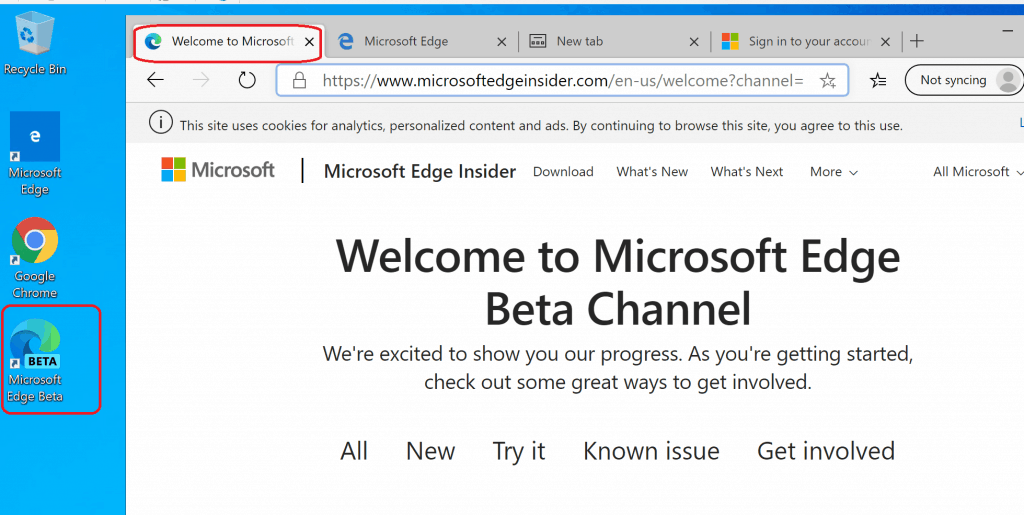
You can check the Intune reports to get the Microsoft Edge deployment status.
Resources – Microsoft Edge Browser Deployment
- Microsoft Edge Download for manual install options https://www.microsoftedgeinsider.com/en-us/download
- Add Microsoft Edge for Windows 10 to Microsoft Intune
- Explore available Microsoft Edge browser policies – Microsoft Edge Browser Policy Documentation | Microsoft Docs
- Explore available Microsoft Edge update policies – Microsoft Edge Update Policy Documentation | Microsoft Docs
We are on WhatsApp. To get the latest step-by-step guides and news updates, Join our Channel. Click here –HTMD WhatsApp.
Author
Anoop C Nair is Microsoft MVP! He is a Device Management Admin with more than 20 years of experience (calculation done in 2021) in IT. He is a Blogger, Speaker, and Local User Group HTMD Community leader. His main focus is on Device Management technologies like SCCM 2012, Current Branch, and Intune. He writes about ConfigMgr, Windows 11, Windows 10, Azure AD, Microsoft Intune, Windows 365, AVD, etc.


What is thw way to block youtube on Edge on AE Dedicated machine. I have created app protection and configuration but still unable to block youtube. Also enabled kiosk mode but not helped.
Please suggest.
StaffHi Satyendra,
Have you checked this https://docs.microsoft.com/en-us/mem/intune/apps/manage-microsoft-edge#manage-restricted-web-sites
Do you mean it is not working even after configuring the settings as shown here? Do note that it states that Edge for iOS and Android can block access to sites only when they are accessed directly. It doesn’t block access when users use intermediate services (such as a translation service) to access the site. Also, ensure to check the limitations for URL formats as specified in either the Allowed or Blocked list.
Is this procedure still required in 2023? Or is Edge by default included in Windows 10 22h2 and later?