






Microsoft Edge Browser Uses AI to Automatically Group and Ungroup Tabs by Common Themes
Hi, In this post, I’m discussing the Microsoft Edge browser’s use of AI to Automatically Group and Ungroup Tabs by Common Themes. As we all know, Microsoft Edge has become the most popular browser with its well-known features. So recently, I came across many updates and one of them is Microsoft Edge uses AI to group tabs by Common Themes automatically.
Recently, Microsoft Edge was announced as one of the best features for avoiding clutter when using a browser. Have you ever wondered why these clutters happen? One of the leading causes is when a user opens up many tabs in a browser, which results in clutter.
Now, Edge users have the power to avoid these clutters by using the tab organization feature in their browser. Microsoft Edge uses AI to organize tabs and boost productivity. As we all know, the power of AI nowadays and the AI comes with tab management that will enhance the user experience.
All these AI–integrated themes for tabs make a massive difference in the Normal working experience with the Edge Browser. In this feature, AI helps Group Tabs in our Microsoft Edge, which will be very helpful in switching tasks without losing important information.

What are the Benefits of Automatically Group Tabs by Common Themes
1. It allows the best user experience
2. Group Tabs with the help of AI will reduce the effort of the users to find essential tabs from multiple Tabs.
3. This feature reduces clutter with tab groups
4. This will improve the overall Productivity
5. This feature allows many Group tab options, making it better.
Microsoft Edge Browser Uses AI to Automatically Group and Ungroup Tabs by Common Themes
Above, we discussed the overall topic of this feature, so let’s give a quick overview of it. Recently, Microsoft Edge announced a feature that reduces clutter with tab groups. We all work with many tabs, and sometimes, managing those tabs is very difficult.
- AI to Automatically Group Tabs by Common Themes is the best solution for managing multiple tabs.
- Using this feature is very for switching to the work without losing the information.

- Microsoft Edge Tabs Detailed Review
- Customize Alt + Tab Keys Behavior to Show the Number of App Tabs such as Notepad Edge Chrome Browsers
- Create Edge Browser New Theme with an AI Theme Generator and Frame
How It Works in Your Edge
This feature is a powerful tool for managing many tabs by grouping them with the help of AI to enhance users’ browsing experience. So Try this on your Microsoft Edge; it is straightforward. First, go to the Tabs action menu at the top of the Edge bar.
- You can see the option Organize tabs in the Tabs action menu.

Organize Tab Options
When you click on the Organize tab options, you will see many options to label the tab groups. This is all possible with Edge, which uses AI to group tabs by common themes automatically. The most significant enhancement of this feature is Quick Access. With the help of AI, you can easily find the tab you need.
- The screenshot below shows the Edit option for each Blog management and Image management group.
- This will help you set the theme colour for Each tab Group.

You can also add any label to the tab groups. For example, here, the AI categorized my tabs into 2 categories. Give them the names of the Blog and Image management groups; with the edit option, you can change the name to your preferred name.
- After those Edit options, you need to click on the Group Tabs

When you click on the Edit Group Tab options, you can see the groups displayed on the Edge bar as regular tabs. In this, each tab contains many tabs. So don’t you think it’s easy for you? This feature makes it very easy to handle multiple tabs when you work.

How to Ungroup
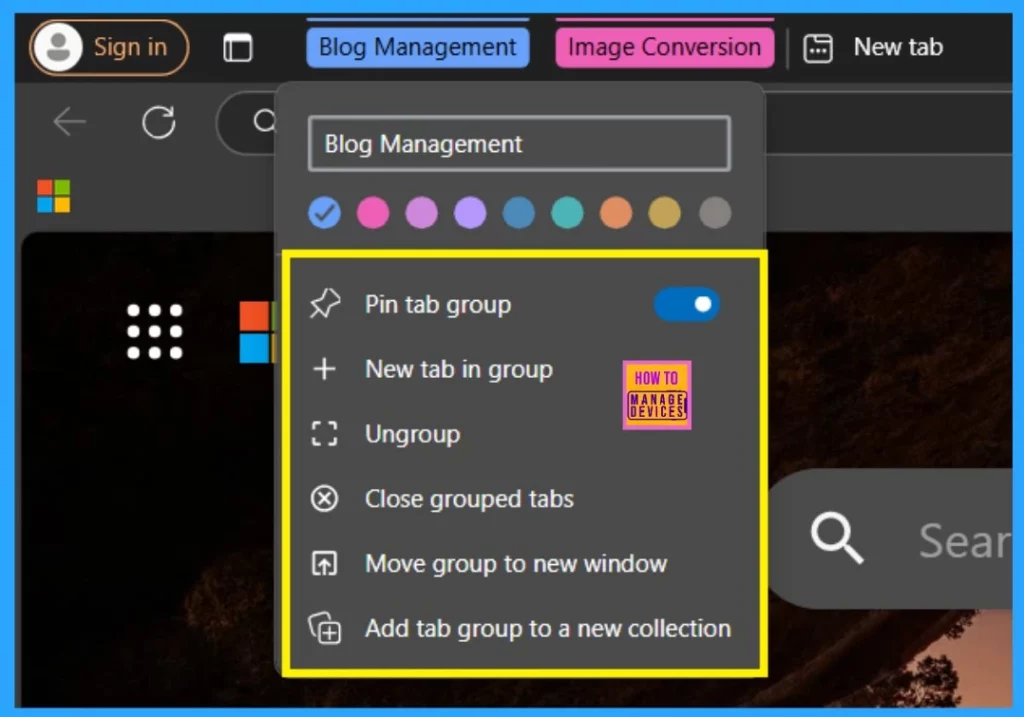
If you don’t need this feature, you can easily ungroup them by clicking on the Tab groups. Here, I right-click on the blog management for ungrouping, and I get so many options; there, you have the option for Ungroup. When you click on the Ungroup, it will display the tabs as before.
- But you have to do this ungrouping for each group.
| Options | Info |
|---|---|
| Pin tab group | This option will help you keep the tab group at the top of the Edge browser, which will be useful for easy access. |
| New tab in the group | This will allow adding a new tab within the existing group |
| Ungroup | It will separate the tabs from the group and make them individual tabs as before |
| Close grouped tabs | Closes all tabs within the group. |
| Move the group to a new window | This option will help you to move the entire tab group to a new browser window. |
| Add tab group to a new collection | This option allows you to tab group to a new collection |
Join the LinkedIn Page and Telegram group to get the latest step-by-step guides and news updates. Join our Meetup Page to participate in User group meetings. Also, Join the WhatsApp Community to get the latest news on Microsoft Technologies. We are there on Reddit as well.
Author
Anoop C Nair has been Microsoft MVP from 2015 onwards for 10 consecutive years! He is a Workplace Solution Architect with more than 22+ years of experience in Workplace technologies. He is also a Blogger, Speaker, and Local User Group Community leader. His primary focus is on Device Management technologies like SCCM and Intune. He writes about technologies like Intune, SCCM, Windows, Cloud PC, Windows, Entra, Microsoft Security, Career, etc.




Discussion