






Best Guide to Enable ConfigMgr Enhanced HTTP Configuration | SCCM | eHttp
Let’s learn more details about how to Enable ConfigMgr Enhanced HTTP Configuration. This guide helps you know more about the ConfigMgr eHttp configuration for your SCCM environment.
This is critical when you don’t use HTTPS communication and PKI for your SCCM infra. Enhanced HTTP became more interesting after the 2103 version of ConfigMgr was released. Microsoft recommends using PKI certificate-based HTTPS communication because PKI provides more granular controls and enterprise-class security standards.
PKI certificates are still a valid option for customers. If you already use PKI, you still use PKI cert binding in IIS even if enhanced HTTP is turned on. Configuration Manager improved how clients communicate securely with site systems with encrypted traffic.
You can secure sensitive client communication with a self-signed certificate created by Configuration Manager (a.k.a SCCM). The SCCM self-signed certificate is the option that helps to ensure sensitive traffic between client and server.

E-HTTP FAQs?
Let’s have a quick walkthrough of Enhanced HTTP FAQs.
What is ConfigMgr Enhanced HTTP?
Which is the better option, HTTPS or Enhanced HTTP?
How many Enhanced HTTP (ehttp) certificates are available on the client side?
Any Challenges with Enhanced HTTP (ehttp) Option?
- ConfigMgr HTTP only Client Communication Is Going Out Of Support | SCCM How To Manage Devices
- Management Insight to evaluate HTTPS connection
What is ConfigMgr Enhanced HTTP (ehttp)
Enhanced HTTP is a self-signed certificate solution provided by the ConfigMgr server for its clients and services to secure communication without the complex PKI implementation. If you are not using HTTPS, the best way to get started is with an enhanced HTTP option.
Once you have enhanced HTTP (e-HTTP), you don’t necessarily need to build a complex PKI infrastructure to enable certificate authentication between client and server. But if you need to meet more complex certificate management requirements, you can implement HTTPS with Microsoft PKI.
What are the SCCM eHttp Features?
Enhanced HTTP (SCCM ehttp) communication with the Configuration Manager supports the following scenarios. I think Microsoft will support all the ConfigMgr (a.k.a SCCM) scenarios with enhanced HTTP because they already announced the retirement of HTTP-only communication between client and server.
- Client to Management Point (This scenario does not require using an HTTPS-enabled MP)
- Bitlocker recovery key-related communications
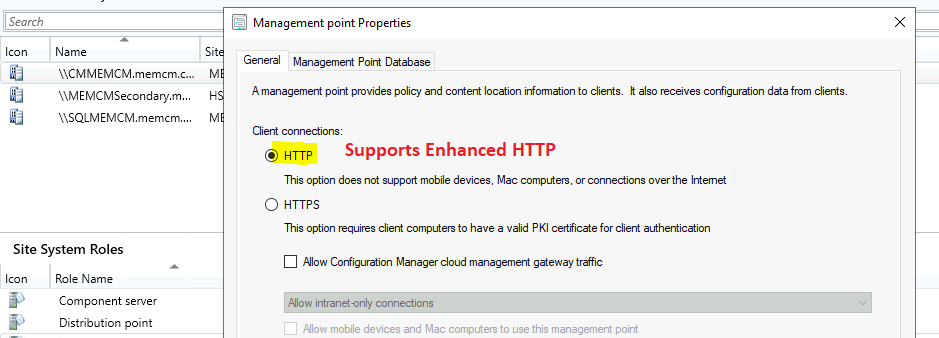
- Client to Distribution Point
- SMS Provider
- Administration Service
- App Approvals via Email
- Recently connected consoles
- CMG – Cloud Management Gateway
- OSD without Network Access Account
- Enable Co-Management for NEW internet-connected Intune-managed Windows 10 devices.
NOTE: SUP (Software Update Point)- related communications are already supported using secured HTTP. It uses a token-based authentication mechanism with the management point (MP). More details are in Microsoft Docs.
How to Enable SCCM Enhanced HTTP (ehttp)
Let’s understand how to enable your ConfigMgr infrastructure’s enhanced HTTP (EHTTP) option.
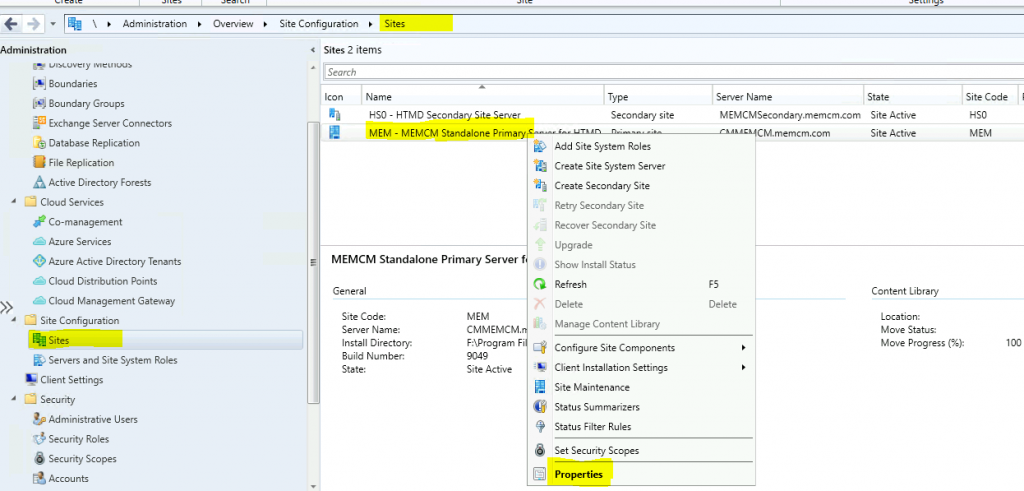
- Navigate to \Administration\Overview\Site Configuration\Sites
- Select the primary site from the site node.
- Right-click on the Primary server and go to properties.
Click on the Communication Security tab. Select the option for HTTPS or HTTP. Also, Enable the option to Use Configuration Manager-generated certificates for HTTP site systems.
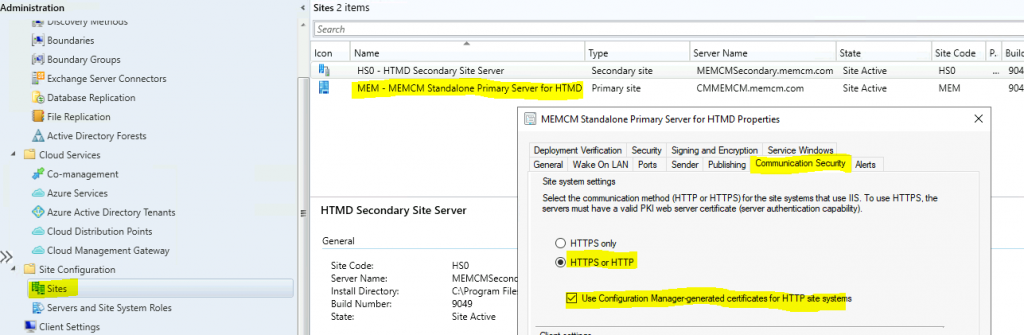
NOTE! – The Enhanced HTTP action only enables enhanced HTTP for the SMS Provider roles when you enable this option from the central administration site (a.k.a CAS server). It’s not a global setting that applies to all child primary sites in the hierarchy.
ConfigMgr Console EHttp Certificate
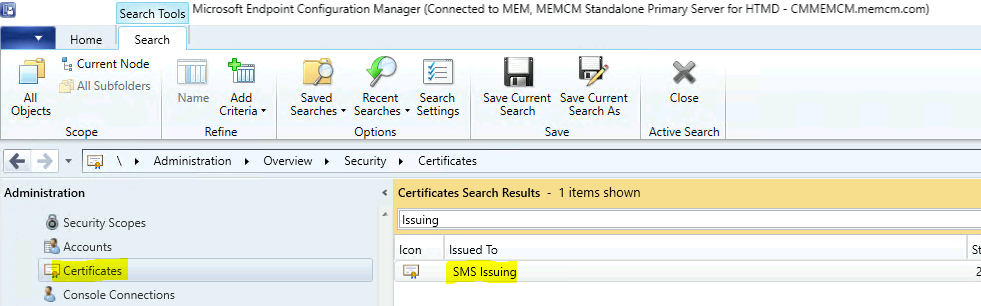
Now, let’s check the certificates node to confirm whether you can see the SMS Issuing certificate.
- Navigate to \Administration\Overview\Security\Certificates
- Search for SMS Issuing certificate. This is the self-signed certificate created by Configuration Manager for the enhanced HTTP features.
Server-Side SCCM eHttp Certificates
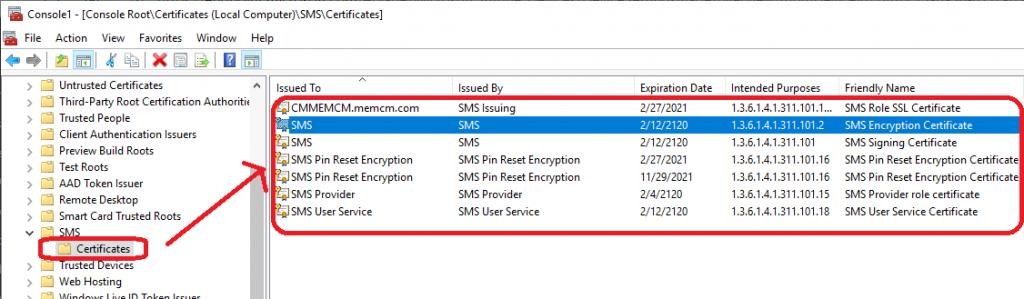
Now, let’s go to the MMC console and check which certificates SCCM has created and used. I can see the following certificates on my SCCM primary server with my lab configuration.
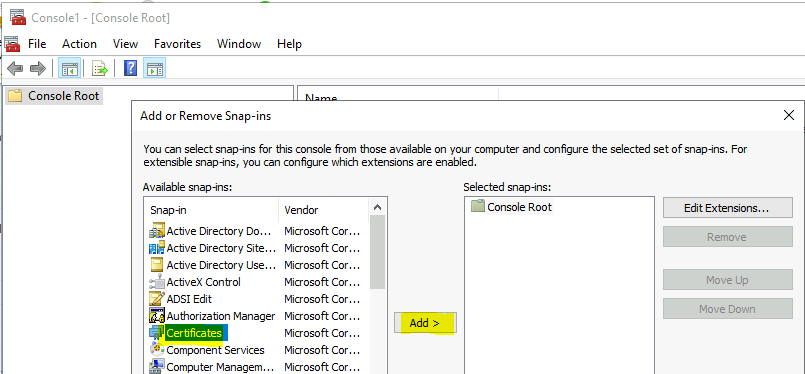
- Launch MMC from RUN.
- Add Certificates.
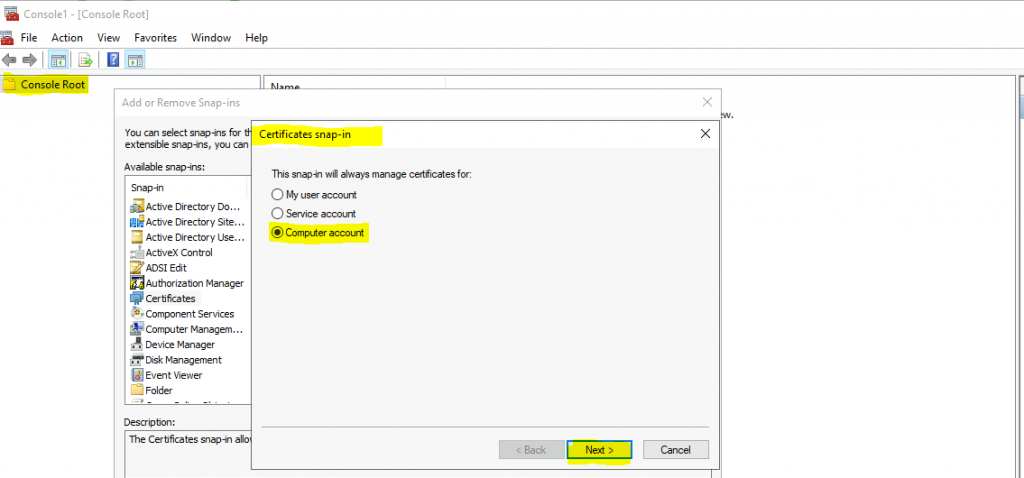
Select Computer Account from Certificates snap-in and click the Next button to continue.
You can now navigate the SMS folder and view the certificates related to Configuration Manager and Enhanced HTTP.
- SMS Role SSL Certificate
- SMS Encryption Certificate
- SMS Signing Certificate
- SMS Pin Reset Encryption Certificate
- SMS Provider role certificate
- SMS User Service Certificate
Client-Side SCCM eHttp Certificates
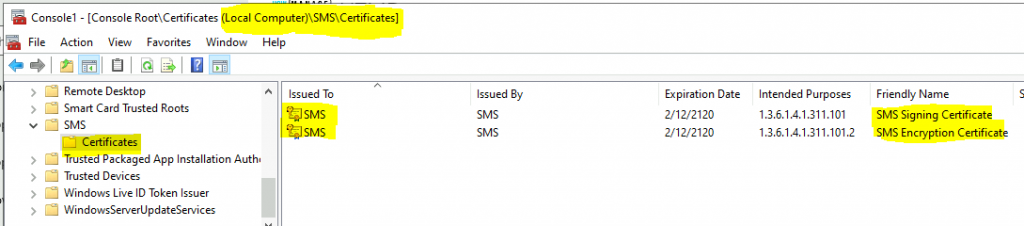
After enabling enhanced HTTP, let’s check the self-signed certificates on the Windows 10 client device. I could see 2 (two) types of certificates on my Windows 10 device.
- SMS Encryption Certificate
- SMS Signing Certificate
NOTE! – I’m not 100% sure whether these are ehttp certificates or general SCCM/ConfigMgr certs or not. Let me know your experience in the comments section.
Resources
- ConfigMgr HTTP only Client Communication Is Going Out Of Support | SCCM
- Management Insight to evaluate HTTPS connection
We are on WhatsApp. To get the latest step-by-step guides and news updates, Join our Channel. Click here –HTMD WhatsApp.
Author
Anoop C Nair has been Microsoft MVP for 10 consecutive years from 2015 onwards. He is a Workplace Solution Architect with more than 22+ years of experience in Workplace technologies. He is a Blogger, Speaker, and Local User Group Community leader. His primary focus is on Device Management technologies like SCCM and Intune. He writes about technologies like Intune, SCCM, Windows, Cloud PC, Windows, Entra, Microsoft Security, Career, etc.




what process /log can we look at for troubleshooting the client install/client issues related to invalid certs after enabling the enhanced http? Are there any changes required on the client install properties?
StaffI don’t think so. I have not seen any specific requirement apart from the scenario where you install the SCCM client from Intune.
The certs on the windows 10 machine was already there before I enabled enhanced http on the site server. Also, I don’t see any additional certificates created on the site server or site systems. Is there anything I am missing here? Thanks in advance
StaffHello John – I don’t have any hierarchy where ehttp is not enabled. So I can’t confirm whether these certs were already present or not. I will try to test this later and keep you posted.
StaffThere is something a mention about the SMS issues certificate in the documentation. Hopefully, that is helpful?
You can see these certificates in the Configuration Manager console. Go to the Administration workspace, expand Security, and select the Certificates node. Look for the SMS Issuing root certificate, as well as the site server role certificates issued by the SMS Issuing root. More details https://docs.microsoft.com/en-us/mem/configmgr/core/plan-design/hierarchy/enhanced-http#configure-the-site
Hi
I thing the client – server communication will change from port 80 to 443 , so admins have to consider new firewalls rules ?
StaffHi, I don’t think we need to open the new ports because some parts of Microsoft docs mentioned that it will still be using the HTTP communication for eHttp. More Details – https://docs.microsoft.com/en-us/mem/configmgr/core/plan-design/hierarchy/communications-between-endpoints#Planning_Client_to_Site_System
Hi
In the unlikely event that enabling E-HTTP causes an issue, is it simply a case of unticking the same box that turned it on to then turn it back off? And if this is done, will ConfigMgr happily return to using plain HTTP without problems? Just want to head off the inevitable “what-if” rollback questions that are going to be raised when I ask to do this in our environment!
Thanks!
I have this same question. I have CM 2006 installed, want to enable eHTTP, then upgrade the system to 2107. Wondered if we can revert back to plain http as you asked. Any response?
StaffYes, you just need to change the revert the settings? This is what I did in the lab… do you see any challenges with that approach?
Hi,
Thanks for the guide. I have seen some user comments on other pages indicating that PXE boot stopped working after implementing this.
Do you see any reason why this would affect PXE in any way? We want to move to 2107, but want to be sure that there will be no adverse affects to PXE.
Thanks!
Even after selecting EHTTP, SMS Role SSL Certificate is not getting generated.
It should be generated automatically.. but its not showing in “Personal” Certificates nor in IIS Server certificates. What can be done ?
Can I use only port 443 for client communication, if e-HTTP is enabled ?