






Enable Dark Mode for Microsoft Office Apps
In this post, you will learn how to Enable Dark Mode for Microsoft Office Apps. The dark theme delivers a simple and more coherent experience across the Office apps you depend on so that you can focus on your work more easily.
As we log long hours with our screens, it has become increasingly important to reduce eye strain and accommodate light sensitivity. The office matches your Windows theme, so you can experience the visual refresh in whichever Office theme you prefer, including black (Dark Mode), white, colorful, or dark grey.
The default Office theme is “Use system setting.” This means you will see the Office White theme if your OS is set to Light theme and the Office Black theme if the OS is set to Dark theme. And if you don’t use the dark mode for Windows, you can still enable the dark theme for office apps.
The Dark Mode feature in Word is more extensive. You could use Word with a dark ribbon and toolbars, but your document color stayed bright white.

Let’s also look at changing the Windows 11 color theme. The easiest option is to turn on dark mode system-wide allowing your apps to be in dark mode. The dark mode can be enabled for the SCCM console, check how you can Enable Dark Theme for SCCM Console.
- Use Microsoft SaRA in Windows | Office Apps Troubleshooter
- Implement Group Policy Templates for Office 365 All Office Versions
- Block Internet Macros for Office Applications using Intune Group Policy
Enable Dark Mode for Microsoft Office Apps
Turning on Dark Mode for the Office apps just a few steps away, From changing the background color and design of all your Office programs. Here’s how –
In your system, Open any Office apps (For Example, Outlook) and Click on the File tab at the top of the open window.
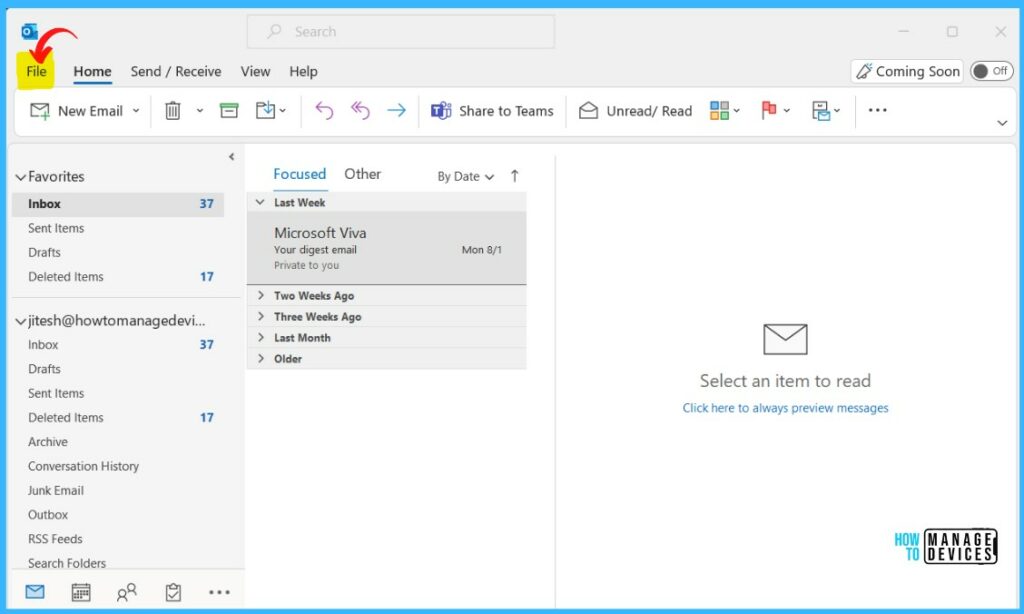
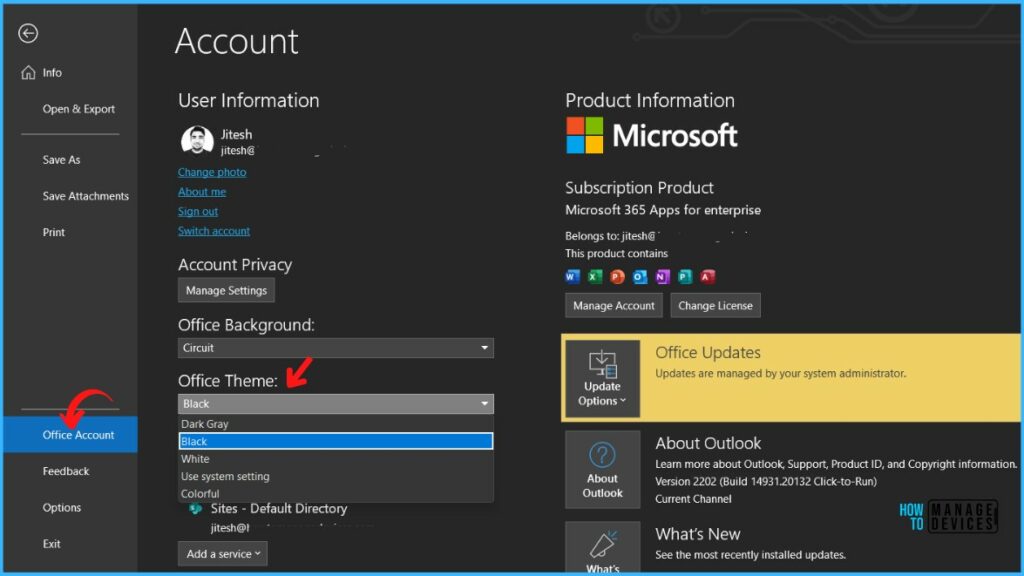
Click the Account options on the bottom left-hand corner of the screen. In the Office Theme drop-down menu, choose Black from the appeared list. Switching to this option enables the dark mode for Office 365 Apps.
The default theme for Office is the Use system setting, which matches the Windows theme. You can change the look and feel of all your Office programs by changing the Office Theme or background.
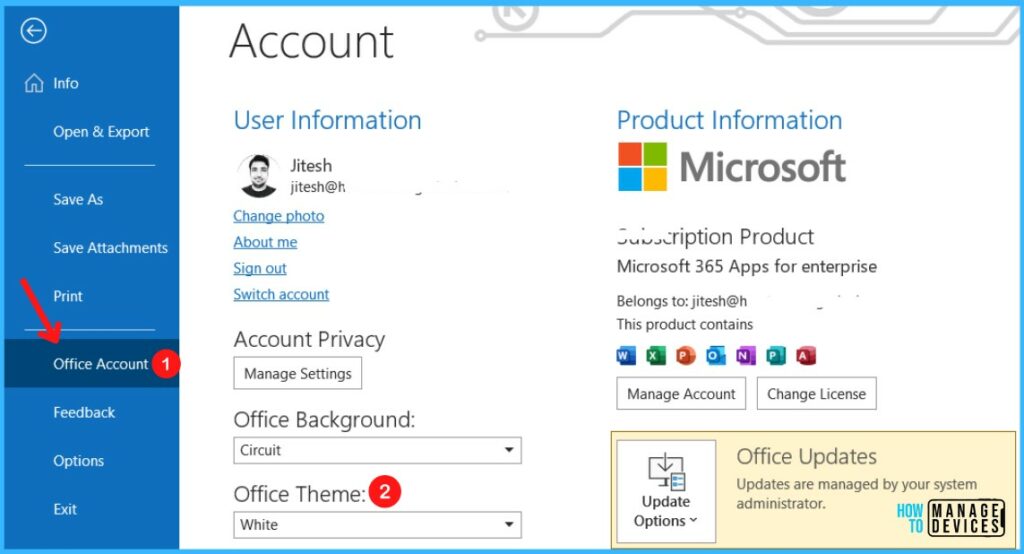
The color mode for office apps changed from Light to Dark while Office was running. The Black theme provides the highest-contrast visual for your Office theme. Here’s an example of the black theme applied to Outlook –
Note: The changes will get applied to all your office apps.
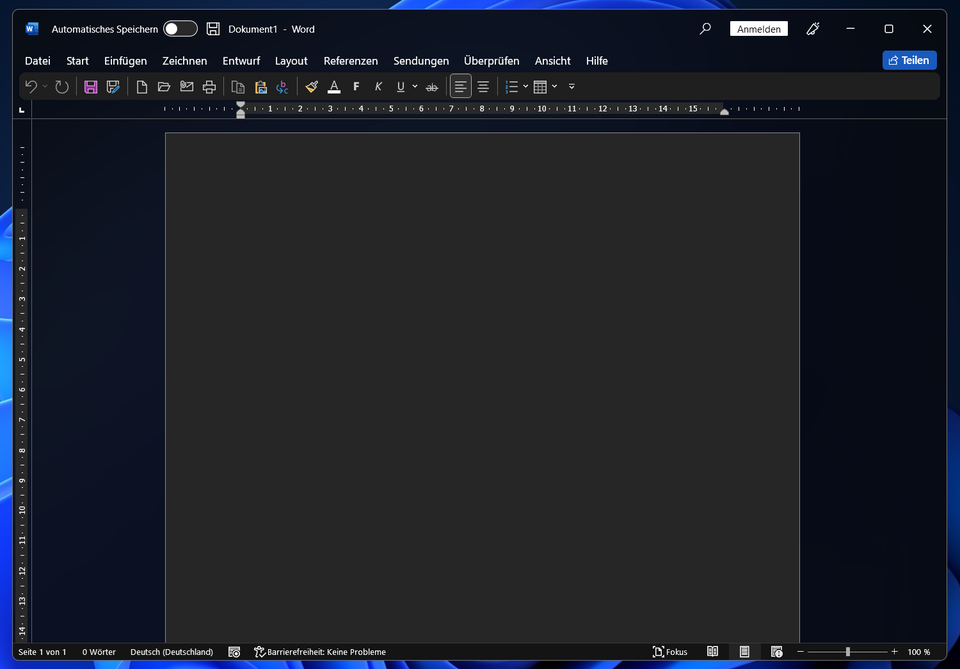
Dark Mode In Microsoft Word
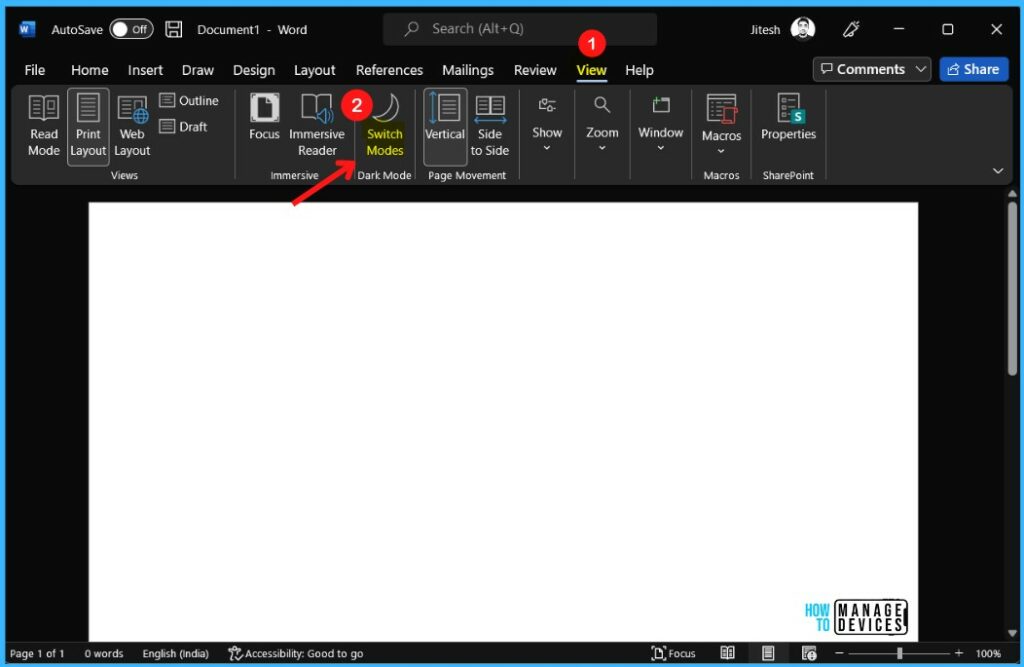
Once you enabled dark mode for all your office apps, your page color will be using dark mode. You could use Word with a dark ribbon and toolbars, but your document color stayed bright white.
Here, you can toggle between the black and white page background colors by selecting View > Switch Modes from the ribbon.
Mica Effect In Microsoft Office
Microsoft is working on adding a Mica background effect in Office apps. It is coming in a future update, and A user, Win11Observer spotted the Mica effect in Office 2021.
Mica is specifically designed for app performance as it only samples the desktop wallpaper once to create its visualization. You can apply Mica to your application backdrop to delight users and create a visual hierarchy, aiding productivity by increasing clarity about which window is in focus.




Discussion