






Let’s learn how to Enable Disable Auto-restart Notifications for Windows Update in Windows 11. The Auto-restart option is used to reboot your computer after a fixed interval.
Windows Update is a free software service that provides updates like service packs and patches for the operating system and other Microsoft software. The auto-restart notification helps remind the users to restart after an update.
Auto restart is a computer feature where a desktop or laptop restarts and automatically boots without pressing any button on the computer. This blog post will help you auto-restart notifications for Windows Update in Windows 11.
Applying this notification on your PC is easy, and you can learn quickly. Auto-restart notifications for Windows Update will help save you time. This blog post lets you quickly enable or disable auto-restart Notification for Windows Update.

What are the Features of Enable or Disable Auto-restart Notifications for Windows Update in Windows 11?
1. It helps free up memory
2. It helps to reduce energy consumption
3. It allows ensuring security
4. It helps to rectify software glitches
5. It is used to fix emergency issues immediately
Enable Disable Auto-restart Notifications for Windows Update in Windows 11
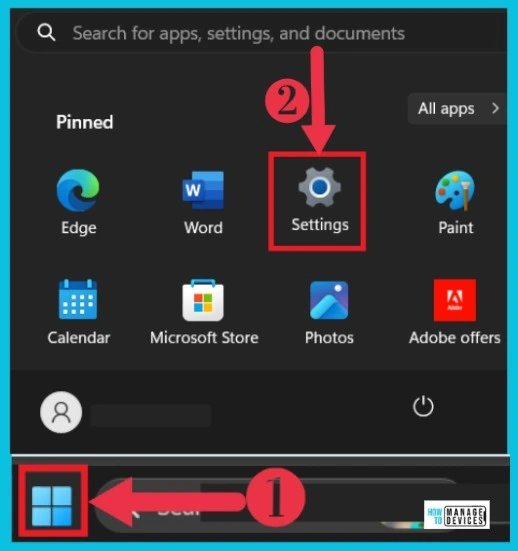
Auto restart enabling disabling is the best option in Windows 11 PC. You can easily access these updates through the following steps. The screenshot below shows the first step for turning on the button.
- Click Start Button
- Select Settings from the Start Button
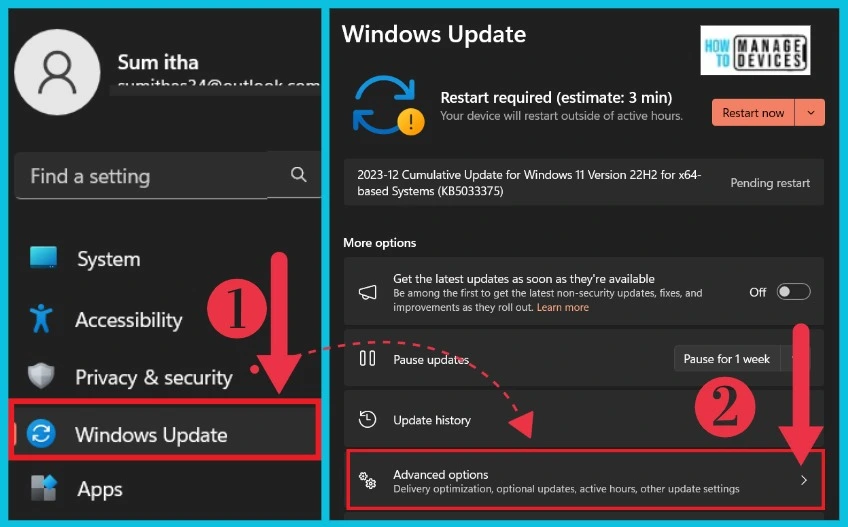
After selecting settings, you can see another window select windows Update from it. You can see the PC’s updation details. You can choose the arrow on the Advanced options.
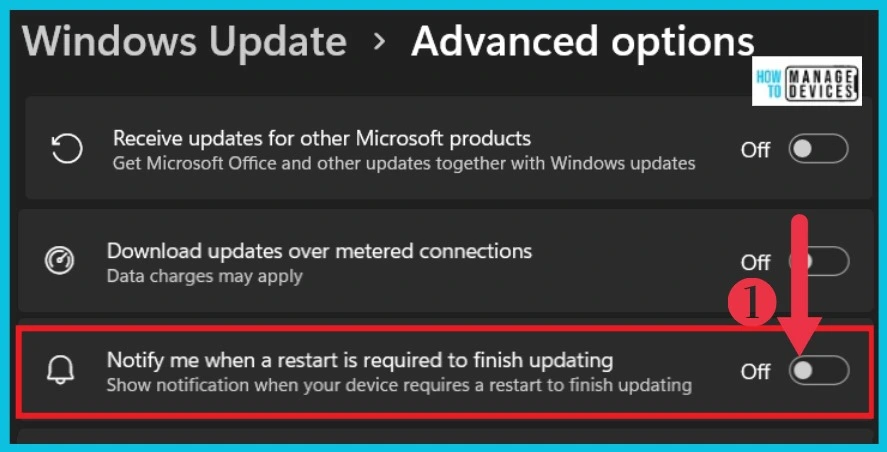
After clicking the arrow on Advanced options in Windows updates, you can see the option to Notify me when a restart is required to finish updating. It is an inbuilt turnoff button. If it disables, your auto restart option does not work on your PC. You can toggle on and enable the option.
| Advanced options | Used to |
|---|---|
| Receive updates for other Microsoft products | It used to receive updates for other Microsoft products |
| Download updates over metered connections | It helps to download updates |
| Notify me when a restart is required to finish updating | It used to show a notification when your device requires a restart to finish updating |
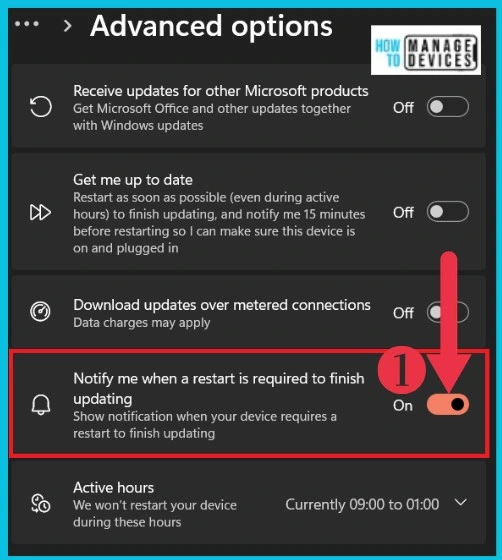
Turn on this option: Notify me when a restart is required; show notification when your device needs a restart to spend updating.
Enable Disable Auto-restart Notifications for Windows Update in Windows 11 Using Group Policy
Auto-restart Notifications for Windows Update in Windows 11 can be quickly done with Group Policy. The Group Policy feature in Windows 11 controls the working environment of user and computer accounts. To access the Group Policy feature, follow the below steps.
- Press Win + R and type in gpedit.msc
- After Typing gpedit.msc, you can get a window Local Group Policy Editor
- First, you select the Local computer policy
- Choose Computer Configuration
- Select Administrative Template from it
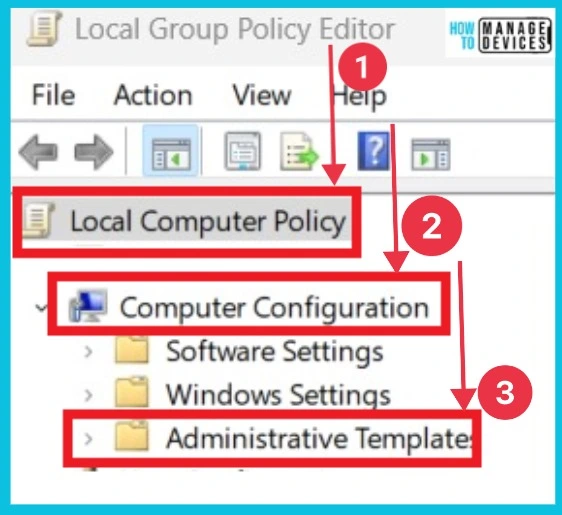
You can get a new window of the Administrative Template. From this window, choose Windows Components. This feature is available in the Settings section.
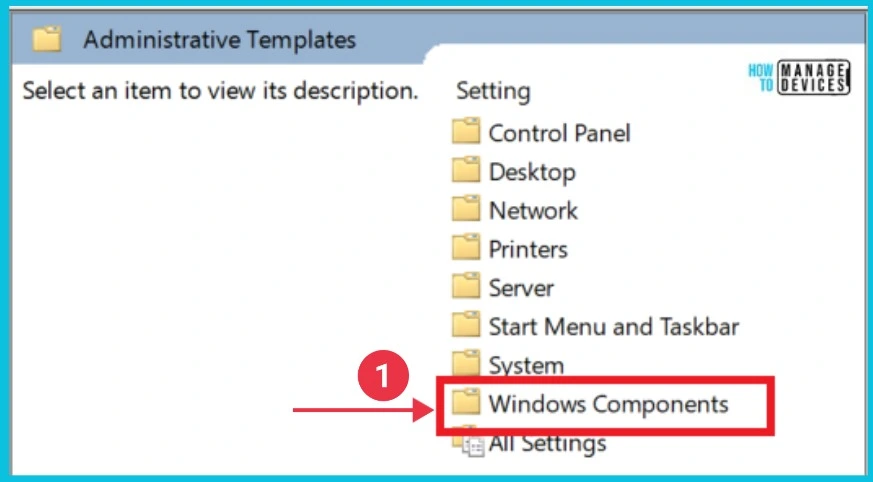
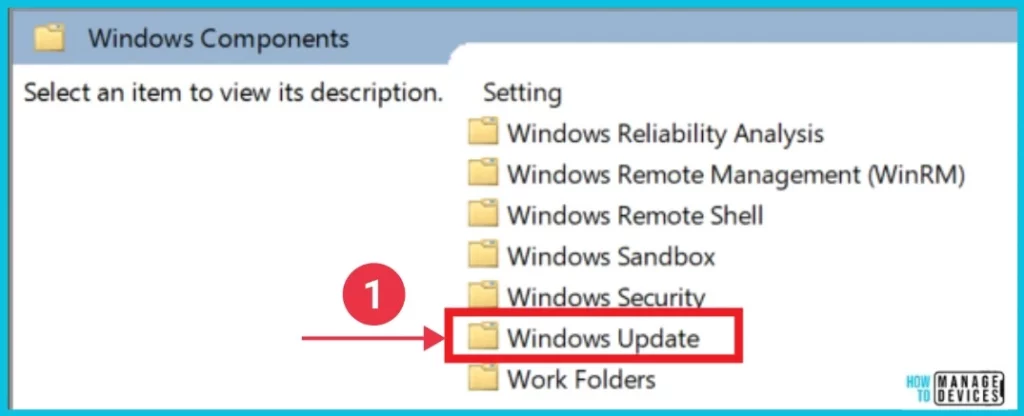
The window below shows many options on the Windows Component option. Select the Windows Update option from Windows Components.
- Enable Disable Memory Compression on Windows 11
- Enable Disable Autocorrect Misspelled Words on Windows 11
You can select Legacy Policies from the Windows Update window. This option will show different options related to Windows Update in Windows 11.
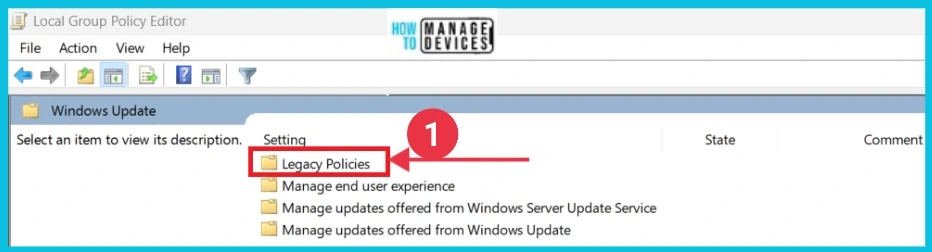
Here, you can see the option No auto-restart with logged-on users for scheduled automatic update installations. Click this option to continue the enable or disable option.
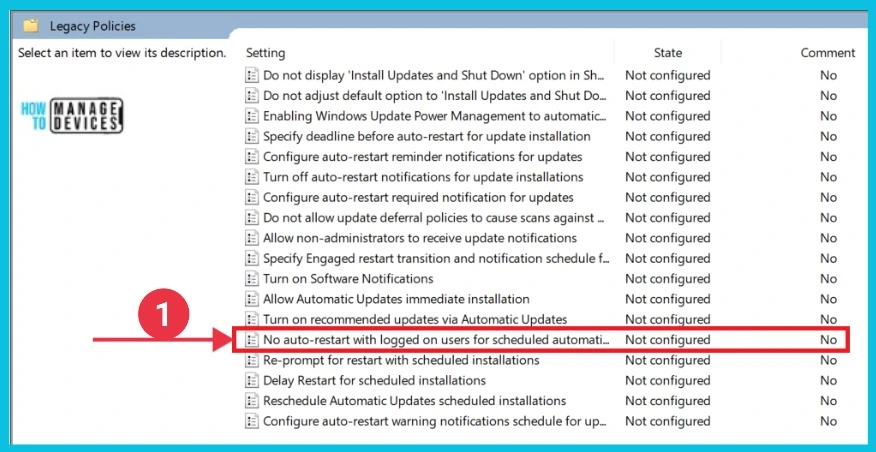
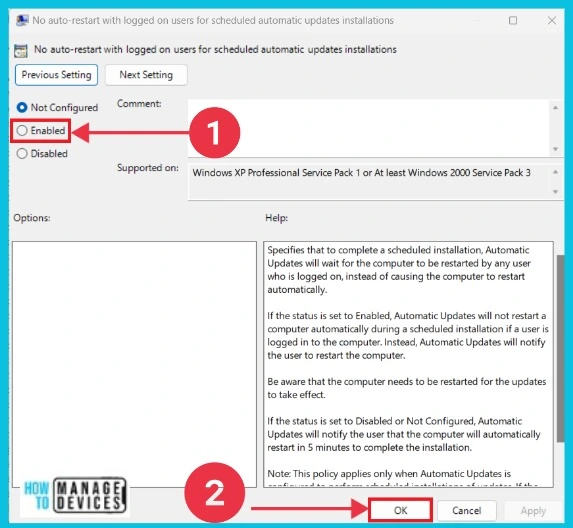
This window shows the Auto-restart option on Local Group Policy Editor. This window helps you to schedule automatic update installations. Click on the Enabled option from the window below and select the OK button.
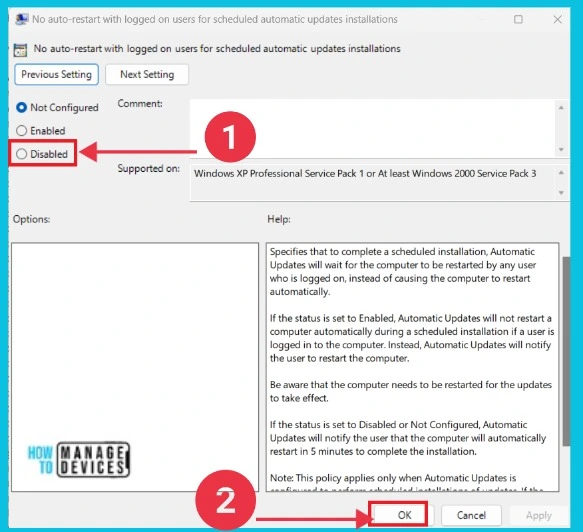
You can also see the disabled option here. You can quickly turn off this option with the above steps. If you turn it off, your auto restart option will be removed.
Enable Disable Auto-restart Notifications for Windows Update in Windows 11 Using Intune
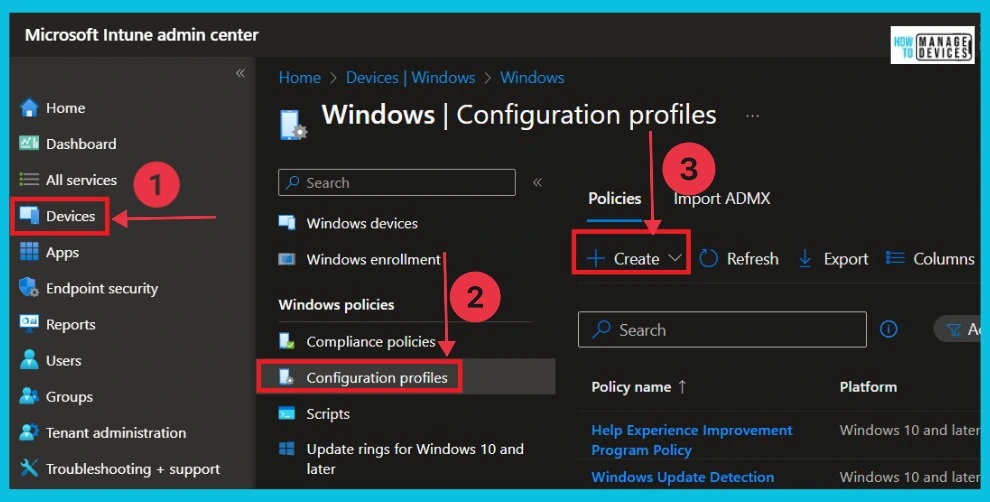
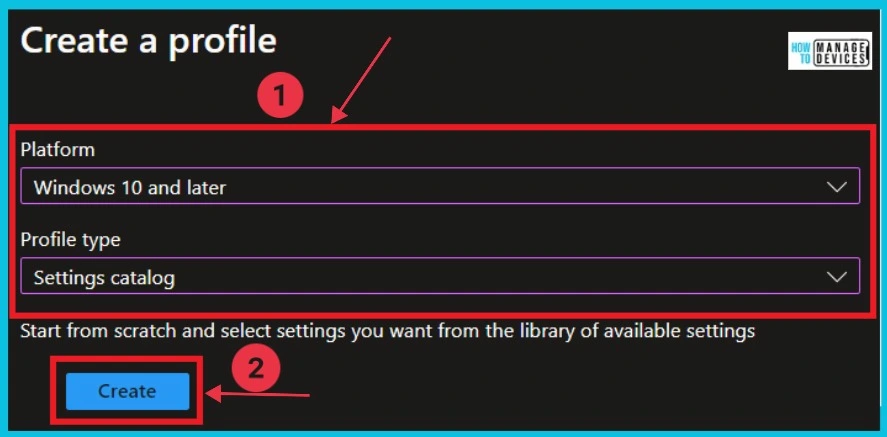
Follow the steps to Enable Disable Auto-Restart after Windows Update using Intune. Sign in to the Intune Admin Center portal. Select Devices > Windows > Configuration profiles > Create a profile.
In Create Profile, Select Windows 10 and later in Platform, and Select Profile Type as Settings catalog. Click on the Create button.
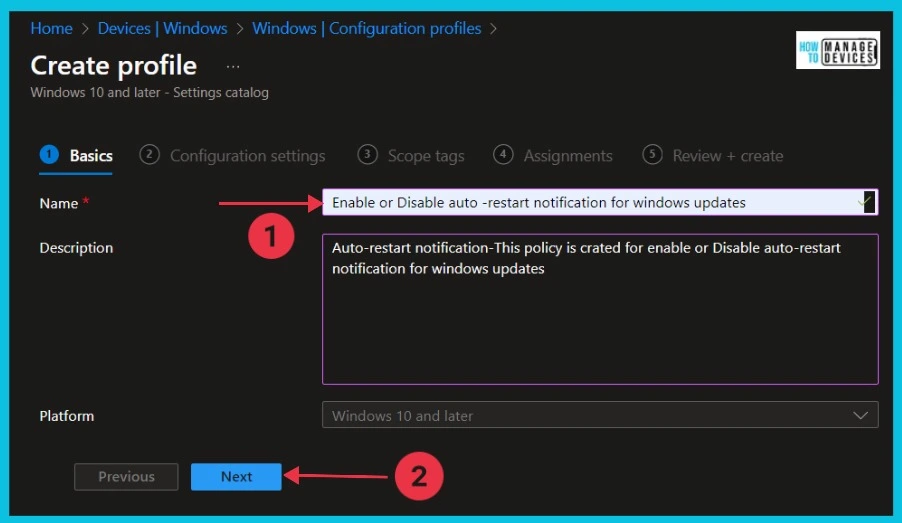
First, the Basics: You can type the policy name“Enable or Disable auto-restart notification for Windows updates” and describe that name in the second option, which is optional. Then select next for continue.
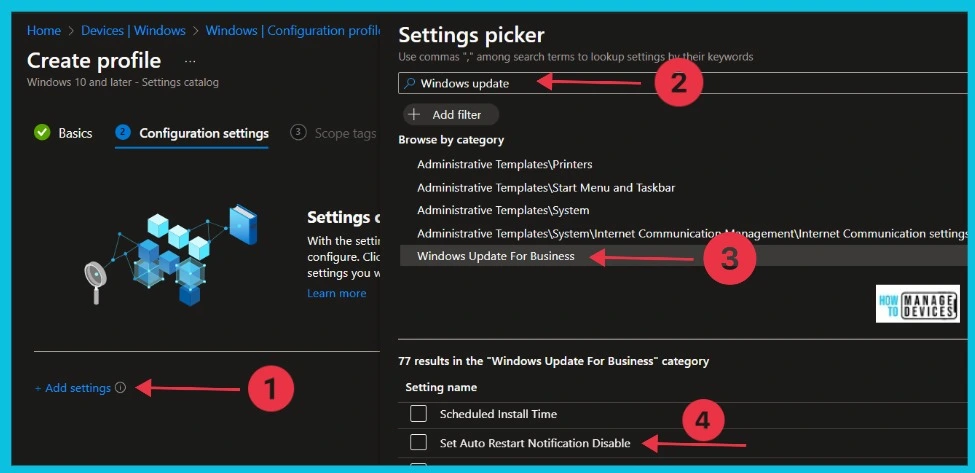
In Configuration Settings, click Add Settings to browse or search Windows update in the Settings picker and choose Windows Update for Business. After that, tick the Set Auto Restart notification Disable in the setting name.
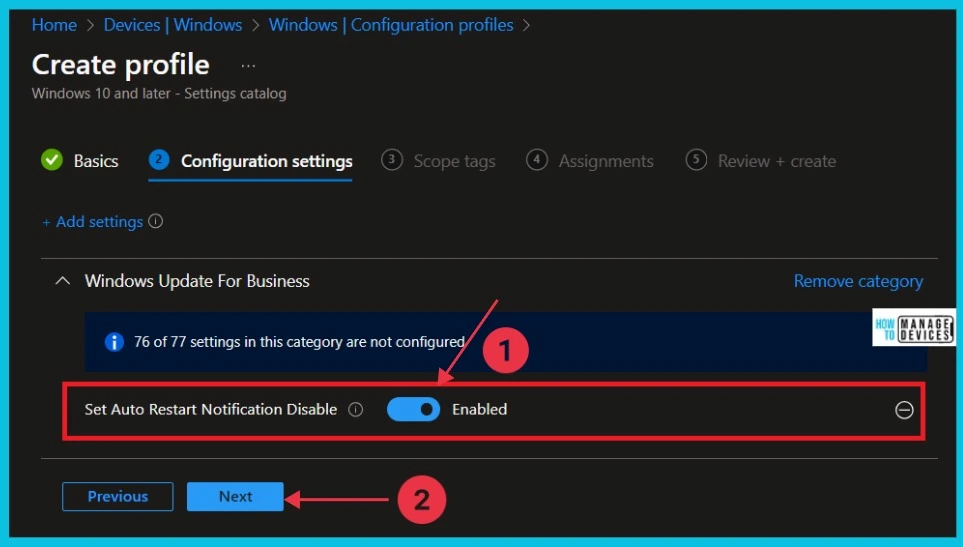
The screenshot below shows the configuration settings; you can see the notification’s turn-on or off buttons. Enable the Set Auto Restart Notification by toggling the pane to the Right side. You can Disable this setting by toggling the pane to the Left side.
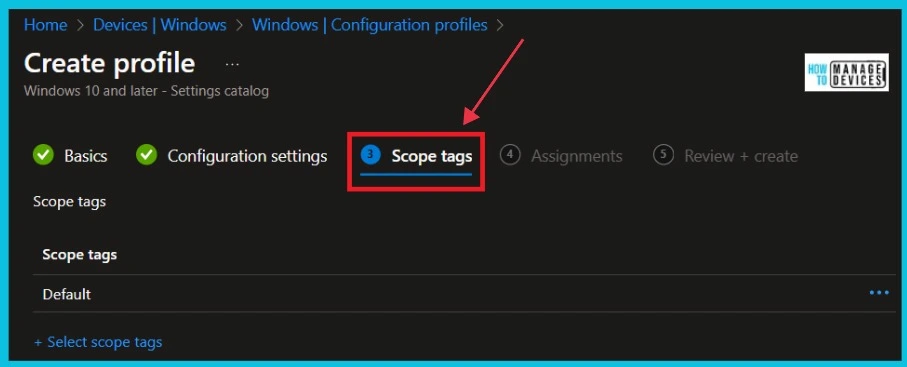
Next is the Scope tags tab. You can add scope tags in this tab and click Next to continue.
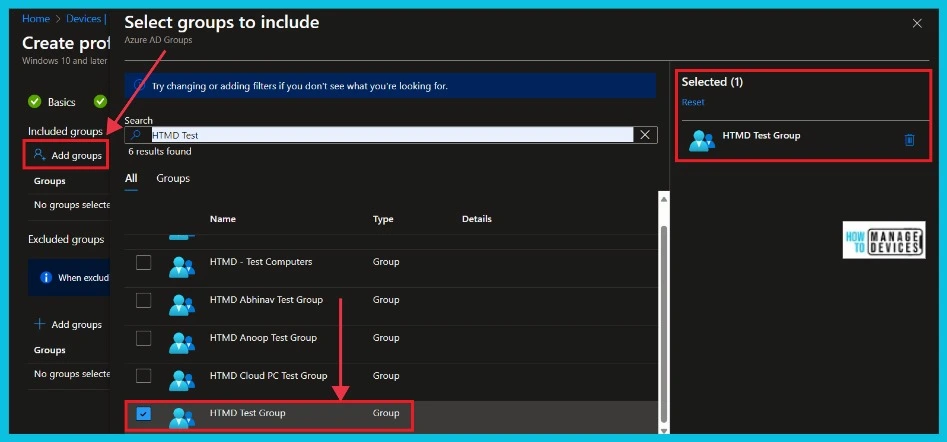
In the Assignments tab, first, select the Add group in the included group, search for the group “HTMD Test Group“, and choose it. Click select to continue.
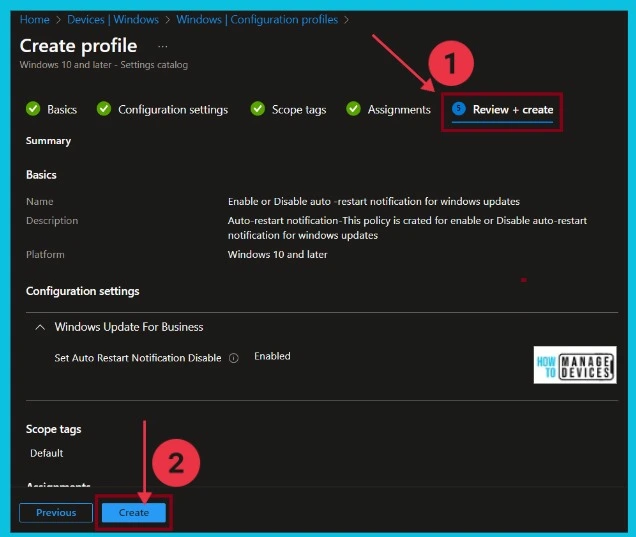
You can view your settings in the last Review + Create tab here. After clicking Create, your changes are saved, and the policy is created.
We are on WhatsApp. To get the latest step-by-step guides and news updates, Join our Channel. Click here for HTMD WhatsApp.
Author
Sumitha was introduced to the world of computers when she was very young. She loves to help users with their Windows 11 and related queries. She is here to share quick news, tips and tricks with Windows security.


Discussion