






Best Guide to Enable Disable Edge Browser Auto Sign-in and Sync with Intune
In this article, I will discuss how to enable or disable Edge Browser Auto Sign-in and Sync with Microsoft Intune. We’ll use the Configuration Profile administrative template to achieve this.
MS Edge Auto Sign-in and Sync allow users to seamlessly sign in to their Microsoft accounts and synchronize their settings, favourites, passwords, and other browser data across multiple devices using Microsoft Edge. This feature ensures a consistent browsing experience regardless of the device.
Auto Sign-in allows users to automatically sign into Microsoft Edge using their Microsoft account or an account associated with their organization. When enabled, this feature saves users time by automatically signing them into their browser, which can then sync their browsing data, such as bookmarks, passwords, and settings.
Sync in Microsoft Edge allows users to synchronize their browser data across multiple devices. This means that data such as bookmarks, passwords, history, open tabs, and settings can be accessed from any device where the user is signed into Edge with the same account.

Table of Contents

- New Windows Autopilot Device Preparation Experience using Intune
- Easy Way to Hide Task View Button with Intune
- Best Guide to Deploy New Intune Company Portal App on Windows using Intune
Benefits of Edge Auto Sign-in and Sync
Let’s go over the benefits of enabling Edge Auto Sign-in and Sync in more detail. Please find the below table for more deatils.
| Benefits | Details |
|---|---|
| Consistency Across Devices | Uniform Experience: Your browsing history, settings, passwords, bookmarks, and other data are consistent across all your devices. Whether you’re using a PC, tablet, or smartphone, your browsing experience remains the same. Seamless Transitions: Move from one device to another without losing your place. For example, you can start reading an article on your phone and continue on your computer from where you left off. |
| Convenience | Automatic Data Transfer: No need to manually transfer bookmarks, passwords, or settings when switching to a new device. Everything syncs automatically. Quick Setup: When you set up a new device, logging into your Microsoft account in Edge will automatically apply your preferences and data, making the setup process faster and easier. |
| Security | Encrypted Data: Your synced data is encrypted both in transit and at rest, ensuring that your personal information is secure. Microsoft Account Security: Leverage the security features of your Microsoft account, including two-factor authentication, to protect your browsing data. |
| Data Backup | Automatic Backup: Your browser data is continuously backed up to the cloud. In the event of device loss, damage, or reset, you can easily restore your data by signing back into your Microsoft account. No Data Loss: Avoid losing important bookmarks, saved passwords, and browsing history, as they are safely stored in the cloud. |
| Productivity | Synchronized Tabs: Open tabs can be synced across devices, allowing you to continue your tasks seamlessly. Shared Extensions: Extensions and add-ons installed on one device can be synced to others, ensuring you have the same tools available everywhere. Access to Payment Methods: If you store payment methods in Edge, they can be accessed across devices for quicker and easier online transactions. |
| Customization | Personalized Settings: Customize your browser settings once and have them apply across all devices, saving you the time and effort of reconfiguring each device individually. Managed Sync Options: Choose what data you want to sync. For example, you can opt to sync only bookmarks and passwords while excluding history and open tabs. |
| Enhanced Browsing Experience | Personalized Content: Get personalized content recommendations and search results based on your synced browsing history. Integrated Services: Seamless integration with other Microsoft services like Office 365, OneDrive, and Windows Timeline, enhancing overall productivity and user experience. |
Create Configuration to Enable Edge Auto Sign-in and Sync with Intune
Follow the steps below to create a configuration policy to Enable Edge Auto Sign-in and Sync with Microsoft Intune. Then, log in to the Microsoft Intune Admin Center using your administrator credentials.
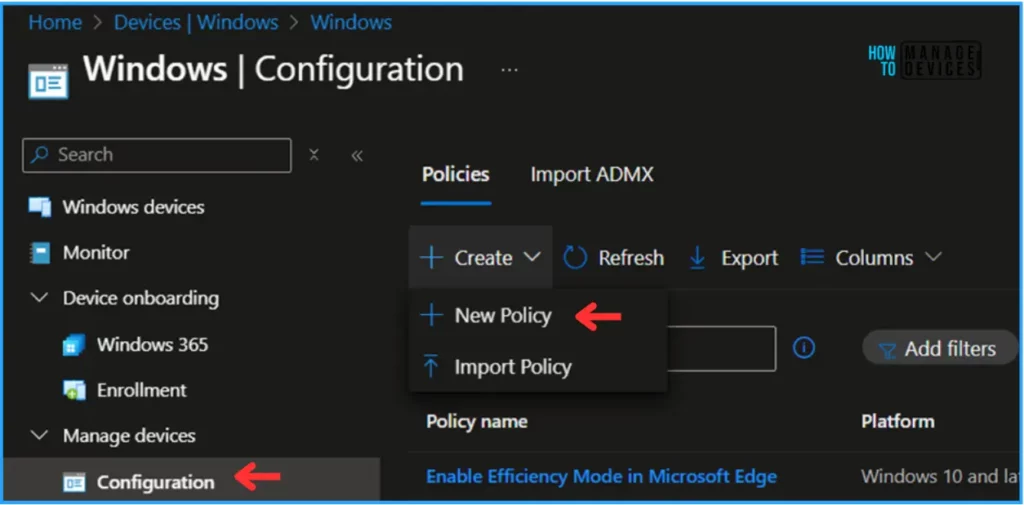
- Navigate to Devices > Windows > Configuration
- Click on +Create > +New Policy
- Intune Win32 App Supersedence and Auto App Update Explained
- Easy Guide to Enable Edge Built-in PDF Reader for WebView2 with Intune
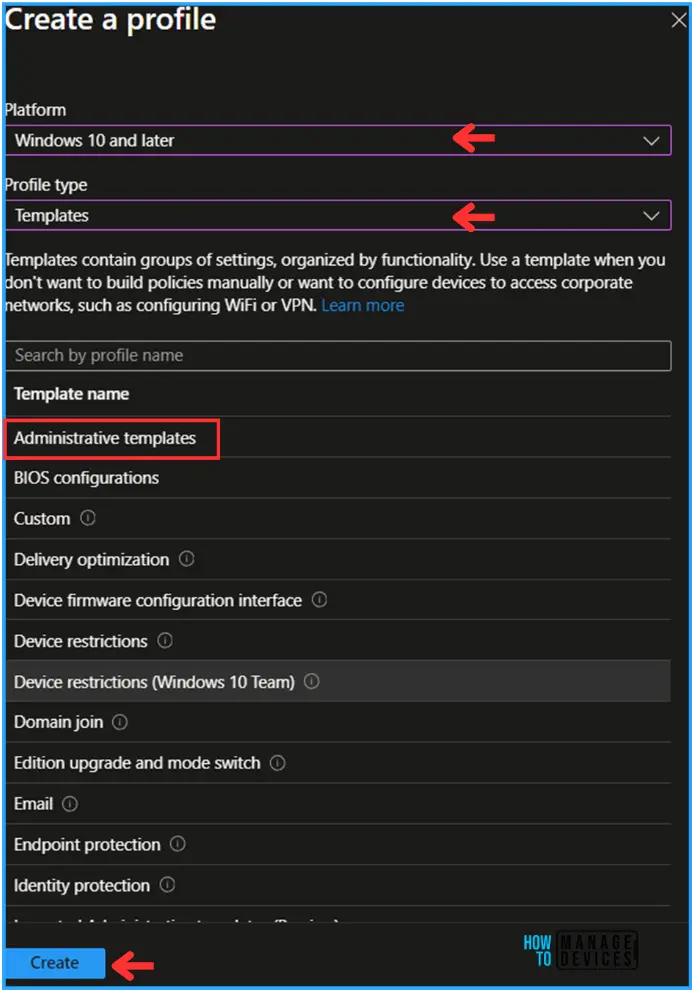
We can create a profile using an existing Windows template. To do that, select the following options under the Create a profile option.
- Platform: Windows 10 and later
- Profile type: Templates
- Template name: Administrative templates
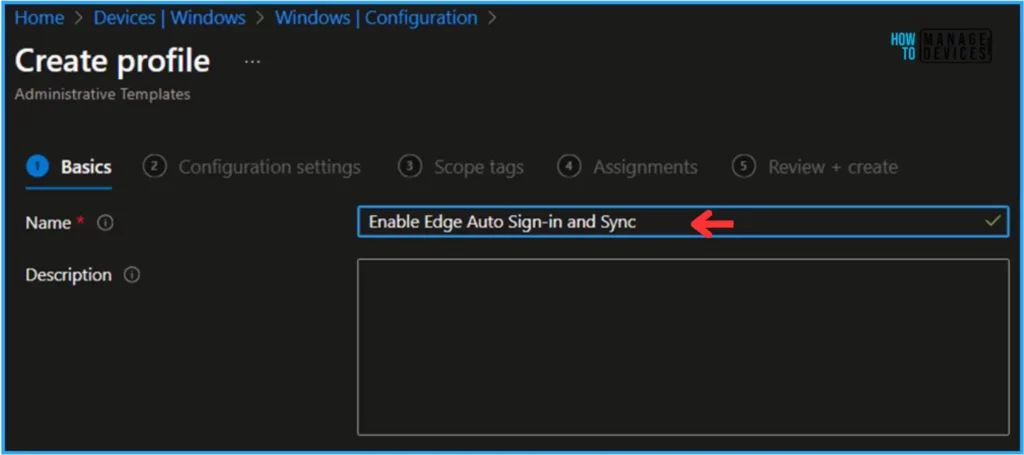
In the Basics option, we can name the Configuration Profile as “Enable Edge Auto Sign-in and Sync” If needed, we can add a short description and click Next.
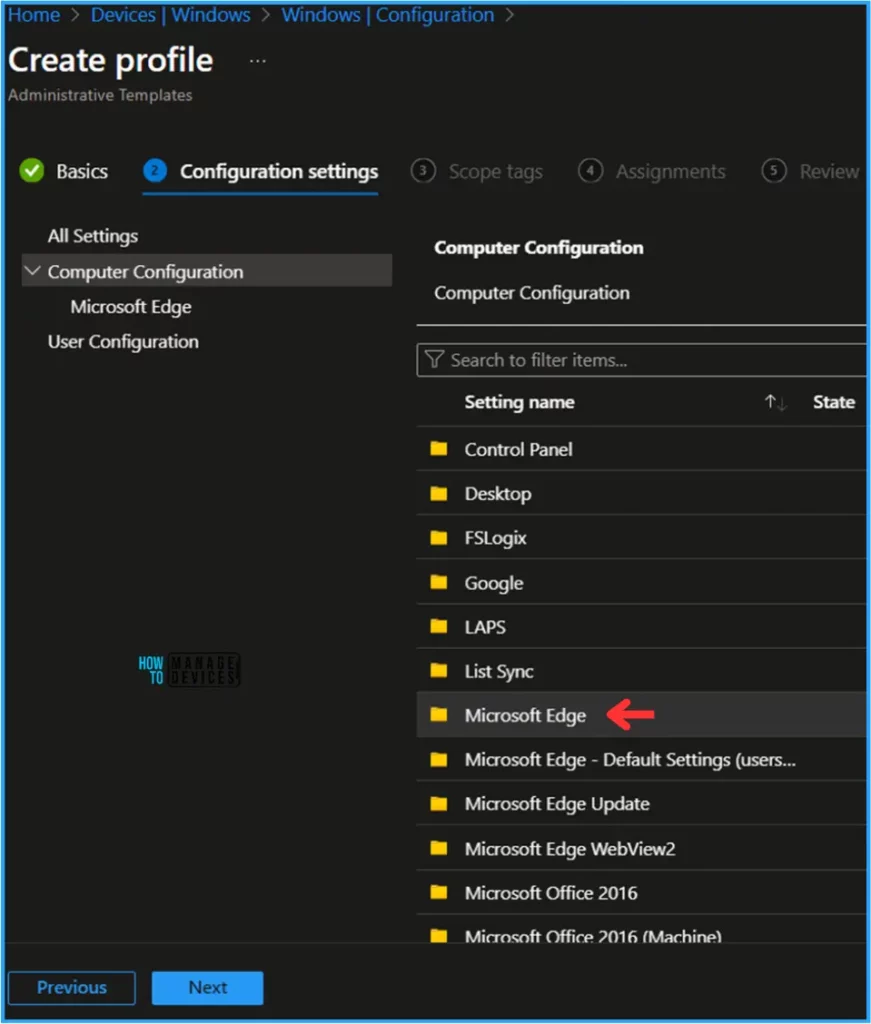
Under the Configuration Settings page, click Computer Configuration, and we will select the settings folder name Microsoft Edge.
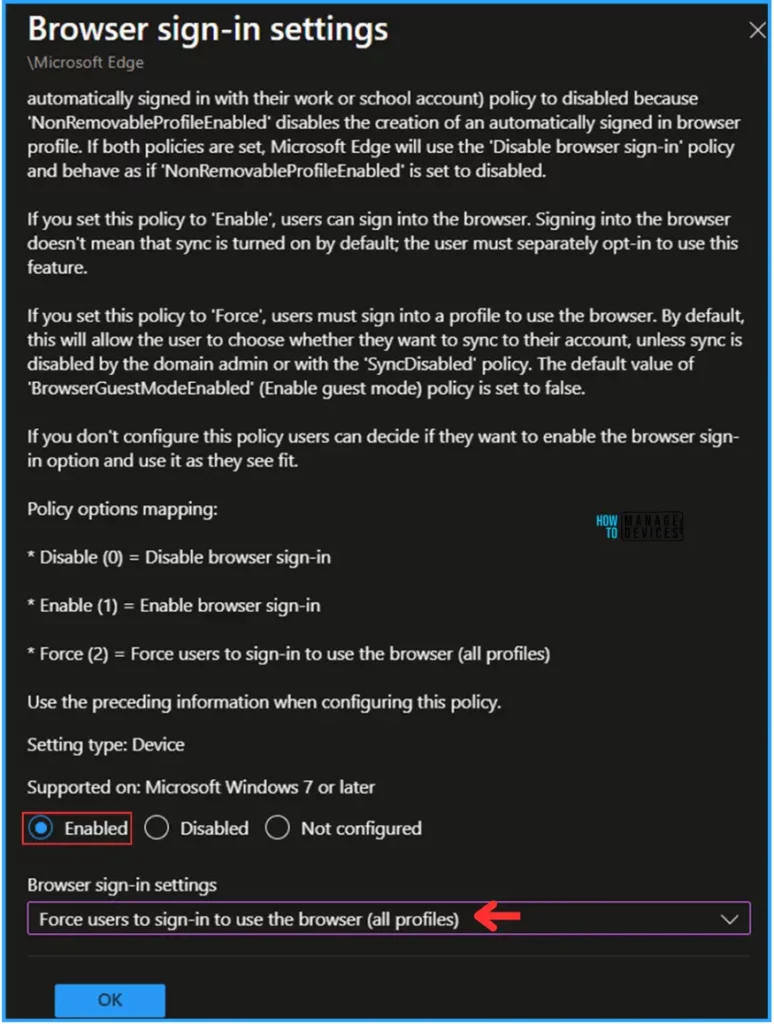
On the next page, search for “Browser sign-in settings, enable the radio icon, and set the Browser sign-in settings to “Force users to sign in to use the browser (all profiles)”
- Disable (0) = Disable browser sign-in
- Enable (1) = Enable browser sign-in
- Force (2) = Force users to sign-in to use the browser (all profiles)
Use the preceding information when configuring this policy.
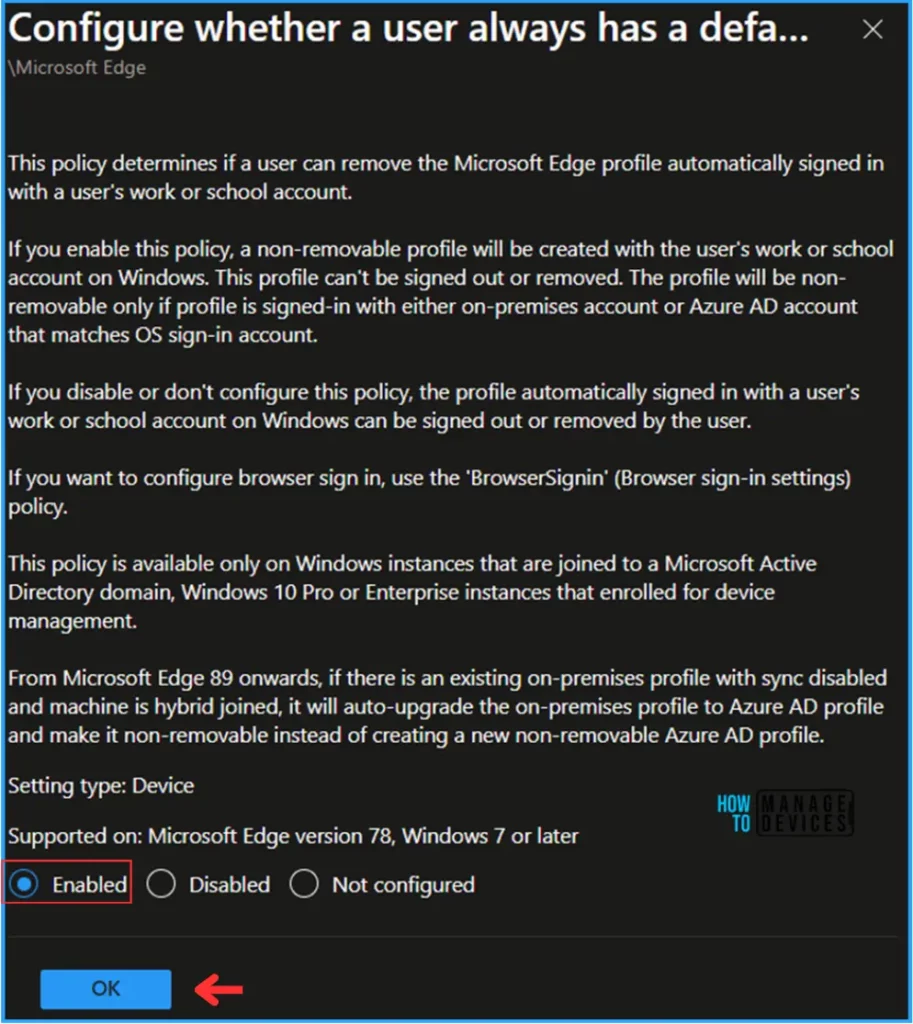
On the same page, search for “Configure whether a user always has a default profile automatically signed in with their work or school account” and enable the radio icon.
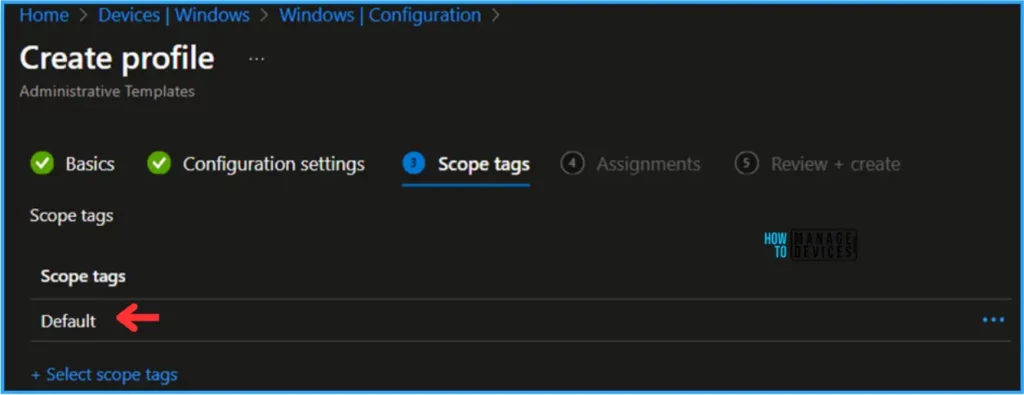
On the next page, Leave the Scope tags as Default. If you want to make any custom scope tags available to your tenant, you can also select them based on the requirement.
Click on Next and assign the policy to HTMD – Test Computers. Then, Click Add Groups and select the required device group in the Included Groups option.

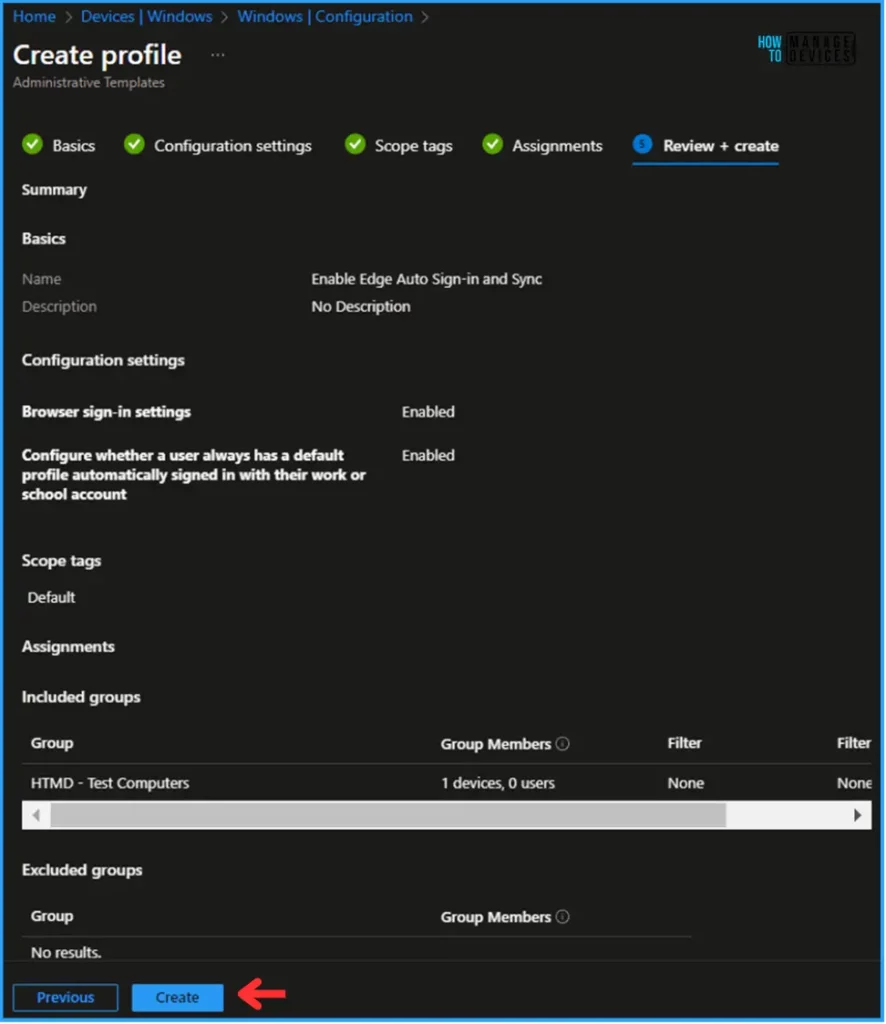
On the Review + Create page, carefully review all the settings you’ve defined for the Enable Edge Auto Sign-in and Sync configuration. Select Create to implement the changes once you’ve confirmed everything is correct.
Monitor the Enable Edge Auto Sign-in and Sync in Intune
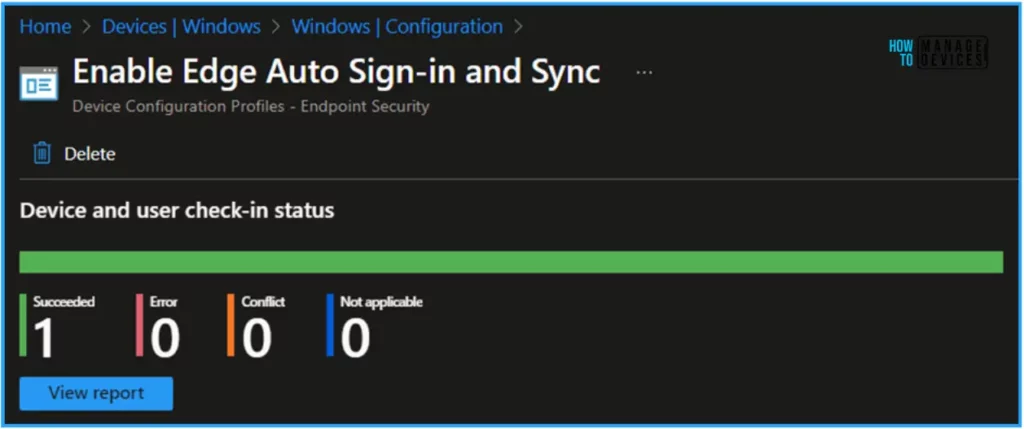
The policy has been deployed to the Microsoft Entra ID groups. The policy will take effect as soon as possible once the device is synced. To monitor the policy deployment status from the Intune Portal, follow the steps below.
- Navigate to Devices > Windows > Configuration > Search for the “Enable Edge Auto Sign-in and Sync” configuration profile.
You will now see the Device and user check-in status of the targeted Configuration Profile.
End User Experience – Enable Edge Auto Sign-in and Sync
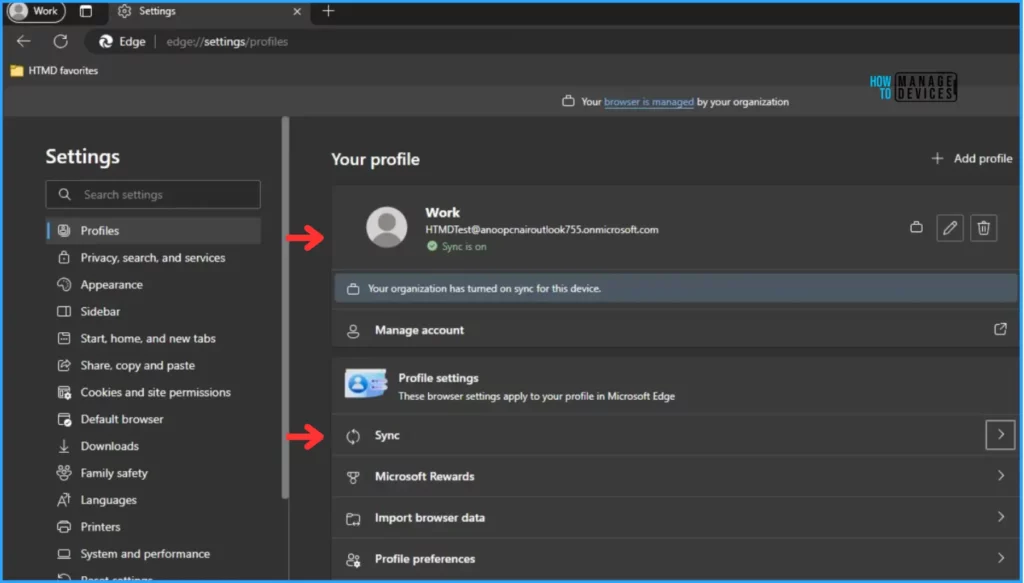
Now, we have to check whether the Enable Edge Auto Sign-in and Sync configuration profile is working fine or not. Log in to one of the policy-targeted devices.
Open Microsoft Edge Browser and open Settings; under Profiles, you can see that the user account was signed in and Synchronized automatically. If you need in detailed details about the Sync just click on the Sync option.
I appreciate you taking the time to read my article. I’m excited to see you in the upcoming post. Continue to support the HTMD Community. We are on WhatsApp. To get the latest step-by-step guides and news updates, Join our Channel. Click here – HTMD WhatsApp.
Author
Vaishnav K has over 10+ years of experience in SCCM, Device Management, and Automation Solutions. He writes and imparts his knowledge about Microsoft Intune, Azure, PowerShell scripting, and automation. Check out his profile on LinkedIn.


Hi,
super guide, but is a bit outdated, because the admin. templates have been retired. It is not a big deal but maybe update the screenshots.
Thanks