






Enable Disable Focused Inbox in Outlook for Windows 11
Let’s discuss whether to Enable Disable the Focused Inbox in Outlook for Windows 11. Microsoft developed the most valuable and essential email software, Outlook. Very few people don’t use Outlook today, but many use this application to reduce their daily work. Which can be used to send, receive, and read emails.
Outlook is more than just an email client. It is a productivity tool suite that includes a calendar and contact management. Outlook is an extraordinary application that allows users to send emails, plan their days, and quickly schedule events.
With the Outlook application, you can effortlessly manage personal and official messages. The main attraction of Outlook is that it is not only for emails but also for a comprehensive contact management system, and you can manage your contacts.
Focused Inbox is an essential and intelligent feature in Outlook. This will enhance your email management experience. Focused Inbox, as the name suggests, this feature contains your most important emails. In this article, you can learn how to Turn On or Off Focused Inbox in Outlook for Windows 11.

- Change to Classic or Modern Theme in Outlook for Windows 11
- Conflict Errors in Outlook When Updating or Cancelling Meetings
- How to Set Out of Office in Outlook
What are the Advantages of Focused Inbox in Outlook for Windows 11?
Outlook is Microsoft’s most important application. Focused Inbox in Outlook significantly enhances your email management experience. This feature has Many Advantages, which are given below.
1. Focused Inbox always helps you to concentrate on essential emails
2. You can customize your inbox to match your preferences
3. It ensures that your essential messages remain at your fingertips
4. In this feature it only shows the messages that you are mostly interacted with
Enable Disable Focused Inbox in Outlook for Windows 11
A focused inbox organizes your email messages into separate tabs. This option prioritizes your email preferences. Turning this feature on and off is quick in Outlook. You can open Outlook through the start menu by searching for Outlook.
- Open the Outlook
- Click on the Settings option at the top of the Outlook
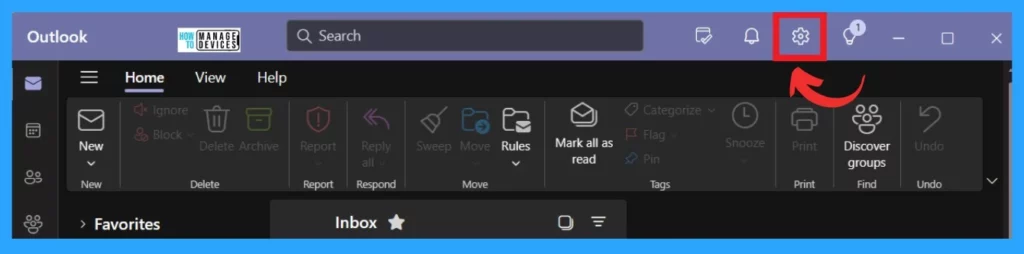
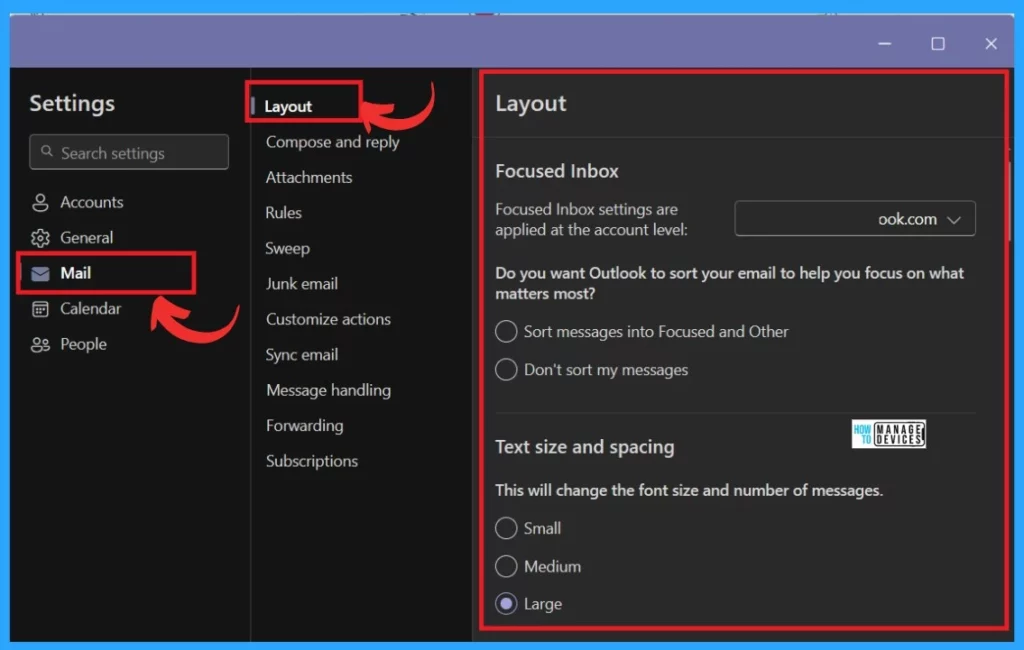
After clicking on Settings, you will get a setting window with many options. Click on the mail tab from that. You will get many options in the mail, such as layout, compose and reply, layouts, etc. From that, select the first option, which is called Layout.
- Easy Way to Repair Reset Outlook in Windows
- FIX Search Result Issues with Shared Mailbox Outlook Desktop App
- New Unified Outlook Experience Overview
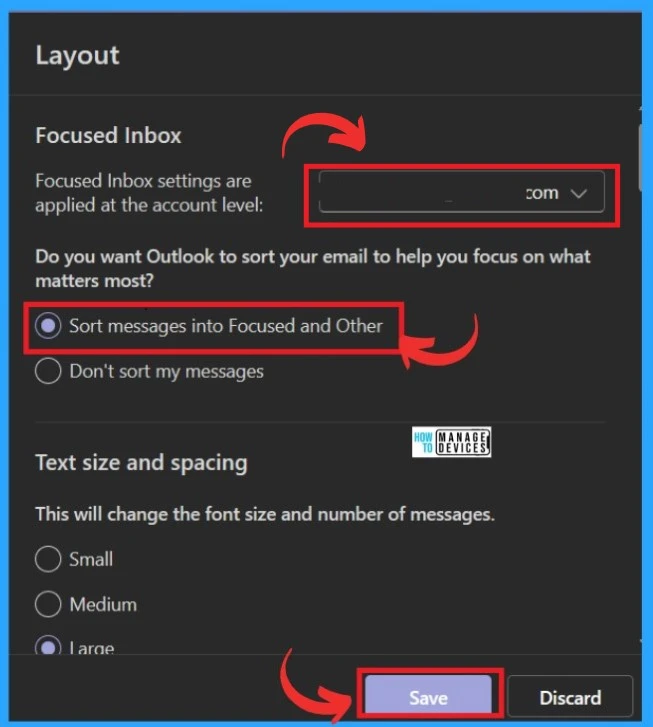
In the Layout option, you will have many options for enabling a Focused inbox. First, you must select which mail account to use this feature. For that, select the Email account. In the second option, you have to Sort your Email to help you focus on what matters most.
- Select the option to sort messages into focused and other.
- Click on the Save option
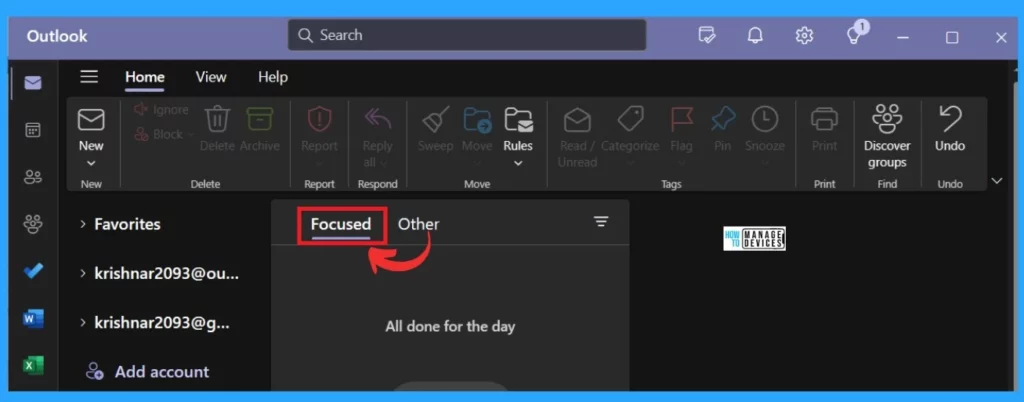
After Enabling the Sort option, you can close all the windows; when you open the Outlook main page, you can see that it intelligently organizes your email messages into 2 separate tabs: the Focused tab and the Other message tab.
| The Focused Tab | Other Messages Tab |
|---|---|
| The Focused tab contains important emails from your past interactions | Other message options are less urgent or promotional emails. |
| It includes messages from contacts you frequently interact with | It only includes automated notifications and bulk emails. |
| We can call this feature a priority inbox messages | Other messages are not that important for your work time |
We are on WhatsApp. To get the latest step-by-step guides and news updates, Join our Channel. Click here –HTMD WhatsApp.
Author
Krishna. R is a computer enthusiast. She loves writing about Windows 11 and Intune-related technologies and sharing her knowledge, quick tips, and tricks about Windows 11 or 10 with the community.




Discussion