






Enable Disable Microphone Array in Windows 11
Let’s discuss Enable Disable Microphone Array in Windows 11. Microphone Array is a built-in feature for Windows PCs that allows users to connect multiple microphones to a single audio device and use them simultaneously.
A Microphone Array is more capable than a Microphone in Windows 11 PCs. A single microphone embedded in a laptop or monitor does not capture sound very well. An array of microphones performs better at isolating a sound source and rejecting ambient noise and reverberation.
The Microphone Array helps users control the volume of their Windows 11 PC and provides improved sound selection and noise cancellation. Sometimes, users may affect audio quality while meeting, and it is very important to communicate in a meeting.
Enabling the Microphone Array is very important to maintaining the audio quality of your PC. In this blog post, I will help you enable and disable the Microphone Array in your Windows 11 PC and discuss different methods of enabling and disabling It.

What are the Advantages of Microphone Array in Windows 11 PCs?
1. It performs better in isolating the sound source
2. Helps to reject ambient noise and reverberation
3. It can help improve safety and security of drivers
4. It provides better audio experience
- Process to Enable Disable Camera in Windows 11
- Methods to Change Mouse Pointer Size, Style and Color in Windows 11
Enable Disable Microphone Array in Windows 11
Enabling the Microphone Array is a necessary setting for Windows 11 users. Many methods are available for Enabling and Disabling the Microphone Array in Windows 11. The following table shows the methods.
| Different Methods to Enable Disable Microphone Array |
|---|
| Enable or Disable Microphone Array in Settings |
| Enable or Disable the Microphone Array in Control Panel |
| Enable or Disable the Microphone Array in Device Manger |
1. Enable or Disable Microphone Array in Settings
Users can easily Enable or Disable the Microphone Array in Settings. This is a very quick and easy method of enabling the Microphone Array.
- Select Settings from the Start Menu
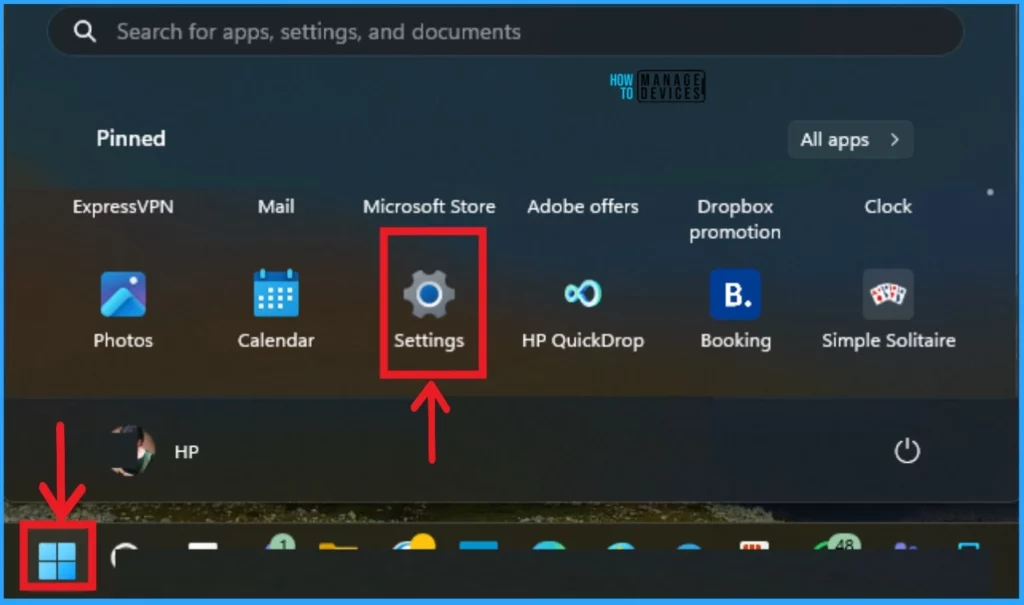
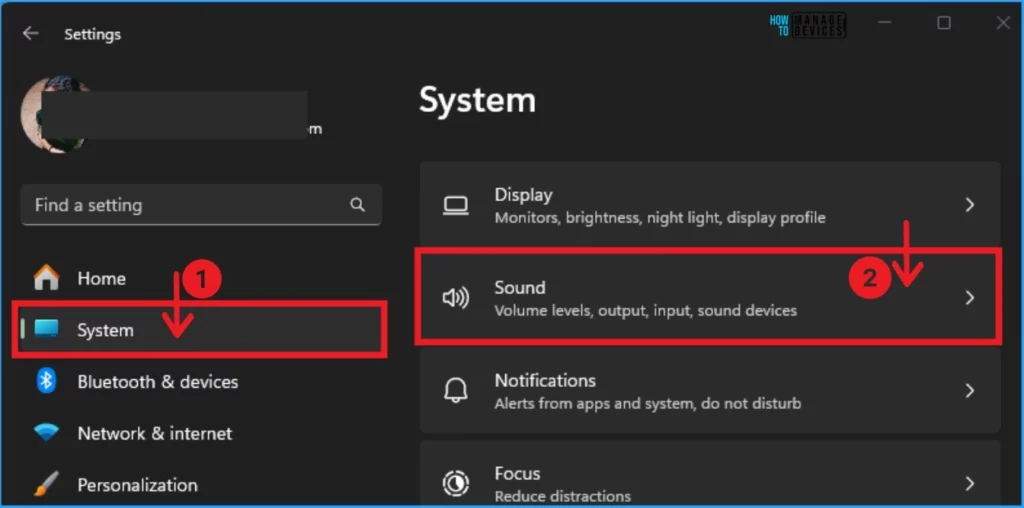
The settings Application shows many settings on the Left side. Select System Settings from the Left side of the Settings Window. Select the Sound option from the below window.
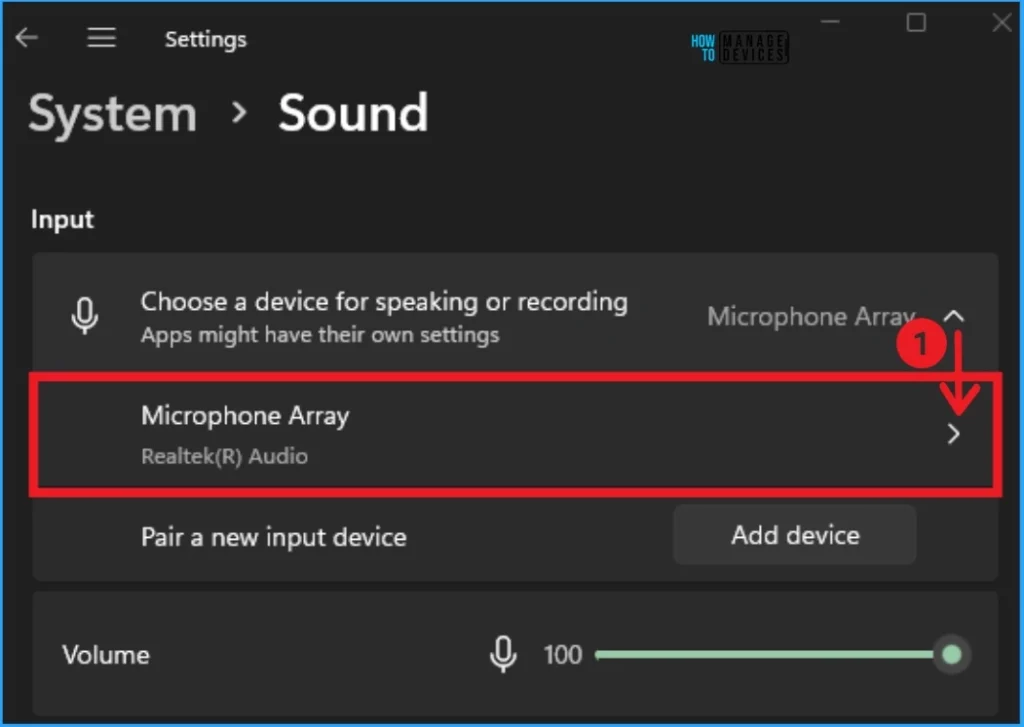
The sound option shows many other sound-related options. You can manage your Windows 11 PC’s sound-related settings from here. Select Microphone Array from this window.
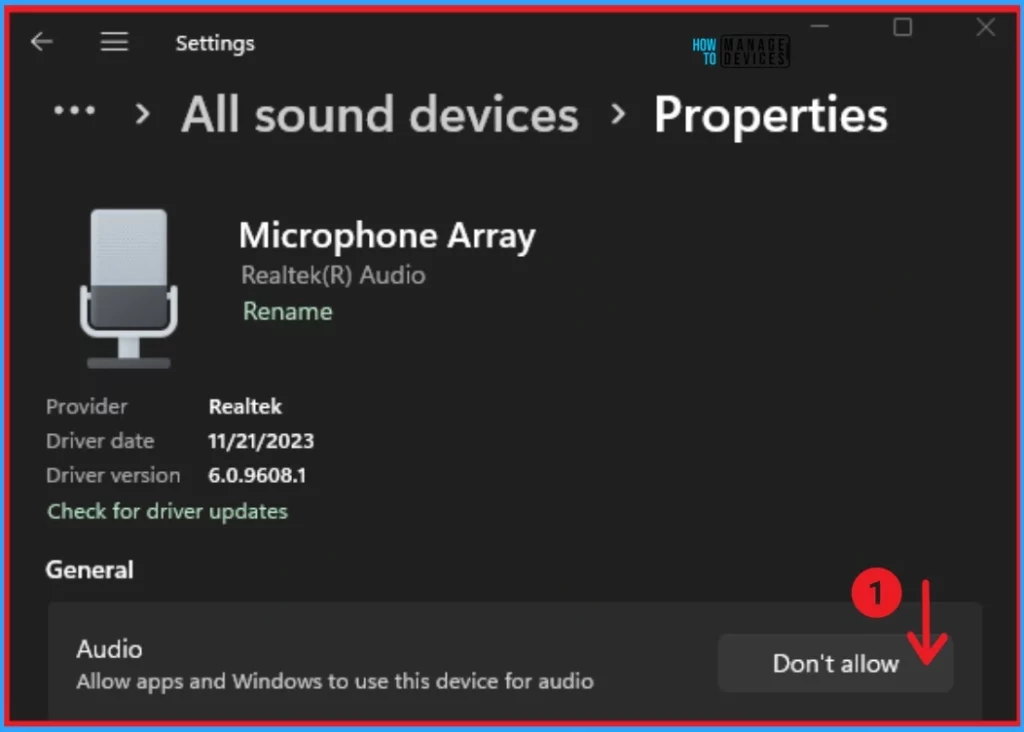
After selecting Microphone Array, it shows different properties, including provider, driver date, and version. Click on the Allow option shown on the window to enable Microphone Array.
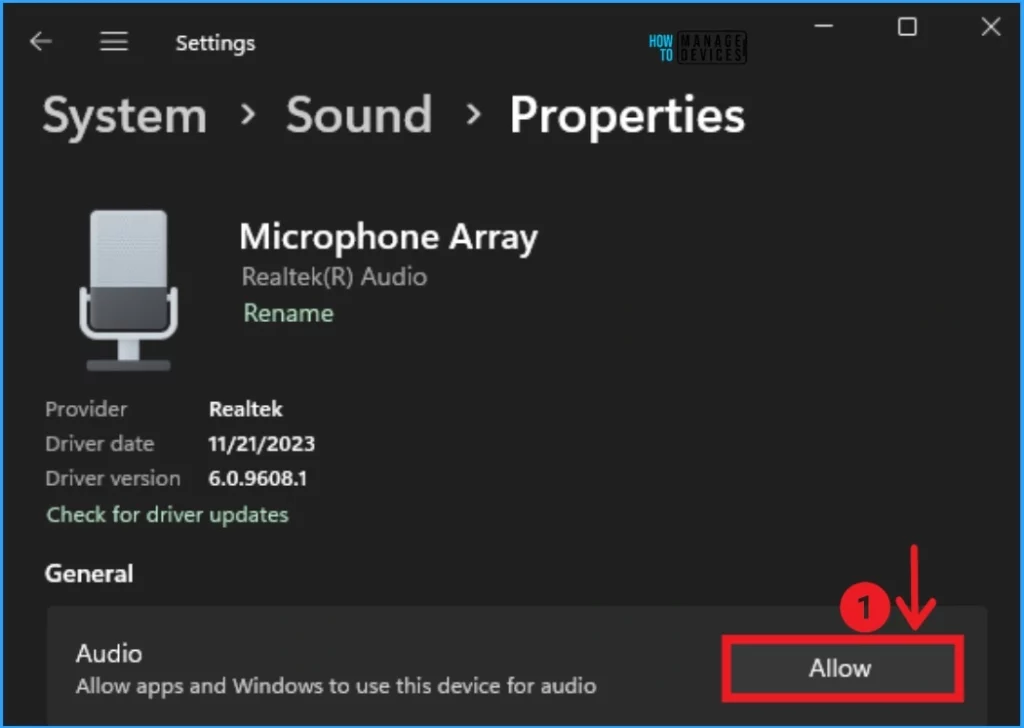
Your PC now has the Microphone Array option enabled. To disable it, click the Don’t Allow option in the window. Now Microphone Array is disabled on your PC.
- 6 Methods to Check Wi-Fi Network Signal Strength in Windows 11
- Enable Disable On-Screen Keyboard in Windows 11
Enable or Disable the Microphone Array in Control Panel
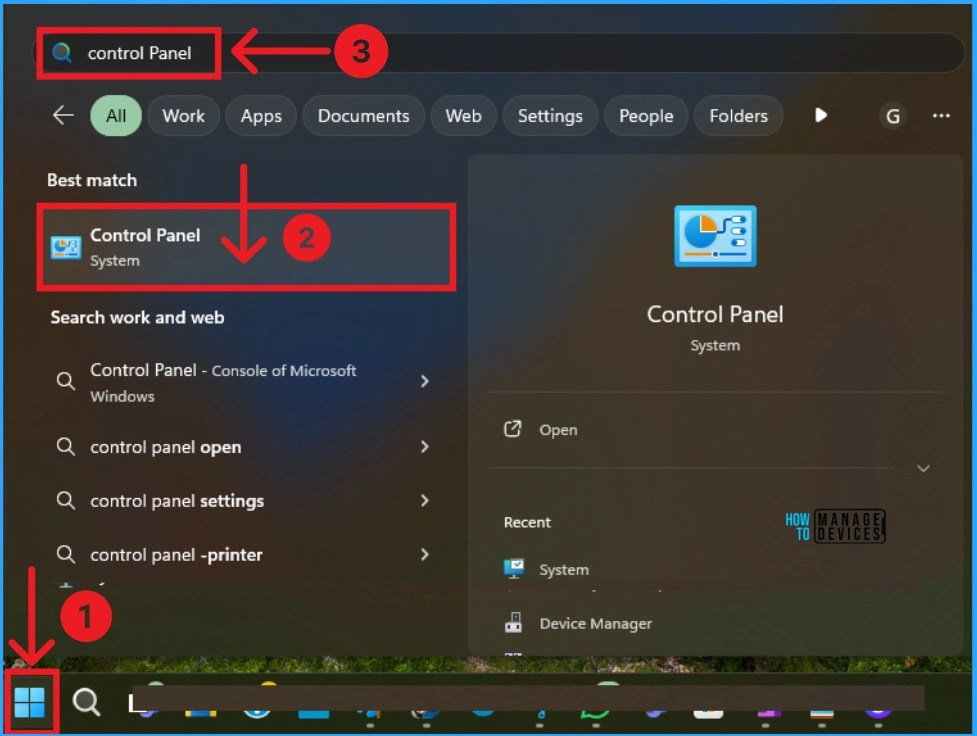
Control Panel also helps you to Enable and Disable Microphone Array. This is also easy for users. To do this, click on the start menu and Search for Control Panel. Open the Control Panel from the window below.
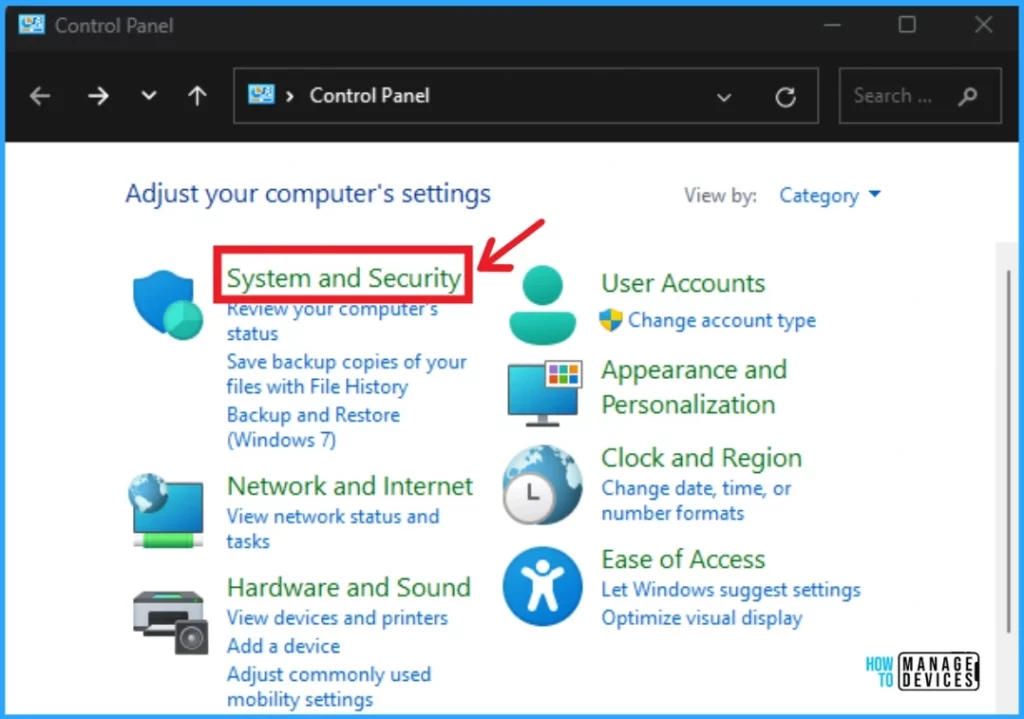
After that, Click on the System and Security option from the Control Panel. Control Panel helps you to control different settings on your Windows PC.
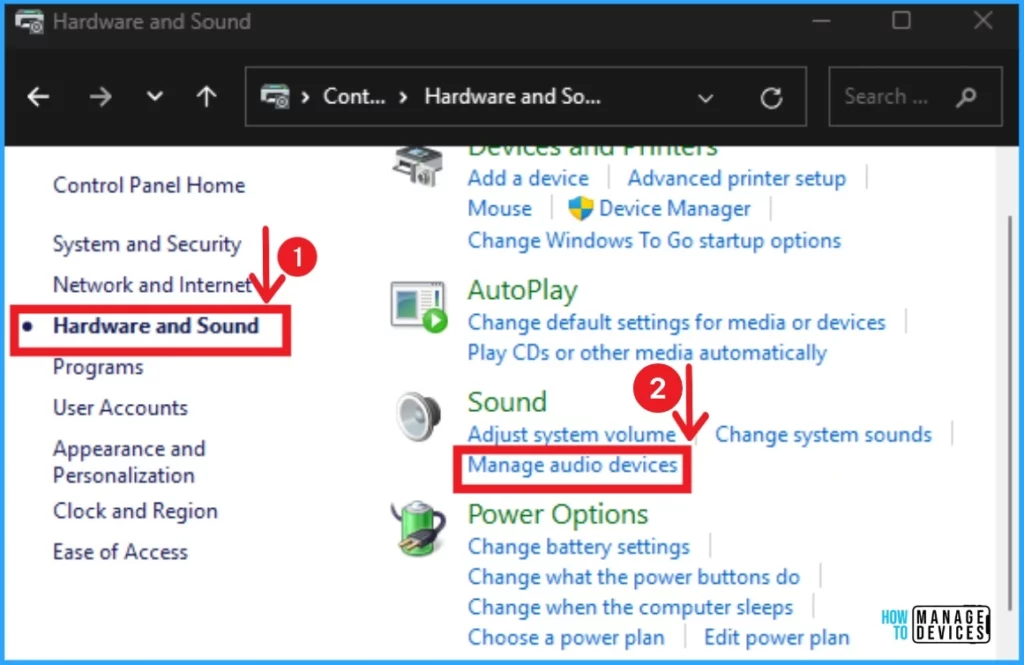
The System and Security option on the Control Panel shows many other options. Select the Hardware and Sound option and click on the Manage audio devices from this window.
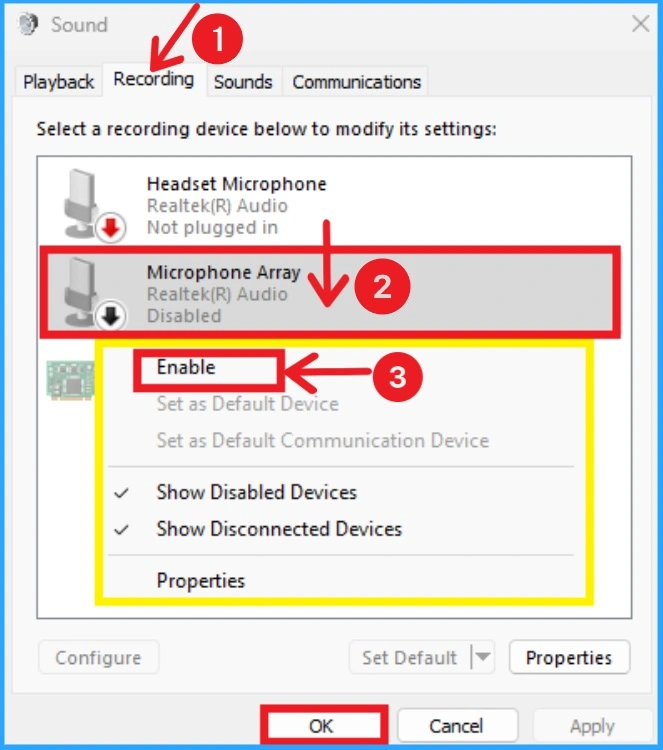
After that, another window will appear. This is the window that shows the sound settings of your PC. Select Recordings and right-click on the Microphone Array. Select the Enable option and Click on the OK button.
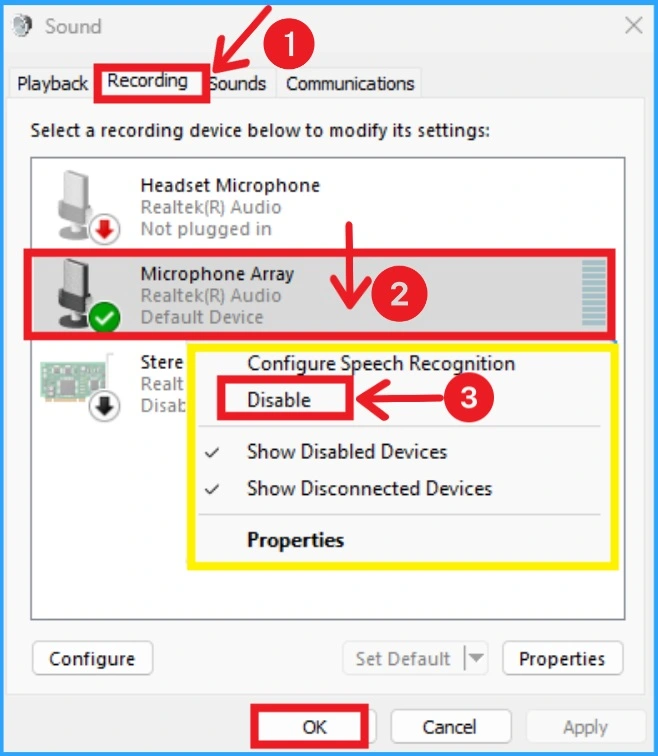
With the above-mentioned steps, you can easily Disable the Microphone Array from this window. Click on Recordings and right-click on the Microphone Array. Click on the Disable option and Click on the OK button.
3. Enable or Disable the Microphone Array in the Device Manager
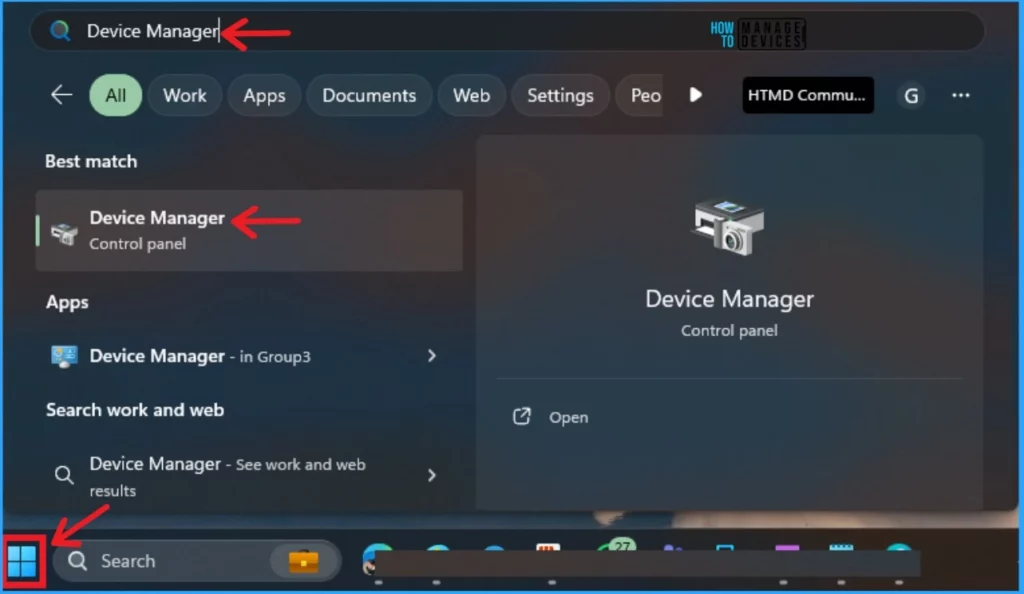
With Device Manager, users can quickly enable and disable the Microphone Array. To do this, Click on the Start Menu, search for Device Manager, and Open it.
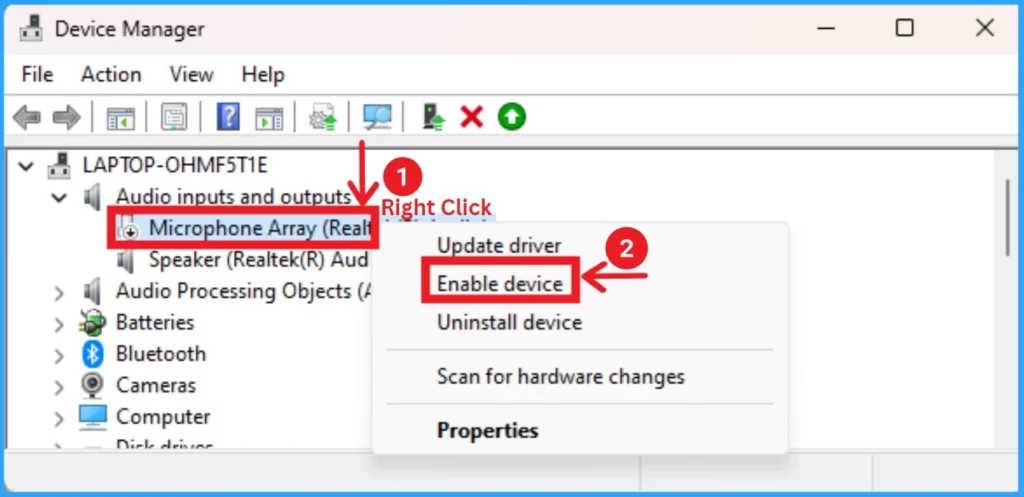
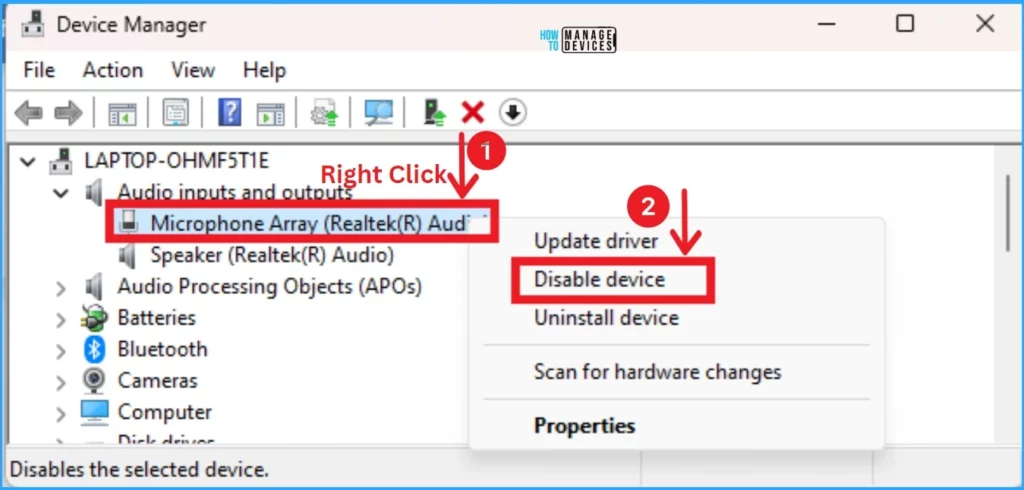
After that, Select Audio Input and Outputs and right-click on Microphone Array. Then, click on the Enable device option from the window below.
To disable Microphone Array, Click on the Audio Input and Outputs and right-click on Microphone Array. Click on the Disable device option from the below window.
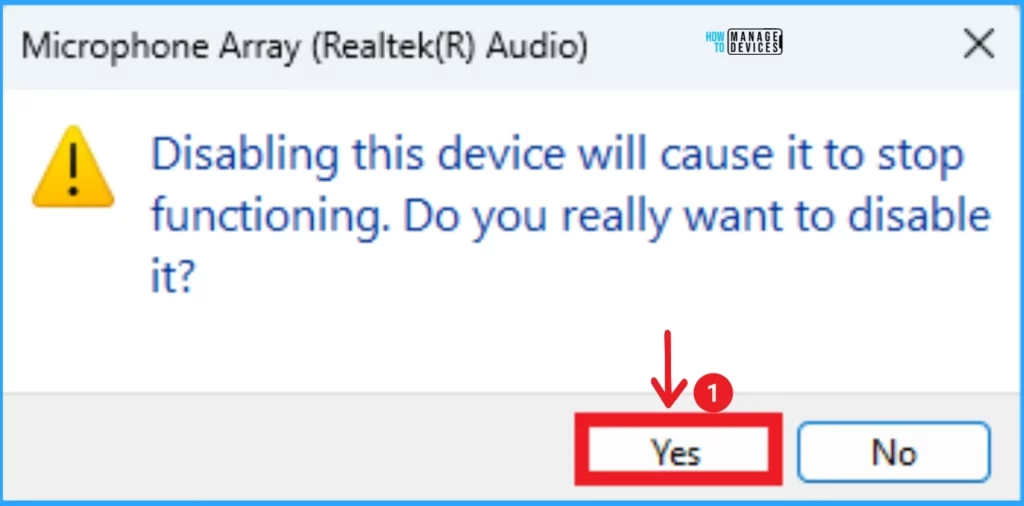
When you click on the Disable Device option, another window will appear. It says, “Disabling this device will cause it to stop functioning. Do you really want to disable it?”. Click on the Yes option if you want to disable the Microphone Array.
- How to Find Wi-Fi Network Password in Windows 11
- How to Fix Printer Connection Printing Problems in Windows 11
We are on WhatsApp now. To get the latest step-by-step guides, news, and updates, Join our Channel. Click here. HTMD WhatsApp.
Author
Anoop C Nair is Microsoft MVP! He is a Device Management Admin with more than 20 years of experience (calculation done in 2021) in IT. He is a Blogger, Speaker, and Local User Group HTMD Community leader. His main focus is on Device Management technologies like SCCM 2012, Current Branch, and Intune. He writes about ConfigMgr, Windows 11, Windows 10, Azure AD, Microsoft Intune, Windows 365, AVD, etc.




Just doesnt seem to be an option on my win 11 machine. I have 3 usb mics. cannot find any option to enable/see/add “array”
are you sure you don’t need to have a microphone array hardware (in many laptops)?