






Enable Edge Password Safety Alerts for Users Policy in Microsoft Intune
Let’s discuss Enable Edge Password Safety Alerts for Users Policy in Microsoft Intune with Administrative Template. The Intune Administrative Template allows users to create policies to manage Microsoft Edge Password Manager and Protection.
Do you know what Microsoft Edge Password Manager and Protection are? The Microsoft Edge Password Manager is a built-in feature that securely stores and manages your passwords. Passwords are encrypted using AES encryption and stored securely on your device.
Creating policies using administrative templates in Intune offers simplified Management. It provide a straightforward way to configure and manage settings across multiple devices, reducing the complexity of device management.
Administrative templates are powerful tools for IT administrators looking to manage and secure their organization’s devices efficiently. In this blog post, I will help you manage Microsoft Edge Password Manager and Protection using the Intune Administrative Template.

Table of Contents
Enable Edge Password Safety Alerts for Users Policy in Microsoft Intune
You can easily edit and manage your saved passwords through the Edge settings. Using Microsoft Edge Password Manager, you can improve productivity, By automatically filling in login credentials, it saves time for employees, allowing them to focus on their tasks without the hassle of remembering and typing passwords.
| Steps for Manage Microsoft Edge Password Manager and Protection |
|---|
| Go to the Intune Admin Center portal |
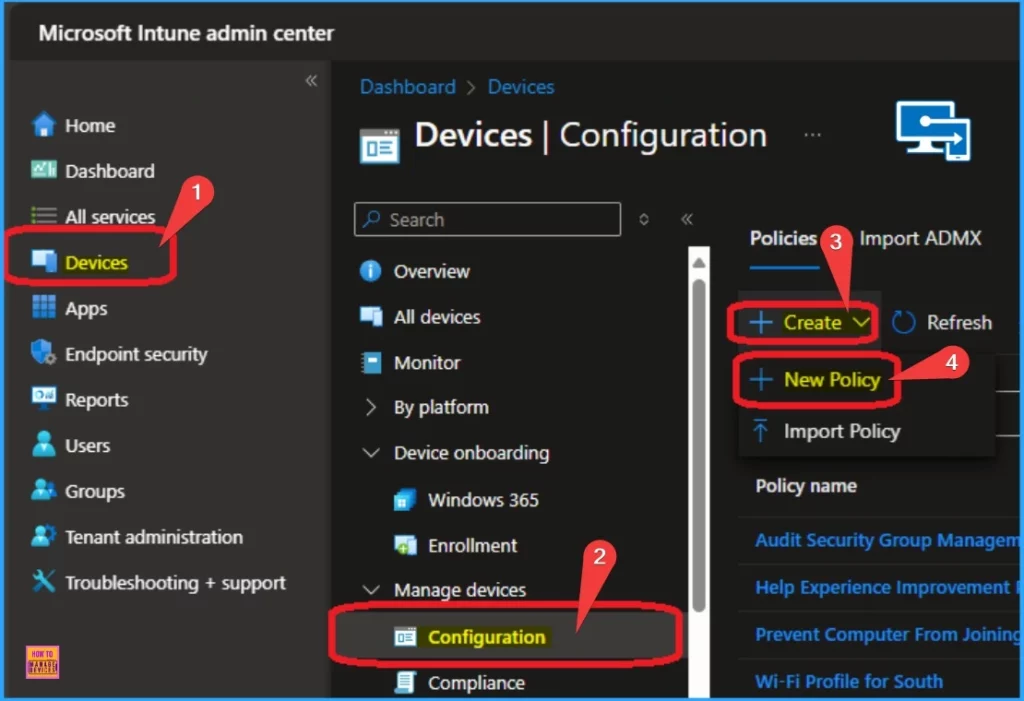
| Go to Devices > Windows >Configuration > Create > New Policy |
- Manage Google Chrome Settings Using Intune Administrative Template | Settings Catalog
- Intune Administrative Templates Support is Going Away by December 2024
- Download Windows 11 23H2 Administrative Templates
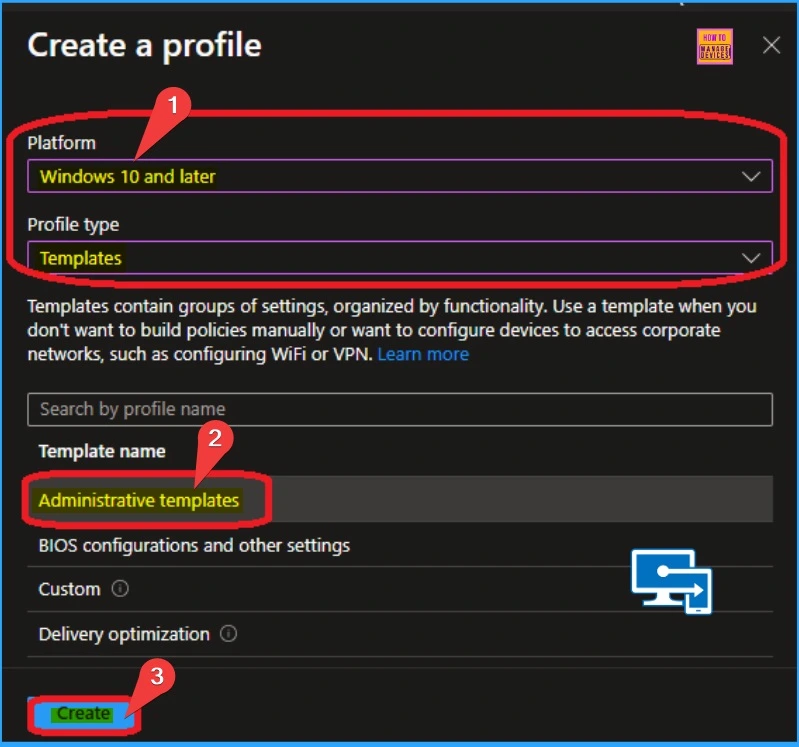
After clicking on +New Policy, you must add the platform and Template type to create a policy profile for Edge Password Manager and Protection.
- Select Windows 10 and later as Platform
- Select Profile Type as Templates
- Select Template Name as Administrative Templates
- Click on the Create button
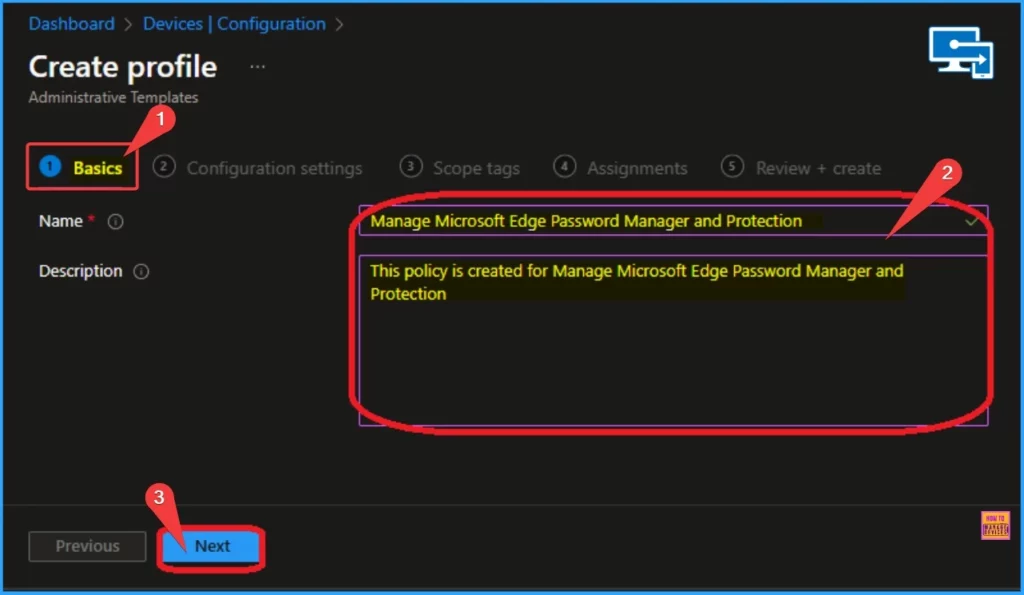
Then, you will get the Basic tab for Policy Creation. On this tab, you can Enter the policy’s Name and Description so that it is easy to recognize later. After adding name and the Description click on the Next button.
Configuration Tab
Next is the Configuration settings tab, which shows all settings. Here, you can select computer configuration and user configuration. I chose Computer Configuration and Microsoft Edge Computer Configuration.
- Select Password Manager and Protection from Microsoft Edge
- Select Allow users to be alerted if their password are found to be safe
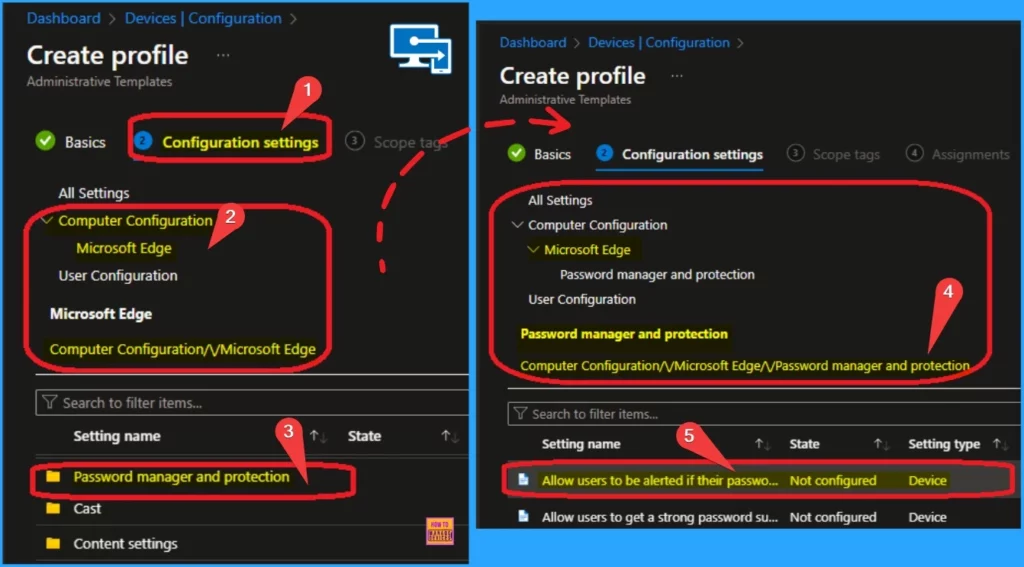
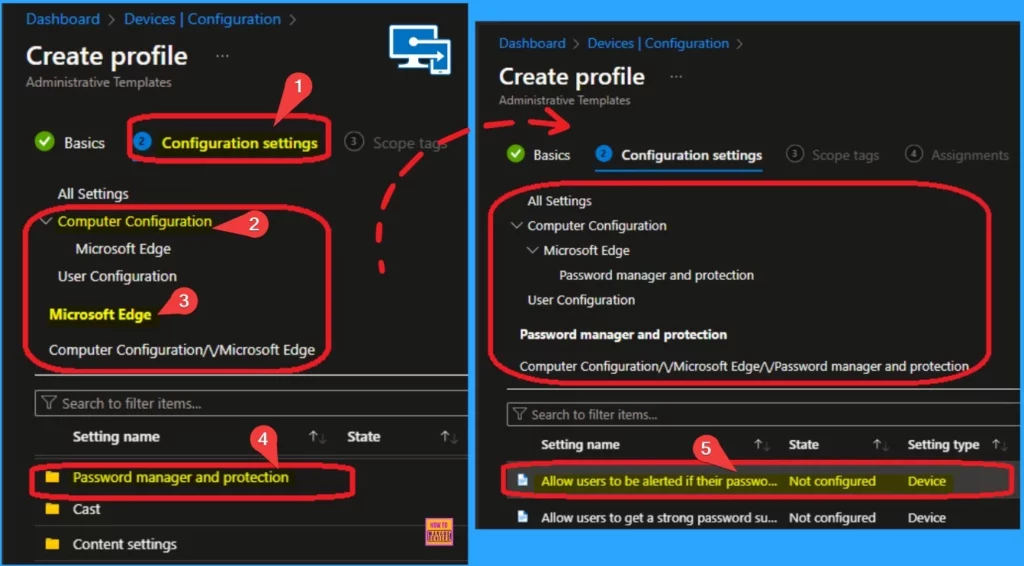
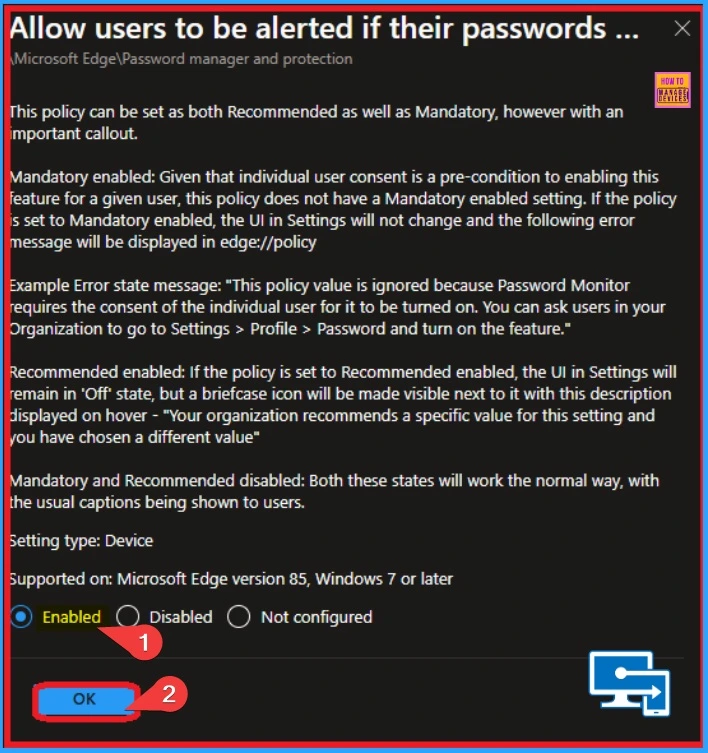
The Allow users to be alerted if their passwords are found to be safe setting is not configured by default. After selecting this policy, you will get a new window that shows more details of the policy.
| Enable | Disable | Mandatory Enabled | Example Error state message | Recommended enabled | Mandatory and Recommended disabled | Setting type | Supported on |
|---|---|---|---|---|---|---|---|
| If you enable this policy and a user consents to enabling the policy, the user will get alerted if any of their passwords stored in Microsoft Edge are found to be unsafe. Microsoft Edge will show an alert and this information will also be available in Settings > Passwords > Password Monitor. | If you disable this policy, users will not be asked for permission to enable this feature. Their passwords will not be scanned and they will not be alerted either. | Given that individual user consent is a pre-condition to enabling this feature for a given user, this policy does not have a Mandatory enabled setting. If the policy is set to Mandatory enabled, the UI in Settings will not change and the following error message will be displayed in edge://policy | “This policy value is ignored because Password Monitor requires the consent of the individual user for it to be turned on. You can ask users in your Organization to go to Settings > Profile > Password and turn on the feature.” | If the policy is set to Recommended enabled, the UI in Settings will remain in ‘Off’ state, but a briefcase icon will be made visible next to it with this description displayed on hover – “Your organization recommends a specific value for this setting and you have chosen a different value” | Both these states will work the normal way, with the usual captions being shown to users. | Device | Microsoft Edge version 85, Windows 7 or later |
- Click on the Radio button near Enabled
- Click on the Next button
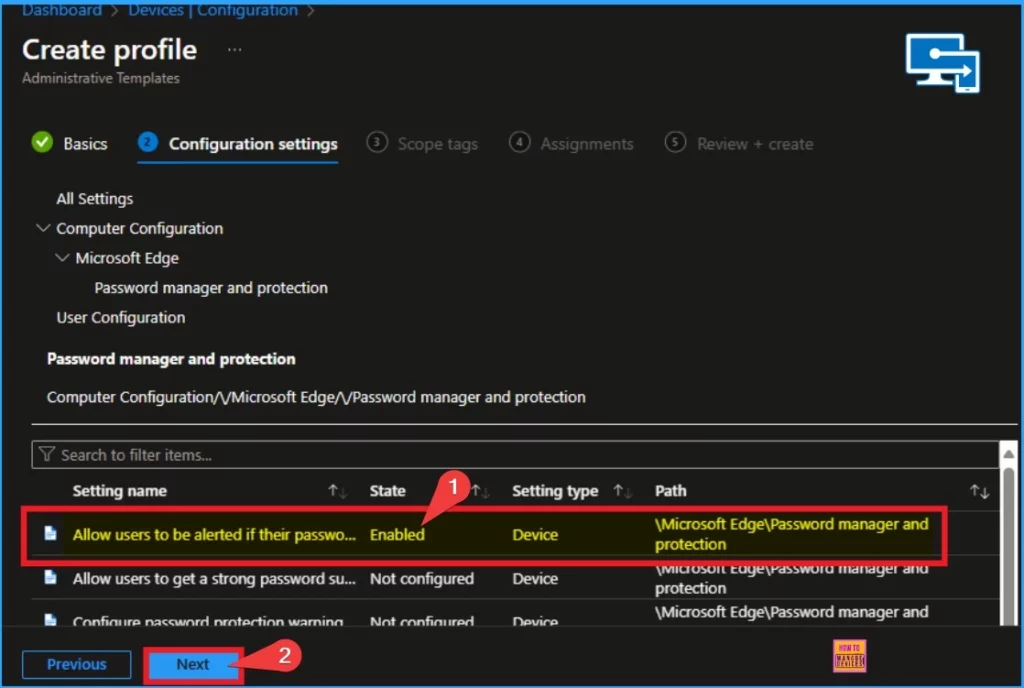
After clicking on the Enable option from the previous window, the selected policy state is shown as Enabled on the configuration tab. Click on the Next button.
- Enable Alternate Error Pages in Microsoft Edge Via Microsoft 365 Admin Center Policy
- Enable or Disable Password Prompt for Autofill in the MS Edge Browser using Intune Policy
- Enable Disable MS Edge Browser Saving Passwords to Password Manager option using Intune
Scope Tags
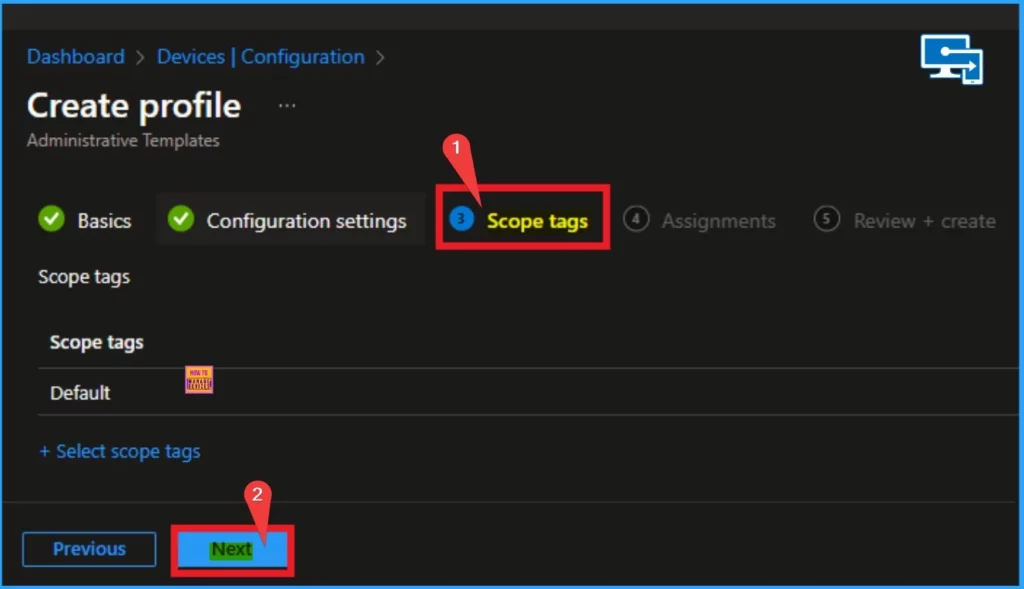
Scope Tags is the next tab in Intune Administative Template. This is not a mandatory fileld and you can skip it. Click on the Next button.
Assignments
On the Assignments tab, you can see Included Groups and Excluded groups. Here, I select Add groups from Included groups.
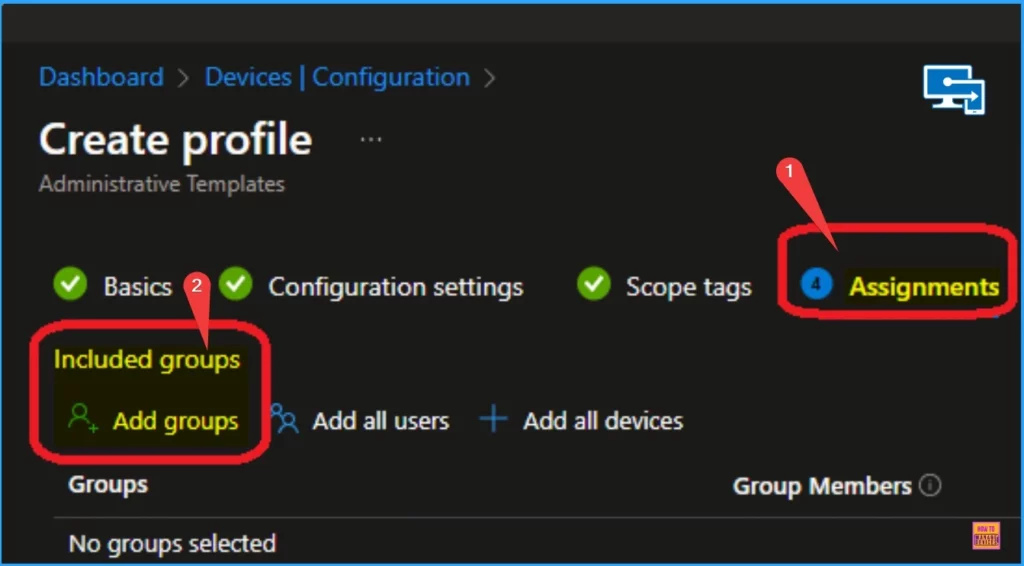
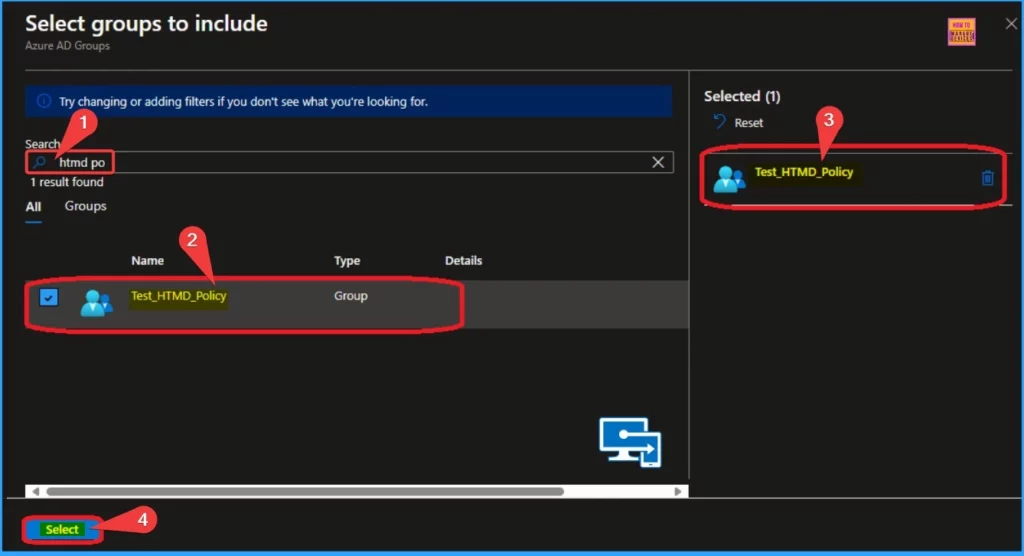
After clicking on Add Groups from Included Groups, you can search for a group in this window. After choosing a Group, the selected group will be shown as Selected. Click on the Select button to continue.
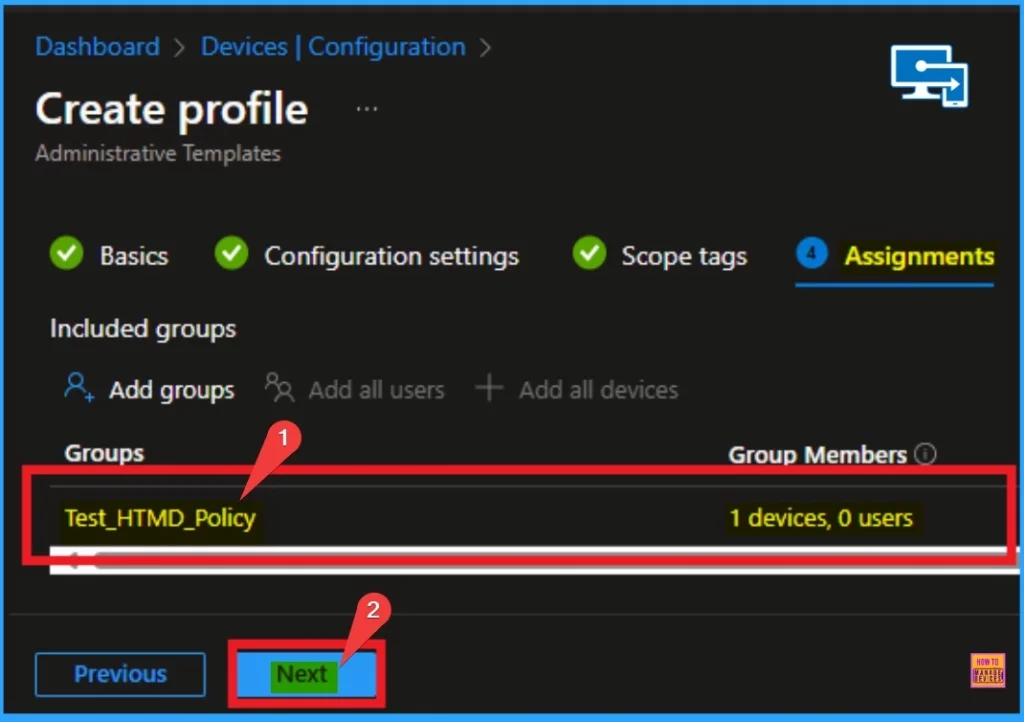
After selecting the group, it will shown on the Assignment tab. Click on the Next button to continue. The below window will help you.
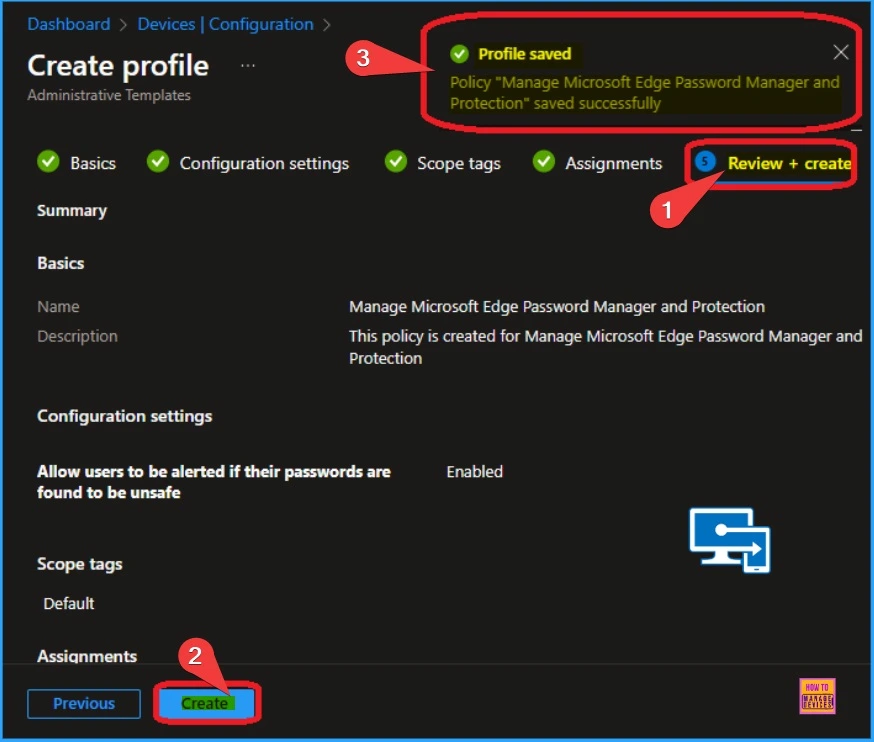
Next is the Review + Create tab, which helps you see all the details of the policy. Here, you can see all the settings on each tab separately. After reviewing all these things, you can click on the Create button.
Administrative Template Deployment Status
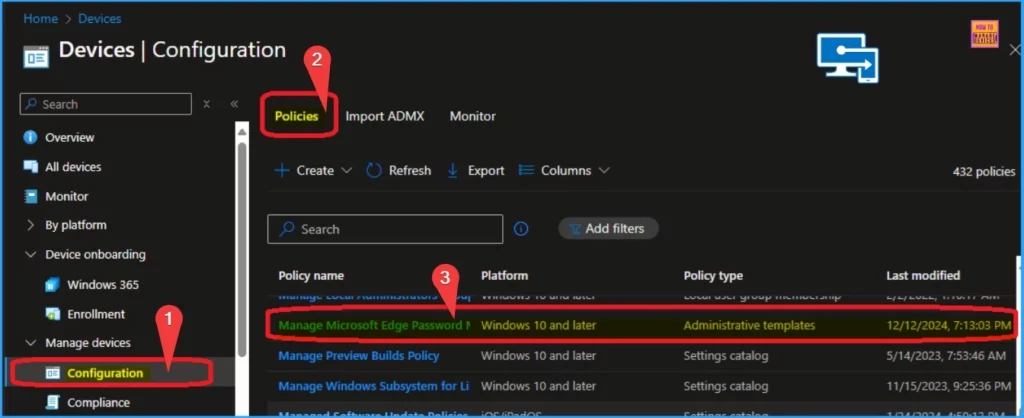
You can easily find the policy’s Deployment status on the Intune Portal. To do this, Navigate to Devices > Configuration > Policies. On the Policies tab, you can search for your policy name and find it easily.
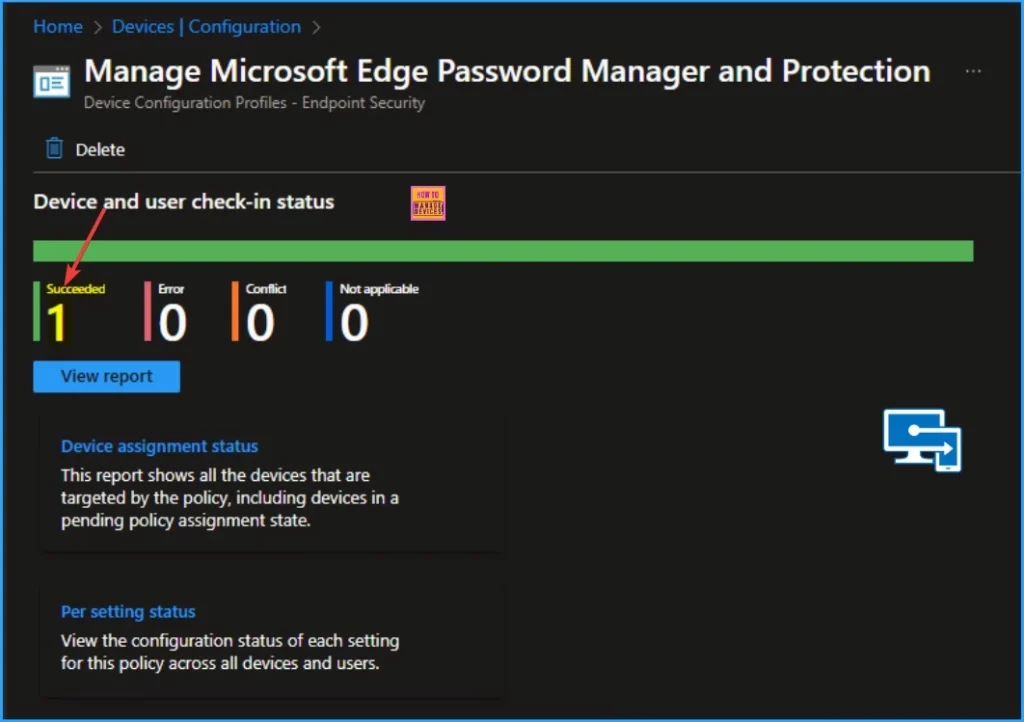
After finding the policy, you can open it on the Intune Portal. If the Device and user check-in status shows “succeeded,” your policy has been successfully created on the selected device.
Client Side Verification – Event Log
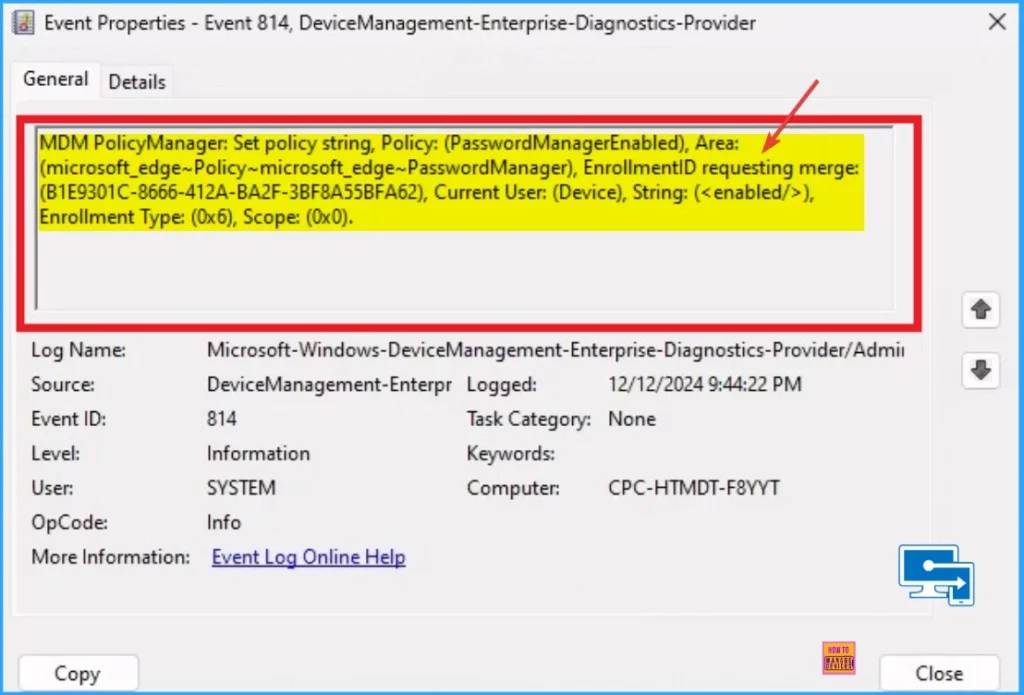
The Intune event ID 814 indicates that a string policy is applied on the Windows 11 or 10 devices. You can also see the exact value of the policy being applied on those devices.
You can check the Event log path to confirm this – Applications and Services Logs – Microsoft – Windows – Devicemanagement-Enterprise-Diagnostics-Provider – Admin.
MDM PolicyManager: Set policy string, Policy: (PasswordManagerEnabled), Area: (microsoft_edge~Policy~microsoft_edge~PasswordManager), EnrollmentID requesting merge: (B1E9301C-8666-412A-BA2F-3BF8A55BFA62), Current User: (Device), String: (), Enrollment Type: (0x6), Scope: (0x0).
Need Further Assistance or Have Technical Questions?
Join the LinkedIn Page and Telegram group to get the latest step-by-step guides and news updates. Join our Meetup Page to participate in User group meetings. Also, Join the WhatsApp Community to get the latest news on Microsoft Technologies. We are there on Reddit as well.
Author
Anoop C Nair has been Microsoft MVP from 2015 onwards for 10 consecutive years! He is a Workplace Solution Architect with more than 22+ years of experience in Workplace technologies. He is also a Blogger, Speaker, and Local User Group Community leader. His primary focus is on Device Management technologies like SCCM and Intune. He writes about technologies like Intune, SCCM, Windows, Cloud PC, Windows, Entra, Microsoft Security, Career, etc.


Discussion