






Enable Edge Settings for Unload IE Mode Tabs Before Closing Browser Session
Let’s learn how you can enable Edge settings for unload IE mode tabs before closing browser session. The new policy InternetExplorerIntegrationAlwaysWaitForUnload causes Microsoft Edge to continue running until all Internet Explorer tabs have completely finished unloading.
Microsoft Edge Stable Channel Version 105.0.1343.25 included new features, improvements and several new policies to provide best user experience. The newly added policy allows Internet Explorer plugins like ActiveX controls to perform additional critical work even after the browser has been closed.
However, this can cause stability and performance issues, and Microsoft Edge processes may remain active in the background with no visible windows if the webpage or plugin prevents Internet Explorer from unloading. This policy should only be used if your organization depends on a plugin that requires this behavior.
You can also manage your browsing experience more organized while browsing the web by adding favorites sites and keeping track of the websites you frequently visit by adding favorites in Microsoft Edge, learn how to configure Edge Chromium Favorites using Intune Policy.

You have to set up Internet Explorer mode in Microsoft Edge to support legacy web-based apps or sites. You can also configure the Enterprise Mode site list to use IE Mode. Here look at the option to disable the IE11 standalone browser with Group Policy settings or the Intune Settings Catalog option.
- Configure Tracking Prevention in Microsoft Edge
- IE11 To Microsoft Edge Migration Adoption Kit | Free Download PowerPoint Email Templates
Registry Settings for Enable Edge Settings for Unload IE Mode Tabs Before Closing Browser Session
Let’s check the registry entries for Microsoft Edge, and You must be signed in as an administrator to apply to the registry.
| Settings Name | Registry Path | Type | Value Name | Value Data |
|---|---|---|---|---|
Wait for Internet Explorer mode tabs to completely unload before ending the browser session | HKLM or HKCU Software\Policies\Microsoft\Edge | REG_DWORD | InternetExplorerIntegrationAlwaysWaitForUnload | 00000001 |
Enable Edge Settings for Unload IE Mode Tabs Before Closing Browser Session using Group Policy
This policy lets you configure Internet Explorer plugins like ActiveX controls to perform additional critical work even after the browser has been closed. However, this can cause stability and performance issues, and Microsoft Edge processes may remain active in the background with no visible windows.
You can refer to the Microsoft Edge browser group policy post to update ADMX Templates to get the latest policies – Microsoft Edge ADMX Group Policy Settings.
The following group policy helps to enable the Microsoft Edge Settings for Unload IE Mode Tabs Before Closing Browser Session.
- Launch Group Policy Management Console.
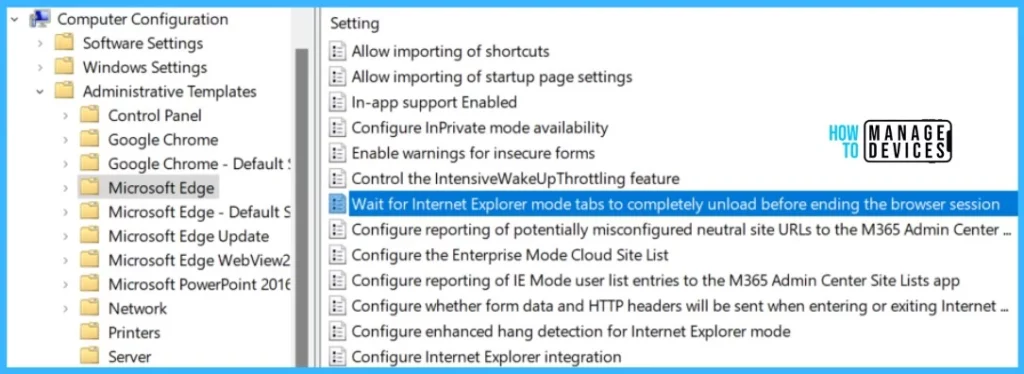
- Navigate Computers Configuration – Policies – Administrative Templates – Microsoft Edge.
- Open the policy setting called Wait for Internet Explorer mode tabs to completely unload before ending the browser session.
Let’s check out the steps added to Create a Group Policy for Microsoft Edge in Domain Controller, To complete this procedure, you should have delegated permissions to create new GPOs.
Note – In Local Group Policy Settings, You will locate the policy in Computer Configuration > Administrative Templates > Microsoft Edge.
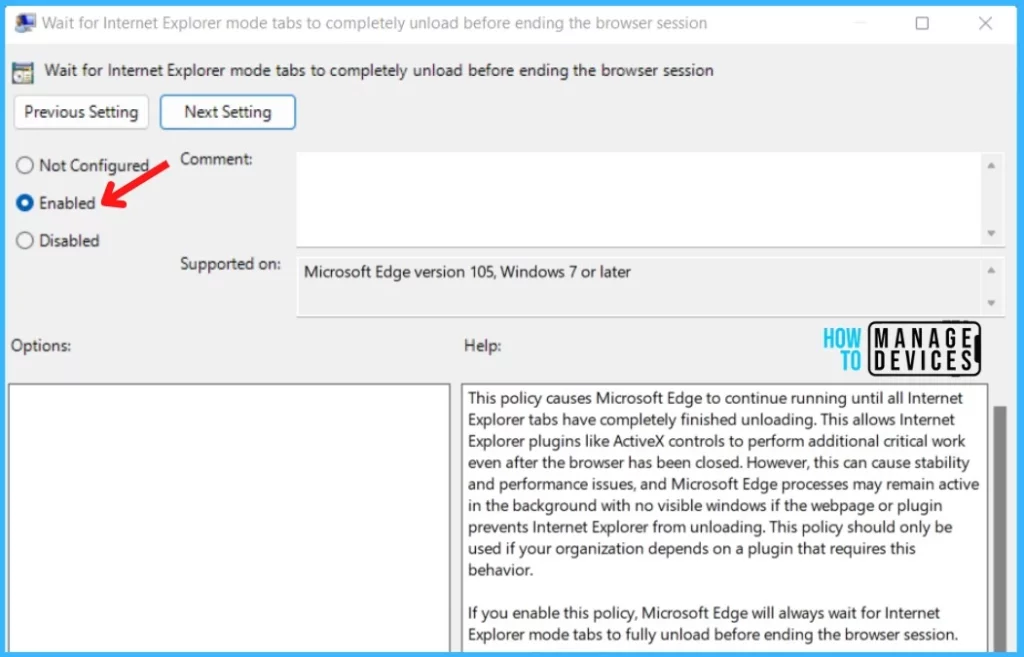
On the Wait for Internet Explorer mode tabs to completely unload before ending the browser session, Click on Enabled and Apply.
If you enable this policy, Microsoft Edge will always wait for Internet Explorer mode tabs to fully unload before ending the browser session.
Disable Edge Settings for Unload IE Mode Tabs Before Closing Browser Session
The following group policy helps to disable Waiting for Unload IE Mode Tabs Before Closing Browser Session for Microsoft Edge browsers –
- Launch Group Policy Management Console.
- Navigate Computers Configuration – Policies – Administrative Templates – Microsoft Edge.
- Open the policy setting called Wait for Internet Explorer mode tabs to completely unload before ending the browser session.
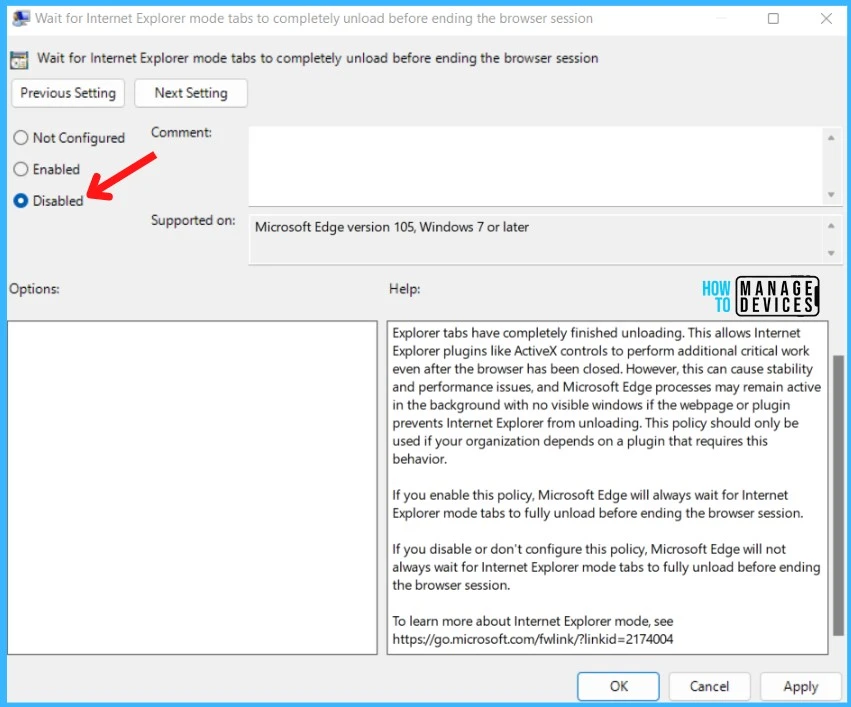
- Double click on Wait for Internet Explorer mode tabs to completely unload before ending the browser session, Click on Disabled and Apply.
NOTE! If you disable or don’t configure this policy, Microsoft Edge will not always wait for Internet Explorer mode tabs to fully unload before ending the browser session.
Intune Policy Enable Edge Settings for Unload IE Mode Tabs Before Closing Browser Session
Let’s see if there are any Intune Policy enable Edge Settings for Unload IE Mode Tabs Before Closing Browser Session. Most of the administrative template policies can be configured from Intune Settings Catalog.
This policy is newly introduced into the Group Policy setting as part of the Microsoft Edge stable version Version 105.0.1343.25. Hence, this policy is unavailable under Intune Settings Catalog while writing this post.
- Sign in to the Microsoft Endpoint Manager admin center https://endpoint.microsoft.com/.
- Select Devices > Configuration profiles > Create profile.
- Select platform -> Windows 10 and Later.
- Click on Create button (and follow the guide to create Intune Settings Catalog Policy).
There are thousands of settings available in the settings catalog. To make it easier to search specific settings, use the built-in features shown in the diagram below.
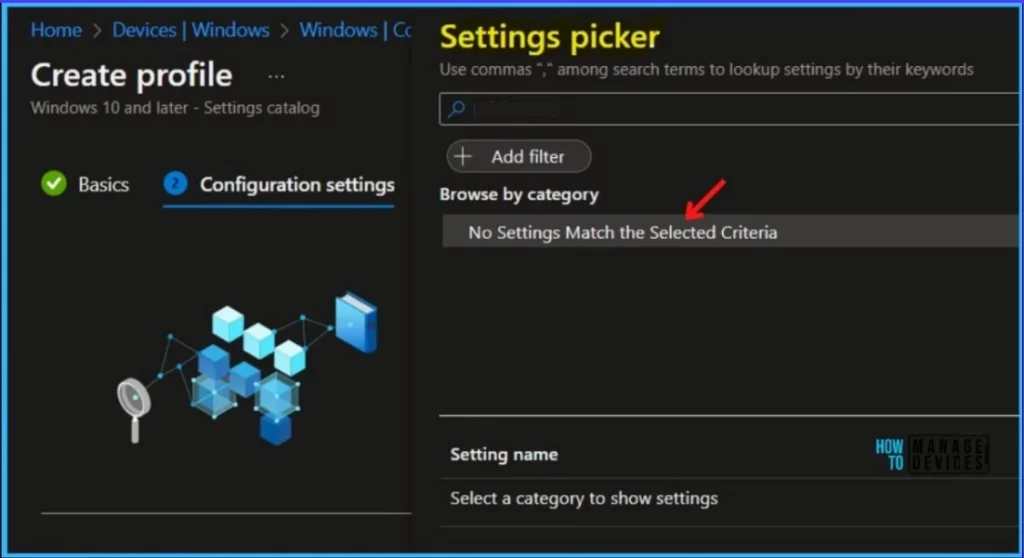
You can search for the policy and complete the wizard, At the time of writing the post i am unable to locate the policy in Intune Settings catalog resultant No Settings Match the Selected Criteria.
| Group Policy (ADMX) info | Windows Registry Settings | Requires browser restart |
| GP name: Always use the OS capture engine to avoid issues with capturing Internet Explorer mode tabs | Value Name: InternetExplorerIntegrationAlwaysUseOSCapture | No |




Discussion